Apple CarPlay makes every drive easier and safer. It lets you use navigation, calls, messages, and music directly from your Kia infotainment screen. However, when Kia CarPlay not working becomes a problem, even a simple trip can feel frustrating. Many drivers experience this issue without any warning.
You may notice several different symptoms. For example, your iPhone may charge but fail to connect to CarPlay. In other cases, the infotainment system cannot detect your device at all. Sometimes the wireless connection keeps disconnecting during a drive. Moreover, the problem may appear after installing a new iOS update or updating your Kia software.
Fortunately, you can solve most CarPlay problems without professional repairs. First, you should identify the real cause of the connection failure. A damaged USB cable, incorrect iPhone settings, outdated software, or temporary system glitches often trigger the issue. Once you know what caused the problem, you can apply the right solution with confidence.
In this complete guide, you will learn why Kia CarPlay not working happens and how to fix it step by step. We will cover 15 proven solutions that work for many common situations. In addition, you will discover tips to prevent future connection problems and keep Apple CarPlay running smoothly. Whether you drive a Kia Sportage, Sorento, Telluride, Seltos, K5, EV6, Carnival, Forte, Soul, or another compatible model, this guide will help you restore Apple CarPlay quickly and enjoy a more reliable driving experience.
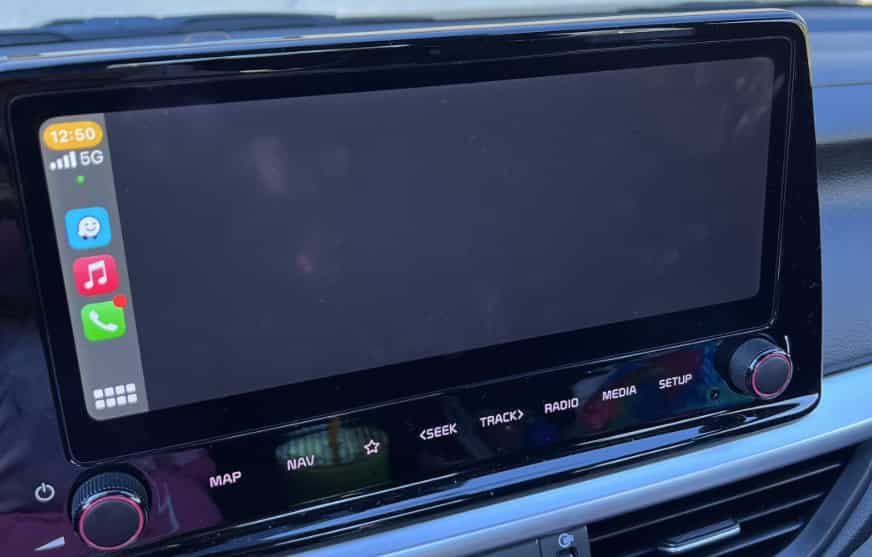
Why Is Your Kia CarPlay Not Working?
Apple CarPlay relies on several systems working together at the same time. Your iPhone, the Kia infotainment system, the USB connection or wireless network, and the vehicle software must communicate correctly. If one part fails, Apple CarPlay may stop working or perform unpredictably. Therefore, identifying the root cause is the first step toward a lasting solution.
Many drivers assume the problem comes from the vehicle. However, the issue often starts with the iPhone or its settings. For example, Siri may be disabled, Apple CarPlay may be restricted in Screen Time, or Bluetooth and WiFi may not connect properly. Even a temporary software glitch can interrupt communication between your phone and the infotainment system.
The connection method also plays an important role. A worn USB cable may provide power but fail to transfer data. Likewise, dirt or debris inside the USB port can weaken the connection. If your Kia supports wireless Apple CarPlay, signal interference or incorrect wireless settings may prevent the system from pairing successfully.
Software compatibility is another common factor. Apple regularly releases new iOS versions, while Kia updates its infotainment software to improve performance and compatibility. If either device runs outdated software, communication problems can occur. On the other hand, a newly released update may introduce temporary compatibility issues until both systems receive additional improvements.
Hardware problems are less common, but they still happen. A damaged USB hub, a faulty infotainment module, or internal wiring issues can prevent Apple CarPlay from working correctly. Fortunately, these cases are relatively rare. Most drivers can restore a stable connection by adjusting settings, updating software, or replacing a faulty cable.
Before trying advanced troubleshooting methods, it helps to perform a few simple checks. These quick steps can eliminate the most common causes in just a few minutes. As a result, you may restore Apple CarPlay without resetting your vehicle or visiting a Kia dealership.
Quick Checklist Before Trying Advanced Fixes
Before you move on to advanced troubleshooting, take a few minutes to complete this quick checklist. These simple checks solve many Apple CarPlay connection problems and can save you time. In many cases, you do not need to reset your iPhone or your Kia infotainment system.
First, unlock your iPhone before connecting it to your vehicle. Apple CarPlay may not start if the phone remains locked. Next, confirm that Siri is turned on because Apple CarPlay depends on Siri to function properly. After that, open your iPhone settings and make sure Apple CarPlay is allowed.
If you use a wired connection, inspect the USB cable carefully. Look for signs of wear, loose connectors, or visible damage. In addition, try a certified Apple cable or a high quality replacement if you have one available. A cable that charges your iPhone may still fail to transfer data.
Now check the USB port inside your Kia. Dust, lint, or small debris can interrupt the data connection. Therefore, make sure the port is clean and the cable fits securely. If your vehicle has more than one USB port, connect your iPhone to the port that supports Apple CarPlay because not every port transfers data.
For wireless Apple CarPlay, verify that both Bluetooth and WiFi are enabled on your iPhone. Then remove any old or unused Bluetooth connections that may interfere with pairing. Finally, stay close to the infotainment system during the initial connection to reduce the chance of signal interruptions.
You should also restart both your iPhone and your Kia infotainment system. A simple restart clears temporary software glitches and refreshes the connection between both devices. As a result, Apple CarPlay often starts working again without any additional changes.
If Apple CarPlay still does not work after completing these checks, do not worry. The following proven fixes explain how to solve more specific connection, software, and hardware problems step by step.
15 Proven Fixes to Restore Kia Apple CarPlay
Restart Your iPhone
Restarting your iPhone is the simplest solution, yet many drivers skip this step. Temporary software glitches can interrupt communication between your phone and the Kia infotainment system. A quick restart clears the device memory and reloads important system services. As a result, Apple CarPlay may reconnect normally.
Turn your iPhone off completely and wait for about thirty seconds. Then turn it back on and unlock the device before connecting it to your vehicle. If your Kia supports wireless Apple CarPlay, wait until Bluetooth and WiFi reconnect automatically. Next, try launching Apple CarPlay again.
If the connection works after a restart, the issue was likely caused by a temporary software conflict. However, if the problem continues, move on to the next solution.
Restart the Kia Infotainment System
The infotainment system controls the communication between your Kia and your iPhone. Like any computer, it can experience temporary errors after running for a long time. Restarting the system refreshes its memory and often restores a stable connection.
Turn off your vehicle completely before opening the driver’s door. Wait for at least one minute so the infotainment system can shut down fully. Then start the vehicle again and reconnect your iPhone. If your Kia includes a reset button near the display, follow the instructions in the owner’s manual before using it.
Many connection problems disappear after both the phone and the infotainment system restart. Therefore, always complete this step before trying more advanced troubleshooting methods.
Confirm That Your Kia Supports Apple CarPlay
Not every Kia model includes Apple CarPlay as standard equipment. In addition, some older vehicles require a software update before the feature becomes available. Checking compatibility helps you avoid unnecessary troubleshooting.
Open the infotainment menu and look for the Apple CarPlay option. If you cannot find it, review your vehicle specifications or check the owner’s manual. You should also confirm that your model year supports either wired or wireless Apple CarPlay because features vary between different vehicles.
If your Kia supports Apple CarPlay but the option does not appear, the infotainment software may need an update. In that case, continue with the software related fixes later in this guide.
Inspect the USB Port
A damaged or dirty USB port can interrupt data transmission even though your iPhone continues charging. This is one of the most common causes of Apple CarPlay connection problems.
Examine the USB port carefully with a flashlight. Remove any dust or lint that may block the connector. Next, plug the cable in firmly and check whether it feels secure. A loose connection can cause Apple CarPlay to disconnect repeatedly while you are driving.
If your Kia has multiple USB ports, connect your iPhone to the designated data port. Some ports provide charging only and cannot launch Apple CarPlay.
Replace the USB Cable
The USB cable carries both power and data. Although your iPhone may charge normally, an internal cable fault can prevent Apple CarPlay from starting. Cheap or damaged cables are responsible for many connection failures.
Try using an original Apple cable or a certified replacement from a trusted manufacturer. Avoid heavily worn cables or accessories with visible damage. After connecting the new cable, wait a few seconds for the infotainment system to recognize your iPhone.
If Apple CarPlay starts working with a different cable, you have already found the cause of the problem. Otherwise, continue to the next fix and check the software settings on your iPhone.
Make Sure Apple CarPlay Is Enabled on Your iPhone
Apple CarPlay cannot connect if the feature is disabled on your iPhone. This setting may change after a system update or when Screen Time restrictions are enabled. Therefore, it is worth checking before trying more advanced solutions.
Open Settings, tap General, and then select CarPlay. Choose your Kia if it appears in the list. If your vehicle is missing, reconnect your iPhone and allow Apple CarPlay when the prompt appears. Next, confirm that CarPlay is not restricted under Screen Time and Content and Privacy Restrictions.
After saving the changes, reconnect your iPhone and test the connection again. In many cases, enabling the correct settings restores Apple CarPlay immediately.
Turn On Siri
Siri is an essential part of Apple CarPlay. If Siri is disabled, Apple CarPlay may fail to launch or work only partially. Fortunately, enabling Siri takes only a few moments.
Open Settings, tap Apple Intelligence & Siri or Siri, depending on your iOS version, and make sure Siri is enabled. Then allow Siri to work while your iPhone is locked. This option lets Apple CarPlay respond as soon as you connect your phone.
Once you finish, reconnect your iPhone to your Kia. If Siri was the missing requirement, Apple CarPlay should start normally.
Remove Your Kia and Pair It Again
A damaged connection profile can prevent your iPhone and vehicle from communicating correctly. Creating a new connection often resolves pairing problems.
Open Settings, select General, and tap CarPlay. Choose your Kia and remove the existing connection. Next, open the Bluetooth settings on both your iPhone and the infotainment system. Delete the previous pairing from each device.
Restart your iPhone and your Kia infotainment system. Then pair both devices again and complete the Apple CarPlay setup from the beginning. This process creates a fresh connection and removes outdated configuration data.
Reset Network Settings
Network settings control Bluetooth, WiFi, and other wireless connections. If these settings become corrupted, wireless Apple CarPlay may stop working or disconnect unexpectedly.
Open Settings, tap General, select Transfer or Reset iPhone, and choose Reset Network Settings. Your iPhone will restart after completing the process. Keep in mind that this step removes saved WiFi networks and Bluetooth devices, so you will need to reconnect them afterward.
After the restart, pair your iPhone with your Kia again and test Apple CarPlay. If incorrect network settings caused the issue, the connection should now remain stable.
Update iOS and Kia Infotainment Software
Outdated software is another common reason Kia CarPlay not working becomes a recurring problem. Apple frequently releases iOS updates to improve performance, while Kia provides infotainment updates that enhance compatibility and fix known bugs.
First, check for the latest iOS version on your iPhone. Install any available update and restart the device after the installation finishes. Next, verify whether your Kia infotainment system has a newer software version. If an update is available, follow the official installation instructions before reconnecting your iPhone.
Once both devices run the latest software, test Apple CarPlay again. Updated software improves compatibility, fixes communication errors, and reduces the risk of future connection problems. If Apple CarPlay still does not work, continue with the remaining fixes that focus on system resets, wireless connectivity, and possible hardware faults.
Reset the Kia Infotainment System to Factory Settings
If Apple CarPlay still does not work after updating both devices, resetting the infotainment system may help. Over time, saved settings, temporary files, or incorrect configurations can interfere with normal operation. A factory reset removes these issues and restores the original system settings.
Before you begin, back up any saved preferences if your vehicle allows it. Then open the infotainment settings and locate the factory reset option. Confirm the reset and wait until the system finishes the process. Once the restart is complete, pair your iPhone with the vehicle again and set up Apple CarPlay from the beginning.
A factory reset should be one of the last software solutions you try. Although it removes custom settings, it often resolves persistent connection problems that simpler fixes cannot eliminate.
Disable VPN and Focus Mode
Some iPhone features can interrupt the communication required for Apple CarPlay. A VPN may change network behavior, while certain Focus modes can restrict notifications, wireless connections, or background activities. As a result, Apple CarPlay may not connect as expected.
Open your iPhone settings and temporarily disable any active VPN. Next, check whether Focus mode is enabled. If it is, turn it off and reconnect your iPhone to the vehicle. You can enable these features again after confirming that Apple CarPlay works correctly.
Although this issue is less common, it is easy to test and only takes a few minutes. Therefore, it is worth checking before assuming there is a hardware problem.
Troubleshoot Wireless Apple CarPlay
Wireless Apple CarPlay depends on both Bluetooth and WiFi working together. If either connection becomes unstable, the pairing process may fail or disconnect unexpectedly. Therefore, you should verify both wireless connections before looking for more complex causes.
Start by turning Bluetooth and WiFi off on your iPhone. Wait a few seconds, then turn them back on. Restart the infotainment system and remove any old Bluetooth devices that you no longer use. Too many saved connections can sometimes create pairing conflicts.
Next, move your iPhone closer to the infotainment display during the initial connection. Wireless interference from other devices may reduce signal quality, especially in busy environments. If the connection becomes stable after these steps, the problem was most likely related to wireless communication rather than the vehicle itself.
Check for Hardware Problems
If none of the previous solutions work, inspect the hardware more carefully. A damaged USB port, faulty USB hub, or defective infotainment module can prevent Apple CarPlay from functioning correctly. Although these failures are uncommon, they can occur after years of regular use or physical damage.
Try connecting a different iPhone to your Kia. If the second device also fails to connect, the issue is more likely related to the vehicle. Likewise, test your own iPhone with another Apple CarPlay compatible vehicle. This comparison helps identify whether the fault comes from the phone or the car.
If you notice loose USB connections, repeated power interruptions, or an unresponsive infotainment screen, professional inspection may be necessary. Identifying the faulty component early can prevent additional problems later.
Visit an Authorized Kia Service Center
If Apple CarPlay still refuses to work after completing every troubleshooting step, it is time to seek professional assistance. Certified technicians have diagnostic tools that can detect software errors, hardware failures, and communication issues that are difficult to identify at home.
Describe the symptoms as clearly as possible when you visit the service center. Mention whether the problem affects wired or wireless Apple CarPlay, when it first appeared, and which troubleshooting steps you have already completed. This information helps technicians diagnose the issue more efficiently.
If your vehicle is still covered by the manufacturer warranty, the repair may qualify for warranty service depending on the cause of the problem. Once the underlying issue is resolved, Apple CarPlay should operate normally and provide a stable connection during every drive.
Kia CarPlay Problems by Symptom
When Kia CarPlay not working becomes a recurring issue, the symptoms often reveal the underlying cause. Paying close attention to how Apple CarPlay behaves can help you identify the problem much faster. For example, if your iPhone charges but Apple CarPlay never appears on the infotainment screen, the USB cable may supply power without transferring data. In this situation, replacing the cable with a certified one and connecting it to the correct USB data port can often restore the connection. Likewise, if Apple CarPlay keeps disconnecting while you are driving, an unstable USB connection, wireless interference, or outdated software is usually responsible. Restarting both your iPhone and the infotainment system, updating their software, and reconnecting the devices often improve connection stability.
Some drivers notice that the Apple CarPlay option is greyed out or unavailable. This problem typically occurs when the connection profile becomes corrupted or important settings such as Siri or Apple CarPlay permissions are disabled. Removing the existing vehicle profile and pairing your Kia again usually resolves the issue. Wireless Apple CarPlay can also fail if Bluetooth or WiFi does not establish a stable connection. Turning both services off and back on before pairing again often fixes temporary communication errors. In addition, audio problems may occur even when Apple CarPlay connects successfully. Checking the selected audio source, disconnecting other Bluetooth devices, and increasing the volume on both the iPhone and the infotainment system are simple but effective solutions. By matching the symptom with the correct troubleshooting method, you can resolve most Apple CarPlay problems quickly without replacing expensive components or visiting a service center.
Kia Models That Support Apple CarPlay
Apple CarPlay is available on most modern Kia vehicles, but the exact features depend on the model year and infotainment system. While many newer models support both wired and wireless Apple CarPlay, some earlier vehicles only work through a USB connection. Understanding your vehicle’s compatibility is important because it helps you choose the correct troubleshooting steps. If your Kia does not support wireless Apple CarPlay, for example, trying to fix a wireless connection issue will not solve the problem.
Popular models such as the Kia Sportage, Sorento, Telluride, Seltos, Carnival, K5, Forte, Soul, Niro, and EV6 include Apple CarPlay on many trim levels. However, support may vary depending on the production year, regional specifications, and factory installed infotainment system. Some older vehicles also require a software update before Apple CarPlay becomes available. Therefore, checking your owner’s manual or your infotainment system specifications is always a good first step before troubleshooting.
If you are unsure whether your vehicle supports Apple CarPlay, open the infotainment settings and look for the Apple CarPlay menu. You can also connect your iPhone using a compatible USB cable to see whether the system detects the device automatically. If Apple CarPlay does not appear even though your model supports the feature, updating the infotainment software may restore compatibility. Once you confirm that your Kia supports Apple CarPlay, you can focus on finding the real cause of the connection problem instead of spending time on unnecessary troubleshooting.
How to Prevent Kia CarPlay Problems in the Future
Preventing Apple CarPlay problems is much easier than troubleshooting them after they appear. A few simple habits can keep the connection stable and reduce the chance of unexpected interruptions. Regular maintenance also helps your iPhone and Kia infotainment system communicate more reliably, especially if you use Apple CarPlay every day.
One of the most effective ways to prevent connection issues is to use a certified USB cable that supports both charging and data transfer. Low quality or damaged cables often work for charging but fail to establish a stable data connection. You should also avoid bending the cable excessively because internal damage may develop over time. In addition, keep the USB port clean by removing dust or debris that could interfere with the connection.
Keeping your software up to date is equally important. Apple frequently releases iOS updates that improve system performance and compatibility with Apple CarPlay. Kia also provides infotainment software updates to fix bugs and enhance connectivity. Installing these updates regularly reduces the risk of compatibility issues between your iPhone and your vehicle.
Good wireless practices can also improve reliability if your Kia supports wireless Apple CarPlay. Keep Bluetooth and WiFi enabled only when needed, remove old pairing records that you no longer use, and reconnect your iPhone if the connection becomes unstable. Restarting both your iPhone and the infotainment system occasionally can clear temporary software glitches before they develop into larger problems.
Finally, pay attention to unusual symptoms such as frequent disconnects, delayed responses, or an unresponsive touchscreen. Addressing these issues early often prevents more serious problems later. With regular software updates, quality accessories, and proper maintenance, you can enjoy a faster, more stable, and more reliable Apple CarPlay experience every time you drive your Kia.
Frequently Asked Questions
Why is my Kia CarPlay not working even though my iPhone is charging?
If your iPhone charges but Apple CarPlay does not start, the USB cable or USB port is the most likely cause. Charging only requires power, while Apple CarPlay also needs a stable data connection. Try using a certified cable, connect to the correct USB data port, and make sure Apple CarPlay is enabled on your iPhone.
Why does Kia CarPlay keep disconnecting?
Frequent disconnections are usually caused by a damaged USB cable, wireless interference, outdated software, or an unstable Bluetooth or WiFi connection. Restart both your iPhone and the infotainment system, update their software, and reconnect the devices to improve stability.
How do I reset Apple CarPlay on my Kia?
Remove your Kia from the Apple CarPlay settings on your iPhone, delete the Bluetooth pairing from both devices, and restart them. Afterward, pair your iPhone with the vehicle again and complete the Apple CarPlay setup from the beginning. This creates a fresh connection and often resolves pairing issues.
Does updating iOS affect Apple CarPlay?
Yes. A new iOS version can improve Apple CarPlay performance, but it may also introduce temporary compatibility issues. Keeping both your iPhone and the Kia infotainment system updated helps maintain reliable communication between the two devices.
Why is wireless Apple CarPlay not connecting?
Wireless Apple CarPlay depends on both Bluetooth and WiFi. If either connection fails, pairing may not complete successfully. Turn both features off and back on, remove old pairing records, and reconnect your iPhone while staying close to the infotainment system.
Does every Kia support Apple CarPlay?
No. Apple CarPlay availability depends on the model year, trim level, region, and infotainment system. Many recent Kia models support Apple CarPlay, but some older vehicles require a software update or only support a wired connection.
Can a faulty USB cable stop Apple CarPlay from working?
Yes. A damaged or low quality cable may still charge your iPhone but fail to transfer data. Replacing it with a certified cable is one of the quickest and most effective troubleshooting steps.
When should I visit a Kia service center?
If Apple CarPlay still does not work after checking the cable, updating the software, resetting the connection, and verifying your settings, the problem may involve the USB port, infotainment hardware, or internal wiring. In this case, a qualified Kia technician can perform a detailed diagnosis and recommend the appropriate repair.
Final Thoughts
Experiencing Kia CarPlay not working can be frustrating, but the good news is that most connection problems have a simple solution. In many cases, the issue is related to an outdated iOS version, incorrect settings, a damaged USB cable, or temporary communication errors between your iPhone and the Kia infotainment system. By following the troubleshooting steps in this guide, you can identify the root cause and restore Apple CarPlay without spending unnecessary time or money.
Start with the basic checks before moving on to more advanced solutions. Restart your iPhone, inspect the USB cable, verify your Apple CarPlay settings, and keep both your iPhone and Kia software up to date. If the problem continues, resetting the connection or the infotainment system may resolve persistent software conflicts. Only after these steps should you consider professional diagnosis for possible hardware issues.
Regular maintenance is the best way to avoid future connection problems. Using certified accessories, installing the latest software updates, and keeping your infotainment system in good condition will help Apple CarPlay perform reliably every time you drive. Whether you own a Kia Sportage, Sorento, Telluride, Seltos, EV6, or another compatible model, these best practices can improve both convenience and safety on the road.
If this guide helped you fix Kia CarPlay not working, consider bookmarking it for future reference. You can also share it with other Kia owners who may be experiencing the same issue and help them restore Apple CarPlay quickly and confidently.