A frozen touchscreen, unreliable Bluetooth connection, or suddenly unresponsive Apple CarPlay can make every drive more frustrating. In many cases, the problem is not damaged hardware. Your Uconnect system may simply need a software update.
Uconnect controls many of the features drivers use every day, including navigation, voice commands, entertainment, smartphone connectivity, vehicle settings, and connected services. Over time, outdated software can lead to slow performance, pairing problems, random restarts, or compatibility issues with newer phones. Updating the system may improve stability, fix known bugs, and restore features that no longer work correctly.
However, learning how to update Uconnect can feel confusing. Some vehicles receive updates over the air, while others require a USB drive. The correct method also depends on the vehicle model, model year, Uconnect generation, region, and available update package. Using the wrong file or interrupting the installation can create even more problems.
This complete guide explains how to check your current software version, determine whether an update is available, prepare your vehicle, install an OTA or USB update, and troubleshoot common errors. By following the correct steps, you can update Uconnect safely and avoid an unnecessary trip to the dealership.
What Is Uconnect?
Uconnect is the infotainment and connectivity platform developed by Stellantis for Chrysler, Dodge, Jeep, Ram, FIAT, and selected Alfa Romeo vehicles. It combines entertainment, communication, navigation, and vehicle settings into one easy to use touchscreen interface, allowing drivers to stay connected while keeping their focus on the road.
Depending on your vehicle’s model year and trim level, Uconnect may include features such as Bluetooth hands free calling, wireless or wired Apple CarPlay, Android Auto, built in navigation, voice recognition, SiriusXM, Wi Fi hotspot capabilities, climate controls, vehicle performance information, and customizable driver preferences. More recent versions also support over the air software updates, making it easier to receive improvements without visiting a dealership.
Although all versions share the same name, Uconnect systems vary significantly between vehicle generations. A newer Uconnect 5 system offers faster performance, improved graphics, and expanded connectivity compared to older Uconnect 3 or Uconnect 4 systems. Because of these differences, every software update is designed for a specific hardware configuration and vehicle identification number.
It is also important to understand that a Uconnect software update is different from a navigation map update. Software updates improve the operating system, fix bugs, enhance compatibility with smartphones, and improve overall stability. Navigation updates only refresh map data, including roads, addresses, and points of interest. Installing one does not automatically include the other.
Before attempting any installation, you should identify the exact version of Uconnect installed in your vehicle. This ensures you download the correct update package and avoid compatibility issues that could interrupt the installation process.
Why Should You Update Uconnect?
Many drivers only think about updating Uconnect after experiencing problems, but regular software updates help prevent issues before they affect your daily driving experience. Like the operating system on a smartphone or computer, Uconnect software continues to evolve with bug fixes, security improvements, and new features.
One of the biggest advantages of updating Uconnect is improved system stability. Older software versions may cause the touchscreen to freeze, restart unexpectedly, respond slowly, or display error messages. Installing the latest version often resolves these problems by correcting known software bugs.
Phone connectivity is another common reason to update. As Apple and Google release new versions of iOS and Android, older infotainment software may struggle to maintain reliable Bluetooth connections or support Apple CarPlay and Android Auto properly. A software update helps restore compatibility and improves call quality, media streaming, and smartphone integration.
Performance improvements are another benefit. Many updates optimize system speed, reduce loading times, and improve menu responsiveness. Navigation functions, voice commands, and connected services may also become more reliable after updating.
Security is equally important. Connected vehicles exchange data with mobile devices and online services, making software maintenance essential for protecting system integrity. While most updates focus on stability and performance, they may also include important security enhancements released by the manufacturer.
Some drivers avoid updating because they worry about losing personal settings or damaging the infotainment system. Fortunately, following the official update procedure significantly reduces these risks. Taking a few minutes to install the latest software can prevent hours of frustration caused by connectivity issues or outdated system functions.
How to Identify Your Uconnect System
Before downloading any software, you need to identify exactly which Uconnect system your vehicle uses. This is one of the most important steps because different vehicles often require completely different update files, even if they belong to the same model year.
Start by gathering basic information about your vehicle, including the make, model, production year, trim level, and whether it includes factory navigation. This information helps narrow down the correct software package but is not enough on its own.
Next, locate your Vehicle Identification Number, commonly known as the VIN. This unique 17 character code can usually be found on the driver’s side dashboard near the windshield, inside the driver’s door frame, on your vehicle registration, or on your insurance documents. The VIN allows the official Uconnect update system to identify the exact hardware installed in your vehicle and determine whether a software update is available.
You should also check your current software version directly from the infotainment system. Open the Settings menu and look for options such as System Information, About, or Software Information. The exact menu names vary depending on the Uconnect generation, but recording your current version makes it easy to confirm whether a newer release exists.
Avoid downloading update files based solely on your vehicle’s appearance or touchscreen size. Two vehicles that look almost identical may use different infotainment hardware and require different software packages. Installing an incompatible update can result in failed installations or unexpected system errors.
Once you have your VIN and current software version, you are ready to verify whether an official update is available and choose the correct installation method for your vehicle.
How to Check Your Current Uconnect Software Version
Before installing any update, it is essential to know which software version is currently running on your Uconnect system. Checking your existing version allows you to determine whether an update is actually needed and helps you verify that the installation has completed successfully afterward.
Start your vehicle or switch the ignition to the appropriate position according to your owner’s manual. Turn on the infotainment system and wait until the home screen loads completely. Open the Settings menu and look for options such as System Information, About, Software Information, or System Details. The exact menu names may differ depending on the Uconnect generation installed in your vehicle.
Once you locate the software information page, record the software version number displayed on the screen. It is also helpful to note your radio model, hardware version, and any additional system details shown in the menu. Keeping this information available makes it much easier to compare versions after the update and identify the correct installation package if manual downloads are required.
Some newer Uconnect systems also include a Software Update section within the settings menu. This page may indicate whether automatic updates are enabled and whether a new version has already been downloaded but is waiting for installation. If your vehicle supports over the air updates, this menu can also display update notifications and installation status.
Taking a screenshot with your phone before starting the update is a simple but useful precaution. If you encounter any issues during installation, having a record of the original software version can help both technical support and dealership technicians diagnose the problem more efficiently.
How to Check if a Uconnect Update Is Available
After identifying your current software version, the next step is to determine whether your vehicle qualifies for a newer release. Not every vehicle receives updates at the same time, and availability depends on factors such as the model year, hardware configuration, country, and VIN.
Begin by locating your vehicle’s 17 character VIN. Enter this number into the official Uconnect Software Update portal to check for available software. The system will automatically identify your vehicle configuration and determine whether an update has been released for your specific infotainment unit.
If an update is available, carefully review the information provided before downloading or installing anything. Pay attention to the software version number, release notes, installation requirements, and the recommended update method. Some vehicles receive updates automatically through built in connectivity, while others require a USB installation prepared on a computer.
If no update appears, there is no need to worry. Your vehicle may already have the latest software installed, or the manufacturer may not have released a newer version for your specific configuration. Certain updates are also distributed gradually, meaning some vehicles receive them earlier than others.
Never download firmware from unofficial websites, online forums, or file sharing platforms. Even if another owner claims the software worked on a similar vehicle, there is no guarantee that the hardware configuration is identical. Installing incompatible software can lead to failed updates, missing features, or an unresponsive infotainment system.
Using the official VIN lookup tool is always the safest and most reliable way to confirm update availability and ensure you receive the correct software package for your vehicle.
What You Need Before Updating Uconnect
Proper preparation is one of the most important factors in a successful Uconnect software update. Spending a few minutes getting everything ready can prevent installation failures and reduce the risk of interrupting the update process.
First, make sure your vehicle’s battery is in good condition. Software updates should never begin if the battery is weak or showing signs of failure. If you have any doubts, start the engine or follow the vehicle specific instructions provided with the update to maintain a stable power supply throughout the installation.
If your vehicle supports over the air updates, verify that it has a reliable internet connection through its built in connectivity or an approved Wi Fi network. Poor signal strength may interrupt the download or delay the installation process.
For USB updates, prepare a compatible USB flash drive with sufficient storage capacity. Follow the official instructions for formatting the drive and copying the update files. Do not rename any files or place them inside additional folders unless specifically instructed to do so. Even small changes to the file structure can prevent the system from recognizing the update.
Choose a safe parking location where the vehicle can remain stationary for the entire installation. Avoid starting an update immediately before a long trip, during severe weather, or when you know you will need to move the vehicle within a short period.
Before proceeding, close any unnecessary applications connected to the infotainment system, disconnect additional USB devices, and ensure that no one accidentally removes the USB drive or switches off the ignition during the installation.
Finally, read the complete installation instructions before beginning. Understanding each step in advance allows you to complete the update with confidence and minimizes the chance of unexpected interruptions that could affect the software installation.
Method 1: How to Update Uconnect Over the Air
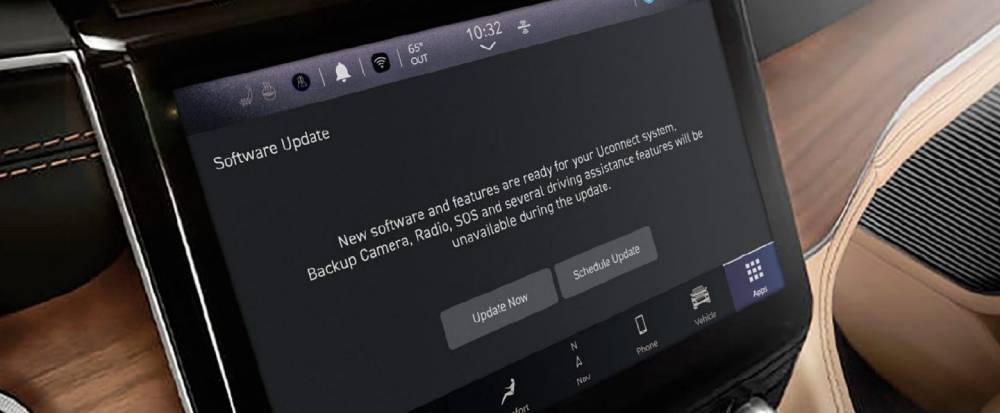
If your vehicle supports over the air updates, this is the easiest and most convenient way to keep your Uconnect system up to date. The software is downloaded and installed wirelessly without requiring a USB drive or a visit to the dealership.
When a new software version becomes available, a notification usually appears on the Uconnect touchscreen. The message may include information about the update, its size, estimated installation time, and any improvements included in the release. Before accepting the update, read the information carefully to understand the installation requirements.
If the update allows scheduling, choose a time when the vehicle can remain parked without interruption. Avoid starting an update immediately before a commute or a long road trip. Although many installations finish quickly, larger software packages may take considerably longer depending on the vehicle and connection speed.
Park the vehicle in a safe location where it has a reliable cellular or Wi Fi connection if required. Follow every instruction displayed on the touchscreen. Some systems may ask you to keep the ignition on during part of the process, while others complete the installation after the vehicle has been turned off for a specified period.
During installation, the screen may restart several times, become temporarily unresponsive, or display a progress indicator. This behavior is completely normal. Do not press unnecessary buttons, restart the infotainment system, disconnect the battery, or attempt to interrupt the update.
Once the installation is complete, Uconnect will display a confirmation message and restart normally. Open the Settings menu and verify that the software version matches the latest release. Test Bluetooth, Apple CarPlay, Android Auto, navigation, and other frequently used features to ensure everything is functioning correctly.
Updating over the air is generally the preferred method because it minimizes user involvement and reduces the possibility of installation errors. As long as the update is initiated through the official Uconnect system, it remains the safest option for compatible vehicles.
Method 2: How to Update Uconnect Using a USB Drive
If your vehicle does not support over the air updates, you may need to install new software using a USB flash drive. Although the process involves several additional steps, it is straightforward when you carefully follow the official instructions.
Begin by checking whether your vehicle qualifies for a manual software update using its VIN. If a download is available, save the update package to your computer. Read every instruction included with the download before copying any files to your USB drive.
Prepare a compatible USB flash drive by formatting it according to the manufacturer’s recommendations. After downloading the update package, extract the files if necessary and copy them directly to the root directory of the USB drive. Do not rename the files or create additional folders unless the installation guide specifically instructs you to do so.
With the USB drive prepared, park your vehicle in a safe location and ensure that the battery has sufficient power. Turn on the ignition according to the instructions provided for your vehicle and allow the Uconnect system to finish starting before inserting the USB drive into the correct USB port.
Within a few moments, the system should detect the update automatically and display a prompt asking whether you would like to begin the installation. Confirm that the software version shown on the screen matches the version you downloaded. If everything appears correct, select the option to continue.
The installation process may take several minutes. During this time, the screen may reboot multiple times, display the manufacturer’s logo, or temporarily go black. These actions are expected and should not be interpreted as a malfunction.
Keep the USB drive connected until the system confirms that the installation has finished successfully. Removing the drive too early can interrupt the update and potentially require professional assistance to restore the infotainment system.
After receiving the completion message, remove the USB drive and restart the system if instructed. Return to the Software Information page to verify the new version number. Finally, test your Bluetooth connection, smartphone integration, navigation system, voice commands, and audio functions to confirm that everything operates as expected.
Using a USB drive may require more preparation than an over the air update, but it remains a reliable method for vehicles that do not support wireless software installation.
How Long Does a Uconnect Update Take?
One of the most common questions drivers ask before updating their infotainment system is how long the process will take. The answer varies because every Uconnect update is different. Installation time depends on factors such as the software package size, vehicle model, hardware generation, internet connection, and update method.
Smaller updates may complete relatively quickly, while major software releases that introduce new features or significant system improvements can require considerably more time. Wireless updates may also take longer if the vehicle is downloading a large package over a slower connection before installation begins.
USB updates generally provide more consistent installation times because the software has already been downloaded. However, the infotainment system still needs sufficient time to verify the files, install the update, restart several system components, and complete internal configuration tasks.
Regardless of the update method, avoid scheduling an installation immediately before an important appointment or a long drive. Always allow additional time in case the process takes longer than expected. Interrupting the update simply because you need to move the vehicle can create unnecessary complications.
Throughout the installation, it is normal for the display to restart, temporarily turn black, or remain on the manufacturer logo for several minutes. These behaviors are part of the normal update process and should not cause concern unless the system remains unresponsive for an unusually long period.
The safest approach is to begin the update only when you know the vehicle can remain parked until the installation finishes completely. Patience during this stage helps ensure a successful software update and reduces the risk of installation errors.
How to Confirm That the Update Was Successful
Completing the installation is only part of the update process. Before assuming everything is working correctly, you should verify that the new software has been installed successfully and that all major features continue to function as expected.
Start by opening the Settings menu on your Uconnect system and navigating to System Information, About, or Software Information. Compare the software version displayed on the screen with the version listed in the official update instructions. If the numbers match, the installation was successful.
Next, test the touchscreen by opening several menus and switching between different functions. The interface should respond quickly without freezing or showing unexpected error messages. Slow performance immediately after an update is sometimes temporary while the system completes background processes, but responsiveness should improve after a short period.
Reconnect your smartphone if necessary and verify that Bluetooth pairing works properly. Make a test phone call, stream music, and confirm that contact synchronization is functioning normally. If your vehicle supports Apple CarPlay or Android Auto, connect your device and ensure the applications launch without interruption.
Drivers with factory navigation should also test route guidance, GPS positioning, and voice commands. Confirm that saved destinations, favorite locations, and other personalized settings remain available. Some software updates may reset certain preferences, requiring you to restore audio presets, display settings, or paired devices.
Finally, monitor the infotainment system during your next few drives. If you notice unexpected restarts, connection failures, or warning messages after the update, perform a basic system restart and check for any additional software releases. Most installations complete without problems, but verifying every major function provides peace of mind before relying on the system during daily driving.
Uconnect Update Not Working: Common Problems and Fixes
Although most Uconnect updates install without difficulty, occasional problems can occur. Fortunately, many of these issues can be resolved without replacing hardware or visiting a dealership.
One of the most common problems is that the system does not recognize the USB drive. This usually happens because the drive was not formatted correctly, the update files were copied into the wrong folder, or the download became corrupted. Formatting the USB drive again, downloading a fresh copy of the update, and following the official file structure often solves the issue.
Some drivers discover that no software update is available after entering their VIN. In many cases, this simply means the vehicle already has the latest software installed. It may also indicate that updates for that particular model are delivered automatically over the air or that the latest software must be installed by an authorized dealer.
Another concern is an update that appears to freeze during installation. Before assuming something has gone wrong, allow the system additional time to complete the process. Large software packages may pause at certain percentages while internal files are being verified. Restarting the vehicle or disconnecting power during this stage can interrupt the installation and create more serious problems.
Bluetooth issues sometimes appear after a successful update. If your phone no longer connects automatically, delete the existing pairing from both the phone and the Uconnect system. Restart both devices and complete the pairing process again. This simple procedure resolves many post update connectivity problems.
Apple CarPlay or Android Auto may also stop working immediately after an update. Check that your smartphone is running the latest operating system, verify that all required permissions remain enabled, and test another USB cable if you use a wired connection. In many cases, reconnecting the device from scratch restores normal operation.
If the screen remains black for an extended period after installation, avoid repeatedly pressing buttons or disconnecting the battery. Some updates require multiple automatic restarts before the system becomes operational. However, if the display remains completely unresponsive for a prolonged period, professional diagnosis may be required.
When repeated installation failures occur despite following every official instruction, stop attempting additional updates. Continuing to install the same package multiple times may not resolve the underlying issue and could complicate further troubleshooting. At that point, contacting Uconnect support or scheduling service with an authorized dealership is the safest course of action.
When Should You Visit a Dealership?
While many Uconnect updates can be completed at home, there are situations where professional assistance is the better choice. Modern infotainment systems are closely integrated with multiple vehicle electronics, and some software procedures require specialized diagnostic equipment that is only available at authorized service centers.
You should consider visiting a dealership if your VIN does not provide a downloadable update but you believe your software is outdated. Some updates are distributed exclusively through dealership service departments because they require additional programming or verification during installation.
Professional service is also recommended if the infotainment system remains stuck in a continuous reboot loop, the touchscreen no longer responds after an interrupted update, or the display stays black even after waiting for the recommended recovery period. These symptoms may indicate that the software installation did not complete successfully and requires advanced recovery procedures.
Drivers should also seek professional assistance if the update was interrupted by a dead battery, accidental USB removal, or unexpected power loss. Attempting additional installations without first diagnosing the problem may increase the risk of software corruption.
Another reason to visit a dealership is when your vehicle is covered by a technical service bulletin or a manufacturer recall involving the infotainment system. In these situations, technicians can confirm that every required software package has been installed correctly and that all related vehicle systems are operating as intended.
If you are uncomfortable performing the update yourself, there is nothing wrong with leaving the job to trained professionals. A dealership technician can verify your current software version, install the correct update, test every major infotainment function, and address any additional concerns before returning the vehicle. For many owners, this provides extra confidence and ensures that the Uconnect system continues to perform reliably for years to come.
Frequently Asked Questions
Can I update Uconnect myself?
Yes. Many vehicles allow owners to update Uconnect without visiting a dealership. Depending on your vehicle, the update may be delivered automatically over the air or installed manually using a USB flash drive. Always verify your VIN and use the official update instructions before starting the installation.
Is updating Uconnect free?
In most cases, software updates released by the manufacturer are available at no additional cost. However, some dealership services, navigation map updates, or repairs related to the infotainment system may involve separate charges. If you are unsure, contact your local dealership for more information.
How do I know if my Uconnect system needs an update?
The easiest way is to check your current software version and compare it with the latest version available through the official Uconnect update portal. Vehicles equipped with over the air updates may also display a notification directly on the touchscreen when new software becomes available.
Will updating Uconnect erase my personal settings?
Most software updates preserve your saved preferences, but some installations may reset Bluetooth pairings, radio presets, display settings, or other personalized options. It is a good idea to note your important settings before beginning the update.
Can I drive while Uconnect is updating?
The answer depends on your vehicle and the type of update being installed. Always follow the instructions displayed on the touchscreen. If the system indicates that the vehicle must remain parked until the installation is complete, do not attempt to drive until the process has finished successfully.
What should I do if the update fails?
If the installation does not complete successfully, avoid repeatedly restarting the process without identifying the cause. Verify that you downloaded the correct software for your VIN, check the condition of the USB drive if applicable, and ensure the vehicle maintained stable power during installation. If the problem continues, contact Uconnect customer support or visit an authorized dealership.
Why is my VIN showing that no update is available?
There are several possible explanations. Your vehicle may already have the latest software installed, your model may receive updates automatically over the air, or the manufacturer may not have released a newer version for your specific hardware configuration. Certain software packages are also installed exclusively by dealerships.
Can I install software from another vehicle with the same model?
No. Even vehicles that appear identical can use different infotainment hardware. Software packages are matched to specific VINs and hardware configurations. Installing an update intended for another vehicle can result in compatibility issues or failed installations.
Does updating Uconnect improve Apple CarPlay and Android Auto?
Yes, it often does. Software updates frequently improve compatibility with newer smartphone operating systems, resolve connection issues, and enhance overall stability. While not every update focuses on smartphone integration, many include fixes that improve the user experience.
How often should I check for Uconnect updates?
Checking every few months is generally sufficient for most drivers. You should also look for updates if you notice performance issues, purchase a used vehicle, experience smartphone connectivity problems, or hear about a new software release from the manufacturer.
Conclusion
Keeping your infotainment system up to date is one of the easiest ways to improve your driving experience. Whether your vehicle receives updates over the air or requires a USB installation, following the correct procedure helps ensure a smooth and successful software upgrade.
The most important step is verifying your vehicle’s VIN before downloading or installing any software. This simple precaution ensures that you receive the correct update for your specific Uconnect system and reduces the risk of installation problems. Taking a few extra minutes to prepare the vehicle, maintain a stable power supply, and carefully follow the official instructions can prevent unnecessary frustration later.
Regular software updates do more than fix bugs. They improve touchscreen performance, enhance Bluetooth reliability, strengthen smartphone compatibility, optimize navigation functions, and provide a more responsive infotainment experience. Staying current also helps your system remain compatible with newer mobile devices and connected services as technology continues to evolve.
Now that you know how to update Uconnect, you can confidently check your software version, determine whether an update is available, and complete the installation safely using the method recommended for your vehicle. If you encounter persistent problems or your vehicle requires specialized programming, an authorized dealership can provide professional assistance.
Have you recently updated your Uconnect system? Share your vehicle model, model year, and your experience in the comments below. Your feedback may help other drivers solve similar issues and make the update process even easier.