Connecting your Android phone to your Honda can completely change the way you drive. Android Auto gives you instant access to Google Maps, hands free calling, music streaming, messaging, and Google Assistant directly from your Honda infotainment display. Instead of reaching for your phone, you can stay focused on the road while enjoying a smarter and safer driving experience.
Many Honda owners, however, run into unexpected problems during the setup process. Some phones fail to connect, while others disconnect without warning after a few minutes. A low quality USB cable, outdated software, incorrect settings, or limited vehicle compatibility can quickly turn a simple installation into a frustrating experience. These issues are common, but they are usually easy to solve when you know where to look.
This complete guide explains how to connect Android Auto to Honda using both a USB cable and a wireless connection. You will learn the exact setup process, discover which Honda models support Android Auto, and understand the requirements before you begin. The guide also includes practical solutions for the most common connection problems, including situations where Android Auto is not detected, keeps disconnecting, has no sound, or displays a black screen.
Whether you drive a Honda Accord, Civic, CR V, Pilot, HR V, Odyssey, Passport, or another compatible model, this guide will help you complete the setup correctly the first time. By the end of this article, you will know how to keep Android Auto running smoothly and enjoy every feature your Honda infotainment system has to offer.
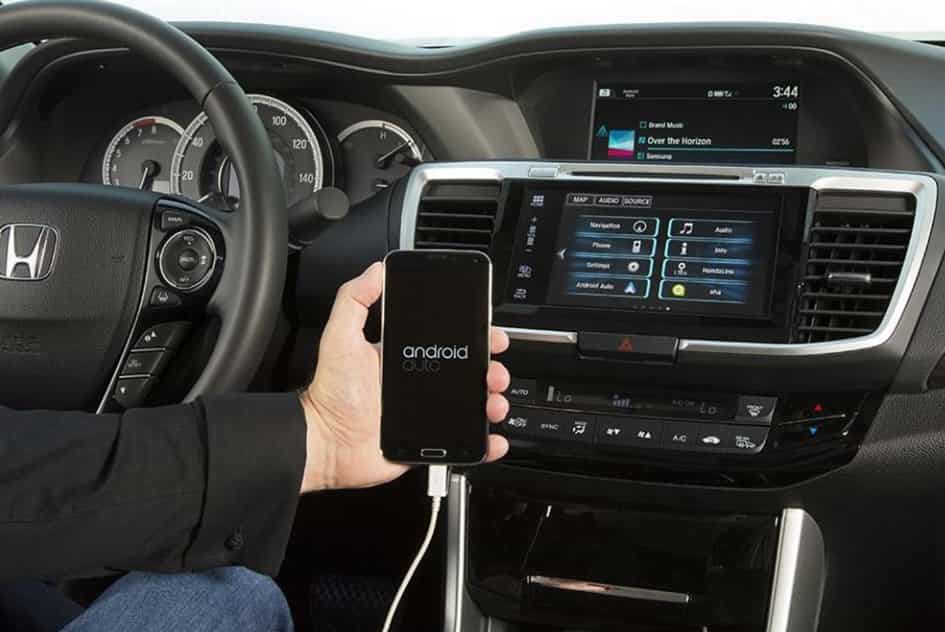
Quick Answer: How to Connect Android Auto to Honda
Start by parking your Honda and turning on the ignition. Enable Bluetooth, WiFi, and Location services on your Android phone. If your vehicle supports only a wired connection, plug your phone into the correct USB port with a certified USB data cable.
Unlock your phone after connecting it. Follow the prompts on both the phone and the Honda infotainment display. Allow access to contacts, messages, notifications, and location. These permissions let Android Auto work correctly.
Open Android Auto from the infotainment screen if it does not start automatically. Launch Google Maps or ask Google Assistant to perform a simple task. If everything responds normally, you have completed the setup successfully.
If Android Auto does not connect, check the USB cable first. Then verify your phone settings and software version. This guide explains every solution in detail.
What You Need Before Connecting Android Auto to Honda
Check your vehicle and phone before you begin. A quick inspection helps you avoid setup errors and saves time during installation.
A Compatible Honda Vehicle
Android Auto support depends on your Honda model, model year, trim level, and infotainment system. Many recent Honda vehicles include this feature as standard equipment or offer it on selected trims.
Popular models include the Honda Accord, Honda Civic, Honda CR V, Honda HR V, Honda Pilot, Honda Passport, Honda Ridgeline, and Honda Odyssey. Check your owner’s manual or infotainment settings if you are unsure about compatibility.
A Compatible Android Phone
Use an Android phone that meets Google’s minimum software requirements. Most modern Android phones include Android Auto as part of the operating system. Install the latest Android updates before connecting your device.
Update Google Play Services if a new version is available. Current software improves stability and reduces connection problems.
A Certified USB Data Cable
Choose a certified USB data cable instead of a charging cable. Many charging cables cannot transfer data, so Android Auto cannot detect your phone.
A short, high quality cable usually delivers a stronger and more reliable connection. Replace old or damaged cables before troubleshooting other parts of the system.
The Correct USB Port
Honda often places several USB ports inside the cabin. However, only specific ports support smartphone integration. Other ports provide charging only.
Connect your phone to the correct port before trying another solution. This simple step often fixes the problem immediately.
Bluetooth, WiFi, and Location Services
Turn on Bluetooth, WiFi, and Location services before you start the setup. Wireless Android Auto relies on Bluetooth and WiFi during pairing and daily use.
Disable battery saving mode during the first connection. This setting helps Android Auto maintain a stable connection and prevents unexpected interruptions.
How to Connect Android Auto to Honda with a USB Cable
Connecting Android Auto with a USB cable is the easiest and most reliable method. Most Honda vehicles that support Android Auto allow you to finish the setup in just a few minutes. Follow the steps below to complete the connection without unnecessary delays.
Step 1: Start Your Honda
Park your Honda in a safe location before you begin. Turn on the ignition and wait for the infotainment system to load completely. Keeping the vehicle in Park helps you complete the setup safely and unlocks features that remain unavailable while driving.
Step 2: Prepare Your Android Phone
Unlock your Android phone before connecting it to the vehicle. Turn on Bluetooth, WiFi, and Location services. These settings help Android Auto communicate with the infotainment system and improve the first pairing process.
If your phone has Battery Saver enabled, turn it off temporarily. This simple step prevents the operating system from limiting background services during setup.
Step 3: Connect the USB Data Cable
Use a certified USB data cable instead of a charging cable. Plug one end into your phone and connect the other end to the Honda USB port that supports smartphone integration.
Wait a few seconds after connecting the cable. Your phone should detect the vehicle automatically and display a setup notification.
Step 4: Accept the Permission Requests
Tap each permission request that appears on your phone. Allow access to contacts, messages, notifications, phone calls, and location. Android Auto needs these permissions to deliver navigation, voice commands, and hands free communication.
Read each prompt carefully before selecting Allow. Missing one permission may prevent some features from working correctly.
Step 5: Open Android Auto on the Honda Display
Look at the Honda infotainment screen after approving the permissions. Select Android Auto if it does not open automatically. The system may display a short safety message before continuing.
Read the message and confirm that you understand it. The setup will continue once you accept the notification.
Step 6: Complete the Initial Setup
Follow the remaining instructions on the screen. Choose your preferred navigation and music applications if the system asks for a default option. You can also activate Google Assistant during this step to enable voice control.
The first setup usually takes only a few minutes. Future connections become much faster because the system remembers your device.
Step 7: Test the Connection
Open Google Maps and search for a nearby destination. Play a song through your preferred music application and make a simple voice request with Google Assistant. Test a phone call if you want to confirm that every feature works correctly.
If everything responds without delay, Android Auto has connected successfully. Your Honda is now ready to provide navigation, entertainment, and hands free communication every time you start the vehicle.
How to Connect Android Auto to Honda Wirelessly
Wireless Android Auto offers a cleaner and more convenient experience because you do not need a USB cable every time you enter your vehicle. Once you finish the initial setup, your phone can connect automatically whenever you start your Honda. Before you begin, make sure your Honda model and infotainment system support wireless Android Auto.
Step 1: Confirm Wireless Compatibility
Check whether your Honda supports wireless Android Auto before starting the setup. Some vehicles support only a wired connection, while others offer both wired and wireless options. You can verify compatibility through your owner’s manual or the infotainment settings.
Your Android phone should also run the latest software version. Installing updates before pairing helps improve stability and reduces connection issues.
Step 2: Turn On Bluetooth and WiFi
Enable Bluetooth and WiFi on your Android phone. Keep both features active throughout the pairing process. Wireless Android Auto uses Bluetooth to establish the first connection and WiFi to transfer data after pairing.
Unlock your phone before continuing. Keep the screen active until the setup finishes.
Step 3: Open the Smartphone Connection Menu
Open the Settings menu on your Honda infotainment display. Select the smartphone connection or Bluetooth menu, then choose the option to add a new device.
Your Honda will begin searching for nearby phones. Keep your phone close to the infotainment display to speed up the pairing process.
Step 4: Pair Your Phone with the Vehicle
Select your Honda from the Bluetooth device list on your phone. Compare the pairing code shown on both screens. Confirm the codes if they match.
Allow your phone to sync contacts and call history. This step improves the hands free experience and supports voice commands.
Step 5: Enable Android Auto
Your phone may display a prompt asking whether you want to use Android Auto. Tap Continue and approve every requested permission. Next, confirm the connection on the Honda infotainment display.
Wait a few moments while the system completes the setup. The home screen should appear automatically after the process finishes.
Step 6: Verify Automatic Reconnection
Turn off your Honda after completing the setup. Wait a few seconds before starting the vehicle again. Keep your phone in your pocket or bag during this test.
If Android Auto launches automatically, the wireless connection works correctly. You can now enjoy navigation, music, messaging, and Google Assistant without connecting a USB cable.
Wired vs Wireless Android Auto
Both connection methods provide access to the same Android Auto features. However, each option offers different advantages depending on your driving habits and daily routine.
A wired connection delivers the most stable performance during long trips. It also charges your phone while you drive, making it the best choice for navigation over extended distances. If you frequently travel or rely on Google Maps for several hours, a wired connection usually provides the most consistent experience.
A wireless connection focuses on convenience. You can enter your Honda and begin driving without plugging in your phone. This option works well for short commutes and daily errands. However, wireless Android Auto consumes more battery power because it uses both Bluetooth and WiFi throughout the trip.
Choose a wired connection if you value maximum stability and continuous charging. Choose a wireless connection if convenience matters more and your Honda fully supports the feature. Either option delivers a safer and smarter driving experience when configured correctly.
How to Use Android Auto in a Honda
After you connect your Android phone, Android Auto transforms your Honda infotainment system into a safer and smarter driving companion. The simple interface gives you quick access to navigation, communication, music, and voice control without forcing you to pick up your phone. This design helps you stay focused on driving while keeping essential information close at hand.
Google Maps is one of the most useful features available through Android Auto. Open the app from the home screen or ask Google Assistant to find a destination. You can view live traffic conditions, receive accurate turn by turn directions, and discover nearby gas stations, restaurants, or parking areas. The navigation updates in real time, helping you avoid delays and choose faster routes.
Android Auto also makes communication much safer. Use Google Assistant to place phone calls, read incoming text messages, or send replies with your voice. You can complete these tasks without taking your hands off the steering wheel or your eyes off the road. This feature supports safer driving and helps you comply with hands free driving regulations.
Entertainment is just as easy to control. Open your favorite music, podcast, or audiobook application directly from the Honda display. Browse playlists, skip tracks, or adjust playback with simple voice commands or steering wheel controls. Many popular streaming services work seamlessly with Android Auto, giving you plenty of entertainment options during every trip.
Google Assistant brings everything together. Ask questions, set reminders, check the weather, control compatible smart home devices, or find local businesses while you drive. By using voice commands instead of your phone, you can enjoy a more convenient, connected, and distraction free driving experience every time you get behind the wheel.
Why Android Auto Is Not Working in Your Honda
Android Auto may stop working for several reasons, but most problems are easy to identify and fix. Understanding the possible causes can help you restore the connection quickly without visiting a service center.
One of the most common issues is a faulty USB cable. Many cables support charging only and cannot transfer data between your Android phone and the Honda infotainment system. Using a certified USB data cable often solves the problem immediately.
Outdated software can also prevent Android Auto from working properly. If your Android phone, Google Play Services, or Honda infotainment system runs an older version, compatibility issues may occur. Installing the latest updates improves performance and fixes many known bugs.
Another common cause is missing permissions. Android Auto requires access to your contacts, phone calls, messages, notifications, microphone, and location. If you deny any of these permissions, some features may stop working or the connection may fail completely.
Wireless Android Auto depends on both Bluetooth and WiFi. If either feature is disabled, the connection cannot start. Battery Saver can also interrupt Android Auto by limiting background activity and restricting wireless services.
Sometimes the problem comes from the Honda infotainment system itself. Temporary software glitches, outdated firmware, or incorrect Bluetooth settings may prevent your phone from connecting. In other cases, the vehicle stores too many paired devices, creating connection conflicts during startup.
Fortunately, most Android Auto problems do not require professional repairs. A few simple troubleshooting steps can usually restore a stable connection and help you enjoy navigation, music, phone calls, and Google Assistant without interruption.
How to Fix Android Auto Connection Problems
If Android Auto does not connect to your Honda, you can usually fix the problem with a few simple steps. Most connection issues result from incorrect settings, outdated software, or faulty accessories rather than serious hardware problems. Follow these solutions one by one until Android Auto works normally again.
Start by restarting both your Android phone and the Honda infotainment system. A fresh restart clears temporary software errors and often restores a stable connection. After both devices restart, reconnect your phone and check whether Android Auto launches automatically.
Next, inspect your USB cable if you use a wired connection. Choose a certified USB data cable that supports both charging and data transfer. If possible, test another cable to determine whether the current one causes the problem.
You should also update your Android phone, Google Play Services, and the Honda infotainment system. Software updates improve compatibility, fix known bugs, and enhance overall performance. Running the latest version reduces the chance of connection failures.
Open your phone settings and review the Android Auto permissions. Confirm that the application can access your contacts, phone calls, messages, microphone, notifications, and location. Missing permissions may prevent important features from working correctly.
If you use wireless Android Auto, make sure Bluetooth and WiFi remain enabled throughout the pairing process. You can also remove your phone from the Honda Bluetooth device list and pair it again from the beginning. A fresh connection often resolves persistent pairing problems.
If Android Auto still fails after completing these steps, contact an authorized Honda service center. Professional technicians can inspect the infotainment system, install the latest firmware, and identify any hardware issues that require repair.
Frequently Asked Questions
Why is Android Auto not connecting to my Honda?
Android Auto may fail to connect because of a damaged USB cable, outdated software, missing app permissions, or incorrect Bluetooth and WiFi settings. Restart your phone and the Honda infotainment system, then check for software updates and reconnect your device.
Does my Honda support wireless Android Auto?
Many newer Honda models support wireless Android Auto, but availability depends on the model year, trim level, and infotainment system. Check your owner’s manual or the infotainment settings to confirm whether your vehicle includes this feature.
Which Honda models have Android Auto?
Android Auto is available on many Honda models, including the Accord, Civic, CR V, HR V, Pilot, Passport, Odyssey, and Ridgeline. Support varies by model year and trim level, so verify your vehicle specifications before setting up the system.
Why does Android Auto keep disconnecting?
A weak USB cable, unstable Bluetooth or WiFi connection, outdated software, or battery saving features can interrupt Android Auto. Replacing the cable, updating your devices, and disabling Battery Saver often improve connection stability.
Can I use Android Auto without a USB cable?
Yes. You can use Android Auto without a USB cable if both your Honda and Android phone support wireless Android Auto. The initial setup may still require a wired connection on some vehicles.
Which USB port should I use for Android Auto in my Honda?
Use the USB port that supports smartphone integration. Many Honda vehicles include multiple USB ports, but only one works with Android Auto. Refer to your owner’s manual if you are unsure which port to use.
How do I update Android Auto in my Honda?
Update your Android phone through the system settings and install the latest version of Google Play Services. You should also check for infotainment software updates through your Honda settings or visit an authorized Honda service center.
Can I use Google Maps and Spotify at the same time with Android Auto?
Yes. Android Auto supports multitasking, allowing you to navigate with Google Maps while listening to Spotify or other compatible music applications. You can switch between apps or control them with Google Assistant without interrupting your drive.
Conclusion
Learning how to connect Android Auto to Honda is easier than many drivers expect. Once you complete the initial setup, you can enjoy seamless access to Google Maps, phone calls, text messages, music, podcasts, and Google Assistant directly from your Honda infotainment system. Whether your vehicle supports a wired or wireless connection, following the correct setup steps helps you create a reliable and stable connection.
If Android Auto does not work as expected, do not assume there is a serious problem. Most connection issues result from outdated software, incorrect settings, missing permissions, or an incompatible USB cable. By checking these common causes and following the troubleshooting tips in this guide, you can solve most problems in just a few minutes without visiting a service center.
Android Auto is more than a convenience feature. It helps reduce distractions, supports safer driving, and keeps important information within easy reach throughout every journey. Keeping your phone and infotainment system updated also improves performance and ensures the best possible user experience.
We hope this guide has answered all your questions about how to connect Android Auto to Honda. If you found this article helpful, consider sharing it with other Honda owners. If you still have questions or experience connection issues, leave a comment below. We would be happy to help you find the right solution.