Few things are more frustrating than opening the Toyota app to remotely start your vehicle, only to see an authorization error preventing the command from going through. Whether you are trying to warm up your car on a cold morning, cool it down during a hot summer day, or simply check its status from a distance, Toyota Remote Connect is designed to make vehicle ownership more convenient. When the authorization process fails, however, that convenience quickly turns into confusion and frustration.
Toyota Remote Connect is part of Toyota’s Connected Services ecosystem, allowing drivers to remotely access key vehicle functions through their smartphones. Unfortunately, authorization issues can occur for several reasons, including account verification problems, expired subscriptions, software bugs, connectivity disruptions, or vehicle registration errors. Many users are left wondering whether the problem lies with the Toyota app, their account settings, or the vehicle itself.
The good news is that most authorization errors can be resolved without visiting a dealership. By identifying the root cause and following the appropriate troubleshooting steps, you can often restore access to Remote Connect within minutes. In this guide, we will explore the most common causes of Toyota Remote Connect authorization issues, provide step by step solutions, and share practical tips to help prevent these problems from happening again.
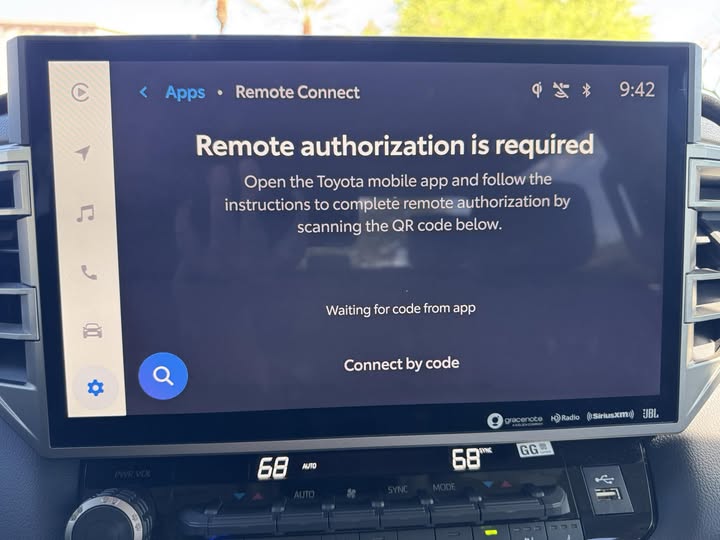
What Is Toyota Remote Connect?
Toyota Remote Connect is a connected vehicle service that allows drivers to interact with their vehicles through the Toyota mobile application. Designed to enhance convenience and vehicle accessibility, the service enables users to perform several functions remotely without being physically present near the vehicle.
Depending on the vehicle model and subscription package, Remote Connect may allow users to remotely start the engine, lock or unlock doors, locate a parked vehicle, check vehicle status, and receive important alerts. These features are particularly useful for busy drivers who want greater control over their vehicle from virtually anywhere.
To protect vehicle security, Toyota uses a multi layer authorization process whenever a remote command is issued. The system verifies the user’s Toyota account, validates the active Connected Services subscription, confirms vehicle ownership, and establishes communication between the app and the vehicle’s onboard telematics system. If any part of this process fails, the user may encounter an authorization error and lose access to Remote Connect features.
Understanding how this authorization system works is the first step toward diagnosing and fixing common issues. Since multiple components are involved, authorization failures can stem from account settings, subscription problems, software glitches, or connectivity interruptions.
1. Expired or Inactive Connected Services Subscription
One of the most overlooked reasons Toyota Remote Connect authorization stops working is an expired or inactive Connected Services subscription. Many Toyota owners assume that Remote Connect remains available indefinitely after purchasing a vehicle. However, most eligible models include a limited trial period, after which a paid subscription may be required to continue using remote features.
When a subscription expires, the Toyota system can no longer verify service eligibility. As a result, authorization requests may fail even though the user can still access the Toyota app and log into their account successfully.
Common signs of a subscription related authorization issue include remote commands failing unexpectedly, error messages appearing after a trial period ends, and certain connected features becoming unavailable while others continue to function normally.
To resolve this issue, open the Toyota app and review your Connected Services status. Verify whether your Remote Connect subscription is active and associated with the correct vehicle. If the subscription has expired, renewing the service may immediately restore authorization capabilities. It is also a good idea to confirm that your payment information is up to date, as failed billing transactions can sometimes interrupt service access without generating obvious notifications.
Regularly monitoring subscription renewal dates can help prevent unexpected service interruptions and ensure uninterrupted access to Remote Connect features.
2. Toyota App Login and Account Authentication Problems
Authorization failures are frequently linked to account authentication issues within the Toyota app. Even if you believe your login credentials are correct, session conflicts, password changes, account verification errors, or expired authentication tokens can prevent the app from properly communicating with Toyota’s servers.
Users experiencing account related issues often report being repeatedly logged out of the app, receiving authorization failed notifications, encountering endless loading screens, or finding that remote commands never complete successfully. In some cases, the app appears to function normally while background authentication processes silently fail.
A simple account refresh can often resolve these problems. Begin by signing out of the Toyota app completely. Close the application, reopen it, and sign back in using your Toyota account credentials. If the issue persists, consider resetting your password and completing any required account verification steps.
You should also verify that the email address associated with your Toyota account remains active and accessible. If Toyota has requested identity verification or account confirmation, unresolved notifications may interfere with authorization processes.
Another effective solution is removing saved login data and reinstalling the application. This clears potentially corrupted authentication files and forces the app to establish a new secure connection with Toyota’s servers.
Keeping your account information current and regularly reviewing account security settings can significantly reduce the likelihood of future authorization problems.
3. Vehicle Is Not Properly Linked to Your Toyota Account
Another common reason Toyota Remote Connect authorization fails is that the vehicle is no longer properly linked to the Toyota account. This issue can occur after ownership transfers, account changes, dealership updates, app reinstalls, or modifications to Connected Services settings.
Toyota’s authorization system relies on accurate ownership and vehicle registration records. If the system cannot verify that the account holder is the authorized user of the vehicle, Remote Connect requests may be rejected even if the subscription remains active and the app functions normally.
Typical symptoms include the vehicle disappearing from the Toyota app, remote features becoming unavailable, authorization errors appearing immediately after login, or the app displaying incomplete vehicle information.
To fix this issue, start by checking whether the correct vehicle appears in your Toyota account. Verify that the Vehicle Identification Number matches your vehicle and confirm that ownership information is accurate. If necessary, remove the vehicle from the account and complete the registration process again.
During re-registration, carefully follow all verification steps and ensure that any authorization requests sent to the vehicle are completed successfully. In many cases, relinking the vehicle restores communication between the app and Toyota’s backend systems, allowing Remote Connect functions to operate normally again.
4. Toyota App Software Bugs or Outdated Versions
Software related problems can also interfere with Toyota Remote Connect authorization. Like any mobile application, the Toyota app receives regular updates that introduce new features, security improvements, and bug fixes. Occasionally, however, an update may create temporary compatibility issues that affect authorization processes.
Some users notice authorization failures immediately after updating the app, while others encounter problems because they are using an outdated version that no longer communicates properly with Toyota’s servers. In either situation, software inconsistencies can prevent successful authentication.
Common warning signs include frequent app crashes, frozen screens, delayed responses, missing vehicle information, and authorization errors appearing without any obvious account or subscription problems.
The first step is to check whether a newer version of the Toyota app is available through your device’s app store. Installing the latest update often resolves known software issues. If the problem continues, completely uninstall the application and reinstall it from scratch.
Reinstallation removes corrupted files, resets cached data, and establishes a fresh connection to Toyota’s services. After reinstalling, sign back into your account and test Remote Connect functions again.
It is also important to keep your smartphone’s operating system updated. Older versions of iOS or Android can sometimes create compatibility issues that affect app performance and authorization reliability.
5. Weak Cellular Signal or Vehicle Connectivity Problems
Many drivers assume Remote Connect operates through Bluetooth alone, but the system primarily relies on cellular communication between the vehicle, Toyota’s servers, and the mobile application. As a result, weak network coverage can directly impact authorization requests.
If the vehicle is parked in an underground garage, enclosed structure, remote rural area, or location with poor cellular reception, Toyota’s telematics system may struggle to establish a reliable connection. When communication fails, the authorization process may time out or return an error message.
Connectivity related authorization issues often appear inconsistent. A remote command may fail in one location but work perfectly in another. Users may also notice delays when updating vehicle status information or receiving notifications from the app.
To troubleshoot this issue, move the vehicle to an area with stronger cellular coverage whenever possible. Wait several minutes after relocating the vehicle to allow the telematics system to reconnect to Toyota’s network. You should also verify that your smartphone has a stable internet connection through either mobile data or WiFi.
If connectivity problems occur frequently in multiple locations, restarting the Toyota app and refreshing vehicle status information may help reestablish communication. Persistent issues could indicate a deeper telematics or network related problem that requires assistance from Toyota support.
Understanding the role of cellular communication is essential because even perfectly configured accounts and active subscriptions cannot authorize remote commands if the vehicle cannot connect to Toyota’s network infrastructure.
6. Smartphone Internet Connection Issues
While many authorization errors originate from the vehicle side, the problem can also stem from the smartphone being used to access Toyota Remote Connect. The Toyota app requires a stable internet connection to communicate with Toyota’s servers and transmit remote commands to the vehicle.
If your phone is connected to an unstable WiFi network, experiencing poor mobile data coverage, or running applications that interfere with network traffic, authorization requests may fail before they ever reach Toyota’s systems.
Users often encounter this issue when switching between WiFi and cellular networks, traveling internationally, enabling aggressive battery saving modes, or using VPN services that alter internet routing. In some situations, the app may display an authorization error even though the underlying problem is simply a failed network connection.
To determine whether your internet connection is responsible, test other online applications and websites on the same device. If connectivity appears inconsistent, switch to a different network and retry the command. Disabling VPN software temporarily can also help identify whether network routing is causing communication issues.
Additionally, check that the Toyota app has permission to use mobile data in your device settings. Some operating systems restrict background data access, which can prevent the app from completing authorization requests successfully.
A strong and reliable internet connection is often overlooked during troubleshooting, yet it plays a critical role in ensuring seamless communication between the app, Toyota’s servers, and the vehicle.
7. Toyota Server Outages or Maintenance Activities
Not every authorization issue is caused by user error or technical problems with the vehicle. Occasionally, Toyota’s backend infrastructure may experience service interruptions, scheduled maintenance, or temporary outages that affect Connected Services functionality.
When Toyota’s servers are unavailable, authorization requests cannot be processed correctly. As a result, users may receive authorization failed messages even though their accounts, subscriptions, devices, and vehicles are configured properly.
One indication of a server side problem is that multiple users begin reporting similar issues at the same time. Social media platforms, automotive forums, and Toyota owner communities often see a surge in complaints whenever widespread service disruptions occur.
If you suspect a server outage, avoid repeatedly attempting authorization requests. Continuous retries rarely resolve the issue and may create unnecessary confusion during troubleshooting. Instead, wait for a period of time and try again later.
You can also check official Toyota support channels, service notifications within the Toyota app, or community discussions to determine whether other users are experiencing similar problems. In many cases, service functionality returns automatically once maintenance activities are completed or server stability is restored.
Patience is often the most effective solution when the root cause lies within Toyota’s infrastructure rather than the user’s account or vehicle.
Advanced Troubleshooting Steps for Persistent Authorization Problems
If none of the previous solutions have resolved the issue, more advanced troubleshooting may be necessary. These methods are particularly useful when authorization failures persist despite having an active subscription, stable connectivity, and correct account information.
One effective approach is to completely remove the vehicle from your Toyota account and perform the registration process again. This forces Toyota’s systems to establish a new association between the vehicle and the account, correcting any hidden synchronization problems that may have developed over time.
Another option is to perform a full account refresh. Sign out of all devices connected to your Toyota account, change your account password, and then sign back in. This process generates new authentication tokens and removes potentially corrupted session data that could be interfering with authorization.
Vehicle software updates should also be considered. Modern Toyota vehicles rely on sophisticated telematics systems that receive software improvements periodically. Outdated software can sometimes create compatibility issues with newer versions of the Toyota app or Connected Services platform.
If the problem remains unresolved after completing these steps, contacting Toyota customer support may be necessary. Support representatives can review account status, verify Connected Services activation, examine telematics communication logs, and identify issues that are not visible to end users.
Although advanced troubleshooting requires more time than basic fixes, it often resolves stubborn authorization problems that simpler methods cannot address.
How to Prevent Toyota Remote Connect Authorization Issues
Although most Toyota Remote Connect authorization problems can be resolved through troubleshooting, prevention is always preferable to dealing with unexpected service interruptions. A few simple maintenance practices can significantly reduce the likelihood of authorization failures and ensure uninterrupted access to connected vehicle features.
One of the most important preventive measures is keeping the Toyota app updated. Software updates often include bug fixes, security enhancements, and compatibility improvements that help maintain reliable communication between the app and Toyota’s servers. Delaying updates may increase the risk of encountering authorization or connectivity issues.
Drivers should also monitor the status of their Connected Services subscription. Many authorization failures occur because users are unaware that a trial period has expired or that a payment issue has interrupted service. Reviewing subscription details periodically can help avoid sudden loss of access.
Maintaining accurate account information is equally important. Ensure that your email address, phone number, and account credentials remain current. If Toyota requests account verification or security confirmation, complete the process promptly to prevent authentication disruptions.
Vehicle software updates should not be ignored either. Modern connected vehicles rely on onboard telematics systems that must remain compatible with Toyota’s evolving digital infrastructure. Installing available updates helps ensure long term reliability and improved system performance.
Finally, avoid sharing account credentials with multiple users whenever possible. Excessive account changes, repeated login attempts from different devices, and security related flags can sometimes complicate authorization processes and increase the risk of account verification issues.
By following these preventive measures, Toyota owners can enjoy a more stable and reliable Remote Connect experience.
Frequently Asked Questions
Why does Toyota Remote Connect say “Authorization Failed”?
This message typically appears when Toyota’s system cannot verify your account, subscription status, vehicle ownership, or connection to the vehicle. Common causes include expired subscriptions, login issues, connectivity problems, and temporary server outages.
Can I use Toyota Remote Connect without a subscription?
In most cases, Remote Connect requires an active Connected Services subscription after the initial trial period expires. Availability and subscription requirements may vary depending on the vehicle model and region.
Authorization is usually completed within seconds. However, network delays, server congestion, or connectivity issues may occasionally extend the process. If authorization consistently fails, further troubleshooting may be required.
Why did Remote Connect stop working after an app update?
Software updates can occasionally introduce temporary compatibility issues or corrupt existing app data. Reinstalling the application and signing in again often resolves these problems.
Will reinstalling the Toyota app delete my vehicle information?
Vehicle information associated with your Toyota account is generally stored on Toyota’s servers rather than exclusively on your device. Reinstalling the app usually does not remove registered vehicles, although you may need to sign in again and reauthorize certain settings.
How can I tell if Toyota servers are down?
If multiple users report similar issues at the same time and all troubleshooting steps fail, a server outage may be responsible. Checking Toyota support channels and owner communities can help confirm whether a widespread service disruption is occurring.
Conclusion
Toyota Remote Connect provides a convenient way to interact with your vehicle remotely, but authorization issues can quickly disrupt that experience. Whether the problem stems from an expired subscription, account authentication error, software bug, connectivity issue, or server outage, identifying the root cause is essential for restoring functionality.
Fortunately, most authorization failures can be resolved without professional assistance. Simple actions such as verifying subscription status, refreshing account credentials, updating the Toyota app, improving network connectivity, or re-registering the vehicle often restore Remote Connect access within a short period of time.
Preventive maintenance is equally important. Keeping your app, account information, subscription, and vehicle software up to date can significantly reduce the likelihood of future authorization problems. A proactive approach helps ensure that Remote Connect remains available whenever you need it most.
If you have completed all recommended troubleshooting steps and authorization errors continue to occur, contacting Toyota customer support may be the best next step. Their technical teams can investigate account specific or vehicle specific issues that are not visible through standard troubleshooting methods.
With the right diagnosis and solution, most Toyota Remote Connect authorization issues can be resolved quickly, allowing you to regain full access to the convenience and control that connected vehicle technology is designed to provide.