Tesla not detecting a key happens when the vehicle authentication system cannot connect with or verify the Phone Key, Key Card, or Key Fob. This issue can prevent the vehicle from unlocking, starting, or recognizing the authorized user, often displaying messages such as “Key Not Detected” on the touchscreen.
The cause of a Tesla key detection problem is not limited to a weak key battery. Issues with Bluetooth connectivity, Tesla Mobile App permissions, Phone Key pairing, NFC communication, software glitches, or communication failures between the key and the vehicle authentication system can also prevent proper recognition.
Tesla uses multiple access technologies to verify ownership and provide secure vehicle entry. Phone Key relies on Bluetooth Low Energy (BLE) communication, while Key Card uses Near Field Communication (NFC) as a backup access method. Understanding how each system works helps owners identify the exact source of the problem instead of replacing components unnecessarily.
This guide explains the main reasons why Tesla cannot detect a key and provides a step-by-step troubleshooting process. You will learn how to check Phone Key settings, use a Key Card when the phone connection fails, reset the key detection system, and determine when professional Tesla service is required.
Why Is My Tesla Not Detecting Key?
Tesla is not detecting a key when the vehicle authentication system fails to verify the device or access method assigned to the owner. The failure usually affects one of three Tesla access methods: Phone Key, Key Card, or Key Fob. When the system cannot establish a valid connection, the vehicle may remain locked, show a “Key Not Detected” message, or prevent driving authorization.
The Tesla Key Detection System works by combining different communication technologies to identify an authorized user. Phone Key uses Bluetooth Low Energy (BLE) to communicate between the smartphone and the vehicle, while Key Card uses Near Field Communication (NFC) as a direct authentication method. Key Fob models use wireless communication to provide passive vehicle access.
The system does not simply check whether a key is nearby. Tesla verifies authentication signals, communication status, and key permissions before allowing access. For example, a smartphone with the Tesla app installed may still fail to unlock the vehicle if Bluetooth is disabled, app permissions are restricted, or the Phone Key connection has been interrupted.
Tesla owners usually notice key detection problems through several symptoms. The vehicle may fail to unlock automatically when approaching with a Phone Key, the touchscreen may display a key-related warning, or the car may require a Key Card tap before allowing the vehicle to start.
Understanding how Tesla detects a key helps owners identify whether the problem comes from the key device, smartphone connection, vehicle software, or authentication system. Checking these components in order reduces unnecessary troubleshooting and helps restore access faster.
What Causes Tesla Not Detecting Key Problems?
Tesla key detection problems happen when one of the components responsible for authentication, communication, or power supply fails. The 5 main causes are a weak key battery, Bluetooth connection problems, Tesla Mobile App issues, software-related errors, and communication interference between the key and the vehicle.
A weak battery is one of the most common causes of Tesla Key Fob detection problems. When the battery cannot provide enough power, the Key Fob may fail to send a reliable signal to the vehicle. Owners may notice delayed unlocking, inconsistent detection, or complete failure to recognize the key. Replacing the Key Fob battery can restore normal communication if the battery is the source of the issue.
Phone Key problems are often related to Bluetooth communication between the smartphone and the Tesla vehicle. Tesla uses Bluetooth Low Energy (BLE) to authenticate Phone Key access, which means the connection depends on Bluetooth settings, smartphone permissions, and Tesla App functionality. For example, a phone with Bluetooth disabled or restricted background access may not communicate with the vehicle even when the Tesla app is installed.
Software issues can also prevent Tesla from detecting a key correctly. The vehicle computer, Tesla App, and authentication system must communicate properly to verify access. A temporary software glitch after an update, an outdated mobile application, or a connection error between the phone and vehicle can interrupt this process.
Physical distance and signal interference can affect key detection reliability. Tesla Phone Key works best when the smartphone is within normal communication range and has a stable connection with the vehicle. Objects that block signals, crowded wireless environments, or placing the phone in areas with weak Bluetooth performance may reduce detection accuracy.
Another possible cause is a problem with the key authentication system itself. If Tesla cannot recognize Phone Key, Key Card, or Key Fob after basic troubleshooting, the issue may involve the vehicle’s internal communication system rather than the key device. In these situations, further diagnosis may require Tesla Service support.
How Do You Fix Tesla Not Detecting Key?
Tesla not detecting a key can often be fixed by checking the connection between the key device and the vehicle authentication system in a specific order. The most effective troubleshooting process starts with simple connection checks before moving to system resets or professional service.
The first step is to identify which access method is failing. Tesla owners should test the Phone Key, Key Card, and Key Fob separately because each method uses a different authentication technology. For example, if the Key Card unlocks the vehicle but the Phone Key does not work, the problem is likely related to Bluetooth or the Tesla Mobile App rather than the vehicle itself.
How Do You Fix Tesla Phone Key Connection Problems?
To fix Tesla Phone Key connection problems, check the Bluetooth connection, Tesla App permissions, and Phone Key pairing status. The Phone Key depends on Bluetooth Low Energy (BLE) communication, so any interruption in this connection can prevent Tesla from recognizing the smartphone.
Start by confirming that Bluetooth is enabled on the phone and that the Tesla app has permission to use Bluetooth and operate in the background. Smartphones with restricted app permissions or battery-saving settings may interrupt the continuous connection required for automatic unlocking.
Restarting the Tesla app can also refresh the authentication process. Close the application completely, reopen it, and move close to the vehicle to allow the Phone Key connection to re-establish. If the problem continues, removing and adding the Phone Key again through the Tesla app can create a new authentication link between the phone and vehicle.
How Do You Use Tesla Key Card When Phone Key Fails?
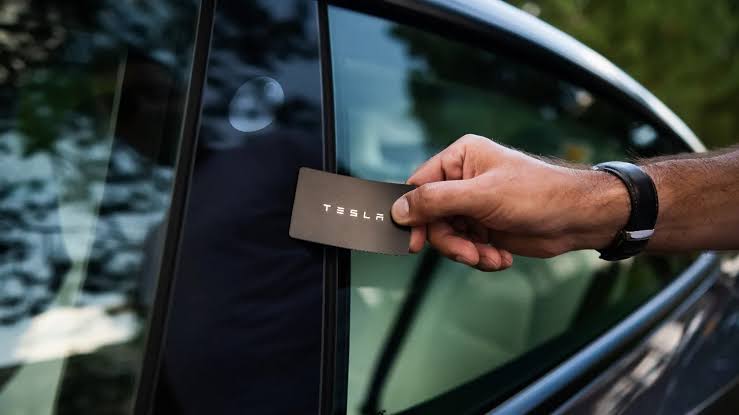
The Tesla Key Card provides a backup authentication method when the Phone Key does not work. Unlike Phone Key, which relies on Bluetooth communication, Key Card uses NFC technology and requires direct contact with the vehicle’s designated card reader area.
To use the Key Card, place it on the correct NFC reading location near the vehicle’s center pillar or console area depending on the Tesla model. The vehicle will verify the card and allow access if the Key Card is correctly paired with the car.
If the Key Card does not work, the issue may involve an unpaired card, damaged card surface, or a problem with the vehicle’s NFC reader. Adding the Key Card again through the Tesla touchscreen can restore authentication if the card configuration has been removed or corrupted.
How Do You Reset Tesla Key Detection System?
Resetting the Tesla Key Detection System can resolve temporary software communication problems between the vehicle and the authorized key. A reset allows the vehicle computers to restart communication processes without removing existing key permissions.
Tesla owners can begin with a touchscreen restart by holding both steering wheel scroll buttons until the screen turns off and the Tesla logo appears. This process refreshes the vehicle interface and may resolve temporary authentication errors.
If the issue continues, a full vehicle power cycle may help restore normal communication between internal systems. After the reset process, test each access method again, including Phone Key, Key Card, and Key Fob, to determine whether the detection problem has been resolved.
Why Is Tesla Phone Key Not Working But Key Card Works?
Tesla Phone Key may stop working while the Key Card continues to function because the two access methods use different authentication technologies. Phone Key depends on Bluetooth Low Energy (BLE) communication between the smartphone and vehicle, while Key Card uses Near Field Communication (NFC) to provide direct authentication through physical contact.
When the Key Card works but Phone Key fails, the problem is usually related to the smartphone connection rather than the vehicle locking system. A functioning Key Card confirms that the vehicle’s authentication system and NFC reader can still recognize an authorized access method.
The most common causes of Phone Key failure include disabled Bluetooth, incorrect Tesla App permissions, outdated app versions, smartphone battery optimization settings, or a broken Phone Key pairing. For example, a phone may still show the Tesla app installed, but restricted background activity can prevent the app from maintaining the Bluetooth connection required for automatic unlocking.
To fix a Tesla Phone Key problem, owners should first check Bluetooth settings and confirm that the Tesla app has permission to access Bluetooth and run in the background. Restarting the smartphone and Tesla app can refresh the connection and remove temporary communication errors.
If basic connection checks do not solve the issue, removing and adding the Phone Key again can restore authentication. This process creates a new connection between the smartphone and vehicle, allowing Tesla to verify the device as an authorized key again.
Testing both Phone Key and Key Card helps identify the source of the problem. If the Key Card works normally, owners should focus on smartphone-related settings before investigating deeper vehicle system issues.
Why Is Tesla Key Card Not Working?
Tesla Key Card problems occur when the vehicle cannot read, authenticate, or recognize the NFC signal from the card. Unlike Phone Key, the Key Card does not depend on Bluetooth or mobile connectivity, so failures usually involve card pairing, physical damage, or the vehicle’s NFC reading system.
A Tesla Key Card must be correctly paired with the vehicle before it can unlock and authorize driving. If the card has been removed from the vehicle’s key list or was never added correctly, Tesla will not recognize it even when the card is placed in the correct location.
Physical damage can also prevent a Key Card from working. Scratches, bending, or internal damage to the NFC component may affect communication between the card and the vehicle reader. Testing another paired Key Card can help determine whether the problem comes from the card itself or the vehicle.
To restore Key Card functionality, owners can add the card again through the Tesla touchscreen settings. The pairing process allows the vehicle to create a new authentication record for the card and confirms that the card is authorized to access the vehicle.
If multiple Key Cards fail at the same time, the issue may involve the vehicle’s NFC reader or authentication system. In this situation, further inspection may be required to identify whether the problem is related to hardware or software.
When Should You Contact Tesla Service for Key Detection Problems?
You should contact Tesla Service when the key detection problem continues after basic troubleshooting or when the vehicle cannot recognize any authorized access method. A Tesla that fails to detect Phone Key, Key Card, and Key Fob at the same time may indicate a deeper issue involving the vehicle authentication system rather than an individual key device.
The first situation requiring professional support is when multiple keys fail simultaneously. If a Phone Key does not work but a Key Card functions normally, the problem is usually related to the smartphone connection. However, if both Phone Key and Key Card fail after resetting connections and checking settings, the vehicle may have an internal communication or authentication problem.
Another reason to contact Tesla Service is when the issue repeatedly returns after temporary fixes. A successful reset that only solves the problem for a short time may indicate an underlying software issue, hardware communication failure, or a problem with the vehicle’s access control system.
Tesla Service support is also recommended when the vehicle cannot be unlocked or started through any available method. In situations where the owner cannot access the vehicle, attempting repeated resets or key reconfiguration may not solve the issue and could delay proper diagnosis.
Before contacting Tesla Service, owners should prepare specific information about the problem. Useful details include the Tesla model, the affected key type, recent software updates, previous troubleshooting steps, and whether another authorized key works. This information helps technicians identify whether the problem involves the key device, mobile connection, NFC system, or vehicle computer.
How Can You Prevent Tesla Key Detection Problems?
Preventing Tesla key detection problems requires maintaining reliable communication between the vehicle and its authorized access methods. Regular maintenance of the Phone Key, Key Card, and Key Fob reduces the chance of unexpected access failures.
Keeping the Tesla Mobile App updated is one of the most important prevention steps for Phone Key reliability. App updates often include improvements related to Bluetooth communication, authentication processes, and compatibility with newer smartphone operating systems.
Owners should also maintain proper smartphone settings for Phone Key operation. Bluetooth should remain enabled, the Tesla app should have the required permissions, and battery optimization settings should not restrict background activity. These settings allow the phone to maintain the connection required for automatic unlocking.
Carrying a Tesla Key Card as a backup provides an additional access method if the Phone Key connection fails. Because Key Card uses NFC instead of Bluetooth, it can still provide vehicle access when smartphone-related issues occur.
Regularly checking Key Fob battery condition can prevent unexpected failures for owners who use this access method. Replacing the battery before complete failure helps maintain consistent communication between the Key Fob and Tesla vehicle.
Maintaining updated vehicle software also supports reliable key detection. Tesla software updates can improve vehicle systems, including communication between the touchscreen, authentication components, and connected devices. Keeping both vehicle software and mobile applications current helps reduce avoidable key detection problems.
Conclusion: What Should Tesla Owners Do When Key Detection Fails?
Tesla key detection problems are usually caused by communication failures between the vehicle and an authorized access method rather than a complete vehicle system failure. The most common solutions involve checking Phone Key connectivity, verifying Key Card functionality, replacing weak Key Fob batteries, and resetting temporary software communication errors.
The correct troubleshooting approach starts with identifying which key method is affected. If only Phone Key fails, owners should focus on Bluetooth settings, Tesla Mobile App permissions, and device pairing. If Key Card and Key Fob also fail, the issue may involve the vehicle authentication system and require further inspection.
Maintaining reliable Tesla key access requires regular attention to both software and hardware components. Keeping the Tesla app updated, carrying a backup Key Card, checking key battery condition, and maintaining proper smartphone settings can reduce unexpected access problems.
Understanding how Tesla Key Detection System works allows owners to solve common issues faster and avoid unnecessary repairs. Most key detection problems can be resolved through structured troubleshooting, while persistent failures should be handled by Tesla Service to protect vehicle security and ensure proper system operation.