Few things are more frustrating than plugging your phone into your Subaru, expecting Android Auto to launch, and being greeted with a blank screen, a failed connection message, or nothing at all. Whether you rely on Android Auto for navigation, music streaming, hands-free calls, or voice commands, a sudden connection issue can quickly turn a convenient driving experience into a major inconvenience.
If your Subaru Android Auto isn’t working, you’re not alone. Many Subaru owners experience problems such as Android Auto not connecting, random disconnections, black screens, audio issues, or their phone not being recognized by the infotainment system. These problems can occur for a variety of reasons, ranging from a faulty USB cable and outdated software to infotainment system glitches and compatibility conflicts.
The good news is that most Android Auto issues can be resolved without an expensive repair or a trip to the dealership. In many cases, a few simple troubleshooting steps are enough to restore the connection and get everything working normally again.
In this complete troubleshooting guide, we’ll walk you through the most common reasons why Subaru Android Auto stops working, explain how to diagnose the issue, and provide step-by-step solutions to help you get back on the road with confidence.
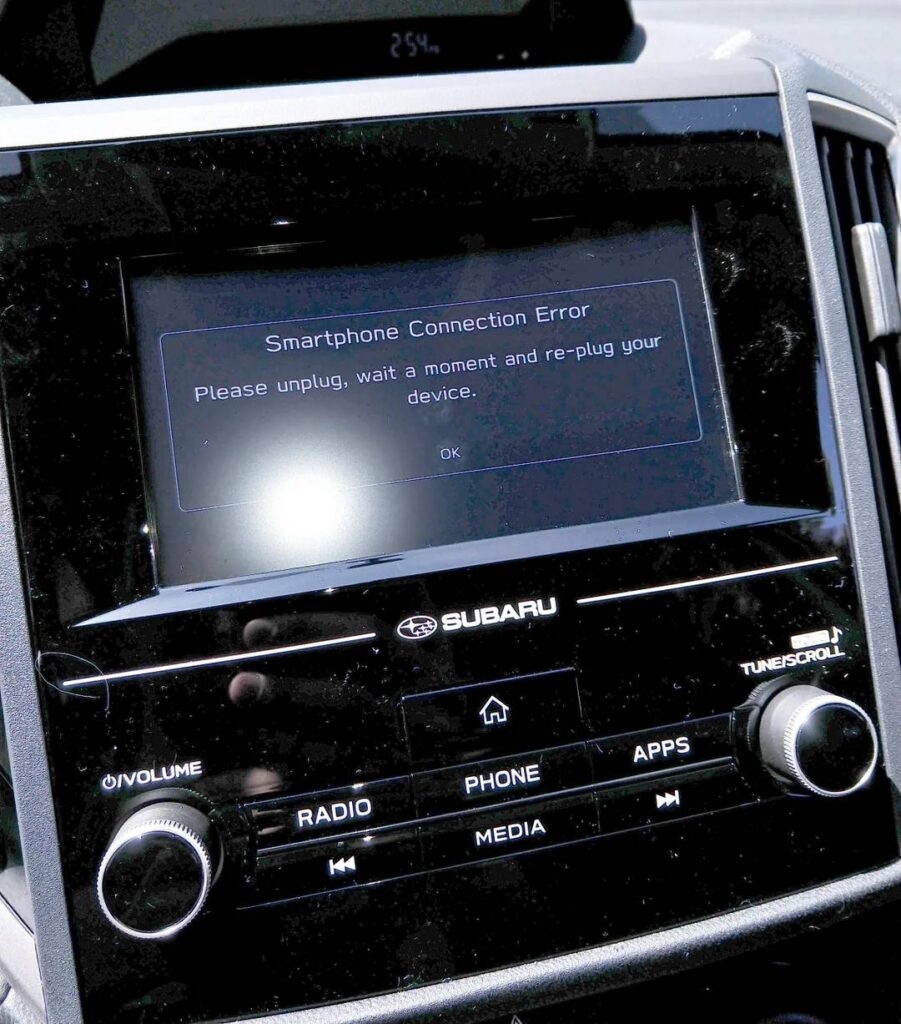
How Android Auto Works in Subaru Vehicles
Before troubleshooting connection issues, it helps to understand how Android Auto functions within Subaru’s infotainment ecosystem.
Android Auto is a smartphone integration platform developed by Google that allows drivers to access navigation, music, messaging, and voice assistant features directly from the vehicle’s touchscreen display. Instead of interacting with your phone while driving, Android Auto creates a simplified interface designed specifically for safer in-car use.
In most Subaru vehicles, Android Auto operates through the STARLINK multimedia system. When a compatible Android smartphone is connected to the vehicle through a supported USB port or wireless connection, the infotainment system mirrors approved apps and services onto the display.
Depending on the model year, your Subaru may support either wired Android Auto, wireless Android Auto, or both. Wired connections typically rely on a USB data cable capable of transferring information between the phone and the vehicle. Wireless Android Auto uses Bluetooth and Wi-Fi technology to establish communication without requiring a physical cable.
Several Subaru models, including the Outback, Forester, Crosstrek, Legacy, Ascent, and WRX, offer Android Auto compatibility. However, feature availability varies depending on the model year and infotainment system version.
Because Android Auto relies on multiple components working together, including your smartphone, Android operating system, USB cable, infotainment software, Bluetooth settings, and network permissions, a problem with any one of these elements can cause the system to stop functioning properly.
Understanding these dependencies makes it easier to identify the root cause of connectivity problems and apply the correct solution.
Quick Checklist Before Troubleshooting
Many Android Auto issues can be resolved within minutes by performing a few simple checks. Before diving into more advanced troubleshooting methods, work through the following checklist.
Confirm Your Subaru Supports Android Auto
Not every Subaru model includes Android Auto support. If you recently purchased a vehicle or updated your phone, verify that your specific model and trim level are compatible.
Check your owner’s manual or infotainment settings to confirm Android Auto availability. Some older Subaru models may require software updates or may not support Android Auto at all.
If Android Auto worked previously and suddenly stopped functioning, compatibility is likely not the issue. However, it remains a good first step to rule out any misunderstanding regarding available features.
Verify Phone Compatibility
Android Auto requires a supported Android device running a compatible operating system version.
Ensure that:
Your Android device is updated to the latest available software.
Google Play Services is installed and functioning correctly.
The Android Auto application is updated.
Required permissions have been granted.
Compatibility issues occasionally arise after major Android operating system updates. In these situations, updating all Google-related services often resolves unexpected connection failures.
Restart Both Devices
Technology glitches are surprisingly common and often temporary.
Turn off your vehicle completely.
Restart your smartphone.
Wait approximately thirty seconds before reconnecting.
Reconnect the device and launch Android Auto again.
This simple procedure refreshes system processes and can eliminate temporary communication errors between the phone and the vehicle.
Check the USB Connection
Many Subaru Android Auto problems originate from cable-related issues.
Inspect the cable for visible wear.
Avoid damaged connectors.
Use a high-quality USB data cable.
Ensure the cable is securely connected at both ends.
A cable that charges your phone may not necessarily support data transfer. This distinction is one of the most overlooked causes of Android Auto failures.
Disable VPN Applications
Certain VPN services can interfere with Android Auto functionality.
If you use a VPN application on your smartphone, temporarily disable it and attempt to reconnect. Some users have reported successful connections immediately after disabling VPN-related services.
Completing this checklist can save significant troubleshooting time and may solve the problem without further intervention.
Common Reasons Your Subaru Android Auto Isn’t Working
If Android Auto still refuses to connect, one of the following underlying issues is likely responsible.
Faulty or Incompatible USB Cable
A defective USB cable remains one of the most common reasons Android Auto fails to launch.
Many drivers assume a cable is functioning properly because it charges the phone. However, charging and data transfer are separate functions. Some inexpensive cables are designed solely for charging and cannot transmit the data required for Android Auto.
Symptoms often include:
The phone charges normally.
Android Auto never launches.
The connection repeatedly drops.
The infotainment system fails to detect the device.
Try using the original cable supplied by your phone manufacturer or a certified high-quality replacement cable. If possible, test multiple cables to determine whether the issue disappears.
Dirty or Damaged USB Port
USB ports are exposed to dust, debris, moisture, and everyday wear.
Even a small amount of lint inside the port can interrupt communication between your smartphone and the infotainment system.
Carefully inspect both the phone’s charging port and the Subaru USB port. If debris is present, remove it gently using appropriate cleaning tools. Avoid inserting metal objects that could damage internal connectors.
If your vehicle offers multiple USB ports, test each one individually to determine whether a specific port is malfunctioning.
Android Auto App Problems
Software bugs within the Android Auto application itself can prevent successful connections.
Common symptoms include:
Black screens.
Unexpected crashes.
Frozen interfaces.
Apps failing to load.
Android Auto launching briefly before disconnecting.
To resolve app-related problems:
Clear the Android Auto cache.
Clear application data.
Force stop the application.
Reinstall Android Auto.
Update the application through Google Play Store.
These steps often eliminate corrupted settings and restore normal functionality.
Outdated Smartphone Software
Operating system updates frequently include compatibility improvements and bug fixes.
If your phone has not been updated recently, Android Auto may encounter communication issues with your Subaru infotainment system.
Check for:
Android operating system updates.
Google Play Services updates.
Security patches.
Android Auto application updates.
Keeping all software current reduces the likelihood of compatibility conflicts and improves long-term reliability.
Subaru Infotainment Software Problems
Your smartphone is not always the source of the problem. In many cases, the Subaru infotainment system itself may be responsible for Android Auto connectivity issues.
Modern Subaru vehicles rely on sophisticated software to manage communication between the STARLINK multimedia system and connected devices. Like any software platform, bugs, corrupted settings, or outdated firmware can occasionally interfere with normal operation.
Common symptoms of infotainment software issues include:
Android Auto failing to launch despite a recognized connection.
A frozen touchscreen display.
Black screens when attempting to open Android Auto.
System lag or delayed responses.
Repeated crashes during use.
If you suspect the infotainment system is causing the issue, start by performing a simple restart. Turn off the vehicle completely, wait a few minutes, and restart the system. In some Subaru models, holding down the power or volume knob for several seconds may trigger a system reboot.
Next, check whether a software update is available for your STARLINK system. Manufacturers periodically release updates that improve compatibility with newer Android devices and address known bugs. Installing the latest firmware may resolve connection problems that appeared after a phone update or operating system upgrade.
If the issue persists, consider performing a system reset. While the exact process varies by model year, restoring factory settings can eliminate corrupted configurations that may be preventing Android Auto from functioning properly.
Bluetooth and Wireless Android Auto Conflicts
Wireless Android Auto offers convenience, but it also introduces additional points of failure. Because the system relies on both Bluetooth and Wi Fi communication, connection conflicts can occur more frequently than with a wired setup.
One common issue occurs when multiple devices have been paired with the vehicle. The infotainment system may attempt to connect to an older device instead of the phone currently being used.
You may experience symptoms such as:
Android Auto failing to launch automatically.
Repeated pairing requests.
Random disconnections during driving.
Audio playback interruptions.
Navigation freezing unexpectedly.
To resolve these issues, remove existing Bluetooth pairings from both your smartphone and the vehicle. After deleting the stored connections, restart both devices and establish a fresh pairing.
You should also disable Bluetooth on nearby devices that may be attempting to connect automatically. Smartwatches, tablets, and secondary phones can sometimes interfere with the primary Android Auto connection.
If your Subaru supports wireless Android Auto, ensure that Wi Fi permissions remain enabled on the smartphone. Wireless Android Auto requires both Bluetooth and Wi Fi to function correctly. Disabling either service can prevent the connection from being established.
Drivers experiencing frequent disconnects may benefit from temporarily switching to a wired connection. If the wired connection works consistently, the issue is likely related to wireless communication rather than the infotainment system itself.
Phone Permission Settings
Android Auto requires access to several permissions in order to operate correctly. If one or more permissions are disabled, certain features may fail or the entire platform may stop functioning.
Many users unknowingly deny permissions during setup and later encounter connectivity issues without realizing the cause.
Android Auto typically requires access to:
Location services.
Contacts.
Phone functions.
Microphone access.
SMS and messaging permissions.
Notification access.
Background activity permissions.
If Android Auto launches but voice commands fail, microphone permissions may be disabled. If navigation does not work properly, location access may be restricted. If incoming calls cannot be displayed through the infotainment system, phone permissions may not be enabled.
To review permissions, open your phone’s settings menu and locate the Android Auto application. Verify that all essential permissions have been granted. In addition, ensure that battery optimization settings are not restricting Android Auto from running in the background.
Some Android devices automatically place rarely used applications into a restricted mode to conserve battery life. This can interfere with Android Auto’s ability to maintain a stable connection while driving.
After adjusting permissions, restart both the smartphone and the vehicle before testing the connection again. In many cases, restoring the proper permissions immediately resolves functionality issues that previously appeared difficult to diagnose.
How to Reset Subaru STARLINK Infotainment System
If Android Auto continues to malfunction after basic troubleshooting, resetting the STARLINK infotainment system may help restore proper functionality. Over time, temporary software glitches, corrupted settings, or failed updates can affect communication between your smartphone and the vehicle.
Before performing any reset, make sure you understand that certain settings, saved devices, radio presets, and personalized preferences may be removed depending on the reset method used.
Perform a Soft Reset
A soft reset is the safest option and should always be attempted first.
Start your vehicle and ensure the infotainment system is powered on. Press and hold the power or volume knob for approximately ten to fifteen seconds. The display should turn off and restart automatically.
Once the system reboots, reconnect your Android device and test Android Auto again.
A soft reset often resolves temporary software issues without affecting stored settings.
Perform a Factory Reset
If a soft reset does not solve the problem, a factory reset may be necessary.
Open the Settings menu on the infotainment display and navigate to the System or General Settings section. Locate the Factory Data Reset option and follow the on screen instructions.
After the reset is complete, reconfigure your settings, pair your phone again, and reconnect Android Auto.
Many persistent connectivity issues disappear after a factory reset because corrupted system configurations are removed and replaced with default settings.
Check for Software Updates After Resetting
Once the reset process is finished, verify whether any infotainment software updates are available. Installing the latest firmware can improve compatibility with newer Android devices and eliminate known bugs that affect Android Auto performance.
Combining a factory reset with a software update often provides the best chance of resolving stubborn connectivity problems.
Android Auto Not Detecting Your Phone
One of the most common complaints among Subaru owners is that Android Auto simply fails to recognize the connected device. You plug in your phone, but nothing appears on the infotainment screen.
This issue can occur for several reasons.
Verify the USB Connection
Start with the simplest possibility.
Ensure that the cable supports both charging and data transfer. Replace the cable with a certified high quality alternative and test the connection again.
Inspect the USB ports for debris or signs of damage. Even minor contamination can interrupt communication between the vehicle and your smartphone.
Unlock Your Phone
Some Android devices require the screen to be unlocked before Android Auto can establish a connection.
Connect the phone, unlock the screen, and wait several moments for Android Auto to launch.
You may also receive permission requests asking whether the device should trust the connected vehicle. Approve any prompts that appear.
Enable Android Auto Features
Open the Android Auto settings on your phone and verify that the application is enabled.
Check that:
Android Auto is active.
New vehicles can be added automatically.
Wireless Android Auto is enabled if supported.
Background permissions are allowed.
Incorrect settings can prevent the system from detecting your device even when the physical connection is functioning correctly.
Test Another Smartphone
A quick way to isolate the source of the problem is to connect a different Android device.
If the second phone works properly, the issue is likely related to your original smartphone rather than the Subaru infotainment system.
This simple test can save hours of unnecessary troubleshooting.
Android Auto Keeps Disconnecting
Intermittent disconnections are among the most frustrating Android Auto problems. The system may work perfectly for several minutes before suddenly disconnecting and reconnecting without warning.
These interruptions can disrupt navigation, music streaming, phone calls, and voice commands.
Replace the USB Cable
The most common cause of random disconnects is a worn or damaged USB cable.
Even if the cable appears normal externally, internal damage can interrupt data transfer whenever the cable moves slightly during driving.
Testing with a new cable is often the fastest and most effective solution.
Disable Battery Optimization
Many Android manufacturers include aggressive battery management systems designed to extend battery life.
Unfortunately, these features can interfere with Android Auto by limiting background processes.
Open your phone’s battery settings and locate Android Auto. Exclude the application from battery optimization and allow unrestricted background activity.
This adjustment frequently eliminates unexpected disconnects.
Check for Overheating
Excessive heat can affect both smartphones and infotainment systems.
If your device becomes extremely hot during navigation or charging, Android Auto may temporarily disconnect to protect system components.
Keep your phone out of direct sunlight and avoid using thick protective cases that trap heat.
Review Wireless Signal Stability
For vehicles equipped with wireless Android Auto, unstable Bluetooth or Wi Fi communication can lead to frequent interruptions.
Delete existing pairings, reconnect the phone, and ensure that no other nearby devices are competing for the connection.
If disconnects continue, switch temporarily to a wired connection. A stable wired connection often confirms that the issue is related to wireless communication rather than software or hardware failure.
Reset Network Settings
Network configuration issues can sometimes interfere with Android Auto performance.
Resetting network settings on your smartphone removes saved Bluetooth connections, Wi Fi configurations, and related network data.
After the reset, reconnect the vehicle and complete the Android Auto setup process again.
Many users find that network resets resolve persistent connectivity issues that other troubleshooting methods fail to address.
Android Auto Black Screen Issues
A black screen is one of the most alarming Android Auto problems because it often leaves drivers wondering whether the issue is caused by the phone, the infotainment system, or a hardware failure. In most cases, however, the problem is software related and can be resolved with a few troubleshooting steps.
A black screen may appear immediately after connecting the phone, while launching Google Maps, or randomly during use. Sometimes Android Auto appears to load successfully, but the display remains blank or unresponsive.
Begin by disconnecting the phone and restarting both the smartphone and the STARLINK infotainment system. Temporary software conflicts can occasionally prevent the display from rendering properly.
Next, verify that Android Auto and all Google services are fully updated. Outdated applications may conflict with newer operating system versions and cause display issues.
Clearing the Android Auto cache can also help. Corrupted temporary files may prevent the interface from loading correctly. After clearing the cache, reconnect the device and test the system again.
If the problem started immediately after a software update, check online support resources or Subaru service bulletins for known compatibility issues. Occasionally, newly released updates introduce bugs that are later corrected through patches.
Drivers using wireless Android Auto should also test a wired connection. If the display works normally when connected through USB, the issue may be related to wireless communication rather than the display system itself.
No Sound Through Android Auto
Another common complaint involves Android Auto connecting successfully but producing no audio. Navigation directions may not play, music applications remain silent, and phone calls may not route correctly through the vehicle’s speakers.
This issue can have multiple causes.
Start by checking the volume controls on both the smartphone and the infotainment system. Some Android devices maintain separate volume levels for media, calls, notifications, and navigation prompts.
Next, verify the audio source selected on the infotainment display. In some situations, the vehicle may remain set to a different audio input instead of Android Auto.
Bluetooth conflicts can also contribute to audio problems. If the phone is simultaneously connected to another device such as wireless earbuds or a smartwatch, audio routing may become confused.
Disconnect unnecessary Bluetooth devices and reconnect Android Auto.
It is also worth reviewing Android Auto permissions. Applications such as Spotify, YouTube Music, and Google Maps require proper permissions to function correctly through the infotainment system.
If audio problems persist, remove the phone from the vehicle’s paired devices list and complete the pairing process again. A fresh connection often restores normal audio routing.
Advanced Troubleshooting Methods
When basic fixes fail, more advanced diagnostic steps may be necessary.
Reset Network Settings
Network settings control Bluetooth, Wi Fi, and mobile data communication. Corrupted network configurations can interfere with Android Auto connections.
Open your smartphone settings and perform a network settings reset. Once complete, reconnect your Subaru and set up Android Auto again.
Although this process removes saved wireless networks and Bluetooth pairings, it often resolves persistent connectivity issues.
Reinstall Android Auto
A damaged application installation can create unexpected problems.
Remove Android Auto completely from your device, restart the phone, and download the latest version from the Google Play Store.
This process eliminates corrupted files and restores the application to its default state.
Test with Another Android Device
One of the most effective diagnostic techniques is using a different smartphone.
If another Android device connects without issues, your original phone is likely responsible for the problem. If both devices fail, the issue may originate from the vehicle’s infotainment system or USB hardware.
This comparison helps narrow down the root cause and prevents unnecessary repairs.
Check for Manufacturer-Specific Restrictions
Some smartphone manufacturers implement battery management features that can interfere with Android Auto.
Review device settings related to battery optimization, background activity restrictions, and application management. Grant Android Auto unrestricted access whenever possible.
These settings vary by manufacturer but can significantly impact connection reliability.
When to Contact a Subaru Dealership
While most Android Auto issues can be resolved through troubleshooting, certain situations may require professional assistance.
Consider contacting a Subaru dealership if:
The infotainment system repeatedly freezes or crashes.
USB ports stop functioning entirely.
Software updates fail to install.
The touchscreen becomes unresponsive.
Android Auto remains unavailable despite testing multiple devices and cables.
The STARLINK system displays persistent error messages.
Dealership technicians have access to diagnostic tools and manufacturer resources that can identify hardware failures, firmware problems, and communication faults that are difficult to diagnose at home.
In some cases, a software update available only through a dealership may be required to restore compatibility with newer Android devices.
If a hardware component such as the USB module, infotainment head unit, or wiring harness is defective, professional repair may be the only permanent solution.
Preventing Future Android Auto Problems
Preventive maintenance can significantly reduce the likelihood of Android Auto issues in the future.
Keep your smartphone updated with the latest Android software and security patches. Software updates often contain important compatibility improvements and bug fixes.
Regularly update Android Auto and Google Play Services. Outdated applications are among the most common causes of connectivity problems.
Use high quality USB cables that support both charging and data transfer. Cheap cables frequently cause connection failures and random disconnections.
Keep USB ports clean and free from dust, dirt, and debris. Even minor contamination can affect data communication.
Avoid installing unnecessary device optimization applications that aggressively restrict background activity. These tools may interfere with Android Auto functionality.
Periodically check for Subaru infotainment software updates to ensure the STARLINK system remains compatible with the latest Android devices.
Following these simple habits can improve reliability, reduce frustration, and provide a more consistent Android Auto experience every time you drive.
Conclusion
If your Subaru Android Auto is not working, the problem is usually easier to fix than it initially appears. In most cases, the root cause can be traced to a faulty USB cable, outdated software, incorrect permissions, Bluetooth conflicts, or temporary infotainment system glitches.
By following a structured troubleshooting process, you can quickly identify the source of the problem and restore connectivity without spending money on unnecessary repairs. Starting with basic checks such as cables, ports, software updates, and permissions often resolves the issue within minutes.
For more persistent problems, advanced steps such as resetting network settings, reinstalling Android Auto, or performing a STARLINK system reset can provide effective solutions. When all troubleshooting methods fail, a Subaru dealership can perform detailed diagnostics to determine whether a hardware or firmware issue is involved.
Keeping your smartphone, Android Auto application, and Subaru infotainment system updated is the best way to prevent future connectivity problems. With proper maintenance and the right troubleshooting approach, you can enjoy reliable navigation, music streaming, hands free communication, and all the convenience that Android Auto brings to your Subaru driving experience.