A frozen touchscreen, a black display, missing audio, or a phone that suddenly refuses to connect can make your GMC infotainment system frustrating to use. These problems often appear without warning and may affect Bluetooth, Apple CarPlay, Android Auto, navigation, radio controls, or other everyday features.
Before scheduling an expensive diagnostic appointment, performing a GMC IntelliLink hard reset may help restore normal operation. In many cases, the issue is caused by a temporary software error, a failed connection, or a system process that did not shut down correctly.
However, not every reset method works the same way. A basic restart may preserve your saved settings, while a factory reset can remove paired phones, radio presets, user profiles, and other personal information. The correct procedure can also vary depending on your GMC model, model year, and infotainment system version.
This step by step guide explains the safest ways to restart, reboot, and reset GMC IntelliLink. You will learn which method to try first, what data may be deleted, how to reconnect your phone afterward, and what to do if the screen still does not respond. Start with the least disruptive option and move to a full reset only when necessary.
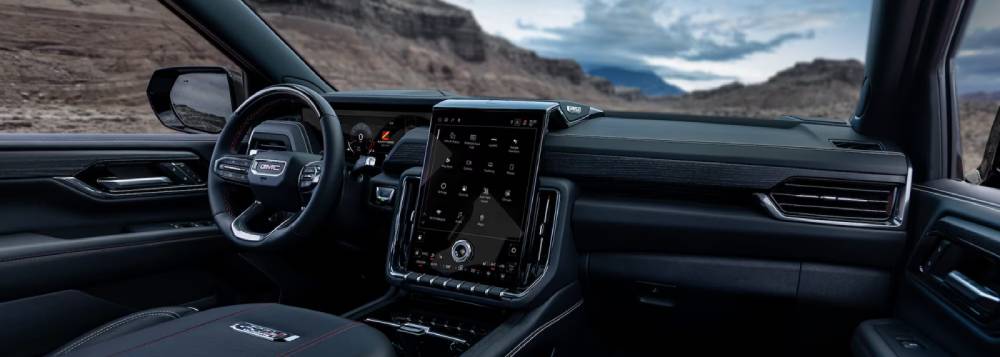
What Is a GMC IntelliLink Hard Reset?
Before attempting any reset, it is important to understand that not every reset performs the same function. Many GMC owners use the terms “hard reset,” “soft reset,” and “factory reset” interchangeably, but they are designed for different situations. Choosing the appropriate method can solve your infotainment issue while preventing unnecessary loss of personal settings.
A soft reset, sometimes referred to as a system reboot, simply restarts the IntelliLink software. This process refreshes the operating system and clears temporary software glitches without affecting your saved information. If your touchscreen is slow, Bluetooth suddenly disconnects, or Apple CarPlay stops responding, a soft reset is usually the safest place to start. In most cases, your paired phones, navigation preferences, radio presets, and user profiles remain intact.
A hard reset generally refers to restarting the infotainment system when it has become completely unresponsive. Depending on the GMC model and infotainment generation, this may involve using a specific steering wheel button combination or allowing the system to perform a complete reboot after shutting down the vehicle. Unlike a factory reset, a hard reset typically does not erase personal data, making it an effective solution for frozen screens, delayed touchscreen responses, and temporary software crashes.
A factory reset is the most comprehensive reset option available. It restores the infotainment system to its original factory configuration and removes many personalized settings stored within the vehicle. After a factory reset, you may need to reconnect Bluetooth devices, sign back into connected services, recreate driver profiles, and restore your favorite radio stations. Because of its impact, this method should only be used after simpler troubleshooting steps have failed or when preparing the vehicle for a new owner.
Understanding these differences helps you choose the least disruptive solution first. In many situations, a simple reboot resolves the problem in just a few minutes, eliminating the need for a complete factory reset.
Before You Perform a GMC IntelliLink Hard Reset
Taking a few minutes to prepare before resetting your infotainment system can save you considerable time afterward. While most restart procedures are safe, certain reset methods may remove saved settings or temporarily disable connected features until they are configured again.
Begin by parking your vehicle on a level surface and shifting the transmission into Park. Never attempt to reset the infotainment system while driving, as the touchscreen and vehicle controls may become temporarily unavailable during the reboot process.
If possible, write down your favorite radio stations, navigation preferences, Wi Fi passwords, and any customized audio settings. If your vehicle uses multiple driver profiles, make sure each user knows that certain personalized settings could be removed if a factory reset becomes necessary.
Next, disconnect unnecessary USB accessories and external storage devices. Occasionally, a faulty USB drive or incompatible accessory can interfere with the infotainment software and create symptoms that resemble a system failure. Removing these devices allows you to determine whether the issue originates from the IntelliLink system itself or from connected hardware.
It is also worth checking whether your smartphone has the latest operating system installed. Outdated versions of iOS or Android can sometimes create connection problems with Apple CarPlay or Android Auto, leading owners to believe that the vehicle’s infotainment system is malfunctioning when the issue actually lies with the mobile device.
Finally, make sure your vehicle has sufficient battery voltage. Modern infotainment systems rely on stable electrical power, and a weak battery can cause random restarts, display flickering, delayed touchscreen responses, and Bluetooth connectivity issues. If your battery has shown signs of weakness recently, resolving the electrical problem before performing multiple resets may prevent the issue from returning.
By completing these simple preparations, you minimize the risk of losing important settings while increasing the likelihood that the reset will successfully restore normal system operation.
Method 1: Restart the Vehicle and Allow IntelliLink to Fully Shut Down
The safest troubleshooting step for nearly every GMC infotainment problem is a complete vehicle shutdown. Many software glitches occur because background processes never fully close after the vehicle is turned off. Allowing the IntelliLink system to power down completely gives it an opportunity to clear temporary memory and restart normally.
Start by parking the vehicle safely and placing the transmission in Park. Turn off the engine and remove the key if your vehicle uses a traditional ignition system. If your GMC has push button start, press the Start Stop button to completely shut down the engine.
Open the driver’s door after turning off the vehicle. This action signals many GMC models to begin shutting down electronic control modules throughout the vehicle. Close the door and wait patiently while the infotainment system powers off. Depending on the model year, this process may take several minutes before every module enters sleep mode.
Avoid immediately restarting the engine. Giving the system enough time to shut down completely is one of the most overlooked yet effective troubleshooting techniques. Interrupting the shutdown process too quickly may prevent the software from clearing temporary errors.
Once several minutes have passed, restart the vehicle and allow the IntelliLink system to boot completely before interacting with the touchscreen. Wait until the home screen finishes loading before reconnecting your smartphone or launching Apple CarPlay or Android Auto.
This simple restart procedure can often resolve issues such as a frozen touchscreen, delayed menu response, Bluetooth connection failures, missing audio, navigation errors, and temporary black screens. Because no personal information is erased during this process, it should always be your first troubleshooting step before attempting more advanced reset methods.
If the problem disappears after this restart, no additional action is usually required. However, if the infotainment system continues to freeze, reboot unexpectedly, or remains unresponsive, you can proceed to the next reset method described in this guide.
Method 2: Reboot the GMC Infotainment System
If restarting the vehicle does not resolve the problem, the next troubleshooting step is to reboot the infotainment system itself. This method refreshes the software running behind the touchscreen and often resolves issues that persist after a normal vehicle shutdown. Unlike a factory reset, a system reboot usually preserves your saved Bluetooth connections, radio presets, navigation settings, and user profiles.
The exact reboot procedure varies depending on your GMC model year and infotainment generation. Many newer GMC vehicles allow the infotainment system to reboot by pressing and holding the End Call button on the steering wheel while the vehicle is safely parked. Continue holding the button until the center display turns off, then release it and wait for the system to restart automatically. The reboot process normally takes less than a minute.
Older IntelliLink systems may not support this shortcut. In those cases, restarting the vehicle and allowing all electronic modules to shut down completely remains the recommended approach. If your owner’s manual describes a different reboot procedure, always follow the manufacturer instructions for your specific vehicle.
Once the display has restarted, avoid pressing multiple buttons immediately. Allow the operating system to finish loading before testing Bluetooth, Apple CarPlay, Android Auto, navigation, voice commands, and the radio. Interrupting the startup sequence can occasionally cause applications to load incorrectly.
A successful reboot often resolves touchscreen freezing, delayed menu response, missing audio, Bluetooth pairing failures, smartphone connection problems, and occasional software crashes. Because this method rarely removes personal settings, it should always be attempted before performing any factory reset.
If the infotainment system continues freezing after several successful reboots, the problem may involve corrupted software, outdated firmware, or a hardware component that requires additional diagnosis.
Method 3: Reset Radio Settings Through the IntelliLink Menu
Sometimes the problem is limited to the radio portion of the infotainment system rather than the entire operating system. You may notice that the touchscreen works normally while the radio produces no sound, stations disappear, audio settings behave unexpectedly, or the system repeatedly switches audio sources. In these situations, resetting only the radio settings may solve the problem without affecting the rest of the infotainment system.
Begin by turning on the vehicle and allowing the IntelliLink system to load completely. Open the Settings menu and locate the section related to system recovery or factory settings. Depending on the software version installed in your vehicle, you may see options such as Restore Radio Settings, Restore Vehicle Settings, or Return to Factory Settings.
Choose the option that specifically resets the radio if it is available. Read the confirmation message carefully before continuing because some versions may remove saved radio stations, equalizer adjustments, audio preferences, and other sound related settings. Confirm the reset and allow the system several moments to complete the process.
After the reset finishes, test multiple audio sources including AM radio, FM radio, satellite radio, Bluetooth streaming, Apple CarPlay, Android Auto, and USB playback. This helps determine whether the issue has been isolated to one particular source or whether the entire infotainment system is affected.
If sound quality returns to normal and the radio functions correctly, no additional troubleshooting may be necessary. However, if the display remains frozen, audio still does not work, or other infotainment functions continue failing, a complete factory reset may become the next logical step.
Method 4: Perform a Full GMC IntelliLink Factory Reset
A factory reset should only be performed after less invasive troubleshooting methods have failed. Because this procedure restores the infotainment system to its original factory configuration, it removes many personalized settings and requires you to set up the system again from the beginning.
Before starting, verify that you know the login credentials for any connected services and make a note of important settings that you wish to restore later. You should also ensure that your vehicle remains parked throughout the entire reset process.
Open the Settings menu on the IntelliLink display and navigate to the system recovery section. Depending on the software version installed in your vehicle, you may find options labeled Return to Factory Settings, Factory Data Reset, or Restore Factory Defaults. Select the appropriate option and carefully review the warning message displayed on the screen.
Confirm that you wish to continue and allow the infotainment system to complete the reset without interruption. Do not switch off the ignition, disconnect the battery, or attempt to restart the display while the reset is in progress. Interrupting the process could result in incomplete software initialization or additional system errors.
After the factory reset finishes, the infotainment system will restart as though it were being used for the first time. You will need to reconnect Bluetooth devices, configure Wi Fi settings if applicable, restore audio preferences, recreate driver profiles, and pair Apple CarPlay or Android Auto again.
A factory reset can resolve persistent software crashes, repeated touchscreen freezing, corrupted user profiles, failed Bluetooth pairing, and configuration problems that cannot be corrected through a normal reboot. However, if the display remains black, repeatedly restarts itself, or refuses to power on after a successful factory reset, the issue may be related to hardware failure, outdated software requiring dealer intervention, or an electrical problem elsewhere in the vehicle. At that point, professional diagnosis is recommended rather than repeatedly performing additional resets.
GMC IntelliLink Reset Instructions by Model
Although the core troubleshooting process is similar across the GMC lineup, the exact reset procedure may vary depending on the model year and infotainment system installed in the vehicle. Some older models use the original IntelliLink platform, while newer vehicles feature the latest GMC infotainment system with updated software and additional connectivity features. Knowing which system your vehicle uses will help you choose the most effective reset method.
GMC Sierra
The GMC Sierra is one of the most common models equipped with IntelliLink. Owners frequently report issues such as a frozen touchscreen, delayed response, Bluetooth pairing failures, or Apple CarPlay disconnecting unexpectedly. In most cases, starting with a complete vehicle shutdown followed by an infotainment reboot resolves temporary software glitches. If problems continue after multiple restarts, performing a factory reset may restore normal functionality. Owners should remember that newer Sierra models may use a different infotainment platform than earlier IntelliLink systems, so menu options can vary slightly.
GMC Yukon
The Yukon relies heavily on its infotainment system for navigation, entertainment, and driver convenience features. A frozen display or repeated software crashes can affect multiple functions simultaneously. Begin with the least invasive troubleshooting methods by allowing the system to shut down completely before restarting the vehicle. If the touchscreen remains unresponsive, perform an infotainment reboot and test all major functions before considering a factory reset.
GMC Terrain
Many Terrain owners experience occasional Bluetooth connectivity issues, delayed touchscreen responses, or intermittent audio loss. These symptoms are often caused by temporary software conflicts rather than hardware failure. Restarting the vehicle and reconnecting paired devices usually resolves the problem. A factory reset should only be considered if software instability continues after simpler troubleshooting has failed.
GMC Acadia
The Acadia features a sophisticated infotainment system that integrates navigation, smartphone connectivity, voice commands, and entertainment controls. If multiple functions stop responding at the same time, a complete reboot may restore system stability. Persistent black screens or repeated startup failures may indicate software corruption that requires a factory reset or professional inspection.
GMC Canyon
Canyon owners commonly encounter smartphone connectivity problems after software updates or when switching between multiple mobile devices. Before resetting the infotainment system, remove outdated Bluetooth pairings and reconnect your phone. If the issue persists, perform a complete reboot followed by a factory reset only if necessary.
Regardless of which GMC model you drive, always begin with the simplest troubleshooting method before progressing to more advanced reset procedures. This approach minimizes the risk of losing personal settings while giving the software the best opportunity to recover from temporary errors.
How to Reconnect Bluetooth After the Reset
After completing a factory reset, your previous Bluetooth connections may no longer be available. Reconnecting your phone properly ensures that hands free calling, wireless audio streaming, contact synchronization, and smartphone integration work as expected.
Start by opening the Bluetooth settings on your smartphone and removing the previous GMC connection if it still appears in the list of paired devices. Keeping outdated pairing information can sometimes prevent a successful reconnection.
Next, open the Bluetooth menu on the IntelliLink system and delete any old phone profiles that remain stored in the vehicle. This gives both devices a completely fresh connection without conflicting information from earlier pairings.
Enable Bluetooth on your smartphone and place the device in discovery mode if required. From the IntelliLink screen, choose the option to add a new device and wait for your phone to appear in the available devices list. Select your phone and verify that the pairing codes displayed on both screens match before accepting the connection request.
After pairing is complete, allow permission for contacts, recent calls, text messages, and notifications if you intend to use voice commands or hands free communication features. These permissions improve the overall functionality of the infotainment system and reduce the likelihood of connection problems later.
Finally, make a test phone call and stream music through Bluetooth to confirm that the connection is stable. If Bluetooth disconnects repeatedly after a successful pairing, restart both the vehicle and the smartphone before attempting the connection again. Installing the latest software updates for both devices may also improve long term reliability.
How to Fix Apple CarPlay or Android Auto After a Reset
One of the most common concerns after performing a GMC IntelliLink hard reset is that Apple CarPlay or Android Auto no longer connects automatically. Fortunately, this problem is usually easy to resolve by rebuilding the connection from the beginning.
First, verify that your smartphone is running the latest available operating system. Software updates often include compatibility improvements that enhance communication between the phone and your vehicle’s infotainment system.
If you use a wired connection, inspect the USB cable carefully. Damaged or low quality cables frequently cause intermittent disconnections, charging problems, or complete connection failures. Using the original manufacturer cable or a certified replacement provides the most reliable performance.
Open the smartphone projection settings within the infotainment system and confirm that Apple CarPlay or Android Auto is enabled. After a factory reset, these features may return to their default configuration and require manual activation before they become available.
Remove the existing vehicle connection from your phone and delete the paired smartphone from the infotainment system. Restart both devices before creating a completely new connection. This process eliminates corrupted connection profiles that may have survived previous software errors.
Once the new pairing is complete, launch Apple CarPlay or Android Auto and verify that navigation, voice commands, music streaming, messaging, and phone calls all function correctly. Test each feature individually rather than assuming the connection is fully operational after the home screen appears.
If smartphone integration continues to fail after several reconnection attempts, check whether your vehicle has a software update available. Updated infotainment software often resolves compatibility issues with newer versions of iOS and Android. Should the problem persist despite updated software and successful Bluetooth pairing, the issue may require diagnosis by an authorized GMC service center.
What to Do If the GMC IntelliLink Hard Reset Does Not Work
If you have completed every reset procedure in this guide and the infotainment system still refuses to function properly, the issue may extend beyond a temporary software glitch. While many IntelliLink problems can be resolved with a reboot or factory reset, persistent failures often require a more detailed diagnosis.
The first step is to check whether your vehicle has an available software update. GMC periodically releases infotainment updates that improve system stability, fix known bugs, and enhance compatibility with newer smartphones. Installing the latest software version may resolve issues that cannot be corrected through a reset alone.
Next, disconnect every external device connected to the infotainment system. Remove USB drives, charging cables, aftermarket accessories, and any devices connected through Bluetooth or Wi Fi. Restart the vehicle again and observe whether the system operates normally without any external hardware attached.
Battery condition is another factor that many vehicle owners overlook. Modern infotainment systems rely on a stable electrical supply, and a weak battery or charging system can cause random screen freezes, reboot loops, missing audio, or delayed touchscreen responses. If you have recently experienced slow engine cranking or battery warning messages, consider having the electrical system inspected before replacing infotainment components.
If the display remains completely black, repeatedly restarts, or fails to respond after multiple factory resets, hardware failure becomes a more likely possibility. Components such as the infotainment control module, display assembly, wiring harness, or communication network may require professional testing.
Avoid disconnecting the vehicle battery or removing fuses solely to force an infotainment reset unless the procedure is specifically recommended for your exact GMC model. These methods may temporarily clear certain faults, but they can also introduce additional problems or erase vehicle settings unnecessarily.
When software updates, reboots, and factory resets all fail to restore normal operation, scheduling an inspection with a qualified GMC technician is the safest and most effective solution.
Common GMC IntelliLink Problems and the Best Reset to Try
Different symptoms often require different troubleshooting approaches. Starting with the least invasive solution saves time and reduces the chance of losing important settings.
If the touchscreen freezes but still displays information, begin with a complete vehicle shutdown followed by an infotainment reboot. Temporary software conflicts are usually responsible for this type of issue.
If the screen remains black immediately after starting the vehicle, restart the system and allow all electronic modules to power down completely before trying again. If the display continues to remain blank after several attempts, software updates or professional diagnosis may be necessary.
When Bluetooth refuses to connect, delete every previous pairing from both the vehicle and your smartphone before creating a completely new connection. This simple step resolves many pairing failures without requiring a factory reset.
If Apple CarPlay or Android Auto disconnects repeatedly, inspect the USB cable if using a wired connection, verify that smartphone projection is enabled, and confirm that both your phone and infotainment software are fully updated.
For missing radio audio or incorrect sound settings, resetting only the radio configuration may solve the issue while preserving other infotainment preferences.
If the infotainment system restarts continuously, experiences frequent crashes, or becomes unstable every time the vehicle is driven, a complete factory reset followed by a software update should be attempted before seeking professional assistance.
Understanding the specific symptom helps you choose the correct troubleshooting method instead of immediately performing a factory reset that may not address the underlying problem.
Frequently Asked Questions
Does a GMC IntelliLink hard reset erase my personal data?
A standard reboot or hard reset typically does not remove your personal information. However, a factory reset can erase Bluetooth pairings, user profiles, radio presets, navigation history, and other customized settings depending on the infotainment system installed in your vehicle.
How long does a GMC IntelliLink reboot take?
Most infotainment reboots finish within a minute, although some systems may require several additional moments before every function becomes fully operational. It is best to wait until the home screen finishes loading before interacting with the display.
Can I perform a reset while driving?
No. Every reset procedure should be performed only after safely parking the vehicle. Attempting to reboot or reset the infotainment system while driving may distract the driver and temporarily disable important vehicle functions.
Why is my screen still black after a factory reset?
A persistent black screen may indicate a software installation failure, damaged display hardware, electrical issues, or a malfunctioning infotainment control module. If repeated resets produce the same result, professional diagnosis is recommended.
Will a reset fix Bluetooth problems?
Many Bluetooth issues are caused by temporary software conflicts or corrupted pairing information, making a reboot or fresh pairing highly effective. However, compatibility issues, outdated software, or hardware failures may require additional troubleshooting.
Should I disconnect the battery to reset IntelliLink?
Disconnecting the battery should not be considered a routine troubleshooting method. Because modern GMC vehicles contain numerous interconnected electronic systems, removing battery power without following manufacturer recommendations may create additional problems or erase important vehicle settings.
Does every GMC model use the same reset procedure?
No. The exact steps vary depending on the model year, infotainment generation, and available equipment. Always consult the owner’s manual for your specific vehicle before performing advanced reset procedures.
Conclusion
A GMC IntelliLink hard reset is often one of the fastest ways to resolve common infotainment problems such as frozen touchscreens, Bluetooth connection failures, unresponsive menus, missing audio, and smartphone integration issues. By following a structured troubleshooting process, many owners can restore normal system operation without replacing expensive components or visiting a dealership.
The most effective approach is to begin with the least invasive solution. Start by allowing the vehicle and infotainment system to shut down completely, then perform a system reboot if necessary. Reset the radio settings only when audio related problems continue, and reserve a full factory reset for situations where simpler methods have failed.
Remember that a factory reset may remove personalized settings, paired devices, and user profiles, so it should be used carefully. If your infotainment system continues to freeze, displays a permanent black screen, repeatedly restarts, or refuses to power on after every troubleshooting step, the problem is likely related to software corruption, electrical issues, or hardware failure that requires professional diagnosis.
Following the correct reset procedure not only saves time but may also prevent unnecessary repair costs. With the right troubleshooting strategy, many GMC IntelliLink issues can be resolved in just a few minutes, allowing you to get back on the road with a fully functional infotainment system.
If this guide helped solve your problem, consider bookmarking it for future reference. You can also share your GMC model, model year, and the symptoms you experienced in the comments below. Your experience may help other GMC owners find the right solution more quickly.
The GMC Intel unit was on a fixed screen. Back up cam and phone functional. Sat radio and FM/AM/Aux could be operated with the steering wheel. Then I discovered I could navigate around the unresponsive screen using the tuner knob like a mouse. Fooled with it till I could get into Settings. Selected Reset to Factory Default pressed the tuner button and it responded as if it brand new (2016).