Apple CarPlay not working on Uconnect systems usually happens because of a connection problem between the iPhone and the vehicle’s infotainment system rather than a single hardware failure. Common causes include incorrect CarPlay permissions, faulty USB cables, unstable USB ports, outdated Uconnect software, or connection conflicts involving Bluetooth and Wi-Fi for wireless CarPlay.
Uconnect CarPlay Not Working is a common issue among vehicle owners using Uconnect infotainment systems in models from Jeep, Ram, Dodge, and Chrysler. When this problem occurs, drivers may experience symptoms such as CarPlay not recognizing the iPhone, the CarPlay interface not appearing on the display, frequent disconnections, or missing audio while using CarPlay applications.
This guide explains the main reasons why Uconnect CarPlay stops working and provides a step-by-step troubleshooting process, starting with basic connection checks and moving to software updates and system resets. Identifying the correct cause helps vehicle owners restore Apple CarPlay functionality without replacing components unnecessarily.
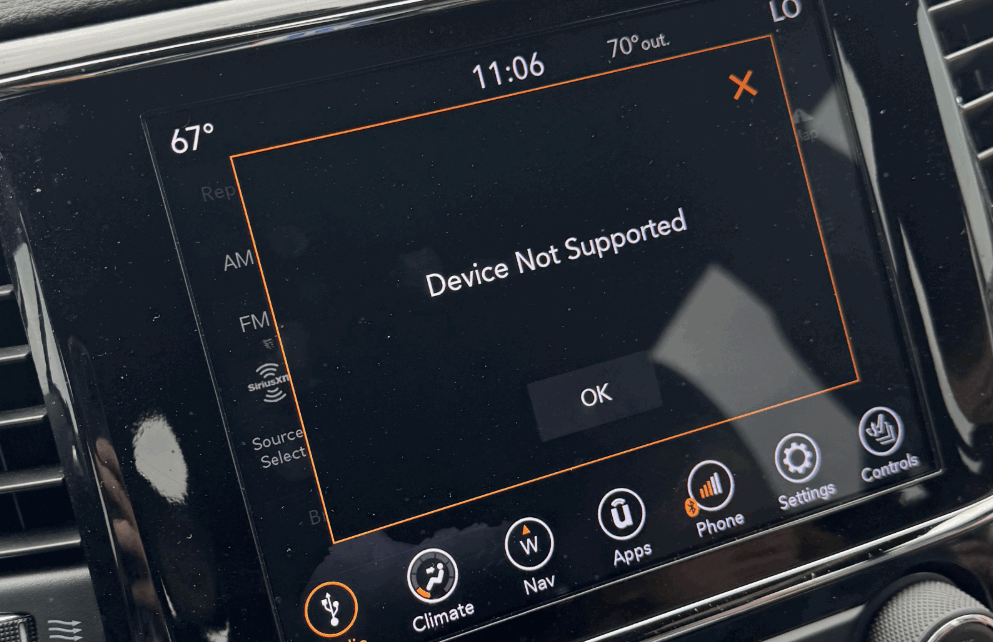
Why Is Uconnect CarPlay Not Working?
Uconnect CarPlay is not working because the connection between the iPhone and the vehicle system has failed. The problem usually comes from five main areas. These include connection issues, iPhone settings, cable problems, outdated software, and compatibility limitations.
The first common cause is a weak physical connection. Wired Apple CarPlay needs a stable USB data connection between the iPhone and Uconnect. A damaged Lightning cable can stop data transfer. A faulty USB port can also prevent the system from detecting the phone. In some cases, the iPhone still charges, but CarPlay does not appear because charging and data transfer are separate functions.
The second cause is incorrect iPhone settings. Apple CarPlay needs permission to connect with the vehicle. If CarPlay is disabled, Uconnect cannot open the CarPlay interface. The same issue happens when the vehicle has been removed from the CarPlay device list or when Screen Time restrictions block CarPlay access.
Software problems are another major reason for Uconnect CarPlay failures. The iPhone and Uconnect system need compatible software to communicate correctly. An outdated iOS version or an old Uconnect firmware version can interrupt the connection. These problems often cause a black screen, delayed response, or repeated disconnections.
Wireless CarPlay has additional connection requirements. It uses Bluetooth for device pairing and Wi-Fi for data transmission. A Bluetooth pairing error or a wireless network conflict can prevent Uconnect from creating a stable connection.
Vehicle compatibility also affects Apple CarPlay performance. Different Uconnect versions support different CarPlay features. Some older systems only support wired CarPlay, while newer systems support wireless CarPlay. Checking the vehicle model, Uconnect version, and iPhone compatibility helps identify whether the issue is a setup problem or a system limitation.
Finding the correct cause is the first step to fixing Uconnect CarPlay. A proper diagnosis prevents unnecessary resets and avoids replacing parts that are still working correctly.
How Do You Check If Your iPhone Is Compatible With Uconnect CarPlay?
Checking iPhone compatibility is the first step before troubleshooting Uconnect CarPlay problems. Apple CarPlay requires a supported iPhone model, an updated iOS version, and a compatible Uconnect system. If one of these requirements is missing, the connection may fail even when the hardware works correctly.
Most iPhones with recent iOS versions support Apple CarPlay. However, the vehicle system determines which CarPlay features are available. Some Uconnect systems support only wired Apple CarPlay through a USB connection. Newer Uconnect systems can support wireless Apple CarPlay through Bluetooth and Wi-Fi.
The first check is the iPhone model and iOS version. An outdated iOS version can create communication problems with Uconnect. Updating the iPhone software helps maintain compatibility with newer vehicle infotainment systems and improves connection stability.
The second check is the Uconnect system version. Different Jeep, Ram, Dodge, and Chrysler vehicles use different Uconnect generations. Each generation has different hardware capabilities and software features. For example, an older Uconnect system may not support wireless CarPlay even though the iPhone supports the feature.
The third check is the CarPlay permission settings on the iPhone. Open the iPhone settings and confirm that CarPlay access is enabled. The vehicle should also appear in the list of available CarPlay connections. If the vehicle is blocked or removed, Uconnect will not start the CarPlay interface.
Compatibility problems are often confused with connection failures. A vehicle owner may replace cables or reset the system without solving the issue because the Uconnect version does not support the expected CarPlay feature. Confirming compatibility first helps identify the correct troubleshooting path.
You should check three key areas before making changes: iPhone compatibility, Uconnect capability, and CarPlay permissions. These checks eliminate basic causes and make advanced troubleshooting more effective.
How Do You Fix Uconnect CarPlay Not Connecting?
Fixing Uconnect CarPlay connection problems requires checking the most common failure points first. A step-by-step troubleshooting process helps identify whether the issue comes from the iPhone, USB connection, Uconnect settings, or system software.
The first step is to restart both devices. Restart the iPhone to clear temporary software errors. Then turn off the vehicle, open the driver door, and wait for the Uconnect system to fully shut down before restarting it. A complete restart can resolve temporary communication problems between the phone and the infotainment system.
The second step is to check the USB connection. Use an original Apple cable or a certified Lightning cable that supports data transfer. Many low-quality cables only provide charging power and cannot transfer CarPlay data. Test another USB cable if Uconnect does not recognize the iPhone.
The third step is to check the CarPlay settings on the iPhone. Open Settings, select General, and choose CarPlay. Remove the vehicle from the saved connections, then connect the iPhone again. This creates a new communication link between the iPhone and Uconnect.
The fourth step is to check restrictions and permissions. Screen Time settings can block CarPlay access. Make sure CarPlay is allowed under iPhone content and privacy restrictions. Also confirm that Siri is enabled because Apple CarPlay requires Siri functionality for voice commands.
The fifth step is to reset the Uconnect system. A soft reset can remove temporary software errors. If basic troubleshooting does not work, a factory reset may restore the original connection settings. However, a factory reset removes saved devices and personal preferences.
If Uconnect CarPlay still does not connect after these steps, the problem may involve hardware or firmware. A faulty USB module, outdated Uconnect software, or internal system error may require professional diagnosis.
Following the correct troubleshooting order saves time. Starting with simple checks prevents unnecessary system resets and helps locate the actual cause of the CarPlay failure.
Why Does Uconnect CarPlay Keep Disconnecting?
Uconnect CarPlay keeps disconnecting when the connection between the iPhone and the vehicle system becomes unstable. The problem usually comes from USB connection issues, wireless communication errors, software conflicts, or device settings. Identifying the type of connection helps determine the correct solution.
A faulty USB cable is one of the most common causes of wired CarPlay disconnections. Apple CarPlay requires continuous data transfer between the iPhone and Uconnect. A damaged cable, loose connector, or non-certified cable can interrupt this data flow. The result is a CarPlay session that stops suddenly or reconnects repeatedly.
The USB port can also cause connection problems. Dust, physical damage, or unstable power delivery can affect communication between the phone and the vehicle. Testing another USB port or another compatible cable helps confirm whether the problem comes from the cable or the vehicle connection point.
Wireless CarPlay users may experience different issues because the system depends on both Bluetooth and Wi-Fi. Bluetooth creates the initial connection between the iPhone and Uconnect. Wi-Fi handles the larger amount of data needed for CarPlay features. If either connection becomes unstable, CarPlay may disconnect while using navigation, music, or phone functions.
Software conflicts can also cause repeated disconnections. An outdated iOS version may create compatibility problems with Uconnect firmware. Similarly, an older Uconnect software version may not communicate correctly with newer iPhone software. Keeping both systems updated reduces connection failures.
Background settings on the iPhone can affect CarPlay stability. Low Power Mode, network settings, or saved connection errors may interrupt communication. Removing the vehicle from the CarPlay device list and pairing it again often restores a stable connection.
If Uconnect CarPlay continues disconnecting after basic troubleshooting, the issue may involve the vehicle’s hardware. A damaged USB module, faulty infotainment unit, or internal software error may require professional inspection.
Preventing repeated disconnections requires maintaining both devices. Use a reliable cable, update software regularly, and remove old Bluetooth or CarPlay connections when connection problems appear.
How Do You Update Uconnect Software to Fix CarPlay Problems?
Updating Uconnect software can fix Apple CarPlay problems caused by outdated firmware or compatibility errors. The Uconnect system controls communication between the vehicle, iPhone, and CarPlay interface. When the software version is outdated, the system may fail to recognize newer iOS versions or maintain a stable connection.
The first step is to check the current Uconnect software version. The location of this information depends on the vehicle model and Uconnect generation. Many systems display software details through the settings menu on the infotainment screen. Some vehicles require checking the information through the official Uconnect support system or a dealership.
A software update improves communication between Uconnect and connected devices. Updates can fix problems such as CarPlay not appearing, connection failures, audio issues, and repeated disconnections. For example, a Uconnect system may work correctly with an older iPhone but experience problems after the iPhone receives a major iOS update.
There are several ways to update Uconnect software. Some newer vehicles support over-the-air updates that download and install automatically through the vehicle system. Other models require a USB update file or a professional update performed by a dealership.
The iPhone software should also be updated during troubleshooting. Apple regularly releases iOS updates that improve CarPlay performance and fix connection-related bugs. Running the latest compatible iOS version helps the iPhone communicate more effectively with Uconnect.
Before updating software, ensure the vehicle has enough battery power or remains connected to a stable power source. Interrupting an update process can create additional system problems. Owners should also avoid installing unofficial software because incorrect firmware can damage the infotainment system.
If updating both the iPhone and Uconnect software does not solve the problem, the issue may not be software-related. A persistent CarPlay failure may indicate a hardware problem with the USB module, infotainment unit, or vehicle communication system.
Keeping Uconnect firmware and iOS updated is one of the most effective ways to prevent future CarPlay problems. Regular updates improve compatibility and help maintain a reliable connection between the vehicle and smartphone.
What Should You Do If Uconnect CarPlay Still Does Not Work After Troubleshooting?
If Uconnect CarPlay still does not work after completing basic troubleshooting, the problem may involve advanced software issues or hardware failures. At this stage, checking the connection settings again is less effective because the issue may exist inside the vehicle system.
The first possibility is a faulty USB module or connection port. Wired Apple CarPlay depends on stable data communication through the vehicle’s USB hardware. A damaged USB module may still provide power for charging but fail to transfer the data required for CarPlay. Testing the same iPhone with another compatible vehicle or testing another iPhone with the same Uconnect system can help identify the source of the problem.
The second possibility is a Uconnect infotainment system failure. The head unit controls communication between the vehicle, smartphone, and CarPlay interface. Internal software errors, damaged components, or communication failures inside the system can prevent CarPlay from launching even when the iPhone and cable are working correctly.
The third possibility is a vehicle-specific software issue. Some Uconnect problems affect only certain models, production years, or software versions. A dealership may have access to diagnostic tools and manufacturer updates that are not available to regular vehicle owners.
Before requesting professional service, prepare important information about the issue. Record the vehicle model, production year, Uconnect version, iPhone model, iOS version, and the exact symptoms. For example, explain whether CarPlay does not appear, disconnects during use, or works only with certain cables.
Professional inspection is recommended when multiple troubleshooting methods fail. Replacing cables or resetting the system repeatedly will not solve problems caused by damaged hardware or internal communication failures.
A complete diagnosis ensures that the correct component is repaired or updated. This prevents unnecessary expenses and restores reliable communication between the iPhone and Uconnect system.
How Can You Prevent Future Uconnect CarPlay Problems?
Preventing Uconnect CarPlay problems requires maintaining both the smartphone and the vehicle infotainment system. Regular updates, reliable accessories, and proper connection settings reduce the chance of repeated failures.
Keep the iPhone updated with the latest compatible iOS version. Apple updates often include improvements for CarPlay stability and device communication. Updating Uconnect firmware also helps maintain compatibility with newer iPhone software.
Use high-quality USB cables that support data transfer. A cable that only provides charging power cannot support Apple CarPlay. Replace damaged cables when connection interruptions appear.
Remove unused Bluetooth and CarPlay connections from the vehicle settings. Too many saved devices can create pairing conflicts, especially with wireless CarPlay systems. Keeping only active devices improves connection reliability.
Check the USB port and infotainment system regularly. Dust, physical damage, or loose connections can affect data transmission. Early inspection helps prevent minor issues from becoming larger system problems.
Uconnect CarPlay works best when the iPhone, vehicle software, and connection hardware work together correctly. Following these maintenance steps helps drivers maintain a stable CarPlay experience and reduces future troubleshooting needs.