Hyundai Android Auto not working is a common issue that frustrates many drivers who depend on phone integration for daily driving. You connect your phone to your car or try to use wireless mode, but the system does not respond. It may fail to detect your device, freeze, or disconnect repeatedly without warning. Even if everything worked before, the problem can appear suddenly.
In many vehicles from Hyundai Motor Company, the infotainment system relies on a stable link between the car software and your smartphone. The system uses Android Auto to display navigation, calls, and apps on the screen in a safe driving mode. If this connection breaks, the system cannot function correctly.
Several factors can cause this issue. A faulty USB cable, incorrect phone settings, wireless pairing errors, or outdated software can all stop Android Auto from working. Sometimes the problem comes from the phone, and sometimes it comes from the car system itself.
This guide shows you how to identify the real cause and fix it step by step. You will learn practical solutions for USB issues, wireless problems, and system errors so you can restore Android Auto quickly and avoid unnecessary guesswork.
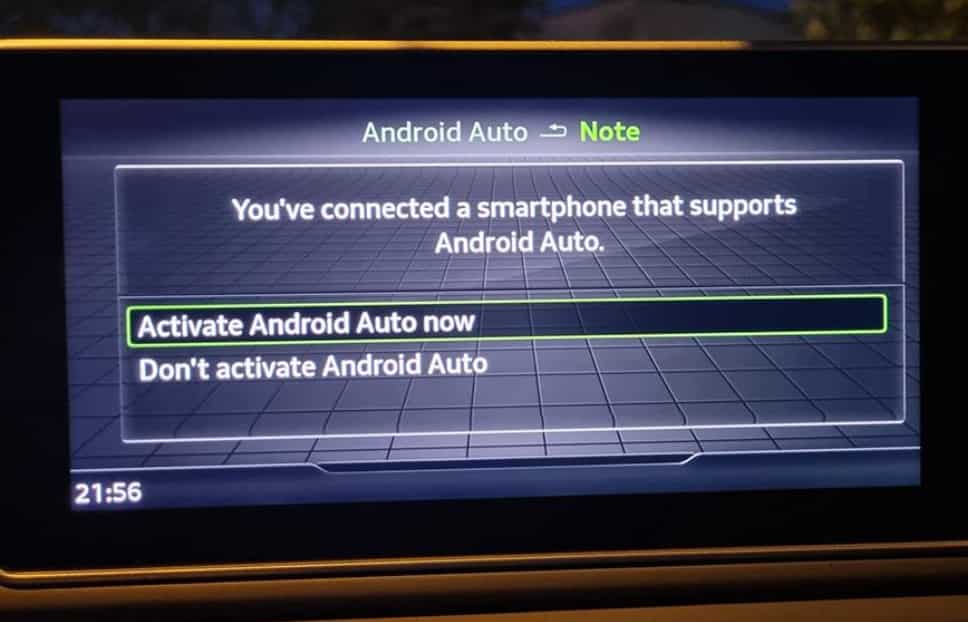
Why Hyundai Android Auto Not Working Happens
Hyundai Android Auto not working usually comes from a small number of clear technical issues rather than random failures. In most cases, the problem appears when the connection between your phone, your car system, and Android Auto breaks at some point in the communication chain. When this happens, the system may fail to start, disconnect repeatedly, or not detect your device at all.
In vehicles from Hyundai Motor Company, the infotainment system depends on stable data transfer between the car and your smartphone. The platform Android Auto manages this connection and allows apps, navigation, and calls to display on the screen. If any component fails, the system cannot function properly.
One of the most common causes is a USB connection issue. Many drivers use cables that only support charging and not data transfer. This prevents the car from recognizing the phone. A damaged cable or a dirty USB port can also interrupt the signal and stop Android Auto from launching. In some Hyundai models, only specific ports support data, which makes this issue more confusing.
Wireless connection issues are another frequent cause. Android Auto wireless depends on both Bluetooth and WiFi Direct working together. If pairing is incorrect or outdated devices remain stored in the system, the connection may fail. Interference from other wireless devices or weak signal strength can also cause instability.
Phone compatibility also plays an important role. Older Android versions, missing permissions, or battery optimization settings can block Android Auto from running correctly. Even if the hardware works, software restrictions on the phone can stop the connection process completely.
Finally, infotainment system glitches inside the car can also cause failures. Outdated firmware, cached errors, or temporary system bugs may prevent Android Auto from starting or cause frequent crashes during use.
Basic Fixes You Should Try First
When Hyundai Android Auto not working, you should start with simple fixes before moving to advanced troubleshooting. Many connection problems come from temporary errors, incorrect settings, or unstable pairing. These issues are often easy to solve without technical tools or dealership support.
The first step is to restart both your phone and your vehicle. This clears temporary system glitches and refreshes the connection between Hyundai Motor Company infotainment system and Android Auto. After restarting, try connecting again to see if the system responds normally.
Next, check your USB cable if you are using a wired connection. Many cables only support charging and cannot transfer data. Replace it with a high quality data cable and test again. Also try different USB ports in the car because some ports may have limited functionality depending on the model.
If you use wireless Android Auto, turn off Bluetooth and WiFi on your phone, then turn them back on. This resets the connection and removes temporary pairing errors. You should also forget the car connection from your phone and re-pair it from scratch to avoid old configuration conflicts.
Another important step is to update the Android Auto app on your phone. Outdated versions often cause compatibility issues and connection failures. After updating, restart the app and try connecting again.
Finally, check your phone settings. Disable battery optimization for Android Auto because it can stop the app from running in the background. Also make sure all required permissions such as location, nearby devices, and USB access are enabled.
These basic fixes solve a large percentage of Hyundai Android Auto not working issues and should always be your first troubleshooting step before moving to deeper system-level solutions.
USB Connection Troubleshooting in Hyundai
When Hyundai Android Auto not working through USB, the issue usually comes from the physical connection or incorrect data settings. USB problems are very common and often prevent the system from detecting your phone even when everything else is working correctly.
First, make sure you are using a proper data cable. Many USB cables only support charging and cannot transfer data between your phone and the car system. If Android Auto does not start, replace the cable with a certified high quality data cable and test again. This simple step solves many connection failures in vehicles from Hyundai Motor Company.
Next, check the USB port on your car. Some Hyundai models include multiple USB ports, but only specific ports support data transfer for Android Auto. Try switching to another port if available. Also inspect the port for dust or debris because even small obstructions can interrupt the connection.
You should also check your phone’s USB mode settings. When you connect your phone, it should be set to file transfer or data mode instead of charging only. If the phone stays in charging mode, the system will not detect it.
If the connection still fails, test your phone with another vehicle or test another phone in your car. This helps you determine whether the issue comes from the phone or the infotainment system.
Finally, outdated infotainment firmware can also block USB Android Auto. In some cases, you may need a software update from a Hyundai service center to restore full compatibility and stability.
Wireless Android Auto Troubleshooting
When Hyundai Android Auto not working in wireless mode, the issue is often related to pairing errors, signal interference, or incorrect system setup. Wireless Android Auto is more complex than USB because it relies on multiple connections working together at the same time.
In vehicles from Hyundai Motor Company, wireless Android Auto uses both Bluetooth and WiFi Direct to establish a stable connection with Android Auto. If either connection fails, the system cannot launch or it will disconnect frequently during use.
The first step is to remove all previous pairings between your phone and the car system. Old Bluetooth connections can conflict with new pairing attempts and cause connection failures. After removing them, restart both your phone and the infotainment system before trying again.
Next, make sure Bluetooth and WiFi are both enabled on your phone. Wireless Android Auto needs Bluetooth for initial pairing and WiFi Direct for data transfer. If either one is turned off or restricted by settings, the connection will not complete.
You should also disable VPN services and battery optimization features. These settings often block background communication and reduce connection stability. Keeping your phone close to the infotainment system during setup also helps improve pairing success.
Interference from other wireless devices can also affect performance. If you are in an area with many active signals, the connection may become unstable or fail to initialize. In that case, try reconnecting in a less crowded environment.
If the problem continues, reset the network settings on your phone and reconfigure the connection from scratch. This removes hidden configuration errors that may prevent Android Auto from working properly.
Phone Settings Fixes
When Hyundai Android Auto not working, the issue is often caused by incorrect phone settings rather than the car system itself. Even if the hardware connection is fine, your smartphone can still block Android Auto from running properly due to permissions, background restrictions, or outdated configurations.
On most devices, Android Auto requires several permissions to function correctly. These include location access, nearby devices, USB access, and background activity. If any of these permissions are disabled, the system may fail to connect or stop working after a few seconds.
Battery optimization is another common problem. Many Android phones automatically limit background apps to save power. When this feature is enabled for Android Auto, it can interrupt the connection between your phone and the infotainment system in Hyundai Motor Company vehicles. You should disable battery optimization for Android Auto to maintain a stable connection.
You should also check your Android version and app updates. Older operating systems may not fully support the latest Android Auto features. Updating both your phone system and the Android Auto app ensures better compatibility and fewer connection errors.
Another important step is clearing cache and storage data for Android Auto. Corrupted temporary files can prevent the app from launching correctly. After clearing data, restart your phone and try connecting again.
Finally, make sure your phone is not in any restricted mode such as power saving or airplane mode. These modes can block background communication and prevent Android Auto from detecting the vehicle system.
Correct phone configuration is essential for stable performance, and many Hyundai Android Auto not working issues are solved simply by adjusting these settings properly.
Vehicle System Fixes
When Hyundai Android Auto not working even after checking your phone and cable, the problem may come directly from the car infotainment system. In many cases, the head unit develops temporary software errors, outdated firmware, or system glitches that block the connection with Android Auto.
In vehicles from Hyundai Motor Company, the infotainment system manages all external device connections. If this system becomes unstable, Android Auto may fail to launch, freeze during startup, or disconnect immediately after pairing.
A simple but effective solution is to restart the infotainment system. Turning the car off completely and restarting it can clear temporary system errors. If the issue continues, you should try resetting the infotainment settings to default. This removes corrupted configurations that may interfere with Android Auto.
Another important step is checking for firmware updates. Hyundai regularly releases software updates to improve compatibility and fix known bugs. An outdated system is one of the most common reasons Android Auto stops working or becomes unstable.
If your vehicle supports updates via USB or over the air, install the latest version and restart the system afterward. This can significantly improve connection stability and performance.
In some cases, the system may require a full factory reset. This should be used as a last resort because it will erase saved settings such as paired devices and personalization. However, it can resolve deep software conflicts that prevent Android Auto from working properly.
If none of these steps work, the issue may require diagnostic support from a Hyundai service center to inspect the head unit hardware or perform advanced software recovery.
After Update Issues
Hyundai Android Auto not working often appears after a software update on either your phone or your car system. This situation is very common because updates can temporarily break compatibility between devices, even when both systems are working normally on their own.
In some cases, an update on your phone changes how Android Auto interacts with the vehicle system. New permissions, redesigned features, or background restrictions can disrupt the connection process. When this happens, Android Auto may stop launching or fail to detect the car system in your Hyundai Motor Company vehicle.
A similar problem can occur after a vehicle infotainment update. New firmware versions may introduce temporary bugs or reset previous settings. This can break saved connections and force you to reconfigure the entire pairing process from scratch.
The first solution is to remove all existing Android Auto connections from both your phone and the car system. After that, restart both devices and set up the connection again. This helps clear outdated configuration data that may no longer be compatible after the update.
You should also check if a newer update is available. In many cases, manufacturers release quick patches after major updates to fix unexpected issues. Installing the latest version often restores normal functionality.
If the issue started immediately after an update, you can also try clearing cache and resetting network settings on your phone. This removes corrupted data that may interfere with the new system version.
Update-related issues are usually temporary, but they require proper reconfiguration to restore stable Android Auto performance.
Advanced Troubleshooting
If Hyundai Android Auto not working still persists after basic and system fixes, you need to move to advanced troubleshooting. At this stage, the issue is usually caused by deeper software conflicts, hidden configuration errors, or hardware-related limitations.
First, test the system using a different smartphone. If Android Auto works with another device, the issue is likely coming from your phone settings or software. If it still fails, the problem is more likely related to the vehicle system in your Hyundai Motor Company.
Next, check if your vehicle model fully supports the version of Android Auto you are trying to use. Some older infotainment systems have limited compatibility, especially with newer Android versions or wireless features.
You should also inspect USB hardware performance more deeply. A weak or unstable USB module inside the car can cause random disconnections or complete failure to detect devices. In this case, even replacing cables will not solve the issue.
Another advanced step is resetting both Bluetooth and network configurations on your phone. This removes hidden pairing conflicts that standard resets do not always clear. After resetting, you should reconfigure Android Auto from scratch without restoring old settings.
If the system still does not work, the infotainment unit may require a full diagnostic scan. Hyundai service centers can check for internal software corruption, firmware mismatches, or hardware faults that are not visible during normal use.
At this level, persistent issues usually require professional inspection because the problem is no longer caused by simple configuration errors.
FAQ and Conclusion
Hyundai Android Auto not working is a common issue that can come from many different sources, including phone settings, cable problems, wireless pairing errors, or infotainment system glitches. Understanding these causes helps you solve the problem faster and avoid unnecessary trial and error.
One frequently asked question is why Android Auto does not connect in Hyundai vehicles even when everything seems correct. In most cases, the issue comes from a simple mismatch between Android Auto settings and phone permissions or an unstable connection with the vehicle system from Hyundai Motor Company.
Another common question is whether Hyundai supports wireless Android Auto. The answer depends on the model and infotainment version. Newer systems support wireless connection, while older models may require a USB cable for stable performance.
Many users also ask why Android Auto keeps disconnecting. This usually happens due to poor cable quality, background app restrictions, or interference in wireless mode. Resetting the connection and updating both phone and car software often solves the issue.
To summarize, Hyundai Android Auto not working problems are rarely caused by a single factor. The key is to systematically check USB connections, wireless settings, phone configuration, and vehicle software. Once each layer is tested properly, most issues can be resolved without professional repair.
If the problem still continues after all troubleshooting steps, the issue may come from deeper system or hardware faults. In that case, a Hyundai service center can provide a full diagnostic and firmware recovery if needed.
A structured approach always gives the best results and helps restore stable Android Auto performance quickly.