You connect your phone, start the car, and expect Android Auto to appear on the screen. Instead, nothing happens. The phone may charge, but Google Maps, music, calls, and voice commands remain unavailable. In other cases, Android Auto connects for a few minutes and then suddenly disconnects while you are driving.
When Honda Android Auto is not working, the cause is not always easy to identify. The problem may come from a damaged USB cable, the wrong USB port, missing phone permissions, outdated software, Bluetooth errors, WiFi conflicts, or a fault in the Honda infotainment system. Even a small issue, such as dust inside the phone port, can stop the connection from working correctly.
The good news is that many Honda Android Auto problems can be fixed without replacing expensive parts or visiting a dealership. The key is to test each possible cause in the correct order.
This guide explains 15 proven fixes, starting with simple checks and moving toward more advanced solutions. You will learn how to inspect your cable, verify compatibility, reset the connection, update your software, adjust phone settings, and identify possible hardware problems. By following these steps carefully, you can restore a stable Android Auto connection and return to safer, more convenient driving.
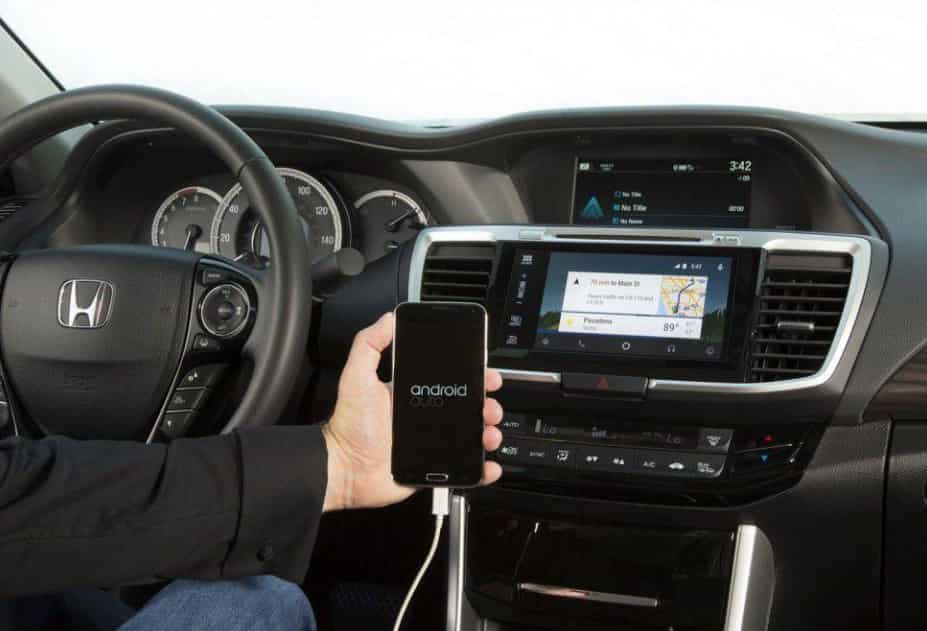
Why Is Honda Android Auto Not Working?
Honda Android Auto may stop working because of an incompatible phone or vehicle, a faulty USB cable, incorrect permissions, outdated software, Bluetooth or WiFi connection errors, or a problem with the Honda infotainment system. Identifying the exact cause is the fastest way to restore the connection.
Although the problem looks simple, Android Auto relies on several hardware and software components working together. Your Android phone, USB cable, vehicle infotainment system, Bluetooth connection, WiFi connection, and Google services must all communicate without interruption. If one component fails, Android Auto may not launch or may disconnect unexpectedly.
One of the most common causes is a poor quality USB cable. Many cables are designed only for charging and cannot transfer data. In this situation, your phone may charge normally while the Honda display never recognizes Android Auto. The same problem can happen if you plug the phone into a USB port that only provides power instead of data.
Software issues are another common reason. An outdated Android version, an old Google Play Services update, or a recently installed system update can create compatibility problems between your phone and the vehicle. Missing permissions can also prevent Android Auto from accessing calls, messages, navigation, or voice commands.
Wireless Android Auto introduces additional variables. Bluetooth and WiFi must remain connected throughout the session. If either connection becomes unstable, Android Auto may disconnect without warning.
Understanding the symptom is just as important as understanding the cause. Whether Android Auto never starts, disconnects while driving, displays a black screen, or disappears from the infotainment menu, each symptom points to a different solution. The following fixes are arranged from the simplest to the most advanced, helping you solve the problem without wasting time on unnecessary troubleshooting.
Confirm That Your Honda Supports Android Auto
Before troubleshooting cables, phone settings, or software updates, make sure your Honda actually supports Android Auto. This step is often overlooked, but it can save a significant amount of time. Many drivers assume that every Honda with a touchscreen or Bluetooth includes Android Auto. In reality, support depends on the model year, trim level, and infotainment system installed in the vehicle.
Several popular models, including the Honda Civic, Accord, CR V, Pilot, HR V, Odyssey, and Ridgeline, support Android Auto in many model years. However, entry level trims or older versions may not include this feature. Some vehicles only support wired Android Auto, while newer models also offer wireless connectivity. If your vehicle only supports a wired connection, attempting to connect wirelessly will never work regardless of your phone settings.
The easiest way to confirm compatibility is by checking your owner’s manual or opening the infotainment settings menu. If Android Auto is available, you should see it listed among the smartphone connection options. You can also enter your vehicle information on Honda’s official website or contact a Honda dealer to verify the features included with your specific trim.
It is also important to identify the correct USB port. Many Honda vehicles include multiple USB ports, but only one supports Android Auto data transfer. Plugging your phone into a charging only port may supply power without allowing the infotainment system to detect the device.
Verifying compatibility before trying more advanced fixes helps eliminate unnecessary troubleshooting. Once you know your Honda supports Android Auto and you are using the correct connection method, you can move on to checking your phone, cable, and software settings with greater confidence.
Check Your Android Phone Compatibility
Even if your Honda fully supports Android Auto, the feature will not work unless your Android phone also meets the required compatibility standards. Many connection problems begin with the phone rather than the vehicle. Verifying compatibility early can help you avoid unnecessary troubleshooting and quickly identify where the issue originates.
Most modern Android phones support Android Auto, but the device must run a supported version of Android and have Google Play Services installed and updated. Google also recommends keeping essential apps such as Google Maps and Google Assistant up to date because Android Auto depends on these services for navigation, voice commands, and communication features. If one of these components is outdated or corrupted, Android Auto may fail to launch or operate normally.
Some devices present additional challenges. Phones running custom Android ROMs, beta software, or enterprise security profiles may experience compatibility issues. Certain battery management features or manufacturer specific settings can also restrict Android Auto from running correctly in the background. These limitations often cause the connection to fail without displaying a clear error message.
A simple way to determine whether the phone is responsible is to test another compatible Android device. Connect a different phone using the same USB cable and the same USB port in your Honda. If Android Auto works immediately, the problem is likely related to the original phone rather than the vehicle. If the second phone produces the same result, the issue may involve the cable, the USB port, or the infotainment system.
Checking phone compatibility before changing vehicle settings reduces unnecessary work and narrows the list of possible causes. Once you confirm that both your Honda and your Android phone are compatible, you can begin troubleshooting the physical connection and software configuration with much greater accuracy.
Restart the Phone and Honda Infotainment System
Restarting both your Android phone and the Honda infotainment system is one of the simplest solutions, but it often resolves connection problems that appear without warning. Temporary software glitches, frozen background processes, or incomplete communication between the phone and the vehicle can prevent Android Auto from launching correctly. A full restart clears these temporary errors and allows both devices to establish a fresh connection.
Begin by disconnecting your phone from the vehicle. Restart the phone completely instead of simply locking and unlocking the screen. Wait until the operating system finishes loading before reconnecting any cables. This process ensures that Android Auto, Google Play Services, and other required background services start normally.
Next, restart the Honda infotainment system. Turn off the engine and wait until the display powers down completely. On many Honda models, opening the driver’s door helps the infotainment system shut down instead of remaining in standby mode. After waiting for a short period, start the vehicle again and allow the system to finish loading before connecting your phone.
Once both devices have restarted, unlock your phone and connect it using a compatible USB data cable or begin the wireless pairing process if your vehicle supports wireless Android Auto. Watch for permission requests that may appear on the phone during the first connection. Approving these requests allows Android Auto to access navigation, calls, messages, and voice commands.
This simple procedure is especially effective when Honda Android Auto was working normally and suddenly stopped after a software update, a phone restart, or an unexpected system error. If the problem continues after both devices have been restarted, the next step is to inspect the USB cable and confirm that it supports stable data transfer instead of charging alone.
Replace the USB Cable With a Data Capable Cable
A faulty USB cable is one of the most common reasons Honda Android Auto is not working. Many drivers assume the cable is functioning because the phone starts charging as soon as it is plugged in. However, charging and data transfer are two different functions. A cable can deliver power without providing the stable data connection that Android Auto requires.
Android Auto continuously exchanges information between your phone and the Honda infotainment system. Navigation, voice commands, music streaming, and notifications all depend on a reliable data connection. If the cable cannot transfer data properly, the infotainment system may fail to recognize the phone, display repeated connection errors, or disconnect while you are driving.
Start by examining the cable for visible damage. Bent connectors, frayed insulation, loose ends, or signs of wear can all affect performance. Even if the cable looks normal, internal damage may interrupt data transfer. Replacing it with a high quality USB cable is often faster than trying to diagnose hidden defects.
Whenever possible, use the original cable that came with your phone or choose a certified replacement from a trusted manufacturer. Shorter cables usually provide a more stable connection than very long cables. You should also avoid USB extension cables, adapters, and hubs because each additional connection increases the risk of communication errors.
If Android Auto disconnects only when the vehicle moves over bumps or rough roads, the cable may have a loose internal connection or the connector may not fit securely into the phone. Testing another known working data cable is one of the quickest ways to determine whether the cable is responsible.
Replacing the USB cable is inexpensive, requires only a few minutes, and solves a surprising number of Android Auto connection problems. If a new data cable does not restore the connection, the next step is to verify that you are using the correct USB port in your Honda.
Connect Your Phone to the Correct Honda USB Port
Using the correct USB port is just as important as using a high quality data cable. Many Honda vehicles include two or more USB ports, but not every port is designed to support Android Auto. Some ports provide power for charging only, while others can transfer both power and data. If you connect your phone to the wrong port, the battery may charge normally, but Android Auto will never appear on the infotainment screen.
The primary data port is usually located near the center console or below the climate controls, although its exact position varies by model and model year. Some Honda vehicles identify the correct port with a smartphone symbol or a USB label, while others rely on information in the owner’s manual. If you are unsure which port supports Android Auto, consult the manual or test each front USB port one at a time.
Avoid connecting your phone through USB hubs, splitters, or extension cables. These accessories can interfere with data transmission and reduce connection stability. A direct connection between the phone and the vehicle always provides the best performance. If your Honda supports only wired Android Auto, using the proper USB data port is essential because Bluetooth alone cannot establish the connection.
It is also worth checking the physical condition of the USB port. Dirt, dust, or a loose connector may prevent the cable from making proper contact. If the connection feels unstable or the phone disconnects when the cable moves slightly, inspect the port carefully before assuming the infotainment system has failed.
After switching to the correct USB port, disconnect the phone, wait a few seconds, and reconnect it while the screen is unlocked. If Android Auto launches successfully, the issue was simply caused by using a charging only port. If the problem remains, the next step is to inspect and clean both the phone and vehicle USB ports to eliminate any physical connection issues.
Clean the Phone and Vehicle USB Ports
A dirty USB port can prevent Android Auto from working even when your phone, USB cable, and infotainment system are functioning correctly. Dust, pocket lint, moisture, and other small particles can build up inside the USB port over time. This buildup may seem harmless, but it can interrupt the data connection that Android Auto needs to communicate with your Honda.
One common sign of a dirty USB port is an unstable connection. Your phone may begin charging, but Android Auto fails to launch or disconnects unexpectedly during a drive. In some cases, the connection only works if you hold the cable at a certain angle. These symptoms often indicate poor contact between the cable and the USB connector rather than a software problem.
Before cleaning any USB port, turn off the vehicle and disconnect your phone. Carefully inspect both the phone’s USB port and the USB port in your Honda using a flashlight if necessary. Look for lint, dust, corrosion, or other visible debris that could block the connector.
Use a soft anti static brush, compressed air, or a non metallic cleaning tool to remove debris gently. Avoid using metal objects such as paper clips or needles because they can damage the delicate contact pins inside the port. You should also avoid applying water or cleaning liquids directly into the connector since moisture may create additional electrical problems.
While inspecting the ports, examine the cable connectors as well. Dirt, bent pins, or worn contacts on the cable can produce the same symptoms as a dirty USB port. Cleaning both ends of the connection provides the best chance of restoring stable communication.
Once the ports are clean, reconnect your phone using the same USB data cable and test Android Auto again. If the connection becomes stable after cleaning, you have identified the source of the problem without replacing any hardware. If Android Auto still does not work, the next step is to verify that your phone has granted all required permissions for the app to operate correctly.
Verify Android Auto Permissions on Your Phone
Android Auto requires several system permissions to communicate properly with your Honda infotainment system. If one or more of these permissions are denied, the app may fail to launch, disconnect unexpectedly, or lose access to important features such as navigation, phone calls, text messages, or voice commands. Many users accidentally deny a permission during the initial setup and never realize it is the cause of the problem.
Open the Settings app on your Android phone and locate the Apps section. Select Android Auto if it appears in the list. On newer versions of Android, Android Auto is integrated into the operating system, so you may need to manage permissions through Google Play Services or the connected device settings instead. Review every available permission and make sure access is enabled where appropriate.
Pay special attention to permissions for Phone, Contacts, Location, Microphone, Notifications, and Nearby Devices. Android Auto relies on these permissions to provide hands free calling, turn by turn navigation, voice recognition, message notifications, and stable communication with your Honda. If even one essential permission is disabled, some functions may stop working or Android Auto may fail to establish a complete connection.
If you recently updated your phone or reset app permissions, Android may have changed these settings automatically. Reopening Android Auto after enabling the required permissions often triggers a setup process that restores normal operation. Follow every prompt that appears on the screen and approve any requests related to the connected vehicle.
After confirming all permissions, disconnect your phone from the vehicle and restart both the phone and the Honda infotainment system before testing the connection again. This allows the updated settings to take effect and creates a fresh communication session.
If Android Auto still does not work after verifying every required permission, the next step is to update Android, Google Play Services, and the Android Auto components to eliminate software compatibility issues.
Update Android, Google Play Services, and Honda Software
Outdated software is another common reason Honda Android Auto stops working. Android Auto depends on several software components working together, including the Android operating system, Google Play Services, the Google app, and your Honda infotainment software. If one component falls behind while the others are updated, compatibility problems can appear without warning.
Begin by checking for Android system updates on your phone. Open the Settings app, navigate to the Software Update section, and install any available updates. Manufacturers frequently release bug fixes that improve USB communication, Bluetooth stability, and overall compatibility with Android Auto.
Next, update Google Play Services through the Google Play Store. Although it runs in the background, Google Play Services is one of the most important components of Android Auto. An outdated version can prevent the app from connecting properly or cause unexpected disconnections while driving. You should also update the Google app, Google Maps, and any other Google services that Android Auto uses regularly.
Your Honda infotainment system also needs current software. Honda periodically releases firmware updates to improve system stability, fix compatibility issues, and support newer Android devices. Depending on your vehicle, updates may be installed through a wireless connection, a USB drive, or during a dealership service visit. Checking for available updates ensures your infotainment system can communicate with the latest Android software.
After completing every update, restart both your phone and the vehicle before testing Android Auto again. This step allows the new software components to load correctly and establish a fresh connection.
If Android Auto still fails after every device is fully updated, the issue may not be caused by outdated software. The next troubleshooting step is to remove the existing Android Auto connection completely and pair your phone with the vehicle again. Recreating the connection often resolves configuration errors that survive normal software updates.
Remove and Reconnect Android Auto
If Android Auto still does not connect after checking your hardware and updating all software, the saved connection between your phone and Honda may be corrupted. This can happen after a major Android update, a factory reset, or repeated connection failures. Removing the existing pairing and creating a new one often restores normal communication.
Start by disconnecting your phone from the vehicle. Open the Bluetooth settings on your Android phone and remove your Honda from the list of paired devices. Next, access the Bluetooth settings on the Honda infotainment system and delete your phone from the saved device list. Removing the pairing from both devices prevents old connection data from causing future conflicts.
After clearing the Bluetooth connection, open the Android Auto settings on your phone and remove any saved vehicles associated with your Honda. If your phone supports wireless Android Auto, you should also delete any stored wireless connection profiles before creating a new connection.
Restart both the phone and the Honda infotainment system once all previous pairings have been removed. After both devices finish starting, reconnect your phone using a compatible USB data cable if your vehicle uses a wired connection. If your Honda supports wireless Android Auto, complete the pairing process again by following the instructions displayed on both screens.
During the setup process, carefully approve every permission request that appears on your phone. Android Auto requires access to location, contacts, phone calls, messages, notifications, and nearby devices to function correctly. Skipping any of these requests may result in limited functionality or another failed connection.
After the new pairing is complete, test Android Auto by opening Google Maps, making a hands free call, or using a voice command. If everything works normally, the previous connection profile was likely corrupted. If the problem continues even after creating a completely new connection, the next step is to reset the Honda infotainment system to restore its default settings.
Reset the Honda Infotainment System
If Android Auto still does not work after reconnecting your phone, the Honda infotainment system may contain corrupted settings or temporary software conflicts. These issues can prevent the system from communicating with your phone correctly. A factory reset often removes these hidden problems and restores normal operation.
Before you begin, note any settings you want to keep. A reset may remove paired Bluetooth devices, saved WiFi networks, audio preferences, navigation favorites, and other personal settings. Check your owner’s manual if you are unsure what the reset will erase.
Open the Settings menu on the infotainment display. Look for options such as System, Factory Data Reset, or Restore Factory Settings. The exact menu depends on your Honda model and software version. Follow the instructions on the screen and let the process finish without interruption.
After the system restarts, complete the initial setup. Connect your Android phone as if you were using Android Auto for the first time. Use a reliable USB data cable for wired models. If your Honda supports wireless Android Auto, complete the pairing process again and approve every permission request on your phone.
Once the setup is complete, test several Android Auto features. Open Google Maps, play music, make a hands free call, and use Google Assistant. If these functions work normally, a corrupted infotainment configuration likely caused the problem.
If Android Auto still fails after the reset, the issue may involve a faulty USB port, damaged hardware, or a compatibility problem that requires professional diagnosis. Before visiting a Honda service center, you can still try a few advanced troubleshooting methods that often solve less common connection issues.
Disable Battery Optimization and Background Restrictions
Battery optimization helps extend battery life, but it can also interrupt Android Auto. Many Android manufacturers apply aggressive power saving features that stop background apps from running correctly. As a result, Android Auto may disconnect, fail to launch, or stop responding while you are driving.
Open the Settings app on your phone and go to the Battery section. Find the battery optimization or background usage settings. Locate Android Auto, Google Play Services, Google Maps, and the Google app. Allow these apps to run without battery restrictions whenever possible. The exact menu names vary between manufacturers, but the goal is always the same. Prevent the system from limiting the apps that Android Auto depends on.
Some phones include additional battery management tools that work separately from standard Android settings. Samsung offers Sleeping Apps, Xiaomi includes Battery Saver, OnePlus uses Intelligent Control, and other brands provide similar features. These tools may close background processes even after you disable the main battery optimization setting. Review these options carefully and remove Android Auto from any restricted app lists.
After changing the battery settings, restart your phone and reconnect it to your Honda. Test Android Auto during a normal drive instead of only checking whether it launches. Many battery related issues appear after several minutes when the operating system begins managing background activity.
If Android Auto remains connected throughout the drive, battery optimization was likely the cause of the problem. If the connection still drops or never starts, continue with the next troubleshooting step. Checking wireless communication settings can help identify conflicts that affect Bluetooth and WiFi connectivity.
Check Bluetooth and WiFi Connections
Wireless Android Auto depends on both Bluetooth and WiFi to maintain a stable connection. Bluetooth starts the pairing process, while WiFi handles most of the data transfer. If either connection becomes unstable, Android Auto may fail to launch or disconnect during your drive.
Begin by turning Bluetooth off on your phone. Wait a few seconds before turning it back on. Repeat the same process for WiFi. This simple refresh often clears temporary connection errors and allows the phone to communicate with the Honda infotainment system again.
Next, open the Bluetooth settings on your phone and confirm that your Honda appears as a trusted paired device. If you notice multiple entries for the same vehicle, remove the older records and keep only the current connection. Duplicate pairings can confuse the system and create connection failures.
WiFi settings also deserve attention. Some phones automatically switch to another wireless network when they detect a stronger signal. This behavior may interrupt Android Auto without any warning. Disable features that automatically connect to available networks while you are using Android Auto. Keeping the phone connected to the vehicle helps maintain a stable session.
If your Honda supports both wired and wireless Android Auto, test each connection method separately. A successful wired connection combined with an unstable wireless connection usually points to a Bluetooth or WiFi issue instead of a problem with the USB cable or infotainment system.
After refreshing both wireless connections, restart your phone and reconnect it to your Honda. Test Android Auto for several minutes to confirm that navigation, music, and voice commands continue working without interruption. If the problem persists, the next step is to clear the Android Auto app data and rebuild its configuration from scratch.
Clear Android Auto Cache and App Data
Corrupted app data can prevent Android Auto from working even when your phone, USB cable, and Honda infotainment system are functioning properly. Temporary files accumulate over time, and some may become damaged after software updates or repeated connection failures. Clearing the cache and app data removes these files and allows Android Auto to create a fresh configuration.
Open the Settings app on your Android phone and select Apps. Find Android Auto in the list. On newer versions of Android, you may need to access the connected device settings because Android Auto is integrated into the operating system. Open the Storage section and choose Clear Cache first. This removes temporary files without affecting your personal data.
If Android Auto still does not work, return to the same menu and select Clear Storage or Clear Data. This action resets the app to its default state. You will need to complete the setup process again the next time you connect your phone to your Honda.
After clearing the app data, restart your phone before reconnecting it to the vehicle. During the first connection, Android Auto will ask for permissions and display the initial setup screens again. Approve every request to ensure the app can access navigation, calls, messages, notifications, and voice commands.
Once the setup is complete, test several features to confirm the connection is stable. Launch Google Maps, play music, and use Google Assistant for a few minutes. If everything works normally, corrupted app data was likely the source of the problem.
If Android Auto still fails after rebuilding the app, the issue may involve a software conflict outside the application itself. The next troubleshooting step is to check for conflicting apps and developer settings that can interfere with the Android Auto connection.
Check for Conflicting Apps and Developer Settings
Some Android apps and system settings can interfere with Android Auto without showing a clear error message. Although these conflicts are less common than cable or software problems, they can prevent Android Auto from connecting or cause random disconnections during a drive.
If you recently installed a security app, VPN, device management tool, or screen overlay application, try disabling it temporarily. These apps may block the communication that Android Auto needs to establish a secure connection with your Honda. If Android Auto starts working after you disable one of these apps, review its settings or consider using an alternative application.
Developer Options can also affect Android Auto. If you have enabled Developer Options on your phone, review any USB related settings. Features such as a forced USB configuration or USB debugging can occasionally create connection problems with certain Honda infotainment systems. Restoring the default USB settings is often enough to eliminate these conflicts.
You should also disconnect any unnecessary Bluetooth devices before testing Android Auto. Smartwatches, wireless earbuds, and other accessories may compete for Bluetooth resources during the connection process. Testing with only your phone connected to the vehicle makes it easier to identify whether another device is causing interference.
After making these changes, restart your phone and reconnect it to your Honda. Test Android Auto for several minutes to confirm that navigation, music, and voice commands work as expected. If the connection remains stable, one of the disabled settings or applications was likely responsible for the issue.
If none of these advanced troubleshooting methods restores Android Auto, the remaining cause may involve a hardware fault in the USB port, infotainment system, or phone. In that situation, professional diagnosis is usually the fastest way to identify and resolve the problem.
When to Contact a Honda Dealer
If you have completed every troubleshooting step and Android Auto still does not work, it may be time to contact a Honda dealer. At this stage, the problem is more likely related to hardware than software.
A damaged USB port is one possible cause. The connector may appear normal, but worn contacts or internal damage can interrupt data communication. In other cases, the infotainment system itself may contain a hardware fault or require a firmware update that is only available through an authorized Honda service center.
You should also seek professional assistance if the infotainment screen freezes, restarts repeatedly, or fails to recognize any compatible Android phone. Testing multiple phones and several certified USB cables can help confirm whether the issue is isolated to the vehicle.
Before visiting the dealer, write down the symptoms you have observed. Note when the problem started, whether it occurs with every phone, and which troubleshooting steps you have already completed. This information helps technicians diagnose the issue more quickly and may reduce repair time.
Professional diagnosis is often the fastest solution when hardware failure or advanced software issues prevent Android Auto from operating normally.
Frequently Asked Questions
Why does my Honda charge my phone but Android Auto does not start?
Charging only confirms that the USB port supplies power. Android Auto also requires data transfer. A charging only cable, the wrong USB port, or damaged connectors can prevent the infotainment system from recognizing your phone.
Why does Android Auto disconnect while I am driving?
Random disconnections usually result from a loose USB cable, unstable Bluetooth or WiFi connections, battery optimization settings, or outdated software. Testing a different cable and disabling battery restrictions often resolves this issue.
Can I use Android Auto without a USB cable?
Only Honda models that support wireless Android Auto allow cable free connections. Older models require a compatible USB data cable every time you connect your phone.
Does resetting the infotainment system delete my personal settings?
Yes. A factory reset may remove paired phones, saved WiFi networks, audio preferences, and other customized settings. Review your owner’s manual before performing a reset.
Which Android phones support Android Auto?
Most modern Android phones support Android Auto if they run a supported Android version and include updated Google Play Services. Compatibility also depends on your Honda model and infotainment system.
Conclusion
If your Honda Android Auto is not working, the problem does not always require an expensive repair. In many cases, a simple solution such as replacing the USB cable, selecting the correct USB port, updating your software, or adjusting phone settings restores the connection within minutes.
The most effective approach is to troubleshoot in a logical order. Start with the simplest checks before moving to advanced solutions. This process saves time and helps you identify the real cause without replacing parts unnecessarily.
If none of these fifteen proven fixes restores Android Auto, professional diagnosis is the next step. A qualified Honda technician can inspect the USB hardware, infotainment system, and firmware to identify problems that are difficult to detect at home.
By following the recommendations in this guide, you can resolve most Android Auto connection issues, enjoy reliable navigation and hands free communication again, and make every drive safer and more convenient.