Tesla not detecting USB is usually caused by an incompatible USB drive, incorrect formatting, connection problems, or issues with the vehicle’s infotainment system. Tesla vehicles use USB storage devices for important features such as Dashcam recordings, Sentry Mode footage, music playback, and other data functions. When the vehicle cannot recognize the USB drive, these features may stop working properly.
The first step to fixing Tesla USB detection problems is identifying whether the issue comes from the USB device, the USB port, the file system, or Tesla’s software. A USB drive that works on a computer may still fail in a Tesla if it does not meet the vehicle’s requirements for storage format, folder structure, or continuous writing performance.
This guide explains the most common reasons why Tesla does not detect USB drives and provides practical troubleshooting steps. You will learn how to check USB compatibility, format a drive correctly, fix Dashcam and Sentry Mode storage issues, identify possible hardware problems, and prevent future USB detection failures.
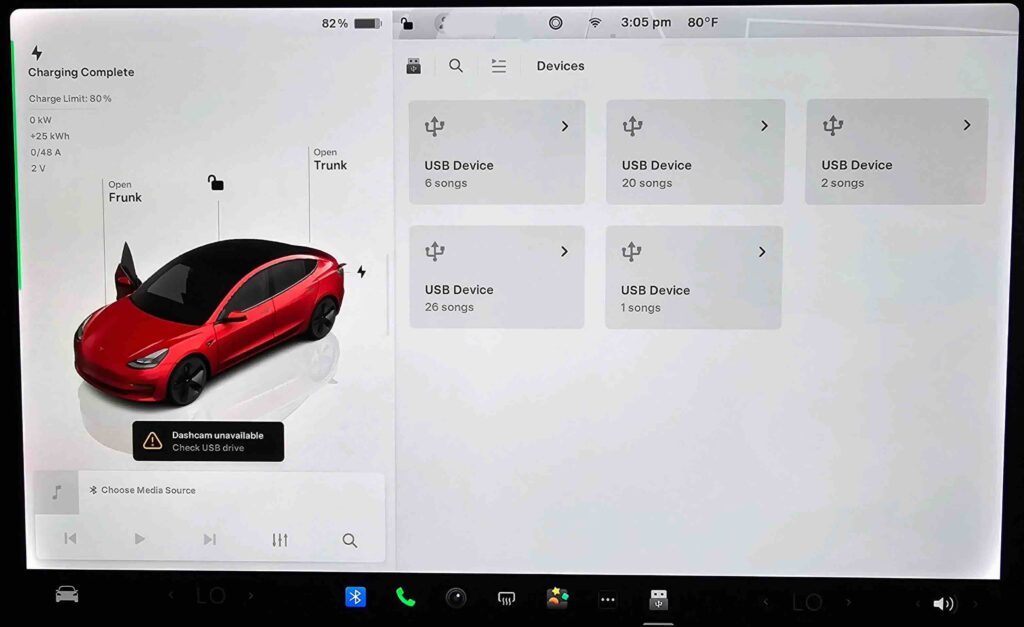
Why is my Tesla not detecting a USB drive?
Tesla not detecting a USB drive usually happens because of 5 main causes: an incompatible USB drive, incorrect formatting, connection problems, USB port issues, or Tesla software-related errors. Identifying the correct cause helps owners avoid replacing hardware unnecessarily and allows them to troubleshoot the problem in the correct order.
A USB drive compatible with Tesla must meet specific requirements for storage capacity, write speed, and file system format. Tesla vehicles mainly use USB storage devices for features that require continuous data recording, such as Dashcam and Sentry Mode. Because these features constantly write video files, a standard USB drive designed only for document storage may not provide reliable performance inside a Tesla.
One of the most common causes is insufficient write speed. Tesla Dashcam and Sentry Mode continuously record footage from the vehicle’s cameras, which requires a storage device capable of handling repeated data transfers. Low-quality USB flash drives or older drives with degraded performance may fail to maintain stable recording, causing Tesla to stop detecting the device or disconnect it unexpectedly.
The USB file system is another important factor affecting Tesla USB detection. A USB drive formatted with an unsupported file system may work normally on a computer but fail when connected to a Tesla vehicle. Checking the storage format before troubleshooting the vehicle helps determine whether the problem comes from the USB drive configuration rather than the car’s hardware.
Physical connection problems can also prevent Tesla from recognizing a USB device. The issue may come from dust inside the USB port, a loose connection, an improperly inserted drive, or an incompatible USB hub. Testing the vehicle with another USB drive is one of the fastest ways to determine whether the problem comes from the storage device or the Tesla USB port.
Tesla software can also affect USB detection. After certain firmware updates, the infotainment system may require a restart before it recognizes connected devices again. If a USB drive worked previously but stopped being detected after a software update, restarting the Tesla touchscreen should be one of the first troubleshooting steps.
Understanding why Tesla does not detect USB helps owners solve the issue more efficiently. Instead of immediately purchasing a new storage device or contacting Tesla Service, owners should check USB compatibility, formatting, connection quality, and software status step by step.
How do I fix Tesla not detecting USB?
Fixing Tesla not detecting USB requires checking the storage device, connection, and vehicle system in a specific order. The most effective approach is to start with simple solutions, such as reconnecting the USB drive and restarting the touchscreen, before moving to advanced steps like reformatting the drive or replacing the storage device.
The first step is to disconnect the USB drive and reconnect it properly. Remove the USB device from the port, wait a few seconds, and insert it again after the Tesla system has fully loaded. A loose connection or an interrupted connection during vehicle startup can prevent the infotainment system from recognizing the USB drive.
Restarting the Tesla touchscreen can also resolve USB detection problems caused by temporary software errors. To restart the infotainment system, press and hold both steering wheel scroll buttons until the screen turns black and the Tesla logo appears. This process reboots the vehicle’s computer system without changing vehicle settings or removing stored data.
If Tesla still does not detect the USB drive, check the USB format and folder structure. A USB device used for Dashcam or Sentry Mode needs the correct file system and required folders before Tesla can use it. Reformatting the drive removes existing data, so owners should back up important files before performing this step.
Testing the USB drive on another device helps identify whether the storage device itself is damaged. Connect the USB drive to a computer and check whether it can be opened, formatted, and used normally. If the computer also fails to recognize the drive or shows storage errors, the USB device is likely the source of the problem.
Using another compatible USB drive is another effective troubleshooting method. If a second USB drive works correctly in the same Tesla port, the original device has compatibility or performance issues. For features such as Dashcam and Sentry Mode, Tesla owners should use a high-quality USB drive or SSD designed for continuous recording rather than basic low-cost storage devices.
Checking the Tesla USB port is necessary if multiple drives fail to work. A damaged port may not provide enough power or may fail to establish a stable data connection. Signs of a USB port problem include no response from several different storage devices, frequent disconnections, or a USB drive that works normally on other devices but not in the vehicle.
Following these troubleshooting steps helps identify whether the issue comes from the USB drive, the Tesla software, or the vehicle hardware. Most Tesla USB detection problems can be resolved without professional service by checking compatibility, formatting, and connection quality.
How do I format a USB drive for Tesla?
Formatting a USB drive correctly is one of the most important steps to fix Tesla USB detection problems. A USB drive may work normally on a computer but remain invisible to Tesla if the file system, folder structure, or storage configuration does not meet Tesla’s requirements.
The first step is to back up all important files before formatting the USB drive. Formatting permanently removes existing data from the storage device, including videos, documents, and other files. Tesla owners should copy any important information to a computer before preparing the drive for vehicle use.
Tesla-compatible USB drives require a supported file system. The correct format depends on the Tesla model, software version, and intended use. Many owners use FAT32 because it provides broad compatibility with Tesla vehicles, while newer systems may support additional formats such as exFAT. Choosing the correct format ensures that Tesla can read and write data without errors.
After formatting the USB drive, owners need to create the correct folder structure for specific Tesla features. For Dashcam and Sentry Mode, Tesla requires a dedicated folder named TeslaCam in the main directory of the USB drive. Without this folder, Tesla may detect the storage device but fail to save camera recordings.
The formatting process also affects long-term performance. A USB drive used for Dashcam and Sentry Mode experiences frequent writing and deleting of video files. Repeated data cycles can reduce the lifespan of low-quality flash storage. Using a high-endurance USB drive or SSD designed for continuous recording improves reliability and reduces detection failures.
Owners should also check the available storage space after formatting the drive. A nearly full USB device may prevent Tesla from saving new recordings or cause unexpected errors. Maintaining enough free space allows the vehicle to manage video files more efficiently.
If a properly formatted USB drive is still not detected, the problem may not be related to formatting. The next troubleshooting steps should include testing another USB device, checking the USB port, and restarting the Tesla infotainment system.
Why is Tesla USB not working for Dashcam or Sentry Mode?
Tesla USB problems are often noticed when Dashcam or Sentry Mode stops recording even though the USB drive appears to be connected. In this situation, Tesla may recognize the USB device but fail to save video footage because of incorrect folder structure, insufficient storage performance, file system problems, or a damaged drive.
The first thing to check is whether the USB drive contains the required TeslaCam folder. Tesla Dashcam and Sentry Mode need this specific folder in the root directory of the storage device to save recorded footage. If the folder is missing, incorrectly named, or placed inside another folder, Tesla may detect the USB drive but will not record camera footage.
Storage capacity also affects Dashcam and Sentry Mode performance. Tesla cameras continuously create video files, meaning the USB drive must have enough available space to store new recordings. When the drive becomes full, Tesla may stop saving new footage or automatically overwrite older recordings depending on the available settings and system behavior.
The write speed of the USB drive is another important factor. Dashcam recording requires continuous data writing from multiple vehicle cameras. A USB drive with slow write performance may fail to save video files correctly, resulting in missing footage, recording interruptions, or repeated USB detection errors. High-endurance USB drives and SSDs are generally more suitable because they are designed for frequent writing operations.
USB formatting problems can also cause Dashcam and Sentry Mode failures. A drive that is readable on a computer may still fail inside Tesla if the file system is not supported correctly. Reformatting the drive and recreating the TeslaCam folder can often restore recording functionality.
If Tesla detects the USB drive but Dashcam is not recording, owners should check the camera icon status on the touchscreen. A missing or inactive Dashcam indicator can show that Tesla is not accessing the storage device correctly. Removing and reconnecting the USB drive after checking the folder structure may restore normal operation.
Regular maintenance helps prevent Tesla USB problems with Dashcam and Sentry Mode. Owners should safely remove the USB drive before formatting, regularly back up important footage, monitor available storage space, and replace storage devices that show repeated recording failures.
Why does Tesla USB stop working after a software update?
Tesla USB detection problems can appear after a software update because the vehicle’s infotainment system controls how external storage devices are recognized and managed. When Tesla installs new firmware, changes to system functions, compatibility checks, or device communication processes may affect how the vehicle interacts with a connected USB drive.
A common sign of a software-related USB issue is when the same USB drive worked correctly before an update but is no longer detected afterward. In this situation, the storage device itself may not be damaged. The problem may come from a temporary system error that prevents the Tesla computer from properly recognizing the connected device.
Restarting the Tesla touchscreen is the first troubleshooting step after a software update causes USB problems. A system restart refreshes the infotainment software and reloads connected hardware devices. This process can resolve temporary detection failures without affecting vehicle settings, driver profiles, or stored vehicle data.
If restarting the vehicle does not restore USB functionality, owners should reconnect the USB drive and check whether Tesla recognizes other storage devices. Testing another compatible USB drive helps determine whether the issue is related to the software system or the original storage device.
Software updates may also change how Tesla handles USB storage requirements. A drive that previously worked may need to be reformatted if the file system or folder structure no longer matches the vehicle’s current requirements. Before formatting, owners should back up important files because the process removes all existing data from the drive.
Tesla owners should also check whether the vehicle software update completed successfully. An incomplete update or temporary system instability can affect multiple infotainment features, including USB detection, media playback, and Dashcam functionality. Ensuring that the vehicle has completed the update process and allowing the system time to restart can help restore normal operation.
If the USB drive remains undetected after restarting Tesla, testing multiple compatible storage devices, checking the USB port, and verifying the formatting are the next steps. Persistent problems across different USB drives may indicate a hardware issue rather than a software problem.
Understanding the connection between Tesla software updates and USB detection helps owners avoid unnecessary replacements. In many cases, a simple system restart or USB reconfiguration can restore normal operation after a firmware change.
How do I know if my Tesla USB port is damaged?
A damaged Tesla USB port can prevent the vehicle from detecting any storage device, even when the USB drive itself is compatible and properly formatted. Before assuming the port has failed, owners should test multiple USB drives and complete basic troubleshooting steps to separate a storage problem from a vehicle hardware problem.
The most common sign of a damaged Tesla USB port is that the vehicle fails to recognize several different USB drives that work correctly on other devices. If multiple known-good USB drives show the same detection failure, the issue is more likely related to the vehicle’s USB connection rather than the storage devices.
A USB port problem can also appear when the drive repeatedly disconnects while driving or during recording. Dashcam and Sentry Mode require a stable connection because the vehicle continuously writes video data to the storage device. An unstable USB port may interrupt data transfer, causing missing recordings, failed saves, or repeated USB connection errors.
Power-related issues are another indicator of USB port damage. Some USB ports may fail to provide enough power for certain storage devices, especially external SSDs that require more stable power delivery than basic flash drives. If a USB drive receives power on a computer but does not work in Tesla, the vehicle’s USB connection should be inspected.
Physical damage can also affect USB performance. Common causes include loose connectors, damaged internal contacts, debris inside the port, or repeated force when inserting and removing USB devices. A port that feels loose or does not hold the USB connection securely may require professional inspection.
Before contacting Tesla Service Center, owners should complete several checks. Test at least two different compatible USB drives, verify that the drives are correctly formatted, restart the Tesla touchscreen, and confirm that the problem continues. These steps help confirm whether the issue is caused by the USB port rather than the storage device or software.
Tesla service may be necessary when the USB port fails with multiple verified devices and the problem continues after software troubleshooting. Professional inspection can determine whether the issue involves the USB hardware, wiring, or another component of the vehicle’s infotainment system.
Identifying a damaged USB port early prevents repeated storage failures and protects important data from Dashcam and Sentry Mode. A reliable USB connection is essential because Tesla’s recording features depend on consistent communication between the vehicle system and the storage device.
How can I prevent Tesla USB detection problems?
Preventing Tesla USB detection problems requires maintaining the storage device, using compatible hardware, and following correct connection practices. A properly maintained USB drive reduces failures with important Tesla features such as Dashcam, Sentry Mode, and media playback.
The first step is choosing a USB drive designed for continuous vehicle recording. Standard USB flash drives are often built for occasional file transfers, while Tesla’s camera features require frequent writing and rewriting of video data. High-endurance USB drives and SSDs are better choices because they are designed to handle repeated recording cycles and provide more stable performance.
Regularly checking available storage space helps prevent recording failures. Tesla Dashcam and Sentry Mode generate video files continuously, which can quickly consume storage capacity. Keeping sufficient free space allows the system to save new recordings and manage older footage without interruption.
Formatting the USB drive correctly also reduces detection problems. Owners should use a Tesla-compatible file system and maintain the required folder structure for features such as Dashcam. Reformatting the drive when errors appear can remove corrupted data and restore normal communication between the USB device and the vehicle.
USB drives should also be disconnected safely to prevent file corruption. Removing the drive while Tesla is actively recording can interrupt write operations and damage stored data. Before unplugging the device, owners should disable recording features or wait until the vehicle is no longer accessing the USB storage.
Backing up important footage is another effective prevention method. Dashcam and Sentry Mode recordings may contain valuable evidence after incidents, but USB drives can fail over time because of continuous usage. Regular backups protect important video files and allow owners to replace storage devices before complete failure occurs.
Owners should monitor early warning signs of USB problems, including frequent disconnections, missing recordings, slow response, or repeated detection failures. Addressing these issues early helps prevent larger problems and reduces the chance of losing important data.
Maintaining Tesla USB performance is a combination of using suitable hardware, managing storage correctly, and following proper usage practices. These steps improve reliability and ensure that Tesla’s connected storage features continue working consistently.
Final thoughts on fixing Tesla not detecting USB
Tesla not detecting USB is usually caused by problems with the storage device, formatting, connection, or software rather than a serious vehicle failure. The most effective troubleshooting process starts with simple checks, including reconnecting the USB drive, restarting the Tesla touchscreen, and testing whether another compatible storage device works.
Correct USB preparation is essential for reliable Tesla performance. A properly formatted USB drive with the correct folder structure, enough storage space, and sufficient write speed allows features such as Dashcam and Sentry Mode to operate consistently. Using storage devices designed for continuous recording also reduces the risk of repeated detection failures.
When basic troubleshooting does not solve the problem, owners should check whether the issue comes from the USB port or the vehicle’s infotainment system. Testing multiple USB drives helps separate a storage problem from a hardware issue and provides clearer information before contacting Tesla Service.
Maintaining the USB system through regular backups, proper removal practices, and periodic storage checks helps prevent future problems. A reliable USB connection ensures that important Tesla features continue working when drivers need them most.
By following a structured troubleshooting approach, most Tesla USB detection problems can be resolved without professional repair. Understanding the relationship between USB compatibility, file formatting, hardware connection, and Tesla software gives owners a practical way to maintain their vehicle’s digital features.