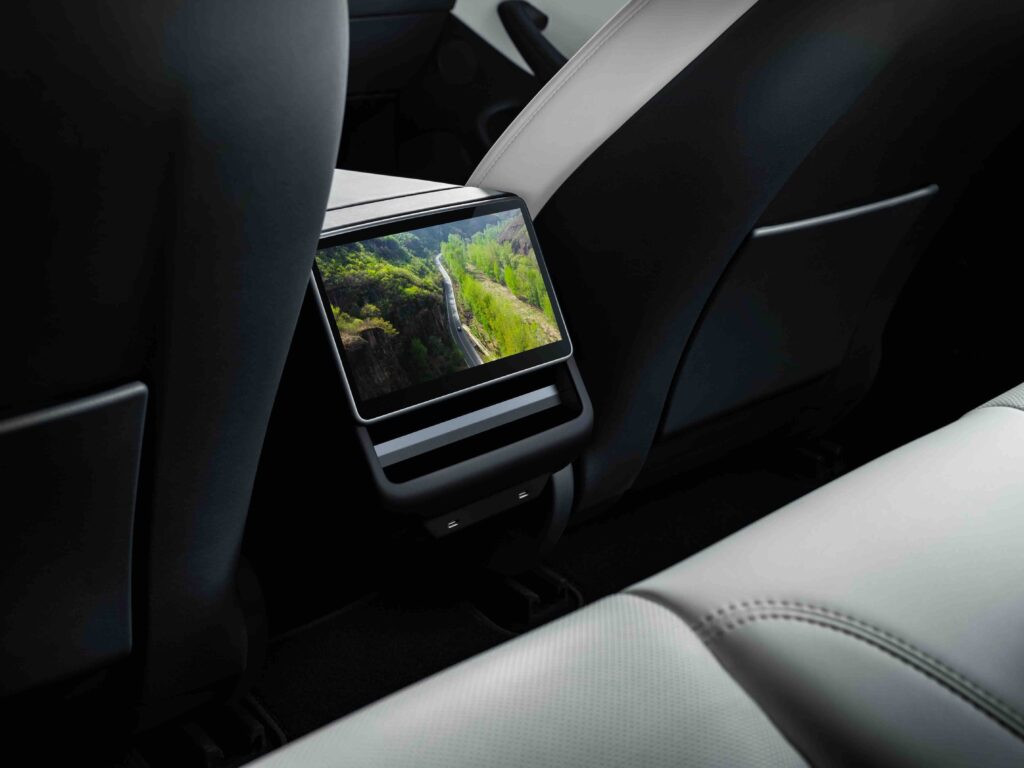
A Tesla rear screen enhances the passenger experience by providing access to climate controls, media playback, and other cabin functions. When the rear display suddenly turns black, freezes, or stops responding to touch, it can reduce convenience and raise concerns about whether the problem is caused by a software glitch, a hardware failure, or a more serious issue with the vehicle’s infotainment system.
In many cases, a Tesla back screen that is not working does not require an immediate hardware replacement. Temporary software bugs, interrupted over-the-air (OTA) updates, infotainment system errors, or incorrect rear display settings can all prevent the screen from functioning properly. Identifying the root cause is the first step toward choosing the correct solution and avoiding unnecessary service appointments.
This guide explains how to fix a Tesla back screen that is not working through a structured troubleshooting process. You’ll learn the most common causes of rear display failures, follow step-by-step solutions ranging from simple system reboots to software checks, understand how to distinguish software issues from hardware defects, and know when it’s time to schedule a visit to a Tesla Service Center. By following these steps in order, you can diagnose the issue more efficiently and determine whether it can be resolved at home or requires professional repair.
Why Is the Tesla Back Screen Not Working?
A Tesla back screen can stop working because of software glitches, interrupted firmware updates, infotainment system errors, power supply issues, damaged wiring, or a failed display module. Identifying the root cause before attempting repairs helps avoid unnecessary part replacements and ensures the correct troubleshooting method is applied.
The most common symptom is a completely black rear display while the front touchscreen continues to function normally. In other cases, the screen powers on but does not respond to touch, remains frozen on a single interface, randomly restarts, or fails to load climate and entertainment controls. Some drivers also notice that rear passengers cannot adjust seat heating or air conditioning even though those functions are still available from the front display. These symptoms often indicate a communication problem between the rear display and Tesla’s infotainment system rather than a complete screen failure.
Rear displays are available on selected Tesla models, including newer versions of the Model S, Model X, refreshed Model 3 Highland, and certain Model Y configurations depending on the market and production year. Because the hardware and software architecture differ between models, the available troubleshooting steps and supported features may vary. Checking your vehicle’s configuration helps determine whether the issue is related to the display itself or to a feature that is not enabled on your vehicle.
Software-related issues are generally easier to resolve than hardware failures. A temporary operating system bug, corrupted cache, or incomplete over-the-air update can cause the rear display to become unresponsive without permanently damaging the screen. Hardware problems, such as a faulty display panel, loose connector, damaged wiring harness, or defective control module, are less common but usually require professional diagnosis and repair. Understanding whether the problem is software or hardware allows you to follow the most effective troubleshooting process before scheduling a service appointment.
What Causes a Tesla Rear Screen to Stop Working?
A Tesla rear screen usually stops working because of software issues, interrupted firmware updates, infotainment system failures, electrical connection problems, or defective display hardware. Determining the exact cause is important because each issue requires a different troubleshooting approach, and replacing the screen is rarely the first solution.
Software bugs are the most common cause of an unresponsive rear display. Like any computer-based system, Tesla’s infotainment software can occasionally freeze after extended operation, encounter memory management errors, or fail to load background services correctly. When this happens, the rear screen may remain black, stop responding to touch inputs, or display a loading screen indefinitely while the front touchscreen continues to operate normally.
An interrupted over-the-air (OTA) software update can also prevent the rear display from functioning correctly. If the update process is incomplete because of a temporary system interruption or installation error, some software components responsible for controlling the rear display may not initialize properly during startup. As a result, the screen may lose functionality until the software is successfully reinstalled or updated to a newer firmware version.
Problems within the Media Control Unit (MCU) or the infotainment system can affect communication with the rear display. The MCU manages multiple vehicle interfaces, including navigation, media, climate controls, and connected displays. If the MCU experiences a software crash or communication fault, the rear screen may become unavailable even though other vehicle systems continue operating without noticeable issues.
Electrical faults are another possible cause. A loose connector, damaged wiring harness, or unstable power supply can interrupt communication between the rear display and the vehicle’s central control system. These issues are more likely to occur after collision repairs, interior modifications, or physical impacts that affect the center console or rear cabin components.
Although less common, hardware failure should also be considered if the display remains completely unresponsive after all software troubleshooting steps have been completed. A defective LCD panel, failed touch digitizer, damaged display controller, or internal circuit fault can permanently disable the rear screen. In these situations, diagnostic equipment is typically required to identify the failed component, and the repair is usually performed by a Tesla Service Center.
How to Fix a Tesla Back Screen That Is Not Working?
You can fix a Tesla back screen that is not working by following a step-by-step troubleshooting process, starting with simple software solutions before investigating potential hardware problems. This approach helps eliminate the most common causes first and reduces the likelihood of unnecessary repairs.
Begin by performing a soft reboot of the infotainment system. Press and hold both steering wheel scroll buttons until the front touchscreen turns black and the Tesla logo appears. Wait for the system to restart completely before checking whether the rear display has resumed normal operation. Temporary software glitches and memory conflicts are often cleared during this process.
If the rear screen remains unresponsive, verify that your vehicle is running the latest Tesla software version. Open Controls > Software and check whether a new over-the-air (OTA) update is available. Software updates frequently include bug fixes for infotainment stability, display communication, and system performance. Installing the latest firmware can resolve display issues caused by known software defects.
Next, inspect the rear display settings and climate control configuration. On supported Tesla models, rear passengers can control cabin temperature and entertainment through the rear touchscreen. If these functions have been disabled through parental controls, rear display settings, or software restrictions, the screen may appear inactive even though the hardware is functioning correctly. Confirm that rear passenger controls are enabled before proceeding with further diagnostics.
A physical inspection can also help identify visible damage. Check the rear screen for cracks, liquid exposure, impact marks, or signs of overheating. If the issue started immediately after interior modifications, collision repairs, or accessory installation, a loose connector or damaged wiring harness may be interrupting communication with the display. These components are located behind interior trim panels and should only be inspected by qualified technicians to avoid damaging electrical systems.
After completing each troubleshooting step, test the rear display for several minutes rather than assuming the issue has been resolved immediately. Verify that the touchscreen responds consistently, climate controls function normally, media applications load correctly, and the display does not freeze or restart unexpectedly. If the rear screen continues to remain black or unresponsive after a reboot, software update, and basic inspection, the problem is more likely related to hardware failure or an internal communication fault that requires professional diagnosis.
When Should You Contact Tesla Service?
You should contact a Tesla Service Center if the rear screen remains unresponsive after completing all recommended troubleshooting steps or if the display shows signs of hardware failure. Professional diagnostics can identify faults that cannot be detected through normal user troubleshooting, including communication errors between control modules, damaged electrical components, or defective display hardware.
A persistent black screen after multiple system reboots and software updates is one of the clearest signs that professional inspection is required. If the rear display never powers on, repeatedly restarts, displays severe graphical artifacts, or fails to respond even after the vehicle has completed a successful software installation, the issue is unlikely to be caused by a temporary software bug. These symptoms often indicate a failed display module, damaged wiring, or an internal hardware fault.
You should also schedule service if the rear screen stops working after a collision, interior repair, water intrusion, or physical impact. Even minor damage around the center console can loosen electrical connectors or damage the wiring harness that supplies power and data to the rear display. These problems usually require partial interior disassembly and specialized diagnostic equipment that is only available through trained technicians.
Before creating a service appointment, collect as much information as possible about the problem. Record when the issue first appeared, whether it started after a software update, how often it occurs, and whether other vehicle functions are affected. Taking photos or videos of the malfunction can also help Tesla technicians reproduce intermittent faults more quickly and reduce diagnostic time.
If your Tesla is still covered by the New Vehicle Limited Warranty or an applicable Extended Service Agreement, repairs related to manufacturing defects in the rear display or associated electronic components may be covered. However, damage caused by accidents, unauthorized modifications, or external impacts is generally not included under warranty coverage. Checking your warranty status through the Tesla mobile app before scheduling service can help you understand the potential repair costs and prepare for the appointment.
How Can You Prevent Tesla Rear Screen Problems?
Preventing Tesla rear screen problems mainly involves maintaining stable software, protecting the display from physical damage, and following recommended operating practices. While not every malfunction can be avoided, these measures reduce the risk of software instability and premature hardware wear.
Keep your Tesla updated with the latest software version whenever a stable over-the-air (OTA) update becomes available. Tesla regularly releases firmware updates that improve infotainment performance, fix software bugs, and enhance communication between electronic control modules. Installing updates promptly reduces the likelihood of encountering display-related issues that have already been addressed by Tesla.
Avoid interrupting software installations by driving the vehicle, disconnecting power, or forcing a system restart while an OTA update is in progress. Although Tesla includes safeguards to protect the installation process, interruptions can occasionally leave software components incomplete, affecting features such as the rear touchscreen or passenger controls.
Protect the rear display from excessive force and environmental damage. Heavy impacts, liquid spills, and sharp objects can damage the touchscreen, while prolonged exposure to extreme cabin temperatures may accelerate wear on electronic components. Using appropriate sunshades during hot weather and keeping liquids away from the center console can help extend the display’s service life.
Limit unnecessary third-party modifications around the center console or infotainment system. Installing aftermarket accessories that require electrical connections or removing interior trim without proper procedures can interfere with wiring harnesses and electronic modules connected to the rear display. If additional accessories are needed, they should be installed according to Tesla’s recommended practices or by qualified professionals.
Restarting the infotainment system occasionally after major software updates can also improve system stability. A clean reboot allows background services to reload correctly and may clear temporary software conflicts before they develop into persistent display issues.
Frequently Asked Questions
Why is the rear screen black while the front screen still works?
This usually indicates that the rear display is experiencing a software communication issue rather than a complete infotainment system failure. A system reboot or software update often resolves the problem, although hardware faults should be considered if the issue persists.
Can I drive my Tesla if the rear screen is not working?
Yes. In most situations, a non-functional rear screen does not affect the vehicle’s ability to drive safely because essential driving information and vehicle controls remain available on the front display. However, rear passengers may lose access to climate, media, or entertainment controls until the issue is resolved.
Does the rear screen control climate settings?
On supported Tesla models, the rear touchscreen allows passengers to adjust rear climate settings, heated seats, and selected entertainment features. If the display stops working, these functions can typically still be managed from the front touchscreen.
Can a software update fix a Tesla rear screen problem?
Yes. Many rear display issues are caused by temporary software bugs that Tesla addresses through over-the-air updates. Installing the latest firmware is one of the first troubleshooting steps recommended before investigating potential hardware failures.
How long does Tesla take to repair a rear screen?
Repair times vary depending on the underlying cause and parts availability. Software-related issues may be resolved during a single service appointment, while hardware repairs that require replacement components can take several days if parts must be ordered.