Tesla Boombox lets compatible Tesla vehicles play custom sounds through the external Pedestrian Warning System (PWS) speaker, adding features such as custom horns, Lock Sounds, and sounds played while the vehicle is parked. When the feature stops working, users may notice that no sound plays, custom audio files are ignored, or the Boombox option disappears from the Toybox menu.
Most Tesla Boombox issues are caused by software settings, USB configuration, compatibility limitations, or temporary firmware bugs rather than a failed speaker. Identifying the root cause before replacing hardware can save time and avoid unnecessary service appointments. For example, a software update may reset certain settings, an incorrectly formatted USB drive can prevent custom sounds from loading, or older Tesla vehicles without a Pedestrian Warning System speaker cannot use Boombox at all.
This guide walks through a logical troubleshooting process, starting with the simplest checks and progressing to more advanced diagnostics. You’ll learn how to verify whether your vehicle supports Boombox, inspect software and hardware requirements, troubleshoot custom sound problems, and determine when the issue requires assistance from Tesla Service. By following these steps in order, you can quickly identify why Tesla Boombox is not working and restore the feature with the most appropriate solution.
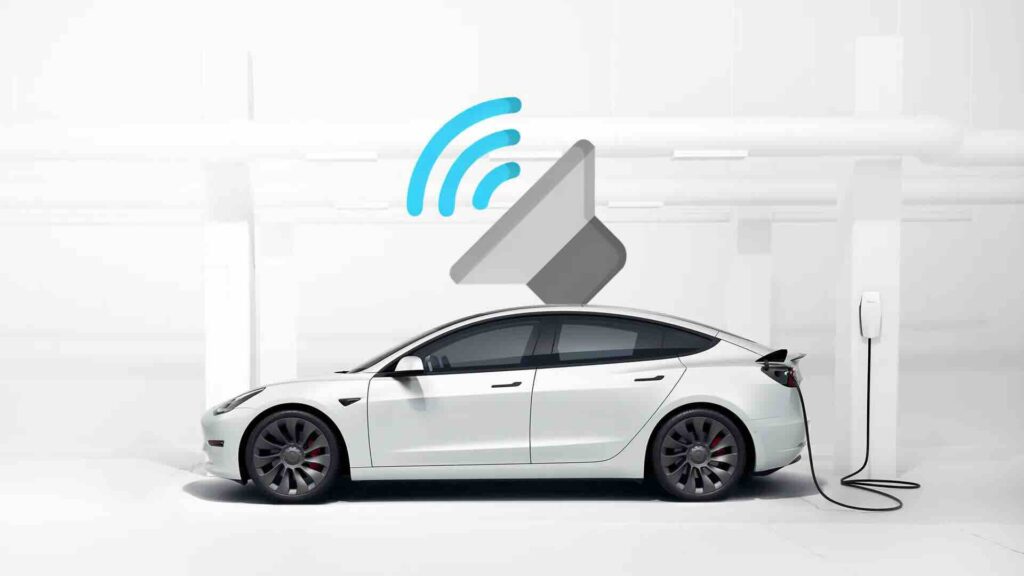
Why Is Tesla Boombox Not Working?
Tesla Boombox usually stops working because of compatibility limitations, software issues, incorrect settings, USB configuration problems, or a malfunctioning Pedestrian Warning System (PWS) speaker. Identifying the actual cause is important because the troubleshooting steps vary depending on whether the issue is related to software or hardware.
The first thing to verify is whether your vehicle supports the Boombox feature. Boombox relies on the Pedestrian Warning System speaker that Tesla introduced on newer vehicles to comply with pedestrian safety regulations. If your Tesla was manufactured without this external speaker, the Boombox feature cannot play sounds outside the vehicle regardless of software settings. Compatibility also depends on the vehicle model and production date, so confirming hardware support should always be the first diagnostic step.
Software compatibility is another common reason the feature becomes unavailable. Tesla regularly modifies vehicle features through over-the-air (OTA) updates, and certain software versions may introduce temporary bugs or change how Boombox operates. In some cases, owners notice that the Boombox menu disappears, custom sounds stop loading, or Lock Sounds no longer play immediately after installing a new update. These symptoms often indicate a software issue rather than a hardware failure.
Incorrect settings can also prevent Boombox from functioning properly. Features such as Lock Sound, Custom Horn, or Boombox are managed through the Toybox application, and individual options may become disabled after a software update or profile change. A quick review of the available settings often resolves the problem without requiring additional troubleshooting.
USB-related issues are another frequent cause when only custom sounds fail to play. Tesla requires the USB drive to use a supported file system and specific folder structure before audio files can be detected. An unsupported format, damaged USB drive, incorrectly named folder, or incompatible audio file can prevent custom sounds from appearing even though the built-in Boombox sounds continue to work normally.
Hardware problems are less common but should not be ruled out. The Pedestrian Warning System speaker is responsible for broadcasting Boombox sounds outside the vehicle. If the speaker fails, becomes disconnected, or develops an electrical fault, no external sounds will play, including pedestrian warning sounds and Boombox audio. When multiple external sound functions stop working simultaneously after software and USB checks have been completed, the external speaker should be inspected by Tesla Service.
How Do You Fix Tesla Boombox Not Working?
You can fix most Tesla Boombox problems by checking feature compatibility, verifying Toybox settings, restarting the infotainment system, installing the latest software update, inspecting the USB drive, and testing the external speaker. Performing these checks in sequence helps isolate the root cause without replacing unnecessary components.
Begin by confirming that Boombox is enabled in Toybox. Open Toybox > Boombox and verify that the feature is available. If you’re using Lock Sound or Custom Horn, ensure these options are turned on. A software update or profile change can reset certain preferences, making the feature appear broken even though it has simply been disabled.
Restart the Tesla touchscreen if Boombox suddenly stops working without any obvious reason. Press and hold both steering wheel scroll wheels until the touchscreen turns black and the Tesla logo appears. This reboot refreshes the infotainment system and often resolves temporary software glitches affecting Toybox features, media controls, and custom audio playback.
Check whether your vehicle is running the latest Tesla software version. Over-the-air updates frequently include bug fixes for infotainment functions and vehicle features. If a new update is available, install it after connecting the vehicle to a stable Wi-Fi network. If the problem started immediately after an update, monitor future software releases because Tesla occasionally resolves feature-specific bugs in subsequent updates.
Inspect the USB drive if only custom Boombox sounds fail to play. The drive should use a supported file system, remain free from file corruption, and contain audio files in the correct directory. Damaged flash drives, incorrect folder names, unsupported audio formats, or improperly transferred files can all prevent Tesla from detecting custom sounds while leaving built-in Boombox effects fully functional.
Test Boombox using one of Tesla’s built-in sounds before troubleshooting custom audio files. If factory sounds play correctly but your own recordings do not, the issue almost always involves the USB drive, file organization, or audio encoding instead of the vehicle itself. This simple comparison quickly separates software configuration problems from hardware failures.
Finally, verify that the external Pedestrian Warning System speaker is operating normally. Activate another feature that uses the same speaker, such as pedestrian warning sounds or compatible vehicle alerts. If no external sounds are produced across multiple functions, the issue may involve the speaker, wiring, or control module rather than Boombox. At this point, further diagnosis typically requires inspection by Tesla Service.
Why Is My Custom Boombox Sound Not Playing?
Custom Tesla Boombox sounds usually fail to play because the USB drive, audio files, or folder structure does not meet Tesla’s requirements. If the built-in Boombox sounds work correctly but your own audio files do not appear or produce no sound, the problem is almost always related to file configuration rather than the vehicle itself.
Start by checking the USB drive format. Tesla only recognizes specific file systems, and using an unsupported format can prevent the infotainment system from detecting custom audio files. If the drive has been used with multiple devices or contains file system errors, reformatting it and copying the audio files again often resolves the issue. Using a reliable USB 3.0 flash drive with sufficient read speed also helps improve file detection and loading performance.
Next, verify the folder structure on the USB drive. Tesla searches for custom Boombox sounds in designated directories, so incorrectly named folders or misplaced audio files can prevent the feature from finding them. Even if the audio files themselves are valid, storing them in the wrong location will cause the custom sound list to remain empty.
The audio files must also comply with Tesla’s supported format requirements. Unsupported codecs, unusual sampling rates, excessive file sizes, or incompatible audio encoding can cause files to be ignored. Converting the sound to a supported format and keeping the file simple without unnecessary metadata increases the likelihood that the vehicle will recognize it correctly.
File names can also contribute to compatibility issues. Long file names, unsupported characters, or duplicate file names may interfere with how the infotainment system indexes custom sounds. Using short, descriptive file names that contain only letters, numbers, hyphens, or underscores helps avoid unnecessary recognition problems.
If the custom sounds still do not play, remove the USB drive safely, reconnect it after the vehicle finishes booting, and reopen the Boombox menu. Tesla may need several seconds to scan newly connected storage devices before the custom audio library becomes available. If built-in sounds continue to work while custom sounds remain unavailable after verifying the USB drive, folder structure, and audio format, recreating the USB drive from scratch is often faster than attempting to troubleshoot individual files.
Why Did Tesla Boombox Stop Working After a Software Update?
Tesla Boombox can stop working after a software update because the update changes feature settings, introduces temporary software bugs, or modifies compatibility requirements. In most cases, the problem is software-related and can be resolved without replacing vehicle components.
Tesla regularly delivers over-the-air (OTA) updates that improve security, performance, and vehicle functionality. During the installation process, the infotainment system rebuilds configuration files and reloads vehicle settings. As a result, Boombox-related options such as Custom Horn or Lock Sound may be reset to their default state. Checking the Toybox menu after every software update is a simple way to confirm that these features remain enabled.
Some software releases also contain temporary bugs that affect specific vehicle functions. Owners occasionally report that the Boombox menu disappears, custom sounds fail to load, or external sounds stop playing immediately after installing a new firmware version. If the issue appears directly after an update and no hardware changes have been made, a software bug is a more likely explanation than a failed speaker.
Software updates may also modify how Tesla handles USB devices. The infotainment system can rebuild its media database after an update, causing custom Boombox sounds to disappear until the USB drive is rescanned. Disconnecting the USB drive, restarting the touchscreen, reconnecting the drive, and allowing the system several minutes to index the files often restores the custom sound library.
If the problem persists, perform a touchscreen reboot before attempting more advanced troubleshooting. Restarting the infotainment system clears temporary software processes that may not have restarted correctly after the update. If Boombox still does not function after rebooting, verify that the vehicle is running the latest available software version, as Tesla frequently releases follow-up updates to address bugs discovered after a major rollout.
When Boombox remains unavailable despite updated software, correct settings, and a properly configured USB drive, compare the behavior with other external sound features. If pedestrian warning sounds and other speaker functions also fail, the issue may involve the Pedestrian Warning System speaker rather than the software update itself. If only Boombox is affected, waiting for a future OTA update or contacting Tesla Support is typically the most appropriate next step.
When Should You Contact Tesla Service?
You should contact Tesla Service when software troubleshooting, USB verification, and system resets do not restore Boombox functionality or when the problem is caused by a hardware failure. While most Boombox issues can be resolved through basic troubleshooting, persistent faults often require professional diagnostics because the external speaker and its control systems are integrated into the vehicle’s electrical architecture.
A failed Pedestrian Warning System (PWS) speaker is one of the clearest signs that service is required. The same speaker used for Boombox also produces pedestrian warning sounds at low speeds. If neither Boombox nor other external vehicle sounds work after confirming that the feature is enabled and the software is up to date, the speaker, wiring harness, or control module may have developed a fault that cannot be repaired through software settings.
You should also schedule a service appointment if the Boombox feature disappears completely from the Toybox menu even though your vehicle supports it. This behavior can indicate a software configuration problem, corrupted system files, or an issue with feature activation. Before requesting service, install the latest available software update and perform a touchscreen reboot. If the option remains unavailable after these steps, Tesla technicians can run diagnostic tests that are not accessible to vehicle owners.
Persistent software errors are another reason to seek professional assistance. If Boombox continues to malfunction after multiple system restarts, software updates, USB replacement, and configuration checks, the vehicle may require a deeper inspection. Tesla Service can review diagnostic logs, identify firmware conflicts, and determine whether a hardware component or software module is preventing the feature from operating correctly.
A service appointment is also recommended if the problem occurs alongside other infotainment or vehicle functions. For example, if media playback, USB recognition, external speakers, or pedestrian warning sounds all fail simultaneously, the issue is unlikely to be isolated to Boombox. Multiple feature failures often point to a broader electrical or software problem that requires specialized diagnostic equipment.
Before visiting a Tesla Service Center, record the software version, note when the issue first appeared, and document any troubleshooting steps you have already completed. Providing this information helps technicians reproduce the problem more efficiently and reduces the time required to identify the underlying cause.
How Does Tesla Boombox Work?
Tesla Boombox works by sending audio from the infotainment system to the vehicle’s external Pedestrian Warning System (PWS) speaker. Instead of playing sounds through the cabin speakers, the feature broadcasts audio outside the vehicle, allowing owners to use custom horns, Lock Sounds, and other sound effects while the car is parked or under supported operating conditions.
The system combines both hardware and software components. The infotainment computer processes the selected audio file, the Toybox application manages user controls, and the Pedestrian Warning System speaker outputs the sound outside the vehicle. If any part of this chain fails, such as a disabled setting, unsupported software version, disconnected USB drive, or defective speaker, Boombox may stop working even though the rest of the infotainment system functions normally.
Boombox also depends on Tesla’s software architecture. Every time the driver selects a custom horn or Lock Sound, the infotainment system verifies that the feature is available, checks the required settings, and sends the audio signal to the external speaker. When custom sounds are stored on a USB drive, the system first scans the drive, indexes compatible audio files, and then makes them available within the Boombox menu. If the USB drive cannot be read or the files fail validation, only Tesla’s built-in sounds remain available.
Regional regulations can also influence how Boombox operates. Some features are restricted while driving because the Pedestrian Warning System is primarily designed as a safety device rather than an entertainment system. As Tesla updates its software to comply with local regulations, the availability of certain Boombox functions may change depending on the vehicle’s location and software version.
Understanding how Boombox works makes troubleshooting more efficient. Since every sound passes through the same software controls and external speaker, identifying where the process stops helps determine whether the issue is caused by vehicle settings, USB configuration, software, or hardware.
Which Tesla Models Support Boombox?
Tesla Boombox is only available on vehicles equipped with a Pedestrian Warning System speaker and running a compatible software version. Even if two vehicles belong to the same model line, production date and hardware configuration can determine whether the feature is supported.
Most newer Model 3 and Model Y vehicles include the required external speaker because they were manufactured after Tesla began installing the Pedestrian Warning System to comply with pedestrian safety regulations. Many refreshed Model S and Model X vehicles also support Boombox, provided they include the necessary hardware and compatible firmware.
Older Tesla vehicles built before the Pedestrian Warning System became standard generally cannot use Boombox because they lack the external speaker required to project sound outside the vehicle. Updating the software alone does not enable the feature if the necessary hardware is missing.
Software compatibility is equally important. Tesla continuously updates Boombox through over-the-air releases, and certain features may only become available after installing a specific firmware version. Before troubleshooting missing Boombox functions, confirm that the vehicle has received the latest stable software update and that the feature appears within the Toybox application.
If you’re unsure whether your vehicle supports Boombox, check the Toybox menu first. If the feature is unavailable despite running the latest software, verify whether your Tesla includes a Pedestrian Warning System speaker. Confirming hardware compatibility before performing additional troubleshooting helps eliminate one of the most common causes of Boombox-related confusion.
What Limitations Does Tesla Boombox Have?
Tesla Boombox is subject to hardware, software, regulatory, and file compatibility limitations. Understanding these restrictions helps explain why the feature may behave differently between vehicles or stop working even when no faults are present.
One of the biggest limitations is hardware compatibility. Boombox requires a Pedestrian Warning System (PWS) speaker to broadcast sounds outside the vehicle. Tesla models built before the external speaker became standard cannot support Boombox because they lack the required hardware. Installing newer software alone cannot add this functionality.
Software restrictions also affect how and when Boombox can be used. Tesla periodically changes feature behavior through over-the-air updates to improve security, stability, and compliance with regional regulations. As a result, certain functions, such as playing sounds while driving, may be limited or removed depending on the software version installed on the vehicle.
Custom audio files must meet Tesla’s technical requirements before they can be used. Unsupported audio formats, incorrect sampling rates, oversized files, or improperly organized USB directories may prevent custom sounds from appearing in the Boombox menu. These limitations protect system stability while ensuring the infotainment system can process audio files efficiently.
Regional regulations represent another important limitation. Pedestrian safety laws vary by country, and Tesla may disable or modify specific Boombox functions to comply with local legal requirements. Two vehicles with identical hardware may therefore offer different Boombox capabilities depending on the market where they are operated.
Boombox is also designed for specific operating conditions rather than continuous use. Some sound functions are only available while the vehicle is parked, while others remain restricted during normal driving. These safeguards ensure that entertainment features do not interfere with mandatory pedestrian warning sounds or distract other road users.
How Can You Prevent Tesla Boombox Issues?
Regular software maintenance, proper USB management, and routine system checks can prevent most Tesla Boombox problems. Preventive maintenance reduces the likelihood of software conflicts and helps the feature continue operating after future vehicle updates.
Keep your Tesla updated with the latest stable software release. Many Boombox-related issues are resolved through OTA updates that fix infotainment bugs and improve compatibility. Installing updates promptly also ensures the vehicle receives the latest feature improvements and security patches.
Use a high-quality USB drive that meets Tesla’s compatibility requirements. Reliable USB 3.0 drives generally provide better performance than older storage devices and are less likely to develop file corruption. If you frequently update custom sounds, safely eject the USB drive from your computer before reconnecting it to the vehicle to minimize the risk of file system errors.
Maintain a clean folder structure and store only supported audio files on the USB drive. Removing outdated files, avoiding unnecessary folders, and keeping file names short can improve indexing speed and reduce recognition problems. If the vehicle no longer detects custom sounds, rebuilding the USB drive from a fresh format is often more effective than troubleshooting individual files.
Check Boombox settings after every software update. Some OTA releases may reset feature preferences or modify how the infotainment system handles custom audio. Verifying that Lock Sound, Custom Horn, and other Boombox options remain enabled helps identify configuration issues before they become noticeable.
Testing Boombox periodically is another effective preventive measure. Playing one of Tesla’s built-in sounds confirms that the external speaker, software, and system settings are functioning correctly. Detecting small issues early allows them to be resolved before they develop into more complex software or hardware problems.
What Should You Check Before Assuming Tesla Boombox Is Broken?
Before concluding that Tesla Boombox has failed, complete a systematic inspection. First, confirm that your vehicle supports Boombox and includes a Pedestrian Warning System speaker. Second, verify that the feature remains enabled in the Toybox menu. Third, inspect the USB drive, folder structure, and audio file format if custom sounds are affected. Fourth, restart the touchscreen and install the latest Tesla software update. Fifth, test built-in Boombox sounds and other external speaker functions to determine whether the issue is related to custom files or the hardware itself. Finally, if every troubleshooting step has been completed and the problem persists, schedule an appointment with Tesla Service for a professional diagnosis. Following this sequence eliminates the most common causes first and significantly reduces the time required to identify the underlying issue.