The My Chevy App has become an essential digital bridge between drivers and their Chevrolet vehicles, offering features such as remote start, vehicle status monitoring, door lock control, and real time diagnostics. It is part of the broader General Motors connected services ecosystem and works closely with systems like OnStar and GM account authentication. When the app functions correctly, it gives drivers full control of their vehicle from anywhere using only a smartphone. However, when the app stops working, the entire driving experience can feel interrupted and frustrating.
Many users report situations where the My Chevy App suddenly stops responding, fails to load, or does not connect to the vehicle. Some cannot log in, while others notice that remote start commands do not go through or vehicle status information does not update. These issues can happen for several reasons including server outages, authentication errors, outdated app versions, or connectivity problems between the vehicle and GM services. In some cases, the problem may come from the phone itself after an operating system update or network restriction.
The purpose of this guide is to provide a complete and structured troubleshooting breakdown of all major issues related to the My Chevy App not working. Instead of guessing the cause, this article will help you understand each possible failure point in the system and guide you through practical solutions step by step. Whether the issue comes from login errors, remote start failure, app crashes, or system outages, you will find clear explanations and fixes that match real world scenarios.
By the end of this guide, you will have a full understanding of why the My Chevy App stops working and how to restore its functionality without unnecessary confusion or technical complexity.
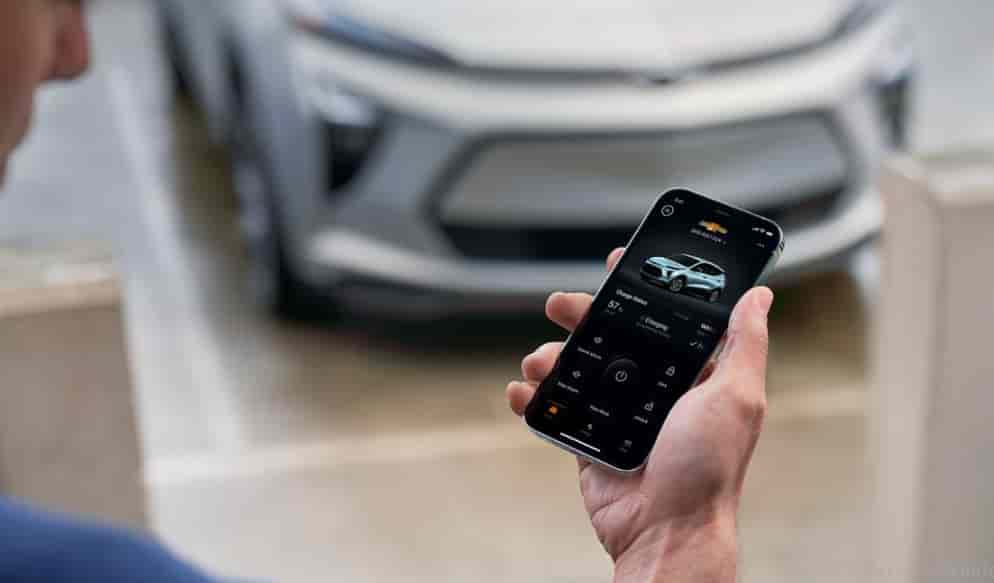
My Chevy App Not Working Due to Server or System Outage
One major reason the My Chevy App stops working is a server or system outage. General Motors runs the backend system that powers the app. This system connects vehicles, user accounts, and remote commands. When the servers fail, the app cannot function correctly.
Users often notice the app does not load. Some see error messages like service unavailable. Others cannot send commands to their vehicle. These issues appear even when the phone and internet work normally.
GM and OnStar systems handle all communication between the app and the vehicle. When these systems go down, every user may face the same issue at the same time. This makes it different from a personal device problem.
Scheduled maintenance can also affect the system. GM may temporarily shut down services to update infrastructure. Unexpected failures can also happen during high traffic periods or technical faults.
You can confirm a server issue by checking official GM support channels. Some users also report outages on forums or social media. If many users report the same problem, the issue likely comes from the server.
There is no direct fix when a server outage happens. The app will start working again once GM restores the system. Most outages last a short time and resolve automatically.
Login and Authentication Errors in My Chevy App
Login issues are another common reason why the My Chevy App stops working. These errors usually come from the General Motors account system. The app requires a valid GM account to connect the user with their vehicle. When authentication fails, the app cannot access any vehicle features.
Many users face problems when they enter the wrong password or when their session expires. In some cases, the system logs the user out automatically for security reasons. Some users also do not receive verification codes when trying to sign in. This blocks access to the app completely.
Authentication errors can also happen after a password reset. The app may not sync immediately with the updated credentials. This creates a temporary mismatch between the app and the GM server.
Network issues can also affect login. A weak or unstable connection may stop the app from completing the authentication process. This often leads to repeated login failures or loading loops.
To fix login problems, users should first check their GM account credentials. They should also reset the password if needed and try logging in again. Updating the app can also help if the version is outdated. In some cases, clearing cached data on the phone resolves hidden conflicts.
Most login issues come from account or sync problems rather than vehicle faults. Once the authentication process completes successfully, the app restores full functionality.
Remote Start Not Working on My Chevy App
Remote start is one of the most used features in the My Chevy App. It allows users to start their vehicle from a distance before entering it. When this feature stops working, users often assume the app is broken. In reality, several conditions must be met for remote start to function correctly.
The system depends on a stable connection between the app, the GM servers, and the vehicle. If any part of this chain fails, the command will not go through. The vehicle must also be in a valid state. For example, it cannot be running already or in an unsafe condition.
Subscription status also plays an important role. Remote start requires an active OnStar or connected services plan. If the subscription expires, the feature will stop working immediately inside the app.
Environmental and security conditions can also block the command. The vehicle may reject remote start if doors are open, the hood is not closed, or the system detects a fault. In some cases, weak network signals inside parking areas prevent the command from reaching the vehicle.
Users should first check if their subscription is active. They should also verify that the vehicle is in a proper parked state. Restarting the app and checking internet connection can also help resolve temporary issues. Updating the app ensures compatibility with the latest GM system changes.
Remote start issues usually do not indicate hardware failure. Most problems come from connectivity, permissions, or system restrictions. Once these conditions are corrected, the feature typically works again without additional support.
App Not Connecting to Vehicle (Sync Issues)
Another common issue occurs when the My Chevy App fails to connect to the vehicle. This problem usually appears as missing vehicle status, outdated data, or commands that do not reach the car. The connection between the app and the vehicle relies on telematics systems built into General Motors vehicles.
The vehicle sends data through built in connectivity modules. These modules communicate with GM cloud servers. The app then retrieves this information and displays it to the user. If any part of this communication chain fails, the app cannot sync properly.
Network instability is one of the main causes. Weak mobile data or poor Wi Fi connection can interrupt data transmission. In some cases, the vehicle itself may be in an area with low signal coverage, which prevents updates from being sent.
System delays can also cause sync issues. The app may show outdated information if the server has not refreshed recent vehicle data. This often creates confusion because the app appears functional but shows incorrect status.
Software conflicts can also affect synchronization. Outdated app versions or cached data can block new updates from loading correctly. Device restrictions such as background data limits or battery optimization settings may also interrupt the connection.
To fix sync issues, users should first check their internet connection. They should also ensure the vehicle is in an area with stable signal coverage. Updating the app and restarting both the phone and vehicle system can help restore synchronization. Clearing cached data can also remove hidden errors.
Most sync problems are temporary. Once communication between the app and GM servers is restored, vehicle data updates normally again.
My Chevy App Crashing or Not Opening
The My Chevy App may sometimes crash or fail to open on mobile devices. This issue usually comes from the phone environment rather than the vehicle system. It often happens after updates, system changes, or storage problems on the device.
One common cause is outdated app versions. When users do not update the app, it may conflict with the latest General Motors backend system. This can cause the app to freeze or close immediately after opening.
Cache and stored data can also create problems. The app saves temporary files to improve performance. Over time, these files can become corrupted. When this happens, the app may crash during startup or fail to load the main screen.
Operating system updates can also affect stability. iOS or Android updates may change permission settings or background processes. These changes can block the app from running correctly.
Device performance is another factor. Low memory or heavy background usage can prevent the app from launching. Battery optimization settings can also restrict the app from running in the background, which leads to unexpected shutdowns.
To fix crashing issues, users should first update the My Chevy App to the latest version. Restarting the phone can also clear temporary system conflicts. Clearing cache or reinstalling the app often resolves corrupted data problems. Adjusting battery and background settings can help restore stable performance.
Most crash issues come from local device conditions rather than GM system failures. Once the app environment is cleaned and updated, it usually runs normally again.
Device Change or Phone Update Issues in My Chevy App
The My Chevy App can stop working after users change their phone or update their operating system. This issue is common and usually relates to account synchronization and device permissions rather than the vehicle itself.
When users switch to a new phone, the app may not automatically transfer all settings. The General Motors account needs to re authenticate on the new device. If users skip this step, the app may not connect to the vehicle or may show missing data.
Operating system updates can also create compatibility problems. iOS and Android updates often change background activity rules and privacy settings. These changes can block the app from accessing location data or vehicle communication services.
Some users also face login loops after a device change. The app may repeatedly ask for credentials because it cannot verify the new device. This usually happens when security verification has not been completed correctly.
Notification permissions and background data restrictions can also affect performance. If the app cannot run in the background, it may fail to update vehicle status or send commands in real time.
To fix these issues, users should log out and log back into their GM account on the new device. They should also ensure that all permissions such as location, Bluetooth, and background data are enabled. Updating the app after a system upgrade is also important to maintain compatibility.
Most device related issues are temporary. Once the app reestablishes trust with the new device or updated system, it resumes normal operation.
Quick Troubleshooting Checklist for My Chevy App Not Working
When the My Chevy App stops working, users often try random fixes without understanding the real cause. A simple checklist can help identify and solve most issues quickly. This section summarizes the most effective troubleshooting steps based on common system, device, and connectivity problems.
First, users should check their internet connection. The app needs a stable mobile data or Wi Fi connection to communicate with General Motors servers. Without a stable network, most features will fail to load or respond.
Next, users should verify their GM account login. Incorrect credentials or expired sessions often block access to the app. Logging out and logging back in can refresh authentication and restore functionality.
Users should also check for app updates. An outdated version may not be compatible with the latest GM backend systems. Updating the app ensures proper communication between the phone and the vehicle.
Restarting both the phone and the vehicle system can also help. This action clears temporary system errors and resets active connections. It often resolves minor glitches without further steps.
Another important step is checking subscription status. Features like remote start depend on active connected services or OnStar plans. If the subscription has expired, the feature will stop working inside the app.
Finally, users should review app permissions. Location, Bluetooth, and background data access must be enabled for full functionality. Without these permissions, the app may not sync or send commands correctly.
This checklist solves most common problems related to the My Chevy App not working. If the issue continues after these steps, it is likely related to a server outage or deeper system error.
Conclusion
The My Chevy App plays an important role in the modern driving experience for Chevrolet users. It connects drivers with their vehicles through General Motors connected services and allows remote access to key functions such as engine start, door lock control, and vehicle status monitoring. When the app works correctly, it provides convenience and real time control that improves overall vehicle ownership.
However, when the My Chevy App stops working, the issue can come from multiple sources. These include server outages, login and authentication errors, remote start limitations, sync problems between the app and the vehicle, device related issues, and subscription restrictions. Each problem affects a different layer of the system, from mobile devices to GM cloud infrastructure and vehicle telematics.
Most issues are not caused by hardware failure in the vehicle. Instead, they come from temporary system disruptions, outdated software, or incorrect configuration on the user side. This is why a structured troubleshooting approach is important. By checking network connection, account status, app version, permissions, and subscription validity, users can resolve the majority of problems without technical support.
In more complex cases such as server outages or backend system errors, the only solution is to wait until General Motors restores full service. These situations are usually temporary and resolve automatically.
By understanding how each component of the system works together, users can quickly identify the root cause when the My Chevy App is not working. This helps reduce frustration and restores normal functionality faster.