Honda CarPlay usually stops working because of a connection error, an incorrect iPhone setting, a software conflict, or a problem inside the Honda infotainment system. The most common causes include a damaged USB cable, the wrong USB port, disabled Siri, blocked CarPlay permissions, inactive Bluetooth or WiFi, outdated software, and corrupted pairing data.
The visible symptom often reveals where the fault begins. An iPhone that charges without opening CarPlay usually has a data connection problem. A wireless connection that starts and drops repeatedly often points to pairing conflicts, signal interference, or unstable software. A Honda display that does not detect any iPhone may indicate a disabled smartphone connection setting, a damaged USB port, or an infotainment system fault.
This guide explains 12 causes of Honda CarPlay failure and presents each fix in a practical diagnostic order. It covers wired and wireless connections, iPhone settings, iOS related issues, Honda infotainment resets, USB problems, software updates, and hardware faults. Most CarPlay problems can be solved without replacing parts or visiting a dealership. The correct approach is to test the simplest causes first, confirm each result, and move to advanced fixes only when the basic checks fail.
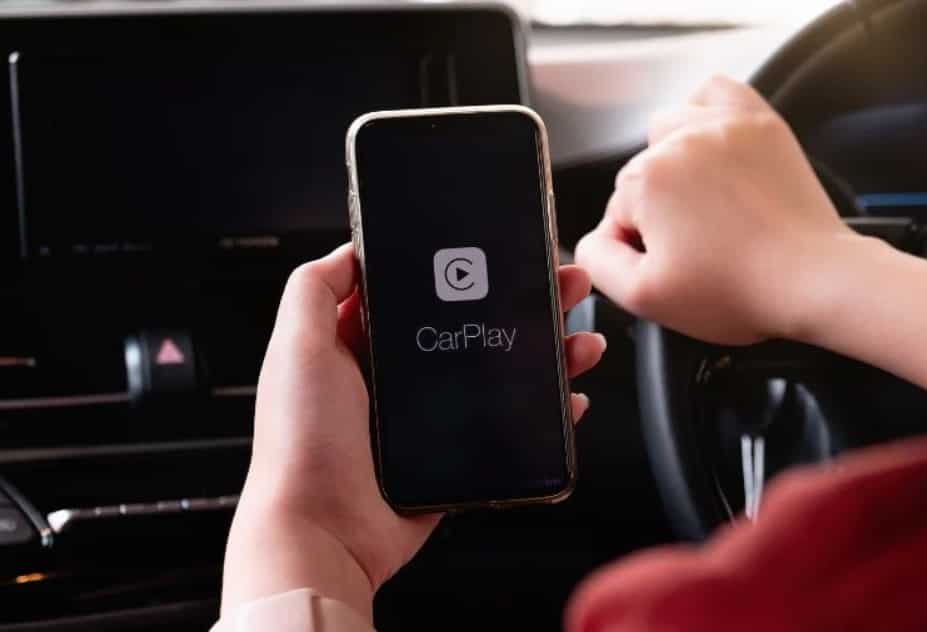
Why Is Apple CarPlay Not Working in Your Honda?
Honda CarPlay usually stops working because of three main causes. These causes include iPhone settings, connection problems, and Honda infotainment system failures. Identifying the correct category helps users fix the issue faster without changing unnecessary settings.
iPhone settings are a common reason for CarPlay problems. The connection can fail when CarPlay permissions are disabled, Siri is turned off, or Screen Time restrictions block access. An iOS update can also change previous permissions or affect saved vehicle connections.
Connection failures happen when the iPhone and Honda system cannot exchange data correctly. Wired CarPlay requires a stable USB data connection. A damaged cable, incorrect USB port, or dirty connector can allow the phone to charge while stopping CarPlay from opening. Wireless CarPlay depends on Bluetooth and WiFi. Problems with pairing records or wireless signals can interrupt the connection.
Honda infotainment issues occur when the vehicle system cannot communicate with the iPhone properly. A frozen display, outdated software, corrupted device profile, or damaged hardware can prevent CarPlay from loading. These problems usually appear after other basic checks have failed.
The symptom often shows where the problem starts. An iPhone that charges but does not open CarPlay usually has a cable, port, or permission issue. A connection that drops repeatedly often points to unstable pairing, wireless interference, or software problems. A Honda screen that cannot detect any iPhone may indicate a vehicle system issue.
A structured diagnosis prevents unnecessary repairs. Start with simple checks such as the cable, USB port, iPhone settings, and device pairing. Move to software updates or hardware inspection only after basic solutions do not restore Honda CarPlay.
What Should You Check First When Honda CarPlay Stops Working?
The first step to fix Honda CarPlay is to check the basic connection requirements. Most CarPlay failures come from simple issues involving compatibility, permissions, cables, or connection settings. Testing these elements first prevents unnecessary resets and hardware repairs.
Start by confirming that the Honda vehicle supports Apple CarPlay. Compatibility depends on the model year, trim level, and infotainment system installed in the vehicle. Some Honda models support wired CarPlay only, while newer models support wireless CarPlay. The owner’s manual and official vehicle specifications provide the most accurate compatibility information.
Next, check whether Apple CarPlay is enabled on the Honda display. The infotainment system must allow smartphone integration before it can recognize an iPhone. A disabled smartphone connection setting can make the vehicle appear unable to detect a compatible device.
The iPhone should also be ready for connection. Unlock the phone before connecting it for the first time. Confirm that Siri is enabled because Apple CarPlay uses Siri for voice commands and several system functions. Check that Bluetooth and WiFi are active when using wireless CarPlay.
The USB connection requires additional attention for wired CarPlay users. The cable must support data transfer, not only charging. The iPhone may receive power from a faulty cable while the Honda system fails to establish a CarPlay connection. Testing another certified cable can quickly identify this issue.
Restarting both systems is another useful first check. Restart the iPhone and fully power off the Honda before reconnecting. This process clears temporary software errors and refreshes the communication between the two devices.
These initial checks identify the most common Honda CarPlay problems before advanced troubleshooting begins. If CarPlay still does not work after these steps, the next stage is finding the specific cause among the 12 known failure points.
What Are the 12 Main Causes of Honda CarPlay Not Working?
Honda CarPlay problems usually come from 12 main causes related to connection quality, iPhone settings, software compatibility, and vehicle hardware. Identifying the exact cause is important because each failure requires a different solution. A cable problem cannot be fixed by changing iPhone settings, and a software issue cannot be solved by replacing a USB cable.
The best troubleshooting method is to test the simplest causes first. Start with the connection components, then check iPhone permissions, and finally inspect the Honda infotainment system. This approach reduces unnecessary repairs and helps identify whether the problem comes from the phone, the connection, or the vehicle.
Is the USB Cable Damaged or Unable to Transfer Data?
A damaged or charge-only USB cable is one of the most common reasons Honda CarPlay does not work. The iPhone can receive electrical power while the cable fails to transfer the data required for Apple CarPlay.
USB cables contain separate pathways for power and data communication. A damaged internal wire can allow charging but prevent the Honda infotainment system from recognizing the iPhone. This creates a common symptom where the battery icon appears, but the CarPlay interface never launches.
Test the connection with another high-quality data cable that supports Apple CarPlay. Avoid cables designed only for charging because they cannot create a communication link between the iPhone and Honda system.
Is the iPhone Connected to the Wrong Honda USB Port?
The wrong USB port can prevent Honda CarPlay from starting even when the cable works correctly. Some Honda vehicles include multiple USB ports, but not every port supports smartphone data transfer.
A charging-only USB port provides power without sending the information required for CarPlay. The iPhone may appear connected because it begins charging, but the Honda display cannot access Apple CarPlay features.
Check the vehicle manual to identify the USB port designed for smartphone integration. Connect the iPhone to that specific port and test the connection again.
Is the Honda USB Port Dirty or Damaged?
A dirty or damaged USB port can interrupt the data connection between the iPhone and Honda infotainment system. Dust, debris, moisture, or worn contacts can prevent stable communication even when the cable appears normal.
The problem usually appears as intermittent connection failure. CarPlay may work briefly and then disconnect when the connection becomes unstable. A loose port can create similar symptoms because small movements interrupt data transfer.
Inspect the USB port for visible debris and test the connection with a known working cable. If the port feels loose or fails with multiple cables, professional inspection may be necessary.
Is Apple CarPlay Disabled on the iPhone?
Apple CarPlay cannot connect if the iPhone does not allow the Honda vehicle to access the feature. This problem often happens after a user declines a permission request or removes a previous vehicle connection.
The iPhone stores CarPlay permissions for each connected vehicle. When the Honda profile becomes restricted or corrupted, the vehicle may fail to launch CarPlay even though Bluetooth or USB connections appear normal.
Open the iPhone CarPlay settings and check whether the Honda vehicle is listed and authorized. Removing the existing vehicle profile and reconnecting it can restore the connection by creating a new permission record.
Is Siri Disabled on the iPhone?
Siri must be enabled for Apple CarPlay to work correctly. CarPlay uses Siri for voice commands, hands-free control, navigation requests, messages, and several interactive features.
When Siri is disabled, the Honda system may still recognize the iPhone but fail to provide full CarPlay functionality. Some users experience incomplete connections where the screen appears available but voice commands and certain applications do not respond.
Check the Siri settings on the iPhone before changing other CarPlay options. Enable Siri and allow access when the phone is locked if required. After changing the setting, disconnect the iPhone and reconnect it to the Honda system.
Restarting the connection forces the Honda infotainment system to request the updated permission. This simple adjustment can restore CarPlay without requiring a software reset or dealership service.
Are Screen Time Restrictions Blocking Apple CarPlay?
Screen Time restrictions can prevent Apple CarPlay from launching even when the iPhone and Honda system connect successfully. The iPhone includes privacy and content controls that allow users to limit specific features, including CarPlay access.
This issue often happens after changing iPhone settings, restoring a backup, or applying new device restrictions. The Honda system may detect the phone, but the CarPlay interface will not appear because the iPhone blocks the feature.
Open the iPhone Screen Time settings and review the allowed apps and features. Confirm that CarPlay is permitted and that no restriction prevents external vehicle connections.
After updating the permission, reconnect the iPhone to the Honda display. A fresh connection allows the vehicle system to receive the updated access settings.
Are Bluetooth or WiFi Disabled for Wireless CarPlay?
Wireless Honda CarPlay requires both Bluetooth and WiFi to establish and maintain a connection. Bluetooth handles the initial pairing process, while WiFi provides the wireless data connection needed for CarPlay operation.
A disabled wireless setting can cause several symptoms. The Honda vehicle may appear in Bluetooth settings but fail to open CarPlay. The connection may also start normally and disconnect after a short period.
Check that Bluetooth and WiFi are active on the iPhone. Disable Airplane Mode and remove unnecessary wireless restrictions that may block communication. If the problem continues, remove the existing Honda pairing record and create a new wireless connection.
Wireless CarPlay also depends on a stable environment. Multiple connected devices, wireless interference, and outdated software can reduce connection reliability.
Does the iPhone Have Too Many Saved Vehicle Connections?
Multiple saved vehicle profiles can create conflicts when the iPhone tries to connect with Honda CarPlay. The phone may store previous Bluetooth and CarPlay records from different vehicles, which can affect automatic connection behavior.
This problem is common for users who have changed vehicles, shared phones with family members, or connected the same iPhone to several infotainment systems. The Honda system may not become the preferred connection when another saved vehicle profile remains active.
Review the CarPlay and Bluetooth device lists on the iPhone. Remove unused vehicle profiles and keep only the connections that are still required.
After deleting unnecessary connections, restart the iPhone and reconnect it to the Honda system. A clean pairing record helps the devices establish a more stable communication path.
Did an iOS Update Affect Honda CarPlay Compatibility?
An iOS update can affect Honda CarPlay when it changes connection permissions, wireless settings, or saved device information. Apple updates often improve security and performance, but they can also require users to approve permissions again or reconnect previously paired vehicles.
The problem usually appears after updating the iPhone. CarPlay may stop launching, disconnect more often, or require repeated pairing with the Honda system. In many cases, the hardware remains functional because the issue comes from changed software communication.
Start by restarting both the iPhone and Honda infotainment system. Then check CarPlay permissions, Bluetooth settings, and WiFi settings. If the connection still fails, remove the Honda vehicle from the iPhone CarPlay list and pair the devices again.
Keeping both systems updated is important. An older Honda infotainment system combined with a newer iOS version can create compatibility problems that require a software update or additional troubleshooting.
Is the Honda Infotainment System Frozen?
A frozen Honda infotainment system can prevent Apple CarPlay from launching even when the iPhone and cable work correctly. The vehicle system controls the connection process, so a temporary software error can stop the entire CarPlay function.
Common symptoms include an unresponsive touchscreen, delayed menu responses, missing smartphone options, or a display that works for audio but cannot open CarPlay. These signs usually indicate that the infotainment software has stopped processing commands correctly.
A complete power cycle can clear temporary system errors. Turn off the vehicle, allow the infotainment system to shut down fully, and restart the vehicle before reconnecting the iPhone.
If the system freezes repeatedly, the problem may involve outdated firmware or a deeper software issue. Checking for Honda infotainment updates becomes the next troubleshooting step.
Does the Honda Infotainment Software Need an Update?
Outdated Honda infotainment software can create communication problems between the vehicle and newer iPhone models. The system firmware controls how the vehicle recognizes external devices, including Apple CarPlay connections.
Compatibility issues may appear after an iOS update or when using a newer iPhone with an older Honda system. The vehicle may recognize the phone partially but fail to load CarPlay features correctly.
Check whether a software update is available for the Honda infotainment system. The update process depends on the vehicle model, model year, and installed system version.
A software update can resolve connection errors caused by outdated communication protocols. However, it will not fix physical problems such as damaged USB ports, faulty wiring, or failed hardware components.
Does the Honda Infotainment System Have a Hardware Problem?
Hardware failure is the final cause to investigate after testing cables, ports, settings, and software. A damaged component inside the Honda infotainment system can prevent Apple CarPlay from communicating with the iPhone.
Common hardware-related problems include a failed USB module, damaged wiring, faulty communication components, or a defective infotainment head unit. These issues usually affect more than one phone or cable.
Testing another compatible iPhone is an effective way to identify hardware problems. If multiple devices fail with different cables, the vehicle becomes the most likely source of the issue.
Professional diagnosis may be required when the problem involves internal components. A Honda technician can inspect the USB system, wiring connections, firmware status, and infotainment hardware to determine the correct repair.
How Do You Fix Wired Apple CarPlay in a Honda?
Wired Honda CarPlay problems usually come from the physical connection between the iPhone and the vehicle. The connection depends on three main components: a compatible iPhone, a working data cable, and a Honda USB port that supports smartphone integration. Testing these components in the correct order helps identify the failure without replacing unnecessary parts.
Start by unlocking the iPhone before connecting it to the Honda system. A locked iPhone may not complete the initial CarPlay authorization process. Connect the phone to the correct USB port using a cable that supports both charging and data transfer. A charging-only cable can provide power but cannot transmit the information required for Apple CarPlay.
Check the permission prompts on both devices after connecting. The iPhone may ask whether it should allow CarPlay while the Honda display may request confirmation for smartphone connection. Accepting these permissions creates the communication link between the two systems.
If CarPlay does not appear, remove the existing vehicle connection from the iPhone settings. Open the CarPlay settings, select the Honda vehicle, and remove the saved connection. Then disconnect the cable, restart the iPhone, and reconnect the device as a new CarPlay connection.
Testing another cable is the next diagnostic step. A cable that looks normal can still have internal damage that affects data transfer. Use a reliable cable and connect it directly to the Honda USB port without adapters or extensions.
Testing another compatible iPhone can confirm whether the issue comes from the vehicle or the original phone. If another iPhone works correctly, the problem is likely related to the original device settings or software. If multiple iPhones fail, the Honda USB port or infotainment system may require further inspection.
A systematic wired CarPlay diagnosis begins with the cable and connection point before moving to software resets or hardware repairs.
How Do You Fix Wireless Apple CarPlay in a Honda?
Wireless Honda CarPlay depends on a stable Bluetooth and WiFi connection between the iPhone and the vehicle. Bluetooth manages the initial pairing process, while WiFi handles the data transfer required for CarPlay features. When either connection fails, the Honda system may not launch CarPlay or may disconnect during use.
The first step is to check the basic wireless requirements. Confirm that Bluetooth and WiFi are enabled on the iPhone. Disable Airplane Mode and make sure the phone is not connected to another vehicle or wireless CarPlay system. Multiple saved devices can create connection conflicts because the Honda system may attempt to connect with the wrong phone.
How Do You Re-Pair an iPhone With Honda Wireless CarPlay?
Re-pairing removes corrupted connection data and creates a new communication profile between the iPhone and Honda infotainment system. This process often fixes wireless CarPlay problems caused by outdated pairing information.
Start by removing the Honda vehicle from the iPhone CarPlay settings. Open the CarPlay menu, select the Honda vehicle, and choose the option to forget the connection. Next, remove the iPhone from the Honda Bluetooth device list through the infotainment settings.
Restart both devices before creating a new connection. Turn off the iPhone completely and restart the Honda infotainment system. After both systems restart, enable Bluetooth and WiFi, then begin the pairing process again.
Accept every permission request that appears on the iPhone and Honda display. CarPlay requires authorization from both systems before it can operate normally.
If wireless CarPlay continues to disconnect, check for software updates on both devices. An outdated iOS version or Honda infotainment firmware can create communication problems. Reducing the number of saved phones in the vehicle can also improve connection reliability.
Wireless CarPlay failures are usually solved by restoring a clean pairing connection. Advanced repairs are rarely required unless multiple phones fail to connect or the Honda system shows other signs of hardware problems.
Why Does the iPhone Charge but Honda CarPlay Not Connect?
An iPhone can charge through a Honda USB port while Apple CarPlay does not connect because charging and data transfer are separate functions. The USB connection can provide electrical power without creating the data communication required for CarPlay.
The most common cause is a USB cable that supports charging but cannot transfer data correctly. Many low-quality or damaged cables continue delivering power even when the internal data wires are broken. This creates a situation where the iPhone shows that it is charging, but the Honda infotainment system cannot detect the device as a CarPlay source.
The USB port is another possible cause. Some Honda vehicles include multiple USB ports, but only specific ports support smartphone integration. A phone connected to a charging-only port will receive power but will not appear on the Honda display.
A dirty or damaged USB connector can create the same symptom. Dust, moisture, or worn connection points can interrupt data communication while allowing enough electrical contact for charging. The problem may appear inconsistent because the connection can work temporarily before failing again.
CarPlay permission settings can also prevent the system from opening after a successful USB connection. The iPhone may recognize the Honda vehicle but block CarPlay access because the vehicle authorization was removed or never approved.
The fastest troubleshooting process is to test the connection in order. Use a different certified data cable, connect to the correct Honda USB port, check CarPlay permissions on the iPhone, and restart both devices. If the iPhone still charges but CarPlay does not appear, test another compatible iPhone to determine whether the issue comes from the vehicle or the original device.
A charging connection does not confirm that the CarPlay connection is working. The system requires both power and reliable data communication to operate correctly.
Why Does Honda CarPlay Keep Disconnecting?
Honda CarPlay keeps disconnecting when the connection between the iPhone and vehicle becomes unstable. The cause usually comes from six areas: a damaged cable, an unreliable USB connection, wireless interference, corrupted pairing data, software problems, or infotainment system instability.
A loose or damaged USB cable is one of the most common causes of wired CarPlay disconnection. The connection may work normally when the cable remains still but fail when the cable moves. Internal damage can interrupt data transfer even when the exterior of the cable appears undamaged.
The USB port can also create repeated connection failures. Dust, debris, or worn contacts can prevent stable communication between the iPhone and Honda system. Cleaning the port carefully and testing another cable can help identify whether the issue comes from the connection point.
Wireless CarPlay disconnects for different reasons. Bluetooth and WiFi must maintain communication throughout the drive. Interference from nearby wireless devices, outdated pairing information, or multiple saved phones can interrupt the connection. Removing unused devices from the Honda system can reduce connection conflicts.
Software problems can also cause repeated disconnections. A recent iOS update, outdated Honda infotainment software, or corrupted connection settings may prevent stable communication. Restarting both systems and creating a new pairing connection often resolves these issues.
The timing of the disconnect provides useful diagnostic information. A connection that fails when the cable moves usually indicates a cable or port problem. A wireless connection that fails in certain locations may indicate interference. A problem that starts after an update may point to software compatibility.
A structured diagnosis helps prevent unnecessary repairs. Replace or test the cable first, check the USB connection, refresh pairing information, and update software before considering hardware inspection.
How Do You Reset Apple CarPlay on an iPhone?
Resetting Apple CarPlay on an iPhone removes connection errors caused by corrupted pairing data, incorrect permissions, or outdated device profiles. This process restores the communication link between the iPhone and Honda infotainment system without deleting personal files, applications, or photos.
The first step is to restart the iPhone. A simple restart clears temporary software issues that may prevent CarPlay from launching correctly. After restarting, reconnect the iPhone to the Honda system and check whether CarPlay works normally.
If the problem continues, remove the Honda vehicle from the iPhone CarPlay settings. Open the iPhone Settings app, access the CarPlay menu, select the Honda vehicle, and remove the saved connection. This deletes the existing CarPlay profile that may contain incorrect permissions or damaged connection information.
The Bluetooth connection should also be removed before creating a new pairing. Open the Bluetooth settings, select the Honda vehicle, and choose the option to forget the device. Removing both CarPlay and Bluetooth records creates a cleaner connection process.
After deleting the saved connections, restart both the iPhone and Honda infotainment system. Enable Bluetooth, WiFi, and Siri before reconnecting. Accept all permission requests that appear during the setup process.
Resetting network settings is a more advanced step when basic reconnecting does not work. This action removes saved WiFi networks, Bluetooth connections, and network preferences. It does not delete personal content, but users need to reconnect wireless devices afterward.
A CarPlay reset should follow a gradual troubleshooting process. Restart the devices first, remove old connections second, and reset network settings only when earlier solutions fail. This approach restores Honda CarPlay while avoiding unnecessary system changes.
How Do You Reset the Honda Infotainment System?
Resetting the Honda infotainment system can fix temporary software errors that prevent Apple CarPlay from connecting. The reset process refreshes the vehicle system and removes connection problems caused by frozen software, incorrect settings, or corrupted device information.
A restart is the first step because it clears temporary system errors without removing saved information. Turn off the vehicle completely and allow the infotainment system to shut down. After restarting the vehicle, reconnect the iPhone and check whether Apple CarPlay launches normally.
The exact restart method depends on the Honda model, model year, and infotainment system version. Some systems allow a simple reboot through the display controls, while others require a complete vehicle power cycle. The owner’s manual provides the correct procedure for each specific vehicle.
How Do You Restart the Honda Display Without Deleting Settings?
A soft restart refreshes the infotainment system while keeping existing user preferences. This option is useful when the display becomes slow, CarPlay stops opening, or the system does not respond correctly.
A soft restart does not remove saved phones, audio settings, or vehicle preferences. It is the safest reset option because it focuses on clearing temporary software problems rather than changing stored information.
When Should You Use a Factory Data Reset?
A factory data reset should only be used after basic troubleshooting steps have failed. This process returns the Honda infotainment system to its original settings and removes stored user information.
A factory reset can delete paired smartphones, Bluetooth records, navigation settings, radio presets, and customized preferences. Users should record important settings before performing this step.
A factory reset may solve problems caused by corrupted system configurations, but it cannot repair damaged hardware. A faulty USB module, broken wiring, or defective infotainment component will continue to cause CarPlay problems after a reset.
Before performing a factory reset, confirm that the cable, USB port, iPhone settings, and software updates have already been tested. A structured troubleshooting process helps determine whether the issue is caused by settings or requires professional diagnosis.
Why Is Honda CarPlay Not Working After an iOS Update?
Honda CarPlay can stop working after an iOS update because the update may change connection permissions, wireless settings, or saved device information. The iPhone and Honda infotainment system communicate through several software layers, so changes in one system can affect how both devices connect.
One common issue is changed CarPlay authorization. After an iOS update, the iPhone may require new permission approval before allowing the Honda vehicle to access CarPlay. The phone may still charge or connect through Bluetooth, but the CarPlay interface may not appear.
A corrupted pairing profile is another possible cause. The update process can affect previously stored Bluetooth and CarPlay connection data. When this happens, the Honda system and iPhone may recognize each other but fail to complete the connection process.
Start troubleshooting by restarting both the iPhone and Honda infotainment system. Then check that Siri, Bluetooth, and WiFi are enabled. Remove the Honda vehicle from the iPhone CarPlay settings and create a new connection profile.
Software compatibility can also affect CarPlay performance. A newer iOS version may require updated Honda infotainment software to maintain reliable communication. Check whether a Honda software update is available for the specific vehicle model and infotainment system.
An iOS update does not always create the problem directly. In many cases, the update reveals an existing weakness in the connection, such as an old pairing record, outdated firmware, or a damaged cable. Testing the cable, reconnecting the devices, and updating both systems helps identify the actual cause.
A structured troubleshooting process restores most Honda CarPlay problems after an iOS update. Start with permissions and pairing settings before considering advanced repairs.
Does Honda CarPlay Work Differently by Model?
Honda CarPlay works with the same basic technology across Honda vehicles, but the connection process can differ depending on the model year, trim level, and infotainment system version. A Honda Accord, Civic, CR-V, HR-V, Pilot, or Odyssey may use different menus, USB layouts, and software features even when they support the same Apple CarPlay system.
The main difference between Honda models is compatibility. Some vehicles support wired Apple CarPlay through a USB connection, while newer models may support wireless Apple CarPlay. The location of the smartphone USB port, the available infotainment features, and the pairing process can change between model generations.
Honda Accord owners may experience CarPlay issues related to USB port selection, wireless pairing, or infotainment settings. A connection problem can occur when the iPhone connects to a charging port instead of the smartphone integration port.
Honda Civic owners often encounter problems related to device permissions, cable quality, and saved connection profiles. Removing an old iPhone profile and reconnecting the device can restore normal CarPlay operation.
Honda CR-V owners may experience similar issues with USB connections, wireless pairing conflicts, or outdated infotainment software. Checking software updates and removing unused devices can improve connection stability.
Larger Honda vehicles such as the Pilot and Odyssey may have additional device management challenges because multiple drivers often connect different phones. The infotainment system may attempt to connect with another saved device before the intended iPhone.
The correct troubleshooting method always starts with the specific vehicle configuration. Check the owner’s manual, confirm CarPlay compatibility, and identify whether the vehicle uses wired or wireless connection before applying fixes. Understanding the exact Honda model prevents incorrect troubleshooting steps and improves the chance of restoring Apple CarPlay quickly.
When Should You Take Your Honda to a Dealership?
Most Honda CarPlay problems can be fixed with basic troubleshooting, but some situations require professional diagnosis. A dealership visit becomes necessary when connection problems continue after testing cables, checking settings, resetting devices, and updating software.
The first warning sign is when multiple compatible iPhones fail to connect. Testing more than one iPhone helps separate a vehicle problem from a phone problem. If different devices fail with different cables, the Honda infotainment system becomes the most likely source of the issue.
A damaged USB port is another reason to seek professional assistance. A loose connection, physical damage, or repeated failure with known working cables may indicate a hardware problem. The USB module or internal wiring may require inspection or replacement.
Repeated infotainment system failures also require attention. A Honda display that freezes, restarts unexpectedly, shows error messages, or loses smartphone functions may have a software or hardware fault. A factory reset may not solve these problems when the underlying component is damaged.
Professional diagnosis is also recommended when software updates do not restore CarPlay functionality. Technicians can check infotainment firmware, communication modules, wiring connections, and vehicle-specific software requirements.
Before visiting a dealership, prepare useful information about the problem. Record the Honda model year, iPhone model, iOS version, connection type, and troubleshooting steps already completed. This information helps technicians identify the cause faster.
A dealership should be the final troubleshooting step rather than the first option. Testing simple causes such as cables, permissions, pairing, and software settings often resolves Honda CarPlay problems without professional repair.
How Can You Prevent Honda CarPlay Problems?
Preventing Honda CarPlay problems starts with maintaining a stable connection between the iPhone and the vehicle system. Most recurring CarPlay failures happen because of damaged cables, outdated software, incorrect settings, or unnecessary saved device connections.
Use a reliable data cable when connecting an iPhone through wired CarPlay. A cable that only provides charging cannot support CarPlay communication. Replace cables that show visible damage, loose connectors, or repeated connection failures.
Keep the Honda USB port clean and protected from dust or moisture. The USB connection transfers both power and data, so small physical problems can affect CarPlay performance. Avoid forcing connectors into the port because damaged contacts can create unstable connections.
Maintain updated software on both the iPhone and Honda infotainment system. iOS updates improve device compatibility, while Honda software updates can resolve communication issues between the vehicle and newer iPhone models. Checking updates regularly reduces the risk of future connection failures.
Remove unused phones from the Honda device list and iPhone Bluetooth settings. Too many saved devices can create connection conflicts, especially in vehicles used by multiple drivers. Keeping only active devices helps the system connect to the correct phone automatically.
Restart the Honda infotainment system when performance becomes slow or unusual. Temporary software errors can affect CarPlay, audio functions, and smartphone connections. A regular restart can refresh the system before the issue becomes more serious.
Wireless CarPlay users should keep Bluetooth and WiFi settings stable. Avoid connecting multiple phones at the same time and ensure the intended iPhone has priority in the vehicle settings.
Simple maintenance habits reduce most Honda CarPlay problems. Protecting the connection hardware, updating software, and managing device settings helps maintain reliable Apple CarPlay performance over time.
What Are the Most Common Questions About Honda CarPlay Problems?
Why Is Apple CarPlay Not Showing on My Honda Screen?
Apple CarPlay does not appear on the Honda screen when the vehicle and iPhone fail to complete the connection process. The most common causes are disabled CarPlay permissions, an incorrect USB connection, wireless pairing problems, or a Honda infotainment setting that blocks smartphone integration.
For wired CarPlay, check that the iPhone is connected to the correct USB port with a cable that supports data transfer. A charging-only cable can power the iPhone but cannot send the information required for CarPlay.
For wireless CarPlay, confirm that Bluetooth and WiFi are enabled. The iPhone must complete the wireless pairing process before the Honda display can open the CarPlay interface.
The iPhone settings should also be reviewed. Check that Siri is enabled and that the Honda vehicle has permission to use CarPlay. Removing the existing vehicle profile and reconnecting the phone can restore the connection when saved settings become corrupted.
Can a Bad USB Cable Stop Honda CarPlay From Working?
A bad USB cable can stop Honda CarPlay from working even when the iPhone continues charging. CarPlay requires a stable data connection, and a damaged cable may still provide power while failing to transmit information.
The problem usually appears when the cable has internal damage, poor-quality components, or only supports charging. The iPhone may display the charging symbol, but the Honda infotainment system will not recognize it as a CarPlay device.
Testing another certified data cable is the fastest way to confirm the problem. A working cable should support both power delivery and data communication.
Cable quality is especially important for wired CarPlay because the connection depends on continuous data transfer. A cable that disconnects when moved or fails randomly during driving should be replaced.
Does Honda CarPlay Require Siri?
Honda CarPlay requires Siri because Apple uses the voice assistant to control many CarPlay functions. Siri supports voice commands for navigation, messages, phone calls, and other hands-free features.
When Siri is disabled, CarPlay may not operate correctly. The Honda system may recognize the iPhone but fail to provide complete functionality.
Enable Siri in the iPhone settings before reconnecting the device. Also check that Siri is allowed when the iPhone is locked because CarPlay often operates while the phone remains secured.
After enabling Siri, restart the connection between the iPhone and Honda system. This allows the vehicle to receive the updated permission settings.
Can You Use Honda CarPlay Without Bluetooth?
Honda CarPlay can work without Bluetooth when using a wired USB connection. Wired CarPlay transfers data through the USB cable, so Bluetooth is not required for the main CarPlay connection.
Wireless Honda CarPlay works differently because it depends on both Bluetooth and WiFi. Bluetooth creates the initial connection between the iPhone and Honda system, while WiFi handles the continuous data transfer needed for apps, navigation, music, and communication features.
If wireless CarPlay does not work, check both wireless settings on the iPhone. Bluetooth alone is not enough to maintain a wireless CarPlay connection. The Honda system and iPhone must complete the full wireless pairing process.
Users should also remove old Bluetooth and CarPlay profiles when switching between wired and wireless connections. Previous pairing records can create conflicts and prevent the Honda system from selecting the correct connection method.
Does Resetting Network Settings Fix Honda CarPlay?
Resetting network settings can fix Honda CarPlay when the problem comes from corrupted Bluetooth, WiFi, or connection preferences. This reset creates a cleaner communication environment between the iPhone and Honda infotainment system.
Network settings reset removes saved WiFi networks, Bluetooth pairings, VPN configurations, and other network preferences. It does not delete personal data such as photos, messages, applications, or documents.
This solution works best after simpler troubleshooting steps have failed. Users should first restart the iPhone, remove the Honda CarPlay profile, and reconnect the vehicle before resetting network settings.
After completing the reset, the iPhone must reconnect to wireless devices again. The Honda vehicle will also need to be paired as a new CarPlay connection.
Will a Factory Reset Fix Honda CarPlay?
A factory reset can fix Honda CarPlay when the problem comes from corrupted infotainment settings or damaged configuration data. The reset returns the Honda system to its original settings and removes stored connection information.
However, a factory reset cannot repair physical hardware problems. A damaged USB port, faulty wiring, failed communication module, or defective infotainment unit will continue causing problems after the reset.
A factory reset should be considered a final software troubleshooting step. Before using this option, test the cable, USB port, iPhone settings, pairing information, and available software updates.
Users should save important preferences before resetting the Honda system. The process may remove paired phones, audio settings, navigation preferences, and customized vehicle configurations.
A successful factory reset can restore normal CarPlay operation when software settings are the cause. It will not solve problems caused by damaged vehicle components.
Can an iOS Update Break Honda CarPlay?
An iOS update can affect Honda CarPlay when the update changes connection permissions, wireless settings, or saved device information. The update does not always damage CarPlay directly, but it can expose compatibility problems between the iPhone and Honda infotainment system.
Common symptoms include CarPlay disappearing from the Honda screen, repeated connection requests, wireless disconnections, or a device that connects but does not open the CarPlay interface.
The first solution is to restart both the iPhone and Honda infotainment system. Then check CarPlay permissions, Siri settings, Bluetooth, and WiFi connections. Removing the Honda vehicle from the iPhone CarPlay list and creating a new pairing profile can also restore communication.
If the problem continues, check whether the Honda infotainment system requires a software update. Older firmware may not communicate correctly with newer iOS versions.
How Much Does It Cost to Repair Honda CarPlay?
The repair cost for Honda CarPlay depends on the source of the problem. Simple connection issues usually require no replacement parts because they come from settings, cables, or pairing information.
A damaged USB cable is usually the least expensive issue to resolve. USB port problems, wiring faults, or infotainment hardware failures require more advanced diagnosis because the repair depends on the specific vehicle component involved.
Software problems may only require an update or system reset. Hardware failures involving the infotainment head unit or communication modules usually require professional inspection.
Before paying for repairs, complete basic troubleshooting steps. Testing another cable, checking iPhone settings, and reconnecting the device can eliminate common causes without additional expense.
Does Honda CarPlay Work With Every iPhone?
Honda CarPlay does not work with every iPhone automatically. Compatibility depends on the iPhone model, iOS version, Honda vehicle model, model year, and infotainment system.
A compatible iPhone must support Apple CarPlay and run a version of iOS that works with the Honda system. Older Honda vehicles may also have limitations based on their original infotainment hardware.
Check the vehicle manual and Apple compatibility information before diagnosing a connection problem. A compatibility issue is different from a malfunction because the system may be working correctly but lacks support for the device.
Why Does Honda CarPlay Connect but No Sound Comes Out?
Honda CarPlay can connect successfully while producing no audio because of audio source settings, volume controls, application problems, or temporary infotainment errors.
First, confirm that the Honda audio system is set to the CarPlay source. Increase the volume while CarPlay audio is playing because some systems remember separate volume levels for different sources.
If the problem continues, restart the affected application and reconnect the iPhone. Checking for software updates can also resolve audio problems caused by communication errors between the iPhone and Honda infotainment system.
Audio failures are usually separate from connection failures. A working CarPlay display indicates that the connection exists, so the troubleshooting process should focus on audio settings and software rather than cables or USB ports.
Conclusion: How Can You Restore Honda CarPlay When It Stops Working?
Honda CarPlay problems usually come from connection failures, incorrect iPhone settings, outdated software, or infotainment system issues. The fastest solution is to diagnose the problem in the correct order instead of changing multiple settings at the same time.
Start with the simplest checks. Confirm that the Honda vehicle supports Apple CarPlay, use a reliable data cable for wired connections, verify the correct USB port, and check that Siri, Bluetooth, and WiFi are enabled. These steps solve many common problems without requiring professional service.
If basic checks do not restore CarPlay, continue with advanced troubleshooting. Remove old pairing profiles, reset the iPhone connection, restart the Honda infotainment system, and install available software updates. These actions address problems caused by corrupted settings or compatibility changes.
Professional diagnosis becomes necessary when multiple iPhones fail, different cables produce the same result, or the infotainment system shows signs of hardware failure. A damaged USB module, wiring issue, or faulty head unit requires inspection beyond normal user troubleshooting.
Maintaining Honda CarPlay reliability requires simple habits. Use quality cables, manage saved devices, keep software updated, and address connection problems early. A structured approach helps restore Apple CarPlay quickly while avoiding unnecessary repairs.