Tesla not connecting to WiFi is a common issue that can prevent software updates, delay map downloads, and limit access to connected features. Whether your Tesla cannot detect a wireless network, fails to join it, or repeatedly disconnects after connecting, the problem is often related to network settings, signal quality, or temporary software glitches rather than a hardware failure.
A stable WiFi connection plays an important role in the Tesla ownership experience. While Premium Connectivity provides access to features such as live traffic visualization and media streaming, WiFi remains the preferred connection for downloading large software updates, updating navigation data, and improving system performance. When the vehicle cannot connect to a trusted network, important updates may be postponed, leaving your Tesla without the latest features, bug fixes, and security improvements.
Most Tesla WiFi connection problems can be resolved with a systematic troubleshooting process. Simple actions such as restarting the touchscreen, reconnecting to the network, moving the vehicle closer to the router, or adjusting router settings often restore the connection within a few minutes. More persistent issues may require checking software compatibility or contacting Tesla Service if a hardware fault is suspected.
This guide explains the most common reasons a Tesla does not connect to WiFi, shows you how to identify the root cause, and walks through the most effective solutions in order of priority. By the end of the article, you will know whether the issue originates from your home network, the vehicle itself, or an external connectivity problem, allowing you to restore a reliable WiFi connection with confidence.
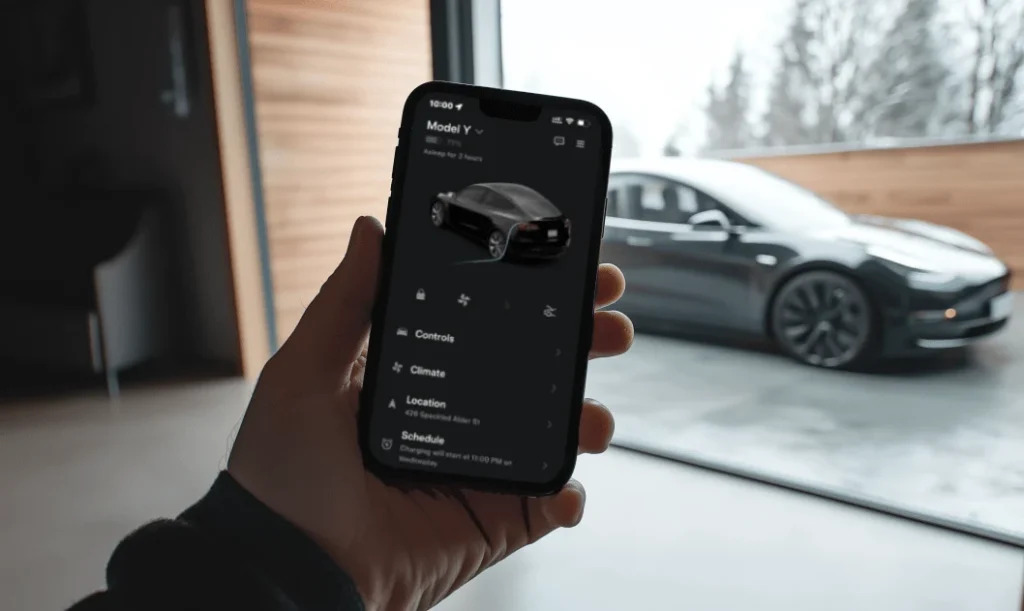
Why is my Tesla not connecting to WiFi?
A Tesla may fail to connect to WiFi because of network issues, incorrect settings, software glitches, or hardware-related problems. Although the vehicle displays available wireless networks automatically, establishing a successful connection requires both the vehicle and the router to communicate correctly. A failure at any stage of this process can prevent the connection from being completed.
The most common cause is a weak WiFi signal. This often happens when the vehicle is parked too far from the router, inside a garage with thick concrete walls, or in an area where wireless interference reduces signal strength. Even if the network name appears on the screen, the signal may not be stable enough to authenticate and maintain a connection.
Incorrect network credentials are another frequent reason. If the WiFi password has recently changed or the router settings were modified, Tesla may continue trying to connect using outdated information stored in the vehicle. Removing the saved network and entering the correct password again usually resolves this issue.
Router configuration can also prevent Tesla from joining a network. Features such as hidden SSIDs, MAC address filtering, enterprise authentication, or incompatible security settings may block the vehicle from completing the connection. Home routers that automatically switch between frequency bands or use uncommon wireless settings may also create compatibility issues for certain software versions.
Vehicle software problems occasionally interrupt WiFi connectivity. A failed system process, temporary bug, or incomplete firmware installation can stop the Media Control Unit (MCU) from communicating with the wireless network correctly. In these situations, restarting the touchscreen or rebooting the vehicle often restores normal operation without requiring additional repairs.
Although uncommon, hardware faults can also be responsible. A damaged WiFi antenna or malfunctioning Media Control Unit may prevent the vehicle from detecting or maintaining wireless networks. If the problem continues after multiple troubleshooting steps and affects every available network, professional diagnosis from Tesla Service may be necessary.
How can you identify the cause of the connection problem?
Identifying whether the problem comes from the vehicle or the WiFi network helps avoid unnecessary troubleshooting. A systematic diagnosis allows you to eliminate the most common causes before assuming a hardware failure.
Start by confirming that the WiFi network itself is working properly. Connect another device, such as a smartphone or laptop, to the same network. If other devices also fail to access the internet, the issue is likely related to the router or your internet service provider rather than the Tesla.
Next, evaluate the wireless signal where the vehicle is parked. Low signal strength can cause intermittent connections or prevent authentication entirely. Parking the vehicle closer to the router or temporarily moving the router nearer to the garage is a simple way to determine whether signal quality is the primary cause.
Testing a different network provides another useful comparison. Connecting the vehicle to a mobile hotspot or another trusted WiFi network helps isolate the problem. If Tesla connects immediately to the hotspot, the issue most likely lies with the original router or its configuration instead of the vehicle.
Finally, observe whether the problem affects every wireless network or only one. A Tesla that consistently fails to detect or connect to multiple networks after restarting the system may indicate a software or hardware issue within the vehicle itself. In contrast, if only one home network causes problems, adjusting router settings or restarting the networking equipment is usually the most effective solution.
How do you fix Tesla not connecting to WiFi?
Most Tesla WiFi connection issues can be fixed by following a structured troubleshooting process, starting with the simplest solutions before moving to more advanced steps. Performing the steps in order helps eliminate common causes quickly and reduces the chance of unnecessary vehicle servicing.
The first step is to restart the touchscreen. Temporary software glitches within the Media Control Unit (MCU) can interrupt wireless communication even when the WiFi network is functioning normally. Press and hold both scroll wheels on the steering wheel until the touchscreen turns black and the Tesla logo appears. Wait for the system to reboot completely before attempting to reconnect to the WiFi network. This process refreshes the vehicle’s software without affecting your personal settings or driving data.
If restarting the touchscreen does not resolve the issue, remove the saved WiFi network and reconnect. Open Controls > WiFi, select the affected network, choose Forget Network, and then reconnect by entering the password again. This clears outdated authentication information that may remain after changing your router password or modifying wireless security settings.
Signal strength should be checked before investigating more complex causes. A Tesla parked at the edge of the router’s coverage area may detect the network but fail to establish a stable connection. Move the vehicle closer to the router or temporarily park outside the garage if possible. If the connection succeeds after reducing the distance, installing a WiFi extender or mesh access point may provide a permanent solution.
Restarting the router is another effective troubleshooting step. Home routers can develop temporary software errors after running continuously for long periods. Power off the router for approximately 30 seconds before turning it back on. Once the wireless network is fully restored, reconnect the Tesla and verify whether the issue has been resolved.
Testing a mobile hotspot helps determine whether the problem originates from the vehicle or the home network. Enable the hotspot feature on a smartphone and connect the Tesla to it using the same process as a standard WiFi network. If the vehicle connects successfully, the router configuration is the most likely source of the problem. If the Tesla cannot connect to either the hotspot or the home network, the issue is more likely related to the vehicle’s software or hardware.
Wireless frequency compatibility can also affect connectivity. Many modern routers broadcast both 2.4 GHz and 5 GHz networks under the same network name, allowing devices to switch automatically between bands. If your router supports separate SSIDs for each frequency, connect the Tesla to each one individually to determine which provides the most reliable connection. In some environments, the longer range of 2.4 GHz produces a more stable connection, while 5 GHz offers faster download speeds when the signal is strong.
Advanced router settings may prevent Tesla from joining the network even when the password is correct. Features such as MAC address filtering, restrictive firewall rules, VPN configurations, or unsupported security protocols can block authentication. Temporarily disabling these settings or testing with default router security options can help identify whether the network configuration is causing the problem.
Pending software updates can occasionally resolve known connectivity bugs. If the vehicle can access another WiFi network or a mobile hotspot, download and install the latest available Tesla software update. Firmware releases frequently include stability improvements for wireless connectivity, Bluetooth performance, and system reliability.
If every previous step fails, perform a complete vehicle reboot following Tesla’s recommended procedure. After restarting the system, test multiple WiFi networks to confirm whether the issue persists. When the vehicle consistently fails to detect or connect to any wireless network despite successful troubleshooting, the problem may involve the WiFi antenna, the Media Control Unit, or another hardware component that requires professional inspection by Tesla Service.
Why does Tesla connect to WiFi but have no internet?
A Tesla can connect successfully to a WiFi network but still display no internet connection when the wireless network itself cannot reach the internet. In this situation, the vehicle completes the WiFi authentication process, but online services such as software updates, map downloads, and streaming applications remain unavailable because no internet data can pass through the router.
One common cause is an internet service outage. Your router may continue broadcasting the WiFi network even after losing its connection to the internet. Before troubleshooting the vehicle, verify that other devices connected to the same network can browse websites or stream online content. If every device experiences the same problem, restarting the modem or contacting your internet service provider is the appropriate solution.
DNS configuration problems can also prevent Tesla from accessing online services. If the router cannot correctly translate website addresses into IP addresses, the vehicle may appear connected while internet requests fail. Restarting the router usually refreshes DNS settings automatically. If the problem persists, changing the router to a public DNS service such as Google Public DNS or Cloudflare DNS may improve reliability.
Some public or workplace WiFi networks require users to complete a browser-based login before internet access is granted. These captive portal networks work well for smartphones and laptops but are generally incompatible with Tesla because the vehicle cannot display the authentication page required to complete the login process. Connecting through a personal mobile hotspot is often the simplest alternative in these environments.
Restrictive firewall rules or network security policies may also block Tesla’s communication with online services. Corporate networks, guest WiFi systems, and highly customized home routers sometimes restrict specific traffic types or connected devices. Testing the vehicle on another trusted network quickly determines whether these restrictions are responsible for the issue.
Why does Tesla keep disconnecting from WiFi?
Repeated WiFi disconnections usually indicate an unstable wireless signal, router configuration issue, or temporary software problem rather than a permanent hardware failure. The frequency of these interruptions often provides useful clues about the underlying cause.
Weak signal strength remains the most common reason for intermittent connections. When the vehicle is parked near the limit of the router’s coverage area, small changes in signal quality caused by walls, garage doors, or nearby electronic devices may force the connection to drop repeatedly. Installing a WiFi extender or repositioning the router closer to the parking location typically improves long-term stability.
Modern mesh WiFi systems may also contribute to unexpected disconnections. As the router automatically manages multiple access points and frequency bands, Tesla may briefly lose connectivity while the network attempts to optimize the connection. Separating the 2.4 GHz and 5 GHz networks or updating the mesh system’s firmware can reduce these interruptions.
Outdated router firmware occasionally creates compatibility problems with newer Tesla software versions. Router manufacturers regularly release updates that improve wireless stability, security, and device compatibility. Checking for firmware updates and installing the latest version helps eliminate software-related communication errors.
Tesla’s sleep mode can also affect WiFi behavior. To conserve battery power, the vehicle reduces background activity after remaining parked for an extended period. During this process, the WiFi connection may disconnect temporarily and reconnect automatically when the vehicle wakes. This behavior is normal and should not be considered a fault unless the vehicle consistently fails to reconnect afterward.
Software bugs occasionally cause repeated connection failures after a vehicle update. If the issue begins immediately following a software installation and continues across multiple WiFi networks, installing the next available update or contacting Tesla Service may be necessary if the problem does not resolve itself.
Does Tesla need WiFi for software updates?
WiFi is the recommended connection for downloading most Tesla software updates because update files are often several gigabytes in size. Downloading large firmware packages through a stable wireless network reduces download time and ensures the installation process completes successfully.
Most owners install software updates at home using a trusted WiFi network, but a mobile hotspot can also be used when home internet is unavailable. As long as the hotspot provides sufficient speed and data allowance, Tesla can download and install updates in the same way as it would through a traditional wireless router.
Premium Connectivity does not replace WiFi for major software downloads. The subscription provides internet access for supported in-car features such as live traffic visualization, satellite-view maps, music streaming, and video services, but large firmware updates are generally designed to be downloaded over WiFi for greater reliability and reduced cellular network usage.
After an update finishes downloading, the installation does not require the vehicle to remain connected to WiFi. The software package is already stored inside the vehicle, allowing the installation to begin whenever the owner confirms the update. Keeping the battery adequately charged and avoiding vehicle use during installation helps ensure the update completes without interruption.
When should you contact Tesla Service?
You should contact Tesla Service if your vehicle cannot connect to any WiFi network after completing all recommended troubleshooting steps. Persistent connection failures across multiple trusted networks often indicate a hardware fault or a software issue that requires professional diagnosis.
One warning sign is when the vehicle cannot detect any nearby WiFi networks, even though other devices can find them without difficulty. This may indicate a malfunctioning WiFi antenna, damaged internal wiring, or a problem with the Media Control Unit (MCU). Because these components are integrated into the vehicle’s electronic systems, they cannot be repaired through software settings alone.
Repeated connection failures after every software update may also require Tesla’s attention. If the issue began immediately after installing new firmware and continues despite restarting the touchscreen, rebooting the vehicle, and testing multiple networks, Tesla technicians can review system logs to identify software errors that are not visible to the driver.
Intermittent connectivity accompanied by other infotainment problems should not be ignored. If Bluetooth, navigation, media streaming, or cellular connectivity also behave abnormally, the underlying issue may involve the MCU rather than the WiFi system alone. Diagnosing these symptoms together allows Tesla Service to determine whether a software repair or hardware replacement is necessary.
Before scheduling a service appointment, record the symptoms you observe. Note whether the vehicle fails to detect WiFi networks, rejects passwords, disconnects repeatedly, or reports a connected network without internet access. Recording when the issue occurs and which troubleshooting steps have already been completed can help technicians identify the root cause more efficiently.
Does Tesla support both 2.4 GHz and 5 GHz WiFi?
Tesla vehicles support both 2.4 GHz and 5 GHz WiFi networks, allowing owners to balance connection range and download speed according to their environment. The 2.4 GHz band provides greater coverage and better penetration through walls, making it a reliable option when the vehicle is parked inside a garage or farther from the router. The 5 GHz band delivers higher data transfer speeds but has a shorter range and is more easily affected by physical obstacles. If your router broadcasts separate network names for each frequency, testing both connections can help determine which offers the most stable performance.
Can you use a phone hotspot with a Tesla?
A mobile hotspot is an effective alternative when a home WiFi network is unavailable or experiencing problems. Tesla treats a smartphone hotspot as a standard wireless network, allowing the vehicle to download software updates, synchronize online services, and verify whether the home router is responsible for the connection issue. Before using a hotspot for large software downloads, confirm that your mobile plan includes sufficient high-speed data because Tesla firmware updates can consume several gigabytes.
How can you improve WiFi signal in a garage?
Improving WiFi coverage inside the garage increases connection stability and reduces interrupted downloads. Positioning the router closer to the garage is often the simplest solution, but this is not always practical. Installing a WiFi extender, mesh access point, or additional wireless node near the parking area usually provides stronger signal coverage without changing the vehicle’s settings. Minimizing physical barriers such as metal cabinets, reinforced concrete walls, and large appliances between the router and the vehicle can also improve wireless performance.
What router settings work best with Tesla?
Standard home router settings provide the best compatibility with Tesla vehicles. Broadcasting the network name instead of hiding the SSID allows the vehicle to discover the network more reliably. Using WPA2-Personal or a router that supports WPA2/WPA3 mixed mode generally offers better compatibility than enterprise security configurations designed for corporate environments. Keeping router firmware updated, enabling automatic channel selection, and avoiding unnecessary MAC address filtering further reduces the likelihood of connection problems.
How can you prevent Tesla WiFi problems in the future?
Regular maintenance of both the vehicle and the home network helps prevent recurring WiFi connection issues. Install Tesla software updates whenever they become available because firmware releases frequently include connectivity improvements and bug fixes. Update your router’s firmware regularly to maintain compatibility with newer devices and security standards. Save trusted WiFi networks correctly after changing passwords, and reconnect the vehicle whenever significant router settings are modified.
Parking within reliable WiFi coverage also improves long-term stability. If software updates frequently pause or fail because of weak signal strength, expanding wireless coverage with a mesh WiFi system or dedicated access point is often more effective than repeatedly restarting the vehicle. Periodically testing the connection ensures the vehicle remains ready to download future updates automatically, reducing the risk of missed features, delayed security patches, or interrupted installations.