Tesla not connecting to Bluetooth is usually caused by pairing errors, outdated software, Bluetooth permission restrictions, or temporary glitches in either the vehicle or your smartphone. The good news is that most Bluetooth connection problems can be resolved within a few minutes without visiting a Tesla Service Center.
Bluetooth connectivity plays an important role in the Tesla ownership experience. It powers hands-free calling, wireless music streaming, contact synchronization, and Phone Key functionality, allowing the vehicle to detect your phone and unlock automatically. When the connection fails, you may lose access to these features or experience repeated pairing attempts, unexpected disconnections, or a Phone Key that no longer responds.
The challenge is that the same symptom can have different root causes. For example, a failed connection may result from disabled Bluetooth permissions on your phone, an outdated Tesla firmware version, corrupted pairing data, or software conflicts after a recent operating system update. Applying the wrong fix often wastes time because the underlying issue remains unresolved.
This guide explains why your Tesla is not connecting to Bluetooth, walks through the most common causes, and provides step-by-step troubleshooting methods to restore a stable connection. You’ll also learn how to reset Bluetooth, reconnect your phone correctly, prevent future pairing problems, and determine when professional service is necessary.
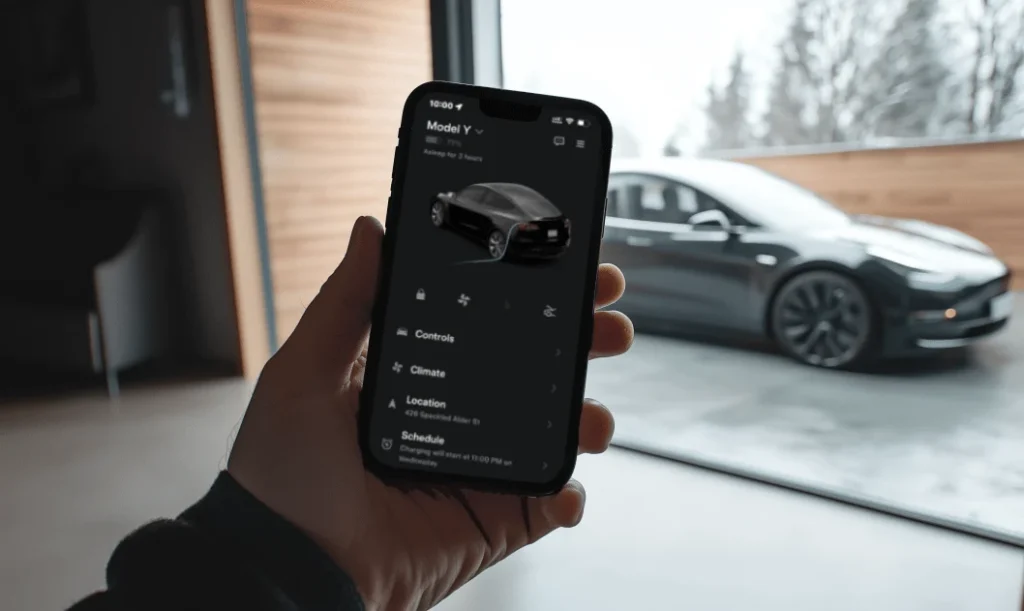
Why Is My Tesla Not Connecting to Bluetooth?
Tesla may fail to connect to Bluetooth because of pairing errors, software issues, incorrect phone settings, or temporary communication failures between the vehicle and your smartphone. Identifying the root cause is the fastest way to restore a stable connection instead of repeatedly deleting and reconnecting your device.
In many cases, the problem starts with the smartphone rather than the vehicle. Bluetooth may be disabled, the Tesla connection may no longer be trusted, or the operating system may have revoked Bluetooth permissions after a recent update. Battery-saving modes can also restrict background Bluetooth activity, preventing the phone from maintaining a stable connection with the vehicle. These issues commonly affect both iPhone and Android devices, although the settings menus and permission controls differ between operating systems.
The Tesla infotainment system can also interrupt Bluetooth communication. Temporary software glitches, incomplete firmware installations, or corrupted pairing data may prevent the vehicle from recognizing previously connected devices. If your Tesla recently received a software update, existing Bluetooth profiles may not synchronize correctly until they are removed and paired again.
Another common cause is outdated software. Running an older Tesla firmware version or an outdated mobile operating system can create compatibility issues as Bluetooth protocols evolve. Tesla frequently improves connectivity through over-the-air software updates, while Apple and Google regularly release Bluetooth stability fixes in new iOS and Android versions. Keeping both systems updated reduces the likelihood of pairing failures caused by software incompatibility.
Previously paired devices may also interfere with new connections. If several smartphones have been saved in the vehicle, Tesla may attempt to reconnect to another device before detecting the phone you want to use. Likewise, your smartphone may automatically connect to wireless earbuds, smartwatches, or another vehicle, leaving the Tesla unable to establish a new Bluetooth session until the existing connection is released.
Although less common, environmental factors can contribute to Bluetooth problems. Strong wireless interference, damaged Bluetooth hardware, or corrupted system settings may prevent successful pairing even after multiple attempts. If basic troubleshooting does not restore the connection, performing a Bluetooth reset or restarting the Tesla infotainment system is usually the next recommended step before seeking professional assistance.
How Do You Fix Tesla Not Connecting to Bluetooth?
Most Tesla Bluetooth connection issues can be resolved by following a systematic troubleshooting process, starting with the simplest checks before moving to more advanced solutions. Completing each step in order helps identify the actual cause instead of making unnecessary changes to your phone or vehicle.
Begin by confirming that Bluetooth is enabled on both your smartphone and your Tesla. On the vehicle’s touchscreen, open Controls > Bluetooth and verify that Bluetooth is turned on and ready to discover nearby devices. On your phone, ensure Bluetooth is active and that the device remains visible while pairing. If either device has Bluetooth disabled, the connection process cannot begin.
Next, restart both your smartphone and the Tesla infotainment system. Temporary software glitches often interrupt wireless communication even when all settings appear correct. You can reboot the Tesla touchscreen by pressing and holding both steering wheel scroll buttons until the display turns black and the Tesla logo appears. Once the system finishes restarting, unlock your phone and attempt the Bluetooth connection again.
If the problem persists, remove the existing Bluetooth profile and create a new pairing. Open the Bluetooth settings on your Tesla, select your phone, and choose Forget Device. Then open your phone’s Bluetooth settings and remove the Tesla connection from the paired device list. Starting with a clean pairing eliminates corrupted Bluetooth records that may prevent the two devices from recognizing each other.
Bluetooth permissions should also be reviewed carefully. On iPhone, verify that Bluetooth access is enabled for the Tesla app under Settings > Privacy & Security > Bluetooth. On Android, ensure the Tesla app has Bluetooth, Nearby Devices, and Location permissions if required by your device. Restricting these permissions can prevent Phone Key features and automatic Bluetooth connections from working properly even though manual pairing appears successful.
Software updates are another essential troubleshooting step. Tesla regularly releases over-the-air firmware updates that improve Bluetooth stability, compatibility with newer smartphones, and Phone Key performance. Likewise, Apple and Android manufacturers publish operating system updates that address Bluetooth bugs and connectivity issues. Running the latest software on both devices minimizes compatibility problems caused by outdated Bluetooth protocols.
If Bluetooth still refuses to connect after completing these steps, disable Bluetooth on your phone for a few seconds before enabling it again. This refreshes the wireless adapter without requiring another restart. You can also move away from other Bluetooth accessories such as wireless earbuds, smartwatches, or another vehicle, as multiple active Bluetooth connections may interfere with the pairing process.
After each troubleshooting step, attempt to reconnect your phone before moving to the next solution. This approach makes it easier to identify which action resolved the issue and avoids unnecessary resets that could affect other saved settings or connected devices.
How Do You Pair Your Phone with a Tesla?
Pairing your phone with a Tesla requires enabling Bluetooth on both devices, initiating the pairing process from the vehicle’s touchscreen, and confirming the connection on your smartphone. Following the correct sequence helps prevent pairing failures and ensures that Bluetooth features work as expected.
Before starting, make sure your vehicle is in Park and your smartphone is unlocked. Open the Bluetooth settings on your phone and keep the settings screen active so the device remains discoverable. On the Tesla touchscreen, navigate to Controls > Bluetooth and tap Add New Device or Add Phone, depending on your vehicle’s software version. Tesla will immediately begin searching for nearby Bluetooth devices.
When your phone appears on the Tesla display, select it to initiate the connection. At the same time, a pairing request containing a numeric code should appear on both the vehicle’s touchscreen and your smartphone. Verify that the codes match before tapping Pair or Confirm on both devices. This authentication step creates a secure Bluetooth connection and prevents unauthorized devices from pairing with your vehicle.
Once the pairing process is complete, Tesla may request permission to access your contacts, call history, messages, and media library. Granting these permissions enables hands-free calling, contact synchronization, voice commands, and wireless audio streaming. If you plan to use your smartphone as a Phone Key, ensure the Tesla mobile app is installed, signed in with the correct Tesla account, and has Bluetooth and background permissions enabled.
After pairing, test every major Bluetooth function before leaving the settings menu. Play music through the vehicle’s speakers, make a hands-free phone call, and confirm that your contact list has synchronized successfully. If your vehicle supports Phone Key, lock the car, walk a short distance away, and return to verify that the doors unlock automatically when your phone is nearby. Testing these features immediately helps identify incomplete pairing or permission issues before they become recurring problems.
If the pairing request never appears or the connection repeatedly fails, delete the existing Bluetooth profiles from both your Tesla and your smartphone before attempting the process again. Starting with a fresh Bluetooth profile eliminates corrupted pairing records that can prevent successful authentication even when both devices are functioning normally.
How Do You Reset Tesla Bluetooth?
Resetting Tesla Bluetooth removes temporary connection errors, clears corrupted pairing data, and allows your phone to establish a new, stable connection with the vehicle. A Bluetooth reset is recommended when your Tesla repeatedly fails to detect your phone, disconnects without warning, or refuses to reconnect after software updates.
The first step is to perform a soft reboot of the Tesla infotainment system. Press and hold both scroll wheels on the steering wheel for several seconds until the touchscreen turns black and the Tesla logo appears. Wait for the system to restart completely before attempting another Bluetooth connection. This process restarts the infotainment software without affecting your personal settings, driver profiles, or vehicle data, making it the safest troubleshooting method for most Bluetooth issues.
If restarting the touchscreen does not resolve the problem, remove every saved Bluetooth device from the vehicle. Open Controls > Bluetooth, select each paired device, and choose Forget Device. This clears outdated connection records that may interfere with new pairing attempts. After deleting the devices from the vehicle, open the Bluetooth settings on your smartphone and remove the Tesla connection as well. Clearing both sides of the pairing ensures the next connection starts with fresh authentication data.
Once all previous pairings have been removed, restart your smartphone before pairing it with the vehicle again. Restarting refreshes the phone’s Bluetooth service and clears temporary software conflicts that may not disappear simply by toggling Bluetooth on and off. After the phone reboots, enable Bluetooth, return to the Tesla touchscreen, and complete the pairing process from the beginning.
If Bluetooth problems continue after a soft reboot and fresh pairing, restarting the entire vehicle may help resolve deeper software issues. Park the vehicle safely, close all doors, and use the Power Off option found under Controls > Safety > Power Off. Leave the vehicle untouched for approximately two to three minutes without opening the doors, pressing the brake pedal, or interacting with the touchscreen. After the waiting period, press the brake pedal to wake the vehicle and test the Bluetooth connection again. This procedure reloads several vehicle systems that remain active during a standard touchscreen reboot.
If none of these reset procedures restore Bluetooth connectivity, the issue may be related to firmware corruption, a hardware fault, or compatibility problems between the vehicle and your smartphone. At this stage, verify that both devices are running the latest software versions and contact Tesla Service if the connection still cannot be established after completing all recommended troubleshooting steps.
Why Does Tesla Bluetooth Keep Disconnecting?
Tesla Bluetooth usually keeps disconnecting because of software conflicts, competing Bluetooth devices, unstable phone settings, or temporary communication errors between the vehicle and the smartphone. Unlike pairing failures, repeated disconnections indicate that the connection is established successfully but cannot remain stable over time.
One of the most common causes is having multiple paired devices. Tesla can store several smartphones, and the infotainment system may automatically switch between them when more than one authorized device is nearby. For example, if two family members approach the vehicle carrying paired phones, Tesla may repeatedly change its preferred Bluetooth connection. Removing unused devices and assigning a primary phone reduces connection conflicts.
Bluetooth interference is another frequent reason for unstable connectivity. Modern smartphones often maintain simultaneous connections with wireless earbuds, smartwatches, fitness trackers, and other vehicles. Because Bluetooth uses the same 2.4 GHz frequency band as many wireless devices, excessive nearby activity can reduce signal quality and interrupt communication with your Tesla. Disconnecting unnecessary Bluetooth accessories before driving can improve connection stability.
Power management settings on your smartphone can also interrupt Bluetooth communication. Many Android manufacturers include aggressive battery optimization features that stop background processes when the screen is off. Although iPhones manage background apps differently, Low Power Mode can also limit certain background activities. If the Tesla app cannot continue running in the background, Phone Key detection and automatic Bluetooth reconnection may become unreliable.
Software bugs introduced after firmware or operating system updates occasionally affect Bluetooth performance. A Tesla software update may temporarily create compatibility issues with specific phone models until a later firmware release resolves them. Similarly, newly released iOS or Android versions can introduce Bluetooth bugs that affect multiple vehicle manufacturers, not only Tesla. Checking community reports and installing the latest available updates often resolves these temporary compatibility problems.
Physical distance and environmental conditions may also contribute to intermittent disconnections. Bluetooth provides reliable performance over short distances, but thick walls, metal structures, or leaving your phone inside a bag or another compartment can weaken the signal. If the connection drops only when the phone is far from the driver’s seat, signal obstruction is a more likely cause than a software fault.
If your Tesla disconnects from Bluetooth several times during every drive despite completing all recommended troubleshooting steps, test the vehicle with another smartphone. A successful connection using a different device indicates that the original phone is likely responsible for the issue. If multiple phones experience identical disconnections, the problem is more likely related to the vehicle’s software or hardware and should be inspected by Tesla Service.
Does Tesla Bluetooth Work Differently on iPhone and Android?
Tesla supports both iPhone and Android devices, but Bluetooth behavior differs because each operating system manages permissions, background activity, and Phone Key features differently. Understanding these differences can help you resolve connection problems more quickly.
On iPhone, Bluetooth connectivity is closely integrated with iOS. The Tesla app requires Bluetooth permission, Background App Refresh, and location access to support Phone Key functionality. If any of these permissions are disabled, the vehicle may connect for media streaming while failing to unlock automatically or detect the phone consistently. iPhone users should also avoid enabling Low Power Mode for extended periods because it may reduce background activity that Phone Key depends on.
Android devices offer greater hardware variety, which means Bluetooth performance can differ between manufacturers. Many Android brands include battery optimization features that automatically stop background applications to conserve power. If the Tesla app is restricted by these settings, Bluetooth pairing may succeed, but automatic reconnection and Phone Key detection may become unreliable. Excluding the Tesla app from battery optimization and allowing unrestricted background activity usually improves connection stability.
Regardless of the operating system, both devices should run the latest software versions and have Bluetooth enabled before approaching the vehicle. Tesla continuously updates compatibility with newer smartphones through over-the-air firmware releases, while Apple and Android manufacturers improve Bluetooth performance through operating system updates.
Which Tesla Models Commonly Experience Bluetooth Issues?
Bluetooth connectivity issues can occur on every modern Tesla model because they rely on the same infotainment platform and wireless communication technologies. Although individual software versions may differ, the underlying troubleshooting process remains nearly identical across the lineup.
Tesla Model 3 and Model Y owners report Bluetooth issues most frequently because these models account for the largest share of Tesla vehicles on the road. Common symptoms include failed pairing, delayed Phone Key recognition, unexpected disconnections, and media playback interruptions. These issues are usually related to software compatibility rather than vehicle-specific hardware defects.
Model S and Model X vehicles can experience similar Bluetooth problems, particularly after major firmware updates or when connecting newly released smartphones. Older model years may also require additional software updates to maintain compatibility with recent iOS and Android versions. Regardless of the model you drive, restarting the infotainment system, removing outdated Bluetooth profiles, and installing the latest available software remain the recommended first steps.
What Should You Do if Tesla Still Won’t Connect to Bluetooth?
If your Tesla still cannot connect to Bluetooth after completing all standard troubleshooting steps, advanced diagnostics are necessary to determine whether the issue is caused by the phone, vehicle software, or hardware.
Start by pairing a different smartphone with the vehicle. If the second phone connects successfully, the original device is likely responsible for the problem. If neither phone can establish a Bluetooth connection, the issue is more likely related to the Tesla itself.
Next, verify that your vehicle has installed the latest firmware and that your smartphone is running the newest available operating system. Software incompatibility is one of the most common causes of persistent Bluetooth failures following major updates.
If the problem continues, open the Tesla mobile app and schedule a service appointment. Include details such as the phone model, operating system version, Tesla software version, and the troubleshooting steps you have already completed. Providing this information allows Tesla technicians to diagnose the issue more efficiently and determine whether additional software repairs or hardware inspection are required.
How Can You Prevent Tesla Bluetooth Connection Problems?
Regular software maintenance and proper Bluetooth management significantly reduce the likelihood of future connection problems. Preventive maintenance is often more effective than repeatedly troubleshooting the same issue after it occurs.
Keep your Tesla firmware updated whenever a new over-the-air release becomes available. Software updates frequently include Bluetooth improvements, Phone Key enhancements, and compatibility fixes for newly released smartphones.
Maintain only the Bluetooth devices you actively use. Removing old phones from the paired device list prevents connection conflicts and allows Tesla to identify your primary device more quickly when you approach the vehicle.
Leave Bluetooth enabled on your smartphone and avoid restricting the Tesla app through battery optimization or background process settings. These permissions allow Phone Key, automatic unlocking, and wireless reconnection to function consistently without requiring manual intervention.
Restart both your smartphone and the Tesla infotainment system after installing major software updates. A simple restart refreshes Bluetooth services, reloads wireless drivers, and helps both devices establish a clean connection using the updated software.
Frequently Asked Questions
Why won’t my Tesla find my phone?
Tesla may not detect your phone if Bluetooth is disabled, the device is not discoverable, pairing records are corrupted, or another Bluetooth connection is preventing discovery. Restarting both devices and creating a new Bluetooth pairing usually resolves the issue.
Why is my Tesla Phone Key not working?
Phone Key may stop working if the Tesla app loses Bluetooth permission, background activity is restricted, or the phone is no longer paired correctly with the vehicle. Re-enabling the required permissions and pairing the phone again typically restores functionality.
Can too many paired devices cause Bluetooth problems?
Yes. Saving multiple smartphones can cause Tesla to switch between devices or attempt to reconnect to an unintended phone. Removing unused Bluetooth devices reduces connection conflicts and improves pairing reliability.
Does resetting Bluetooth erase Phone Keys?
Removing a Bluetooth pairing does not permanently remove your Tesla account, but you may need to set up Phone Key again after reconnecting the device, depending on the vehicle’s software version and Tesla app settings.
Can a Tesla software update fix Bluetooth issues?
Yes. Tesla frequently releases firmware updates that improve Bluetooth stability, smartphone compatibility, and Phone Key performance. Installing the latest software is recommended whenever persistent connectivity problems occur.
Should I contact Tesla Service if Bluetooth still doesn’t work?
Yes. If Bluetooth continues to fail after restarting the vehicle, removing paired devices, updating all software, and testing another smartphone, Tesla Service should inspect the vehicle for software or hardware faults.