Tesla audio not working is usually caused by incorrect audio settings, temporary software glitches, Bluetooth connection problems, or issues with the vehicle’s audio hardware. When the Tesla speakers stop producing sound, the problem is often related to the infotainment system rather than a permanent component failure.
Tesla vehicles rely heavily on software to control functions such as media playback, navigation voice instructions, Bluetooth audio, and speaker output. Because the audio system is integrated with the touchscreen and vehicle software, a simple system restart or settings adjustment can resolve many sound problems.
This guide explains the most common reasons why Tesla audio stops working and provides step-by-step troubleshooting methods. You will learn how to check audio settings, restart the Tesla touchscreen, fix Bluetooth connection issues, update vehicle software, and identify situations that require professional Tesla service.
Understanding the source of the problem helps prevent unnecessary repairs and allows Tesla owners to restore audio functionality efficiently.
Why Is My Tesla Audio Not Working?
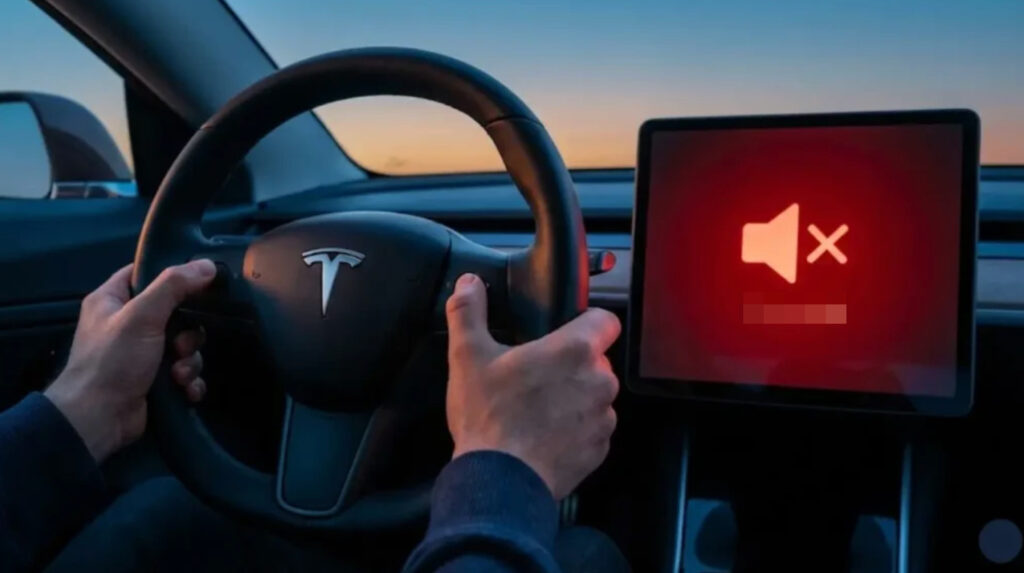
Tesla audio stops working when the vehicle cannot send sound signals correctly from the infotainment system to the speakers. The problem usually appears as complete loss of sound, missing audio from a specific source, or inconsistent playback. The most common symptoms include no sound from Tesla speakers, Bluetooth connected without audio output, unavailable radio or streaming sound, and missing navigation voice instructions.
A Tesla with no sound does not always indicate a damaged speaker or amplifier. The vehicle’s audio system depends on software communication between the touchscreen, media applications, connected devices, and audio hardware. A temporary software error or incorrect setting can interrupt this communication and prevent normal sound output.
One common symptom is that the Tesla touchscreen appears to work normally, but the speakers produce no audio. In this situation, the media interface may still display songs, radio stations, or streaming services while the audio output remains silent. This usually indicates a problem with the audio configuration, software state, or connection between Tesla systems.
Another common issue occurs when Bluetooth devices connect successfully but no sound comes through the speakers. The phone may show Tesla as a connected device, but media permissions, source selection, or Bluetooth communication errors can prevent audio transmission.
Tesla owners may also notice that specific functions stop producing sound while other features continue working. For example, music may play normally while navigation voice commands or parking-related sounds disappear. These differences help identify whether the issue affects the entire Tesla Audio System or only one audio function.
Identifying the exact symptom is the first step in troubleshooting Tesla audio problems because different symptoms usually point to different causes. A complete loss of sound requires different checks compared with a Bluetooth-only problem or a navigation voice issue.
What Causes Tesla Audio Problems?
Tesla audio problems are mainly caused by four groups of issues: incorrect audio settings, software problems, connectivity failures, and hardware-related faults. Identifying the correct cause helps Tesla owners apply the right solution instead of replacing components unnecessarily.
Incorrect audio settings are one of the simplest causes of Tesla sound problems. The vehicle may appear to have a broken audio system when the actual issue is a muted volume level, incorrect media source, or changed sound configuration. For example, a Tesla playing audio through a disconnected Bluetooth device may show media information on the screen while producing no sound through the vehicle speakers.
Tesla software issues are another common cause because the audio system is controlled through the vehicle’s infotainment software. Temporary software glitches can interrupt communication between the touchscreen, media applications, and audio hardware. These problems often appear after software updates, system errors, or situations where the touchscreen becomes unresponsive.
Bluetooth connection problems can also prevent Tesla audio from working correctly. The vehicle may connect to a smartphone but fail to receive media audio because of incorrect permissions, connection conflicts, or problems with the phone’s Bluetooth settings. Testing another device or reconnecting the existing device can help determine whether the issue comes from the vehicle or the smartphone.
Hardware failures represent less common but more serious causes of Tesla audio problems. Damaged speakers, amplifier failures, or wiring problems can prevent sound output even when software settings and connections are functioning correctly. Hardware-related problems are more likely when the audio system remains silent after multiple resets and software troubleshooting steps.
The fastest way to identify the cause of a Tesla audio problem is to start with simple checks and move toward more advanced solutions. Checking settings and connections should happen before performing system resets or requesting professional service because many Tesla audio failures are caused by temporary software or configuration issues.
How Do You Fix Tesla Audio Not Working?
Tesla audio problems can usually be fixed by checking basic settings, restarting the vehicle systems, and restoring communication between connected devices. The correct troubleshooting order starts with simple solutions because many Tesla sound failures come from temporary software states rather than damaged hardware.
The first step is to check the Tesla audio settings. Open the media controls on the touchscreen and confirm that the volume is turned up and the audio system is not muted. Tesla vehicles also allow users to select different media sources, such as Bluetooth, streaming services, radio, or USB devices. Selecting an inactive source can make the audio system appear broken even when the speakers are functioning normally.
Checking the sound settings is also important because changes to balance, fade, or equalizer settings can affect the listening experience. For example, if the audio balance is moved completely toward one side of the vehicle, passengers may believe that certain speakers have stopped working when the system is only configured incorrectly.
If adjusting the settings does not restore sound, restarting the Tesla touchscreen is the next troubleshooting step. The touchscreen controls many vehicle functions, including media playback and audio communication, so a temporary software error can interrupt sound output. A touchscreen restart refreshes the infotainment system without affecting vehicle data or settings.
Tesla owners can restart the touchscreen by holding both steering wheel scroll buttons until the screen turns black and the Tesla logo appears. After the system reboots, wait until the touchscreen fully loads before testing the audio system again. This process often resolves temporary problems related to media applications, Bluetooth connections, or navigation audio.
A vehicle power cycle is another solution when a touchscreen restart does not fix the issue. A power cycle completely shuts down Tesla’s electronic systems and allows the vehicle computers to restart. This method can help when the audio problem is connected to a deeper software communication issue.
To perform a Tesla power cycle, access the vehicle settings, select the shutdown option, and wait several minutes without interacting with the vehicle. After the waiting period, press the brake pedal to restart the car. Testing the audio system after the restart helps determine whether the problem was caused by a temporary system failure.
Bluetooth-related audio problems require checking both the Tesla system and the connected smartphone. Remove the phone from Tesla’s Bluetooth list, restart the phone’s Bluetooth connection, and pair the device again. Confirm that media audio permissions are enabled because some phones separate call audio from music playback.
Software updates should also be checked when Tesla audio continues to malfunction. Tesla frequently releases software updates that modify vehicle systems, including infotainment functions. Installing the latest available update can resolve known software bugs that affect audio playback, Bluetooth stability, or touchscreen performance.
Following these troubleshooting steps in order helps isolate the cause of Tesla audio problems. If basic settings, resets, connectivity checks, and software updates do not restore sound, the issue may require further inspection of the vehicle’s audio hardware.
What Should You Do If Tesla Audio Still Does Not Work?
If Tesla audio still does not work after checking settings, restarting the touchscreen, reconnecting Bluetooth, and installing software updates, the problem may involve deeper system or hardware issues. At this stage, the goal is to determine whether the failure comes from the Tesla Audio System, external devices, or physical components.
The first step is to repeat basic testing with different audio sources. Test multiple functions such as Bluetooth music, Tesla streaming services, radio, navigation instructions, and warning sounds. If every audio source fails, the problem is more likely related to the vehicle’s internal audio system rather than a specific application or connected device.
A Tesla that loses sound from all speakers after multiple resets may have a hardware-related problem. The audio system includes components such as speakers, amplifiers, wiring connections, and control modules. A failure in any of these components can prevent sound output even when the touchscreen and media applications appear normal.
Speaker damage is usually identified when only certain areas of the vehicle lose sound. For example, if the front speakers work but the rear speakers remain silent, the issue may involve a specific speaker group or connection. Complete audio failure across the entire vehicle is more likely to involve the amplifier or audio control system.
Tesla owners should contact Tesla Service when troubleshooting steps do not restore audio functionality or when additional symptoms appear. Professional inspection is recommended if there is no sound after a system reset, repeated software failures, unusual electrical behavior, or evidence of physical component damage.
Tesla technicians can diagnose audio problems through vehicle diagnostics and system information stored by the car. Because Tesla vehicles rely on integrated software and electronic control modules, professional tools can identify faults that are not visible through normal user troubleshooting.
Before scheduling service, recording the symptoms can make diagnosis faster. Note when the audio stopped working, which functions are affected, whether resets changed the problem, and whether the issue started after a software update or device connection change. This information helps technicians identify the most likely cause of the failure.
A Tesla audio problem does not always require component replacement. Many cases are resolved through software troubleshooting, settings correction, or connection fixes. However, persistent failures after standard troubleshooting indicate that the vehicle requires a deeper technical inspection.
Can Tesla Audio Problems Affect Driving Functions?
Tesla audio problems can affect some driving-related features because the vehicle uses sound alerts for communication between the car and the driver. While losing music or streaming audio does not usually affect vehicle operation, failures involving navigation instructions, warning sounds, or parking alerts can reduce driver awareness.
Navigation voice instructions are one of the functions connected to the Tesla Audio System. When navigation audio stops working, the vehicle may continue displaying directions on the touchscreen while no spoken guidance is provided. This issue is often caused by muted navigation volume, incorrect audio settings, or temporary software communication problems.
Parking assistance sounds are another important audio function in Tesla vehicles. Features such as parking sensor alerts rely on sound notifications to provide additional information about nearby objects. If these sounds disappear, drivers should verify whether the issue affects only entertainment audio or all vehicle alerts.
Tesla warning sounds provide additional feedback during certain driving situations. Examples include safety notifications, system alerts, and other vehicle-generated sounds. A complete loss of these sounds should be treated differently from a simple problem with music playback because it may indicate a broader issue with the vehicle’s audio output system.
The impact of an audio failure depends on which functions are affected. A problem limited to Spotify, Bluetooth music, or radio playback mainly affects entertainment features. However, missing navigation guidance or safety-related audio alerts requires faster troubleshooting because these functions support the driver’s interaction with the vehicle.
Tesla owners should test multiple audio sources when diagnosing a sound problem. Checking music playback, navigation instructions, and vehicle alerts helps determine whether the failure involves a specific application or the entire Tesla Audio System.
How Can You Prevent Tesla Audio Problems?
Preventing Tesla audio problems requires maintaining the vehicle’s software, managing connected devices correctly, and monitoring early signs of system issues. Because Tesla Audio System functions depend on both software and hardware communication, regular maintenance can reduce the risk of unexpected sound failures.
Keeping Tesla software updated is one of the most effective prevention methods. Tesla releases software updates that improve vehicle performance, fix system errors, and modify infotainment functions. Installing available updates helps maintain stable communication between the touchscreen, media applications, and audio components.
Maintaining reliable Bluetooth connections can also prevent recurring audio problems. Remove unused devices from the Tesla Bluetooth list and reconnect smartphones when connection issues appear. Multiple paired devices can sometimes create confusion when the vehicle automatically selects an unexpected audio source.
Tesla owners should also check audio settings after software updates or system changes. Updates may introduce interface changes or reset certain preferences. Confirming volume levels, media sources, and sound configurations helps prevent situations where the audio system appears damaged but is only incorrectly configured.
Monitoring repeated audio symptoms is another important prevention step. Occasional software glitches may resolve after a restart, but recurring problems can indicate a developing issue with the infotainment system or hardware components. Recording when problems occur helps identify patterns and allows earlier diagnosis.
Regular vehicle checks are especially important when audio problems occur together with other electronic issues. Symptoms such as touchscreen instability, connectivity failures, or multiple system errors may indicate a broader software or hardware problem rather than an isolated audio failure.
A well-maintained Tesla Audio System should provide consistent sound performance across media playback, navigation guidance, and vehicle alerts. Updating software, managing device connections, and addressing early warning signs help Tesla owners reduce future audio problems and maintain a reliable driving experience.
How Can You Fix Tesla Audio Not Working Permanently?
Fixing Tesla audio not working permanently requires identifying whether the issue comes from settings, software, connectivity, or hardware. Most Tesla sound problems can be resolved through basic troubleshooting steps such as checking audio configurations, restarting the infotainment system, reconnecting Bluetooth devices, and installing software updates.
A structured troubleshooting process prevents unnecessary repairs because many audio failures are temporary system errors rather than physical damage. Tesla owners should begin with simple checks and only move to professional diagnosis when the vehicle continues to lose sound after multiple solutions have been attempted.
Maintaining a reliable Tesla Audio System depends on regular software updates, stable device connections, and early attention to repeated symptoms. Audio problems that appear alongside touchscreen issues, missing vehicle alerts, or multiple electronic failures should receive additional inspection from Tesla Service.
Understanding how Tesla audio functions helps owners diagnose problems more efficiently. By recognizing common causes and applying the correct troubleshooting steps, most drivers can restore sound performance and continue using Tesla media, navigation, and vehicle alert features normally.