Apple CarPlay on the Ram 1500 can stop working because of software incompatibility, connection issues, incorrect settings, or infotainment system faults. In most cases, the problem does not indicate a failed head unit and can be resolved by checking the iPhone, connection method, Uconnect settings, and software versions in a logical order.
This guide explains why Ram 1500 CarPlay is not working, how to identify the underlying cause, and which troubleshooting steps should be performed first. Rather than replacing parts immediately, you’ll learn how to isolate whether the issue originates from the iPhone, the USB connection, Wireless CarPlay, the Uconnect infotainment system, or outdated software.
The troubleshooting process begins with identifying the symptoms, such as CarPlay failing to launch, frequent disconnections, a black screen, or the vehicle not recognizing the iPhone. From there, each possible cause is examined individually, including incompatible iOS versions, damaged Lightning or USB-C cables, faulty USB ports, disabled Siri settings, Bluetooth and Wi-Fi conflicts, and outdated Uconnect firmware.
The guide also explains when a simple restart is sufficient, when a software update or factory reset is necessary, and when the problem may indicate a hardware fault that requires diagnosis by a Ram dealership. By following the troubleshooting sequence in order, most Ram 1500 owners can restore Apple CarPlay functionality without unnecessary repairs or replacement costs.
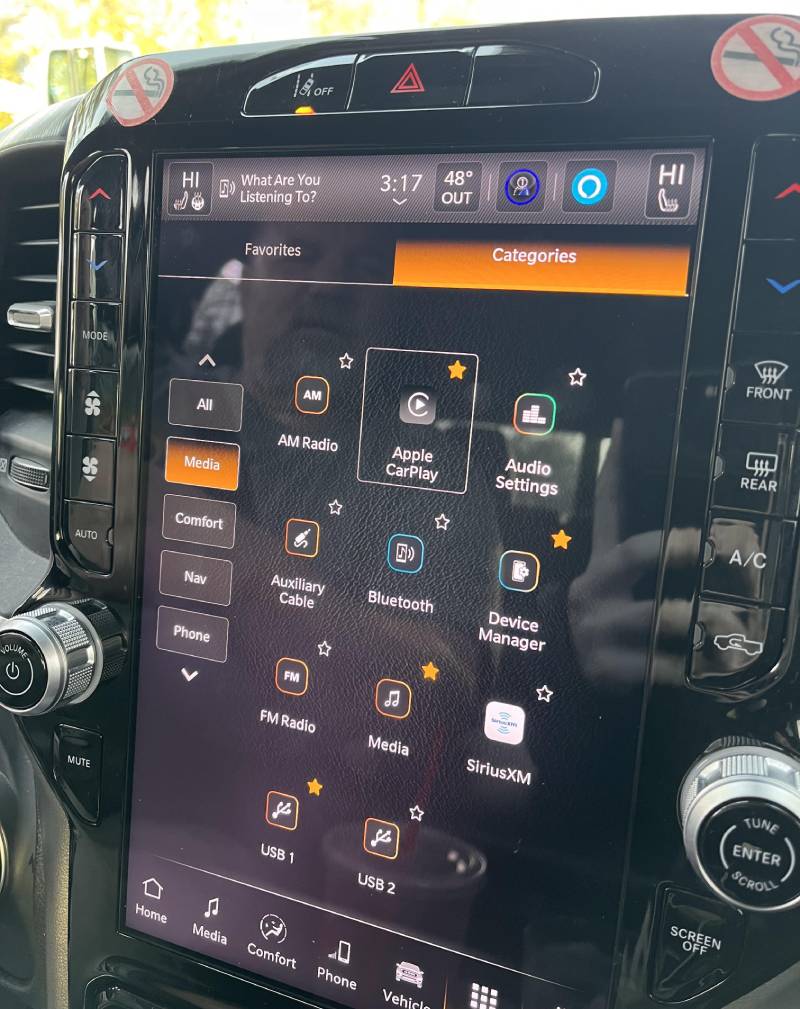
Why is Apple CarPlay not working on a Ram 1500?
Apple CarPlay on a Ram 1500 usually stops working because of software incompatibility, connection failures, incorrect vehicle or iPhone settings, damaged hardware, or outdated Uconnect firmware. Most issues originate from communication failures between the iPhone and the Uconnect infotainment system rather than a defective head unit. Identifying the exact symptom before troubleshooting significantly reduces unnecessary resets and parts replacement.
The first step is determining how the problem appears. A completely blank screen points to different causes than intermittent disconnections or a “Device Not Detected” message. Likewise, troubleshooting differs between wired and wireless CarPlay because each connection method relies on different hardware and communication protocols.
What are the most common CarPlay symptoms?
Recognizing the symptom helps narrow down the root cause before making any changes. The most common Ram 1500 CarPlay issues include:
CarPlay does not launch automatically. The iPhone charges normally after being connected, but the CarPlay interface never appears on the Uconnect display. This often indicates a communication failure caused by USB settings, disabled CarPlay permissions, or outdated software.
The infotainment screen remains black. The display may switch to a black screen immediately after selecting CarPlay or freeze indefinitely. In many cases, restarting the Uconnect system or rebooting the iPhone restores normal operation, although repeated occurrences may indicate firmware instability.
“Device Not Detected” or “USB Device Not Supported” appears. This message usually indicates that the infotainment system cannot establish a proper data connection with the iPhone. Common causes include damaged cables, incompatible USB accessories, dirty USB ports, or unsupported iOS versions.
CarPlay disconnects repeatedly while driving. The connection may function normally for several minutes before disconnecting unexpectedly. Loose cable connections, unstable wireless signals, overheating iPhones, or background software conflicts frequently cause this symptom.
Audio works but CarPlay does not display. Music may continue playing through the vehicle speakers while the CarPlay interface never opens. This usually suggests that Bluetooth audio remains connected while the full CarPlay data session fails to initialize.
The CarPlay interface freezes. Touch controls stop responding, navigation becomes unresponsive, or applications fail to load. Temporary software crashes within iOS or Uconnect are the most common causes, especially after major software updates.
Each symptom points toward a different group of possible causes. Identifying the exact behavior before beginning repairs prevents unnecessary troubleshooting steps and helps isolate the faulty component more quickly.
Which Ram 1500 model years support Apple CarPlay?
Apple CarPlay availability depends on the Ram 1500 model year and the installed Uconnect infotainment system. Knowing whether the vehicle supports wired or wireless CarPlay is essential before diagnosing connection problems.
Uconnect 4
Ram 1500 models equipped with Uconnect 4 generally support wired Apple CarPlay through the designated USB port. Vehicles using this system require a compatible iPhone and a certified Lightning or USB-C cable, depending on the iPhone model. Wireless CarPlay is typically unavailable unless additional aftermarket hardware has been installed.
Uconnect 5
Vehicles equipped with Uconnect 5 offer expanded connectivity features, including support for wireless Apple CarPlay on compatible model years and trim levels. Wireless functionality depends on Bluetooth for device pairing and Wi-Fi for continuous data transmission after the initial connection.
Wired vs. Wireless CarPlay
Understanding the connection type is important because the troubleshooting process differs significantly.
For wired CarPlay, the most common causes include:
- Damaged charging cables.
- Faulty USB ports.
- Unsupported USB adapters.
- Dirty or loose connectors.
For wireless CarPlay, common causes include:
- Bluetooth pairing failures.
- Wi-Fi interference.
- Multiple paired devices.
- Network configuration conflicts.
- Software compatibility issues.
Before troubleshooting further, verify that your Ram 1500 model year, infotainment system, and iPhone all support the version of Apple CarPlay you are attempting to use. Confirming compatibility first eliminates many unnecessary diagnostic steps and ensures the remaining troubleshooting process focuses on actual system faults.
What causes Ram 1500 CarPlay to stop working?
Apple CarPlay stops working when the communication between the iPhone and the Ram 1500 infotainment system is interrupted. The interruption may result from software incompatibility, damaged hardware, incorrect configuration, or wireless connectivity problems. Identifying the exact cause helps eliminate unnecessary troubleshooting and speeds up the repair process.
Can an incompatible iPhone or iOS version cause the problem?
Yes. An unsupported iPhone model or an incompatible iOS version can prevent Apple CarPlay from launching. Apple CarPlay requires a compatible iPhone running a supported version of iOS. If the device is outdated or the operating system contains a software bug, the Uconnect system may fail to recognize the phone.
Compatibility issues commonly occur immediately after a major iOS release. New software may introduce temporary bugs that affect CarPlay stability until Apple releases a subsequent patch. Likewise, older Uconnect firmware may not communicate correctly with the latest iOS version.
To verify compatibility:
- Confirm that your iPhone supports Apple CarPlay.
- Update iOS to the latest stable version.
- Check whether Ram has released a Uconnect software update for your vehicle.
- Test another compatible iPhone to determine whether the issue is vehicle-related or device-specific.
If another iPhone connects successfully, the problem is likely isolated to the original device rather than the Ram 1500.
Can a damaged Lightning or USB-C cable prevent CarPlay from connecting?
Yes. A damaged or low-quality cable is one of the most common causes of wired CarPlay failures. Although many cables can charge an iPhone, not all support high-speed data transmission. Apple CarPlay requires both power delivery and stable data communication.
Over time, repeated bending, stretched connectors, or internal wire damage can interrupt the data signal while charging continues normally. This often creates the impression that the vehicle recognizes the phone when, in reality, only electrical power is being supplied.
Signs of a faulty cable include:
- The phone charges but CarPlay never launches.
- CarPlay disconnects when the cable moves.
- The connection repeatedly starts and stops.
- The infotainment system displays “USB Device Not Supported.”
Using an Apple-certified Lightning or USB-C cable is recommended because certified accessories meet Apple’s data transmission requirements and are less likely to cause communication errors.
Can a faulty USB port interrupt the connection?
Yes. A damaged or contaminated USB port can interrupt the data connection required for Apple CarPlay. Dust, pocket lint, corrosion, or worn connector pins may prevent the cable from maintaining stable contact with the infotainment system.
Some Ram 1500 models include multiple USB ports, but not every port supports Apple CarPlay. Connecting the iPhone to a charging-only port allows the battery to charge without establishing a data session.
Inspect the USB port for visible debris or damage before replacing other components. If your vehicle provides more than one compatible data port, test each port individually. If CarPlay works through one port but not another, the issue is likely related to the USB hardware rather than the iPhone or Uconnect software.
Can incorrect Siri or CarPlay settings disable the feature?
Yes. Apple CarPlay depends on several iPhone settings that must remain enabled. If Siri or CarPlay permissions are disabled, the Ram 1500 may recognize the iPhone without launching the CarPlay interface.
Verify the following settings on the iPhone:
- Siri is enabled.
- CarPlay is allowed while the phone is locked.
- Screen Time restrictions do not block CarPlay.
- USB Accessories are permitted when the device is locked.
- The Ram 1500 remains listed under the CarPlay settings menu.
Resetting these permissions often restores functionality after software updates or device configuration changes.
Can Bluetooth or Wi-Fi conflicts affect Wireless CarPlay?
Yes. Wireless Apple CarPlay requires both Bluetooth and Wi-Fi to function simultaneously. Bluetooth establishes the initial pairing, while Wi-Fi carries most of the data required for navigation, media streaming, and voice commands.
Several common situations interrupt this process:
- Multiple phones attempting to connect automatically.
- Previously paired devices competing for priority.
- Wi-Fi interference from nearby hotspots.
- Corrupted Bluetooth pairing records.
- Network configuration errors after software updates.
Removing old paired devices from both the iPhone and the Uconnect system before creating a fresh connection resolves many wireless connection problems.
Can outdated Uconnect software cause CarPlay failures?
Yes. Outdated Uconnect firmware is a frequent cause of CarPlay instability, especially after Apple releases major iOS updates. The infotainment system must support Apple’s latest communication protocols to maintain reliable connectivity.
Older firmware may cause:
- Slow CarPlay startup.
- Random disconnections.
- Frozen navigation screens.
- Audio synchronization problems.
- Complete connection failures after updating the iPhone.
Checking for available Uconnect software updates should be part of every troubleshooting process. Installing the latest firmware not only improves Apple CarPlay compatibility but also fixes known bugs, enhances infotainment stability, and improves overall system performance.
How do you fix Ram 1500 CarPlay that is not working?
The most effective way to fix Ram 1500 CarPlay is to troubleshoot the system in a logical sequence, starting with the iPhone and ending with the Uconnect infotainment system. This approach isolates the source of the problem while avoiding unnecessary resets or hardware replacement.
Restart the iPhone
Restarting the iPhone clears temporary software processes that may prevent Apple CarPlay from establishing a connection. Background applications, temporary memory errors, or failed communication sessions can interfere with the handshake between iOS and the Uconnect system.
Power off the iPhone completely, wait approximately 30 seconds, and turn it back on before reconnecting it to the vehicle. If CarPlay works normally after the restart, the issue was likely caused by a temporary software conflict rather than a permanent fault.
Restart the Uconnect infotainment system
Restarting the Uconnect system refreshes the infotainment software and restores communication with connected devices. Like smartphones, infotainment systems continuously run multiple background services that occasionally become unresponsive.
Depending on the model year, restarting Uconnect may involve holding the volume and tuning knobs simultaneously for several seconds or turning the vehicle completely off before restarting it. Once the system reboots, reconnect the iPhone to determine whether CarPlay launches normally.
Disconnect and reconnect the iPhone
Re-establishing the connection allows the infotainment system to create a new communication session with the iPhone. An interrupted pairing or incomplete initialization process can prevent CarPlay from loading even though the phone is recognized.
Disconnect the iPhone, unlock the device, reconnect it using the recommended USB port, and accept every permission prompt that appears on both the phone and the infotainment display. If prompted, allow CarPlay while the phone is locked to prevent future connection failures.
Forget and reconnect Apple CarPlay
Removing the existing CarPlay profile eliminates corrupted pairing information that may prevent future connections. Saved connection profiles occasionally become damaged after software updates or interrupted pairing attempts.
On the iPhone, open Settings > General > CarPlay, select the Ram 1500, and choose Forget This Car. Then remove the paired phone from the Uconnect Bluetooth settings before pairing the devices again from the beginning. Creating a fresh connection often resolves persistent recognition issues.
Enable Siri
Apple CarPlay requires Siri to remain enabled because voice services are integrated into the CarPlay platform. If Siri is disabled, CarPlay may fail to initialize or certain features may become unavailable.
Navigate to Settings > Siri & Search on the iPhone and verify that Siri is enabled. Also confirm that Allow Siri When Locked is turned on, since some vehicle systems require Siri to remain accessible while the phone is locked.
Test another certified cable
Replacing the charging cable is one of the quickest ways to eliminate a hardware-related connection problem. Even if the existing cable charges the iPhone normally, damaged internal data wires may prevent Apple CarPlay from transferring information.
Use an Apple-certified Lightning or USB-C cable without adapters, extension cables, or USB hubs. If CarPlay immediately begins working with the replacement cable, the original accessory should no longer be used for vehicle connectivity.
Test another USB port
Using a different USB port helps determine whether the problem originates from the vehicle’s hardware. Some Ram 1500 models provide multiple USB ports, but only designated ports support Apple CarPlay data communication.
Reconnect the iPhone to each compatible data port individually. If CarPlay functions correctly on one port but not another, the affected USB port may require inspection or repair.
Update iOS
Installing the latest version of iOS resolves known Apple CarPlay bugs and improves compatibility with newer infotainment software. Apple regularly releases updates that address connection stability, Bluetooth communication, USB reliability, and wireless performance.
Open Settings > General > Software Update on the iPhone and install any available stable update. After installation, restart the device before testing CarPlay again.
Update Uconnect software
Updating Uconnect firmware ensures that the infotainment system supports Apple’s latest communication protocols. Firmware updates frequently correct compatibility issues introduced by newer iPhone models and iOS releases.
If your Ram 1500 supports over-the-air updates, install any available software package directly through the infotainment system. Otherwise, follow the official update procedure provided by Ram for your specific model year.
Reset Network Settings
Resetting the iPhone’s network settings removes corrupted Bluetooth and Wi-Fi configurations that commonly affect Wireless CarPlay. This procedure also clears saved wireless preferences that may interfere with future connections.
Open Settings > General > Transfer or Reset iPhone > Reset > Reset Network Settings. After the reset completes, reconnect the phone to the vehicle and complete the Bluetooth and Wi-Fi pairing process again.
Perform a factory reset on Uconnect
A factory reset should be considered only after all other troubleshooting steps have failed. Resetting Uconnect removes stored phones, Bluetooth pairings, Wi-Fi settings, and user preferences, returning the infotainment system to its original configuration.
Before performing a reset, record any personalized settings that you want to restore later. After the reset finishes, pair the iPhone as if it were connecting to the vehicle for the first time. If Apple CarPlay still fails after a clean reset with updated software and a verified cable, the issue may involve hardware components that require professional diagnosis.
Why is Wireless CarPlay not working on a Ram 1500?
Wireless Apple CarPlay relies on Bluetooth for pairing and Wi-Fi for data transmission, so a failure in either connection can prevent the system from working correctly. Unlike wired CarPlay, which depends primarily on a USB data connection, Wireless CarPlay requires multiple communication services to operate simultaneously. If one component fails, the entire connection process may stop before CarPlay launches.
Check Bluetooth pairing
Bluetooth establishes the initial connection between the iPhone and the Uconnect system. If the pairing information becomes corrupted or the phone automatically connects to another device, Wireless CarPlay may never start.
Open the Bluetooth settings on both the iPhone and the Uconnect system to verify that the devices remain paired. If multiple smartphones are stored in the vehicle, temporarily disconnect the others and set the primary iPhone as the preferred device. This prevents the infotainment system from attempting to connect to multiple phones during vehicle startup.
Verify the Wi-Fi connection
Wireless CarPlay automatically creates a dedicated Wi-Fi connection after Bluetooth pairing is complete. If Wi-Fi is disabled on the iPhone or interrupted by another network, CarPlay cannot transfer navigation, music, phone calls, or application data.
Confirm that Wi-Fi is enabled on the iPhone even if the device is not connected to a traditional wireless network. Avoid manually joining public hotspots while driving, as the phone may prioritize another network instead of the private connection established by the vehicle.
Remove existing paired devices
Too many saved Bluetooth devices can create connection conflicts. The infotainment system may attempt to reconnect to previously paired phones before establishing communication with the intended device.
Delete unused phones from the Uconnect Bluetooth list and remove the Ram 1500 from the iPhone’s Bluetooth and CarPlay settings if connection problems continue. Starting with a clean device list often resolves repeated pairing failures.
Re-pair Wireless CarPlay
Creating a new wireless pairing rebuilds the communication profile between the iPhone and the infotainment system. Software updates or interrupted pairing procedures can corrupt stored connection records, preventing automatic reconnection.
Begin by deleting the existing Bluetooth pairing on both devices. Restart the iPhone and the Uconnect system before initiating a completely new pairing process. Accept every permission request, including contacts, notifications, Siri access, and Wireless CarPlay authorization, to ensure that all required services are enabled.
Check wireless compatibility by model year
Not every Ram 1500 equipped with Apple CarPlay supports Wireless CarPlay. Many earlier models provide only wired connectivity through compatible USB ports, while wireless functionality became available on later vehicles equipped with newer versions of the Uconnect infotainment system.
Before troubleshooting wireless features, verify that your Ram 1500 model year, trim level, and infotainment system officially support Wireless Apple CarPlay. Attempting to connect wirelessly on a wired-only system will always fail regardless of the iPhone configuration.
Why does CarPlay disconnect randomly while driving?
Random Apple CarPlay disconnections usually indicate an unstable physical connection, wireless interference, software instability, or temporary interruptions in data communication. The frequency and timing of the disconnects often provide useful clues about the underlying cause.
Loose cable connection
A loose USB connection is the most common cause of intermittent wired CarPlay failures. Even a slight movement of the cable while driving can interrupt data transmission for a fraction of a second, forcing the infotainment system to disconnect the session.
Inspect both ends of the cable for excessive wear, bent connectors, or loose fittings. If the connection drops whenever the cable moves, replace it with a certified Apple cable before investigating more complex causes.
USB power interruption
Power fluctuations within the USB connection can interrupt communication between the iPhone and the infotainment system. Although the charging indicator may remain visible, brief interruptions in data transfer are enough to terminate an active CarPlay session.
Examine the USB port for dirt, damaged pins, or signs of corrosion. If available, test another compatible USB port to determine whether the interruption is limited to one connector.
Software instability
Temporary software errors inside either iOS or Uconnect can cause CarPlay to disconnect unexpectedly. Memory management issues, background service failures, or application crashes may terminate the communication session without displaying an error message.
If disconnects began immediately after updating iOS or Uconnect, check whether newer software patches are available. Manufacturers frequently release maintenance updates to improve infotainment stability and resolve compatibility problems introduced by previous versions.
Background iPhone processes
High background activity can reduce system resources available for Apple CarPlay. Navigation applications, cloud synchronization, video processing, or large file transfers may temporarily affect communication performance, particularly on older iPhone models.
Close unnecessary applications before connecting to the vehicle and restart the iPhone if performance appears unusually slow. Reducing background activity helps maintain a more stable CarPlay session during long drives.
iPhone overheating
Excessive device temperature can cause iOS to temporarily limit system functions, including Apple CarPlay. Heat commonly builds up when the iPhone is charging, running navigation software, streaming music, and receiving direct sunlight at the same time.
If the iPhone displays a temperature warning or becomes unusually hot, disconnect it from charging and allow it to cool before reconnecting. Positioning the phone away from direct sunlight or using a ventilated phone mount can help maintain stable operating temperatures and reduce unexpected CarPlay disconnects during extended trips.
How do software updates affect Apple CarPlay?
Software updates can either improve Apple CarPlay performance or temporarily introduce compatibility issues between the iPhone and the Uconnect infotainment system. Apple and Ram regularly release software updates to improve stability, security, and new feature support. However, if one device is updated while the other continues running older software, communication problems may occur until both systems become compatible.
What changed after an iOS update?
Major iOS updates occasionally modify the communication protocols used by Apple CarPlay. While these updates typically improve performance in the long term, they may initially introduce bugs that affect certain vehicle infotainment systems.
Common symptoms that appear after an iOS update include:
- CarPlay no longer launches automatically.
- Frequent connection failures.
- A frozen CarPlay interface.
- Siri becoming unavailable.
- Wireless CarPlay disconnecting unexpectedly.
If the problem begins immediately after installing a new version of iOS, restart the iPhone first and reconnect it to the vehicle. Then verify that CarPlay remains enabled under Settings > General > CarPlay. If the issue persists, check whether Apple has released a newer maintenance update that addresses known CarPlay bugs.
What changed after a Uconnect update?
A Uconnect software update can modify the infotainment system’s compatibility with connected devices. Firmware updates often improve Apple CarPlay performance, but interrupted installations or incomplete updates may temporarily affect system stability.
After updating Uconnect, users may notice:
- Slower CarPlay startup.
- Delayed touchscreen response.
- Temporary Bluetooth pairing failures.
- Missing vehicle profiles.
- Previously paired iPhones requiring a new setup.
If these symptoms occur, delete the existing CarPlay connection from both the iPhone and Uconnect before creating a new pairing. Rebuilding the connection ensures that both devices exchange updated configuration information.
How do you verify software compatibility?
Verifying software compatibility ensures that the iPhone and the Ram 1500 infotainment system support the same Apple CarPlay standards. Even when both devices function correctly on their own, an outdated firmware version on either side may prevent them from communicating properly.
A compatibility check should include the following:
- Confirm the iPhone is running a supported version of iOS.
- Verify that the Ram 1500 officially supports Apple CarPlay for its model year.
- Check whether the installed Uconnect firmware is the latest version available.
- Review manufacturer release notes for known CarPlay compatibility fixes.
- Test the iPhone with another CarPlay-compatible vehicle to determine whether the issue is vehicle-specific.
Completing these checks helps determine whether the problem originates from the iPhone, the infotainment system, or an interaction between the two.
When should you visit a Ram dealership?
Most Apple CarPlay problems can be resolved through software updates or configuration changes, but persistent failures after completing all troubleshooting steps may indicate a hardware issue requiring professional diagnosis. If the same problem continues with multiple compatible iPhones, certified cables, and updated software, the infotainment system should be inspected by a qualified technician.
Hardware failure symptoms
Certain symptoms strongly suggest that the problem is related to hardware rather than software. Unlike temporary software bugs, hardware faults typically remain consistent regardless of the troubleshooting steps performed.
Common hardware-related symptoms include:
- No USB port recognizes any compatible iPhone.
- The infotainment display repeatedly restarts.
- The touchscreen becomes completely unresponsive.
- CarPlay fails with multiple different phones and cables.
- USB ports stop charging connected devices.
These symptoms may indicate damaged USB modules, wiring faults, or failures within the infotainment hardware itself.
Uconnect module issues
The Uconnect module controls communication between the infotainment system and connected mobile devices. If this module develops an internal fault, Apple CarPlay, Android Auto, Bluetooth, navigation, and voice recognition may all experience similar failures.
Technicians can perform manufacturer-specific diagnostic tests to identify communication errors, software corruption, or module failures that are not visible through normal troubleshooting.
Warranty coverage
Factory warranty coverage may include repairs related to infotainment system defects. If the Ram 1500 remains within its warranty period, software repairs, module replacement, or hardware repairs may be completed without additional repair costs, depending on the warranty terms and the cause of the failure.
Before scheduling service, record the vehicle identification number (VIN), software version, and a description of the symptoms. Providing detailed information helps technicians reproduce the issue more efficiently.
Dealer diagnostic process
Professional diagnostics typically follow a structured process that isolates both hardware and software faults. Technicians usually begin by scanning the vehicle for diagnostic trouble codes before verifying infotainment software versions and testing communication with multiple compatible devices.
A dealership inspection may include:
- Checking the Uconnect firmware version.
- Testing USB port voltage and data communication.
- Inspecting wiring connections behind the infotainment unit.
- Verifying Bluetooth and Wi-Fi operation.
- Updating or reinstalling Uconnect firmware.
- Replacing defective infotainment modules when necessary.
Professional diagnosis becomes the most efficient solution after every recommended troubleshooting procedure has been completed without restoring Apple CarPlay functionality.
How can you prevent CarPlay problems in the future?
Most Apple CarPlay issues can be prevented through regular software maintenance, proper connection practices, and routine inspection of the infotainment system. While occasional software bugs are unavoidable, maintaining both the iPhone and the Ram 1500 significantly reduces the likelihood of connection failures.
Keep iOS updated
Installing stable iOS updates helps maintain compatibility with the latest Apple CarPlay features and bug fixes. Apple frequently releases updates that improve USB communication, Bluetooth stability, Wireless CarPlay performance, and overall system reliability.
Before installing a major iOS release, verify that no widespread CarPlay compatibility issues have been reported. If a newly released version causes unexpected problems, waiting for Apple’s first maintenance update may provide a more stable experience.
Install Uconnect updates
Keeping the Uconnect infotainment system updated improves compatibility with newer iPhone models and operating systems. Ram periodically releases firmware updates that address known infotainment bugs, improve touchscreen responsiveness, and optimize Apple CarPlay performance.
Check for available updates during routine vehicle maintenance or through Ram’s official software update channels. Installing updates promptly reduces the risk of compatibility issues after future iOS releases.
Use Apple-certified cables
Certified charging cables provide stable data transmission required for Apple CarPlay. Low-quality or damaged cables often supply electrical power but fail to transfer data consistently, resulting in connection failures or random disconnections.
Replace cables that show cracked insulation, bent connectors, loose fittings, or intermittent charging behavior. Using an Apple-certified Lightning or USB-C cable minimizes communication errors and extends connection reliability.
Keep the USB port clean
Clean USB ports maintain a stable physical connection between the iPhone and the infotainment system. Dust, lint, and oxidation gradually accumulate inside the connector and may interrupt data transmission even when charging still functions.
Inspect the USB port periodically and remove debris carefully using compressed air or a non-metallic cleaning tool. Avoid inserting sharp metal objects that could damage the internal connector pins.
Remove unused Bluetooth devices
Managing saved Bluetooth devices reduces connection conflicts during vehicle startup. When too many phones remain paired with the infotainment system, Uconnect may attempt to reconnect to multiple devices simultaneously before establishing the CarPlay session.
Delete devices that are no longer used and keep only the smartphones that regularly connect to the vehicle. Maintaining a clean Bluetooth device list improves automatic pairing speed and reduces unexpected connection failures.
Frequently asked questions about Ram 1500 CarPlay
Why does CarPlay work only sometimes?
Intermittent Apple CarPlay operation usually indicates an unstable connection rather than a complete system failure. Loose USB cables, wireless interference, outdated software, or temporary communication errors can all cause CarPlay to function inconsistently. If the issue occurs randomly, inspect the cable, restart both devices, and confirm that the latest iOS and Uconnect updates are installed.
Siri must be enabled for Apple CarPlay to operate correctly. If Siri is disabled through the iPhone settings or restricted by Screen Time controls, voice commands and some CarPlay features may become unavailable. Verify that Siri is enabled and allowed while the phone is locked before reconnecting the device.
Does resetting Uconnect delete vehicle settings?
A factory reset removes infotainment-related data but does not affect the vehicle’s mechanical systems. Bluetooth pairings, Wi-Fi networks, navigation preferences, radio presets, and connected phones are typically erased. Before performing a reset, record any settings you want to restore afterward.
Can Android Auto interfere with Apple CarPlay?
Android Auto does not directly interfere with Apple CarPlay, but previously paired Android devices can create connection conflicts. If multiple smartphones attempt to connect automatically, the infotainment system may delay or prevent the Apple CarPlay session from starting. Removing unused devices from the Bluetooth memory usually resolves this issue.
Why does CarPlay charge the phone but not connect?
Charging without launching Apple CarPlay usually indicates that electrical power is available while data communication has failed. The most common causes include a charging-only USB cable, a damaged data cable, an unsupported USB port, disabled CarPlay settings, or outdated infotainment software. Testing a certified cable and another compatible USB port is the fastest way to identify the source of the problem.
Final Thoughts
Most Ram 1500 Apple CarPlay problems can be resolved without replacing hardware. Connection failures are commonly caused by outdated software, damaged cables, incorrect settings, or temporary communication errors between the iPhone and the Uconnect infotainment system. Following a structured troubleshooting process—from checking compatibility and inspecting physical connections to updating software and resetting the system—helps identify the root cause efficiently.
If Apple CarPlay continues to fail after completing every troubleshooting step with updated software, certified accessories, and multiple compatible devices, the issue is more likely related to the vehicle’s infotainment hardware. At that stage, professional diagnostics from a Ram dealership provide the most reliable path to restoring full CarPlay functionality while preventing unnecessary replacement of working components.