Apple CarPlay has become an essential feature for many Mitsubishi drivers, offering seamless access to navigation, music, phone calls, and messaging through the vehicle’s infotainment system. However, it can be incredibly frustrating when you plug in your iPhone only to discover that Apple CarPlay is not working as expected. Whether the screen stays blank, your device fails to connect, or the connection keeps dropping unexpectedly, these issues can quickly turn a convenient drive into a stressful experience.
If you are currently dealing with a Mitsubishi Apple CarPlay not working problem, you are not alone. Many Mitsubishi owners experience CarPlay connectivity issues at some point, often due to software glitches, outdated settings, incompatible accessories, or minor hardware problems. The good news is that most of these issues can be resolved without expensive repairs or an immediate visit to the dealership.
In this guide, we will walk you through 10 quick and effective solutions that can help restore Apple CarPlay functionality in your Mitsubishi. From checking your USB cable and updating your iPhone to resetting your infotainment system, these troubleshooting methods are designed to get you back on the road with your favorite apps working smoothly again.
Let’s explore the most common causes behind CarPlay failures and the practical fixes that actually work.
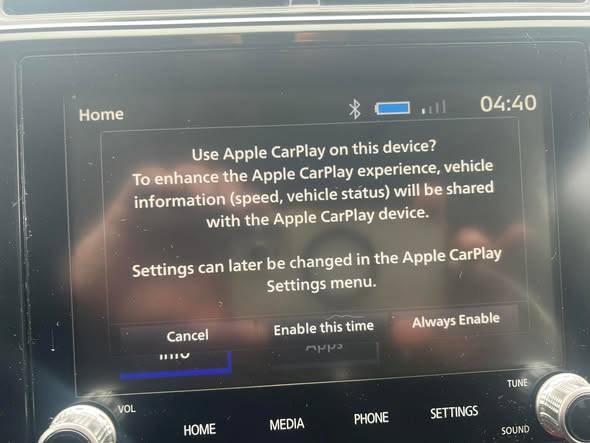
Why Is Mitsubishi Apple CarPlay Not Working?
Before diving into the solutions, it helps to understand why Apple CarPlay may suddenly stop functioning in your Mitsubishi. In many cases, the problem is not caused by a major hardware failure. Instead, relatively minor issues can interfere with the connection between your iPhone and the vehicle’s infotainment system.
Some of the most common causes include damaged or uncertified Lightning cables, temporary software glitches, outdated iOS versions, disabled Siri settings, corrupted CarPlay configurations, and infotainment systems that require software updates. Even something as simple as dirt inside the vehicle’s USB port can prevent CarPlay from establishing a stable connection.
Identifying the root cause of the problem can save you both time and money. Rather than replacing expensive components unnecessarily, a systematic troubleshooting approach often leads to a quick and effective solution. The following fixes are arranged from the simplest methods to more advanced troubleshooting steps, allowing you to restore Apple CarPlay functionality as efficiently as possible.
1. Check Whether Your Mitsubishi Supports Apple CarPlay
One of the first things you should verify is whether your specific Mitsubishi model and model year support Apple CarPlay. While many newer Mitsubishi vehicles come equipped with this feature as standard equipment, older models may not offer CarPlay compatibility or may require a software upgrade provided by an authorized Mitsubishi dealership.
If you recently purchased a used Mitsubishi, it is possible that you assumed Apple CarPlay was available without confirming the vehicle’s specifications. Reviewing your owner’s manual or checking the infotainment system settings can quickly clarify whether CarPlay is supported.
In some situations, drivers spend hours troubleshooting connection problems only to discover that their vehicle requires a software update before CarPlay can function properly. Taking a few minutes to confirm compatibility can prevent unnecessary frustration and help you focus on the appropriate solution.
If your Mitsubishi does support Apple CarPlay, proceed with the next troubleshooting steps to identify the exact cause of the issue.
2. Restart Your iPhone and Mitsubishi Infotainment System
Although it may sound overly simple, restarting both your iPhone and your Mitsubishi’s infotainment system is often one of the most effective ways to resolve temporary CarPlay malfunctions.
Smartphones and infotainment systems continuously run multiple background processes. Occasionally, these processes encounter minor software conflicts that interrupt communication between the two devices. A complete restart clears temporary memory and refreshes the operating systems, allowing them to reconnect properly.
Begin by turning off your iPhone completely. Wait approximately thirty seconds before turning it back on. Next, restart your Mitsubishi’s infotainment system according to the instructions outlined in your owner’s manual. Some systems require holding the power button for several seconds, while others may need the vehicle to be turned off and restarted.
Once both devices have rebooted, reconnect your iPhone using the original Lightning cable and check whether Apple CarPlay launches normally.
Many drivers overlook this basic troubleshooting step because it appears too straightforward. However, a simple restart has resolved countless CarPlay issues without requiring additional repairs, software updates, or professional assistance.
3. Use an Apple Certified Lightning Cable
A faulty or low quality Lightning cable is one of the most overlooked reasons why Apple CarPlay stops working in Mitsubishi vehicles. Many drivers assume that if their iPhone is charging properly, the cable must also support CarPlay. Unfortunately, that is not always the case.
Apple CarPlay requires both power transmission and stable data transfer. Some third party cables are designed only for charging and lack the capability to maintain the data connection necessary for CarPlay to function correctly. Additionally, cables that are bent, frayed, or internally damaged may cause intermittent connection failures that can be difficult to diagnose.
If your Mitsubishi Apple CarPlay keeps disconnecting, fails to launch, or only works occasionally, try replacing your current cable with an Apple certified Lightning cable. Using the original cable that came with your iPhone is often the safest option. If you need a replacement, look for products that carry the “Made for iPhone” certification to ensure compatibility.
Many Mitsubishi owners spend time troubleshooting software settings when the actual problem lies in a damaged cable. Before moving on to more advanced solutions, it is worth investing a few minutes in testing a different Lightning cable to determine whether it resolves the issue.
4. Make Sure Siri Is Enabled on Your iPhone
Siri plays a critical role in the operation of Apple CarPlay. If Siri has been disabled on your iPhone, CarPlay may fail to launch or function improperly when connected to your Mitsubishi’s infotainment system.
To verify that Siri is enabled, open the Settings app on your iPhone and navigate to the Siri section. Ensure that the options allowing Siri to respond to voice commands and button activation are turned on. Depending on your version of iOS, the wording of these settings may vary slightly.
Some users disable Siri for privacy reasons or accidentally turn it off while adjusting other device settings. After major iOS updates, it is also a good idea to confirm that Siri remains active, as certain preferences may change during the update process.
Once Siri has been enabled, disconnect your iPhone from the vehicle and reconnect it to test whether Apple CarPlay begins functioning normally. This quick adjustment has helped many drivers restore CarPlay access without requiring any additional troubleshooting.
If CarPlay still does not work after enabling Siri, proceed to the next step to review your CarPlay permissions.
5. Allow Apple CarPlay While Your iPhone Is Locked
Another setting that frequently causes connection problems is the restriction that prevents Apple CarPlay from operating when the iPhone is locked. If this feature has been disabled, your Mitsubishi may recognize the device but fail to activate CarPlay properly.
To check this setting, open the Settings app on your iPhone, select General, then tap CarPlay. Choose your Mitsubishi from the list of connected vehicles and confirm that the option allowing CarPlay while locked is enabled.
When this permission is turned off, the infotainment system may repeatedly attempt to establish a connection without success. Drivers often interpret this behavior as a hardware problem when the solution is simply adjusting a single setting on the phone.
After enabling the feature, disconnect your iPhone from the USB port and reconnect it once more. In many cases, CarPlay will launch immediately after the updated permission takes effect.
Because this setting can easily be changed accidentally, especially after software updates or device resets, it should always be included in your troubleshooting checklist whenever Mitsubishi Apple CarPlay is not working as expected.
6. Forget and Reconnect Your Mitsubishi Vehicle
If Apple CarPlay previously worked in your Mitsubishi but suddenly stopped connecting, the issue may stem from a corrupted connection profile. Over time, software updates, interrupted pairing processes, or synchronization errors can interfere with the relationship between your iPhone and the infotainment system.
To address this problem, remove your Mitsubishi from the list of saved CarPlay vehicles on your iPhone. Open the Settings app, navigate to General, select CarPlay, and choose your Mitsubishi from the available devices. From there, remove the vehicle from your saved connections.
Next, access your Mitsubishi’s infotainment settings and delete your iPhone from the list of paired devices. Once both devices have been cleared, restart your iPhone and the infotainment system before attempting to establish a fresh connection.
Setting up the connection from the beginning often eliminates hidden software conflicts that cannot be resolved through simple restarts. Although the process requires a few extra minutes, it has proven to be an effective solution for many drivers experiencing persistent CarPlay failures.
If reconnecting the devices does not restore functionality, your iPhone software may require attention.
7. Update Your iPhone to the Latest Version of iOS
Apple regularly releases iOS updates that include bug fixes, performance improvements, and compatibility enhancements for Apple CarPlay. Running an outdated version of iOS may prevent your iPhone from communicating properly with your Mitsubishi’s infotainment system.
To check for updates, open the Settings app on your iPhone, select General, and tap Software Update. If a newer version of iOS is available, back up your important data and install the update following Apple’s instructions.
While updates often resolve known CarPlay issues, it is important to recognize that newly released versions of iOS can occasionally introduce temporary compatibility problems as well. If you notice that CarPlay stopped working immediately after updating your iPhone, searching for reports from other Mitsubishi owners experiencing similar issues may provide valuable insight.
After completing the update, reconnect your iPhone to your Mitsubishi and verify whether Apple CarPlay functions correctly. In many cases, keeping your device up to date ensures optimal compatibility with your vehicle’s software.
Regularly updating your iPhone not only improves CarPlay performance but also strengthens device security and overall reliability.
8. Check for Mitsubishi Infotainment Software Updates
Many drivers focus exclusively on their smartphones during troubleshooting and overlook the importance of the vehicle’s software. Just like mobile devices, Mitsubishi infotainment systems may require periodic updates to maintain compatibility with evolving technologies such as Apple CarPlay.
Software updates released by Mitsubishi can address known bugs, improve system stability, and enhance communication between the infotainment unit and connected devices. If your vehicle has never received an update since purchase, outdated software could be contributing to your CarPlay problems.
Consult your owner’s manual to determine whether your Mitsubishi supports user initiated updates. Some systems allow updates through USB drives, while others require assistance from an authorized Mitsubishi service center.
If you are uncertain about your vehicle’s current software version, contacting your local dealership can help clarify whether updates are available. In some cases, a relatively simple software upgrade can restore CarPlay functionality without the need for hardware replacement.
Drivers often assume that infotainment systems remain unchanged throughout a vehicle’s lifespan. However, maintaining updated software is an important part of ensuring that modern connectivity features continue operating smoothly and reliably.
9. Inspect the Vehicle’s USB Port for Damage or Debris
If you have already tested different Lightning cables and confirmed that your iPhone settings are configured correctly, the next step is to examine your Mitsubishi’s USB port. Although it is often overlooked, the USB port serves as the critical connection point between your smartphone and the infotainment system.
Over time, dust, lint, and other debris can accumulate inside the port, interfering with the transfer of data required for Apple CarPlay to function properly. In other situations, repeated use may cause the internal components of the port to loosen or wear out.
Carefully inspect the USB port using a flashlight. If you notice visible debris, clean the area gently using compressed air or a soft, non-metallic tool designed for electronic devices. Avoid inserting sharp objects into the port, as doing so could cause permanent damage.
Pay attention to warning signs that may indicate a failing USB port. If your iPhone charges inconsistently, disconnects whenever the vehicle moves over bumps, or only establishes a connection when the cable is held at a specific angle, the port itself may require professional inspection.
Addressing a damaged USB port early can prevent ongoing frustration and ensure a more stable Apple CarPlay experience in the future.
10. Reset the Mitsubishi Infotainment System
If none of the previous troubleshooting methods have resolved the issue, performing a reset of the Mitsubishi infotainment system may be your final step before seeking professional assistance.
A system reset restores the infotainment unit to its default settings, potentially eliminating software conflicts, corrupted data, or hidden configuration errors that prevent Apple CarPlay from operating correctly. Depending on your Mitsubishi model, the reset process may vary, so it is advisable to consult your owner’s manual for model-specific instructions.
Before initiating the reset, keep in mind that saved preferences such as paired Bluetooth devices, radio presets, and personalized settings may be erased. Taking note of these settings beforehand can save time during the reconfiguration process.
After completing the reset, reconnect your iPhone and go through the CarPlay setup process as if connecting for the first time. Many drivers have reported that this approach successfully restored CarPlay functionality after other troubleshooting methods failed.
Although resetting the infotainment system should generally be considered a last resort, it can often resolve persistent software issues without requiring costly repairs.
When Should You Visit a Mitsubishi Dealer?
While most Apple CarPlay problems can be fixed through the solutions outlined above, certain situations warrant professional diagnosis. If multiple iPhones fail to connect to the infotainment system, the USB port no longer functions correctly, or the system experiences frequent crashes and freezes, a dealership visit may be necessary.
Authorized Mitsubishi technicians have access to specialized diagnostic equipment and manufacturer-specific software updates that are not always available to the general public. They can determine whether the problem is related to hardware failure, outdated firmware, or a more complex electrical issue within the vehicle.
If your Mitsubishi is still covered under warranty, scheduling an appointment promptly may help you avoid unnecessary repair expenses. Delaying service could allow minor problems to develop into more significant issues over time.
Seeking professional assistance should not be viewed as a sign of failure. Instead, it is a practical step when basic troubleshooting no longer produces results.
Frequently Asked Questions
Why does my Mitsubishi Apple CarPlay keep disconnecting?
Frequent disconnections are commonly caused by damaged Lightning cables, loose USB ports, software bugs, or outdated versions of iOS. Testing a certified cable and ensuring that both your iPhone and infotainment system are up to date can often resolve the problem.
Can an iOS update cause Apple CarPlay issues?
Yes. While iOS updates frequently improve compatibility and address known bugs, some users may temporarily experience new CarPlay problems immediately after installing a major update. Apple typically releases follow-up patches to correct these issues.
Does Mitsubishi charge for infotainment software updates?
The answer depends on your vehicle’s warranty status and dealership policies. Some updates may be performed at no cost, while others could involve service fees. Contact your local Mitsubishi dealership for accurate information regarding your specific model.
Can I use wireless Apple CarPlay in my Mitsubishi?
Wireless Apple CarPlay availability varies by Mitsubishi model and model year. Some newer vehicles support wireless connectivity, while others require a wired USB connection to access CarPlay features.
Which Mitsubishi models support Apple CarPlay?
Apple CarPlay support is available on many recent Mitsubishi vehicles, including selected versions of the Outlander, Eclipse Cross, and other models. Because features vary depending on production year and trim level, consulting your owner’s manual or contacting a Mitsubishi dealership is recommended.
Conclusion
Dealing with a Mitsubishi Apple CarPlay not working issue can be incredibly frustrating, especially when you depend on CarPlay for navigation, communication, music streaming, and hands-free convenience during your daily commute. Fortunately, in most cases, the problem can be traced back to relatively simple causes rather than major mechanical failures.
By working through the ten troubleshooting methods outlined in this guide, you can systematically identify the source of the issue and restore your Apple CarPlay connection. From checking your Lightning cable and verifying Siri settings to updating your iPhone and resetting the infotainment system, each step is designed to eliminate common obstacles that prevent CarPlay from functioning properly.
Patience is important throughout the troubleshooting process. While some fixes may resolve the problem within minutes, others may require a bit more time and attention. The key is to approach each solution methodically instead of jumping straight to costly repairs or unnecessary component replacements.
If you have exhausted all available troubleshooting options and Apple CarPlay still refuses to work, do not hesitate to seek assistance from an authorized Mitsubishi dealership. Professional technicians can perform advanced diagnostics and apply manufacturer-approved updates that may not be accessible to vehicle owners.
Have you experienced Apple CarPlay issues in your Mitsubishi? Share your experience and let other drivers know which solution worked for you. Your insights may help someone else get back on the road with a fully functioning infotainment system.