Apple CarPlay has become one of the most useful features in modern vehicles, allowing drivers to seamlessly integrate their iPhone with their car’s infotainment system. From accessing turn by turn navigation and making hands free calls to streaming music and sending messages through Siri, Apple CarPlay helps you stay connected while keeping your focus on the road.
However, many Mitsubishi owners find the initial setup process confusing. You may be wondering whether your Mitsubishi model supports Apple CarPlay, which USB port to use, or why your iPhone is not connecting properly. These common issues can quickly turn excitement into frustration, especially if you are eager to take advantage of the convenience that CarPlay offers.
The good news is that connecting Apple CarPlay in most Mitsubishi vehicles is a straightforward process once you know the correct steps. In this guide, you will learn exactly how to set up Apple CarPlay in your Mitsubishi, what you need before getting started, and how to troubleshoot common connection problems. Whether you drive an Outlander, Eclipse Cross, Pajero Sport, or another compatible Mitsubishi model, this step by step guide will help you get Apple CarPlay up and running in just a few minutes.
What You Need Before Connecting Apple CarPlay in Mitsubishi
Before you begin the setup process, it is important to ensure that both your vehicle and your iPhone meet the necessary requirements. Taking a few minutes to verify these details can save you time and prevent common connection issues.
First, confirm that your Mitsubishi model supports Apple CarPlay. Many newer Mitsubishi vehicles come equipped with this feature, including selected versions of the Outlander, Eclipse Cross, Pajero Sport, and other recent models. Since availability may vary depending on the model year and trim level, checking your owner’s manual is always a good idea.
Next, make sure you are using a compatible iPhone. Apple CarPlay works with iPhone 5 and later models running a supported version of iOS. Updating your device to the latest software version is recommended because system updates often include performance improvements and bug fixes related to CarPlay functionality.
You will also need a high quality Lightning cable if your Mitsubishi uses a wired CarPlay connection. Using an original Apple cable or an MFi certified accessory can help ensure a stable connection between your iPhone and the vehicle’s infotainment system.
Finally, verify that Siri is enabled on your iPhone. Apple CarPlay relies heavily on Siri for voice commands and hands free control. To check this setting, open the Settings app, tap Siri, and make sure the available Siri options are turned on.
Having these essentials ready before you start will make the setup process much smoother and allow you to enjoy all the features Apple CarPlay has to offer.
Step by Step Guide: How to Connect Apple CarPlay in Mitsubishi
Connecting Apple CarPlay in Mitsubishi vehicles is generally quick and straightforward. Follow the steps below to complete the setup successfully.
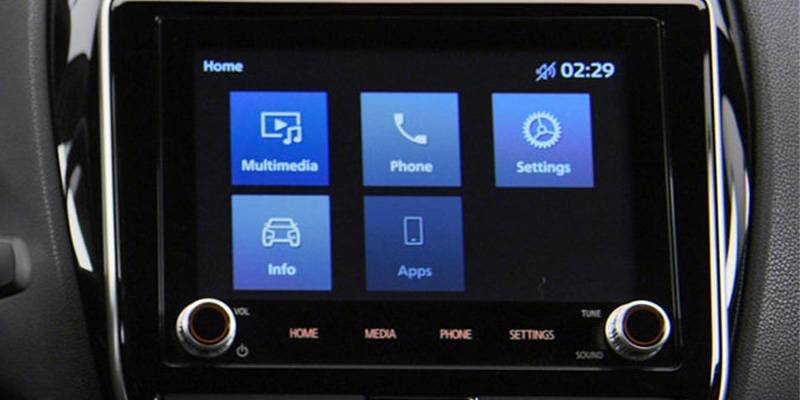
Begin by starting your Mitsubishi and allowing the infotainment system to fully load. The display screen should be active and ready to recognize external devices.
Next, locate the designated USB port that supports smartphone connectivity. In many Mitsubishi models, not all USB ports are compatible with Apple CarPlay, so refer to your owner’s manual if you are unsure which port to use.
Using your Lightning cable, connect your iPhone to the appropriate USB port. Within a few moments, a notification should appear on the infotainment screen asking whether you would like to enable Apple CarPlay.
Select the option to activate Apple CarPlay. At the same time, your iPhone may display a message requesting permission to use CarPlay while the phone is locked. Tap “Allow” to continue.
If prompted, confirm that Siri is enabled on your device. Since Siri plays an essential role in the Apple CarPlay experience, the system may require this feature to be activated before proceeding.
Once the setup is complete, the Apple CarPlay interface should appear on your Mitsubishi display screen. You can now access supported applications directly through the vehicle’s touchscreen controls or by using voice commands through Siri.
The entire process usually takes only a few minutes. After the initial setup, your iPhone should reconnect automatically whenever it is plugged into the vehicle.
How to Use Apple CarPlay Features in Your Mitsubishi
After successfully connecting Apple CarPlay, you can take advantage of several features designed to enhance convenience and reduce distractions while driving.
One of the most popular functions is navigation. Apple Maps allows you to receive real time traffic updates, estimated arrival times, and turn by turn directions directly from the infotainment display. Depending on your preferences, other compatible navigation apps may also be available through CarPlay.
Communication is another major benefit. With Siri, you can make phone calls, listen to voicemail messages, dictate text messages, and respond to incoming messages without taking your hands off the steering wheel. Simply activate Siri using the voice control button and speak your request naturally.
Entertainment options are equally impressive. Apple Music, Podcasts, and a variety of third party audio applications can be accessed through the CarPlay interface. Whether you enjoy listening to your favorite playlists during your commute or catching up on podcasts during a road trip, CarPlay helps keep everything within easy reach.
Siri can also assist with everyday tasks. You can ask questions, set reminders, check the weather, or locate nearby destinations such as gas stations and restaurants. This hands free functionality contributes to a safer driving experience by minimizing the need to interact directly with your phone.
Learning how to use these features effectively can transform your daily drive, making every journey more convenient, connected, and enjoyable.
Mitsubishi Models That Support Apple CarPlay
Apple CarPlay availability in Mitsubishi vehicles depends on the model year, trim level, and regional specifications. While many newer Mitsubishi models include Apple CarPlay as either a standard or optional feature, it is always recommended to verify compatibility through your owner’s manual or an authorized Mitsubishi dealership.
The Mitsubishi Outlander is one of the most popular models equipped with Apple CarPlay. Recent generations of the Outlander offer seamless smartphone integration, allowing drivers to access navigation, communication, and entertainment features directly from the vehicle’s touchscreen display.
The Mitsubishi Eclipse Cross also supports Apple CarPlay on many trims. This compact SUV combines modern technology with practical functionality, making it easier for drivers to stay connected during daily commutes and longer road trips.
In some markets, newer versions of the Mitsubishi Pajero Sport and Mitsubishi Triton include Apple CarPlay compatibility. Depending on the specific configuration, certain models may support wired connectivity while others may offer wireless functionality.
If you own an older Mitsubishi vehicle, Apple CarPlay may not be available from the factory. However, aftermarket infotainment upgrades could provide an alternative solution. Before considering any modifications, consult with qualified automotive professionals to determine whether your vehicle can safely accommodate a compatible replacement system.
Knowing whether your Mitsubishi supports Apple CarPlay is the first step toward enjoying a smarter and more connected driving experience.
Apple CarPlay Not Working in Mitsubishi? Common Fixes to Try
Even though Apple CarPlay is designed to work smoothly, occasional connection problems can occur. Fortunately, most issues can be resolved with a few simple troubleshooting steps.
Start by checking your Lightning cable. Damaged, worn, or low quality cables are among the most common causes of connection failures. Using an original Apple cable or an MFi certified accessory can improve reliability and reduce interruptions.
Next, ensure that Siri is enabled on your iPhone. Since Apple CarPlay relies on Siri for voice control and certain functions, disabling this feature may prevent CarPlay from launching correctly.
Updating your iPhone to the latest version of iOS is another important step. Software updates frequently address bugs and compatibility issues that may affect Apple CarPlay performance.
If the problem persists, restart both your iPhone and your Mitsubishi infotainment system. Temporary software glitches can often be resolved by performing a simple reboot.
You can also remove the existing CarPlay connection and set it up again from the beginning. On your iPhone, open Settings, tap General, select CarPlay, choose your Mitsubishi vehicle, and then select the option to forget the connection. Afterward, reconnect your device following the setup instructions outlined earlier in this guide.
Finally, verify that you are using the correct USB port if your Mitsubishi supports wired Apple CarPlay. Some ports are designed solely for charging and do not transfer data required for CarPlay functionality.
If none of these solutions resolve the issue, contacting an authorized Mitsubishi service center may help identify potential hardware or software concerns within the vehicle’s infotainment system.
Frequently Asked Questions About Mitsubishi Apple CarPlay
Can I use Apple CarPlay wirelessly in my Mitsubishi?
Wireless Apple CarPlay availability depends on the specific Mitsubishi model and model year. Some newer vehicles offer wireless connectivity, while others require a wired connection through a USB port. Refer to your owner’s manual for details regarding your vehicle.
Why is Apple CarPlay not showing up on my Mitsubishi screen?
Several factors may prevent Apple CarPlay from appearing. Common causes include using an incompatible USB cable, connecting to the wrong USB port, outdated iPhone software, disabled Siri settings, or a vehicle that does not support Apple CarPlay.
Does Apple CarPlay cost extra?
Apple CarPlay itself is a free feature provided by Apple. However, its availability depends on your Mitsubishi’s equipment level. If your vehicle was not originally equipped with Apple CarPlay, installing an aftermarket system may involve additional expenses.
Can I install Apple CarPlay in an older Mitsubishi?
In some cases, yes. Many older Mitsubishi models can be upgraded using compatible aftermarket infotainment systems. It is important to consult experienced installers to ensure compatibility with your vehicle’s existing electronics and controls.
What apps can I use with Apple CarPlay?
Apple CarPlay supports a wide range of applications, including Apple Maps, Phone, Messages, Apple Music, Podcasts, and selected third party apps such as Spotify. Supported apps may vary depending on your region and the software version installed on your iPhone.
Is Apple CarPlay safe to use while driving?
When used responsibly, Apple CarPlay can contribute to safer driving habits. Voice commands through Siri allow drivers to perform essential tasks while keeping their attention focused on the road. Nevertheless, drivers should always prioritize safety and comply with local traffic regulations.
Conclusion
Learning how to connect Apple CarPlay in Mitsubishi vehicles is a simple process that can significantly improve your driving experience. With the right preparation and a few easy steps, you can integrate your iPhone with your Mitsubishi’s infotainment system and enjoy convenient access to navigation, communication, and entertainment features.
Before getting started, remember to confirm that your Mitsubishi model supports Apple CarPlay, ensure your iPhone is running the latest version of iOS, and use a reliable Lightning cable if a wired connection is required. Following the correct setup procedure can help you avoid common issues and get connected quickly.
If you encounter problems during the setup process, basic troubleshooting techniques such as checking your cable, enabling Siri, updating your software, or reconnecting your device can often resolve the issue without the need for professional assistance.
Apple CarPlay is designed to help drivers stay connected while minimizing distractions on the road. Whether you are using Apple Maps to navigate unfamiliar routes, streaming your favorite music during a long drive, or responding to important messages through Siri, this technology adds convenience and functionality to every journey.
Now that you know how to connect Apple CarPlay in Mitsubishi, you can make the most of your vehicle’s technology and enjoy a smarter, more enjoyable driving experience. If you still experience difficulties, consult your owner’s manual or contact an authorized Mitsubishi dealership for additional support.