Apple CarPlay is one of the most convenient features available in modern Jeep vehicles, allowing you to access navigation, music, phone calls, and messages directly from your infotainment screen. However, it can be incredibly frustrating when CarPlay suddenly stops working. You plug in your iPhone, but nothing happens. The screen fails to detect your device, wireless CarPlay keeps disconnecting, or the connection disappears after an iOS update. These issues can interrupt your drive and leave you without the apps you rely on every day.
The good news is that most Jeep CarPlay not working problems are caused by simple software glitches, incorrect settings, outdated firmware, or faulty USB accessories rather than expensive hardware failures. In many cases, you can restore your connection in just a few minutes without visiting a dealership or paying for repairs.
This comprehensive guide walks you through 12 proven fixes that have helped thousands of Jeep owners resolve Apple CarPlay issues. Whether you drive a Jeep Wrangler, Grand Cherokee, Gladiator, Compass, Cherokee, Renegade, or another Uconnect-equipped model, these troubleshooting steps will help you identify the root cause and get Apple CarPlay working again. We’ll begin with the quickest solutions and gradually move to more advanced fixes, ensuring you can solve the problem as efficiently as possible.
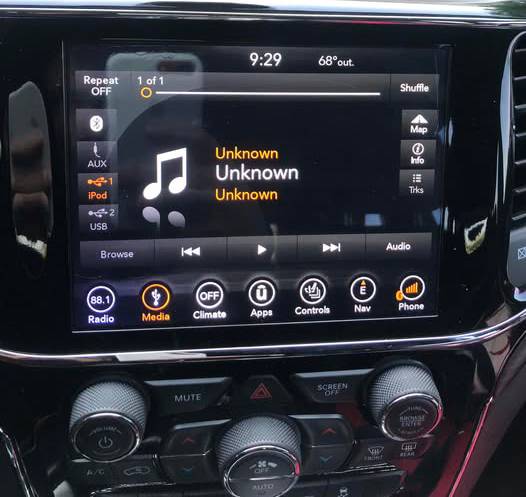
1. Make Sure Your Jeep Supports Apple CarPlay
Before changing your iPhone settings or resetting the Uconnect system, confirm that your Jeep actually supports Apple CarPlay. This may sound obvious, but compatibility is one of the most commonly overlooked causes of a Jeep CarPlay not working problem.
Apple CarPlay is not available on every Jeep model, model year, trim level, or infotainment configuration. Two Jeep vehicles that look nearly identical may have different Uconnect systems, and only one may support smartphone integration. Older vehicles may also have a touchscreen and Bluetooth calling without having native Apple CarPlay capability.
Start by checking the owner’s manual or the infotainment section of your Jeep’s documentation. You can also inspect the Apps or Phone menu on the Uconnect screen. A compatible system may display an Apple CarPlay option or prompt you to connect a supported smartphone.
Another quick method is to connect your iPhone to the correct USB data port while the vehicle is running. Some Jeep models have several USB ports, but not all of them transmit data. A port located inside the center console or intended mainly for rear passengers may charge your phone without launching CarPlay. Look for a USB port marked with a smartphone symbol or another connectivity icon.
You can also open the Settings app on your iPhone and go to General, followed by CarPlay. If your Jeep has been connected successfully before, its name may appear under My Cars. Apple recommends verifying that both the vehicle and the user’s region support CarPlay before moving to more advanced troubleshooting.
Compatibility may also depend on whether your Jeep has its original factory infotainment system. If a previous owner installed an aftermarket stereo, the setup process may be different. Some aftermarket receivers support wired CarPlay, some support wireless CarPlay, and others require a separate adapter.
Do not assume that Bluetooth connectivity automatically means your Jeep supports wireless Apple CarPlay. Standard Bluetooth may allow phone calls and audio streaming, while CarPlay requires additional hardware and software. Likewise, a Jeep that supports wired CarPlay may not support a native wireless connection.
If your Jeep has never launched CarPlay, compatibility should be your first concern. If CarPlay worked normally in the past and suddenly stopped, compatibility is probably not the root cause. In that situation, move to the next fixes involving your iPhone, cable, USB port, permissions, and Uconnect software.
Confirming compatibility early can save you from repeatedly changing settings that were never responsible for the problem.
2. Restart Your iPhone
A simple iPhone restart is one of the fastest and most effective ways to fix temporary Apple CarPlay problems. It may seem too basic, but many connection failures are caused by a frozen background process, a temporary Bluetooth error, a Wi Fi communication problem, or an app that has stopped responding correctly.
Your iPhone manages several systems when connecting to CarPlay. Depending on your Jeep, the connection may involve a USB data link, Bluetooth pairing, Wi Fi communication, Siri, location services, and the Uconnect interface. A small software conflict in any of these areas can prevent CarPlay from launching, even when the phone appears to work normally.
Before restarting the phone, safely park your Jeep and disconnect the USB cable. If you are using wireless CarPlay, turn the vehicle off or disconnect the phone from Uconnect first.
On an iPhone with Face ID, press and hold either volume button together with the side button until the power slider appears. Drag the slider and wait for the iPhone to turn off completely. After approximately 30 seconds, press and hold the side button until the Apple logo appears.
On an iPhone with a Home button, press and hold the side or top button until the power slider appears. Turn the phone off, wait briefly, and then power it back on.
Once the iPhone has restarted, unlock it before attempting to reconnect. Start your Jeep, allow the Uconnect system to load fully, and then reconnect the phone. For a wired connection, plug the cable into the correct USB data port. For a wireless connection, make sure Bluetooth and Wi Fi are enabled.
Do not rush through the process. Some infotainment systems require several seconds to recognize an iPhone after startup. Connecting the phone while Uconnect is still booting may occasionally cause the system to miss the device.
A restart is particularly useful when CarPlay stopped working after one of the following situations:
- The iPhone became unusually warm.
- Several apps were running at the same time.
- Bluetooth stopped detecting nearby devices.
- CarPlay froze while using navigation or music.
- The phone was recently updated.
- CarPlay worked earlier in the day but suddenly disappeared.
- The Uconnect screen recognized the phone but failed to open CarPlay.
Apple’s troubleshooting guidance recommends restarting both the iPhone and the vehicle when CarPlay does not work as expected.
If restarting restores the connection, the problem was probably a temporary software glitch rather than a damaged cable or infotainment component. However, if the same issue keeps returning every few days, another underlying problem may be present. Frequent failures can be linked to an unstable USB cable, outdated software, wireless interference, corrupted pairing data, or a failing USB module.
Restarting your iPhone should therefore be treated as both a potential fix and a diagnostic step. When it works only temporarily, continue through the remaining solutions to find the actual cause.
3. Check Your USB Cable
If you use wired Apple CarPlay, the USB cable is one of the most likely reasons the system is not connecting. A cable may still charge your iPhone while failing to transfer the data required for CarPlay. This creates one of the most confusing symptoms for Jeep owners because the charging icon appears, yet nothing happens on the Uconnect screen.
Charging and data transfer are not the same function. Some low quality cables are designed mainly for power delivery. Others contain damaged or worn internal data wires even though the exterior looks normal. As a result, your iPhone may gain battery power while the Jeep cannot establish a stable CarPlay connection.
Apple recommends connecting an iPhone through the vehicle’s USB port with a suitable Apple USB cable when setting up wired CarPlay.
Begin by unplugging the cable from both the iPhone and the Jeep. Examine the connectors carefully. Look for bent metal, discoloration, corrosion, dirt, loose fittings, or damage near either end. Pay special attention to the area where the cable enters the connector because repeated bending often weakens the internal wiring.
Next, reconnect the cable firmly. A partially inserted connector may provide enough contact for intermittent charging but not enough for reliable data transfer. Remove any thick phone case that could prevent the plug from seating completely.
If Jeep CarPlay is still not working, test another cable. Ideally, use an original Apple cable or a reputable cable designed to support both charging and data transfer. Owners using Lightning connectors should consider an MFi certified accessory. MFi certification indicates that an accessory is designed to meet Apple’s performance requirements.
Avoid connecting the phone through an extension cable, USB hub, splitter, or low quality adapter during troubleshooting. Each additional connection point can create instability. Connect the iPhone directly to the Jeep’s USB data port whenever possible.
The type of cable you need depends on your iPhone and the ports installed in your Jeep. Some vehicles have USB A ports, while newer configurations may include USB C. Recent iPhone models also use USB C instead of Lightning. A cable that physically fits is not automatically guaranteed to provide the correct data performance.
Common signs of a faulty or unsuitable USB cable include:
- The iPhone charges, but CarPlay does not appear.
- CarPlay connects only when the cable is held at a certain angle.
- Music or navigation disconnects when the vehicle moves over a bump.
- The connection repeatedly switches between CarPlay and regular Bluetooth.
- Uconnect displays a device error.
- The phone connects for a few seconds and then disappears.
- The cable works for charging from a wall adapter but not for data transfer.
You should also test the cable with another compatible device or computer. If the computer does not recognize the iPhone, the cable may not support stable data transfer. Similarly, try connecting another iPhone to your Jeep using the same cable. This helps determine whether the problem follows the cable, the phone, or the vehicle.
Temperature can also affect an old or damaged cable. A connection that works when the cabin is cool but becomes unstable in hot conditions may indicate deteriorating internal components. Replacing the cable is usually faster and less expensive than attempting more advanced resets.
Keep the cable reasonably short and avoid tightly coiling it inside the center console. Constant bending, pulling, and compression can shorten its lifespan. If passengers regularly handle the cable, inspect it periodically for damage.
A high quality replacement cable solves many Jeep CarPlay not working cases immediately. If a second verified data cable produces the same result, the next step is to inspect the Jeep’s USB port. Dust, debris, port damage, or a faulty media hub can prevent Uconnect from communicating with your iPhone even when the cable is working correctly.
4. Inspect the Jeep USB Port
If replacing the USB cable does not solve the problem, the next component to inspect is the USB port inside your Jeep. A damaged or dirty port can interrupt the data connection required for Apple CarPlay, even though your iPhone continues to charge normally. Many drivers mistakenly assume the USB port is working simply because it supplies power, but charging and data communication rely on different internal connections.
Begin by identifying the correct USB port. Depending on your Jeep model, only one USB port may support Apple CarPlay, while additional ports are intended solely for charging rear passengers or powering accessories. Consult your owner’s manual if you are unsure which port supports data transfer.
With the engine turned off, use a flashlight to inspect the inside of the USB port. Dust, lint, food crumbs, or other debris can prevent the cable from making full contact with the data pins. If necessary, carefully remove loose debris using compressed air or a soft plastic cleaning tool. Never insert metal objects into the port because they can bend the internal connectors or create a short circuit.
After cleaning the port, reconnect your iPhone using a known working USB cable. Ensure the connector fits firmly without excessive movement. If the cable feels loose or disconnects when lightly touched, the USB port itself may have worn contacts that require professional repair.
Another useful test is connecting a different iPhone to the same USB port. If neither phone is recognized by Uconnect, the issue is more likely related to the vehicle than the phones themselves. Conversely, if another iPhone connects immediately, your original device may require additional troubleshooting.
Some Jeep owners also experience intermittent CarPlay failures caused by overheating inside the media hub. If CarPlay disconnects only after driving for an extended period, the USB module or infotainment hardware could be developing an internal fault. In these situations, temporary fixes may not provide a permanent solution.
Do not overlook physical damage around the USB port. Bent connectors, cracked trim panels, moisture exposure, or signs of corrosion can all interfere with reliable communication. Vehicles frequently driven in dusty environments or humid climates may require more frequent inspection and cleaning.
If the USB port appears damaged or fails to recognize multiple devices, the media hub may need to be replaced. Before scheduling a repair, continue with the remaining software-related troubleshooting steps because many CarPlay problems are still caused by configuration issues rather than hardware failure.
5. Enable Siri and Apple CarPlay Permissions
Apple CarPlay depends on Siri to function correctly. If Siri is disabled or certain permissions have been restricted, your Jeep may fail to launch CarPlay even when the USB connection is working perfectly. Fortunately, checking these settings only takes a few minutes.
Start by opening the Settings app on your iPhone. Tap Apple Intelligence & Siri or Siri, depending on your iOS version. Verify that Siri is enabled and that the options allowing Siri to respond to voice commands are turned on. If Siri has been completely disabled, Apple CarPlay may not initialize properly.
Next, navigate to Settings > General > CarPlay. Select your Jeep from the list of previously connected vehicles. Confirm that Allow CarPlay While Locked is enabled. If this option is disabled, your iPhone may refuse to establish a CarPlay session until the device is manually unlocked each time.
Screen Time restrictions can also block Apple CarPlay without displaying an obvious warning. Go to Settings > Screen Time > Content & Privacy Restrictions > Allowed Apps & Features and make sure CarPlay is permitted. Many users accidentally disable this feature while adjusting parental controls or privacy settings.
Another setting worth checking is Bluetooth. Even if you normally use wired CarPlay, Bluetooth may still be required during the initial pairing process on some Jeep models. Open Settings > Bluetooth and verify that Bluetooth remains enabled.
If you recently upgraded to a new iPhone or restored your device from a backup, some permissions may not have transferred correctly. Removing the existing CarPlay profile and setting up the connection again often resolves these hidden configuration conflicts.
Privacy settings can also interfere with CarPlay functionality. Features such as VPN applications, mobile device management profiles, or enterprise security software occasionally restrict communication between the iPhone and vehicle. If your phone is issued by an employer, certain security policies may intentionally disable Apple CarPlay.
Once all permissions have been verified, restart both your iPhone and the Jeep’s Uconnect system before attempting another connection. This ensures that any updated settings are fully applied.
Many users spend time replacing cables or resetting infotainment systems when the real issue is simply that Siri or CarPlay permissions have been disabled. Taking a few minutes to review these settings can eliminate unnecessary troubleshooting and quickly restore full functionality.
6. Remove and Reconnect Apple CarPlay
If Apple CarPlay worked previously but suddenly stopped connecting, the saved connection profile between your iPhone and Jeep may have become corrupted. Removing the existing pairing and creating a fresh connection often resolves communication problems caused by outdated settings or software updates.
Begin on your iPhone by opening Settings > General > CarPlay. Select your Jeep from the list of available vehicles and tap Forget This Car. Confirm your choice when prompted. This removes the saved CarPlay configuration but does not erase any personal data from your phone.
Next, open the Bluetooth settings on your iPhone and locate your Jeep under paired devices. Tap the information icon beside the vehicle name and choose Forget This Device. Removing both the CarPlay profile and the Bluetooth pairing helps eliminate conflicts that may prevent a successful reconnection.
Now move to your Jeep’s Uconnect system. Open the Phone or Device Manager menu and delete the saved iPhone from the list of paired devices. Some Uconnect versions also allow you to clear all paired phones if multiple unused devices have accumulated over time.
Once both devices have been cleared, restart your iPhone and the vehicle. Allow Uconnect to finish booting completely before beginning the pairing process again.
For a wired connection, plug your iPhone into the correct USB data port using a high quality cable. Follow the prompts that appear on both the infotainment screen and your iPhone. When asked whether you want to allow Apple CarPlay, select Allow.
If your Jeep supports wireless Apple CarPlay, first pair the phone through Bluetooth. After Bluetooth pairing is complete, the system may automatically switch to a Wi Fi connection for wireless CarPlay. Keep both Bluetooth and Wi Fi enabled throughout the setup process.
During reconnection, avoid interacting with multiple devices at the same time. If another family member’s phone automatically connects to the Jeep, temporarily disable Bluetooth on that device to prevent pairing conflicts.
A fresh pairing often resolves problems that appear after an iOS update, Uconnect software update, or iPhone replacement. Corrupted pairing data is a surprisingly common cause of intermittent CarPlay failures, especially when the connection repeatedly drops or never progresses beyond the initial detection screen.
If Apple CarPlay still refuses to connect after establishing a completely new pairing, the issue is likely related to outdated software, network settings, or the Uconnect firmware itself. The next troubleshooting steps focus on updating both your iPhone and Jeep to ensure maximum compatibility.
7. Restart the Jeep Uconnect System
Just like your iPhone or computer, the Jeep Uconnect infotainment system can occasionally experience temporary software glitches that interfere with Apple CarPlay. If the system has been running continuously or recently installed a software update, background processes may become unresponsive, preventing CarPlay from launching correctly.
A simple restart of the Uconnect system can clear temporary memory, restart essential services, and restore communication with your iPhone without affecting your saved settings or personal data.
The easiest method is to turn off your Jeep completely. Remove the key or press the engine stop button, exit the vehicle, close all doors, and wait for several minutes before restarting the engine. Many Uconnect systems continue running for a short period after the engine is turned off, so allowing the system to shut down completely is important.
After restarting the vehicle, wait until the Uconnect home screen finishes loading before connecting your iPhone. Connecting the phone too early while the infotainment system is still initializing may cause CarPlay to fail during the startup sequence.
Some Jeep models also support a soft reboot of the Uconnect system. Depending on the Uconnect version installed in your vehicle, you may be able to restart the infotainment system by pressing and holding the power or volume knob for approximately 10 to 20 seconds until the screen turns black and the Jeep logo reappears. Once the system finishes rebooting, reconnect your iPhone and check whether Apple CarPlay launches normally.
If your Uconnect system frequently freezes, reboots unexpectedly, or responds slowly even when CarPlay is not connected, the issue may extend beyond Apple CarPlay itself. General infotainment instability often indicates outdated firmware or software corruption that should be addressed through an official system update.
A Uconnect restart is particularly effective if your symptoms include:
- CarPlay never appears after plugging in the phone.
- The touchscreen becomes frozen.
- The system continuously displays “Connecting.”
- Audio works but the CarPlay interface never loads.
- The screen goes black after selecting Apple CarPlay.
- Wireless CarPlay repeatedly disconnects after a few seconds.
Because restarting the infotainment system requires only a few minutes and carries virtually no risk, it should always be completed before attempting more advanced troubleshooting procedures.
8. Update Your iPhone to the Latest Version of iOS
Apple regularly releases iOS updates that improve Apple CarPlay performance, fix known software bugs, and enhance compatibility with vehicle infotainment systems. If your Jeep CarPlay stopped working shortly after an update or has not worked correctly for several months, installing the latest version of iOS may resolve the issue.
Start by connecting your iPhone to a stable Wi Fi network and ensuring the battery is sufficiently charged or connected to a charger. Open Settings > General > Software Update and check whether a newer version of iOS is available.
If an update is available, download and install it. The process may take several minutes depending on the size of the update and your internet connection. Once installation is complete, restart your iPhone before reconnecting it to your Jeep.
Software updates often include bug fixes specifically related to Bluetooth communication, USB connectivity, Siri functionality, and wireless networking. Since Apple CarPlay depends on all of these services working together, even a minor software correction can restore normal operation.
If your CarPlay problems started immediately after installing a new iOS version, you are not necessarily dealing with a permanent compatibility issue. Occasionally, the first restart after a major update leaves temporary background services in an unstable state. Performing another restart or removing and reconnecting the CarPlay profile may resolve the problem without additional repairs.
It is equally important to verify that your iPhone is officially supported by both Apple CarPlay and your Jeep’s infotainment system. Very old iPhone models running outdated versions of iOS may not support newer CarPlay features, while newly released iPhones sometimes require updated Uconnect software for full compatibility.
If no software update is available, confirm that automatic updates are enabled. Keeping your iPhone up to date helps reduce future compatibility issues and ensures you receive Apple’s latest security patches and performance improvements.
After updating iOS, reconnect your iPhone using a certified USB cable or reconnect it through wireless CarPlay if your Jeep supports that feature. In many cases, users find that Apple CarPlay begins working normally again immediately after both devices are running the latest software.
9. Update Jeep Uconnect Software
Updating your iPhone alone may not be enough if your Jeep’s infotainment system is running outdated firmware. Jeep periodically releases Uconnect software updates that improve overall system stability, enhance smartphone compatibility, and resolve known Apple CarPlay issues. If your vehicle has not received a software update for an extended period, installing the latest version could solve persistent connection problems.
Many drivers rarely think about updating their vehicle’s infotainment software. Unlike smartphones, vehicle software often remains unchanged for years unless the owner actively checks for updates or visits a dealership. As Apple continues improving iOS, older Uconnect software may eventually struggle to communicate properly with newer iPhone models.
Depending on your Jeep model and Uconnect version, software updates may be available over the air or require installation through a USB drive. Some updates can also be performed by an authorized Jeep dealership during routine maintenance.
Before beginning an update, ensure your vehicle has sufficient battery power or keep the engine running if recommended by the manufacturer. Interrupting a software installation may cause the infotainment system to malfunction or require professional recovery.
Once the update has been successfully installed, restart the Uconnect system and reconnect your iPhone from scratch. Even if the update process does not automatically erase existing pairings, creating a fresh Apple CarPlay connection is recommended to eliminate any remaining compatibility conflicts.
Updating Uconnect can resolve problems such as:
- Apple CarPlay not launching.
- Frequent connection failures.
- Wireless CarPlay instability.
- Audio delays during navigation.
- Unexpected infotainment freezes.
- Poor compatibility after upgrading to a newer iPhone.
If your Jeep continues experiencing Apple CarPlay issues after both iOS and Uconnect have been fully updated, the remaining troubleshooting steps focus on resetting network settings, diagnosing wireless interference, and identifying possible hardware faults.
Keeping both your iPhone and Uconnect software current is one of the best long term strategies for maintaining a reliable Apple CarPlay experience. Regular updates not only improve compatibility but also introduce performance enhancements, security improvements, and bug fixes that help prevent similar issues from occurring in the future.
10. Reset iPhone Network Settings
If Apple CarPlay still refuses to connect after checking your USB cable, updating iOS, and restarting the Uconnect system, your iPhone’s network configuration may be the source of the problem. Wireless Apple CarPlay relies on Bluetooth and Wi Fi working together, while even wired CarPlay may use Bluetooth during the pairing process on certain Jeep models. Corrupted network settings can prevent your iPhone from communicating properly with the infotainment system.
Resetting your network settings clears saved Wi Fi networks, Bluetooth pairings, VPN configurations, and other network-related preferences without deleting your photos, apps, or personal files.
To perform the reset, open Settings > General > Transfer or Reset iPhone > Reset > Reset Network Settings. Enter your passcode when prompted and confirm the reset. Your iPhone will automatically restart after the process is complete.
Once the phone powers back on, reconnect it to your preferred Wi Fi network and enable Bluetooth if it has not been turned on automatically. Then return to your Jeep and pair your iPhone with the Uconnect system as if it were a new device.
Because all previous Bluetooth connections have been removed, you will need to reconnect accessories such as wireless headphones, smartwatches, or other vehicles. Although this takes a few extra minutes, it often resolves hidden communication issues that cannot be fixed by simply restarting the phone.
Network settings may become corrupted after major iOS upgrades, device transfers, backup restorations, or repeated pairing attempts with multiple vehicles. If your Jeep previously connected without problems but suddenly stopped recognizing your iPhone, a network reset is often worth trying before assuming there is a hardware failure.
After completing the reset, test both wired and wireless Apple CarPlay if your Jeep supports both connection methods. If one method works while the other does not, you have narrowed the problem to either the wireless communication settings or the physical USB connection.
If resetting network settings does not restore Apple CarPlay, the next step is to determine whether wireless interference or Bluetooth conflicts are preventing a stable connection.
11. Troubleshoot Wireless Apple CarPlay Issues
Wireless Apple CarPlay offers greater convenience because you can leave your iPhone in your pocket while driving. However, it also introduces additional variables that can affect connection stability. Unlike wired CarPlay, wireless CarPlay depends on Bluetooth for initial pairing and Wi Fi for high-speed data transmission. If either connection becomes unstable, CarPlay may disconnect unexpectedly or fail to launch altogether.
The first step is to verify that both Bluetooth and Wi Fi are enabled on your iPhone. Some users disable Wi Fi to save battery life without realizing that wireless CarPlay requires it to function properly. Even though the vehicle does not connect through your home or office Wi Fi network, the iPhone still uses Wi Fi technology to communicate with the Jeep.
Next, check whether your iPhone is automatically connecting to another nearby wireless network. In some situations, the phone may prioritize a familiar Wi Fi connection instead of maintaining a stable CarPlay session, particularly when the vehicle is parked close to your home or workplace.
Bluetooth interference can also cause repeated disconnections. If multiple smartphones have previously been paired with your Jeep, the Uconnect system may attempt to connect to the wrong device first. Remove unused phones from the paired device list and temporarily disable Bluetooth on other nearby devices while testing your connection.
Another common issue occurs when your iPhone remains connected to wireless earbuds, smartwatches, or other Bluetooth accessories during the CarPlay setup process. Disconnecting unnecessary accessories can improve connection reliability, especially during initial troubleshooting.
If wireless CarPlay repeatedly disconnects while driving, consider testing a wired USB connection. If the wired connection remains stable, the problem is likely related to wireless communication rather than the infotainment system itself.
Environmental factors may also affect wireless performance. Areas with heavy Wi Fi traffic, numerous Bluetooth devices, or strong electronic interference can occasionally reduce connection stability. Although these situations are relatively uncommon, they can explain why wireless CarPlay performs perfectly in one location but disconnects repeatedly in another.
If your Jeep supports both wired and wireless Apple CarPlay, keeping a high quality USB cable in the vehicle provides an excellent backup whenever wireless connectivity becomes unreliable during long trips.
12. When to Visit a Jeep Dealer
If you have completed every troubleshooting step in this guide and your Jeep CarPlay is still not working, the problem may involve a hardware fault or a software issue that requires professional diagnostic equipment. At this stage, visiting an authorized Jeep dealership or a qualified automotive electronics specialist is the most practical solution.
Several hardware components can prevent Apple CarPlay from functioning correctly. The USB media hub may have failed internally, the infotainment control module may have corrupted firmware, or wiring between the USB port and the Uconnect system could have been damaged. These issues cannot usually be diagnosed through basic troubleshooting at home.
When scheduling your appointment, provide as much information as possible. Explain whether you are using wired or wireless CarPlay, describe exactly when the problem began, and mention any recent iOS updates, Uconnect updates, or repairs performed on the vehicle. The more detailed your description, the faster technicians can isolate the root cause.
It is also helpful to tell the technician which troubleshooting steps you have already completed. Mention if you have tested multiple USB cables, restarted your iPhone, reset network settings, removed and reconnected the CarPlay profile, updated both iOS and Uconnect software, and tried another compatible iPhone. This information prevents unnecessary duplicate testing and speeds up the diagnostic process.
If your Jeep is still covered under the manufacturer’s warranty, certain infotainment or USB hardware repairs may be completed at little or no cost. Even outside the warranty period, identifying the exact failed component before replacing parts can save significant repair expenses.
In some cases, dealerships may perform software recalibration, reinstall Uconnect firmware, or replace the USB media hub without requiring a complete infotainment system replacement. These targeted repairs are generally more affordable than replacing the entire head unit.
Although persistent Apple CarPlay issues can be frustrating, true hardware failures are far less common than software configuration problems. Most Jeep owners successfully restore CarPlay by following the troubleshooting steps outlined in this guide. If professional service ultimately becomes necessary, arriving with a clear history of the issue will help technicians resolve the problem more efficiently.
Conclusion
Experiencing a Jeep CarPlay not working issue can be frustrating, especially when you rely on Apple CarPlay for navigation, hands-free communication, and music during your daily commute or road trips. Fortunately, most CarPlay problems are caused by software settings, outdated firmware, faulty USB cables, or temporary connection glitches rather than expensive hardware failures.
By following the 12 troubleshooting methods in this guide, you can systematically identify the source of the problem instead of replacing parts unnecessarily. Start with the simplest solutions, such as checking compatibility, restarting your iPhone, inspecting the USB cable, and verifying Siri permissions. If the issue persists, continue with software updates, reconnecting Apple CarPlay, resetting network settings, and diagnosing wireless connection problems. Only after eliminating these possibilities should you consider professional diagnosis from a Jeep dealership.
Keeping both your iPhone and your Jeep’s Uconnect system updated is one of the best ways to prevent future compatibility issues. Using high-quality USB cables, avoiding damaged charging ports, and regularly updating your software can significantly reduce the chances of Apple CarPlay failing again.
If you have successfully fixed your Jeep CarPlay not working issue using one of these methods, let us know which solution worked for you. Your experience may help other Jeep owners facing the same problem. If none of these fixes solved the issue, leave a comment describing your Jeep model, model year, iPhone model, iOS version, and Uconnect version. The more details you provide, the easier it is to identify the root cause and recommend an effective solution.
Frequently Asked Questions
Why is my Jeep not recognizing Apple CarPlay?
The most common causes include a damaged USB cable, using the wrong USB port, disabled Siri settings, outdated iOS, outdated Uconnect software, or corrupted Bluetooth and CarPlay pairing information. Begin with the basic troubleshooting steps before assuming there is a hardware problem.
Why does my iPhone charge but Apple CarPlay does not work?
Charging only requires the power pins inside the USB cable, while Apple CarPlay also requires stable data transmission. A damaged or low-quality cable may still charge your phone without supporting data communication. Replacing the cable with a certified data cable often resolves the issue.
Does Jeep support wireless Apple CarPlay?
Many newer Jeep models support wireless Apple CarPlay, while older models only support wired connections. Availability depends on your vehicle’s model year, trim level, and Uconnect system version.
Can an iOS update break Apple CarPlay?
Occasionally, yes. After a major iOS update, temporary compatibility issues may appear until Apple releases additional patches or the vehicle receives an updated version of Uconnect software. Restarting your devices and reconnecting CarPlay often resolves these problems.
Should I reset my iPhone if CarPlay stops working?
A full factory reset is rarely necessary. Restarting your iPhone, resetting network settings, or removing and reconnecting the CarPlay profile usually solves the issue without deleting your personal data.
How do I know if my Jeep USB port is faulty?
If multiple working cables and multiple iPhones fail to connect through the same USB port, while charging is inconsistent or the connector feels loose, the USB media hub or port may require professional inspection or replacement.
Why does wireless Apple CarPlay keep disconnecting?
Wireless interference, unstable Bluetooth connections, outdated software, multiple paired devices, or weak Wi Fi communication can all cause repeated disconnections. Testing a wired connection helps determine whether the issue is specific to wireless connectivity.
When should I visit a Jeep dealership?
You should consider professional service if Apple CarPlay still does not work after completing all troubleshooting steps, testing multiple cables, updating both iOS and Uconnect software, and reconnecting your iPhone. A technician can diagnose hardware faults that cannot be identified through standard troubleshooting.
Final Thoughts
Apple CarPlay has become an essential feature for many Jeep owners, making every drive safer and more convenient. While connection issues can be annoying, they are often easier to fix than they first appear. Following a structured troubleshooting process not only saves time but can also prevent unnecessary repair costs.
Bookmark this guide for future reference, and share it with other Jeep owners who may be experiencing the same issue. Staying informed and keeping your devices updated will help ensure that Apple CarPlay continues to perform reliably every time you start your vehicle.