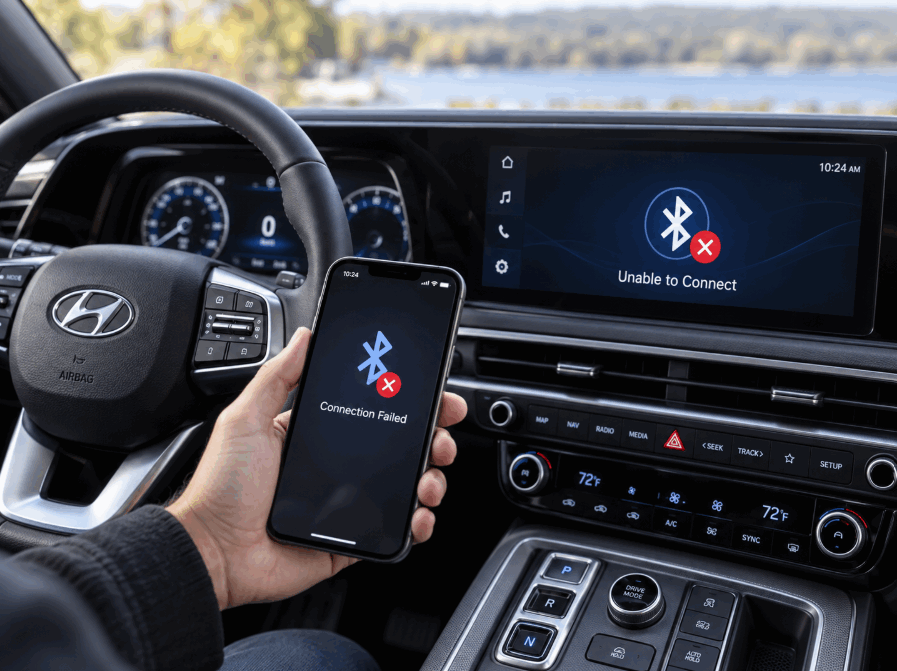
Hyundai Palisade Bluetooth not working usually happens because of pairing errors, phone settings, software issues, or infotainment system problems. The Bluetooth system connects your smartphone with your vehicle. It supports hands free calls, music streaming, and other connected features.
A Hyundai Palisade may fail to connect with a phone for several reasons. The vehicle may store outdated pairing information. The phone may block Bluetooth permissions. The infotainment system may also experience temporary connection errors.
Most Bluetooth problems do not require professional repair. You can solve many issues by checking Bluetooth settings, removing old devices, restarting the system, or pairing your phone again. These steps help identify whether the problem comes from your smartphone or your Hyundai Palisade.
This guide explains why Hyundai Palisade Bluetooth stops working and how to fix common connection problems. It covers Bluetooth pairing issues, audio connection failures, reset procedures, software updates, and situations that require Hyundai service support.
Why Is My Hyundai Palisade Bluetooth Not Working?
Hyundai Palisade Bluetooth usually stops working because of five main causes: pairing errors, saved device conflicts, phone settings, software problems, and infotainment system issues. Each cause affects the connection process differently. Identifying the exact cause helps you choose the correct fix instead of resetting the entire system without a clear reason.
The first cause is an incorrect Bluetooth pairing process. The Hyundai Palisade and smartphone must complete a proper connection handshake before they can exchange calls, contacts, and media data. If the pairing process fails, the vehicle may not detect the phone or the phone may not recognize the vehicle.
The second cause is outdated pairing information. The infotainment system stores previously connected devices. When the system contains old or corrupted connection data, it may create conflicts with a new smartphone. Removing unused devices often restores normal Bluetooth performance.
The third cause comes from smartphone settings. Phones control Bluetooth permissions for calls, contacts, and audio streaming. If the phone blocks these permissions, the Hyundai Palisade may connect but fail to provide full functionality.
The fourth cause is software compatibility. The vehicle infotainment system and smartphone operating system need compatible software versions to maintain a stable Bluetooth connection. Updates on either device can sometimes change how Bluetooth communicates.
The fifth cause is an infotainment system error. Temporary software glitches can prevent Bluetooth from appearing, connecting, or maintaining a stable signal. Restarting the system can often clear these temporary problems.
How Can I Tell If My Phone or Hyundai Palisade Causes the Bluetooth Problem?
You can identify the source of a Hyundai Palisade Bluetooth problem by testing another phone and checking the vehicle settings. This process separates smartphone issues from vehicle system issues.
Connect a different smartphone to the Hyundai Palisade Bluetooth system. If another phone connects successfully, the original phone likely has a Bluetooth setting, permission, or software problem. If no phone connects, the vehicle infotainment system may need further troubleshooting.
Check whether Bluetooth appears in the Hyundai Palisade settings menu. A missing Bluetooth option, repeated system crashes, or failure with multiple devices usually points to a vehicle side issue.
Testing both devices prevents unnecessary repairs. A simple phone setting change can solve many Bluetooth problems, while repeated failures across multiple phones may require a system reset or professional inspection.
How Do I Check Hyundai Palisade Bluetooth Settings?
You can check Hyundai Palisade Bluetooth settings by reviewing the vehicle connection menu, paired devices, and smartphone permissions. These checks help you find simple configuration problems before you remove devices or reset the infotainment system.
Start by opening the Bluetooth settings on the Hyundai Palisade infotainment screen. Confirm that Bluetooth remains enabled and that the system can discover nearby devices. If Bluetooth is disabled, the vehicle cannot connect with any smartphone.
Next, review the list of paired devices. The Hyundai Palisade stores previous smartphone connections, and old device information can interfere with a new connection. Remove phones that you no longer use to reduce pairing conflicts.
Check the smartphone settings after reviewing the vehicle system. Make sure Bluetooth is active and that the phone allows the Hyundai Palisade to access contacts, calls, and media audio. These permissions control how the vehicle uses the Bluetooth connection.
The audio source also affects Bluetooth performance. A phone can connect successfully while the vehicle plays another source, such as radio or USB audio. Select Bluetooth Audio from the infotainment menu when you want to stream music through your phone.
How Do I Remove an Old Phone From Hyundai Palisade Bluetooth?
You can remove an old phone from Hyundai Palisade Bluetooth by deleting the saved device from the infotainment system. This action clears previous pairing data and allows the vehicle to create a new connection.
Open the Bluetooth device management menu and select the smartphone you want to remove. Confirm the deletion and wait for the system to update the device list. After removing the old phone, restart Bluetooth and pair your current smartphone again.
Deleting unused devices is especially useful when the Hyundai Palisade has stored multiple smartphones. Too many saved connections can make the system select the wrong device or fail to complete a new pairing request.
After removing the old device, complete a fresh Bluetooth pairing process. Enable Bluetooth on your phone, select the Hyundai Palisade from the available devices, and confirm the connection request on both screens.
How Do I Fix Hyundai Palisade Bluetooth Not Connecting?
You can fix Hyundai Palisade Bluetooth not connecting by restarting the connection, removing old devices, and pairing your phone again. These steps solve most Bluetooth connection problems without requiring advanced repairs.
Start with a basic Bluetooth restart. Turn Bluetooth off on your smartphone and wait a few seconds before turning it back on. Restarting the phone clears temporary connection errors and allows the device to search for the Hyundai Palisade again.
Restart the Hyundai Palisade infotainment system if the phone still cannot connect. A temporary software issue can prevent the Bluetooth system from responding correctly. A system restart refreshes the connection process and helps the vehicle detect available devices.
Remove the Hyundai Palisade from your phone’s Bluetooth list and delete your phone from the vehicle’s paired device list. Both devices store connection information, and outdated data can prevent a new pairing attempt. Clearing both sides creates a clean connection environment.
After removing the previous connection, pair the smartphone with the Hyundai Palisade again. Enable Bluetooth on your phone, select the vehicle from the available devices, and confirm the pairing code. Allow access to contacts and media if the phone requests permission.
How Do I Pair My Phone With Hyundai Palisade Bluetooth Again?
You can pair your phone with Hyundai Palisade Bluetooth again by creating a new connection through the vehicle’s Bluetooth menu. The process requires both the smartphone and infotainment system to accept the connection request.
Open the Bluetooth settings on the Hyundai Palisade screen and select the option to add a new device. Search for the vehicle name on your smartphone and select it from the available Bluetooth devices.
Confirm the pairing request on both devices. The system may display a security code that should match on the phone and vehicle screen. Once the connection completes, test phone calls and music streaming to confirm that Bluetooth works correctly.
Check the permissions after pairing. Some smartphones connect for calls but block media access. Enable contact sharing and audio streaming permissions to use all Bluetooth features.
If the Hyundai Palisade still cannot connect after a new pairing attempt, the problem may involve saved system data, software compatibility, or a deeper infotainment issue. The next step is usually a Bluetooth reset.
How Do I Reset Bluetooth on Hyundai Palisade?
You can reset Hyundai Palisade Bluetooth by removing saved devices, restarting the infotainment system, and creating a new connection with your smartphone. A Bluetooth reset removes old connection data and helps the system rebuild a clean communication link.
Start with deleting saved Bluetooth devices. Open the Bluetooth device management menu on the Hyundai Palisade infotainment screen and remove previously connected phones. Old pairing records can create conflicts, especially when multiple smartphones use the same vehicle.
After removing saved devices, restart the infotainment system. A system restart clears temporary software errors that may prevent Bluetooth from connecting or responding correctly. Turn the system back on and check whether the Bluetooth menu works normally.
If the problem continues, perform a deeper infotainment reset. A factory reset removes stored settings and returns the system to its original configuration. This step can solve persistent Bluetooth problems, but it also deletes personalized settings such as saved preferences and device information.
Before completing a factory reset, save any important settings and confirm that you know how to reconnect your smartphone. A reset should be the final troubleshooting step after basic connection checks and device removal fail.
How Do I Delete Bluetooth Devices From Hyundai Palisade?
You can delete Bluetooth devices from Hyundai Palisade through the Bluetooth settings menu on the infotainment display. Removing unused devices helps prevent connection conflicts and improves pairing reliability.
Open the vehicle settings menu and access the Bluetooth device list. Select the phone you want to remove and confirm the deletion. Repeat this process for other unused smartphones stored in the system.
Keeping only active devices creates a simpler Bluetooth environment. When the Hyundai Palisade stores several phones, the system may attempt to connect with the wrong device or fail to recognize the preferred smartphone.
After deleting old devices, restart the Bluetooth connection. Pair your main smartphone again and test calling and audio features to confirm that the reset solved the problem.
Why Is Hyundai Palisade Bluetooth Connected but Not Playing Sound?
Hyundai Palisade Bluetooth can connect successfully but still fail to play sound because of incorrect audio settings, phone permissions, or the wrong media source. A Bluetooth connection does not always mean that the vehicle can access every phone feature.
The first issue to check is the selected audio source. The Hyundai Palisade may connect to your phone while the infotainment system continues playing radio, USB audio, or another source. Select Bluetooth Audio from the vehicle screen to allow music streaming through the connected smartphone.
The second issue involves media permissions on the phone. Smartphones control access to Bluetooth features through individual permissions. If your phone allows calls but blocks media audio, the Hyundai Palisade can handle phone conversations but cannot play music.
The third issue involves volume settings. Both the smartphone and vehicle have separate audio controls. A low phone volume or muted media setting can prevent sound from reaching the vehicle speakers even when the Bluetooth connection remains active.
Why Does Hyundai Palisade Bluetooth Calling Work but Music Does Not?
Hyundai Palisade Bluetooth calling can work without music because calls and audio streaming use different Bluetooth connection profiles. The hands free calling system and media streaming system exchange different types of data.
Phone calls use the Bluetooth hands free profile, which manages voice communication between the smartphone and vehicle. Music streaming uses the advanced audio distribution profile, which transfers media sound from the phone to the vehicle speakers.
When calls work but music does not, check whether Bluetooth media access is enabled on your smartphone. Some phones allow call connections automatically but require separate approval for music streaming.
You should also check the Bluetooth device settings on your phone. Select the Hyundai Palisade connection and confirm that both call and media options are active. After changing these settings, restart Bluetooth and test music playback again.
If the problem continues, remove the phone from the Hyundai Palisade system and complete a new pairing process. A fresh connection can restore missing audio functions caused by incorrect Bluetooth settings.
Why Does Hyundai Palisade Bluetooth Keep Disconnecting?
Hyundai Palisade Bluetooth keeps disconnecting because of unstable pairing data, software conflicts, phone settings, or interference between connected devices. A stable Bluetooth connection requires both the vehicle system and smartphone to maintain compatible settings.
One common cause is having too many saved devices in the Hyundai Palisade infotainment system. When multiple smartphones remain stored in the system, the vehicle may attempt to connect with the wrong device or experience connection conflicts. Removing unused devices can improve connection stability.
Another cause is outdated software on the smartphone or vehicle infotainment system. Bluetooth technology depends on communication between different software systems. When one device uses an incompatible version, the connection may drop during calls or music playback.
Phone settings can also affect Bluetooth stability. Battery saving modes, background restrictions, or Bluetooth permission changes can interrupt the connection. Some smartphones limit background activity to reduce power usage, which can affect continuous Bluetooth communication.
How Can I Prevent Hyundai Palisade Bluetooth From Disconnecting?
You can prevent Hyundai Palisade Bluetooth from disconnecting by keeping software updated, limiting saved devices, and maintaining correct phone settings. These actions reduce common connection interruptions.
Keep only frequently used smartphones in the Hyundai Palisade Bluetooth memory. Removing old devices reduces pairing conflicts and helps the vehicle connect to the correct phone faster.
Update both your smartphone operating system and Hyundai infotainment software when updates become available. Software updates often improve compatibility, fix connection errors, and improve system performance.
Check your smartphone Bluetooth settings regularly. Keep Bluetooth permissions active for calls and media, and disable battery restrictions that prevent Bluetooth from running properly in the background.
Avoid pairing multiple devices at the same time when possible. A single active connection creates a more stable communication path between the Hyundai Palisade and your smartphone.
If Bluetooth continues disconnecting after these steps, the issue may involve a deeper infotainment system problem. A reset or professional inspection may become necessary when basic troubleshooting does not restore a stable connection.
Can a Hyundai Palisade Software Update Fix Bluetooth Problems?
A Hyundai Palisade software update can fix some Bluetooth problems by improving system compatibility, correcting software errors, and updating the vehicle infotainment system. Bluetooth depends on communication between the vehicle system and smartphone software. An outdated system can create connection failures, audio problems, or repeated disconnections.
Software issues often appear after a smartphone receives a major operating system update. A phone update can change Bluetooth communication settings, while the Hyundai Palisade infotainment system may still use older software. Updating the vehicle system can improve compatibility between both devices.
A software update can also solve internal infotainment problems. The system controls Bluetooth pairing, audio streaming, and device recognition. If the software contains a connection error, an update may correct the problem and restore normal Bluetooth performance.
However, software updates do not fix every Bluetooth issue. Problems caused by incorrect phone settings, damaged hardware, or incompatible devices require different solutions. Testing another smartphone helps determine whether the issue comes from software or another source.
When Should I Update Hyundai Palisade Software for Bluetooth Issues?
You should update Hyundai Palisade software when Bluetooth problems continue after basic troubleshooting steps. An update becomes more useful when the vehicle shows repeated connection failures, device recognition problems, or compatibility issues after a phone update.
Check the current software version in the Hyundai Palisade infotainment system before updating. Compare the available version with the latest software provided for your vehicle model and year.
Update the system when your Hyundai Palisade cannot maintain a stable connection with compatible smartphones. The update process may improve Bluetooth performance by replacing outdated system files with newer versions.
Contact Hyundai service support if the update does not solve the problem. Persistent Bluetooth failures across multiple smartphones may indicate a deeper infotainment system issue that requires professional diagnosis.
When Should I Contact Hyundai Service for Bluetooth Problems?
You should contact Hyundai service for Bluetooth problems when basic troubleshooting steps, device resets, and software updates cannot restore the connection. Professional inspection helps identify issues that involve the vehicle infotainment system, hardware components, or deeper software failures.
Contact Hyundai service if the Bluetooth option disappears from the infotainment menu. A missing Bluetooth function may indicate a system error that simple pairing changes cannot solve.
Seek professional support when multiple smartphones fail to connect to the Hyundai Palisade. Testing different phones helps confirm whether the problem comes from the vehicle rather than a specific device.
You should also request assistance when the infotainment system freezes, restarts unexpectedly, or fails during Bluetooth setup. These symptoms may indicate a larger system problem that affects more than the Bluetooth function.
A professional diagnosis becomes important when factory resets and software updates do not solve the issue. Hyundai technicians can inspect the infotainment system, check software versions, and identify problems that require specialized tools.
Before visiting a service center, record the symptoms and troubleshooting steps you already completed. Include details such as the smartphone model, operating system version, error messages, and when the Bluetooth problem occurs. This information helps technicians diagnose the issue faster.