Apple CarPlay connects your Hyundai Palisade with your iPhone. It lets you use navigation, calls, messages, and media through the vehicle’s infotainment system. When Hyundai Palisade Apple CarPlay stops working, the issue usually comes from the connection, phone settings, cable, or vehicle software.
Most Apple CarPlay problems have a clear cause. Your iPhone may block the connection. A damaged USB cable may prevent data transfer. The Hyundai infotainment system may also need a restart or software update.
Different symptoms point to different problems. Some drivers cannot connect their iPhone at all. Others experience random disconnections, missing audio, a black screen, or an unresponsive CarPlay interface. Understanding the symptom helps identify the correct solution.
This guide explains why Apple CarPlay does not work on Hyundai Palisade models. It covers the most common causes and practical fixes. You will learn how to check iPhone settings, troubleshoot connection problems, reset the infotainment system, and know when professional Hyundai service becomes necessary.
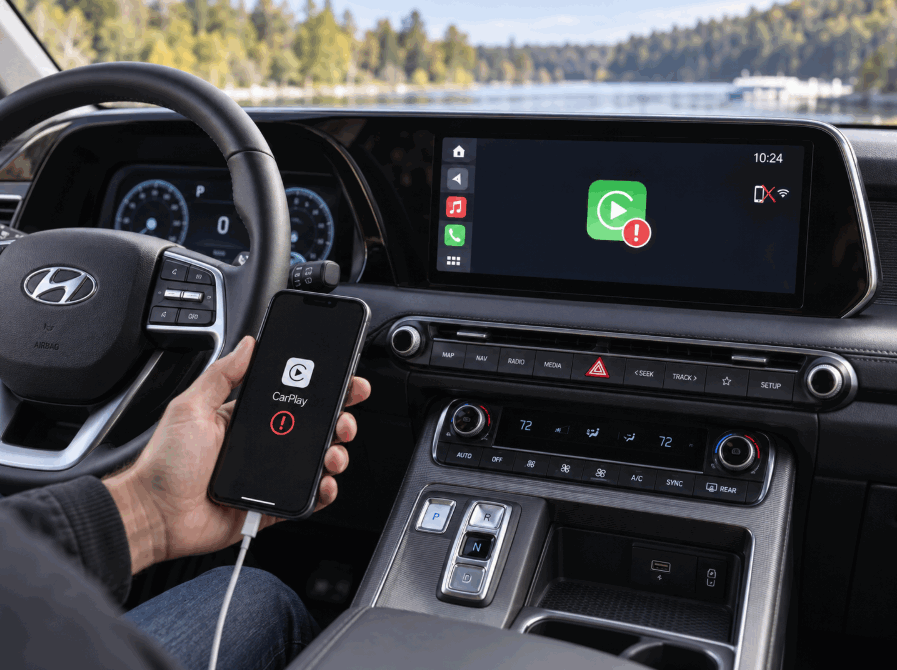
Why Is Apple CarPlay Not Working on Hyundai Palisade?
Apple CarPlay on Hyundai Palisade usually stops working because of connection problems, iPhone settings, USB issues, or infotainment software errors. The system needs a stable connection between the iPhone and the vehicle to display apps, play audio, and provide hands free features.
The first cause comes from iPhone connection settings. Apple CarPlay requires permission from the iPhone before the Hyundai Palisade can access its features. If CarPlay access is disabled, the vehicle may detect the phone but fail to open the CarPlay interface. Siri settings, Screen Time restrictions, and previous device permissions can also affect the connection.
The second cause involves the physical connection between the phone and the vehicle. Wired Apple CarPlay depends on a USB cable that supports data transfer. A cable that only supports charging cannot send information between the iPhone and Hyundai infotainment system. A damaged cable or USB port can also create unstable connections.
Software problems create another common cause of Apple CarPlay failure. The Hyundai Palisade infotainment system manages communication between the vehicle and the iPhone. Temporary system errors or outdated software may cause connection failures, missing audio, or a frozen display.
Identifying the exact cause helps drivers choose the correct solution. Checking the iPhone settings, testing the cable, restarting the infotainment system, and updating software can resolve most Hyundai Palisade Apple CarPlay problems without professional repair.
How Do You Fix Hyundai Palisade Apple CarPlay Not Working?
You can fix Hyundai Palisade Apple CarPlay problems by checking the connection, updating settings, and restarting the vehicle system. Most Apple CarPlay failures come from temporary connection errors rather than serious hardware problems. A step by step troubleshooting process helps identify and solve the issue quickly.
Start by restarting both the iPhone and the Hyundai Palisade infotainment system. A restart clears temporary software errors that may interrupt communication between the phone and the vehicle. Turn off the iPhone, restart it, and reconnect it to the vehicle. If your Hyundai Palisade has an infotainment reset button, use it to refresh the system.
Next, check the Apple CarPlay settings on your iPhone. Open the CarPlay settings and confirm that the Hyundai Palisade appears as an approved vehicle. Make sure Siri remains active because Apple CarPlay uses Siri for voice commands and hands free controls. Also, review Screen Time restrictions because these settings can block CarPlay access.
The USB connection also requires attention on models that use wired Apple CarPlay. Use a high quality data cable that supports information transfer, not only charging. A damaged cable may allow the iPhone to charge but prevent Apple CarPlay from connecting. Testing another cable helps confirm whether the cable causes the problem.
If the issue continues, remove the existing CarPlay connection and pair the devices again. Delete the Hyundai Palisade from the iPhone CarPlay list and remove the iPhone from the vehicle system. A new connection creates fresh communication between the two devices.
Updating the Hyundai infotainment software can solve persistent problems. New software versions often improve compatibility and fix system errors. If basic troubleshooting does not restore Apple CarPlay, a Hyundai dealer can check for deeper hardware or software issues.
Why Does Hyundai Palisade Apple CarPlay Keep Disconnecting?
Hyundai Palisade Apple CarPlay keeps disconnecting when the connection between the iPhone and the infotainment system becomes unstable. The most common causes include damaged cables, weak wireless connections, outdated software, and incorrect device settings. Identifying the cause helps drivers restore a stable Apple CarPlay connection.
A faulty USB cable is one of the most common reasons for repeated disconnections on wired Apple CarPlay systems. The cable must transfer both power and data between the iPhone and Hyundai Palisade. A cable with internal damage may charge the phone but lose data communication during driving. Movement from the vehicle or the phone can also interrupt the connection.
Wireless Apple CarPlay users may experience disconnecting issues because the system depends on Bluetooth and Wi Fi communication. Signal interference, outdated pairing information, or connection conflicts with other devices can interrupt communication between the iPhone and vehicle. Removing the existing wireless connection and pairing the devices again often improves stability.
The iPhone itself can also create connection problems. Background software errors, outdated iOS versions, or incorrect CarPlay permissions may cause repeated interruptions. Updating the iPhone software and reviewing Apple CarPlay settings can help maintain a reliable connection.
Hyundai Palisade infotainment software can also affect Apple CarPlay performance. The vehicle system manages communication between the smartphone and the display interface. Software bugs may cause random disconnections, frozen screens, or delayed responses.
To diagnose repeated Apple CarPlay disconnects, test the system with another iPhone or another cable. If another device works correctly, the original phone or cable may cause the issue. If every device disconnects, the Hyundai infotainment system may require a software update or professional inspection.
Why Is Hyundai Palisade Apple CarPlay Connected but Not Working Properly?
Hyundai Palisade Apple CarPlay can connect successfully but still fail to work because of audio settings, display errors, app restrictions, or communication problems between the iPhone and infotainment system. A successful connection only means that the vehicle recognizes the phone. It does not always mean that every CarPlay function will operate correctly.
One common issue involves missing audio after Apple CarPlay connects. The iPhone may connect to the Hyundai Palisade, but the vehicle may still use another audio source. Drivers should check the infotainment audio settings and confirm that Apple CarPlay provides the active audio output. The iPhone volume level and app sound settings can also affect media playback.
A black screen or frozen CarPlay interface usually indicates a software communication problem. The Hyundai infotainment system must process information from the iPhone and display CarPlay applications correctly. A temporary system error can interrupt this process and prevent apps, maps, or messages from appearing.
Apple CarPlay applications may also stop responding because of iPhone software issues. Outdated iOS versions, restricted app permissions, or background system errors can affect navigation, music, and communication apps. Updating the iPhone and restarting the CarPlay connection can restore normal operation.
Drivers should also check whether the problem affects all CarPlay features or only specific functions. For example, if navigation works but audio does not, the issue may involve sound settings rather than the connection itself. If the entire CarPlay interface fails, the Hyundai infotainment system or iPhone connection may require further troubleshooting.
A proper diagnosis prevents unnecessary repairs. Checking audio settings, restarting both systems, updating software, and reconnecting the device can solve most Hyundai Palisade Apple CarPlay performance issues.
Which iPhones Work With Hyundai Palisade Apple CarPlay?
Hyundai Palisade Apple CarPlay works with iPhone models that support Apple CarPlay and run a compatible version of iOS. The connection depends on both the iPhone hardware and the software settings that allow the vehicle to communicate with the device.
Apple CarPlay requires an iPhone 5 or newer model with a supported iOS version. Newer iPhone models usually provide better compatibility because they receive current software updates from Apple. However, an updated iPhone does not guarantee a working connection if the Hyundai infotainment system has outdated software or incorrect settings.
The connection method also affects compatibility. Some Hyundai Palisade models use wired Apple CarPlay through a USB data connection, while newer models may support wireless Apple CarPlay. Wired connections require a reliable Lightning or USB C data cable. Wireless connections require active Bluetooth and Wi Fi communication between the iPhone and the vehicle.
iPhone settings play an important role in successful Apple CarPlay operation. Drivers need to allow CarPlay access, enable Siri, and remove restrictions that block smartphone integration features. If the iPhone recognizes the Hyundai Palisade but does not launch CarPlay, the problem may come from permissions rather than device compatibility.
Updating both the iPhone and Hyundai infotainment system helps maintain compatibility over time. Apple regularly releases iOS updates that change how devices communicate with connected systems. Hyundai also releases software updates that improve vehicle technology performance.
Before replacing hardware or visiting a service center, drivers should confirm that their iPhone model, iOS version, connection method, and Hyundai software version meet Apple CarPlay requirements. This check helps determine whether the problem comes from compatibility or another system issue.
How Do You Reset Apple CarPlay on Hyundai Palisade?
You can reset Apple CarPlay on Hyundai Palisade by removing the existing connection, restarting the devices, and creating a new connection between the iPhone and the infotainment system. This process helps solve connection errors caused by outdated pairing information, temporary software conflicts, or incorrect settings.
Start by removing the Hyundai Palisade from the Apple CarPlay device list on your iPhone. Open the iPhone settings, access the CarPlay menu, and select the vehicle to remove the saved connection. This step deletes previous communication settings stored on the phone.
Next, remove the iPhone from the Hyundai Palisade infotainment system. The vehicle stores connected devices and smartphone integration information. Deleting the old device record allows the system to create a fresh connection during the next pairing process.
After removing both connections, restart the iPhone and the Hyundai infotainment system. A restart clears temporary errors that may prevent Apple CarPlay from connecting correctly. Once both systems restart, connect the iPhone again and follow the pairing instructions shown on the vehicle display.
Some Hyundai Palisade models also allow users to reset infotainment settings. A factory reset removes saved preferences and returns the system to its original configuration. This option can help when Apple CarPlay continues to fail after basic troubleshooting steps.
However, drivers should use a factory reset as a final step because it removes stored settings such as radio presets and personalized configurations. A simple connection reset usually solves most Apple CarPlay problems.
Resetting Apple CarPlay does not repair hardware failures such as damaged USB ports or faulty infotainment components. If the problem continues after resetting the connection, the vehicle may require a software update or professional diagnosis from a Hyundai service center.
When Should You Contact a Hyundai Dealer for Apple CarPlay Problems?
You should contact a Hyundai dealer for Apple CarPlay problems when basic troubleshooting steps cannot restore the connection or when the issue involves vehicle hardware. Most software and connection problems can be solved at home, but some failures require professional inspection of the Hyundai Palisade infotainment system.
A damaged USB port is one reason to seek professional support. The port must maintain a stable data connection between the iPhone and the vehicle. If multiple cables fail or the iPhone disconnects even with different devices, the USB hardware may have a problem.
The Hyundai infotainment system may also require dealer assistance when software issues continue after updates and resets. The system controls Apple CarPlay communication, display functions, audio output, and smartphone integration. Persistent errors such as a frozen screen, repeated crashes, or complete CarPlay failure may indicate a deeper software or hardware issue.
Drivers should also contact Hyundai service when Apple CarPlay problems appear after a vehicle repair, infotainment update, or electrical issue. These situations may require specialized diagnostic tools to identify problems inside the vehicle system.
Before visiting a dealer, prepare information about the issue. Note the Hyundai Palisade model year, iPhone model, iOS version, connection method, and symptoms. This information helps technicians identify whether the problem comes from the phone, connection method, or infotainment system.
A Hyundai dealer becomes necessary when the vehicle cannot maintain any Apple CarPlay connection after testing different devices, cables, and settings. Professional diagnosis can identify hardware failures, software conflicts, or system updates that drivers cannot complete independently.