Keeping your Mazda infotainment system up to date is one of the easiest ways to enjoy a smoother, safer, and more reliable driving experience. Software updates can improve system stability, enhance connectivity, fix known bugs, and introduce new features that make every trip more enjoyable. Whether you drive a Mazda3, CX5, CX30, CX50, CX90, or another model equipped with Mazda Connect, installing the latest update helps ensure your infotainment system performs as intended.
Many drivers search for how to update Mazda infotainment after experiencing slow response times, Bluetooth pairing problems, outdated navigation maps, or compatibility issues with Apple CarPlay and Android Auto. While these problems may seem similar, they are not always solved by the same type of update. Mazda vehicles can receive software updates, navigation map updates, and Gracenote database updates, each serving a different purpose. Understanding these differences is the first step toward choosing the correct update method.
This guide explains everything you need to know about how to update Mazda infotainment safely and correctly. You will learn how to identify the type of update your vehicle needs, prepare your Mazda before installing new software, update navigation maps when applicable, resolve common update issues, and determine when professional assistance is the better option. By following the right process and using official Mazda resources, you can keep your infotainment system running smoothly while avoiding unnecessary risks.
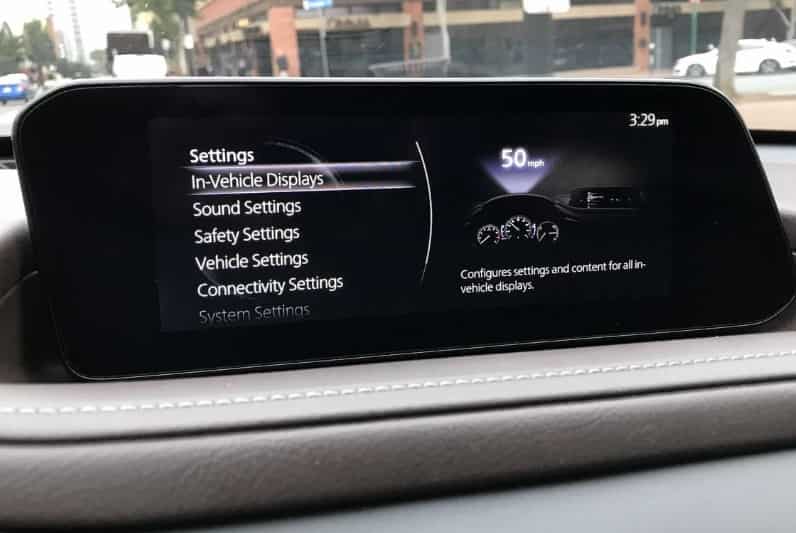
What Is a Mazda Infotainment Update?
A Mazda infotainment update improves the software and features of the Mazda Connect system in your vehicle. Mazda Connect works as the main control center for entertainment, communication, navigation, and vehicle information. It allows drivers to use Bluetooth, smartphone connections, audio controls, and navigation features.
Mazda releases different updates to improve system performance and user experience. Many drivers confuse these updates because they all relate to the infotainment system. However, each update type has a different purpose.
A system software update improves the Mazda Connect operating system. It can fix software errors, increase system stability, and improve compatibility with smartphones and other devices. These updates may also help solve problems such as slow performance, connection issues, or unexpected system crashes.
A navigation map update focuses on improving map data stored on the navigation SD card. It adds newer roads, updated locations, and more accurate points of interest. This type of update changes navigation information but does not change the main infotainment software.
A Gracenote database update improves music recognition in Mazda Connect. It updates details such as song titles, artist names, album information, and cover images for music played through USB devices.
Although these updates work with Mazda Connect, they are not the same. Understanding the difference helps you choose the correct update for your vehicle. Regular updates keep your Mazda infotainment system reliable, compatible, and ready to deliver a better driving experience.
Before Updating Your Mazda Infotainment
Before you start a Mazda infotainment update, you need to prepare your vehicle and check a few important details. Proper preparation helps you choose the correct update and avoid installation problems.
Identify Your Mazda Model and Model Year
First, check your Mazda model and production year. Different Mazda vehicles use different versions of the Mazda Connect system. Some models support over-the-air (OTA) updates, while others require a USB drive or dealer assistance.
You can find your vehicle information in the owner’s manual, registration documents, or the vehicle identification number (VIN). Knowing your exact model helps you find the correct update files and instructions.
Check the Current Software Version
Before downloading any update, check your current Mazda Connect software version. This step shows whether your system needs an update.
To check the software version:
- Turn on your Mazda infotainment system.
- Open the settings menu.
- Select System Settings.
- Choose About or System Information.
- Review the current software version.
Compare this version with the latest update available for your vehicle.
Determine the Type of Update You Need
Mazda offers different update options, so identify the problem before updating.
- Choose a system software update if your infotainment system has performance issues or connection problems.
- Choose a navigation map update if your maps show outdated roads or locations.
- Choose a Gracenote update if your music information appears incorrect.
Installing the wrong update may not fix the issue.
Prepare Your Vehicle and Internet Connection
Before installing an update, make sure your vehicle has enough power. Keep the engine running or use a stable power source during the process. Avoid turning off the system while the update is installing.
For OTA updates, connect your Mazda to a reliable Wi-Fi network. For USB updates, use a compatible USB drive with enough storage space.
Use Official Mazda Update Sources
Always download updates from official Mazda sources. These files match your vehicle’s system and reduce the risk of software errors.
Avoid unofficial firmware because it may cause compatibility problems or affect system performance. Using approved update methods helps keep your Mazda infotainment system safe, stable, and reliable.
How to Update Mazda Infotainment
Updating Mazda infotainment helps your Mazda Connect system run smoothly and improves compatibility with newer devices. The update process depends on your vehicle model, software version, and available update method.
Some Mazda vehicles support over-the-air (OTA) updates, while others require a USB drive or dealer service. Before starting, check your vehicle requirements to choose the correct method.
Check for Available Updates
Start by checking whether your Mazda Connect system has a new update available.
Follow these steps:
- Turn on your Mazda infotainment system.
- Open the Settings menu.
- Select System Settings.
- Go to Software Update or System Information.
- Check your current software version and available updates.
If your Mazda supports OTA updates, the system may notify you when a new version becomes available.
Install a Mazda Infotainment Update Through OTA
Over-the-air updates allow compatible Mazda vehicles to download software updates through an internet connection.
The general process includes:
- Connect your Mazda to a stable Wi-Fi network.
- Accept the update notification when it appears.
- Follow the instructions on the infotainment screen.
- Wait for the system to download and install the update.
- Restart Mazda Connect after the installation finishes.
Keep your vehicle in a safe location during the update. Do not turn off the system or disconnect the power while the installation runs.
Update Mazda Infotainment Using a USB Drive
Some Mazda models require a manual USB update. This method involves downloading update files and installing them through the infotainment system.
Follow these steps:
- Find the correct update file for your Mazda model.
- Download the file from an official Mazda source.
- Copy the update files to a compatible USB drive.
- Insert the USB drive into the Mazda USB port.
- Follow the instructions displayed on the screen.
- Wait until the system completes the update.
Use only the correct update files for your vehicle. An incorrect file can prevent the installation from working properly.
Verify the Update Installation
After completing the update, check that the new software version appears in the system information menu.
You should also test important features, including:
- Bluetooth connection
- Smartphone integration
- Audio functions
- Navigation features
- Touchscreen response
If everything works normally, the update has completed successfully.
OTA Updates vs Dealer-Installed Updates
OTA updates offer a convenient way to update Mazda infotainment without visiting a service center. However, not every Mazda model supports this feature.
Some software updates require dealer equipment or professional installation. Visit a Mazda dealer if your system cannot update, shows repeated errors, or requires a major software upgrade.
Following the correct update method keeps your Mazda Connect system reliable and helps you enjoy improved performance, better compatibility, and a smoother driving experience.
Mazda navigation map updates help keep your navigation system accurate by adding new roads, updated locations, and improved points of interest. Unlike a Mazda infotainment software update, a map update only changes navigation data. It does not improve the main Mazda Connect operating system or fix software-related issues.
Many Mazda vehicles use a Navigation SD Card to store map information. Before updating, check whether your vehicle has this type of navigation system. The SD card slot is usually located inside the center console or near the infotainment unit. You can also check your owner’s manual to confirm the correct update method for your Mazda model.
To update Mazda navigation maps, you can use Mazda Update Toolbox on a computer. First, remove the navigation SD card from your vehicle and insert it into your computer. Open Mazda Update Toolbox, check for available updates, and download the latest map data. After the installation finishes, return the SD card to your Mazda and restart the navigation system.
Map updates may depend on your vehicle model, model year, navigation equipment, and update eligibility. Some vehicles include free map updates for a limited period, while others may require a purchase.
For the best results, use a stable internet connection and download map files only from official Mazda sources. Avoid removing the SD card during installation because it may interrupt the update process. Keeping your Mazda navigation maps updated helps your system provide more accurate routes and a better driving experience.
How to Update the Gracenote Database
The Gracenote database helps Mazda Connect recognize and display music information correctly. It provides details such as song titles, artist names, album names, genres, and album artwork when you play music from a USB device. If your Mazda infotainment system shows missing or incorrect music information, a Gracenote update may help improve the experience.
A Gracenote update does not change the Mazda Connect software or navigation features. Instead, it refreshes the music recognition database so the system can identify newer songs and display more accurate information. Drivers who frequently use USB audio may benefit the most from keeping this database updated.
To update the Gracenote database, first check the current version through the Mazda Connect system settings. If a newer version is available, download the update file from an official Mazda source. Copy the file to a compatible USB drive, then insert the USB drive into the vehicle’s USB port. Follow the instructions shown on the infotainment screen and wait until the update process finishes.
After completing the update, restart Mazda Connect and test your USB music library. The system should provide improved recognition for supported music files and display more complete information.
Before starting the update, make sure the USB drive has enough storage space and avoid removing it during installation. Using official Gracenote update files helps prevent compatibility issues and keeps your Mazda infotainment system working properly.
Common Mazda Infotainment Update Problems
Although updating Mazda infotainment is usually a simple process, some drivers may experience problems during or after installation. These issues can happen because of incorrect update files, connection problems, incompatible devices, or interruptions during the update process. Understanding common problems can help you find the right solution quickly.
One common issue is no update available. This usually happens when your Mazda Connect system already has the latest software version or your vehicle does not support that update. Before searching for an update, check your Mazda model, model year, and current software version. Make sure you download the correct update designed for your vehicle.
Another problem occurs when the update fails to install. This may happen if the update file is incomplete, the USB drive has errors, or the installation process stops unexpectedly. To fix this issue, download the update file again from an official Mazda source and use a properly formatted USB drive. Avoid removing the USB device or turning off the infotainment system while the update is running.
Some owners experience Wi-Fi connection problems when installing OTA updates. A weak or unstable internet connection can interrupt the download process. Try moving your vehicle closer to the Wi-Fi source or reconnecting to a stronger network. Restarting the infotainment system may also help restore the connection.
The USB drive or SD card not being detected is another common problem. Mazda Connect may not recognize a device if it uses an unsupported format, contains incorrect files, or has physical damage. Check that the USB drive or SD card works properly and that you copied the update files to the correct location.
After updating navigation maps, some drivers may find that navigation maps are missing. This issue can happen if the SD card is not inserted correctly or the map installation did not complete successfully. Remove and reinstall the SD card, then restart the infotainment system. If the problem continues, check whether the map update matches your Mazda model.
Some Mazda owners also report that the infotainment screen freezes or restarts after an update. A temporary software issue may cause these symptoms. Restart the system and check for additional updates. If the problem continues, a Mazda dealer may need to inspect the system.
To reduce update problems, always use official Mazda update files, follow the installation instructions carefully, and prepare your vehicle before starting. Proper preparation helps ensure a smoother update process and keeps your Mazda Connect system operating reliably.
Should You Update Mazda Infotainment Yourself or Visit a Dealer?
Many Mazda owners wonder whether they should update their infotainment system at home or visit a Mazda dealer for assistance. The best choice depends on your vehicle model, update type, and your comfort level with technical steps. Both options have advantages, but each method works better in different situations.
A DIY Mazda infotainment update can be a convenient option for many drivers. Software updates through OTA systems or USB drives often allow owners to complete the process without a service appointment. This method can save time and may not cost anything when Mazda provides the update for free. It works well for drivers who can follow instructions and have a stable internet connection or a compatible USB device.
However, DIY updates require careful preparation. Using the wrong update file, interrupting the installation, or removing a USB drive too early can create problems. Always check your Mazda model, software version, and update requirements before starting the process.
A Mazda dealer update may be the better option when your infotainment system has serious issues. Professional assistance is recommended if the system cannot complete an update, shows repeated errors, freezes frequently, or requires specialized equipment. Dealers can diagnose software problems and install updates using Mazda-approved tools.
Warranty considerations are another important factor. Using official Mazda update methods helps protect your vehicle from compatibility issues. Unofficial firmware or modified software may create problems and could affect warranty support.
Update costs depend on the type of service you need. Many software updates are free, while navigation map updates or dealer services may include additional charges. Contact your local Mazda dealer to confirm available services and pricing.
For simple updates, many owners can complete the process themselves. For complex problems or failed installations, professional help provides a safer solution. Choosing the right update method helps keep your Mazda infotainment system reliable and performing at its best.
Tips to Keep Mazda Infotainment Running Smoothly
Keeping your Mazda infotainment system updated and properly maintained helps improve performance and reliability. A few simple habits can reduce common software issues and provide a smoother experience while driving.
First, check for Mazda infotainment updates regularly. Software updates can improve system stability, fix known problems, and increase compatibility with newer smartphones and devices. Installing updates when they become available helps your Mazda Connect system stay current.
You should also use genuine Mazda accessories and compatible storage devices. Low-quality USB drives or unsupported accessories may cause connection problems or prevent updates from working correctly. Always check device requirements before connecting external equipment.
Avoid installing unofficial firmware or modified software. Third-party files may create compatibility issues, reduce system performance, or cause unexpected errors. Official Mazda update sources provide files designed specifically for your vehicle.
Before performing a major update, back up important settings if possible. While most updates do not remove personal preferences, saving important information can help you restore your preferred settings if a problem occurs.
It is also useful to check update notifications periodically. Mazda may release improvements that enhance system performance, smartphone compatibility, or navigation features.
Finally, protect your infotainment system by following proper update procedures. Keep your vehicle powered during installation, use a stable internet connection for OTA updates, and avoid interrupting the process.
By following these tips, you can help your Mazda Connect system operate smoothly and enjoy a more reliable infotainment experience throughout your vehicle’s ownership.
Frequently Asked Questions
Can I update Mazda infotainment myself?
Yes, many Mazda owners can update their infotainment system themselves. Compatible vehicles may support OTA updates or USB-based updates. However, some major software updates or system problems may require assistance from a Mazda dealer.
Are Mazda infotainment updates free?
Many Mazda software updates are available at no cost. However, navigation map updates may depend on your vehicle model, update eligibility, and subscription status. Dealer services may also include additional charges.
How long does a Mazda infotainment update take?
The update time depends on the update size, installation method, and internet speed. Small software updates may finish quickly, while larger updates can take longer. Avoid interrupting the process once the installation begins.
Does updating Mazda infotainment erase my settings?
Most Mazda infotainment updates do not remove your personal settings. However, it is a good idea to save important preferences before a major update in case the system requires a reset.
Can I update Mazda infotainment using a USB drive?
Yes, many Mazda models support USB-based updates. You need a compatible USB drive and the correct update files for your vehicle. Always download files from official Mazda sources to avoid installation problems.
Do all Mazda models support OTA updates?
No. OTA update support depends on the Mazda model, production year, and installed infotainment system. Older vehicles may require USB updates or dealer assistance instead.
How do I check my Mazda software version?
You can check your software version through the Mazda Connect settings menu. Open the system information or about section to view the current software version installed on your vehicle.
Can a software update fix touchscreen issues?
A Mazda infotainment software update may fix some touchscreen problems caused by software errors. However, hardware issues or physical damage may require professional inspection from a Mazda service center.
Conclusion
Updating Mazda infotainment is an important step to keep your Mazda Connect system working smoothly and efficiently. Whether you need a software update, navigation map update, or Gracenote database update, choosing the correct update method helps improve performance, compatibility, and overall reliability.
Before starting the update process, always check your Mazda model, current software version, and update requirements. Some vehicles support OTA updates, while others require a USB drive or professional dealer assistance. Following official Mazda update instructions helps prevent installation errors and protects your infotainment system.
Regular updates can improve system stability, support newer devices, and provide more accurate navigation information. Simple maintenance habits, such as checking for updates and using compatible accessories, can also help your Mazda Connect system perform better over time.
If you are unsure how to update Mazda infotainment, review your vehicle information first and choose the update method designed for your model. A properly updated infotainment system provides a smoother, more convenient, and more enjoyable driving experience.
Have you updated your Mazda infotainment system recently? Share your Mazda model, model year, and update experience to help other Mazda owners learn from your experience.