The OnStar App Not Working issue has become a frequent concern for many vehicle owners who rely on connected car services. The OnStar is designed to provide remote access, vehicle monitoring, and safety features in real time. When the app stops functioning properly, users may lose access to essential features such as remote start, door locking, and vehicle location tracking.
In many cases, the problem appears suddenly without any clear warning. Users may face login failures, loading errors, or complete app crashes. These issues can be frustrating because the app often works normally before breaking down unexpectedly. The lack of a clear error source makes it difficult for users to understand where the problem is coming from.
The causes behind these failures can vary. Some situations are linked to server outages or temporary system maintenance. Other cases are related to outdated app versions, unstable internet connections, or incorrect device settings. Account-related issues can also prevent proper authentication and access.
This guide will help you understand the real reasons behind the OnStar App Not Working problem. It also provides a structured troubleshooting approach to help you identify whether the issue is coming from your device, your account, or the system itself. By following these steps, you can restore functionality quickly and avoid unnecessary trial and error.
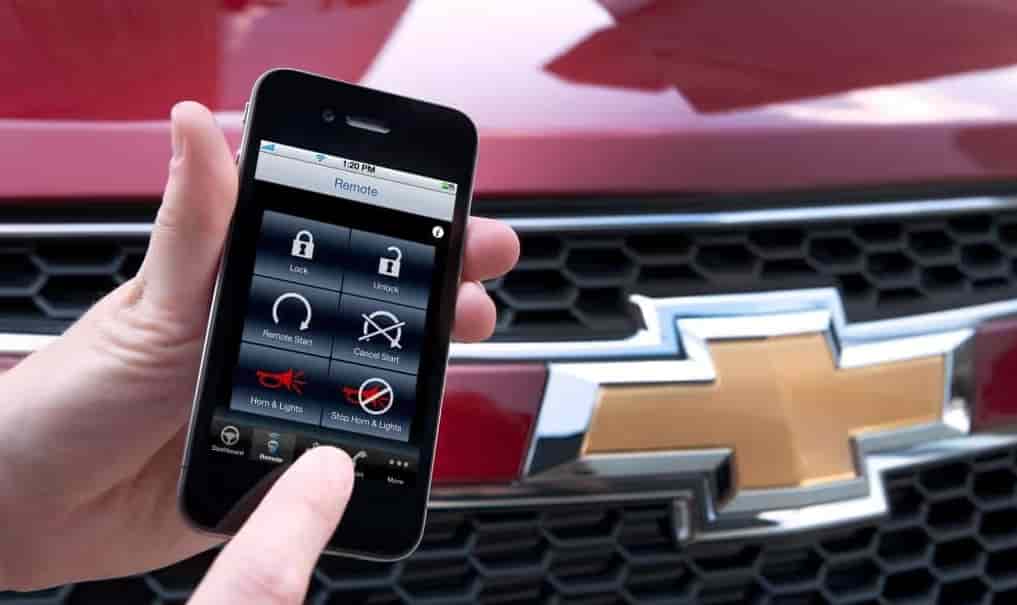
Is OnStar App Down or Is It Your Device
Before applying fixes, you need to identify the root cause of the issue. The OnStar App Not Working problem can come either from the system or from your device.
If the app fails on multiple devices or networks, the issue is likely server related. In this case, users may experience login failures, long loading times, or complete service unavailability. These signs often indicate a temporary outage or system maintenance affecting all users.
If the app works on another device or network, the problem is usually local. This may include weak internet connection, incorrect settings, or outdated software. Device-specific issues only affect one phone or one account, not the entire system.
Server issues usually impact many users at the same time. Device issues are more isolated and inconsistent across different environments. This difference is important because it determines the direction of your troubleshooting process.
Understanding this step saves time and avoids unnecessary actions. Instead of reinstalling the app repeatedly, you can focus on the actual cause and apply the correct solution from the start.
OnStar Login Problems and Authentication Errors
Login issues are one of the most common reasons behind the OnStar App Not Working problem. Users may experience failed sign in attempts, repeated login loops, or session expiration messages. These errors usually prevent access even when credentials are correct.
In many cases, the issue comes from authentication conflicts between the app and the server. Cached login data can become outdated and block new login sessions. This creates a situation where the app does not recognize valid account information.
Another possible cause is account security protection. Multiple failed login attempts may temporarily lock the account. When this happens, the system blocks access to prevent unauthorized use. Some users also face problems when passwords are recently changed but not fully synced across devices.
To resolve these issues, start by resetting your password. This helps refresh account authentication and clear potential conflicts. Next, clear cached data or reinstall the app to remove stored login sessions. After that, try signing in again using a stable internet connection.
If the problem continues, check your account status through official support channels. This ensures there are no restrictions or security blocks affecting access. Once authentication is restored, the app should function normally again.
Connectivity Issues Between App and Vehicle
Connectivity problems between the app and the vehicle are another major reason for the OnStar App Not Working issue. In many cases, the app opens normally but fails to communicate with the vehicle. This results in missing data, failed commands, or delayed responses.
A common cause is unstable internet on the mobile device. The OnStar requires a consistent connection to send and receive vehicle data. When the network is weak or interrupted, remote features may stop responding.
Another factor is delayed synchronization between the vehicle and the system. Even if the app is working correctly, the vehicle data may not update in real time. This creates mismatched information such as incorrect location or unavailable status updates.
Permission settings can also affect connectivity. If location or background data access is disabled, the app may fail to maintain a stable connection. In some cases, battery optimization settings can restrict background communication and break synchronization.
To fix these issues, first ensure that your internet connection is stable. Then check app permissions and allow full access to location and network services. Restarting both the app and the vehicle system can also help restore proper communication.
If the issue persists, re-adding the vehicle inside the app may reset the connection and resolve synchronization errors.
App Crashes, Freezes, and Loading Errors
App instability is another common reason behind the OnStar App Not Working issue. Some users report that the app crashes immediately after opening. Others experience freezing on the loading screen or slow response during navigation.
One of the main causes is outdated software. When the app version is not updated, it may become incompatible with the latest operating system updates. This can lead to sudden crashes or incomplete loading.
Corrupted cache data is another frequent factor. Over time, temporary files stored on the device can become damaged or outdated. This affects how the app loads and processes information, resulting in freezing or unresponsive behavior.
Device performance issues can also contribute to instability. Limited storage space or background apps consuming too many resources may prevent the app from running smoothly. In some cases, system updates on iOS or Android may temporarily affect app performance as well.
To resolve these problems, start by updating the app to the latest version. If the issue continues, clear cache data or reinstall the app completely. This helps remove corrupted files and restores a clean installation.
Restarting the device after updates can also improve stability and ensure proper system synchronization with the app.
GPS and Location Issues
Location-related errors are another factor behind the OnStar App Not Working issue. In some cases, the app may show incorrect vehicle positions or fail to update location data in real time. This can directly affect tracking and remote monitoring features.
A common cause is disabled location permissions on the device. The OnStar requires access to GPS data to display accurate vehicle information. When permissions are restricted, the app cannot retrieve correct location signals.
Low accuracy settings can also reduce precision. If the device is set to battery-saving or limited GPS mode, location updates may become delayed or inaccurate. This often results in outdated vehicle positions inside the app.
In some situations, the issue comes from delayed vehicle data synchronization. The system may take time to refresh GPS information, especially when network conditions are unstable. This creates a gap between real vehicle location and what the app displays.
To fix these problems, enable location services and set them to high accuracy mode. Ensure the app has full permission to access GPS data in the background. Restarting location services can also help refresh signals.
If the issue continues, refreshing the vehicle connection inside the app may restore accurate tracking and improve location stability.
Server Maintenance and System Errors
Not all OnStar App Not Working issues are caused by the device or user settings. In some cases, the problem comes directly from the system itself. The OnStar may experience temporary disruptions due to server maintenance or backend updates.
During these periods, users can face login failures, missing vehicle data, or delayed responses. The app may load slowly or fail to connect entirely. These symptoms usually appear across many users at the same time, which is a strong sign of a system-wide issue.
Scheduled maintenance is one of the most common reasons. The platform may temporarily disable certain services to improve performance or deploy updates. Unexpected server overload can also cause similar disruptions when traffic is too high.
In these situations, local troubleshooting will not solve the problem. Reinstalling the app or changing device settings will not restore access because the issue is not on the user side.
The only effective solution is to wait until the system is restored. Once maintenance is complete, services typically return to normal without requiring any action from the user.
Advanced Fix and Reinstallation Method
When basic troubleshooting does not resolve the OnStar App Not Working issue, a deeper reset is often required. This method helps eliminate hidden errors that may not be fixed through normal settings changes.
Start by uninstalling the app completely from your device. After that, restart the phone to clear temporary system memory. Then install the latest version of the OnStar from the official app store. A fresh installation removes corrupted files and resets core application data.
After reinstalling, sign in again using your account credentials. This step re-establishes authentication and clears any previous session conflicts. Make sure your internet connection is stable during login to avoid synchronization errors.
If the issue still appears, check your account status. Some restrictions or verification requirements may prevent full access. In rare cases, contacting support is necessary to restore account functionality.
This advanced method is often effective for persistent issues that do not respond to standard fixes. It ensures the app starts with a clean system state and proper configuration.
Conclusion
The OnStar App Not Working issue can come from several different sources, including device errors, account problems, or system disruptions. The OnStar depends on stable connectivity and proper synchronization to function correctly.
Most problems can be solved by following a structured approach. First, identify whether the issue is related to the server, the device, or the account. Then apply the correct fix step by step instead of trying random solutions.
Server-related issues usually require waiting for restoration. Device and account issues can often be fixed through updates, permission changes, or reinstallation.
By following this guide, users can restore full functionality faster and reduce repeated errors in the future.