Tesla Maps can stop working because of software glitches, GPS signal loss, connectivity issues, or temporary server outages. In most cases, you can restore navigation without visiting a Tesla Service Center by following a structured troubleshooting process. Identifying the root cause first helps you avoid unnecessary resets and quickly determine whether the issue is related to your vehicle, your network connection, or Tesla’s online services.
A malfunctioning navigation system can appear in several ways. The map may freeze, fail to load, display an incorrect vehicle location, continuously search for GPS, or refuse to calculate routes. These symptoms can affect any Tesla model, including the Model 3, Model Y, Model S, and Model X, because they rely on the same navigation ecosystem that combines GPS, onboard software, map data, and internet connectivity.
This guide explains the most common reasons Tesla Maps stop working and provides step-by-step solutions in the order they should be performed. You’ll also learn when a simple touchscreen reboot is enough, when a software update may resolve the problem, and when persistent navigation failures indicate it’s time to contact Tesla Service. By the end of this guide, you’ll be able to diagnose the issue systematically and restore your Tesla’s navigation with confidence.
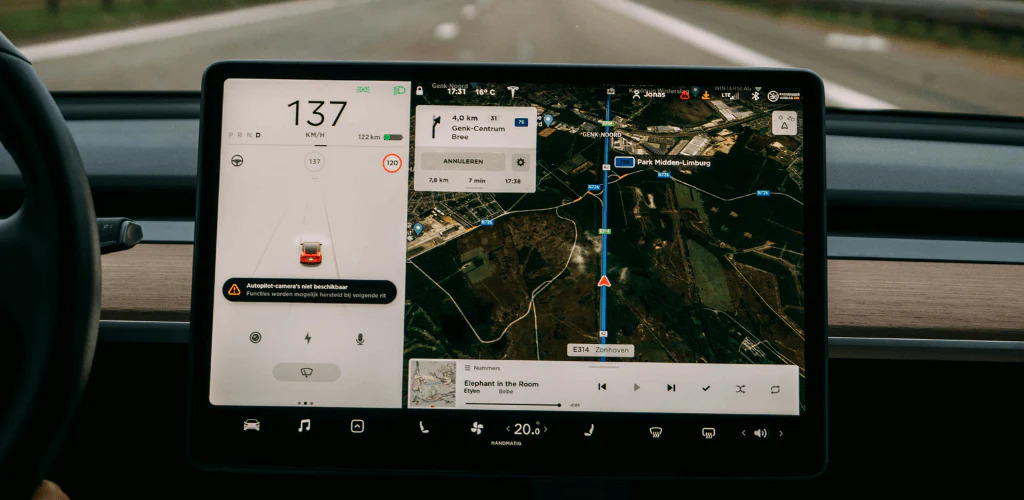
Why Is Tesla Maps Not Working?
Tesla Maps stops working when one or more components of the navigation system cannot function correctly. The most common causes include GPS signal loss, unstable internet connectivity, outdated software, touchscreen or Media Control Unit (MCU) glitches, and temporary Tesla server issues. Identifying the symptom before attempting a fix helps narrow down the root cause and reduces unnecessary troubleshooting.
A navigation problem does not always mean the map itself has failed. Tesla Maps relies on several systems working together, including GPS satellites for location tracking, onboard navigation software for route calculation, map data, and either cellular service or Wi-Fi for downloading live traffic information and online map content. If any of these components becomes unavailable, navigation performance may be affected.
The issue can appear in several ways, including:
- The map remains blank or never finishes loading.
- The vehicle icon stays in the wrong location.
- Navigation cannot calculate a route.
- GPS keeps searching for a signal.
- Live traffic and satellite imagery disappear.
- The touchscreen freezes while using navigation.
- Voice-guided directions stop unexpectedly.
These symptoms can occur on any Tesla model, including the Model 3, Model Y, Model S, and Model X. While the underlying navigation system is largely the same across the lineup, the exact cause may differ depending on the vehicle’s hardware generation, installed software version, and available connectivity features.
In many situations, the problem is temporary. A weak GPS signal inside a parking garage, an interrupted cellular connection in remote areas, or a temporary Tesla server outage may restore normal operation without requiring any action. However, if the issue persists after restarting the vehicle or continues to occur repeatedly, a systematic diagnosis is necessary to determine whether the problem is related to software, connectivity, or hardware.
What Causes Tesla Maps to Stop Working?
Tesla Maps usually stops working because the navigation system loses access to location data, network connectivity, map services, or essential software resources. Most issues fall into five categories: GPS reception, internet connectivity, software problems, touchscreen or MCU malfunctions, and temporary Tesla server disruptions.
A weak GPS signal prevents Tesla Maps from determining the vehicle’s real-time location. Without accurate positioning, the navigation system cannot calculate routes correctly or update the vehicle’s location on the map.
GPS reception is commonly interrupted in underground parking garages, tunnels, enclosed buildings, or areas surrounded by tall structures and dense mountains. In these environments, the vehicle may continue displaying an outdated location, repeatedly search for satellites, or stop updating its position until a stronger signal becomes available.
Tesla Maps depends on an active internet connection for live traffic, satellite imagery, online search results, and dynamic route updates. If the vehicle loses cellular service or connects to an unstable Wi-Fi network, some navigation features may stop working even though basic GPS positioning remains available.
Drivers may notice that traffic data disappears, destination searches fail, or map tiles load slowly. These symptoms are more likely in areas with poor mobile coverage or during temporary network interruptions.
Software bugs are one of the most common causes of recurring navigation problems. Tesla regularly releases over-the-air software updates that improve navigation stability, fix known defects, and enhance map performance.
If the vehicle is running an outdated firmware version, the navigation system may freeze, become unresponsive, or fail to load maps correctly. Installing the latest software often resolves issues without requiring additional repairs.
Touchscreen or Media Control Unit (MCU) becomes unresponsive
The Media Control Unit manages Tesla’s infotainment and navigation interface. When the MCU experiences a temporary software glitch or becomes overloaded, Tesla Maps may freeze, display a blank screen, or stop responding to user input.
In many cases, the navigation service itself is still running in the background, but the touchscreen cannot display or update map information correctly. A soft reboot typically restores normal operation if the issue is limited to the interface.
Tesla servers or map services experience temporary outages
Some navigation features rely on Tesla’s cloud infrastructure. During a temporary server outage or maintenance period, services such as destination search, live traffic information, or online map data may become unavailable.
These interruptions are usually temporary and affect multiple drivers simultaneously rather than a single vehicle. If other vehicle functions operate normally but online navigation features stop working without warning, the issue may be outside your control and resolve once Tesla restores its services.
How Do You Fix Tesla Maps Not Working?
Fix Tesla Maps by checking the simplest causes first before moving to more advanced troubleshooting. Following the steps below in order helps identify the root cause while avoiding unnecessary resets or service appointments.
1. Check your internet connection
Confirm that your Tesla has a stable internet connection before troubleshooting the navigation system. Tesla Maps uses cellular data or Wi-Fi to load map content, display live traffic, search destinations, and download route information.
Start by checking the connectivity icon at the top of the touchscreen. If the signal is weak or unavailable, move the vehicle to an area with better cellular coverage or connect it to a reliable Wi-Fi network. If you are connected to public Wi-Fi, disconnect and test the navigation again using the vehicle’s cellular connection, as unstable networks can interrupt map loading.
2. Verify GPS reception
Ensure the vehicle has a clear GPS signal before assuming the navigation system has failed. GPS positioning is essential for displaying the correct vehicle location and calculating accurate routes.
If your Tesla is parked inside an underground garage, tunnel, covered parking structure, or between tall buildings, drive to an open area and wait a few minutes for the system to reconnect with GPS satellites. If the vehicle location updates normally after reaching an unobstructed location, the issue was most likely caused by poor satellite reception rather than a navigation malfunction.
3. Restart the touchscreen
Restarting the touchscreen resolves many temporary software glitches affecting Tesla Maps. A soft reboot refreshes the Media Control Unit (MCU) without deleting personal settings or navigation data.
To restart the touchscreen:
- Park the vehicle safely.
- Press and hold both scroll wheels on the steering wheel.
- Continue holding until the touchscreen turns black.
- Release the buttons and wait for the Tesla logo to appear.
- Allow the system to finish rebooting before opening Maps again.
If the issue was caused by a temporary software freeze, navigation should return to normal after the reboot.
4. Install the latest Tesla software update
Keeping your Tesla software up to date reduces the likelihood of navigation bugs. Tesla regularly releases over-the-air updates that improve system stability, fix known software issues, and enhance navigation performance.
Open Controls > Software to check whether a new update is available. If one is pending, connect the vehicle to Wi-Fi and complete the installation before testing Tesla Maps again. Many intermittent navigation problems are resolved after installing the latest firmware.
5. Test different destinations
Testing multiple destinations helps determine whether the problem affects the entire navigation system or only a specific location search.
Search for several well-known places, such as a nearby shopping center, airport, or charging station. If only one destination fails to load while others work normally, the issue may be related to search results or map data rather than the navigation system itself.
6. Switch between Wi-Fi and cellular service
Changing the network connection can restore online navigation features when one connection is unstable.
If the vehicle is connected to Wi-Fi but maps load slowly, disconnect from Wi-Fi and allow Tesla to use its cellular connection. If cellular coverage is weak, connect to a stable home or office Wi-Fi network and test navigation again. Comparing both connections helps identify whether the issue is caused by network availability instead of the navigation software.
7. Wait for temporary Tesla service interruptions to end
Some navigation issues originate from Tesla’s online services rather than your vehicle. During temporary server disruptions, destination search, live traffic information, or online map content may become unavailable even though GPS positioning continues to work.
If the problem appears suddenly without any recent software changes and affects multiple online features at the same time, waiting for Tesla to restore its services may be the only required solution.
8. Contact Tesla Service if the problem persists
Persistent navigation failures after completing all troubleshooting steps may indicate a hardware or system-level fault. If the map remains blank, GPS never detects your location, or the touchscreen repeatedly freezes after multiple restarts and software updates, professional diagnosis is recommended.
When Should You Contact Tesla Service?
Contact Tesla Service if Tesla Maps continues to malfunction after completing all standard troubleshooting steps. While most navigation issues are caused by temporary software or connectivity problems, persistent failures may indicate a hardware fault or a system issue that requires professional diagnosis.
You should schedule a service appointment if you notice any of the following symptoms:
- The vehicle location remains incorrect after driving in an open area.
- GPS cannot acquire a signal for an extended period.
- The map stays blank after multiple touchscreen reboots.
- Navigation crashes or freezes every time it is launched.
- Software updates complete successfully, but the issue remains unchanged.
- Other vehicle systems, such as the touchscreen or cameras, also become unstable.
Tesla technicians can remotely review diagnostic logs before your appointment. If necessary, they may inspect components such as the GPS antenna, Media Control Unit (MCU), cellular communication hardware, or other systems that support navigation. Providing details about when the issue started, how often it occurs, and the troubleshooting steps you’ve already completed can help speed up the diagnostic process.
Can You Drive Without Tesla Maps?
Yes, you can continue driving safely without Tesla Maps, but you will lose built-in navigation features. Basic vehicle functions such as steering, braking, acceleration, and safety systems continue to operate normally even if the navigation system is unavailable.
Until Tesla Maps is restored, you can use an alternative navigation app such as Google Maps or Apple Maps on your smartphone. This allows you to continue receiving turn-by-turn directions while troubleshooting the vehicle’s navigation system.
If you’re planning a long trip, restoring Tesla Maps is recommended because the built-in navigation system automatically routes you through Superchargers, estimates battery usage, and adjusts arrival state of charge based on driving conditions.
How Can You Prevent Tesla Maps Problems?
Regular maintenance and software updates significantly reduce the likelihood of navigation issues. Although some problems are caused by external factors such as poor cellular coverage or temporary server outages, many software-related issues can be avoided through routine maintenance.
To keep Tesla Maps operating reliably:
- Install software updates as soon as they become available.
- Connect the vehicle to a stable Wi-Fi network whenever possible.
- Restart the touchscreen if it becomes slow or unresponsive.
- Avoid interrupting software installations.
- Verify that Premium Connectivity is active if you rely on live traffic and satellite imagery.
- Check navigation performance after every major software update to ensure all services are functioning correctly.
These simple habits help maintain overall system stability and minimize unexpected navigation failures.
Does Tesla Maps Need Premium Connectivity?
No. Tesla Maps does not require Premium Connectivity for basic navigation. Standard navigation, route calculation, and turn-by-turn directions remain available without a Premium Connectivity subscription.
However, Premium Connectivity unlocks several online features that enhance the navigation experience, including:
- Live traffic visualization
- Satellite map imagery
- Online destination search improvements
- Additional internet-based map services
If these features stop working while basic navigation continues to function, the issue may be related to your connectivity subscription or internet connection rather than the navigation system itself.
Frequently Asked Questions
Why is my Tesla showing the wrong location?
The most common causes are weak GPS reception, temporary software glitches, or problems with the vehicle’s GPS hardware. Moving the vehicle to an open area and restarting the touchscreen often resolves temporary positioning errors.
Why does Tesla Maps keep loading?
Continuous loading usually indicates an unstable internet connection, temporary Tesla server issues, or software that is not responding correctly. Checking network connectivity and restarting the touchscreen are the first troubleshooting steps.
Can Tesla Maps work without internet?
Yes. Tesla can still use GPS for basic navigation even without an active internet connection. However, features such as live traffic, satellite imagery, and enhanced online search may be unavailable until connectivity is restored.
Will restarting the car fix Tesla Maps?
Restarting the touchscreen resolves many temporary navigation issues because it refreshes the Media Control Unit. If the problem is caused by outdated software, hardware failure, or server-side issues, additional troubleshooting or Tesla Service may still be required.
Use the Tesla mobile app to schedule a service appointment and provide details about the symptoms, including when the issue started, whether it occurs consistently, and which troubleshooting steps you have already completed. This information helps technicians diagnose the problem more efficiently and determine whether the issue involves the GPS antenna, Media Control Unit, or another hardware component.