Many Honda CR V owners want a quick way to connect their phones before every drive. However, the process can become frustrating when Bluetooth fails, Apple CarPlay does not launch, or Android Auto refuses to connect. A new phone, a software update, or an incorrect setting often causes these problems. The good news is that you can fix most of them in just a few minutes.
This guide explains how to connect phone to Honda CR V using Bluetooth, Apple CarPlay, and Android Auto. You will learn the correct setup process for both iPhone and Android devices. The guide also shows how to pair your phone, sync contacts, stream music, make hands free calls, and use navigation apps through the infotainment screen. Each step is easy to follow, even if this is your first time connecting a smartphone to your vehicle.
You will also learn how to solve the most common connection problems. The guide covers Bluetooth pairing issues, CarPlay errors, Android Auto failures, and other problems that interrupt your driving experience. In addition, you will discover simple tips that improve connection stability and help your phone reconnect faster every time you start your Honda CR V.
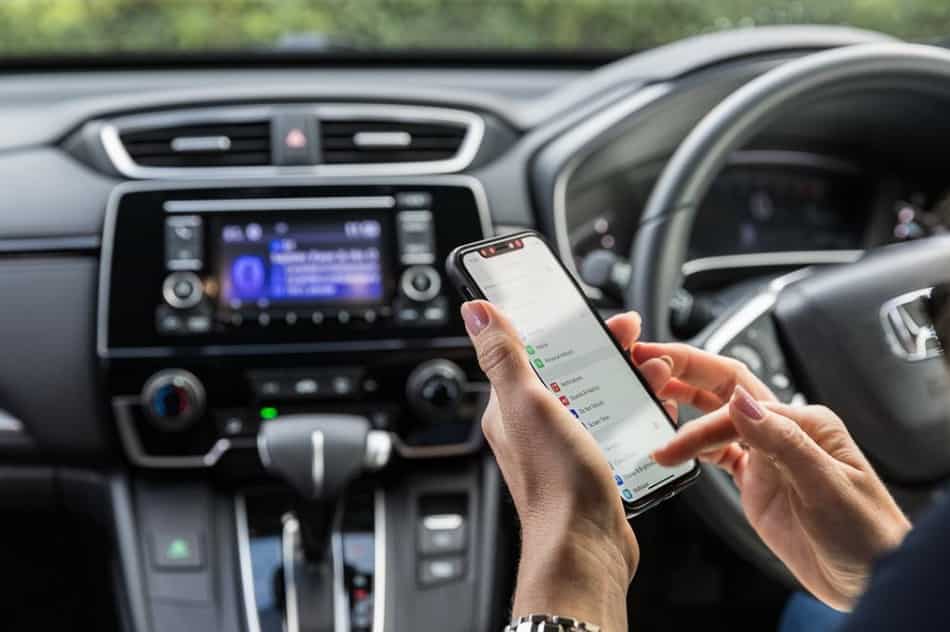
What You Need Before Connecting Your Phone
Before you connect your phone, take a few minutes to prepare both your vehicle and your smartphone. This simple step helps prevent pairing errors and creates a more stable connection. It also reduces the chance of repeating the setup process later.
Start your Honda CR V and park it in a safe location. Turn on the infotainment system and wait until the main menu loads completely. If your vehicle already stores several paired devices, remove the ones you no longer use. A shorter device list helps the system find your phone more quickly.
Next, prepare your smartphone. Turn on Bluetooth and keep your phone unlocked during the setup process. If you plan to use wireless Apple CarPlay or Android Auto, enable both Bluetooth and Wi Fi. Some phones also require Location Services to complete the first connection.
If you prefer a wired connection, use a high quality USB data cable instead of a charging only cable. A damaged or incompatible cable may prevent Apple CarPlay or Android Auto from launching. You should also install the latest software updates on your phone before pairing it with your Honda CR V. Updated software often improves compatibility and fixes connection bugs.
Finally, confirm that your Honda CR V supports the connection method you want to use. Older models may only offer Bluetooth, while newer models can support Apple CarPlay, Android Auto, or wireless smartphone integration. Once everything is ready, you can connect your phone in just a few simple steps.
How to Connect Phone to Honda CR V Using Bluetooth
Bluetooth is the easiest way to connect your phone to a Honda CR V. It allows you to make hands free calls, play music, and access your contacts without using a cable. This option works well for drivers who want a simple connection without using smartphone projection features.
Start by turning on Bluetooth on your phone. Keep the device visible so your Honda CR V can find it during the pairing process. Next, open the Phone or Bluetooth menu on the vehicle’s infotainment system. Select the option to add a new device or connect a new phone.
Your Honda CR V will search for nearby devices. When your phone appears on the screen, select it from the available list. The system will display a pairing code. Check that the code matches the one shown on your smartphone. Then confirm the connection on both devices.
After pairing completes, your Honda CR V may ask for permission to access contacts, messages, or call history. Allow these features if you want to use hands free calling and voice commands. These permissions help the vehicle provide a smoother driving experience.
Test the connection before you start driving. Make a phone call to check the microphone and speakers. You can also open your music app and select Bluetooth Audio from the infotainment menu. If everything works correctly, your phone will connect automatically whenever you enter your Honda CR V.
If your phone does not appear during the pairing process, check your Bluetooth settings first. Make sure another device does not already connect to the vehicle. You can also restart Bluetooth on your phone and repeat the setup process. A clean pairing process usually solves most connection problems.
How to Connect an iPhone with Apple CarPlay
Apple CarPlay gives iPhone users a smarter way to interact with their Honda CR V. It brings important phone features directly to the vehicle’s display. Drivers can use navigation, make calls, send messages, listen to music, and access supported apps without handling their phone while driving.
Before you start, check that your Honda CR V supports Apple CarPlay. You should also make sure your iPhone runs a compatible iOS version. Turn on Bluetooth, Wi Fi, and Siri before beginning the setup. These settings help your phone communicate with the vehicle correctly.
For a wired connection, connect your iPhone to the correct USB data port in your Honda CR V. Use an Apple certified cable or a reliable data cable for the best results. Unlock your iPhone and wait for the Apple CarPlay message to appear. Select Allow when your phone asks for permission. Then choose Apple CarPlay from the infotainment screen.
Some newer Honda CR V models support wireless Apple CarPlay. This setup does not require a USB cable after the first connection. Open the smartphone connection menu on your vehicle screen and select your iPhone from the available devices. Confirm the Bluetooth pairing request and approve the Apple CarPlay connection on your phone.
Once Apple CarPlay connects successfully, you can access apps through the Honda display. Apple Maps and other supported navigation apps help you find directions easily. Siri allows you to make calls, send messages, and control features with voice commands. You can also enjoy music, podcasts, and audiobooks through compatible applications.
If Apple CarPlay disconnects frequently, check your cable, Bluetooth settings, and Wi Fi connection. You should also confirm that Siri remains active on your iPhone. Restarting both the phone and the Honda CR V infotainment system can often restore a stable connection.
How to Connect an Android Phone with Android Auto
Android Auto helps Android users enjoy a safer and more convenient driving experience in a Honda CR V. It connects your smartphone with the vehicle’s infotainment system and gives you access to navigation, phone calls, messages, music, and voice commands. This feature reduces the need to handle your phone while driving.
Before connecting your Android phone, check that your Honda CR V supports Android Auto. Your phone should also run a compatible Android version with the latest updates. Turn on Bluetooth, Wi Fi, and Location Services before starting the setup. These settings help your phone communicate with the vehicle smoothly.
For a wired connection, connect your Android phone to the correct USB data port in your Honda CR V. Use a high quality USB cable that supports data transfer. A charging only cable will not allow Android Auto to work. Unlock your phone and follow the permission requests on the screen. Allow access to contacts, messages, and other features when prompted.
After your phone connects, select Android Auto from the Honda infotainment display. The system will open the Android Auto interface and show compatible applications. You can use Google Maps or other supported navigation apps for directions. You can also use Google Assistant to make calls, send messages, and control music with voice commands.
Some newer Honda CR V models support wireless Android Auto. To set up a wireless connection, open the smartphone connection menu on the vehicle screen. Select your Android phone and complete the Bluetooth pairing process. Follow the instructions on your phone to approve the Android Auto connection.
If Android Auto does not work, check your USB cable first. Many connection problems happen because drivers use cables that only provide charging power. You should also update Android Auto, restart your phone, and remove old Bluetooth connections from the Honda CR V system. These simple steps can solve most connection issues and improve connection stability.
Bluetooth vs Apple CarPlay vs Android Auto
Honda CR V owners have three main options when they want to connect a smartphone. These options include Bluetooth, Apple CarPlay, and Android Auto. Each method offers different advantages based on the way drivers use their phones. Bluetooth focuses on simple functions, while Apple CarPlay and Android Auto provide a more complete smartphone experience.
Bluetooth remains the simplest connection method for most drivers. It works with many smartphone models and does not need a cable. Drivers can make hands free calls, stream music, and access contacts through the Honda infotainment system. However, Bluetooth does not offer the same app integration level as Apple CarPlay or Android Auto.
iPhone users often prefer Apple CarPlay because it creates a closer connection between the phone and the Honda CR V display. The system allows drivers to use navigation apps, messages, music services, and voice commands. Siri also helps complete tasks through voice control, which reduces the need to touch the phone while driving.
Android Auto provides a similar experience for Android smartphone users. The system connects the phone with the vehicle display and supports Google Maps, Google Assistant, music apps, and messaging features. Many drivers choose Android Auto because it works well with the Google services they already use every day.
The right connection method depends on your personal needs and driving habits. Bluetooth works well for drivers who only need calls and audio streaming. Apple CarPlay suits iPhone users who want advanced smartphone integration. Android Auto is a better choice for Android users who want access to Google features on the road.
Your Honda CR V model year and trim level also affect available connection options. Older vehicles may only support Bluetooth or wired connections. Newer models often include wireless Apple CarPlay and Android Auto, which provide a faster and more convenient setup experience.
How to Switch or Remove Connected Phones
Many Honda CR V owners connect more than one smartphone over time. Family members may use the same vehicle, or drivers may replace an old phone with a newer model. Managing connected devices helps the infotainment system find the correct phone faster and prevents unwanted connection problems.
To switch between connected phones, open the Phone or Bluetooth settings menu on your Honda CR V display. The system will show a list of paired devices. Select the phone you want to use and confirm the connection. The vehicle will then change the active device for calls, contacts, and other supported features.
Some Honda CR V models allow you to set a preferred phone. This feature helps the vehicle connect to the correct device automatically when you start the car. Setting a primary phone works well for households that share one vehicle with multiple smartphones.
Removing an old phone is also simple. Open the device management menu and select the phone you no longer want to use. Choose the delete or remove option, then confirm your choice. After removing the device from the Honda CR V system, delete the vehicle from your phone’s Bluetooth list as well.
A clean device list improves connection reliability. Too many saved phones can slow down the pairing process or cause the vehicle to connect to the wrong device. Removing unused phones also makes it easier to add a new smartphone in the future.
After deleting an old device, restart both your Honda CR V infotainment system and your smartphone. Then complete the pairing process again. This fresh connection often solves problems with Bluetooth, Apple CarPlay, or Android Auto.
Honda CR V Phone Not Connecting? Common Fixes
A phone connection problem can interrupt calls, music, navigation, and other smart features in your Honda CR V. These issues often appear after changing phones, updating software, or connecting multiple devices. In most cases, you can fix the problem without professional help. A few simple checks can restore a stable connection.
Start by checking your Bluetooth settings. Turn Bluetooth off on your phone and wait a few seconds before turning it back on. Then open the Honda CR V Bluetooth menu and search for available devices again. This simple reset can solve many temporary connection errors.
Restarting both devices can also help. Turn off your smartphone and restart the Honda infotainment system. After both systems load again, try the pairing process from the beginning. A fresh restart often removes small software problems that prevent successful connections.
Old paired devices may create conflicts. Your Honda CR V can remember previous smartphones, but too many saved devices may confuse the system. Remove phones that you no longer use and keep only active devices in the connection list. Then pair your current phone again.
USB connection problems usually come from the cable. Many drivers use cables that only support charging. Apple CarPlay and Android Auto require a cable that transfers data. Try another high quality USB cable if your phone charges but the smartphone system does not appear on the display.
Software updates can also affect phone compatibility. Check your phone for the latest iOS or Android updates. You should also update related applications such as Android Auto when necessary. Updated software improves communication between your smartphone and Honda CR V infotainment system.
Permission settings can cause connection failures as well. Apple CarPlay needs access to Siri, contacts, and notifications. Android Auto may need permission for location, messages, and microphone access. Review these settings on your phone and allow the required features.
Wireless connections require additional checks. Make sure Bluetooth and Wi Fi remain active on your smartphone. Keep your phone close to the vehicle during the first setup. Remove other nearby Bluetooth devices that may try to connect at the same time.
If the problem continues, reset the Bluetooth connection completely. Delete the Honda CR V from your phone’s Bluetooth list. Remove your phone from the vehicle system as well. Then create a new connection from the beginning. This process removes old pairing information and creates a cleaner setup.
Some connection problems come from the vehicle itself. A frozen infotainment screen, damaged USB port, or repeated system failure may require professional support. Contact a Honda service center if basic troubleshooting steps do not solve the issue.
Most Honda CR V phone connection problems have simple solutions. Checking settings, updating software, removing old devices, and creating a fresh pairing usually restores normal operation. A few minutes of troubleshooting can help you enjoy reliable Bluetooth, Apple CarPlay, and Android Auto features again.
Common Honda CR V Phone Connection Mistakes
Many phone connection problems happen because drivers miss a few basic setup steps. A small mistake during pairing can affect Bluetooth, Apple CarPlay, or Android Auto performance. Understanding these common errors helps you create a faster and more reliable connection with your Honda CR V.
One common mistake is trying to pair a phone while driving. Honda systems focus on safety and may limit certain setup functions when the vehicle moves. Always complete the first connection while the vehicle stays parked in a safe location. This approach also makes the setup process easier because you can follow each instruction carefully.
Another frequent issue involves using the wrong USB cable. Some cables only provide charging power and cannot transfer data. Apple CarPlay and Android Auto need a proper data connection to communicate with your phone. Using a reliable cable can prevent many unexpected connection failures.
Many drivers also forget to check phone permissions. Your smartphone may connect successfully, but some features will not work without access to contacts, messages, microphone, or location services. Reviewing these permissions helps the Honda CR V use all supported smartphone features correctly.
Keeping too many old devices in the vehicle system can create another problem. The infotainment system may try to connect with a different phone instead of your current device. Removing unused smartphones keeps the device list organized and improves automatic connections.
Some users expect every Honda CR V model to offer the same smartphone features. However, available technology depends on the model year, trim level, and infotainment system. Older versions may only support Bluetooth, while newer models may include wireless Apple CarPlay and Android Auto.
A weak Bluetooth signal can also affect performance. Keep your phone close to the vehicle during the initial setup. Turn off unnecessary Bluetooth connections from other devices nearby. This step reduces interference and helps the Honda CR V recognize the correct smartphone.
Software updates are another area that drivers often ignore. An outdated phone system or application can create compatibility problems. Regular updates help your smartphone work better with modern vehicle technology and improve long term connection stability.
Avoiding these mistakes makes the connection process much smoother. A properly configured phone allows you to enjoy hands free calling, navigation, music streaming, and voice assistant features without unnecessary interruptions.
Frequently Asked Questions
Why won’t my Honda CR V connect to my phone?
Your Honda CR V may not connect because of Bluetooth settings, outdated software, old paired devices, or permission issues. Start by restarting Bluetooth on your phone and removing unused devices from the vehicle system. If the problem continues, delete the existing pairing and connect your phone again.
How do I reset Bluetooth on a Honda CR V?
To reset Bluetooth, remove your phone from the Honda CR V device list and delete the vehicle from your phone’s Bluetooth settings. Restart both systems, then create a new connection. This process clears old pairing information and often fixes connection problems.
Can I connect multiple phones to a Honda CR V?
Yes, many Honda CR V models can store multiple paired phones. However, the system may only use one phone for active calling and smartphone functions at a time. Setting a preferred device can help the vehicle connect to the correct phone automatically.
Does every Honda CR V support Apple CarPlay?
No, Apple CarPlay availability depends on the Honda CR V model year and trim level. Many newer models include Apple CarPlay, while some older versions may not support it. Check your vehicle specifications to confirm compatibility.
Does Honda CR V support wireless Android Auto?
Some newer Honda CR V models support wireless Android Auto, while older models may require a USB connection. Your vehicle’s infotainment system determines whether wireless smartphone integration is available.
Why does Bluetooth connect but music does not play?
This issue often happens because your phone connects for calls but does not select Bluetooth Audio as the media source. Open your Honda CR V audio menu and choose Bluetooth Audio. You should also check your phone’s media output settings.
Why does Apple CarPlay keep disconnecting?
Apple CarPlay may disconnect because of a damaged cable, weak wireless connection, outdated software, or incorrect permissions. Try using a different cable, updating your iPhone, and checking CarPlay settings to improve stability.
Can I use Android Auto without a USB cable?
Yes, but only if your Honda CR V and Android phone support wireless Android Auto. Older systems usually require a USB data cable for the connection.
Which connection method is best for Honda CR V?
The best option depends on your needs. Bluetooth works well for calls and basic music streaming. Apple CarPlay provides better integration for iPhone users. Android Auto offers the best experience for Android smartphone users.
How do I make my phone the primary device in Honda CR V?
Open the Bluetooth or Phone settings menu on your Honda CR V. Select your preferred smartphone and set it as the main connected device if your vehicle supports this feature. This helps the system connect to your phone automatically.
Final Thoughts
Learning how to connect phone to Honda CR V makes your daily driving experience more comfortable and convenient. A proper smartphone connection allows you to enjoy hands free calls, music streaming, navigation, and voice commands without unnecessary distractions.
Bluetooth remains a simple choice for drivers who only need basic phone features. iPhone users can enjoy deeper integration through Apple CarPlay, while Android users can access familiar Google services through Android Auto. Each option provides different benefits, so the best choice depends on your smartphone and driving needs.
Most connection problems come from simple causes such as outdated software, incorrect settings, damaged cables, or old paired devices. Following the correct setup process and keeping your phone updated can help maintain a stable connection with your Honda CR V.
Technology features may vary between different Honda CR V model years and trim levels. Always check your vehicle specifications before setting up advanced smartphone features such as wireless Apple CarPlay or Android Auto.
Have you connected your phone to a Honda CR V successfully? Share your model year and smartphone type in the comments. Your experience may help other Honda CR V owners solve similar connection problems and enjoy a better driving experience.