Modern Subaru vehicles are designed to keep drivers connected, informed, and entertained on the road. One of the most useful features available today is Android Auto, a smart driving platform that seamlessly integrates your Android smartphone with your Subaru’s infotainment system. With Android Auto, you can access Google Maps, make hands-free calls, send messages using voice commands, stream music, and use a variety of compatible apps without taking your attention away from the road.
However, many Subaru owners encounter problems when attempting to connect Android Auto for the first time. Common frustrations include the system failing to recognize the phone, connection interruptions, compatibility concerns, or confusion about whether a particular Subaru model supports Android Auto at all. These issues can quickly turn what should be a simple setup process into a frustrating experience.
The good news is that connecting Android Auto to a Subaru is usually straightforward when you understand the requirements and follow the correct steps. In this guide, you will learn how to connect Android Auto to Subaru vehicles, check compatibility, set up both wired and wireless connections, and troubleshoot common issues that may prevent Android Auto from working properly. Whether you drive a Subaru Outback, Forester, Crosstrek, Ascent, Legacy, or WRX, this guide will help you get connected and enjoy a safer, smarter driving experience.
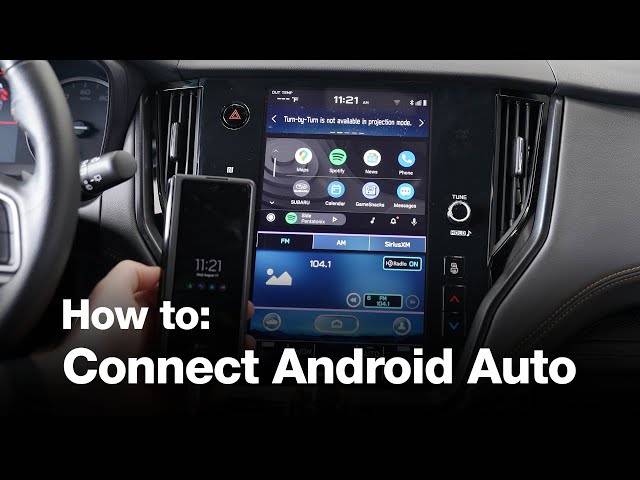
What Is Android Auto and Why Use It in Your Subaru?
Android Auto is a mobile platform developed by Google that allows Android smartphones to integrate directly with a vehicle’s infotainment system. Once connected, drivers can access essential apps and services through the Subaru touchscreen interface or voice commands, reducing distractions and improving convenience while driving.
One of the biggest advantages of Android Auto is its ability to simplify everyday driving tasks. Instead of reaching for your phone, you can use Google Assistant to make calls, send messages, play music, or get directions with simple voice commands. Popular navigation apps such as Google Maps and Waze provide real-time traffic updates, route optimization, and turn-by-turn guidance, helping drivers reach their destinations more efficiently.
For Subaru owners, Android Auto enhances the capabilities of the STARLINK infotainment system by providing a more familiar and regularly updated user experience. Since many drivers rely on their smartphones for navigation and entertainment, Android Auto offers a seamless way to access those features without compromising safety. Whether you are commuting to work, taking a road trip, or running errands around town, Android Auto can make every drive more connected and enjoyable.
Check If Your Subaru Supports Android Auto
Before attempting to connect your smartphone, it is important to verify whether your Subaru model supports Android Auto. While most modern Subaru vehicles include Android Auto compatibility, support may vary depending on the model year and infotainment system installed in the vehicle.
Many Subaru models manufactured in recent years support Android Auto, including the Outback, Forester, Crosstrek, Ascent, Legacy, WRX, Impreza, and BRZ. However, older vehicles may require software updates or may not support the feature at all.
The easiest way to determine compatibility is to review your vehicle owner’s manual or navigate through the STARLINK infotainment settings. If Android Auto is listed among the available smartphone integration features, your vehicle is compatible. You can also check Subaru’s official documentation or contact a local dealership for confirmation.
Drivers should also verify that their Android device meets the minimum software requirements. Most Android phones running Android 8.0 or later are capable of using Android Auto, although newer versions often provide better performance and stability.
Taking a few minutes to confirm compatibility before starting the setup process can save time and help avoid unnecessary troubleshooting later.
Requirements Before Connecting Android Auto to Subaru
Successful Android Auto setup begins with ensuring that both your vehicle and smartphone meet the necessary requirements. Many connection problems occur because one or more of these requirements are overlooked.
First, your Android smartphone should be running a supported version of the Android operating system. Keeping your device updated is strongly recommended because software updates often include bug fixes and compatibility improvements for Android Auto.
Next, verify that the Android Auto application and Google Play Services are fully updated. Outdated software can cause connection failures, unexpected crashes, or missing features.
A high-quality USB cable is another critical component. Many drivers are surprised to discover that some USB cables only provide charging functionality and do not support data transfer. If Android Auto fails to launch after connecting your phone, the cable should be one of the first items you check. Whenever possible, use the original cable provided by the phone manufacturer or a certified replacement.
Your Subaru should also have a functioning USB port and an up-to-date STARLINK infotainment system. Software updates released by Subaru can improve smartphone connectivity and resolve known issues with Android Auto integration.
Finally, ensure that Bluetooth and location services are enabled on your smartphone, especially if you plan to use wireless Android Auto. Meeting these requirements before beginning the setup process will significantly increase the likelihood of a smooth and successful connection.
How to Connect Android Auto to Subaru: Step-by-Step Instructions
Once you have confirmed compatibility and prepared the necessary requirements, you can begin connecting Android Auto to your Subaru. The setup process is relatively simple and usually takes only a few minutes.
Start by parking your vehicle in a safe location and turning on the ignition. Allow the STARLINK infotainment system to fully load before connecting your smartphone. Unlock your Android phone and make sure it remains unlocked throughout the initial setup process.
Using a high-quality USB data cable, connect your Android phone to the designated USB port in your Subaru. In most models, Android Auto will automatically detect the device and prompt you to begin setup. If this is your first time using Android Auto, your phone may display several permission requests.
Carefully review and accept the permissions related to contacts, phone calls, messages, notifications, and location services. These permissions allow Android Auto to provide navigation, communication, and voice assistant functionality while driving.
After accepting the required permissions, Android Auto should launch automatically on the Subaru infotainment display. Follow any on-screen instructions to complete the setup process. Once connected, test several features to ensure everything is working properly. Open Google Maps, play music through a streaming app, and activate Google Assistant using voice commands.
If all functions operate correctly, your Android Auto setup is complete and ready for daily use.
How to Connect Wireless Android Auto to Subaru
Many newer Subaru vehicles support Wireless Android Auto, allowing drivers to connect without using a USB cable. This feature provides greater convenience by automatically connecting your phone whenever you enter the vehicle.
Before starting, confirm that both your Subaru model and Android smartphone support Wireless Android Auto. Some older vehicles may only support wired connections, while certain phones require specific Android versions to use wireless functionality.
Begin by enabling Bluetooth and Wi-Fi on your smartphone. On the Subaru infotainment system, access the phone connection or smartphone integration menu and select the option to add a new device. The system will search for nearby Bluetooth devices and display your phone on the screen.
Select your phone from the list and confirm the pairing codes shown on both devices. Once Bluetooth pairing is complete, Android Auto may automatically initiate the wireless setup process. Follow the prompts displayed on your phone and infotainment screen to finalize the connection.
After the initial configuration is completed, future connections should occur automatically whenever Bluetooth and Wi-Fi are enabled. This eliminates the need to plug in a cable every time you start the vehicle and creates a cleaner, more convenient driving environment.
Wireless Android Auto is especially useful for drivers who frequently enter and exit their vehicles throughout the day and prefer a seamless user experience.
Android Auto Not Working in Subaru? Common Fixes That Actually Work
Even when everything appears to be configured correctly, Android Auto can occasionally fail to connect. Fortunately, most issues can be resolved with a few simple troubleshooting steps.
One of the most effective solutions is restarting both the smartphone and the vehicle infotainment system. Temporary software glitches often disappear after a complete restart.
If the problem persists, inspect your USB cable. A damaged, low-quality, or charging-only cable is one of the most common causes of Android Auto connection failures. Replacing the cable with a certified data cable frequently resolves the issue immediately.
Software updates should also be checked regularly. Install the latest Android operating system updates, Android Auto updates, and any available STARLINK infotainment updates. Manufacturers continuously release patches that improve compatibility and performance.
Another useful troubleshooting method involves clearing the Android Auto application cache. Navigate to your phone’s settings, locate the Android Auto application, and clear its cache data. This can remove corrupted temporary files that may interfere with the connection process.
If Android Auto previously worked but suddenly stopped functioning, delete the existing Bluetooth pairing and connected vehicle profile from your phone. Then reconnect the system as if it were a new device. This process often resolves synchronization issues that develop over time.
Finally, inspect the vehicle’s USB port for dirt, dust, or physical damage. A faulty USB port can prevent proper data transmission even when the cable and smartphone are functioning normally. Performing these troubleshooting steps systematically can resolve the vast majority of Android Auto connectivity problems experienced by Subaru owners.
Common Android Auto Issues and Their Solutions
Although Android Auto is designed to provide a seamless connection between your smartphone and your Subaru, occasional issues can still occur. Understanding the most common problems and their solutions can help you restore functionality quickly and avoid unnecessary frustration.
One frequently reported issue is Android Auto failing to launch when the phone is connected. In many cases, the root cause is an incompatible USB cable that supports charging but not data transfer. Replacing the cable with a certified data cable is often enough to solve the problem.
Some drivers experience frequent disconnections while driving. This can result from a loose USB connection, damaged cable, outdated software, or aggressive battery optimization settings on the smartphone. Checking each of these factors can significantly improve connection stability.
A black or frozen screen is another common complaint. Software conflicts, outdated firmware, or temporary system glitches may cause the infotainment display to stop responding. Restarting both devices and installing available updates usually resolves the issue.
Audio problems may also occur, including no sound during music playback or navigation prompts. In most situations, verifying the audio source settings within the Subaru infotainment system and ensuring media permissions are enabled on the phone can restore proper functionality.
Voice command failures are often linked to disabled microphone permissions or Google Assistant configuration issues. Reviewing application permissions and updating Google Assistant settings can help restore voice control features.
By identifying the specific symptoms and applying the appropriate solution, most Android Auto issues can be resolved without professional assistance.
Tips for Getting the Best Android Auto Experience in Your Subaru
Once Android Auto is working properly, there are several ways to improve performance, reliability, and overall convenience. Small adjustments can make a noticeable difference in your daily driving experience.
Keeping your smartphone software updated is one of the most important maintenance habits. Android updates frequently include performance enhancements, security improvements, and compatibility fixes that benefit Android Auto users.
It is also advisable to use high-quality accessories. Certified USB cables and reliable charging equipment help maintain stable connections and reduce the likelihood of unexpected interruptions. Cheap aftermarket cables often contribute to connectivity issues and should be avoided whenever possible.
Customizing the Android Auto dashboard can improve accessibility while driving. Rearranging frequently used applications allows you to access navigation, music, and communication tools more quickly. A personalized layout can reduce distractions and improve usability.
Drivers who receive frequent notifications may benefit from enabling Do Not Disturb While Driving. This feature minimizes interruptions while still allowing access to important navigation and communication functions through voice commands.
For drivers who rely heavily on navigation, downloading offline maps through Google Maps can be extremely useful. Offline maps continue to function even when cellular coverage becomes weak or unavailable, making them ideal for road trips and rural travel.
Regularly reviewing connected devices and removing old pairings can also help maintain optimal performance, particularly when multiple smartphones have been connected to the same vehicle over time.
Following these best practices can help ensure a smoother, safer, and more reliable Android Auto experience every time you drive.
Frequently Asked Questions About Connecting Android Auto to Subaru
Can I use Android Auto without a USB cable in my Subaru?
Yes, but only if both your Subaru model and Android smartphone support Wireless Android Auto. Many newer Subaru vehicles offer wireless connectivity, while older models may require a wired USB connection.
Why does my Subaru charge my phone but not start Android Auto?
This typically indicates that the USB cable supports charging but does not support data transfer. Switching to a high-quality data cable often resolves the issue.
Does every Subaru vehicle support Android Auto?
No. Android Auto availability depends on the model year and infotainment system installed in the vehicle. Most modern Subaru models support Android Auto, but some older vehicles may not offer this feature.
Can Android Auto work with Subaru STARLINK?
Yes. Android Auto is designed to integrate directly with compatible STARLINK infotainment systems, allowing drivers to access smartphone features through the vehicle’s touchscreen display.
Is Android Auto free to use?
Yes. Android Auto itself is free. However, certain applications used through Android Auto may require subscriptions, and mobile data charges may apply depending on your cellular plan.
Can I connect more than one Android phone to my Subaru?
Many Subaru infotainment systems can store multiple paired devices. However, only one phone can actively use Android Auto at a time.
Conclusion
Connecting Android Auto to your Subaru is one of the easiest ways to enhance your driving experience. By integrating your Android smartphone with your vehicle’s infotainment system, you gain convenient access to navigation, communication, entertainment, and voice-controlled features that help you stay focused on the road.
While the setup process is usually straightforward, many drivers encounter challenges such as compatibility concerns, connection failures, or software-related issues. Fortunately, most of these problems can be resolved by verifying compatibility, using a quality USB cable, keeping software updated, and following the troubleshooting steps outlined in this guide.
Whether you drive a Subaru Outback, Forester, Crosstrek, Ascent, Legacy, WRX, Impreza, or BRZ, Android Auto can make every trip more efficient, connected, and enjoyable. From hands-free calling and messaging to real-time navigation and music streaming, the platform delivers practical features that modern drivers rely on every day.
If you have not yet connected Android Auto to your Subaru, now is the perfect time to follow the setup instructions and unlock the full potential of your vehicle’s infotainment system. A few minutes of setup can provide a safer, smarter, and more convenient driving experience for years to come.