Connecting your smartphone to your Honda should be quick and reliable. However, many drivers experience situations where Honda Smartphone Connection fails to detect their device, disconnects unexpectedly, or refuses to launch Apple CarPlay or Android Auto. These problems can interrupt navigation, hands-free calling, music streaming, and other connected features that have become essential for everyday driving.
In most cases, the issue does not indicate a serious hardware failure. Instead, it usually results from software conflicts, outdated firmware, incorrect smartphone settings, incompatible USB cables, Bluetooth pairing errors, or temporary glitches within the infotainment system. Because several components work together to establish the connection, identifying the actual source of the problem is the fastest way to restore normal operation.
This guide explains why Honda Smartphone Connection stops working and provides twelve proven solutions that address the most common causes. You will learn how to diagnose connection failures, apply the appropriate fix, determine whether the problem originates from your phone or your vehicle, and understand when a software update or professional inspection becomes necessary. By following these troubleshooting steps in the correct order, you can resolve most connection issues without visiting a Honda dealership.
Why Is Honda Smartphone Connection Not Working?
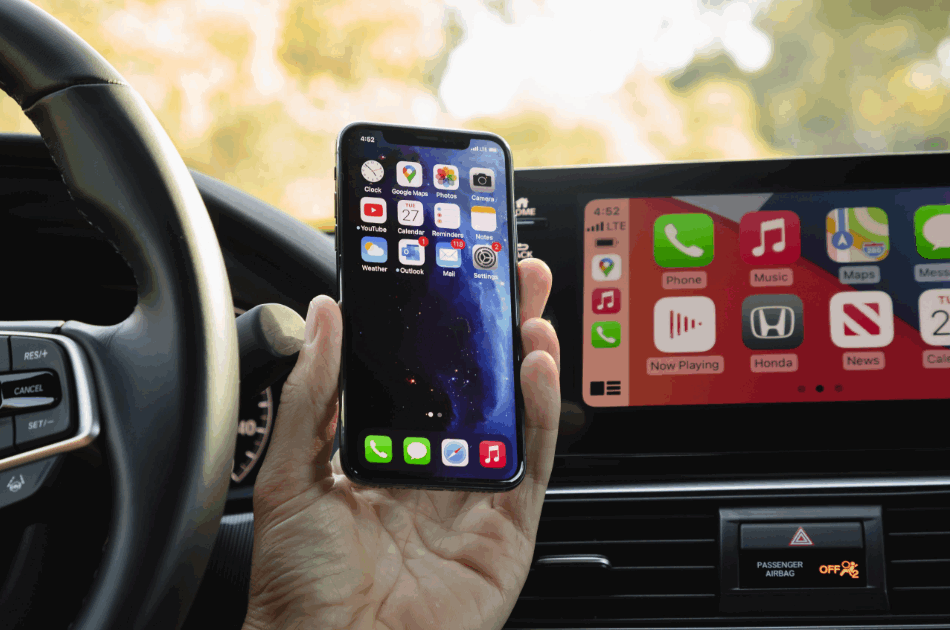
Honda Smartphone Connection usually stops working because communication between your smartphone and the infotainment system is interrupted. Every connection depends on compatible software, stable hardware, and the correct system settings. If one component fails, the vehicle cannot establish a reliable connection. As a result, Android Auto or Apple CarPlay may not launch correctly.
Software compatibility is one of the most common causes of this problem. A recent Android or iOS update may create temporary conflicts with the infotainment system. The same issue can occur after a Honda software update. Older firmware may not recognize newer smartphones until the system receives the latest version. Keeping both devices updated reduces compatibility problems.
Incorrect settings can also prevent a successful connection. Bluetooth pairing may become corrupted after repeated use. At the same time, Android Auto or Apple CarPlay requires several permissions to operate correctly. If access to contacts, notifications, location, or USB data is denied, the connection may fail before it is fully established.
Hardware problems are another common reason Honda Smartphone Connection stops working. A damaged USB cable can interrupt data transmission even though the phone continues charging. Some charging cables do not support data transfer at all. Dust or debris inside the USB port may also reduce connection stability and prevent the infotainment system from detecting the device.
Temporary software glitches should not be ignored. The infotainment system stores temporary data while it operates. Over time, this cached information may interfere with smartphone recognition or Bluetooth pairing. Restarting both the phone and the infotainment system often removes these temporary conflicts. In many cases, this simple step restores the connection within a few minutes.
Understanding the root cause makes troubleshooting much easier. Once you know whether the issue comes from the smartphone, the vehicle, the USB connection, or the software, you can apply the correct solution first. This approach saves time and avoids unnecessary repairs.
How Can You Diagnose Honda Smartphone Connection Problems?
Diagnosing Honda Smartphone Connection problems begins with identifying the exact symptom. Different symptoms often point to different causes. For example, a phone that never connects requires a different solution than one that disconnects while driving. Recognizing the failure pattern helps narrow the troubleshooting process.
If your smartphone does not appear on the infotainment screen, the problem usually involves Bluetooth pairing, USB communication, or device compatibility. First, check whether Bluetooth is enabled on both devices. Next, reconnect the USB cable if you use a wired connection. Finally, confirm that your phone supports Android Auto or Apple CarPlay for your Honda model.
Sometimes the phone connects but Android Auto or Apple CarPlay does not launch. This issue often results from incorrect permissions or outdated software. Open your smartphone settings and verify that the required permissions are enabled. Then check for updates to the operating system and the connection app. Installing the latest version can resolve many compatibility issues.
Frequent disconnections usually indicate an unstable connection rather than a complete system failure. A damaged USB cable is a common cause. Wireless interference can also interrupt Bluetooth communication. In addition, aggressive battery optimization may close background services that support Android Auto or Apple CarPlay. Testing with another certified USB data cable or temporarily disabling battery optimization can quickly identify the source of the problem.
It is also important to determine whether the issue comes from the smartphone or the vehicle. Connect another compatible phone to the same Honda system. If the second device works normally, the original phone is likely responsible. However, if neither phone connects, the infotainment system or its software may require attention.
Following a structured diagnostic process prevents unnecessary repairs. It also helps you apply the correct solution in the right order. Once you identify the source of the problem, fixing Honda Smartphone Connection becomes much faster and more reliable.
How Do You Fix Honda Smartphone Connection Not Working?
Most Honda Smartphone Connection issues can be resolved without replacing any hardware. The best approach is to start with the simplest solutions before moving to advanced troubleshooting. This method saves time and prevents unnecessary changes to the vehicle or your smartphone.
Begin by restarting both your smartphone and the Honda infotainment system. A restart clears temporary software errors that may block communication between the two devices. After both systems reboot, reconnect the phone and check whether Android Auto or Apple CarPlay launches normally. This simple step often restores the connection after a software update or an unexpected system freeze.
Next, inspect the USB cable if you use a wired connection. A cable designed only for charging cannot transfer data to the infotainment system. Even a certified data cable may fail after long-term use because of internal damage. Replacing the cable with a high-quality USB data cable is one of the quickest ways to eliminate connection problems.
If the issue continues, remove the existing Bluetooth pairing from both devices and create a new connection. Corrupted pairing information can prevent the smartphone from completing the authentication process. Reconnecting from scratch allows both devices to exchange fresh connection data and often resolves repeated pairing failures.
You should also review the smartphone settings. Confirm that Android Auto or Apple CarPlay is enabled and has permission to access location services, contacts, notifications, and USB communication. Then install the latest updates for your phone, the connection app, and the Honda infotainment system. Manufacturers frequently release software patches that improve compatibility and fix known bugs.
If none of these solutions work, reset the network settings on your smartphone. This process removes saved Bluetooth, Wi Fi, and network configurations that may interfere with the connection. As a final step, perform a factory reset of the infotainment system if Honda recommends it for your model. Before doing so, back up any saved settings because the reset restores the system to its original configuration.
Following these solutions in order resolves most Honda Smartphone Connection problems. If the connection still fails after every step, the issue may involve the infotainment hardware or a deeper software fault. In that situation, a Honda dealer can perform advanced diagnostics and install manufacturer-approved updates.
Why Does Honda Smartphone Connection Keep Disconnecting?
Honda Smartphone Connection usually keeps disconnecting because the communication between your smartphone and the infotainment system becomes unstable. The connection may work for a few minutes before it suddenly drops. In other cases, it disconnects whenever you receive a phone call, switch apps, or drive over a long distance. Identifying the trigger is the first step toward finding a permanent solution.
A poor-quality USB cable is one of the most common causes of repeated disconnections. While the cable may continue charging your phone, it may not transfer data consistently. Small interruptions in data transmission can cause Android Auto or Apple CarPlay to disconnect without warning. Replacing the cable with a certified USB data cable often improves connection stability immediately.
Wireless interference can also affect the connection. Bluetooth signals compete with other wireless devices operating nearby. At the same time, multiple active connections on your smartphone may reduce communication quality. Disconnecting unused Bluetooth devices and turning off unnecessary wireless features can help maintain a stronger connection with the vehicle.
Battery optimization is another factor that many drivers overlook. Modern smartphones automatically limit background activity to extend battery life. This feature may suspend Android Auto, Apple CarPlay, or Bluetooth services while they are still in use. As a result, the infotainment system loses communication with the phone. Excluding these apps from battery optimization allows them to run continuously during your drive.
Outdated software can also create recurring connection problems. An older version of the Honda infotainment firmware may not communicate properly with the latest smartphone operating system. Likewise, outdated versions of Android Auto or Apple CarPlay may contain bugs that affect connection stability. Keeping every device updated reduces the risk of software conflicts and improves overall performance.
If the connection continues to drop after trying these solutions, test your smartphone with another compatible Honda vehicle or connect a different phone to your own vehicle. This comparison quickly reveals whether the issue is related to the phone or the infotainment system. Once the source is confirmed, you can apply a more targeted solution instead of replacing parts that are working correctly.
Which Phones and Honda Models Support Honda Smartphone Connection?
Honda Smartphone Connection is not available on every vehicle or smartphone. Compatibility depends on the Honda model, model year, infotainment system, and mobile operating system. Even if your phone supports Android Auto or Apple CarPlay, the feature will not work unless your vehicle also includes compatible hardware and software.
Most recent Honda models support smartphone integration through Android Auto and Apple CarPlay. Popular models such as the Honda Civic, Accord, CR-V, HR-V, Pilot, Passport, Odyssey, and Ridgeline include this feature on many trim levels. However, availability varies by model year and market. Checking your owner’s manual or the infotainment specifications is the easiest way to confirm compatibility.
Android users should make sure their devices meet the minimum software requirements. Most modern phones running a supported version of Android can connect without difficulty. The Android Auto app or its built-in service should also be updated to the latest release. An outdated operating system may prevent the infotainment system from recognizing the device correctly.
iPhone users must also verify compatibility before troubleshooting. Apple CarPlay works with supported iPhone models running a compatible version of iOS. Older iPhones or devices with outdated software may experience connection failures or missing features. Updating iOS often improves stability and resolves known compatibility issues.
Connection type is another important consideration. Some Honda vehicles support only wired smartphone integration through a USB data cable. Newer models may also offer wireless Apple CarPlay or wireless Android Auto. If your vehicle supports only a wired connection, Bluetooth alone cannot activate the smartphone projection feature.
Before assuming there is a fault, confirm that both your phone and your Honda model support the same connection method. This simple check eliminates many unnecessary troubleshooting steps. Once compatibility is verified, you can focus on software settings, connection quality, or infotainment updates instead of searching for a problem that does not actually exist.
When Should You Reset or Update the Honda Infotainment System?
Resetting or updating the Honda infotainment system should be considered after basic troubleshooting fails. If your smartphone still cannot connect after checking the cable, Bluetooth settings, and software permissions, the problem may be inside the infotainment system. In many cases, a simple restart or software update is enough to restore normal operation.
A system restart is the safest place to begin. Restarting clears temporary files and refreshes background processes without deleting your personal settings. This step can resolve minor software glitches that prevent Android Auto or Apple CarPlay from connecting. It also takes only a few minutes and carries very little risk.
A software update becomes necessary when the infotainment system runs an outdated firmware version. Honda periodically releases updates to improve performance, increase compatibility, and fix known software bugs. If your smartphone works correctly with other vehicles but not with your Honda, outdated firmware may be the cause. Installing the latest update often improves connection stability and supports newer mobile devices.
A factory reset should only be performed when other solutions have not resolved the problem. This process restores the infotainment system to its original settings and removes saved Bluetooth pairings, personal preferences, navigation history, and other stored data. While a factory reset can eliminate persistent software errors, it also requires you to configure the system again after the reset is complete.
Before performing any update or reset, make sure your vehicle battery has sufficient power. Interrupting the process could cause software corruption or incomplete installation. If possible, review the instructions in your owner’s manual or follow Honda’s official update procedure for your specific model.
If the infotainment system continues to malfunction after a factory reset and the latest firmware update, the issue may involve hardware rather than software. At that point, professional diagnostics are the best option. A Honda dealer can inspect the infotainment unit, verify software integrity, and determine whether a component requires repair or replacement.
When Should You Contact a Honda Dealer?
Most Honda Smartphone Connection problems can be solved at home. However, some issues require professional diagnosis. If you have completed every recommended troubleshooting step and the connection still fails, the problem may involve the infotainment hardware or an internal software fault that cannot be fixed through normal settings.
One clear sign is when multiple compatible smartphones fail to connect to the same vehicle. If Android Auto or Apple CarPlay does not recognize any device, the issue is unlikely to be your phone. Instead, the infotainment system, USB module, or internal communication hardware may need inspection. A certified technician can perform diagnostic tests that are not available to most vehicle owners.
You should also visit a Honda dealer if the infotainment system freezes frequently, restarts without warning, or displays repeated error messages. These symptoms often indicate firmware corruption or hardware failure. Continuing to reset the system without identifying the underlying cause may only provide temporary results.
Physical damage is another reason to seek professional service. A loose USB port, damaged wiring, or a faulty infotainment display can interrupt communication even when every software setting is correct. These components require specialized tools and replacement parts that are designed for your specific Honda model.
If your vehicle is still covered by the manufacturer’s warranty, scheduling a dealer inspection is often the best decision. Warranty coverage may include software updates, infotainment repairs, or replacement of defective components at no additional cost. Professional service also ensures that any repair follows Honda’s official procedures and uses approved parts.
A dealer should be your final step rather than your first option. By completing the basic troubleshooting process before making an appointment, you can eliminate the most common causes and provide useful information to the technician. This approach reduces diagnostic time and increases the chances of resolving the issue during the first visit.
Conclusion
Honda Smartphone Connection problems are usually caused by software conflicts, incorrect settings, or unstable communication rather than serious hardware failures. In many cases, restarting your devices, replacing the USB cable, updating the operating system, or reconnecting Bluetooth is enough to restore a stable connection. Following these steps in the correct order helps you identify the real cause without replacing parts unnecessarily.
Compatibility also plays an important role in long-term performance. Keeping your smartphone, Android Auto or Apple CarPlay, and the Honda infotainment system up to date reduces software conflicts and improves connection reliability. Using a certified USB data cable and reviewing your phone’s permissions can further prevent recurring issues during daily use.
If every troubleshooting step has been completed and the connection still does not work, professional diagnostics become the next logical solution. A Honda dealer can identify hardware faults, install the latest firmware, and verify that every system functions as intended. By understanding the common causes and applying the right fix at the right time, you can restore Honda Smartphone Connection quickly and enjoy a safer, more reliable driving experience.