Apple CarPlay makes every drive more convenient and enjoyable. It lets you use important iPhone features on your Kia touchscreen without taking your eyes off the road. You can open maps, answer calls, send messages, play music, and ask Siri for help with simple voice commands.
Many Kia owners want to learn how to connect Apple CarPlay to Kia because the setup process is quick and straightforward. Most Kia models support a wired connection through a USB port. Many newer models also support wireless Apple CarPlay, making it even easier to connect your iPhone every time you start the vehicle.
Before you begin, check that your Kia supports Apple CarPlay and update your iPhone to the latest version of iOS. Turn on Siri and prepare a compatible USB cable if your vehicle requires a wired connection. These simple steps help you avoid common connection problems and make the setup process much smoother.
This guide explains how to connect Apple CarPlay to Kia with both wired and wireless methods. It also covers the most common connection issues and provides practical solutions. By the end of this guide, you will know how to set up Apple CarPlay correctly and enjoy all of its features with confidence.
What You Need Before Connecting Apple CarPlay to Kia
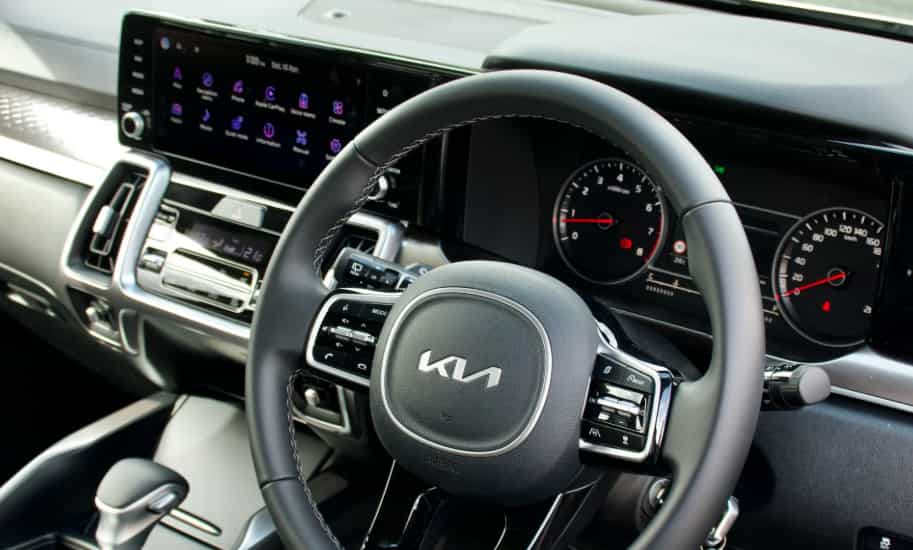
Before you connect your iPhone, make sure you have everything ready. A few simple checks can save time and prevent connection problems. They also help Apple CarPlay work smoothly from the first setup.
First, confirm that your Kia supports Apple CarPlay. Most Kia models released in recent years include this feature, but availability depends on the model, trim level, and infotainment system. If you are not sure, open the Settings menu on your infotainment screen or check your owner’s manual.
Next, make sure your iPhone is compatible with Apple CarPlay. Apple supports CarPlay on iPhone 5 and newer models running a supported version of iOS. Updating your iPhone to the latest iOS version improves performance, fixes software bugs, and increases compatibility with your Kia infotainment system.
You should also enable Siri before starting the setup process. Apple CarPlay relies on Siri for voice commands, hands free calling, messaging, and navigation. Open the Settings app on your iPhone, tap Siri, and turn on all available Siri options.
If your Kia uses a wired connection, prepare a high quality USB cable. An original Apple cable or a certified replacement usually provides the most reliable connection. Damaged or low quality cables often cause connection failures or unexpected disconnections.
For vehicles that support wireless Apple CarPlay, turn on both Bluetooth and Wi Fi on your iPhone. These two wireless features work together during the pairing process. Once the initial setup is complete, your iPhone can reconnect automatically whenever you start your Kia.
After you complete these simple checks, you are ready to connect Apple CarPlay and enjoy navigation, music, phone calls, and other smart features directly from your Kia touchscreen.
How to Connect Apple CarPlay to Kia via USB
Connecting Apple CarPlay with a USB cable is the fastest and most reliable method. Most Kia models with Apple CarPlay support this option. The first setup only takes a few minutes, and your iPhone will reconnect much faster during future drives.
Step 1: Start Your Kia
Park your vehicle in a safe location and start the engine. Turn on the infotainment system and wait until the home screen finishes loading. This ensures the system is ready to detect your iPhone.
Step 2: Unlock Your iPhone
Unlock your iPhone before connecting it to the vehicle. If the screen remains locked, your Kia may not recognize the device or display the Apple CarPlay setup prompt.
Step 3: Connect the USB Cable
Plug a compatible USB cable into the data port inside your Kia. Connect the other end to your iPhone. Use an original Apple cable or a certified replacement to achieve the most stable connection.
Step 4: Accept the Apple CarPlay Prompt
A notification will appear on your iPhone or the infotainment display. Tap Allow or Enable when the system asks for permission to start Apple CarPlay. Your Kia and iPhone will complete the pairing process automatically.
Step 5: Enable Siri
If Siri is not already active, your iPhone will ask you to enable it. Turn on Siri because Apple CarPlay uses voice commands for navigation, phone calls, messages, and many other functions. Voice control helps you keep your hands on the steering wheel and your attention on the road.
Step 6: Wait for Apple CarPlay to Launch
After the setup finishes, the Apple CarPlay home screen will appear on your Kia display. You can now open Apple Maps, Google Maps, Waze, Apple Music, Spotify, Phone, Messages, Podcasts, and other compatible apps directly from the touchscreen.
Customize Your Apple CarPlay Experience
You can arrange compatible apps to match your preferences. Open Settings, select General, tap CarPlay, choose your Kia, and rearrange the app icons. Placing your most frequently used apps near the top of the screen makes them easier to access while driving.
Tips for a Stable USB Connection
Always use a high quality USB cable to reduce connection problems. Keep both your iPhone and Kia infotainment software up to date for the best compatibility. If Apple CarPlay does not launch automatically, disconnect the cable, reconnect it, and make sure you are using the correct USB data port instead of a charging only port.
How to Connect Wireless Apple CarPlay to Kia
Wireless Apple CarPlay gives you a faster and more convenient way to connect your iPhone. You do not need a USB cable after the initial setup. Once your iPhone and Kia are paired, they can reconnect automatically every time you start the vehicle.
Before you begin, confirm that your Kia model supports wireless Apple CarPlay. You should also turn on Bluetooth and Wi Fi on your iPhone. These wireless features allow your phone and vehicle to communicate during the pairing process.
Step 1: Turn On Bluetooth and Wi Fi
Open the Settings app on your iPhone and enable both Bluetooth and Wi Fi. Keep these features turned on throughout the setup process. Wireless Apple CarPlay requires both connections to work correctly.
Step 2: Open the Phone Projection Menu
Turn on your Kia and wait for the infotainment system to load completely. Open the Setup or Settings menu, then select Device Connections, Phone Projection, or Apple CarPlay, depending on your Kia model. Choose the option to add a new device.
Step 3: Pair Your iPhone
Your Kia will begin searching for nearby devices. Select your vehicle from the Bluetooth list on your iPhone. Compare the pairing codes shown on both screens, then confirm that they match. Accept the pairing request on your iPhone and the infotainment display.
Step 4: Allow Apple CarPlay
Your iPhone will ask for permission to use Apple CarPlay. Tap Allow to complete the setup. Your Kia may take a few moments to finish the wireless connection before the Apple CarPlay home screen appears.
Step 5: Test the Connection
Open Apple Maps, play music, or ask Siri to perform a simple task. This quick test confirms that the wireless connection is working correctly. If everything responds without delay, your setup is complete.
Automatic Reconnection
After the first successful connection, your iPhone should reconnect automatically whenever Bluetooth and Wi Fi remain enabled. You can leave your phone in your pocket or bag while enjoying navigation, music, phone calls, and messaging through your Kia touchscreen.
What to Do If Wireless Apple CarPlay Does Not Connect
If the connection fails, restart your iPhone and your Kia infotainment system. Remove your vehicle from the Bluetooth list on your iPhone, then pair the devices again. You should also install the latest iOS version and update your Kia software whenever a new version becomes available. These simple steps resolve most wireless connection problems and improve overall performance.
How to Use Apple CarPlay on Your Kia Screen
After you complete the setup process, Apple CarPlay automatically appears on your Kia touchscreen. The interface is simple, responsive, and easy to navigate, allowing you to access your favorite iPhone features without handling your device. This seamless integration helps reduce distractions and creates a safer driving experience. Instead of looking at your phone, you can control essential functions directly from the infotainment display or by using Siri voice commands. Whether you are commuting to work or taking a long road trip, Apple CarPlay makes every journey more convenient.
One of the biggest advantages of Apple CarPlay is its support for popular navigation apps. You can use Apple Maps for real time traffic updates and accurate turn by turn directions. If you prefer different navigation tools, Google Maps and Waze are also available, helping you find faster routes, avoid traffic congestion, and receive live travel information. Apple CarPlay also makes communication much easier. You can make hands free phone calls, listen to voicemail, send text messages, and hear incoming messages read aloud by Siri. These features allow you to stay connected while keeping both hands on the steering wheel and your attention on the road.
Entertainment is another reason many drivers enjoy Apple CarPlay. You can stream music through Apple Music, Spotify, Amazon Music, or YouTube Music and listen to your favorite podcasts or audiobooks during every trip. You can also customize the Apple CarPlay home screen by arranging compatible apps based on your preferences. For the best experience, use Siri whenever possible instead of touching the display while driving. Voice commands help you navigate, play music, call contacts, and send messages safely, allowing you to enjoy all the benefits of Apple CarPlay while focusing on the road ahead.
Why Apple CarPlay Is Not Working on Kia
Apple CarPlay may not connect even when your Kia supports the feature. In most cases, the problem comes from incorrect settings, outdated software, or connection issues rather than a fault with the infotainment system. Before trying more advanced solutions, check that your iPhone supports Apple CarPlay, Siri is turned on, and your Kia is compatible with the feature. If you use a USB connection, inspect the cable for damage and make sure you plug it into the correct data port. Charging only ports cannot establish a CarPlay connection. If your vehicle supports wireless Apple CarPlay, confirm that both Bluetooth and Wi Fi are enabled on your iPhone and that your phone is not already connected to another vehicle.
Software updates also play an important role in maintaining a stable connection. Install the latest version of iOS on your iPhone and update your Kia infotainment system whenever a new version becomes available. Restarting both devices often resolves temporary software conflicts that prevent Apple CarPlay from launching. If the problem continues, remove your Kia from the CarPlay settings on your iPhone, delete the saved Bluetooth connection, and complete the pairing process again. This simple reset fixes many connection issues that develop after software updates or changes to system settings.
If Apple CarPlay still does not work, reset the infotainment system to its default settings and repeat the setup process from the beginning. You should also test another certified USB cable if you use a wired connection because damaged accessories often cause intermittent failures. Most Apple CarPlay problems have simple solutions, and following these troubleshooting steps will restore a reliable connection in only a few minutes. Once the system works correctly, you can enjoy navigation, communication, and entertainment without unnecessary interruptions every time you drive your Kia.
Frequently Asked Questions About Connecting Apple CarPlay to Kia
Many Kia owners have similar questions when setting up Apple CarPlay for the first time. One of the most common questions is whether every Kia model supports Apple CarPlay. The answer is no. Most Kia vehicles produced in recent years include Apple CarPlay, but availability depends on the model year, trim level, and infotainment system. If you are unsure, check your owner’s manual or open the settings menu on your infotainment display to confirm compatibility. Another frequent question is whether you can add Apple CarPlay to an older Kia. Some older models can receive the feature through a software update, while others may require an aftermarket infotainment system that supports Apple CarPlay.
Drivers also want to know why their Kia does not recognize an iPhone. In most situations, the issue relates to an outdated iOS version, a damaged USB cable, disabled Siri, or incorrect Bluetooth settings. Restarting both the iPhone and the infotainment system often resolves temporary software conflicts. Updating your phone and your Kia software also improves compatibility and connection stability. If you continue to experience problems, remove the existing connection and complete the pairing process again.
Another common question is whether Apple CarPlay uses mobile data. The answer is yes. Navigation apps, music streaming services, podcasts, and other online features use your iPhone’s cellular data unless you connect to a wireless network. Basic phone functions and locally stored music do not require an internet connection. Some drivers also ask whether they can watch videos through Apple CarPlay. Apple does not allow video playback while driving because it prioritizes driver safety. The system focuses on navigation, communication, music, and voice control to help reduce distractions and create a safer driving experience.
Conclusion
Learning how to connect Apple CarPlay to Kia is one of the easiest ways to improve your driving experience. Whether your vehicle supports a wired or wireless connection, the setup process only takes a few minutes when your iPhone and Kia meet the required system requirements. After the initial connection, you can enjoy convenient access to navigation, phone calls, messages, music, podcasts, and many other compatible apps directly from your infotainment screen.
If Apple CarPlay does not work as expected, most issues can be resolved by checking your USB cable, enabling Siri, updating your iPhone, or installing the latest Kia software. A stable connection depends on using compatible hardware and keeping both devices up to date. Following the troubleshooting tips in this guide will help you solve common problems and maintain reliable performance over time.
Now that you know how to connect Apple CarPlay to Kia, you can take full advantage of the smart features available in your vehicle. Apple CarPlay makes everyday driving safer, more convenient, and more enjoyable by keeping essential apps within easy reach. If you still have questions or encounter a specific connection issue, leave a comment below. Sharing your experience may also help other Kia owners find the right solution more quickly.