Uconnect Bluetooth problems are usually caused by pairing conflicts, phone settings, software compatibility issues, or temporary errors in the Uconnect system. The first fixes are to turn Bluetooth off and back on, restart the phone, remove the existing pairing from both devices, and pair the phone with Uconnect again. Software updates and a Uconnect reset should be checked if these basic steps do not restore the connection.
The exact fix depends on how the Bluetooth problem appears. Uconnect may fail to find the phone, refuse to complete pairing, show a paired phone without connecting to it, or repeatedly disconnect after a connection is established. A phone can also remain connected while Bluetooth audio, hands-free calls, the microphone, or contact syncing does not work correctly. These symptoms require different diagnostic steps because a successful Bluetooth pairing does not confirm that every Uconnect Bluetooth function is working.
This guide explains the main causes of Uconnect Bluetooth problems and provides a step-by-step troubleshooting sequence, starting with phone and pairing checks before moving to software updates and Uconnect reset procedures. It also explains how to determine whether the fault is coming from the phone or the vehicle’s Uconnect system.
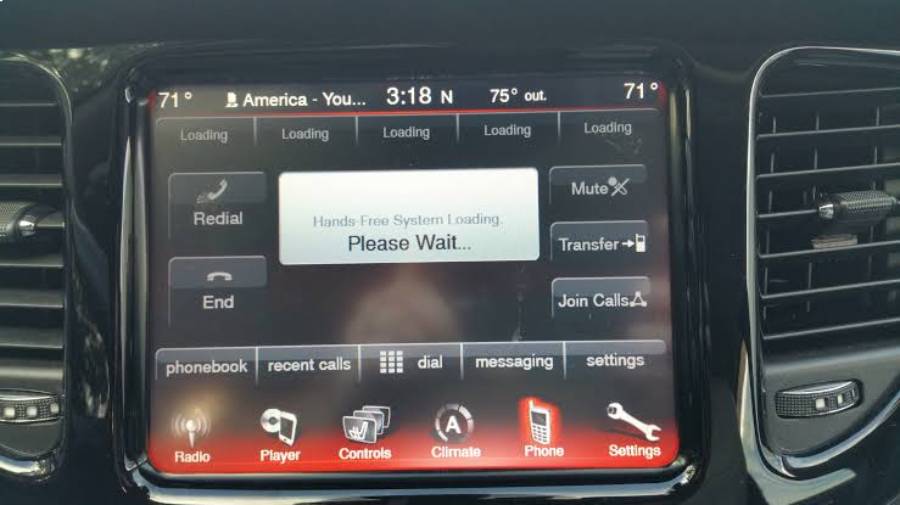
Why Is Uconnect Bluetooth Not Working?
Uconnect Bluetooth can stop working because of 6 main causes: incorrect Bluetooth settings, outdated pairing records, multiple paired devices, phone software problems, outdated Uconnect software, and device compatibility issues. Identifying which cause applies is important because pairing failures, random disconnections, and missing Bluetooth audio do not necessarily originate from the same problem.
Can Bluetooth Settings Prevent Uconnect From Connecting?
Incorrect Bluetooth settings can prevent Uconnect from detecting or connecting to your phone. Bluetooth must be enabled on the phone, and the device must be available for pairing when establishing a new connection. A phone that has Bluetooth turned off cannot communicate with the Uconnect system even when it was previously paired with the vehicle.
Check the Bluetooth menu on your phone before changing settings in Uconnect. Turn Bluetooth off, wait several seconds, and turn it back on to restart the phone’s Bluetooth connection. Then open the Bluetooth settings while attempting to connect. This simple sequence helps determine whether the failure is temporary or whether additional troubleshooting is required.
Phone permissions can also affect individual Uconnect functions after the Bluetooth connection is established. For example, a phone may connect successfully while contact synchronization or another Bluetooth-dependent function remains unavailable. A successful connection therefore does not prove that every Bluetooth feature is configured correctly.
Can Old Bluetooth Pairings Cause Uconnect Connection Problems?
Old pairing records can prevent a phone and Uconnect from establishing a new Bluetooth connection correctly. Both devices store information about previously paired connections, and removing the existing pairing from only one side may leave the other device with an old record.
Delete the phone from the Uconnect paired-device list and forget Uconnect from the phone’s Bluetooth settings when reconnecting does not work. Restart the phone after removing the records, then perform a new pairing instead of attempting to restore the old connection.
This step is particularly relevant when Uconnect shows the phone as paired but does not establish an active connection. Removing both stored records forces the phone and Uconnect to create a new pairing relationship rather than relying on the previous one.
Can Too Many Paired Devices Cause Uconnect Bluetooth Problems?
Multiple stored devices can create connection and device-priority problems when Uconnect attempts to connect to a previously paired phone. This is especially relevant when several drivers have connected their phones to the same vehicle.
For example, Uconnect may attempt to establish a connection with a different stored phone when that device is available in or near the vehicle. The intended phone can remain paired without becoming the active device. Check the paired-device list and verify that the correct phone is selected for the connection.
Remove phones that are no longer used with the vehicle when the paired-device list contains obsolete devices. Reducing unnecessary pairing records also makes it easier to determine whether the problem is specific to one phone or affects every device connected to Uconnect.
Can Phone Software Cause Uconnect Bluetooth Problems?
Phone software can cause Uconnect Bluetooth problems when the operating system, Bluetooth service, or device permissions interfere with the connection. This type of problem can appear even when Uconnect itself has not changed.
Restart the phone first because a restart reloads its software services and Bluetooth connection state. Check for an operating-system update if the problem continues. If the Bluetooth failure started immediately after an iOS or Android update, the timing is also useful diagnostic information because the phone’s software environment changed while the vehicle system remained the same.
Testing Uconnect with a second compatible phone provides a stronger diagnosis. A second phone that connects and operates normally indicates that the original phone, its settings, or its software should be investigated first. Failure across multiple phones shifts the diagnosis toward Uconnect or the vehicle’s infotainment system.
Can Outdated Uconnect Software Cause Bluetooth Problems?
Outdated or malfunctioning Uconnect software can cause pairing, connection, audio, and stability problems. Bluetooth communication depends on both sides of the connection, so changing settings on the phone will not resolve a fault originating in the vehicle’s infotainment software.
Check the software information and available update options applicable to the Uconnect system installed in the vehicle. The exact update process depends on the Uconnect version and vehicle configuration, so the procedure should be matched to the specific system rather than treating every Uconnect unit as identical.
A software-side problem becomes more likely when several compatible phones experience the same Bluetooth failure. Repeated infotainment freezing, restarting, or failures involving other Uconnect functions provide additional evidence that the problem extends beyond one smartphone.
Can Phone Compatibility Affect Uconnect Bluetooth?
Phone compatibility can affect which Bluetooth functions work correctly with a specific Uconnect system. Compatibility is not limited to whether two devices can complete the initial pairing process. Calling, contact synchronization, audio streaming, and other functions can depend on the phone, operating-system version, vehicle, and Uconnect configuration.
Check compatibility when a specific phone repeatedly fails while other phones connect normally. This distinction prevents unnecessary changes to the vehicle when the issue is isolated to one device or software configuration.
Compatibility should also be reconsidered after major phone or operating-system changes. A phone that previously worked with Uconnect but behaves differently after a software update presents a different diagnostic situation from a Uconnect system that suddenly stops connecting to every available phone.
How Do You Fix Uconnect Bluetooth Not Working?
There are 7 main steps to fix Uconnect Bluetooth: restart the phone’s Bluetooth connection, restart the phone, remove the phone from Uconnect, forget Uconnect on the phone, pair both devices again, check software updates, and reset Uconnect if the earlier steps fail. Perform the steps in this order so that simple connection problems are eliminated before changing or resetting the infotainment system.
How Do You Restart Bluetooth on Your Phone?
Restart Bluetooth by turning it off on your phone, waiting several seconds, and turning it back on before reconnecting to Uconnect. This action creates a new Bluetooth connection attempt without deleting the existing pairing.
Open the phone’s Bluetooth settings rather than relying only on the status icon. Confirm that Bluetooth is enabled and check whether Uconnect appears under the saved or paired devices. Attempt the connection again after Bluetooth has restarted.
Move to the next troubleshooting step if Uconnect still does not connect. Repeatedly toggling Bluetooth provides little additional diagnostic value once the same failure occurs after a fresh attempt.
How Do You Restart Your Phone Before Reconnecting Uconnect?
Restart your phone to reload its Bluetooth and operating-system services before attempting another Uconnect connection. A restart is more comprehensive than switching Bluetooth off and back on because it refreshes the phone’s broader software environment.
After the phone restarts, enable Bluetooth and allow Uconnect to attempt the connection again. Check whether the phone connects automatically if it was previously paired. If it remains disconnected, manually select Uconnect from the phone’s saved Bluetooth devices.
Continue to a fresh pairing when restarting both the Bluetooth connection and phone produces the same result. At that point, the stored pairing itself becomes a more relevant troubleshooting target.
How Do You Remove Your Phone From Uconnect?
Remove the affected phone from Uconnect’s paired-device list to eliminate its stored Bluetooth pairing record. The exact menu names vary by Uconnect version, but the paired-phone or Bluetooth device menu provides controls for managing previously connected devices.
Select the affected phone and use the available option to remove or delete it. Verify that the phone no longer appears as a paired device before creating a new connection.
Do not immediately pair the devices again if the old Uconnect record still exists on the phone. Removing the pairing from both sides provides a cleaner troubleshooting test.
How Do You Forget Uconnect on Your Phone?
Forget Uconnect in the phone’s Bluetooth settings to remove the vehicle’s stored pairing information from the smartphone. This step complements deleting the phone from Uconnect because Bluetooth pairing information exists on both devices.
On an iPhone or Android phone, open the Bluetooth settings, locate the saved Uconnect connection, and select the option to forget, unpair, or remove the device. The exact wording depends on the operating system and software version.
Restart Bluetooth after removing the record. Uconnect should then be treated as a new Bluetooth device during the next pairing attempt rather than as an existing saved connection.
How Do You Pair Your Phone With Uconnect Again?
Pair the phone with Uconnect again only after the previous pairing records have been removed from both devices. Enable Bluetooth on the phone, open the phone/Bluetooth controls in Uconnect, start the pairing process, and select the appropriate device when it appears.
Confirm that the pairing information displayed by the phone and Uconnect matches when the system requests confirmation. Complete any permission requests needed for functions such as contacts or calling if you want those features available through Uconnect.
Test more than the connection indicator after pairing. Make a Bluetooth call and play audio through the infotainment system when those functions are available. This verifies that the new pairing supports the functions that originally failed.
How Do You Check for Uconnect and Phone Software Updates?
Check both the phone operating system and the applicable Uconnect software when fresh pairing does not fix the Bluetooth problem. Updating only one side can leave an unresolved software or compatibility issue on the other.
Check the phone’s software-update menu for the currently installed iOS or Android version and available updates. For Uconnect, identify the system and vehicle configuration before following an update procedure because update availability and installation methods are not identical across all Uconnect-equipped vehicles.
Test Bluetooth again after an applicable update is completed. Use the same phone and function that previously failed so the result can confirm whether the software change resolved the original problem.
How Do You Reset Uconnect if Bluetooth Still Does Not Work?
Reset Uconnect only after Bluetooth restart, phone restart, fresh pairing, and relevant software checks fail to restore the connection. A reset is a later troubleshooting step because its procedure and effect on stored settings depend on the Uconnect system and vehicle.
Identify the installed Uconnect version before performing a reset. Avoid using a reset button combination intended for a different head unit or vehicle because Uconnect systems do not all use one universal reset procedure.
After the appropriate reset, pair the phone again and test the original Bluetooth problem. If several compatible phones still cannot connect after the earlier troubleshooting steps and the correct reset procedure, the fault is more likely to require diagnosis of the Uconnect or vehicle infotainment system.
Why Is Uconnect Not Finding My Phone?
Uconnect may not find your phone when Bluetooth is disabled, the phone is not available for discovery, an existing pairing interferes with detection, or the phone and Uconnect are not entering pairing mode at the same time. Device detection happens before Bluetooth pairing, so a phone that never appears in the Uconnect device list requires different troubleshooting from a phone that appears but fails to connect.
Start by confirming that Bluetooth is enabled on the phone and opening its Bluetooth settings while Uconnect searches for a device. Keep the phone close to the vehicle’s infotainment system during the pairing attempt. If another phone is already connected to Uconnect, disconnecting that device can also make the troubleshooting process clearer by removing a competing connection.
Delete an old pairing when the phone was previously connected to the same Uconnect system but is no longer detected correctly. Remove the phone from Uconnect and forget Uconnect from the phone before starting a fresh device search. This creates a new discovery and pairing process rather than relying on stored information from the previous connection.
How Do You Make Your Phone Discoverable to Uconnect?
Make your phone available to Uconnect by enabling Bluetooth, opening the phone’s Bluetooth settings, and starting the Uconnect pairing process while both devices are ready to establish a new connection. The exact menus differ between iPhone, Android, and Uconnect versions, but both devices must participate in the pairing process.
Open the Bluetooth or phone menu in Uconnect and select the option used to add or pair a device. Keep the Bluetooth settings open on the smartphone and wait for Uconnect to appear as an available device, or for the phone to appear in the Uconnect pairing interface, depending on the system.
Select the appropriate device and verify the pairing request shown on both screens. Confirm the pairing information when it matches. Do not approve a pairing request for an unidentified device, especially when other Bluetooth devices are nearby.
A phone that appears during this process but fails when pairing is attempted has passed the discovery stage. Troubleshooting should then move toward pairing records, software, compatibility, or connection problems rather than repeatedly searching for the phone.
What Should You Do if Uconnect Still Cannot Detect Your Phone?
Test Uconnect with another compatible phone if the original phone remains undetectable after Bluetooth restart, phone restart, and fresh device discovery. A second device provides a practical way to isolate which side of the Bluetooth connection is failing.
If Uconnect detects the second phone, investigate the original phone’s Bluetooth settings, software, and compatibility first. For example, forgetting Uconnect, restarting the original phone, and checking its operating-system software are more relevant than resetting the entire infotainment system.
If Uconnect cannot detect multiple phones, the vehicle side becomes the stronger suspect. Check the Uconnect system for software issues and other abnormal behavior, such as freezing, unexpected restarts, or unavailable phone functions. A failure affecting several devices provides stronger evidence of a Uconnect-side problem than a failure affecting one phone.
Why Is Uconnect Bluetooth Paired but Not Connecting?
Uconnect Bluetooth can show a phone as paired without connecting because pairing and active connection are separate states. Pairing stores the relationship between the phone and Uconnect, while an active connection allows the two devices to communicate during the current drive.
This distinction explains why deleting and recreating the pairing can solve a connection problem even when both devices already recognize each other. The stored relationship may still exist while the current Bluetooth session fails to establish correctly.
Multiple paired phones can also affect which device becomes active. A phone may remain listed as paired while Uconnect automatically connects to another preferred or previously selected device. Check which phone is actively connected before treating the paired status as evidence of a Bluetooth malfunction.
How Do You Reconnect a Phone That Is Already Paired With Uconnect?
Reconnect an already paired phone by enabling Bluetooth on the phone and selecting that device from the Uconnect paired-phone list when automatic connection fails. This tests whether the existing pairing can still establish an active Bluetooth session.
Confirm that the phone is not already connected to another device in a way that interferes with the intended Uconnect function. Then select the saved Uconnect connection from the phone or select the phone through the Uconnect interface, depending on which connection controls are available.
Remove and recreate the pairing if manual reconnection repeatedly fails. Delete the phone from Uconnect and forget Uconnect on the smartphone before pairing both devices again. A fresh pairing is more useful than repeatedly selecting a saved connection that produces the same failure.
Test Bluetooth audio and calling after reconnection. A connected status confirms that a Bluetooth session exists, but testing individual functions confirms whether the original problem has actually been resolved.
How Do You Change the Preferred Phone in Uconnect?
Change the preferred or active phone through the paired-device controls available on your Uconnect system when the wrong saved phone connects automatically. This is relevant in vehicles shared by multiple drivers because several phones may be stored in the infotainment system.
Review the paired-device list and identify which phone Uconnect is attempting to use. Select the intended phone as the active or preferred device when the installed Uconnect version provides that option. Menu terminology and priority controls vary between Uconnect systems, so use the controls displayed by the specific head unit rather than assuming every version uses identical settings.
Remove obsolete phones when they are no longer used with the vehicle. For example, deleting a former driver’s phone prevents Uconnect from continuing to treat that device as a potential connection and simplifies the paired-device list.
If the intended phone is selected correctly but still cannot establish a connection, device priority is no longer the primary diagnosis. Continue with fresh pairing, software, and compatibility checks.
Why Does Uconnect Bluetooth Keep Disconnecting?
Uconnect Bluetooth can keep disconnecting because of unstable phone software, corrupted pairing information, device conflicts, compatibility problems, or Uconnect software faults. A repeated disconnection differs from an initial pairing failure because the phone and Uconnect are capable of establishing a Bluetooth session before that session is interrupted.
First determine whether the disconnection happens once or repeats consistently. A single interruption may result from a temporary Bluetooth state, while repeated failures during multiple drives provide stronger evidence of a persistent software, pairing, or device-specific problem.
The timing also provides diagnostic information. For example, a connection that began disconnecting after a phone operating-system update should prompt investigation of the phone and its Bluetooth configuration. A Uconnect system that disconnects several different phones points more strongly toward the vehicle side.
Can Phone Settings Cause Uconnect to Disconnect?
Phone settings and software can cause repeated Uconnect disconnections when they interrupt or alter the Bluetooth connection. Restarting the phone and checking its software are therefore relevant when the initial pairing succeeds but the connection does not remain stable.
Check whether the problem affects other Bluetooth devices connected to the same phone. A phone that also loses connections with headphones, speakers, or other Bluetooth equipment provides evidence that the problem may not be limited to Uconnect.
The opposite result is also useful. If the phone maintains stable Bluetooth connections with other equipment but repeatedly disconnects from Uconnect, investigate the pairing relationship, compatibility, and Uconnect software rather than assuming the phone’s Bluetooth hardware is defective.
Can Uconnect Software Cause Repeated Bluetooth Disconnections?
Uconnect software can cause repeated Bluetooth disconnections when the infotainment system cannot maintain a stable session with paired devices. This possibility becomes more relevant when the same behavior occurs with more than one compatible smartphone.
Observe whether the infotainment system has other software symptoms at the same time. Freezing menus, spontaneous restarts, delayed responses, or failures affecting multiple Uconnect functions strengthen the case for a system-side problem.
Check for software information and updates applicable to the installed Uconnect system before performing more disruptive troubleshooting. Vehicle model, model year, head unit, and Uconnect version matter because the applicable software and procedures are not universal across every Uconnect-equipped vehicle.
Should You Re-Pair the Phone if Uconnect Keeps Disconnecting?
Re-pair the phone when Uconnect repeatedly disconnects after Bluetooth and phone restarts fail to stabilize the connection. A fresh pairing removes the stored Bluetooth relationship and creates a new one between the smartphone and Uconnect.
Delete the pairing from both sides rather than only one device. Remove the phone from the Uconnect paired-device list, forget Uconnect in the smartphone’s Bluetooth settings, restart the phone, and complete the pairing process again.
Test the new connection under the same conditions that previously caused the disconnection. For example, if Bluetooth normally disconnected several minutes after starting the vehicle, keep the phone connected long enough to determine whether the behavior returns.
Test a second compatible phone if the fresh pairing also disconnects repeatedly. Stable operation with the second phone points toward the original smartphone or its software. Repeated disconnections with multiple phones shift the diagnosis toward Uconnect, its software, or another vehicle-side problem.
Why Is Uconnect Bluetooth Audio Not Working?
Uconnect Bluetooth audio can stop working even when the phone remains connected because Bluetooth pairing and media playback are separate functions. The most relevant checks are the active audio source, phone media output, Bluetooth connection, volume settings, and the existing pairing between the phone and Uconnect.
Start by confirming the actual symptom. If Uconnect shows the phone as connected and hands-free calls work but music does not play through the vehicle speakers, the Bluetooth connection itself is not completely unavailable. The problem is more specifically related to media playback or audio routing.
Test more than one audio source on the phone before changing Uconnect settings. For example, play audio from a second app if one music or podcast app produces no sound. Audio that fails in only one application points toward the phone or application, while audio that fails across multiple applications provides stronger evidence of a Bluetooth media or Uconnect audio problem.
How Do You Select Bluetooth Audio on Uconnect?
Select Bluetooth as the active media source in Uconnect when the phone is connected but music continues playing through another source or produces no sound from the vehicle speakers. A Bluetooth connection does not automatically guarantee that Bluetooth media is the source currently selected by the infotainment system.
Open the media or audio controls available on the installed Uconnect system and check the current source. Switch to the Bluetooth-connected phone when another source, such as radio or USB, is active. The exact labels and menu layout depend on the Uconnect version installed in the vehicle.
Start playback from the phone after selecting the Bluetooth source. Check both the phone and vehicle volume because either device can affect the audible result. This test determines whether the connection can transfer media audio before more extensive troubleshooting is performed.
If Bluetooth is selected correctly but no media reaches the vehicle speakers, restart Bluetooth and reconnect the phone. Re-pairing becomes appropriate when a fresh connection produces the same media failure.
Why Is My Phone Connected to Uconnect but Not Playing Music?
A phone can remain connected to Uconnect without playing music when the active Bluetooth connection does not route media audio correctly. The connected status only confirms that the devices have established a Bluetooth relationship; it does not confirm that every supported function is operating.
Determine whether other Bluetooth functions work. Make a hands-free call when safe and appropriate. Calls that work while music does not narrow the problem to Bluetooth media instead of indicating a complete connection failure.
Next, check the media output on the phone and the active source in Uconnect. Start audio manually after confirming that Uconnect is using Bluetooth as its media source. Restart the phone’s Bluetooth connection if the media output remains unavailable.
Remove and re-pair the phone when the media problem persists after these checks. A new pairing rebuilds the Bluetooth relationship and provides a clean test of media playback. If another compatible phone can stream audio through the same Uconnect system, investigate the original phone and its software before treating the vehicle system as the primary fault.
What Should You Check if Uconnect Bluetooth Audio Has No Sound?
Check 5 areas when Uconnect Bluetooth audio has no sound: the selected media source, phone playback, phone volume, vehicle volume, and Bluetooth connection. These checks separate an audio-routing problem from a complete Bluetooth failure.
Confirm first that audio is actually playing on the smartphone. Then verify that Bluetooth or the connected phone is selected as the Uconnect media source. Increase the volume to a normal listening level on both devices and check whether another audio application produces the same result.
Reconnect Bluetooth if the settings are correct but sound remains unavailable. A temporary connection failure can leave the phone listed as connected without producing the expected media output.
Re-pair the devices when reconnecting does not restore sound. Test another compatible phone afterward if necessary. Successful audio playback from another phone isolates the problem toward the original device, while the same failure across multiple phones makes Uconnect-side troubleshooting more relevant.
Why Are Uconnect Bluetooth Calls Not Working?
Uconnect Bluetooth calls can fail because of an incomplete phone connection, phone permissions, call-audio routing, pairing problems, or a Uconnect-side fault. Calling should therefore be tested independently from Bluetooth music because the two functions can behave differently over the same paired connection.
Begin by checking whether the phone is actively connected to Uconnect rather than merely listed as paired. Then make a controlled test call when the vehicle is safely parked. Determine whether the failure affects placing the call, hearing the other person, microphone input, or contact access.
These symptoms should not be treated as one problem. A call that connects but does not transmit the driver’s voice points toward a different function from a phone that cannot initiate a hands-free call at all. Identifying the failed function prevents unnecessary changes to unrelated Bluetooth settings.
Why Is Uconnect Not Making or Receiving Bluetooth Calls?
Uconnect may fail to make or receive Bluetooth calls when the phone is not actively connected for calling or the Bluetooth relationship is not functioning correctly. Verify the active phone connection before resetting or deleting anything.
Check whether Uconnect recognizes the intended phone as the active device. This is particularly important when multiple smartphones are stored in the system because a different phone may be connected automatically.
Disconnect and reconnect the intended phone if it is paired but calling remains unavailable. Restart the smartphone when reconnection fails. These steps test the current Bluetooth session without immediately deleting the stored pairing.
Create a fresh pairing if calls still do not work. Remove the phone from Uconnect, forget Uconnect from the phone, and pair the devices again. Test a call after pairing so the result confirms whether the original hands-free problem was resolved.
Why Is the Uconnect Microphone Not Working During Calls?
A Uconnect microphone problem is indicated when a Bluetooth call connects and you can hear the other person, but the other person cannot hear you correctly. This symptom differs from a complete Bluetooth connection failure because the call itself has already been established.
Confirm the problem with more than one call before diagnosing the microphone. A single poor call can result from network or recipient-side conditions rather than the vehicle’s microphone or Bluetooth system.
Check whether the same microphone problem occurs with another compatible phone connected to Uconnect. If calls work normally with the second phone, the original smartphone or its connection becomes the stronger troubleshooting target. If multiple phones produce the same microphone failure, a Uconnect or vehicle-side problem becomes more likely.
A persistent microphone failure across multiple devices requires a different diagnostic path from ordinary Bluetooth pairing. Repeatedly deleting and recreating the same pairing has limited value once testing demonstrates that the Bluetooth call connects but the vehicle consistently fails to transmit voice input.
Why Are My Contacts Not Syncing With Uconnect?
Contacts may fail to sync with Uconnect when the phone is connected but contact access has not been granted or synchronization is not functioning correctly. Contact synchronization is an additional Bluetooth-related function, so missing contacts do not necessarily mean the phone has failed to connect.
Check the Bluetooth settings associated with the Uconnect connection on the smartphone and review the available permissions or sharing options. The names of these controls differ between phone operating systems and software versions.
Reconnect the phone after correcting the relevant setting so Uconnect can attempt synchronization again. Re-pair the devices if the permission is correct but contacts still do not appear.
Test basic calling separately from contact synchronization. A phone that can place and receive calls through Uconnect while its contacts remain unavailable has a more specific synchronization problem. Treating that situation as a complete Bluetooth failure would broaden the diagnosis beyond the actual symptom.
Does Uconnect Bluetooth Work Differently on iPhone and Android?
Uconnect Bluetooth can behave differently with iPhone and Android phones because the operating systems use different Bluetooth settings, permission controls, and software versions. The core pairing process remains similar, but the troubleshooting steps on the phone side depend on whether Uconnect is connected to iOS or Android.
The most useful distinction is not simply whether the phone is an iPhone or Android device. The phone model, operating-system version, Uconnect version, vehicle configuration, and function that is failing provide more diagnostic value. For example, a phone that pairs successfully but does not synchronize contacts requires a different investigation from a phone that Uconnect cannot detect.
Software changes also matter. If Bluetooth worked normally before an iOS or Android update and the problem started immediately afterward, investigate the phone’s software and connection settings before assuming that the Uconnect hardware has failed. If several different phones develop the same problem with the vehicle, the diagnostic direction shifts toward Uconnect.
What Should iPhone Users Check When Uconnect Bluetooth Does Not Work?
iPhone users should check Bluetooth status, the saved Uconnect connection, relevant permissions, and the installed iOS version when Uconnect Bluetooth does not work. Start with these phone-side checks before performing a Uconnect reset.
Open the iPhone’s Bluetooth settings and confirm that Bluetooth is enabled. Check whether Uconnect appears as a saved device and whether the iPhone shows an active connection. If the existing connection repeatedly fails, forget Uconnect on the iPhone and remove the iPhone from Uconnect before creating a fresh pairing.
Review relevant permissions when the Bluetooth connection works but an individual function does not. For example, a contact-sync problem should be investigated as a permission or synchronization issue rather than automatically being classified as a complete Bluetooth failure.
Check the installed iOS version when the problem appears after a software change. Re-test Uconnect after restarting the iPhone and completing any appropriate phone-side troubleshooting. A second compatible phone can then be used to determine whether the failure follows the iPhone or remains with the vehicle.
What Should Android Users Check When Uconnect Bluetooth Does Not Work?
Android users should check Bluetooth status, the saved Uconnect pairing, applicable permissions, and the phone’s current software when the connection fails. Android interfaces vary by phone manufacturer and operating-system version, so exact menu names should be matched to the device being used.
Open the phone’s Bluetooth settings and confirm that Uconnect appears under the appropriate saved or paired devices. Restart Bluetooth and the phone before deleting the connection. If the failure continues, unpair Uconnect on the Android phone and remove the phone from Uconnect before pairing them again.
Check permissions when calling, contact access, or another Bluetooth-dependent function fails while the basic connection remains active. A function-specific failure provides more diagnostic information than the general statement that Bluetooth is connected.
Software should be considered when the connection behavior changes after an Android update. Test another compatible phone if restarting and re-pairing do not solve the problem. A successful connection with the second phone narrows the investigation toward the original Android device.
How Do You Know Whether the Problem Is Your Phone or Uconnect?
Test at least 2 compatible phones with the same Uconnect system to determine whether the Bluetooth problem is more likely to originate from the phone or the vehicle. Comparing devices is more informative than repeatedly changing settings on one phone because it introduces a second test case while keeping the Uconnect system constant.
If Phone A fails but Phone B connects and performs the same Bluetooth function normally, investigate Phone A first. Its software, settings, permissions, saved pairing, or compatibility is more likely to explain the difference because the Uconnect system demonstrated that it can establish a working connection with another device.
If both Phone A and Phone B fail in the same way, investigate Uconnect more closely. For example, if neither phone can be detected even after Bluetooth and pairing checks, a Uconnect-side problem becomes more plausible. The same logic applies when multiple phones connect but repeatedly lose Bluetooth audio or calls.
The comparison becomes stronger when the same function is tested on both devices. Do not compare music playback on one phone with contact synchronization on another. Pair each phone separately and reproduce the original symptom under similar conditions.
Other infotainment symptoms provide additional evidence. Bluetooth failure combined with frozen menus, spontaneous system restarts, delayed touchscreen responses, or failures in other Uconnect functions points more strongly toward the vehicle’s infotainment system than an isolated problem affecting one smartphone.
When Should You Reset Uconnect for a Bluetooth Problem?
Reset Uconnect after basic Bluetooth troubleshooting, phone restart, fresh pairing, and applicable software checks fail to resolve the problem. Resetting should not be the first troubleshooting step because simpler actions can resolve connection problems without changing broader infotainment settings.
A reset becomes more relevant when the Bluetooth failure persists across multiple connection attempts or affects more than one compatible phone. The diagnostic case becomes stronger when Uconnect also displays other abnormal software behavior.
Identify the specific Uconnect system before following any reset instructions. Uconnect is used across different vehicles and system generations, and a reset method applicable to one unit should not automatically be treated as the correct procedure for another.
After performing the appropriate reset, create a fresh Bluetooth pairing and reproduce the original test. For example, test music playback again if Bluetooth audio was the original problem. Successful pairing alone is not enough to confirm that the reset corrected a function-specific failure.
What Is the Difference Between Restarting and Resetting Uconnect?
Restarting Uconnect reloads the infotainment system, while a reset can restore a broader set of system settings depending on the Uconnect version and reset method. The distinction matters because the two procedures do not necessarily have the same effect on stored information.
A restart is the less disruptive troubleshooting action. Its purpose is to reload the current system state when a temporary software problem is suspected. This makes restarting more appropriate before a broader reset when the installed system provides an applicable restart procedure.
A reset goes further and may affect stored configurations or user data. The exact result depends on the system, which is why drivers should identify their Uconnect version and verify the applicable procedure before proceeding.
Neither action should be treated as a guaranteed Bluetooth repair. The result must be tested against the original symptom after the system starts again.
Will Resetting Uconnect Delete Paired Phones and Settings?
A Uconnect reset may delete paired phones or other stored settings, depending on the system version and type of reset performed. Drivers should therefore verify what a specific reset procedure changes before using it as a Bluetooth troubleshooting step.
This is particularly important because the term “reset” can refer to different procedures. A restart intended to reload the infotainment system is not necessarily equivalent to an option that restores system settings.
Record important settings before performing a reset that can remove user configuration. Afterward, pair the phone again if the stored Bluetooth devices were removed and test the specific function that originally failed.
Avoid applying an undocumented button combination simply because it works on another Uconnect-equipped vehicle. The appropriate procedure should correspond to the installed head unit, vehicle, and Uconnect version.
When Should You Get Professional Help for a Uconnect Bluetooth Problem?
Professional diagnosis is appropriate when the Bluetooth problem affects multiple compatible phones, persists after correct pairing and software troubleshooting, or occurs alongside other infotainment system failures. These conditions indicate that repeated phone-side troubleshooting is becoming less useful.
One strong indicator is consistent failure across several devices. If two compatible phones are independently paired and both reproduce the same problem, the likelihood of two unrelated phone faults is lower than when only one device fails. This does not prove that Uconnect hardware is defective, but it provides a clearer reason to investigate the vehicle side.
A second indicator is broader infotainment instability. Repeated system restarts, frozen controls, unavailable menus, or other functions failing alongside Bluetooth suggest that the problem extends beyond one pairing record.
A third indicator is failure after the applicable software and reset procedures have been completed. Continuing to delete and re-pair the same devices provides limited additional information once those steps consistently reproduce the same result.
Document the symptoms before seeking diagnosis. Record which phones were tested, whether they could be detected and paired, which Bluetooth functions failed, when the failure occurred, and which troubleshooting steps were completed. This information helps distinguish a pairing problem from a broader Uconnect or infotainment-system fault.
What Should You Do if Uconnect Bluetooth Still Does Not Work?
If Uconnect Bluetooth still does not work, isolate the problem by testing another compatible phone before performing additional resets or seeking vehicle-side diagnosis. A second phone provides the clearest next step because it helps determine whether the failure follows the smartphone or remains with the Uconnect system.
Start with the least disruptive fixes: restart Bluetooth, restart the phone, remove the existing pairing from both devices, and pair them again. Check phone and Uconnect software when a fresh pairing does not restore the failed function. Test the specific symptom afterward, such as device detection, connection stability, Bluetooth audio, hands-free calling, microphone operation, or contact synchronization.
Investigate the original phone when another compatible device works normally with the same Uconnect system. Investigate Uconnect more closely when multiple compatible phones reproduce the same failure, particularly when the infotainment system also freezes, restarts unexpectedly, or has problems with other functions.
Use a system-specific Uconnect reset only after the earlier troubleshooting steps fail. Professional diagnosis becomes appropriate when the Bluetooth problem persists across multiple devices and remains after the applicable software and reset procedures have been completed.