Have you turned on your Toyota’s infotainment system only to see the frustrating message “Toyota Navigation App Not Installed” appear on the screen? If so, you are not alone. This issue affects many Toyota owners and can be especially inconvenient when you rely on your vehicle’s navigation system for daily commuting, road trips, or business travel.
The error typically indicates that the navigation application is missing, unavailable, or unable to load properly within the Toyota Multimedia system. While this message may seem alarming at first, the good news is that it is often caused by software glitches, incomplete updates, connectivity problems, or account synchronization issues rather than a serious hardware failure.
Several popular Toyota models, including the Camry, Corolla, RAV4, Highlander, Tacoma, and Tundra, have reported navigation-related issues from time to time. In many cases, drivers can resolve the problem themselves without visiting a dealership.
In this guide, we will explain the most common causes of the Toyota Navigation App Not Installed error, walk you through proven troubleshooting steps, and help you determine when professional assistance may be necessary. By following these solutions, you can restore your navigation functionality and get back on the road with confidence.
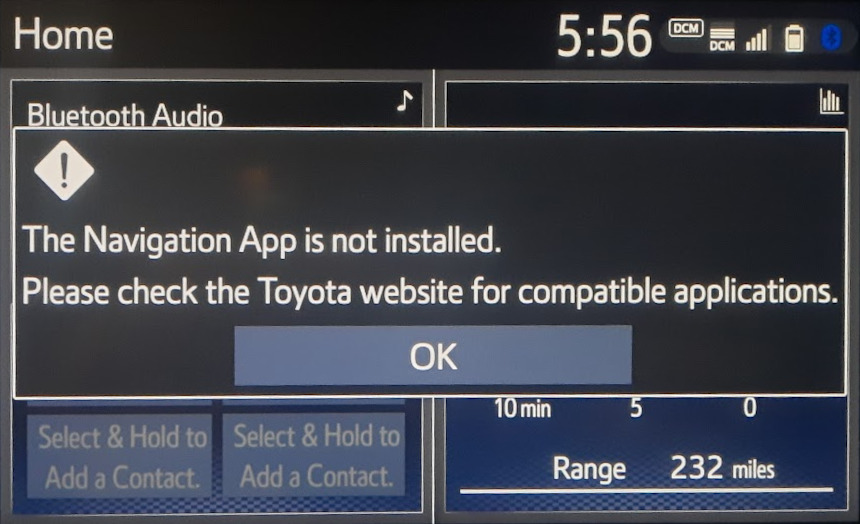
When the message “Toyota Navigation App Not Installed” appears on your vehicle’s infotainment screen, it generally means that the multimedia system cannot access the navigation software required for route guidance and mapping functions. Depending on the Toyota model and multimedia version, the error may occur because the navigation application is missing, disabled, corrupted, or unable to communicate with Toyota’s connected services.
Drivers often notice this issue when attempting to open the navigation menu. Instead of loading maps and directions, the system displays an error message and prevents access to navigation features. In some cases, the navigation icon may disappear entirely from the home screen. Other users may find that GPS positioning becomes unavailable or that the system fails to calculate routes.
The problem can affect a wide range of Toyota vehicles, including the Camry, Corolla, RAV4, Highlander, Tacoma, Tundra, and Prius. Although the symptoms may vary slightly between models, the underlying causes are often similar.
Fortunately, this error does not always indicate a permanent failure. Many cases can be resolved through software updates, account synchronization, system resets, or connectivity troubleshooting. Understanding what the message means is the first step toward identifying the correct solution and restoring navigation functionality.
Several factors can trigger the Toyota Navigation App Not Installed message. Identifying the root cause is essential because the correct fix depends on what is preventing the navigation system from functioning properly.
One of the most common causes is outdated multimedia software. Toyota regularly releases updates that improve system stability, fix bugs, and maintain compatibility with connected services. If the system has not been updated for an extended period, navigation features may stop working correctly.
Another frequent cause is corrupted navigation data. During software updates, power interruptions or installation errors can damage essential files required by the navigation system. When this happens, the multimedia unit may no longer recognize the navigation application.
Connected services issues can also play a role. Many modern Toyota vehicles rely on cloud based services and account authentication to provide navigation functionality. If the vehicle loses communication with Toyota servers or encounters account synchronization problems, navigation features may become unavailable.
Temporary software glitches are another possibility. Like smartphones and computers, vehicle infotainment systems occasionally experience bugs that prevent certain applications from launching properly. In these situations, a simple restart or reset may be enough to resolve the issue.
Finally, expired subscriptions or inactive navigation services can sometimes trigger navigation related errors. Depending on the model year and region, some navigation functions may require an active service plan after the complimentary trial period ends.
1. Restart the Toyota Multimedia System
Before attempting more advanced troubleshooting steps, restarting the multimedia system should be your first solution. Many navigation errors are caused by temporary software conflicts that can be cleared with a simple reboot.
Start by turning off your vehicle completely. Exit the vehicle and allow all systems to shut down for several minutes. Waiting five to ten minutes gives the multimedia unit enough time to perform a full power cycle and clear temporary memory.
After waiting, restart the vehicle and allow the infotainment system to load completely. Once the home screen appears, check whether the navigation icon has returned and attempt to launch the application again.
If your Toyota model supports a manual multimedia reset, you can also perform a soft reboot directly from the infotainment unit. On some systems, pressing and holding the audio power button for several seconds forces the display to restart. This process often resolves minor software issues without affecting saved settings or personal preferences.
Many drivers are surprised to discover that a simple restart resolves the Toyota Navigation App Not Installed message. Because it requires no tools, no technical expertise, and only a few minutes to complete, this should always be the first troubleshooting step before moving on to more complex solutions.
2. Check Your Internet Connection and Connected Services
Many Toyota navigation systems rely on connected services to deliver maps, traffic updates, destination searches, and cloud based navigation features. If your vehicle loses internet connectivity or cannot communicate with Toyota’s servers, the navigation application may fail to load correctly and display the Toyota Navigation App Not Installed error.
Begin by verifying that your vehicle has an active internet connection. Depending on your model, this may be provided through an onboard data connection, a WiFi hotspot, or a paired smartphone. Open the network settings menu and confirm that the system is connected and receiving a stable signal.
Next, check whether your Toyota account is properly linked to the vehicle. Sign in to the Toyota app on your smartphone and confirm that your vehicle is registered and connected. If you recently changed passwords, updated account information, or switched devices, the multimedia system may require reauthentication.
It is also worth checking for temporary service outages. Occasionally, server maintenance or connectivity disruptions can affect navigation services. Waiting a short period and reconnecting later may restore functionality without any additional action.
After confirming connectivity and account status, restart the multimedia system and test the navigation application again. In many cases, restoring communication between the vehicle and Toyota’s connected services immediately resolves the issue.
3. Sign Out and Sign Back Into Your Toyota Account
Account synchronization problems are another common reason why Toyota navigation features may stop working. If the multimedia system cannot verify your account credentials, it may restrict access to navigation services or fail to load the application altogether.
Navigate to the account or profile section within the infotainment system and sign out of your Toyota account. Once signed out, restart the vehicle and wait for the system to fully reload. After the restart, sign back in using your current account credentials.
This process forces the system to establish a new connection with Toyota’s servers and refresh account permissions. It can also correct synchronization errors that occur after software updates, password changes, or temporary network interruptions.
While signing back in, make sure that your email address and password are entered correctly. If two factor authentication is enabled, complete any required verification steps to ensure the account is fully authenticated.
After successfully logging in, return to the home screen and open the navigation application. Many users report that reestablishing account synchronization restores navigation access without requiring further troubleshooting.
4. Update Your Toyota Multimedia Software
Keeping your Toyota Multimedia software up to date is one of the most effective ways to prevent navigation related issues. Software updates often include bug fixes, security improvements, performance enhancements, and compatibility updates that directly affect navigation functionality.
To check for updates, open the Settings menu on your infotainment system and locate the Software Update section. Depending on your model, the update may be available through a wireless connection or via a USB installation process.
Before beginning the update, ensure that the vehicle has a stable internet connection and sufficient battery power. Interrupting the update process can potentially create additional software problems and may result in corrupted system files.
If an update is available, follow the on screen instructions carefully and allow the installation to complete without interruption. The process may take several minutes depending on the size of the update and the speed of the connection.
Once the update finishes, restart the vehicle and test the navigation system again. Many navigation errors occur because the multimedia software is running an outdated version that no longer communicates properly with Toyota services. Updating to the latest release often restores missing navigation functions and improves overall system reliability.
In situations where the navigation application disappeared after a previous update, installing the newest software version may also replace damaged files and recover lost functionality.
5. Perform a Factory Reset
If the previous solutions have not resolved the Toyota Navigation App Not Installed error, performing a factory reset may help restore normal operation. A factory reset returns the multimedia system to its original settings and removes temporary software conflicts, corrupted configurations, and system errors that may be preventing the navigation application from loading.
Before proceeding, it is important to understand that a factory reset may erase saved preferences, paired Bluetooth devices, WiFi settings, and customized system configurations. Take a few moments to note any important settings you wish to restore later.
Access the Settings menu on your Toyota Multimedia system and locate the Reset or Factory Reset option. Follow the on screen instructions and allow the system to complete the reset process. Depending on the model and software version, the system may restart several times before returning to its default state.
Once the reset is complete, reconnect your Toyota account, restore network settings, and check whether the navigation application is available. In many cases, a factory reset successfully removes software conflicts that cannot be resolved through a standard restart.
Although this solution requires more effort than the previous troubleshooting steps, it often provides an effective fix when persistent software issues are responsible for the navigation error.
The exact process for restoring navigation functionality may vary depending on the Toyota model and multimedia system installed in the vehicle. While the general troubleshooting steps remain the same, certain models may require additional checks.
Owners of the Toyota Camry should verify that the multimedia system is running the latest software version and that connected services are active. Many Camry navigation issues are linked to outdated software or account synchronization problems.
For Toyota Corolla drivers, checking smartphone integration settings can be particularly helpful. In some cases, navigation features may be routed through connected applications that require renewed permissions after a software update.
Toyota RAV4 owners should pay close attention to Connected Services status. Because many RAV4 models utilize cloud based navigation functions, connectivity problems can directly affect navigation availability.
Drivers of the Toyota Highlander may need to review navigation subscription status, especially on vehicles equipped with advanced multimedia packages. An inactive service plan can sometimes prevent access to navigation features.
Regardless of the model, keeping software updated and maintaining an active Toyota account remain the most effective preventive measures against navigation related issues.
When Should You Visit a Toyota Dealership?
While most Toyota Navigation App Not Installed errors can be resolved through basic troubleshooting, there are situations where professional assistance becomes necessary. If you have completed all recommended steps and the problem persists, a dealership inspection may be the best course of action.
One warning sign is a multimedia system that repeatedly crashes, freezes, or restarts on its own. These symptoms may indicate deeper software corruption or hardware related issues that require specialized diagnostic tools.
Another reason to seek professional help is the complete loss of GPS functionality. If the vehicle cannot detect its location even after updates and resets, components such as the GPS antenna or multimedia control unit may need inspection.
You should also consider scheduling a service appointment if multiple infotainment functions stop working simultaneously. Problems affecting navigation, Bluetooth connectivity, audio controls, and system responsiveness at the same time often point to a larger system failure.
Toyota technicians have access to manufacturer specific diagnostic software, firmware recovery tools, and technical service information that are not available to most vehicle owners. In some cases, they can reinstall navigation software or apply specialized updates that fully restore system functionality.
Seeking professional assistance early can prevent further complications and help ensure that your multimedia system continues to operate reliably for years to come.
Even if you cannot immediately restore your Toyota’s built in navigation system, there are several reliable alternatives that can help you continue navigating without interruption.
One of the most popular options is Apple CarPlay. Available on many modern Toyota vehicles, Apple CarPlay allows drivers to connect their iPhone directly to the infotainment system and access navigation apps such as Apple Maps, Google Maps, and Waze. These applications offer real time traffic information, route optimization, and frequent map updates.
Android Auto provides similar functionality for Android users. By connecting a compatible smartphone, drivers can access Google Maps, Waze, and other navigation services directly from the vehicle’s display. Many users prefer Android Auto because of its seamless integration with Google’s ecosystem and highly accurate traffic data.
Google Maps remains one of the most trusted navigation solutions available today. Its extensive database, real time traffic alerts, and alternative route suggestions make it an excellent replacement when the factory navigation system is unavailable.
Waze is another strong alternative. Powered by user generated traffic reports, Waze helps drivers avoid accidents, road closures, construction zones, and traffic congestion. Frequent updates from the community make it particularly useful in busy urban areas.
While Toyota’s built in navigation system offers convenience and integration with vehicle features, these alternative solutions often provide even more dynamic routing and up to date traffic information.
Frequently Asked Questions
In most cases, the error is not serious and is usually caused by software glitches, outdated firmware, account synchronization issues, or connectivity problems. Many drivers can resolve the issue without professional assistance.
The ability to reinstall navigation software depends on your Toyota model and multimedia system. In many cases, updating the system software or performing a factory reset can restore the missing application. Some situations may require assistance from a Toyota dealership.
Will a factory reset erase vehicle data?
A factory reset generally removes multimedia settings, Bluetooth pairings, WiFi connections, and user preferences. It does not affect critical vehicle systems, engine settings, or mechanical components.
The answer varies by model year and region. Some Toyota vehicles include complimentary navigation services for a limited period, while others may require an active subscription to access certain connected navigation features.
For many drivers, yes. Both Apple CarPlay and Android Auto provide advanced navigation capabilities through apps such as Google Maps, Apple Maps, and Waze. In some cases, these applications offer more current traffic information and route planning than factory installed navigation systems.
Conclusion
Encountering the Toyota Navigation App Not Installed message can be frustrating, especially when you depend on your vehicle’s navigation system for daily travel or long distance journeys. Fortunately, the issue is often linked to software updates, account synchronization problems, connectivity issues, or temporary system glitches rather than a major hardware failure.
By following the troubleshooting steps outlined in this guide, including restarting the multimedia system, checking internet connectivity, signing back into your Toyota account, updating software, and performing a factory reset when necessary, many drivers can successfully restore navigation functionality without visiting a dealership.
If the problem persists despite these efforts, professional diagnosis may be required to identify deeper software or hardware issues. Toyota technicians have access to specialized tools and resources that can help resolve more complex navigation problems.
Regular software updates, active connected services, and routine system maintenance can significantly reduce the likelihood of future navigation errors. By staying proactive, you can keep your Toyota multimedia system running smoothly and enjoy a more reliable driving experience.
Have you experienced the Toyota Navigation App Not Installed error on your vehicle? Share your experience and the solution that worked for you in the comments below. Your insight may help other Toyota owners get back on the road faster.