Apple CarPlay has become an essential feature for many Toyota drivers, offering seamless access to navigation, music, messages, and hands-free calling directly from the vehicle’s infotainment system. However, when Toyota CarPlay stops working, even a short drive can become frustrating. Whether your iPhone refuses to connect, CarPlay keeps disconnecting unexpectedly, or the feature suddenly disappears from your screen, these issues can disrupt your daily routine and leave you searching for answers.
The good news is that most Toyota CarPlay connection problems are caused by relatively simple issues. Faulty USB cables, outdated software, incorrect settings, Bluetooth conflicts, and temporary system glitches are among the most common reasons CarPlay fails to work properly. In many cases, you can restore the connection in just a few minutes without visiting a dealership or service center.
This comprehensive troubleshooting guide covers 15 proven ways to fix Toyota CarPlay connection issues. From basic checks like verifying compatibility and restarting your devices to more advanced solutions such as resetting network settings and updating infotainment software, we’ll walk you through each step. By the end of this guide, you’ll have the tools and knowledge needed to get Apple CarPlay working smoothly again and enjoy a safer, more connected driving experience.
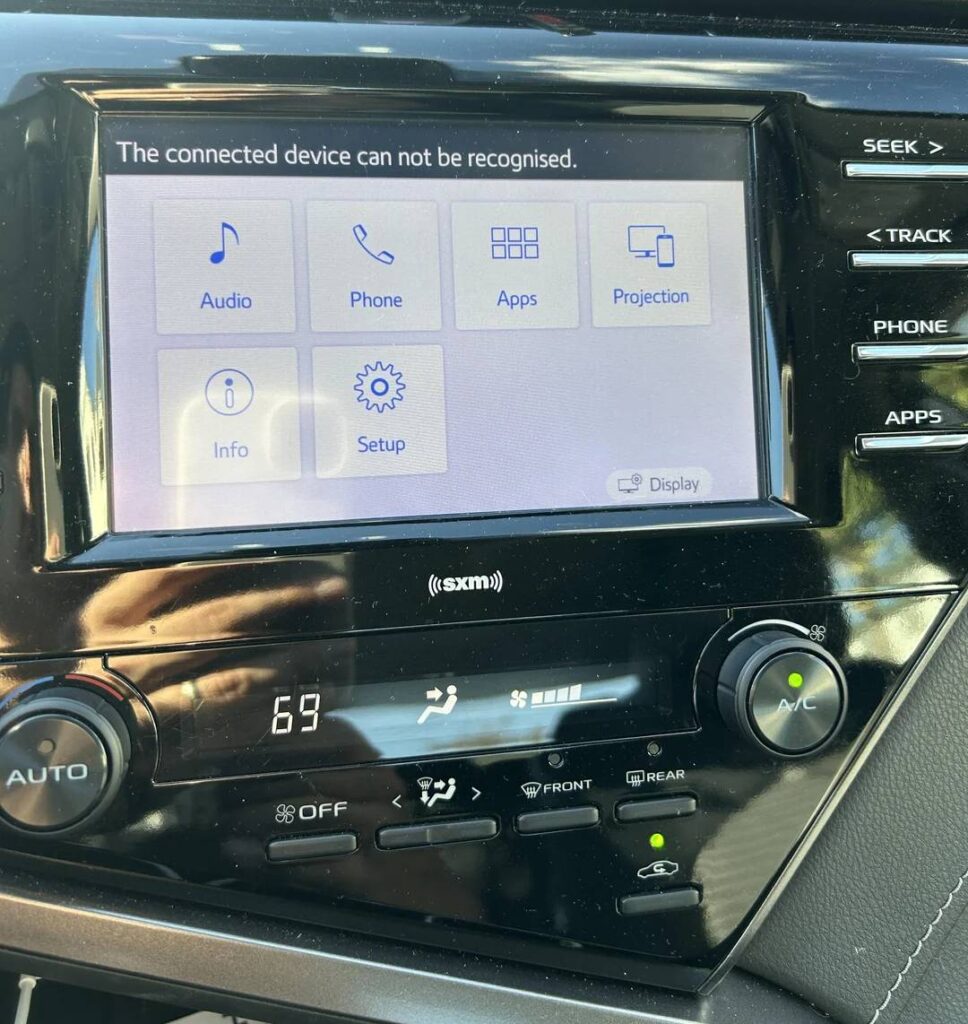
1. Confirm Your Toyota Supports Apple CarPlay
Before trying any advanced troubleshooting methods, make sure your Toyota actually supports Apple CarPlay. While most modern Toyota vehicles include CarPlay as a standard feature, older models may not offer compatibility or may require a software update to enable it.
Many drivers assume that every infotainment system supports Apple CarPlay, only to spend hours troubleshooting a feature that is not available on their specific model or trim level. Toyota gradually introduced Apple CarPlay across its lineup, meaning support varies depending on the model year and region.
To verify compatibility, consult your owner’s manual or check Toyota’s official support resources. Popular models such as the Camry, Corolla, RAV4, Highlander, Tacoma, and Tundra generally support CarPlay in newer model years. However, some earlier versions may require dealership-installed software updates.
If your vehicle does not support Apple CarPlay, no amount of resetting, reconnecting, or updating your iPhone will resolve the issue. Confirming compatibility first can save significant time and frustration before moving on to other troubleshooting steps.
2. Verify CarPlay Is Enabled on Your iPhone
One of the most overlooked causes of Toyota CarPlay connection problems is a disabled CarPlay setting on the iPhone itself. If CarPlay is turned off or restricted, your Toyota may fail to recognize the device even when connected properly.
Start by opening the Settings app on your iPhone. Navigate to General and then tap CarPlay. You should see your Toyota listed among available or previously connected vehicles. If the vehicle appears, select it and verify that CarPlay is enabled.
If your Toyota does not appear, disconnect the phone, restart the device, and attempt the pairing process again. You should also check whether Siri is enabled, as Apple CarPlay relies on Siri for many of its core functions.
Another important area to inspect is Screen Time restrictions. Some users accidentally disable CarPlay through parental control settings, preventing the feature from launching. If restrictions are active, CarPlay may appear unavailable even though both the vehicle and iPhone are compatible.
Taking a few moments to verify these settings can often resolve connection problems without requiring any additional troubleshooting.
3. Restart Your iPhone
A simple restart may sound too easy to solve a frustrating connectivity problem, but it is surprisingly effective when Toyota CarPlay is not working. Temporary software glitches, memory conflicts, and background processes can interfere with communication between your iPhone and your vehicle’s infotainment system.
Restarting your iPhone clears temporary system errors and refreshes wireless services such as Bluetooth and Wi Fi. This process often restores functionality when CarPlay suddenly stops connecting or disappears unexpectedly.
To restart your device, power it off completely and wait about thirty seconds before turning it back on. Once the phone has rebooted, reconnect it to your Toyota using either a USB cable or the wireless pairing process.
If CarPlay begins working normally after the restart, the issue was likely caused by a temporary software conflict rather than a hardware problem. Because this solution requires only a few minutes and carries no risk of data loss, it should always be one of the first troubleshooting steps you try.
Many users are surprised to discover that a simple reboot resolves issues that initially appeared far more complicated. Before replacing cables, resetting settings, or scheduling a service appointment, restarting your iPhone is often worth trying first.
4. Restart Your Toyota Infotainment System
Just as your iPhone can experience temporary software glitches, your Toyota infotainment system can also encounter issues that prevent Apple CarPlay from functioning properly. When the multimedia system becomes unresponsive or develops communication errors, CarPlay may fail to launch, disconnect unexpectedly, or stop recognizing your iPhone altogether.
A simple restart can often clear these temporary issues. Begin by turning off your vehicle completely and opening the driver’s door. Wait for several minutes to allow the infotainment system to shut down fully. After restarting the vehicle, reconnect your iPhone and check whether CarPlay is functioning normally.
Some Toyota models also allow users to reboot the infotainment system directly through the settings menu or by pressing and holding the power button for several seconds. Consult your owner’s manual for model specific instructions.
Many drivers immediately assume that their iPhone is causing the problem, but the issue may actually originate from the vehicle’s software. Restarting the infotainment system refreshes its memory and can resolve temporary conflicts that interfere with CarPlay connectivity.
Because this method is quick and requires no technical expertise, it is one of the easiest troubleshooting steps to perform before moving on to more advanced solutions.
5. Use an Apple Certified USB Cable
A faulty or low quality USB cable is one of the most common reasons Toyota CarPlay fails to connect. While many cables can charge an iPhone successfully, not all of them support the data transfer required for Apple CarPlay to function correctly.
Over time, cables can become damaged internally due to bending, twisting, or regular wear and tear. Even if there are no visible signs of damage, a compromised cable may cause intermittent connections, frequent disconnections, or complete failure to launch CarPlay.
For the best results, use an Apple certified Lightning cable or a Made for iPhone certified accessory from a reputable manufacturer. Avoid extremely cheap aftermarket cables, as they often lack the quality standards needed for reliable data transmission.
If CarPlay suddenly stopped working, try connecting your iPhone with a different certified cable. Many drivers discover that replacing a worn cable immediately resolves the issue without any additional troubleshooting.
Investing in a high quality cable can improve connection stability and reduce the likelihood of future CarPlay problems, especially if you frequently connect and disconnect your phone throughout the day.
6. Inspect the USB Port
Even when your cable is functioning properly, a damaged or dirty USB port can prevent Toyota CarPlay from establishing a stable connection. Dust, lint, moisture, and debris can accumulate inside both your vehicle’s USB port and your iPhone’s charging port over time.
When the connection is obstructed, your device may charge intermittently, fail to appear on the infotainment screen, or disconnect unexpectedly while driving. These symptoms are often mistaken for software problems when the real issue is physical interference.
Carefully inspect both ports using a flashlight if available. Look for visible debris or signs of damage. If you notice dust or lint, gently remove it using compressed air or a non conductive cleaning tool designed for electronics. Avoid using metal objects that could damage the internal connectors.
If your Toyota has multiple USB ports, try connecting your iPhone to a different one. Not all ports support Apple CarPlay in every vehicle, so refer to your owner’s manual to identify the correct port.
Taking a few minutes to inspect and clean the USB ports can often restore a stable connection and eliminate frustrating CarPlay issues that seem difficult to diagnose.
7. Disable and Re Enable CarPlay
Sometimes the connection profile between your iPhone and Toyota becomes corrupted, causing Apple CarPlay to malfunction even though both devices appear to be working correctly. In these situations, disabling and re enabling CarPlay can refresh the connection and eliminate hidden configuration errors.
Start by opening Settings on your iPhone and navigating to General, then CarPlay. Locate your Toyota in the list of connected vehicles and select it. Choose the option to forget or remove the vehicle from the CarPlay settings.
After removing the connection, restart your iPhone and your Toyota infotainment system. Once both devices have restarted, reconnect your iPhone and complete the pairing process again.
This process creates a fresh communication profile between the phone and vehicle, which often resolves issues such as CarPlay not launching automatically, random disconnections, or failure to recognize the device. Although simple, this method is highly effective and should not be overlooked when troubleshooting persistent connectivity problems.
Many drivers find that resetting the CarPlay connection restores functionality without requiring software updates or factory resets.
8. Reconnect Bluetooth and Wi Fi
If you use wireless Apple CarPlay, Bluetooth and Wi Fi work together to establish and maintain the connection. When either of these wireless technologies experiences a problem, CarPlay may fail to connect or disconnect repeatedly during use.
Begin by turning off Bluetooth and Wi Fi on your iPhone. Wait a few seconds before enabling them again. Next, remove your Toyota from the list of paired Bluetooth devices and delete the iPhone from the vehicle’s Bluetooth settings.
Once the old connection has been removed, pair the devices again from scratch. Follow Toyota’s instructions for enabling wireless CarPlay and complete the setup process.
Wireless interference can also affect performance. Other nearby devices, public Wi Fi networks, or multiple paired smartphones may sometimes interfere with the connection. If possible, disconnect unnecessary devices and test CarPlay again.
Many cases of Toyota CarPlay keeps disconnecting are linked to Bluetooth or Wi Fi communication issues. Re establishing a clean wireless connection often restores stable performance and prevents recurring interruptions while driving.
9. Update Your iPhone to the Latest iOS Version
Apple regularly releases iOS updates that improve system stability, fix software bugs, and enhance compatibility with Apple CarPlay. Running an outdated version of iOS can sometimes lead to connection issues, performance problems, or unexpected behavior when using CarPlay in your Toyota.
To check for updates, open Settings, select General, and tap Software Update. If a newer version of iOS is available, download and install it. Make sure your device has sufficient battery life and a stable internet connection before beginning the update process.
While software updates often solve existing problems, major iOS releases can occasionally introduce temporary compatibility issues. If your Toyota CarPlay stopped working immediately after an update, check whether Apple has released a newer patch addressing the problem.
Keeping your iPhone updated ensures that you have access to the latest security improvements and bug fixes. It also reduces the likelihood of compatibility conflicts between your phone and Toyota’s infotainment system.
For many users, updating iOS is a simple yet highly effective solution that restores CarPlay functionality without requiring additional troubleshooting steps.
10. Update Toyota Multimedia Software
An outdated Toyota multimedia system can create compatibility issues with newer iPhone models and recent iOS versions. Even if your phone is fully updated, CarPlay may still experience connection failures if the vehicle’s software has not been updated for an extended period.
Toyota periodically releases software updates designed to improve system performance, enhance security, and fix connectivity bugs. These updates often address Apple CarPlay related issues that drivers encounter after major iOS releases.
To determine whether an update is available, access the settings menu within your Toyota infotainment system or visit Toyota’s official support website. Some vehicles support over the air updates, while others may require installation through a USB drive or dealership service center.
Updating the multimedia software can improve connection stability, reduce random disconnections, and enhance overall system responsiveness. If you have already tried basic troubleshooting steps without success, checking for available software updates should be a priority.
Keeping both your iPhone and Toyota system updated ensures they can communicate effectively and minimizes compatibility related problems.
11. Forget the Vehicle and Pair Again
When Toyota CarPlay repeatedly fails to connect despite multiple attempts, the stored pairing information may have become corrupted. Removing all saved connections and creating a completely new pairing can often resolve stubborn issues.
Start by deleting your Toyota from the Bluetooth and CarPlay settings on your iPhone. Next, access the Bluetooth settings on your Toyota infotainment system and remove the saved iPhone profile.
After both devices have forgotten each other, restart them and begin the pairing process from the beginning. Follow all prompts carefully and grant the necessary permissions for contacts, messages, and CarPlay access when requested.
This method differs slightly from simply reconnecting a cable or restarting the devices. It removes all stored communication data and creates a brand new connection profile, eliminating hidden errors that may be preventing CarPlay from functioning correctly.
Many users report that this approach successfully resolves persistent connection failures that continue even after software updates and device restarts.
12. Check Screen Time Restrictions
Screen Time settings on the iPhone are designed to help users manage device usage and restrict access to certain features. However, these restrictions can sometimes disable Apple CarPlay without the user realizing it.
If CarPlay suddenly disappears or becomes unavailable, Screen Time may be blocking access. To verify this setting, open Settings and select Screen Time. Navigate to Content and Privacy Restrictions, then review the list of allowed applications and features.
Ensure that CarPlay is enabled and not restricted. If restrictions are active, temporarily disable them and attempt to reconnect your iPhone to the vehicle.
This issue is particularly common on devices used by multiple family members or phones that have previously been configured with parental controls. Because the restriction operates quietly in the background, many users spend considerable time troubleshooting other areas without realizing the actual cause.
Checking Screen Time settings takes only a few minutes and can quickly eliminate one of the more difficult CarPlay problems to identify.
13. Reset Network Settings on Your iPhone
If wireless Apple CarPlay continues to malfunction after trying the previous solutions, resetting your iPhone’s network settings may help. Over time, saved Wi Fi networks, Bluetooth configurations, and cellular settings can become corrupted, creating communication problems that affect CarPlay performance.
To reset network settings, open Settings and select General. Scroll down to Transfer or Reset iPhone, then tap Reset and choose Reset Network Settings. You may be asked to enter your device passcode before the process begins.
Keep in mind that this action will remove saved Wi Fi passwords, Bluetooth pairings, and other network related preferences. After the reset is complete, reconnect your iPhone to your preferred networks and pair it with your Toyota again.
Many drivers who experience repeated wireless CarPlay disconnections find that resetting network settings restores a stable connection. This solution is especially useful when Bluetooth and Wi Fi appear to function normally for other tasks but fail specifically with Apple CarPlay.
Because it removes potentially corrupted network data without affecting personal files, photos, or applications, this method is considered one of the most effective advanced troubleshooting steps.
14. Factory Reset the Toyota Infotainment System
When simpler troubleshooting methods fail, a factory reset of the Toyota infotainment system may be necessary. Over time, software bugs, configuration conflicts, and corrupted settings can accumulate within the system and interfere with Apple CarPlay functionality.
Before proceeding, be aware that a factory reset will erase saved preferences, paired devices, navigation settings, and personalized configurations. If possible, make note of important settings so they can be restored later.
The exact reset procedure varies depending on the Toyota model and multimedia system version. In most vehicles, the option can be found within the system settings menu under reset or system management options. Consult your owner’s manual for model specific instructions.
Once the reset is complete, restart the vehicle and set up Apple CarPlay again as if it were a new connection. In many cases, this process removes software conflicts that cannot be resolved through standard troubleshooting.
Although a factory reset requires more time than other solutions, it can be highly effective for addressing persistent CarPlay issues that have resisted all previous attempts to fix them.
15. Contact Toyota Service or Apple Support
If you have worked through every troubleshooting step in this guide and Toyota CarPlay is still not working, it may be time to seek professional assistance. Persistent connection issues can sometimes indicate a deeper hardware or software problem that requires specialized diagnostic tools.
A Toyota service center can inspect the vehicle’s infotainment system, USB ports, wiring, and software configuration to identify faults that may not be visible during routine troubleshooting. In some cases, a hardware component within the multimedia system may need repair or replacement.
Similarly, Apple Support can help determine whether the issue originates from the iPhone itself. Problems related to iOS, hardware defects, damaged connectors, or advanced software conflicts may require expert evaluation.
When contacting support, be prepared to provide details such as your Toyota model, model year, iPhone model, iOS version, and a description of the specific symptoms you are experiencing. This information can significantly speed up the diagnostic process.
While most Toyota CarPlay connection issues can be resolved at home, professional assistance remains the best option when all other solutions have been exhausted.
Frequently Asked Questions
Why is Toyota CarPlay not working all of a sudden?
Sudden CarPlay failures are commonly caused by software updates, Bluetooth conflicts, faulty USB cables, disabled settings, or temporary glitches in the infotainment system. Restarting both your iPhone and Toyota system is often the quickest first step.
Why does Toyota CarPlay keep disconnecting?
Frequent disconnections are usually linked to unstable Bluetooth connections, Wi Fi interference, damaged USB cables, outdated software, or network configuration issues on the iPhone.
Can an iOS update cause CarPlay problems?
Yes. Major iOS updates occasionally introduce compatibility issues with certain vehicle infotainment systems. Apple typically releases follow up updates to address these problems, so keeping your device updated is important.
Does resetting network settings delete my data?
No. Resetting network settings removes saved Wi Fi passwords, Bluetooth connections, and network preferences, but it does not delete photos, messages, applications, or personal files.
Which Toyota models support Apple CarPlay?
Apple CarPlay support depends on the vehicle model and model year. Most modern Toyota vehicles include CarPlay as a standard feature, while some older models may require software updates or may not support it at all.
Conclusion
Experiencing Toyota CarPlay connection issues can be frustrating, especially when you depend on the feature for navigation, communication, and entertainment during your daily drives. Fortunately, most problems can be traced to a handful of common causes, including outdated software, faulty cables, Bluetooth conflicts, incorrect settings, or temporary system glitches.
By following the 15 troubleshooting methods outlined in this guide, you can systematically identify the source of the problem and restore a reliable connection between your iPhone and Toyota infotainment system. Start with the simplest fixes, such as verifying compatibility, checking settings, and restarting your devices, before moving on to advanced solutions like network resets and factory resets.
Regularly updating both your iPhone and Toyota multimedia software can help prevent future connectivity problems and ensure the best possible CarPlay experience. Using high quality cables and maintaining clean USB ports can also improve long term reliability.
If you have tried every solution and Toyota CarPlay is still not working, professional support from Toyota or Apple may be necessary to diagnose underlying hardware or software issues.
Have you experienced a Toyota CarPlay problem that was resolved using a different method? Share your Toyota model, iPhone version, and experience in the comments to help other drivers facing similar issues.