Toyota Android Auto can stop working because of a USB connection problem, incorrect phone settings, Bluetooth or Wi-Fi issues, outdated software, vehicle compatibility, or a problem with the Toyota multimedia system. The right fix depends first on whether your Toyota uses wired or wireless Android Auto and whether the feature worked previously.
For wired Android Auto, start with the USB cable and data-capable USB port. A phone that charges when connected does not necessarily have a working data connection, so charging alone does not confirm that the cable or port can run Android Auto. For wireless Android Auto, check Bluetooth and Wi-Fi connections, paired devices, and the permissions required by the phone.
The troubleshooting process should then move to Android Auto settings, phone software, and the Toyota multimedia system. Compatibility also matters, particularly if Android Auto has never worked in the vehicle, because support varies by Toyota model, model year, and multimedia system. This guide explains the main causes of Toyota Android Auto problems and provides a step-by-step process for diagnosing wired, wireless, connection, and infotainment-related issues.
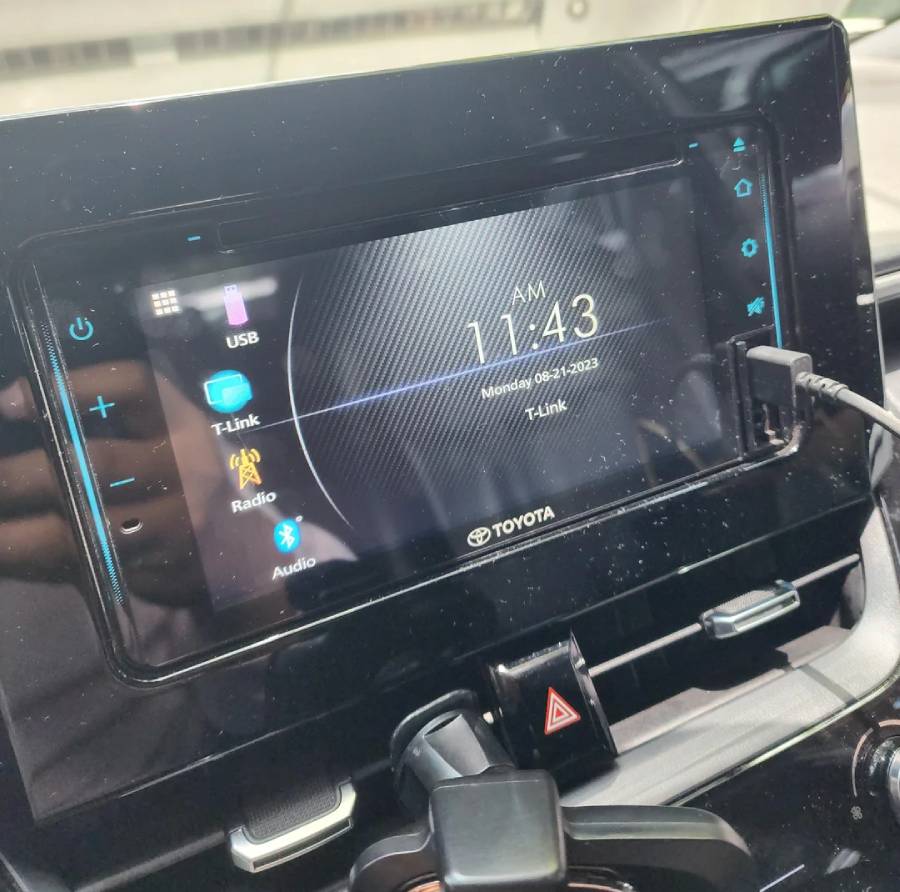
Why Is Android Auto Not Working in My Toyota?
Android Auto may not work in a Toyota because of problems with the USB connection, Bluetooth or Wi-Fi connection, phone settings, software, Toyota multimedia system, or vehicle compatibility. The first diagnostic step is to identify whether the problem affects a wired or wireless connection because the two connection methods have different failure points.
A USB cable or port is a primary failure point for wired Android Auto. The cable must transfer data rather than only supply power, and the phone must be connected to a USB port that supports Android Auto data communication. A damaged connector, unstable cable, or charging-only connection can therefore leave the phone charging while preventing Android Auto from launching.
Wireless Android Auto depends on a successful connection between the phone and Toyota multimedia system. Bluetooth is involved in device pairing, while wireless communication is required to establish and maintain the Android Auto session. A saved pairing error, disabled wireless function, incorrect permission, or connection conflict can prevent Android Auto from starting even when the phone appears in the Toyota Bluetooth device list.
Phone settings are another source of connection failures. Android Auto requires the necessary permissions and connection settings to communicate with the vehicle. Changes to these settings, especially after modifying phone permissions or connection preferences, can stop a previously working setup from connecting correctly. Software changes can produce a similar symptom, so a problem that starts immediately after an Android or multimedia software change should be diagnosed differently from Android Auto that has never worked.
The Toyota multimedia system can also be responsible when the cable, wireless connection, and phone have been ruled out. A temporary infotainment error may prevent the system from recognizing a connected device until the phone or multimedia system is restarted. Persistent failures across multiple compatible phones point more strongly toward the vehicle side of the connection.
Compatibility should be checked early when Android Auto has never worked in the vehicle. Android Auto availability is not determined simply by whether a Toyota has Bluetooth, a touchscreen, or a USB port. Support depends on the specific Toyota model, model year, and multimedia system, and wired and wireless Android Auto should not be assumed to have identical compatibility.
How Do I Fix Android Auto Not Working in My Toyota?
Fix Toyota Android Auto by restarting the connection first, then checking the phone settings, connection method, software, and Toyota multimedia system in that order. Starting with reversible checks helps isolate the failure without unnecessarily resetting saved vehicle settings.
First, disconnect the phone from the Toyota and reconnect it. Restart the phone before trying Android Auto again. A restart clears temporary phone-side processes and connection states that can prevent a new Android Auto session from being established. If the Toyota multimedia system provides a restart or reboot function for the specific model, restarting it can similarly clear a temporary infotainment error.
Next, verify the Android Auto connection settings and required permissions on the phone. Confirm that Android Auto is allowed to communicate with the vehicle and check whether an old or incorrect vehicle connection is stored. Menu names and locations vary by Android version and phone manufacturer, so the relevant connection and permission settings should be checked rather than relying on one universal menu path.
Check the physical connection next if the Toyota uses wired Android Auto. Connect the phone with a known-good data-capable USB cable and use the Toyota USB port intended for smartphone data communication. Replace the cable during testing even if the existing cable still charges the phone because power delivery does not prove that its data connection is functioning.
For wireless Android Auto, check both Bluetooth and Wi-Fi-related connectivity. Remove the existing phone pairing from the Toyota and the Toyota connection from the phone when a normal reconnection fails, then pair the devices again and approve the requested permissions. Re-pairing creates a new connection instead of repeatedly attempting to use a corrupted or incomplete saved pairing.
Software should be checked after basic connection problems have been eliminated. Verify that the phone’s Android software and relevant system components are up to date, and check whether the Toyota multimedia system has an applicable software update using the instructions for the specific model and multimedia generation. This step is especially relevant when Android Auto worked correctly before a software change or began failing without any change to the cable or connection method.
Resetting the entire Toyota multimedia system should not be the first troubleshooting step. A factory reset can remove paired phones, preferences, and other saved settings without fixing a damaged cable or incompatible connection. Use a full reset only after simpler connection tests have failed and after checking the reset procedure for the specific Toyota multimedia system.
How Do I Fix Wired Android Auto Not Working in a Toyota?
Fix wired Android Auto in a Toyota by checking the USB cable, data-capable USB port, phone connection settings, and multimedia recognition in that order. A wired connection requires both electrical power and data transfer, so a phone receiving power does not confirm that the complete Android Auto connection is working.
Start by testing a different USB cable that supports data transfer. A cable can continue charging a phone even when damaged connectors or internal wires interfere with data transmission. Using a known-good cable is therefore a faster diagnostic method than assuming the existing cable works because the battery icon shows that the phone is charging. Keep the cable securely connected at both ends during the test because movement at a worn connector can also produce intermittent Android Auto connections.
Next, verify that the phone is connected to the correct USB port. Toyota vehicles can have multiple USB ports, but their functions can differ by model, model year, and multimedia configuration. A port intended primarily for charging should not be treated as equivalent to the data-capable port used by the multimedia system. If Android Auto does not launch, check the vehicle-specific documentation to identify the USB port intended for smartphone integration.
Check the phone after the cable and port have been tested. Unlock the phone during the initial connection, review any prompts that appear, and grant the permissions required to establish Android Auto. A rejected or incomplete connection request can prevent the Toyota multimedia system from launching Android Auto even though the physical USB connection is intact.
The Toyota multimedia system should be checked after the cable, USB port, and phone have been isolated as possible causes. Disconnect the phone, restart the phone and multimedia system where the vehicle provides an appropriate restart procedure, and establish a new connection. A failure that occurs with multiple compatible phones and known-good data cables provides stronger evidence that the problem is on the vehicle side rather than with one phone.
Why Does My Toyota Charge My Phone but Android Auto Does Not Work?
A Toyota can charge your phone without running Android Auto because USB power delivery and USB data transfer are separate functions. The presence of charging confirms that electricity reaches the phone, but Android Auto also needs a functioning data path between the smartphone and Toyota multimedia system.
The USB cable is the first component to test in this situation. Some cables are designed primarily for charging, while a damaged data-capable cable may retain its charging function after reliable data transfer has failed. Replace the existing cable with a known-good data cable and reconnect the phone before changing more complex settings.
The USB port is the next diagnostic point. A Toyota can contain more than one USB connection, and a charging port does not necessarily communicate with the multimedia system. Connect the phone to the data-capable USB port specified for smartphone integration for the particular Toyota model and multimedia system.
Phone permissions and USB connection behavior should be checked if both the cable and port are correct. Accept required connection prompts and verify that Android Auto is permitted to connect to the vehicle. If another compatible phone works with the same cable and Toyota USB port, the original phone or its configuration becomes the more likely source of the problem.
How Do I Fix Wireless Android Auto Not Working in a Toyota?
Fix wireless Android Auto in a Toyota by checking vehicle compatibility, Bluetooth pairing, Wi-Fi connectivity, phone permissions, and saved device connections. Wireless troubleshooting should not begin with USB cable replacement because the connection has different dependencies from wired Android Auto.
First, confirm that the specific Toyota model, model year, and multimedia system support wireless Android Auto. Support for wired Android Auto does not by itself establish wireless compatibility. Similarly, the presence of Bluetooth in the vehicle does not prove that its multimedia system supports wireless Android Auto.
If the vehicle supports the feature, confirm that Bluetooth and the wireless functions required for Android Auto are enabled on the phone. Pair the phone with the Toyota multimedia system and approve the requested permissions. Keep the phone unlocked during the initial setup so connection prompts are not missed.
Remove and recreate the pairing when the phone previously connected but now fails repeatedly. Delete the relevant saved Toyota connection from the phone and remove the phone from the multimedia system, then restart the devices where appropriate and perform the pairing process again. This procedure replaces the existing connection state rather than repeatedly attempting to reconnect through the same saved configuration.
Wi-Fi connectivity should be checked when Bluetooth pairing succeeds but Android Auto still does not launch. Bluetooth pairing alone is not the complete wireless Android Auto connection. A phone can therefore appear as a paired Bluetooth device for calls or audio while Android Auto remains unavailable.
Phone permissions are the next point to inspect. Android Auto needs the permissions and connectivity settings required to communicate with the vehicle. Android versions and phone manufacturers organize these controls differently, so troubleshooting should focus on the relevant Android Auto, Bluetooth, Wi-Fi, and vehicle connection permissions rather than following a menu path intended for a different phone.
Why Does Bluetooth Connect but Android Auto Not Work?
Bluetooth can connect successfully while Android Auto remains unavailable because a Bluetooth pairing is not the same as a complete wireless Android Auto session. Bluetooth connectivity can support vehicle functions such as calls and audio without confirming that every requirement for wireless Android Auto has been satisfied.
Start by checking whether the Toyota actually supports wireless Android Auto rather than only Bluetooth or wired Android Auto. This distinction is particularly important when Android Auto has never worked wirelessly in the vehicle. A successful Bluetooth pairing cannot add wireless Android Auto capability to an incompatible multimedia system.
For a compatible Toyota, recreate the phone-to-vehicle connection if Android Auto previously worked wirelessly but has stopped launching. Remove the existing pairing from both devices, reconnect them, and approve the required prompts. Also verify that the phone’s Wi-Fi and relevant Android Auto permissions are enabled.
The failure can be isolated further by testing another compatible phone. If a second phone establishes wireless Android Auto with the same Toyota, the original phone, its settings, or its saved connection becomes the primary diagnostic target. If multiple compatible phones fail while other multimedia functions continue to work, troubleshooting should move toward the Toyota multimedia system and its software.
Why Does Android Auto Keep Disconnecting From My Toyota?
Android Auto can keep disconnecting from a Toyota because of an unstable USB connection, wireless connectivity problem, phone setting, software issue, or Toyota multimedia system error. The fastest way to isolate the cause is to determine whether the disconnection occurs with wired Android Auto, wireless Android Auto, or both connection methods.
For wired Android Auto, inspect the USB connection first. A damaged cable, worn connector, or unstable USB port can interrupt data transfer even when the phone continues charging. Test a known-good data-capable cable and keep the phone stationary during the test. If Android Auto remains connected with the replacement cable, the original cable or its connector is the likely failure point.
A loose connection can also explain why Android Auto disconnects when the phone or cable moves. USB data communication requires a stable physical connection, so a connector that briefly loses contact can terminate the Android Auto session. If several known-good cables disconnect when moved at the vehicle-side connection, the Toyota USB port should become a higher-priority diagnostic point.
For wireless Android Auto, check Bluetooth, Wi-Fi, and the saved connection between the phone and Toyota multimedia system. Remove the existing pairing from both devices and establish a new connection when normal reconnection does not solve the problem. Re-pairing is particularly relevant when wireless Android Auto disconnects repeatedly while wired Android Auto works normally because that result narrows the problem toward the wireless connection rather than Android Auto compatibility in general.
Phone settings and software should be checked when the physical or wireless connection does not explain the failure. Review Android Auto permissions and relevant connectivity settings, then restart the phone. If the disconnections began after a phone software change, the timing of that change provides a useful diagnostic clue, although it does not by itself prove that the update caused the problem.
The Toyota multimedia system becomes a stronger suspect when multiple compatible phones experience the same repeated disconnections. For example, if two compatible phones and multiple known-good cables produce the same wired connection failure, replacing another phone cable is unlikely to isolate the problem further. At that stage, check the multimedia system for applicable software updates or vehicle-specific troubleshooting procedures before considering a full reset or professional diagnosis.
Why Did Android Auto Suddenly Stop Working in My Toyota?
Android Auto that previously worked in the same Toyota should be diagnosed first for recent connection, phone, software, or multimedia changes rather than basic vehicle compatibility. Previous successful operation establishes that the phone and vehicle were capable of creating an Android Auto connection under the earlier configuration.
Start with the most recent change. Determine whether the problem appeared after changing the USB cable, reconnecting the phone, modifying permissions, updating phone software, or changing multimedia settings. Reversing or testing the changed component can isolate the problem faster than resetting every Android Auto setting at once.
Restart the phone and reconnect Android Auto if there was no obvious change. For a wired setup, disconnect the USB cable, restart the phone, and reconnect it using a known-good data-capable cable. For a wireless setup, confirm Bluetooth and Wi-Fi connectivity before removing and recreating the saved vehicle pairing. These tests create a fresh connection and eliminate temporary connection states as a cause.
Check the connection hardware next when wired Android Auto stopped unexpectedly. A USB cable can deteriorate after previously working correctly, so past performance does not prove that the cable is currently transferring data reliably. Test another known-good cable before treating the Toyota multimedia system as the cause. The same principle applies to intermittent USB connections: a phone that charges successfully can still have a failed or unstable data connection.
Review phone settings if the hardware test does not restore Android Auto. Permissions or connection preferences can change, and a previously approved vehicle connection may need to be established again. The exact menu structure varies between Android versions and phone manufacturers, so verify the applicable Android Auto and connectivity settings on the specific phone instead of assuming one menu path applies to every device.
The Toyota multimedia system should be investigated after phone and connection problems have been systematically excluded. Restart the system using the procedure appropriate for the specific Toyota multimedia generation and check for applicable software information. Avoid performing a factory reset as the first response to a sudden failure because a reset can remove saved devices and preferences without identifying whether the actual problem is the phone, cable, wireless connection, or multimedia system.
Compatibility becomes a lower-priority explanation when the exact phone and Toyota previously worked together, but it can become relevant after a major configuration or device change. For example, replacing the original phone with a different device creates a new compatibility and configuration scenario even though Android Auto previously worked in the vehicle. The diagnostic question should therefore be whether the same Toyota, phone, and connection method worked before the failure.
How Do I Reset Android Auto in My Toyota?
Reset Android Auto in a Toyota by removing the existing phone connection, restarting the phone and multimedia system, and pairing or connecting the devices again. Start by resetting the connection rather than performing a factory reset of the entire Toyota multimedia system, because a connection reset targets Android Auto without immediately removing unrelated saved settings.
Remove the Toyota connection from the phone and delete the phone from the Toyota multimedia system when repeated reconnection attempts fail. Restart the phone after removing the saved connection. If the Toyota multimedia system provides a restart or reboot procedure, restart it according to the instructions for that specific multimedia system before reconnecting the phone. Toyota uses different multimedia systems across models and model years, so one restart procedure should not be assumed to apply to every vehicle.
Reconnect the phone after both sides of the previous connection have been cleared. For wired Android Auto, use a known-good data-capable USB cable and connect it to the USB port intended for smartphone data communication. Unlock the phone and approve the connection prompts that appear. For wireless Android Auto, enable the required Bluetooth and Wi-Fi functions, pair the phone with the vehicle again, and approve the permissions requested during setup.
A connection reset is different from a factory reset. Removing and reconnecting a phone primarily rebuilds the relationship between the smartphone and multimedia system, while a factory reset can erase paired devices, preferences, and other stored multimedia settings. For this reason, a factory reset should come later in the diagnostic process rather than being used whenever Android Auto fails to launch.
Consider a full multimedia reset only after the phone, USB cable or wireless connection, permissions, and software have been checked. Before performing it, consult the instructions for the specific Toyota model, model year, and multimedia system to determine what information will be removed and how the reset should be completed. If multiple compatible phones still fail after the connection has been rebuilt, the problem may require vehicle-side diagnosis rather than repeated resets.
How Do I Know if My Toyota Supports Android Auto?
Determine whether a Toyota supports Android Auto by checking its model, model year, and installed multimedia system rather than relying on the presence of a touchscreen, Bluetooth, or USB port. Android Auto availability varies across Toyota vehicles, and wired and wireless support should be verified separately.
Start with the exact model year rather than the vehicle name alone. Two Toyota vehicles with the same model name can have different smartphone-integration capabilities when they belong to different model years or use different multimedia equipment. This distinction is particularly important when Android Auto has never worked in the vehicle because an unsupported configuration cannot be repaired through cable replacement, phone restarts, or permission changes.
The installed multimedia system is the next compatibility factor. A touchscreen confirms that the vehicle has a display-based infotainment interface, but it does not independently establish Android Auto support. Likewise, a USB port confirms the availability of a physical USB connection but does not prove that the port or multimedia system supports Android Auto data communication.
Bluetooth support should also be treated separately from wireless Android Auto support. A Toyota with Bluetooth does not automatically support wireless Android Auto. Bluetooth can provide functions such as hands-free calling and audio streaming without providing the complete connectivity required for wireless Android Auto. This explains why a phone may pair successfully with a Toyota while Android Auto never appears as an available feature.
Wired and wireless Android Auto compatibility should therefore be checked independently. A Toyota may support smartphone integration through a wired connection without providing the corresponding wireless connection method. If wired Android Auto works but attempts to establish wireless Android Auto consistently fail, confirm wireless compatibility before troubleshooting the phone or multimedia system further.
Use the documentation applicable to the specific Toyota model and multimedia system to verify support. Vehicle documentation and manufacturer compatibility information are more reliable for this purpose than assuming that another Toyota of a similar age has the same equipment. When checking a used vehicle, also identify the multimedia system actually installed because equipment can differ between trims and configurations.
Compatibility should move to the top of the diagnostic process when Android Auto has never worked. In contrast, if the same Toyota, phone, and connection method previously ran Android Auto successfully, investigate the cable, wireless connection, phone settings, software, and multimedia state before treating basic compatibility as the primary explanation.
Read more: Toyota App Not Working? 12 Proven Fixes That Solve Most Issues
Is the Android Auto Problem With My Phone or My Toyota?
Determine whether the Android Auto problem comes from your phone or Toyota by changing one part of the connection at a time and checking whether the failure follows that component. Testing another compatible phone, another data-capable USB cable, and a different connection method can isolate the source without replacing parts or resetting the entire multimedia system unnecessarily.
Start with another compatible phone if one is available. Connect the second phone to the same Toyota using the same connection method. If the second phone runs Android Auto normally, the original phone becomes the primary diagnostic target. Check its Android Auto permissions, saved vehicle connections, Bluetooth and Wi-Fi settings for wireless operation, and software before investigating the Toyota further.
The opposite result points more strongly toward the vehicle. If two compatible phones fail to establish Android Auto with the same Toyota, a phone-specific problem becomes less likely. The next test should isolate the connection hardware or multimedia system rather than repeatedly changing settings on the original phone.
For wired Android Auto, replace the USB cable with a known-good data-capable cable before diagnosing the Toyota USB port. If the replacement cable fixes the problem, the original cable was preventing reliable data communication. If multiple data-capable cables and compatible phones fail through the same Toyota USB connection, the USB port or vehicle-side multimedia connection becomes a stronger suspect.
Wireless and wired testing can further narrow the failure when the Toyota supports both connection methods. If wired Android Auto works consistently but wireless Android Auto does not, the phone and multimedia system are capable of running Android Auto, so troubleshooting should focus on wireless compatibility, Bluetooth pairing, Wi-Fi connectivity, permissions, and saved wireless connections. If neither method works with multiple compatible phones, the Toyota multimedia system deserves closer investigation.
The pattern of the failure also provides diagnostic information. A connection that fails only when a USB cable moves points toward a physical connection problem, while a wireless connection that fails after pairing points toward wireless configuration or connectivity. A multimedia system that fails to recognize several compatible devices presents a different pattern from one phone that cannot connect to several compatible vehicles.
Change only one variable during each test. Replacing the phone, cable, settings, and connection method simultaneously may restore Android Auto, but it does not identify which change solved the problem. A controlled sequence—phone, cable or wireless connection, settings, then multimedia system—provides a clearer path to the actual failure.
When Should I Take My Toyota to a Dealer or Repair Shop?
Take your Toyota for professional diagnosis when Android Auto continues to fail after you have ruled out the phone, USB cable or wireless connection, permissions, compatibility, and basic multimedia troubleshooting. Professional diagnosis becomes more appropriate when repeated tests indicate that the failure originates from the vehicle rather than a single smartphone or connection accessory.
A vehicle-side problem becomes more likely when multiple compatible phones fail with the same Toyota. For wired Android Auto, test more than one known-good data-capable cable before reaching this conclusion. For wireless Android Auto, remove and recreate the device pairing and confirm that the vehicle supports wireless Android Auto. Consistent failure after these tests provides stronger evidence than a problem observed with only one phone.
The USB data port should be inspected when multiple compatible phones and data cables fail at the same connection point. Physical looseness, visible damage, or a connection that repeatedly drops when the plug moves can indicate a port or connector problem. Avoid assuming that the USB port itself must be replaced until the cable and phone have been excluded, because all three components participate in a wired Android Auto connection.
Repeated multimedia system problems are another reason to seek diagnosis. These include the system failing to recognize multiple compatible phones, freezing during connection attempts, restarting unexpectedly, or continuing to malfunction after an appropriate system restart. Such symptoms extend beyond a simple Android Auto permission or pairing problem and can require vehicle-specific software or hardware evaluation.
Check for applicable multimedia software information before assuming that hardware has failed. The correct update and installation procedure depends on the Toyota model, model year, and multimedia system. Use information applicable to the specific vehicle rather than installing software or following reset instructions intended for another Toyota multimedia generation.
A factory reset should remain a later troubleshooting step. It can erase paired phones and other saved multimedia preferences while leaving a physical USB or hardware problem unchanged. If basic troubleshooting has already isolated the Toyota as the likely source, professional diagnosis may provide more useful information than repeatedly resetting the system.
Bring the diagnostic results with you when visiting a Toyota dealer or qualified repair shop. Note whether Android Auto fails with wired, wireless, or both connection methods; whether multiple phones and cables were tested; whether the phone still charges; and whether the multimedia system freezes or restarts. These observations narrow the failure conditions and help distinguish a smartphone configuration problem from a USB, connectivity, software, or multimedia system fault.