Netflix not working on a Tesla is usually caused by connectivity issues, software glitches, account authentication problems, or temporary service outages. In most cases, the problem can be resolved without visiting a Tesla Service Center by checking the vehicle’s internet connection, restarting the infotainment system, or installing the latest software update.
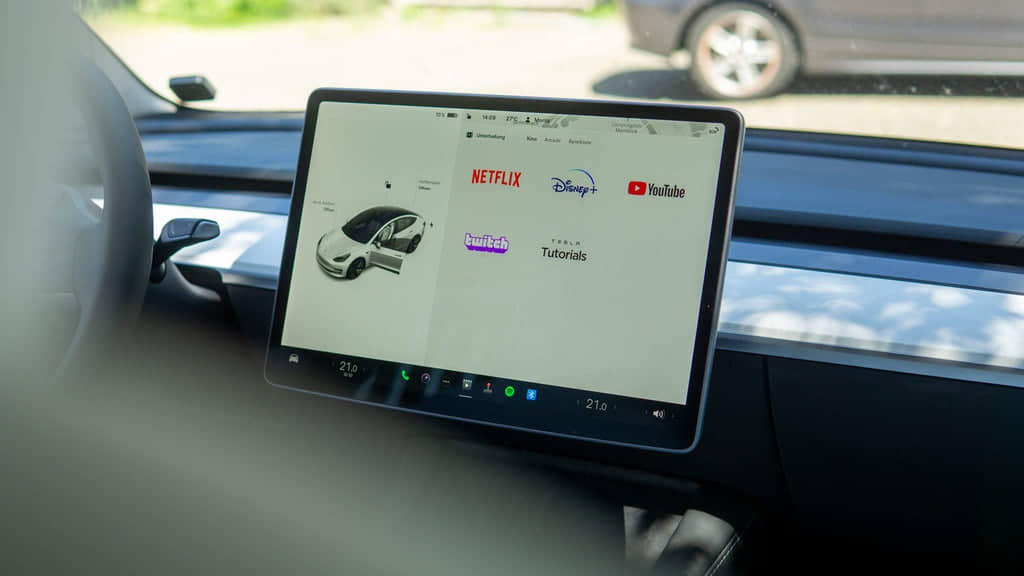
Netflix is available through Tesla Theater on supported models, providing a convenient way to stream content while the vehicle is parked. However, because the app depends on the Tesla infotainment system, Premium Connectivity or Wi-Fi, and Netflix’s own servers, a failure in any part of this chain can prevent the service from working correctly. Common symptoms include a black screen, endless loading, login failures, playback errors, or the Netflix app failing to open altogether.
This guide explains why Netflix stops working on Tesla vehicles, how to identify the root cause, and the most effective troubleshooting steps in the correct order. You’ll also learn what to do if the issue appears after a Tesla software update, how to determine whether the problem is caused by Tesla or Netflix, and when it’s time to contact Tesla Service for further assistance.
Why Is Netflix Not Working on My Tesla?
Netflix may stop working on a Tesla because the infotainment system cannot establish a stable connection with the streaming service or complete the playback process. The issue is commonly related to network connectivity, outdated vehicle software, account authentication, or a temporary outage affecting either Tesla or Netflix.
One of the most common causes is an unstable internet connection. Tesla Theater requires either a reliable Wi-Fi network or Premium Connectivity to stream Netflix. If the signal is weak, frequently disconnects, or loses data during playback, the app may display a black screen, remain stuck on the loading page, or fail to start a video. Testing another streaming app or opening a webpage in the Tesla browser can quickly determine whether the connection is the source of the problem.
Another frequent cause is outdated or corrupted infotainment software. Tesla regularly delivers over-the-air (OTA) updates that improve system stability and compatibility with entertainment applications. If an update fails to install correctly or a software bug affects the current version, Netflix may freeze, crash during launch, or stop responding. In these situations, restarting the touchscreen or installing the latest software version often restores normal operation.
Netflix account issues can also prevent the app from working. An expired subscription, incorrect login credentials, or an authentication session that has expired may stop the app from accessing streaming content. Although the Netflix application opens normally, users may encounter repeated sign-in requests, playback failures, or error messages indicating that the account cannot be verified. Signing out and logging back in usually refreshes the authentication session.
Temporary service outages should also be considered before troubleshooting the vehicle itself. Tesla Theater relies on both Tesla’s online services and Netflix’s streaming infrastructure. If either platform is experiencing an outage or undergoing maintenance, the application may not load even though the vehicle and internet connection are functioning correctly. Checking the status of both services can help avoid unnecessary troubleshooting.
Finally, verify that your vehicle supports Tesla Theater and meets the requirements for streaming. Netflix is available only on supported Tesla models equipped with the appropriate infotainment hardware and software. The feature also works only while the vehicle is parked, so attempting to access Netflix during driving is expected to disable video playback as part of Tesla’s safety restrictions.
How Can You Fix Netflix Not Working on Tesla?
Fixing Netflix on a Tesla is easiest when you follow the troubleshooting steps in order, starting with the simplest checks before moving to software-related solutions. Most streaming issues are resolved without professional service by restoring the internet connection, refreshing the infotainment system, or updating the vehicle software.
Check your internet connection
A stable internet connection is the first requirement for Netflix to work on Tesla Theater. Streaming video requires consistent bandwidth, and interruptions can prevent the app from loading or cause playback to stop unexpectedly.
If you’re using Premium Connectivity, confirm that the vehicle has a strong cellular signal. If you’re connected to Wi-Fi, verify that the network has internet access by opening a webpage in the Tesla browser or testing another streaming application. Public Wi-Fi networks with captive portals or weak signals may connect successfully but still fail to stream video.
Verify Premium Connectivity or Wi-Fi
Netflix requires an active internet connection through either Premium Connectivity or Wi-Fi. If Premium Connectivity has expired or cellular coverage is poor, the app may fail to load even though other vehicle functions operate normally.
Switching from cellular data to a trusted Wi-Fi network is a quick way to determine whether the issue is related to connectivity. If Netflix works over Wi-Fi but not cellular, the problem is likely caused by network coverage or the vehicle’s data connection rather than the application itself.
Restart the Tesla touchscreen
Restarting the infotainment system clears temporary software glitches without affecting your personal settings. This process refreshes the Media Control Unit (MCU), closes background processes, and reloads Tesla Theater.
To restart the touchscreen, park the vehicle and press both scroll wheels on the steering wheel until the display turns black. Continue holding the buttons until the Tesla logo appears, then wait for the system to finish rebooting. After the restart is complete, open Netflix again to check whether the issue has been resolved.
Sign out and sign back into Netflix
Refreshing your Netflix login session can resolve authentication errors that prevent streaming. Login tokens may become invalid after software updates, password changes, or extended periods without using the app.
Sign out of your Netflix account from the application, then sign back in using the correct account credentials. If multiple profiles share the same account, verify that the subscription remains active and has not reached its device limit.
Install the latest Tesla software update
Keeping your Tesla software up to date improves compatibility with streaming services and fixes known infotainment bugs. Tesla frequently releases over-the-air updates that include stability improvements for the entertainment system.
Open Controls > Software to check whether an update is available. If a new version appears, install it after the vehicle is parked and connected to a reliable Wi-Fi network. Once the update is complete, reopen Netflix to see whether normal functionality has returned.
Check for Tesla or Netflix service outages
Not every Netflix problem originates from your vehicle. Temporary outages affecting Tesla online services or Netflix servers can prevent streaming even when your internet connection and software are working normally.
If the app suddenly stops working without any recent changes to your vehicle, verify whether other streaming services function correctly. If multiple services are unavailable or other Tesla owners report similar issues, waiting until the outage is resolved is often the only necessary action.
Why Does Netflix Stop Working After a Tesla Software Update?
Netflix may stop working after a Tesla software update because the new firmware changes how the infotainment system communicates with streaming applications. Most post-update issues are temporary and can be resolved by restarting the system, reconnecting to the internet, or allowing background processes to finish after the installation.
Software updates replace system files, apply security patches, and optimize Tesla Theater. During this process, cached application data or temporary configuration files may become incompatible with the updated software. As a result, Netflix may fail to launch, remain stuck on the loading screen, or close unexpectedly. In most cases, these problems disappear after a touchscreen reboot or another vehicle restart.
Another common cause is that the Netflix authentication session becomes invalid after the update. When the infotainment system installs a new software version, some login credentials or security tokens may be refreshed. Although the Netflix app is still installed, it may no longer recognize the previous login session, causing repeated sign-in requests or playback errors. Signing out of Netflix and logging back in usually creates a new authentication session and restores normal access.
Software updates can also reset network configurations temporarily. If the vehicle does not reconnect to Premium Connectivity or Wi-Fi immediately after installation, Netflix may appear offline even though the update completed successfully. Before troubleshooting the application itself, confirm that the vehicle has regained internet access and that other online features, such as live traffic visualization or the web browser, are functioning normally.
In some situations, the issue is caused by a software bug introduced in the latest Tesla release rather than by your vehicle. A newly released firmware version may contain compatibility issues that affect Tesla Theater or specific streaming services. If many Tesla owners experience the same problem after installing the same update, Tesla typically addresses it through a follow-up over-the-air patch. Checking Tesla release notes or community discussions can help determine whether the problem is widespread.
If Netflix continues to malfunction after restarting the infotainment system, reconnecting to the internet, and installing the latest available update, the next step is to contact Tesla Support. Persistent issues that affect only one vehicle may indicate a deeper infotainment software problem that requires remote diagnostics or a service appointment.
What Do Common Netflix Problems on Tesla Mean?
The type of Netflix error you experience often indicates the underlying cause of the problem. Identifying the symptom before troubleshooting helps you eliminate unnecessary steps and resolve the issue more efficiently.
Black screen
A black screen usually indicates that Netflix has launched but cannot display video content. This issue is commonly caused by temporary infotainment software glitches, graphics rendering problems, or an unstable internet connection.
Restart the touchscreen first, then reconnect to Wi-Fi or verify that Premium Connectivity is active. If the black screen appears immediately after a Tesla software update, install any available follow-up update or wait for Tesla to release a bug fix if the issue is affecting multiple vehicles.
Endless loading screen
An endless loading screen typically means Netflix cannot establish a complete connection with its streaming servers. The application continues loading because it is waiting for authentication or network data that never arrives.
Check whether your Tesla has internet access by opening another online service such as YouTube or the web browser. If every online feature fails to load, the problem is likely related to the vehicle’s network connection rather than Netflix itself.
Login errors
Repeated login requests or authentication errors usually point to an account verification problem. This can occur after changing your Netflix password, updating Tesla software, or when the stored login session expires.
Sign out of Netflix completely before signing back in with the correct account credentials. If the error persists, confirm that your Netflix subscription is active and that the account has not exceeded its supported number of simultaneous devices.
Playback errors
Playback errors occur when Netflix loads successfully but cannot start or continue a video. These problems are often caused by temporary server issues, interrupted internet connectivity, or software conflicts within the infotainment system.
Switch to a different network if possible and test another movie or TV show. If every title produces the same error while other streaming services work normally, the issue may originate from Netflix rather than the vehicle.
Audio without video
Hearing audio without seeing video usually indicates a display rendering issue instead of a streaming failure. The media is playing correctly, but the infotainment system cannot render the video output.
Restarting the touchscreen resolves this symptom in many cases. If it continues after multiple restarts, install the latest Tesla software update or contact Tesla Support for additional diagnostics.
Frozen touchscreen while streaming
A frozen touchscreen suggests that the infotainment system has stopped responding instead of Netflix failing alone. In this situation, other vehicle entertainment functions may also become unresponsive.
Perform a touchscreen reboot and allow the system to restart completely before reopening Tesla Theater. If the display freezes repeatedly across multiple applications, the issue may involve the Media Control Unit (MCU) or the vehicle software rather than Netflix specifically.
When Should You Contact Tesla Service?
Most Netflix issues can be resolved through basic troubleshooting, but persistent problems after completing all recommended steps may require assistance from Tesla Service. If the issue is related to the infotainment hardware, vehicle software, or network module, remote diagnostics or professional repair may be necessary.
Contact Tesla Service if Netflix continues to fail after restarting the touchscreen, verifying your internet connection, signing back into your Netflix account, and installing the latest software update. Frequent infotainment crashes, repeated touchscreen freezes, or multiple streaming applications failing simultaneously often indicate a system-level problem rather than an issue with Netflix alone.
Before scheduling a service appointment, record the software version installed on your vehicle, note when the issue first appeared, and identify whether it affects only Netflix or every online application. Taking photos or videos of error messages can also help Tesla technicians diagnose the problem more efficiently.
Does Netflix Require Premium Connectivity on Tesla?
Premium Connectivity is not always required to watch Netflix, but the vehicle must have an active internet connection. Tesla Theater can stream through either Premium Connectivity or a Wi-Fi network.
If your Tesla is parked within range of a reliable home, office, or mobile hotspot connection, Netflix should function normally over Wi-Fi. Premium Connectivity becomes the more convenient option because it provides internet access without requiring an external network, particularly when traveling.
Can You Watch Netflix While Driving a Tesla?
No. Tesla disables video streaming while the vehicle is in motion to reduce driver distraction. Netflix is available only when the vehicle is parked or in an approved stationary state through Tesla Theater.
If Netflix refuses to play while driving, this behavior is expected and does not indicate a software malfunction.
What Other Streaming Apps Are Available on Tesla?
Tesla Theater supports several entertainment applications depending on the vehicle’s software version and region. Besides Netflix, owners may have access to services such as:
- YouTube
- Disney+
- Hulu (availability varies by market)
- Twitch
- Browser-based streaming websites that are compatible with the Tesla browser
If Netflix alone is not working while other streaming services function normally, the issue is more likely related to the Netflix application or account than to the vehicle itself.
Frequently Asked Questions
Why is Netflix missing from Tesla Theater?
Netflix may disappear if your vehicle software is outdated, the feature is unavailable in your region, or Tesla Theater has not loaded correctly. Installing the latest software update and restarting the infotainment system usually restores missing applications.
Does restarting the touchscreen erase my settings?
No. A touchscreen reboot refreshes the infotainment system without deleting your Tesla account, driver profiles, navigation history, or personal settings.
Can a mobile hotspot fix Netflix problems?
Yes. Connecting your Tesla to a reliable mobile hotspot is an effective way to determine whether the issue is caused by Premium Connectivity or poor cellular coverage.
Why does Netflix work on Wi-Fi but not on cellular data?
This usually indicates weak mobile signal strength, a temporary Premium Connectivity issue, or network congestion rather than a fault with the Netflix application.
Can an expired Netflix subscription prevent streaming?
Yes. If your subscription has expired, your payment has failed, or your account has been restricted, Netflix may open successfully but will not allow video playback until the account issue is resolved.