Tesla myQ not working is usually caused by one of five issues: a lost account connection, an unstable internet connection, outdated software, an offline garage door opener, or a compatibility or subscription problem. While the symptoms may look similar—such as the garage failing to open automatically, the vehicle not detecting the garage, or an error appearing on the touchscreen—the solution depends on identifying the underlying cause first.
This guide walks through the complete troubleshooting process in a logical order, starting with the simplest checks before moving to more advanced fixes. You’ll learn how the Tesla and myQ integration works, how to determine whether the issue comes from the vehicle, the myQ service, or the garage door opener, and which steps restore the connection in most situations.
The article also explains why Tesla myQ may stop working after a software update, what common error messages actually mean, and when it’s time to contact Tesla or Chamberlain support instead of continuing to troubleshoot. By the end of this guide, you’ll have a clear process for diagnosing the problem, applying the right fix, and reducing the chances of the same issue happening again.
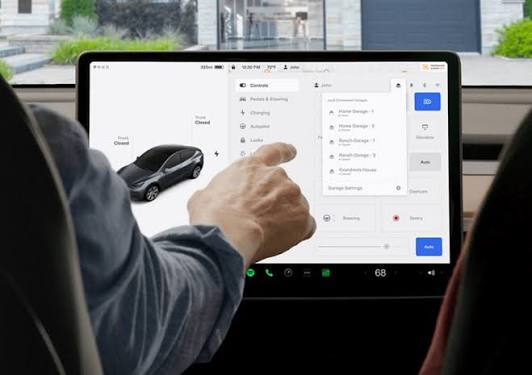
Why Is Tesla MyQ Not Working?
Tesla myQ usually stops working because of five main causes: connectivity issues, account synchronization problems, software or firmware issues, garage door opener availability, and compatibility or subscription limitations. Identifying which category the problem belongs to is the fastest way to restore the integration.
Connectivity issues
A stable internet connection is essential because Tesla communicates with myQ through cloud services rather than a direct local connection. If the vehicle has poor cellular coverage or the garage door opener loses its Wi-Fi connection, commands may fail to reach the myQ servers. Common symptoms include delayed responses, the garage status failing to update, or repeated connection errors on the vehicle’s touchscreen.
Account synchronization problems
Tesla and myQ must remain linked through the same authorized account. The connection may stop working if the myQ password changes, account permissions are updated, or the authorization token expires. In these situations, the garage may disappear from the vehicle or become unavailable even though it still works correctly inside the myQ mobile app.
Software or firmware issues
Outdated Tesla software or myQ firmware can interrupt communication between both platforms. Software updates occasionally introduce temporary compatibility issues or require the integration to be reauthorized. If the problem starts immediately after an update, checking for another software release or reconnecting the myQ account is often necessary.
Garage door opener availability
The garage door opener must remain online and connected to the myQ cloud. A disconnected Smart Garage Control hub, unstable home Wi-Fi network, or temporary myQ service interruption can prevent Tesla from sending commands successfully. Confirming that the garage operates normally through the myQ app helps determine whether the issue originates from the garage system instead of the vehicle.
Compatibility or subscription limitations
Not every garage door opener supports Tesla’s myQ integration, and certain regions or vehicle configurations require an active myQ subscription. If the hardware is unsupported or the subscription has expired, Tesla may display messages indicating that the garage cannot be accessed or that activation is required.
How Does Tesla MyQ Work?
Tesla myQ integrates your vehicle with a compatible smart garage door opener through Chamberlain’s cloud platform, allowing the car to automatically detect, open, and close your garage based on its location. Unlike HomeLink, the system relies on an internet connection instead of a built-in radio transmitter.
To use the integration successfully, three requirements must be met:
- A Tesla vehicle that supports myQ integration.
- A compatible myQ-enabled garage door opener or Smart Garage Control device connected to Wi-Fi.
- A linked myQ account with the required subscription, where applicable.
Once the setup is complete, Tesla securely connects to your myQ account through cloud authentication. When the vehicle approaches or leaves the saved garage location, it sends an encrypted request to the myQ servers. The servers verify the request and instruct the garage door opener to perform the selected action. Because every command passes through the cloud, both the vehicle and the garage system must remain online for automatic operation to work reliably.
Understanding this workflow makes troubleshooting much easier. If any component in the chain—the Tesla vehicle, internet connection, myQ account, cloud service, or garage opener—fails to communicate, the integration can stop working even though the other components continue operating normally.
How Do You Fix Tesla MyQ Not Working?
Fix Tesla myQ issues by checking the connection between the vehicle, the myQ account, and the garage door opener in a logical order. Completing the following steps from top to bottom helps eliminate the most common causes before moving to more advanced troubleshooting.
1. Check the Tesla internet connection
Verify that the vehicle has a stable cellular or Wi-Fi connection. Tesla communicates with myQ through cloud services, so remote garage commands cannot be sent if the vehicle is offline. If the signal is weak, move the vehicle to an area with better coverage or connect it to a reliable Wi-Fi network before testing the integration again.
2. Confirm the garage door opener is online
Open the myQ mobile app and check whether the garage door reports an online status. If the opener appears offline, restart the garage door opener or Smart Garage Control hub and verify that your home Wi-Fi network is operating normally. If the garage cannot be controlled from the myQ app, the problem is likely on the garage side rather than with Tesla.
3. Reconnect your myQ account
An expired authentication token or account change can interrupt communication between Tesla and myQ. Remove the existing myQ connection from the vehicle settings, then sign in again using the same myQ account associated with the garage. Reauthorizing the account refreshes the secure connection and resolves many synchronization issues.
4. Restart the Tesla infotainment system
Minor software glitches may prevent online services from responding correctly. Press and hold both steering wheel scroll wheels until the touchscreen turns black and the Tesla logo appears. After the system restarts, wait for the vehicle to reconnect to the internet before testing the garage controls.
5. Verify the saved garage location
Automatic garage functions depend on accurate vehicle location. If the saved location is incorrect or GPS accuracy has changed, Tesla may fail to detect that the vehicle is approaching or leaving the garage. Remove the saved garage location if necessary, then create it again while the vehicle is parked directly in front of the garage door.
6. Update Tesla software and myQ firmware
Outdated software can affect compatibility between Tesla and myQ. Install the latest available Tesla software update and check whether firmware updates are available for the myQ hub or compatible garage door opener. Running current software reduces the likelihood of known bugs affecting the integration.
7. Remove and add the garage again
If the previous steps do not resolve the issue, delete the garage from the Tesla myQ settings and complete the setup process from the beginning. Recreating the connection replaces outdated configuration data and often resolves persistent pairing problems that survive software updates or account changes.
Why Did Tesla MyQ Stop Working After a Software Update?
Tesla myQ may stop working after a software update because the update changes how the vehicle communicates with connected services or requires the integration to be synchronized again. Although most updates improve stability, they can occasionally interrupt existing cloud connections.
One common situation is that the vehicle no longer recognizes the authorization previously granted to the myQ account. When this happens, automatic garage functions may disappear, fail to activate, or display connection-related errors even though the myQ mobile app continues to control the garage normally. Signing out and reconnecting the myQ account is often the first step to restore communication.
Software updates can also introduce temporary compatibility issues between Tesla and the myQ platform. If multiple owners begin reporting the same problem shortly after a new Tesla release, the issue may require a server-side update or a future software patch rather than a change to the vehicle itself. In these situations, checking for another Tesla software update over the following days is recommended.
If the problem started immediately after updating and persists after reconnecting the account, restarting the infotainment system, and confirming that both the garage opener and myQ service are online, the remaining cause is likely outside the user’s configuration. At that point, documenting the software version, the exact error message, and the time the issue began will help Tesla or Chamberlain support investigate the problem more efficiently.
What Do Common Tesla MyQ Error Messages Mean?
Tesla myQ error messages indicate where communication fails between the vehicle, the myQ cloud service, and the garage door opener. Understanding what each message means helps narrow down the root cause and avoids unnecessary troubleshooting.
Garage Unavailable means Tesla cannot access the garage configured in your myQ account. This usually occurs when the garage door opener is offline, the myQ account is no longer linked to the vehicle, or the garage has been removed or renamed in the myQ app.
Start by confirming that the garage appears in the myQ mobile app and responds to open and close commands. If it works in the app but not in Tesla, reconnect the myQ account from the vehicle settings.
Connection Failed
Connection Failed indicates that Tesla cannot communicate with the myQ cloud service. The interruption may originate from the vehicle’s internet connection, the home network used by the garage opener, or a temporary service outage.
Check whether the vehicle has a stable internet connection and verify that the garage door opener remains connected to Wi-Fi. If both systems are online, wait a few minutes and try again, as temporary cloud interruptions usually resolve without user intervention.
Subscription Required
Subscription Required appears when the myQ integration cannot be activated because the required service plan is unavailable or has expired.
Review the subscription status in your myQ account and confirm that your vehicle and region support the selected service. If your subscription was recently renewed, signing out and reconnecting the account may refresh the vehicle’s access.
Garage Offline
Garage Offline means the myQ platform cannot communicate with the garage door opener. Unlike a vehicle-related issue, this message normally points to the garage hardware or its internet connection.
Restart the garage door opener or Smart Garage Control device, verify that the home Wi-Fi network is operating correctly, and check whether the garage responds through the myQ mobile app before troubleshooting Tesla.
Vehicle Location Unavailable means Tesla cannot accurately determine its position to trigger automatic garage actions. GPS interference, disabled location services, or an incorrectly saved garage location can all prevent the automation from working.
Drive the vehicle to an open area until GPS positioning stabilizes. If the problem continues, remove the saved garage location and configure it again while parked directly in front of the garage.
When Should You Contact Tesla or myQ Support?
Contact support after completing the standard troubleshooting steps and confirming that the issue cannot be resolved through vehicle settings, account synchronization, or network checks. Identifying which company is responsible saves time and prevents unnecessary support requests.
Contact Tesla Support if:
- The myQ option disappears from the vehicle after a software update.
- The touchscreen continues displaying connection errors after reconnecting the myQ account.
- Automatic garage detection fails even though the garage operates normally through the myQ app.
- The issue began immediately after installing a Tesla software update.
- Other connected vehicle services also experience connectivity problems.
Tesla Support can review vehicle diagnostics, software logs, account synchronization, and known issues affecting specific software versions.
Contact Chamberlain or myQ Support if:
- The garage door opener is offline in the myQ app.
- The garage cannot be controlled through the myQ mobile application.
- The Smart Garage Control hub repeatedly disconnects from Wi-Fi.
- Subscription activation fails despite successful payment.
- The garage door opener no longer appears in the myQ account.
Because Chamberlain manages the myQ platform, its support team can verify cloud service status, account permissions, compatible hardware, and firmware updates.
Prepare this information before contacting support
Providing complete information helps support teams diagnose the issue more quickly. Prepare:
- Tesla model and model year.
- Tesla software version.
- myQ app version.
- Garage door opener brand and model.
- Smart Garage Control model, if installed.
- Exact error message displayed on the Tesla touchscreen.
- Date and time the issue first occurred.
- Steps already completed during troubleshooting.
- Photos or screenshots of the error, if available.
Having these details available reduces back-and-forth communication and allows the support representative to identify known software bugs, account issues, or hardware failures more efficiently.
How Can You Prevent Tesla MyQ Problems?
Preventing Tesla myQ issues requires keeping the vehicle, the garage door opener, and the cloud connection operating reliably. Most recurring problems develop after software changes, network interruptions, or account modifications rather than hardware failures.
Keep Tesla software and myQ firmware up to date
Software updates frequently include bug fixes, security improvements, and compatibility enhancements. Installing the latest Tesla software and updating the firmware for your myQ-enabled garage door opener or Smart Garage Control device reduces the risk of known integration issues.
If a problem appears after an update, monitor future releases because Tesla and Chamberlain occasionally resolve cloud-related bugs through subsequent software or server updates.
Maintain a stable internet connection
Tesla myQ depends entirely on cloud communication. A weak cellular signal, unstable home Wi-Fi, or an intermittent internet connection can interrupt automatic garage operations.
Place the garage hub within reliable Wi-Fi coverage and ensure your home router provides a stable connection. If you frequently experience network outages, improving Wi-Fi coverage near the garage can significantly improve reliability.
Review your myQ account regularly
Changes to account credentials can interrupt the integration without affecting the garage door opener itself. If you update your password, transfer ownership of the garage, or modify account permissions, verify that Tesla still has authorization to access your myQ account.
It’s also a good practice to confirm that your subscription remains active if your region or vehicle configuration requires one.
Verify your garage location after major changes
Automatic open and close functions rely on the garage location stored in the vehicle. If you move to a new home, adjust your driveway, or notice GPS inaccuracies after a software update, recreate the saved garage location to ensure Tesla triggers the automation at the correct distance.
Check system status before troubleshooting
Not every failure originates from your vehicle. Temporary outages affecting Tesla online services or the myQ cloud platform can prevent commands from reaching the garage even when your setup is correct.
Before resetting accounts or deleting configurations, check whether other users are reporting similar issues. Waiting for the service to recover may save unnecessary troubleshooting.
Tesla MyQ Not Working FAQs
Why won’t Tesla detect my garage?
Tesla may not detect your garage because the saved location is inaccurate, GPS positioning is temporarily unavailable, the myQ account is disconnected, or the garage door opener is offline. Verify the garage location, confirm that both systems are connected to the internet, and reconnect the myQ account if necessary.
Can Tesla use myQ without Premium Connectivity?
Tesla myQ functionality primarily depends on internet connectivity and a supported myQ integration rather than Premium Connectivity alone. Availability may vary depending on the vehicle model, software version, and regional service requirements. Check Tesla’s current compatibility information for your specific vehicle before troubleshooting.
Does reinstalling the myQ app fix the problem?
Reinstalling the myQ mobile app can resolve issues caused by corrupted app data or login problems on your phone. However, it does not usually repair communication between Tesla and the myQ cloud unless you reconnect the account after signing in again.
Can HomeLink replace myQ?
Yes. HomeLink can serve as an alternative garage door control system for many Tesla owners. Unlike myQ, HomeLink communicates directly with compatible garage door openers using radio frequency instead of cloud services. If your garage opener supports HomeLink, it may continue operating even when internet connectivity is unavailable.
Is myQ temporarily down?
Yes. Temporary outages occasionally affect cloud-based services, preventing Tesla from communicating with the garage door opener. If the garage hardware, Wi-Fi connection, and Tesla settings appear normal but commands suddenly stop working, check the service status before making configuration changes. Waiting until the service is restored is often the quickest solution.