Have you ever stepped into your car, turned on the engine, and realized your phone simply refuses to connect, leaving you stuck without music, navigation audio, or hands free calls? If you are currently searching for answers to “My Chevrolet Bluetooth Not Working,” you are not alone. This is one of the most common and frustrating issues faced by Chevrolet drivers across different models and years.
Bluetooth connectivity is no longer just a convenience. It is a core part of your driving experience, especially with modern Chevrolet infotainment systems like MyLink. When it stops working, it disrupts everything from daily commutes to long road trips. Many drivers immediately assume there is a serious technical failure, but in most cases, the problem is caused by simple software glitches, incorrect settings, or device compatibility issues.
The good news is that you do not need to rush to a dealership or spend money on repairs right away. In this guide, you will learn the real reasons why your Chevrolet Bluetooth is not working, along with step by step solutions that are easy to follow and proven to work. Whether your Bluetooth will not connect, keeps disconnecting, or fails to pair, this article will help you fix it quickly and confidently.
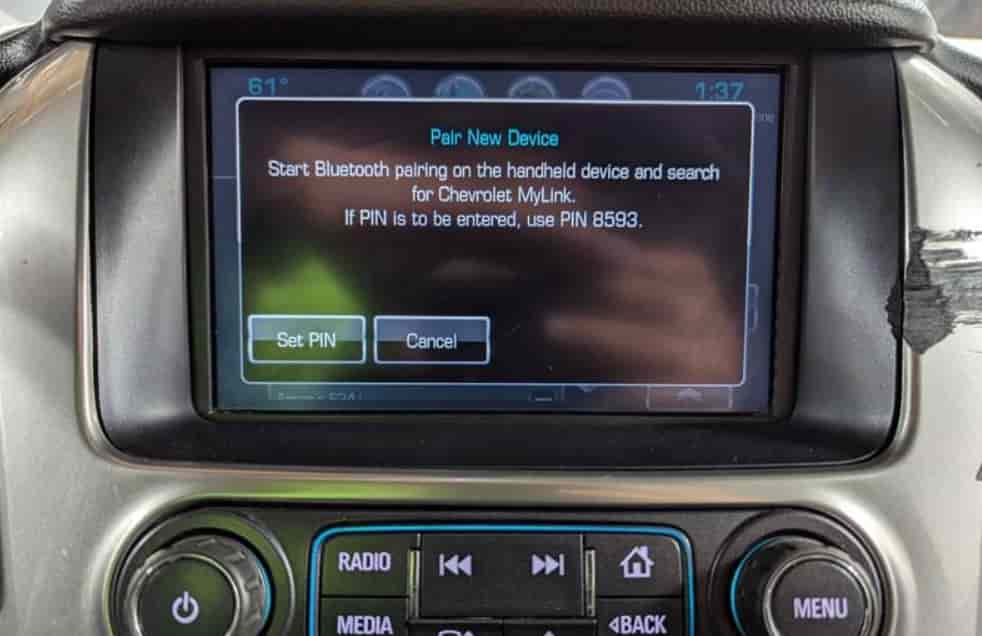
What Causes Chevrolet Bluetooth Not Working?
When you encounter the issue “My Chevrolet Bluetooth Not Working,” the first step is to understand the root causes behind it. Most Bluetooth problems are not random. They usually come from a few specific technical or configuration related factors that can be identified and resolved.
One of the most common causes is software glitches within the Chevrolet infotainment system. Systems like MyLink rely heavily on stable software to manage connections. If the system becomes outdated or experiences a temporary bug, Bluetooth functionality can stop working or behave unpredictably. This often happens after system updates or prolonged use without a restart.
Another frequent issue comes from phone compatibility. Not all smartphones interact perfectly with every version of Chevrolet’s Bluetooth system. Differences between iOS and Android, along with varying Bluetooth versions, can create connection failures, pairing errors, or missing audio output. Even a recent phone update can suddenly break a previously stable connection.
Incorrect pairing settings are also a major contributor. Many users unknowingly store too many devices in the system or skip critical pairing steps. When the memory is overloaded or the pairing process is incomplete, the system may fail to recognize or connect to your phone properly.
Signal interference is another hidden factor. Bluetooth operates on short range wireless signals, which can be disrupted by other electronic devices, WiFi signals, or even multiple active Bluetooth connections nearby. This can lead to unstable connections or sudden disconnections.
Finally, in some cases, the issue may be hardware related. A faulty Bluetooth module, damaged antenna, or internal system error can prevent Bluetooth from functioning entirely. While this is less common, it becomes more likely in older vehicles or after physical damage.
Understanding these causes will help you apply the right fix instead of guessing and wasting time.
Step by Step Guide to Fix My Chevrolet Bluetooth Not Working
Now that you understand the causes, it is time to fix the problem. If you are dealing with the issue “My Chevrolet Bluetooth Not Working,” follow these steps carefully. Most users can restore their connection within minutes using this process.
Start by restarting both your phone and your vehicle’s infotainment system. This simple action clears temporary glitches that often block Bluetooth communication. Turn off your car completely, wait for a minute, then restart it. At the same time, reboot your smartphone to refresh its wireless connections.
Next, delete all previously paired devices from both your phone and your Chevrolet system. Over time, stored connections can conflict with each other. Go into your car’s Bluetooth settings, remove every saved device, then do the same on your phone. After that, initiate a fresh pairing process. Make sure Bluetooth is enabled and your phone is discoverable before connecting again.
If the issue persists, turn Bluetooth off and on again on both devices. This resets the connection channel and can resolve pairing failures or missing audio problems. It may sound basic, but this step often works surprisingly well.
You should also check permissions on your phone. Many users overlook this. Ensure that Bluetooth has access to contacts, media, and calls. Without proper permissions, your Chevrolet system may connect but fail to function correctly.
Another critical step is updating software. Check if your phone has a pending iOS or Android update. At the same time, verify whether your Chevrolet infotainment system requires an update. Outdated software is one of the leading causes of Bluetooth issues.
By following these steps in order, you can eliminate most common problems without needing professional help.
How to Reset Chevrolet Infotainment System
If you have tried all the basic fixes and your issue “My Chevrolet Bluetooth Not Working” still persists, resetting the infotainment system can be a powerful solution. This step helps eliminate deeper software conflicts that cannot be resolved through simple troubleshooting.
There are two main types of reset you should understand. The first is a soft reset. This is a quick restart of the system that clears temporary errors without affecting your saved data. In many Chevrolet models, you can perform a soft reset by turning off the vehicle, opening the driver door for a few minutes, and then restarting the car. This forces the system to fully shut down and reboot cleanly.
The second option is a factory reset. This is more advanced and should be used only when necessary. A factory reset will erase all saved settings, including paired devices, preferences, and system configurations. To perform this, go to your infotainment settings, locate the reset or factory reset option, and confirm the process. Once completed, the system returns to its original state, which often resolves persistent Bluetooth issues.
You should consider resetting the system if your Bluetooth fails to detect devices, keeps disconnecting even after multiple attempts, or behaves inconsistently without a clear reason.
While a reset may seem like a drastic step, it is often the most effective way to fix stubborn problems. It essentially gives your Chevrolet system a fresh start, removing hidden errors that build up over time.
Chevrolet Bluetooth Not Working with iPhone or Android
If you are still facing the issue “My Chevrolet Bluetooth Not Working,” the problem may not come from the car alone. In many cases, the root cause lies in how your smartphone interacts with the system. iPhone and Android devices behave differently, and each can create unique Bluetooth problems.
For iPhone users, issues often appear after iOS updates. A previously stable connection may suddenly stop working due to software conflicts. Features like Siri can also interfere with Bluetooth communication, especially when voice commands are active in the background. To fix this, you should turn Bluetooth off and on again, forget the car in your iPhone’s Bluetooth settings, and reconnect from scratch. If the issue continues, resetting network settings on your iPhone can help restore proper connectivity.
Android users face a different set of challenges. Because Android runs on many devices with different manufacturers, Bluetooth behavior is less consistent. Cached data is a common cause of failure. Over time, the Bluetooth cache can become corrupted, leading to pairing issues or random disconnections. Clearing the Bluetooth cache in your phone settings can often resolve this. In addition, permission settings must be checked carefully. Make sure Bluetooth has full access to media, contacts, and calls.
Another important factor is background optimization. Some Android devices restrict Bluetooth performance to save battery, which can break the connection with your Chevrolet system. Disabling battery optimization for Bluetooth can significantly improve stability.
By understanding how your specific device affects the connection, you can apply the right fix instead of repeating the same steps without results.
When Bluetooth Keeps Disconnecting
If your connection works but does not stay stable, the issue “My Chevrolet Bluetooth Not Working” may actually be a problem of frequent disconnections. This is one of the most frustrating situations because everything seems fine at first, then suddenly drops without warning.
A common cause of this problem is battery optimization on your smartphone. Many devices are designed to limit background activity to save power. Unfortunately, this can interfere with Bluetooth connections in your Chevrolet. When the system restricts Bluetooth, your connection may randomly disconnect while driving. To fix this, go into your phone settings and disable battery optimization for Bluetooth or for the apps that rely on it.
Another hidden cause is background applications. Apps that use audio, calls, or wireless connections can compete with your car’s Bluetooth system. This creates instability, especially if multiple apps try to access Bluetooth at the same time. Closing unnecessary apps or restarting your phone can help stabilize the connection.
Network settings can also play a role. Over time, your phone stores various connection data that may become corrupted. Resetting network settings will clear WiFi, mobile data, and Bluetooth configurations, allowing your device to rebuild a clean connection with your Chevrolet system.
Distance and interference should not be ignored either. Keeping your phone too far from the infotainment system or having multiple active wireless devices nearby can weaken the signal and cause drops.
Fixing disconnection issues requires consistency. Once you eliminate these factors, your Bluetooth connection should remain stable during every drive.
When to Seek Professional Help
If you have followed all the steps above and the issue “My Chevrolet Bluetooth Not Working” still remains, it may be time to consider professional assistance. While most Bluetooth problems are software related, there are situations where deeper technical issues are involved.
One clear sign is when your system cannot detect any Bluetooth devices at all. If your phone does not appear during scanning, even after resetting both the phone and the infotainment system, this could indicate a failure in the Bluetooth module. Another warning sign is when Bluetooth cannot be turned on or remains stuck in an inactive state. This often points to internal hardware or system level faults.
You should also pay attention to recurring issues after resets or updates. If the problem keeps coming back despite multiple fixes, there may be an underlying defect that requires diagnostic tools available only at service centers.
In these cases, visiting an authorized Chevrolet service center or a trusted mechanic is the safest option. The cost can vary depending on the issue, ranging from minor software reprogramming to replacing hardware components.
Seeking help at the right time can save you from prolonged frustration and prevent further system complications.
Pro Tips to Prevent Bluetooth Issues
Once you have fixed the issue “My Chevrolet Bluetooth Not Working,” the next step is to make sure it does not happen again. Preventing Bluetooth problems is much easier than dealing with them repeatedly, especially when simple habits can keep your system running smoothly.
One of the most important practices is keeping your software up to date. Both your smartphone and your Chevrolet infotainment system should always run the latest available version. Updates often include bug fixes and compatibility improvements that directly affect Bluetooth performance.
You should also avoid connecting too many devices to your vehicle. Storing multiple phones in the system can create conflicts and slow down the pairing process. It is better to keep only the devices you actually use and remove the rest regularly.
Another useful habit is performing occasional resets. Restarting your phone and infotainment system from time to time helps clear temporary errors before they turn into bigger problems. This simple step can significantly improve long term stability.
In addition, always ensure that your phone’s Bluetooth permissions are properly configured. Missing permissions can cause partial connections where audio or calls fail to work correctly.
By maintaining these small but effective habits, you can enjoy a stable and reliable Bluetooth connection every time you drive.
Conclusion
Dealing with the issue “My Chevrolet Bluetooth Not Working” can be frustrating, especially when it disrupts your daily driving experience. However, as you have seen throughout this guide, most Bluetooth problems are not as complicated as they seem. They are often caused by software glitches, incorrect settings, or simple compatibility issues between your phone and your vehicle.
By understanding the root causes and following the step by step solutions, you can fix the problem on your own without immediately turning to expensive repairs. From restarting your devices and re pairing Bluetooth to resetting the infotainment system and adjusting phone settings, each method plays a role in restoring a stable connection.
More importantly, maintaining good habits such as keeping your software updated and limiting connected devices can prevent the issue from coming back in the future. Consistency is key to ensuring your Chevrolet Bluetooth system works smoothly every time you start your car.
If you are still experiencing problems, do not hesitate to seek professional help. But in most cases, the solutions in this guide will be enough to get everything working again.
Now it is your turn. Have you managed to fix your Bluetooth issue, or are you still facing problems? Share your experience and let others learn from it.