Is your Mazda Apple CarPlay not working when you need it most? Losing navigation, music, phone calls, or messages can make every drive more frustrating. Many Mazda owners experience this problem, but most cases have a simple solution.
Several components must work together for Apple CarPlay to function properly. Your iPhone, the USB connection or wireless connection, Siri, and the Mazda Connect infotainment system all play an important role. If one of these components stops working correctly, Apple CarPlay may fail to connect. It may also disconnect repeatedly or stop responding without warning.
The good news is that you can solve many Apple CarPlay issues without visiting a dealership. Simple checks often restore the connection in just a few minutes. You only need to follow the troubleshooting steps in the correct order.
This guide explains 12 proven fixes for the most common Apple CarPlay problems in Mazda vehicles. You will learn how to check your iPhone settings, inspect the USB cable, reconnect Apple CarPlay, update your software, and reset important system settings. Each solution starts with the easiest fix before moving to more advanced troubleshooting.
By the end of this guide, you will understand why Mazda Apple CarPlay is not working and know how to restore a stable connection. Whether you drive a Mazda3, Mazda6, CX 5, CX 30, CX 50, CX 70, or CX 90, these solutions can help you get Apple CarPlay working again quickly.
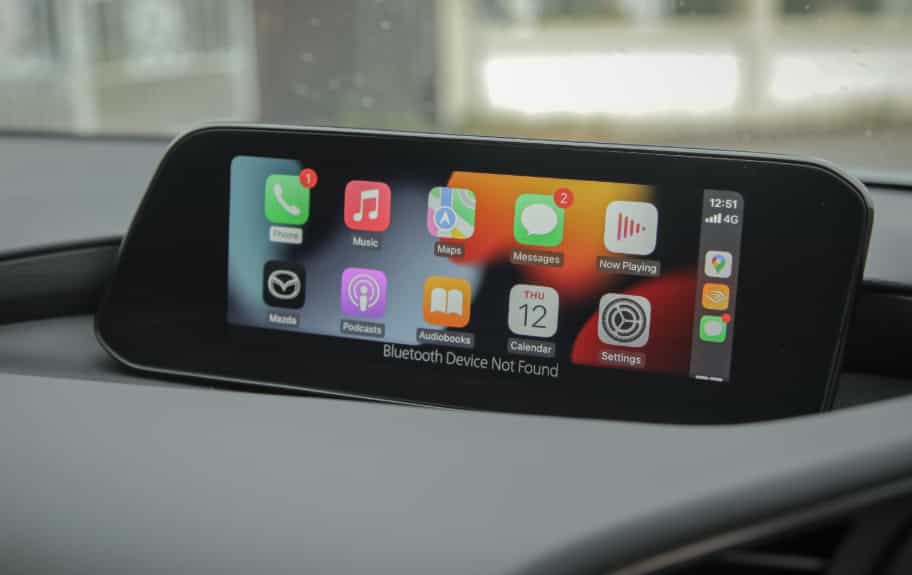
Quick Troubleshooting Table
Not every Apple CarPlay problem has the same cause. Some issues start with your iPhone, while others come from the USB cable, wireless connection, or the Mazda Connect system. Before trying every solution, compare your symptoms with the table below. It can help you identify the most likely cause and save valuable time during troubleshooting.
| Problem | Possible Cause | Recommended Fix |
|---|---|---|
| Apple CarPlay does not appear on the display | CarPlay is disabled or Siri is turned off | Check CarPlay and Siri settings on your iPhone |
| iPhone is not detected | Damaged USB cable or unsupported USB port | Use a certified data cable and try a different USB port |
| Apple CarPlay keeps disconnecting | Loose cable, wireless interference, or software issues | Reconnect the device and update both iPhone and Mazda Connect |
| Apple CarPlay stopped working after an iOS update | Software compatibility issue | Restart your iPhone and install the latest available updates |
| Wireless Apple CarPlay cannot connect | Bluetooth or WiFi pairing problem | Remove the existing pairing and connect your iPhone again |
| Apple CarPlay icon is unavailable | Incorrect settings or temporary system error | Restart both devices and review CarPlay permissions |
| Apple CarPlay freezes or becomes unresponsive | Outdated firmware or infotainment software glitch | Update Mazda Connect and restart the infotainment system |
| Connection works only sometimes | Dirty USB port or damaged connector | Clean the ports carefully and inspect the cable for wear |
The following sections explain each solution in detail. Start with the first fix, even if it seems too simple. Many Apple CarPlay problems result from incorrect settings or a faulty cable. These issues often take only a few minutes to resolve. If the problem continues, move to the next solution until your Mazda Apple CarPlay works normally again.
Check Apple CarPlay and Siri Settings
Start with your iPhone before you inspect the USB cable or restart your Mazda. Incorrect settings often prevent Apple CarPlay from connecting. A quick review can save time and solve the problem in just a few minutes.
Open Settings > General > CarPlay on your iPhone. Check whether your Mazda appears in the vehicle list. If you see your vehicle, tap it and confirm that your iPhone allows Apple CarPlay. If your Mazda does not appear, finish the remaining checks before you connect your phone again.
Next, open Settings > Apple Intelligence & Siri or Settings > Siri, depending on your iPhone model. Turn on every Siri option that your device offers. Enable voice activation and allow Siri to work while the phone remains locked. Apple CarPlay relies on Siri for many core features. Without Siri, your iPhone may not connect to your Mazda correctly.
Now review your lock screen permissions. Connect your iPhone to the vehicle while the screen remains locked. If your phone asks for permission every time, update the CarPlay settings to allow automatic access. This small change often creates a faster and more stable connection.
You should also check Screen Time. Open Settings > Screen Time > Content & Privacy Restrictions. Select Allowed Apps and confirm that Apple CarPlay appears in the list. Turn the feature on if you find it disabled. Many users activate restrictions and forget about them later.
If you recently updated iOS, restored your iPhone, or changed your Apple ID, review these settings one more time. System updates sometimes change your preferences. A quick inspection helps you rule out simple configuration problems before you move to more advanced fixes.
After you finish these checks, disconnect your iPhone from your Mazda. Wait a few seconds and connect it again. Test Apple CarPlay before moving to the next solution. If the problem continues, continue with the next troubleshooting step.
Restart Your iPhone and Mazda Connect
If your settings look correct, restart both your iPhone and the Mazda Connect system. This simple step clears temporary software glitches and refreshes the connection between the two devices. Many drivers solve Apple CarPlay problems with a quick restart.
Turn off your iPhone first. Wait about 30 seconds before turning it back on. Once iOS finishes loading, reconnect the phone to your vehicle.
Now restart the Mazda Connect infotainment system. The exact steps depend on your Mazda model and software version. In many vehicles, holding the volume knob for several seconds restarts the system. Release the button and allow the display to load completely. Check your owner’s manual if your vehicle uses a different restart method.
Reconnect your iPhone after both devices finish restarting. Plug the phone into the correct USB data port if you use wired Apple CarPlay. For wireless Apple CarPlay, give Bluetooth and WiFi enough time to establish a stable connection before testing the system.
A successful connection usually confirms that a temporary software glitch caused the problem. Otherwise, move to the next troubleshooting step and continue with the remaining fixes.
This restart also helps after an iOS update or a Mazda Connect software update. New software sometimes leaves temporary background processes running. A clean restart allows both devices to communicate normally again.
Inspect the USB Connection
A faulty USB connection is one of the most common reasons Mazda Apple CarPlay stops working. Even a small problem with the cable or port can interrupt data transfer. Although your iPhone may still charge, Apple CarPlay may never launch.
Start by checking the USB cable. Look for bent connectors, frayed wires, loose ends, or visible damage. Replace the cable if you notice any signs of wear. An Apple certified or high quality data cable delivers the best performance and reduces connection issues.
Some USB cables only charge a device. They cannot transfer data between your iPhone and the Mazda Connect system. Test another cable if you are not sure which type you have. This quick test often identifies the source of the problem.
Next, inspect the charging port on your iPhone. Dust and pocket lint can block the connector and prevent a stable connection. Shine a flashlight into the port and check for debris. Remove any buildup carefully with a soft, nonmetal tool. Avoid sharp objects because they can damage the internal contacts.
Continue by examining the USB port inside your Mazda. Dirt, moisture, or damaged pins can interrupt communication between the vehicle and your phone. Clean the port gently if you notice any debris. Stop using the port if it looks damaged and arrange a professional inspection.
Your Mazda may include more than one USB port, but not every port supports Apple CarPlay. Connect your iPhone to the designated data port instead of a charging only port. Look for a smartphone or CarPlay icon near the connector if you are unsure which port to use. You can also confirm the correct location in your owner’s manual.
Reconnect your iPhone after completing these checks. Open Apple CarPlay and test every function, including navigation, music, and phone calls. If everything works normally, the USB connection likely caused the issue. If the problem continues, move to the next solution and reconnect Apple CarPlay from scratch.
Reconnect Apple CarPlay
Corrupted pairing data can prevent Apple CarPlay from connecting, even when your iPhone and Mazda work normally. Creating a new connection often removes hidden errors and restores normal performance. This process only takes a few minutes and does not require special tools.
Open Settings > General > CarPlay on your iPhone. Select your Mazda from the list of saved vehicles. Tap Forget This Car to remove the existing connection. Your iPhone will delete the current pairing and prepare for a fresh setup.
After that, open the Mazda Connect system. Find the list of connected devices and remove your iPhone. Different Mazda models use different menu layouts, so check your owner’s manual if you cannot find the option. Removing the phone from both devices prevents old connection data from causing conflicts.
Restart your iPhone before creating a new connection. Restart the Mazda Connect system as well if you have not done so already. A fresh restart clears temporary data and gives both devices a clean starting point.
Now connect your iPhone again. Use the correct USB data port if your vehicle supports wired Apple CarPlay. Follow the on screen instructions and approve every permission request. Keep your iPhone unlocked during the first connection because iOS may ask you to confirm access.
Drivers who use wireless Apple CarPlay should complete the Bluetooth pairing first. The system will then switch to WiFi to handle data communication. Stay inside the vehicle until the setup finishes. Walking away with your phone may interrupt the pairing process.
Test Apple CarPlay after the setup completes. Open Apple Maps, play music, or make a phone call to confirm that every feature works correctly. If Apple CarPlay connects without interruption, the old pairing likely caused the problem. Continue to the next solution if the issue returns or the connection still fails.
Fix Wireless Apple CarPlay Connection Problems
Wireless Apple CarPlay offers greater convenience, but it also depends on a stable Bluetooth and WiFi connection. A problem with either service can stop your iPhone from connecting to Mazda Connect. In many cases, you can restore the connection with a few simple adjustments.
Begin by turning off Bluetooth and WiFi on your iPhone. Wait about 10 seconds before turning both features back on. This refreshes the wireless connection and removes temporary communication errors.
Next, check whether your iPhone remains connected to another device. Wireless earbuds, smartwatches, or other vehicles can interfere with the pairing process. Disconnect any unnecessary devices before testing Apple CarPlay again.
You should also review your WiFi settings. Personal Hotspot and VPN services sometimes interrupt wireless communication. Turn these features off temporarily and reconnect your iPhone to your Mazda. If Apple CarPlay starts working, one of these services likely caused the conflict.
Open the Bluetooth settings on your iPhone and remove your Mazda from the list of paired devices. Then delete your iPhone from the Mazda Connect system. Pair both devices again from the beginning and follow every prompt on the display. A fresh pairing often fixes unstable wireless connections.
Signal interference can also affect wireless Apple CarPlay. Keep your iPhone inside the vehicle and avoid placing it near devices that produce strong wireless signals. Although interference does not happen often, it can reduce connection quality in some situations.
Finally, test Apple CarPlay during a short drive. Open a navigation app, stream music, and make a hands free phone call. Stable performance during normal use confirms that the wireless connection works correctly. If the problem continues, move to the next solution and check for software updates on both your iPhone and the Mazda Connect system.
Update Your Software
Outdated software can prevent Apple CarPlay from working correctly. Compatibility issues often appear after a major iOS release or when the Mazda Connect system runs an older firmware version. Keeping both devices up to date improves stability and reduces unexpected connection problems.
Start by checking for iPhone updates. Open Settings > General > Software Update and look for a newer version of iOS. Install the update if one is available. Connect your iPhone to a reliable WiFi network and keep enough battery power before you begin the installation.
After the update finishes, restart your iPhone. Then reconnect it to your Mazda and test Apple CarPlay again. Many users restore normal performance after installing the latest iOS version.
Now check the Mazda Connect system. Mazda occasionally releases firmware updates to improve infotainment performance and smartphone compatibility. New firmware can resolve connection failures, improve system stability, and fix software bugs that affect Apple CarPlay.
The update process varies by vehicle model and production year. Review your owner’s manual or contact your local Mazda dealer for the correct procedure. Avoid downloading firmware from unofficial websites because modified software may damage the infotainment system or create new compatibility issues.
Keep in mind that the newest iOS version and an older Mazda Connect firmware may not always work well together. If Apple CarPlay stopped working immediately after an iPhone update, your vehicle may also need a firmware update. Updating both devices helps them communicate more reliably.
Complete one final test after every update. Connect your iPhone, open Apple Maps, start a music app, and place a phone call. Test each feature for several minutes instead of checking only the initial connection. A stable connection during normal driving confirms that the software update solved the problem.
Reset Network and System Settings
If Apple CarPlay still does not work, reset the network settings on your iPhone. This step removes connection errors that regular troubleshooting cannot fix. It also clears saved WiFi networks, Bluetooth pairings, and other network preferences.
Open Settings > General > Transfer or Reset iPhone > Reset. Select Reset Network Settings and confirm your choice. Your iPhone will restart automatically after the process finishes.
Once the phone turns back on, reconnect it to your WiFi network and pair it with your Mazda again. Test Apple CarPlay before making any other changes. Many users restore a stable connection after completing this reset.
The problem may also come from the Mazda Connect system. In that case, a factory reset can help remove corrupted settings or software conflicts. Keep in mind that this process deletes saved devices, radio presets, navigation preferences, and other personal settings.
Open the system settings on the Mazda Connect display and locate the factory reset option. Follow the instructions on the screen to restore the default configuration. The menu layout may vary by model, so check your owner’s manual if you cannot find the correct option.
Set up your infotainment system again after the reset finishes. Pair your iPhone as a new device and complete the Apple CarPlay setup from the beginning. Approve every permission request during the connection process to avoid future issues.
Test the system before restoring your personal preferences. Open Apple Maps, play music, and make a hands free phone call. If Apple CarPlay works without interruption, a corrupted system setting likely caused the problem. Continue to the next section if the issue remains after both reset procedures.
Visit a Mazda Dealer If Nothing Works
You may need professional assistance after trying every solution in this guide. Persistent Apple CarPlay problems can point to a hardware failure or a software issue that requires specialized equipment. A qualified technician can inspect the system and identify the exact cause.
Start by explaining the symptoms in detail. Tell the technician when the problem started and how often it occurs. Mention whether the issue appeared after an iOS update, a firmware update, or a recent repair. This information helps reduce diagnostic time.
Bring your iPhone and the USB cable you normally use. The technician can test both items during the inspection. If possible, demonstrate the problem instead of describing it. A live demonstration often makes the diagnosis faster and more accurate.
The dealer may inspect the USB hub, infotainment module, wiring, or other electronic components. They can also install the latest Mazda Connect firmware if your vehicle needs an update. In some cases, replacing a damaged USB hub or infotainment component permanently solves the problem.
Ask the technician to test Apple CarPlay before you leave the service center. Connect your own iPhone and confirm that navigation, music, phone calls, and voice commands work correctly. Taking a few extra minutes can prevent another return visit.
Keep the service record after the repair. It provides useful information if the same issue returns later. A detailed repair history also helps future technicians diagnose recurring problems more quickly.
Common Reasons Mazda Apple CarPlay Stops Working
Apple CarPlay can stop working for many different reasons. Some problems take only a few minutes to fix, while others require a software update or professional repair. Understanding the most common causes helps you choose the right solution without wasting time.
Incorrect iPhone settings remain one of the leading causes. Apple CarPlay cannot work properly if Siri is turned off or if Screen Time restrictions block the feature. A quick review of these settings often restores the connection.
A damaged USB cable can also interrupt communication between your iPhone and the Mazda Connect system. Many third party cables support charging but fail to transfer data. Using an Apple certified or high quality data cable reduces connection problems and improves reliability.
Dirty or damaged USB ports create another common issue. Dust, lint, or worn connectors can weaken the data connection. Cleaning the ports carefully and checking for physical damage should always be part of the troubleshooting process.
Wireless Apple CarPlay depends on Bluetooth and WiFi. A weak signal, pairing conflict, or network interference may prevent your iPhone from connecting. Removing the old pairing and creating a new connection often solves these issues.
Software compatibility also plays an important role. An outdated iOS version or older Mazda Connect firmware can lead to unexpected connection failures. Keeping both systems up to date helps maintain stable performance.
Hardware failures occur less often, but they can still cause persistent problems. A faulty USB hub, damaged infotainment module, or electrical issue may stop Apple CarPlay from working. Professional diagnosis becomes the best option after you complete every troubleshooting step in this guide.
Frequently Asked Questions
Why is my Mazda not recognizing my iPhone?
Your iPhone may have incorrect CarPlay settings, an outdated iOS version, or a damaged USB cable. Start by checking your settings, then reconnect the device and test another certified cable.
Why does Apple CarPlay keep disconnecting?
A loose USB connection, wireless interference, outdated software, or corrupted pairing data often causes repeated disconnections. Inspect the cable, restart both devices, and create a new connection if the issue continues.
Does Apple CarPlay require Siri?
Yes. Apple CarPlay relies on Siri for many core functions. Turn on Siri before connecting your iPhone to the Mazda Connect system.
Can a USB cable cause Apple CarPlay to stop working?
Yes. Some cables only support charging and cannot transfer data. A damaged cable can also interrupt the connection. Use an Apple certified or high quality data cable for the best results.
Why did Apple CarPlay stop working after an iOS update?
A major iOS update can create temporary compatibility issues. Restart your iPhone, install any available updates, and check whether your Mazda Connect system also needs a firmware update.
Does every Mazda USB port support Apple CarPlay?
No. Many Mazda models include both charging ports and data ports. Connect your iPhone to the designated USB port that supports Apple CarPlay.
Can I update Mazda Connect myself?
Some Mazda models allow owner updates, while others require dealership service. Follow the instructions in your owner’s manual or contact an authorized Mazda dealer before updating the firmware.
When should I visit a Mazda dealer?
Visit a dealer if Apple CarPlay still fails after completing every troubleshooting step. Professional service can identify hardware faults, install firmware updates, and repair damaged components.
Conclusion
A Mazda Apple CarPlay connection can fail for many different reasons, but most problems have a practical solution. Incorrect settings, damaged USB cables, pairing conflicts, outdated software, and temporary system errors account for the majority of connection issues. By following the troubleshooting steps in this guide, you can identify the cause and restore Apple CarPlay without unnecessary repairs.
Always begin with the simplest checks before moving to advanced solutions. Review your iPhone settings, inspect the USB connection, restart both devices, and reconnect Apple CarPlay. If the problem continues, update your software and reset the network or system settings. These steps solve many connection problems and help keep Apple CarPlay running smoothly.
If none of the solutions work, schedule an inspection with an authorized Mazda dealer. A trained technician can diagnose hardware faults, update the infotainment system, and recommend the most effective repair.
Still dealing with Mazda Apple CarPlay Not Working? Share your Mazda model, model year, iPhone model, iOS version, and the exact symptoms in the comments. The more details you provide, the easier it becomes to identify the right solution.