Whether you’re driving through a busy city or heading out on a cross-country road trip, your GMC navigation system plays an important role in getting you to your destination safely and efficiently. However, even the most advanced GPS system can become less reliable if it isn’t updated regularly. New roads, changed speed limits, recently opened businesses, and traffic improvements are constantly being added to digital maps. Without the latest updates, your navigation system may provide outdated directions, inaccurate estimated arrival times, or even fail to recognize newly constructed routes.
Fortunately, updating your GMC navigation system is easier than many drivers expect. Depending on your vehicle model and infotainment system, you may be able to install updates over the air, download the latest maps using a USB drive, or have the update completed by an authorized GMC dealership. Keeping your navigation system current not only improves route accuracy but also enhances overall system performance and ensures you have access to the latest features available for your vehicle.
In this comprehensive guide, you’ll learn how to update GMC navigation step by step. We’ll explain the different update methods, show you how to check your current map version, discuss compatible GMC models, troubleshoot common update issues, and answer frequently asked questions. By the end of this guide, you’ll have everything you need to keep your GMC navigation system running smoothly and delivering accurate directions wherever your journey takes you.
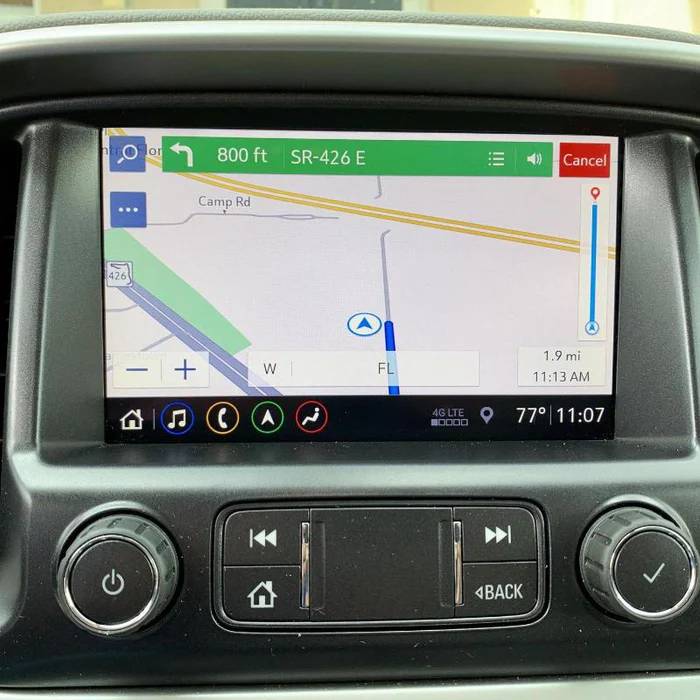
A GMC navigation update refreshes the map data or system software used by your vehicle’s built in navigation system. Roads, intersections, addresses, speed limits, and businesses change regularly. When map information becomes outdated, the system may recommend an inefficient route, fail to recognize a new street, or direct you toward a location that has moved or closed.
Updating the navigation system helps your GMC use more recent information when calculating routes. Depending on the model year, trim level, and infotainment system, the update may be delivered through an internet connection, installed from external media, or completed by a GMC dealer.
It is important to understand that a navigation map update is not always the same as a vehicle software update. A map update primarily refreshes geographic and routing information. A software update can improve the operation of the infotainment system, correct technical problems, strengthen system stability, or add compatible functions.
Some newer GMC vehicles can receive eligible software updates through the vehicle’s built in data connection or a WiFi connection. GMC states that drivers may also be able to check for available updates from the center display, although the exact menu path varies by vehicle.
The contents of an update depend on the navigation platform and the specific vehicle. A typical update may include newer road layouts, revised addresses, recently added points of interest, routing corrections, and improvements to navigation performance.
The update may also correct map errors that cause frustrating driving experiences. For example, an outdated system might fail to display a new highway exit, direct you toward a road that is no longer accessible, or overlook a faster route that was recently completed.
Drivers should not assume that every update includes both maps and infotainment software. Before downloading or purchasing anything, identify the type of update being offered and confirm that it is compatible with the vehicle.
A navigation update focuses on the information used to guide the driver. It improves the map database and may provide more accurate routes, destinations, and points of interest.
A software update affects the wider infotainment or vehicle system. It may address display problems, connectivity issues, system responsiveness, audio functions, or other supported features. Eligible vehicles can notify drivers about available software updates through the center display. The driver can then download the update and install it by following the instructions shown on the screen.
Understanding this difference prevents one of the most common mistakes GMC owners make. Updating the infotainment software does not necessarily mean the navigation maps have also been refreshed. Similarly, installing new map data may not resolve a software related problem.
Drivers often delay navigation updates because the current system still appears to work. However, an outdated map can create small problems that become increasingly frustrating over time. It may calculate a longer route, display an old business location, or fail to recognize a recently built road.
Keeping the system current can make daily commutes and long trips easier. It also reduces the need to rely on a phone when the built in navigation system is available.
Improve Route Accuracy
Route accuracy is one of the most important reasons to update GMC navigation. A navigation system can only calculate a useful route when its underlying map data reflects the current road network.
New roads may open, intersections may be redesigned, and traffic patterns may change. A current map gives the system better information for selecting a practical route. This can be especially valuable in fast growing cities where construction frequently changes local streets and highway access points.
Find New Roads and Destinations
Businesses, medical facilities, fuel stations, hotels, and restaurants open, relocate, or close throughout the year. Older navigation data may not include these changes.
Updated points of interest can make it easier to locate useful services without manually entering a full address. This is particularly helpful when traveling through an unfamiliar area and searching for a nearby gas station, charging location, dealership, or emergency service.
Reduce Unnecessary Driving
An inaccurate route can cost time and fuel. It can also create stress when the system repeatedly attempts to guide the driver toward a closed road or an outdated entrance.
Fresh map information may help the system avoid inefficient directions and calculate a more appropriate path. Although no navigation system can guarantee the fastest route in every situation, current data provides a stronger foundation for accurate guidance.
Support Better System Performance
Some updates improve more than the visible map. Eligible vehicle software updates may include system optimizations, fixes, and improvements that support the operation of the center display and connected features. GMC advises owners of compatible vehicles to install available updates and provides instructions for checking them through the infotainment settings.
Updating the system may be particularly useful when the display freezes, navigation loads slowly, or a feature does not behave as expected. However, owners should confirm whether the issue requires a map update, a software update, or professional diagnosis.
Prepare for Long Distance Travel
Navigation problems are inconvenient during a local trip, but they can become much more stressful when traveling far from home. Updating the system before a road trip can reduce the risk of missing recently changed exits, new roads, or relocated services.
Drivers should still review the route and remain attentive to road signs. Navigation technology is a useful driving aid, but it does not replace judgment or awareness of current road conditions.
Before learning how to update GMC navigation, identify the system installed in the vehicle and check its current software or map information. GMC has used different infotainment platforms across its model lineup, so the available menus and update methods can vary considerably.
The owner’s manual is the most reliable starting point for vehicle specific instructions. You can also explore the Settings menu on the center display or enter your vehicle information on the official GMC support website.
Step 1: Turn On the Infotainment System
Start the vehicle or switch it to the appropriate accessory mode so the infotainment display is fully active. Keep the vehicle parked while reviewing the menus.
Wait for the home screen to finish loading. If the system is responding slowly, allow it a moment before opening the settings. Avoid attempting to locate system information while driving.
Step 2: Open the Settings Menu
Select the Settings icon from the center display. Depending on the vehicle, the relevant information may appear under a menu labeled System, About, Software Information, Updates, or Navigation Settings.
GMC lists several possible menu paths for checking eligible software updates. These include Settings, Updates, then Updates and History. Other vehicles may use Settings, System, then Vehicle Software, or Settings, Software Information, then System Update. The available wording varies by model and infotainment platform.
Step 3: Locate the Software Information
Look for information such as the system version, software version, build number, or update history. Write down the details or take a clear photo of the screen.
This information can help you determine whether an update is available and whether instructions found online apply to your specific system. It can also be useful when contacting GMC support or speaking with a dealership technician.
Step 4: Check the Map Information
Open the Navigation settings and look for an option such as Map Information, Map Version, Navigation Database, or About Navigation. Not every system uses the same terminology.
Record the displayed region, database version, and release information when available. Do not rely only on the vehicle model year because the navigation database may have been updated previously.
Some newer systems use connected navigation or an in vehicle navigation application rather than a traditional map package. For example, Maps+ is available on select 2018 model year and newer vehicles and can be accessed through the Apps menu on compatible infotainment systems.
Step 5: Identify the Infotainment System
Determine whether the vehicle uses an older GMC IntelliLink system, a newer GMC infotainment platform, Maps+, or another compatible navigation interface. This distinction matters because the correct update procedure may involve a connected update, external media, a subscription based service, or dealer assistance.
Check the owner’s manual, the original window sticker, or the official GMC support information associated with the vehicle. A dealership can also identify the system by using the vehicle identification number.
Step 6: Check for Available Updates
On vehicles that support connected software updates, open the Updates menu and follow the prompts shown on the center display. GMC explains that compatible vehicles can download updates using an active data connection or WiFi. The driver may receive a notification automatically or check manually through the Settings application.
Do not install an update merely because its name appears similar to your system. Confirm compatibility with the exact vehicle, model year, region, and infotainment platform. Installing the wrong files or interrupting an installation can create avoidable technical problems.
The process of updating your GMC navigation system depends on your vehicle’s model year, infotainment platform, and navigation service. Some newer GMC models support over the air updates, while others require a USB drive or assistance from an authorized GMC dealership. Before starting any update, park your vehicle in a safe location, ensure the battery is sufficiently charged, and maintain a stable internet connection if downloading files online.
Many newer GMC vehicles equipped with connected services can receive eligible navigation or infotainment updates without requiring a visit to the dealership. This is the easiest and most convenient update method because the vehicle downloads the update directly through WiFi or its built in data connection.
Step 1: Connect to a Stable Network
Turn on your vehicle and connect it to a reliable WiFi network if required. Although some vehicles can download updates using cellular connectivity, WiFi is generally recommended for larger downloads because it provides greater stability and faster transfer speeds.
Step 2: Check for Available Updates
Open the Settings menu on the infotainment display and navigate to the software update section. Depending on your GMC model, the menu may appear under Updates, System, Vehicle Software, or Software Information.
Select Check for Updates. If an update is available, the system will display information about the download size, installation time, and any requirements that must be met before installation begins.
Step 3: Download the Update
Follow the prompts on the display to begin downloading the update. During this stage, keep the internet connection active and avoid turning off the vehicle if instructed by the system.
Large navigation updates may require additional time depending on your connection speed.
Step 4: Install the Update
Once the download is complete, the system will ask for permission to begin installation immediately or schedule the installation for a later time.
During installation, avoid interacting with the infotainment system unless prompted. Some features may be temporarily unavailable until the installation finishes successfully.
Step 5: Confirm Completion
After the update is installed, restart the infotainment system if necessary and verify that the navigation system is functioning normally.
Return to the Navigation Information or Map Version screen to confirm that the latest version has been installed successfully.
Some GMC vehicles use a USB based update process. This method typically involves downloading navigation files to a computer before transferring them to a compatible USB flash drive.
Step 1: Prepare a USB Flash Drive
Use a high quality USB flash drive with sufficient storage capacity. Format the drive according to the instructions provided for your specific navigation system.
Avoid using drives that contain other files because they may interfere with the installation process.
Visit the official navigation update provider or GMC support website if your vehicle requires downloadable map files.
Enter your vehicle information or VIN when requested to ensure you receive the correct update package.
Download the files completely before removing the USB drive from your computer.
Step 3: Copy the Files
Transfer all downloaded files directly onto the USB drive exactly as instructed.
Do not rename folders or modify the file structure because doing so may prevent the vehicle from recognizing the update.
Step 4: Install the Update in Your Vehicle
Insert the USB drive into the appropriate USB port while the vehicle is running.
The infotainment system should automatically detect the update package and display installation instructions.
Accept the prompts and allow the update to continue without removing the USB drive.
Step 5: Wait for Installation to Finish
Navigation updates can take anywhere from twenty minutes to over one hour depending on the size of the map database and your vehicle’s hardware.
Do not turn off the ignition or disconnect the USB drive until the installation is completely finished.
After completion, restart the navigation system and verify that the latest map version appears in the system information.
Method 3: Update Through an Authorized GMC Dealer
If your vehicle does not support over the air updates or USB installation, visiting an authorized GMC dealership is often the safest solution.
A certified technician can verify compatibility, install the latest navigation software, and resolve any update related issues that may occur during the process.
Dealer updates are especially recommended for older GMC models, vehicles experiencing software errors, or systems that repeatedly fail to complete an update.
Although dealer installation may involve a service charge, it minimizes the risk of installing incorrect files or interrupting the update process.
Navigation update availability varies depending on the model year, trim level, infotainment system, and factory installed equipment. While many modern GMC vehicles support connected navigation services, some entry level trims rely primarily on Apple CarPlay or Android Auto instead of an integrated navigation system.
The following table provides a general overview of navigation update support for popular GMC models.
| GMC Model | Built In Navigation | Over the Air Updates | USB Updates |
|---|---|---|---|
| GMC Sierra | Yes on selected trims | Yes on supported models | Yes |
| GMC Yukon | Yes | Yes | Yes |
| GMC Acadia | Yes on selected trims | Yes | Yes |
| GMC Terrain | Available on selected trims | Limited | Yes |
| GMC Canyon | Yes on selected trims | Limited | Yes |
| GMC HUMMER EV | Yes | Yes | Yes |
Owners should remember that navigation capabilities vary significantly between model years. Two vehicles with the same model name may use completely different infotainment platforms depending on when they were manufactured.
Before downloading any update, verify your vehicle identification number, current software version, and navigation platform to ensure compatibility.
If you are unsure whether your GMC supports navigation updates, consult the owner’s manual or contact an authorized GMC dealer for confirmation.
Although updating GMC navigation is generally straightforward, some drivers encounter issues during the installation process. Most problems can be resolved with a few simple troubleshooting steps.
USB Drive Not Recognized
If the infotainment system does not detect the USB drive, first verify that the drive is formatted correctly and meets the storage requirements.
Try another USB port if your vehicle has multiple ports available.
If the issue continues, reformat the drive and copy the update files again using the original folder structure.
A damaged USB drive or incomplete download can also prevent the system from recognizing the update.
Update Stuck During Installation
Some updates remain on the same progress percentage for several minutes. This is often normal, especially when installing large map databases.
If the progress indicator does not change for an extended period, keep the engine running and allow additional time before restarting the system.
Interrupting the installation prematurely may result in incomplete navigation data.
If the navigation application fails to open after the installation, restart the infotainment system and verify that the update completed successfully.
Check the software version and map version to confirm that both were installed correctly.
If the problem persists, perform any recommended system reset described in the owner’s manual or contact an authorized GMC service center.
Download Failed
A failed download is commonly caused by an unstable internet connection.
Reconnect to a stronger WiFi network and restart the download process.
If you downloaded the update on a computer, compare the downloaded file size with the expected size to ensure the download completed successfully.
Insufficient Storage
Some infotainment systems require sufficient internal storage before installing an update.
Delete unnecessary temporary files if the system provides this option, or complete any previously pending updates before installing the latest navigation package.
When repeated installation failures occur despite following all recommended procedures, professional diagnosis from an authorized GMC dealership is the safest option to prevent software corruption.
The cost of updating a GMC navigation system depends on several factors, including your vehicle’s model year, infotainment platform, warranty status, and the type of update required. Some owners may be able to install updates at no additional cost, while others may need to purchase updated map data or pay for dealership service.
If your vehicle supports over the air software updates, eligible infotainment updates are generally available without a service appointment. However, not every software update includes new navigation maps. Some map updates may still require a separate purchase or subscription depending on the navigation system installed in your vehicle.
Vehicles equipped with connected navigation services may receive map improvements through an active subscription, while older navigation systems often require purchasing a new map package. Prices vary by region and model, so it is best to verify current costs through an authorized GMC dealer or the official navigation update provider before placing an order.
If you choose to visit a dealership, labor charges may also apply if a technician performs the installation. While this option is usually more expensive than installing the update yourself, it provides professional assistance and reduces the risk of installation errors.
For many drivers, the additional cost is worthwhile because updated navigation can improve route accuracy, reduce travel time, and help avoid unnecessary detours caused by outdated map data.
Factors That Affect Update Costs
Several variables influence the total price of a navigation update.
The model year of your GMC is one of the most significant factors. Newer vehicles with connected services often receive updates differently than older models.
The infotainment system also plays an important role. Some systems support automatic downloads, while others require physical map media or downloadable files.
Warranty coverage may reduce certain service costs if the update addresses a software related issue covered by GMC.
Finally, regional pricing and available subscriptions may affect the overall expense depending on where the vehicle is registered.
Preparing your vehicle before installing an update helps minimize interruptions and reduces the likelihood of installation errors. Spending a few minutes checking these items can save significant time later.
Ensure a Stable Power Supply
Never begin a navigation update if the vehicle battery is weak.
If possible, keep the engine running during the installation or connect the vehicle to an approved battery maintainer when recommended by GMC. Losing power during an update can interrupt the installation process and may require professional assistance to restore the system.
Use a Reliable Internet Connection
For vehicles that download updates through WiFi, connect to a stable high speed network.
Avoid downloading large updates over unstable public networks because interrupted downloads can delay installation or require the process to start again.
Use a Quality USB Drive
If your vehicle requires a USB update, select a reputable USB flash drive with enough available storage.
Older or damaged USB drives can produce read errors during installation.
Always safely eject the USB drive from your computer after copying the update files.
Allow Enough Time
Navigation updates are not always completed within a few minutes.
Large map databases may require an hour or more to install depending on the vehicle and the size of the update.
Schedule the installation when you do not need to drive immediately afterward.
Verify the Correct Update
Always confirm that the downloaded update matches your GMC model, model year, navigation platform, and geographic region.
Installing an incompatible update may prevent the navigation system from functioning correctly.
Backup Personal Settings When Possible
Some infotainment systems allow drivers to save preferences or synchronize information through connected services.
Although navigation updates generally do not erase saved destinations or personal settings, creating a backup provides additional peace of mind before making system changes.
Frequently Asked Questions
Most experts recommend checking for navigation updates at least once or twice each year. If you frequently drive in rapidly developing areas where roads change often, checking every few months can help ensure the navigation system remains accurate.
Not always. Some software updates are provided without additional cost for eligible vehicles, while certain map updates may require a purchase, subscription, or dealership service depending on your navigation system and model year.
Yes. Many GMC owners can complete the update themselves using over the air downloads or a USB flash drive, provided their vehicle supports these update methods.
The installation time varies depending on the update size and method used.
Small software updates may finish within twenty to thirty minutes, while large navigation map updates can require an hour or longer.
Will updating erase my saved destinations?
In most cases, your saved destinations and personal preferences remain available after a successful navigation update.
However, creating a backup whenever possible is a good practice before performing any software related maintenance.
What should I do if the update fails?
Begin by restarting the infotainment system and checking your internet connection or USB drive.
If the update repeatedly fails, download a fresh copy of the installation files or contact an authorized GMC dealership for assistance.
Yes. Many GMC vehicles support Apple CarPlay and Android Auto, allowing drivers to use navigation applications such as Apple Maps, Google Maps, or Waze through the infotainment display.
These applications often provide real time traffic information and frequent map updates through your smartphone.
A navigation map update primarily improves route guidance and map accuracy.
A software update, however, may also enhance infotainment performance, improve system stability, and resolve known software issues depending on the update released by GMC.
Conclusion
Keeping your GMC navigation system up to date is one of the simplest ways to improve your driving experience. Updated maps provide more accurate directions, recognize newly constructed roads, display current points of interest, and help reduce unnecessary delays caused by outdated routing information.
Whether your vehicle supports over the air updates, USB installation, or requires assistance from an authorized GMC dealership, following the correct update procedure helps ensure a smooth installation and reliable navigation performance. Before beginning any update, verify your vehicle’s navigation system, confirm compatibility, and allow enough time for the installation to finish without interruption.
Regularly checking for new navigation and software updates also helps your infotainment system perform at its best while ensuring you benefit from the latest improvements released for your GMC model. By following the steps outlined in this guide, you can keep your navigation system accurate, dependable, and ready for every journey, whether you are commuting to work or exploring unfamiliar destinations across the country.