If your Mazda navigation system keeps directing you to roads that no longer exist or fails to recognize newly opened highways, it is probably time for a map update. Learning how to update Mazda navigation is one of the easiest ways to improve route accuracy, reduce travel time, and ensure your navigation system provides the latest points of interest, speed limits, and road information. Whether you drive a Mazda3, CX5, CX30, CX50, Mazda6, or another Mazda model, keeping the navigation maps current helps you enjoy a smoother and more reliable driving experience.
Fortunately, updating Mazda navigation is much easier than many drivers expect. Most vehicles equipped with Mazda Connect allow owners to update map data at home by using the original navigation SD card and Mazda Update Toolbox. Some newer models also support online navigation updates, while specific regional models may use a USB based process. Because Mazda has introduced different infotainment systems over the years, the correct update method depends on your vehicle model, model year, navigation hardware, and market.
This comprehensive guide explains how to update Mazda navigation step by step for all Mazda models. You will learn how to identify your navigation system, prepare your vehicle for the update, install the latest maps safely, troubleshoot common update problems, and understand when professional assistance may be necessary. By the end of this guide, you will have everything you need to keep your Mazda navigation system accurate, reliable, and ready for every journey.
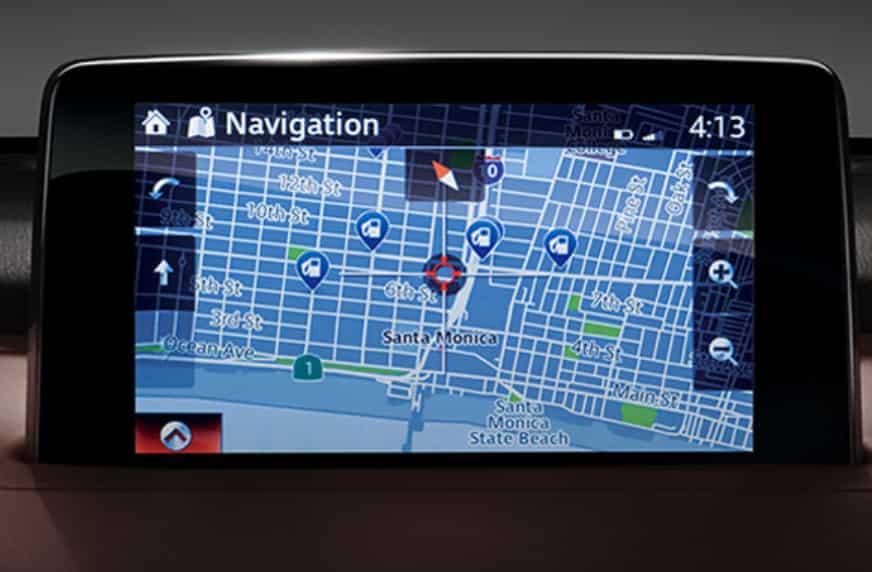
Mazda navigation updates keep the built-in GPS system accurate by refreshing map data, road information, and points of interest (POI). Roads change over time, and new locations appear every year. Updating the maps helps drivers avoid outdated routes and missing destinations.
Many Mazda vehicles store navigation data on a dedicated SD card. The Mazda Connect infotainment system reads map information directly from this card. When Mazda releases a new update, owners can download the latest map files through tools such as Mazda Update Toolbox. The updated files then install onto the SD card before it returns to the vehicle.
Mazda vehicles do not all use the same update process. Many models use SD-card updates, while some newer systems may support online updates, USB updates, or dealer assistance. The correct method depends on the model year, infotainment system, and sales region.
A navigation map update only changes GPS-related information. It adds newer roads, locations, and map details. A Mazda Connect software update works differently. It improves the infotainment system’s features and performance. A Gracenote update only refreshes music database information.
Before downloading any files, Mazda owners should check their vehicle details. Confirm the model year, navigation system type, and region. Installing the wrong map package can cause errors and may prevent the navigation system from working properly.
Before starting a Mazda navigation update, you need to identify the navigation system installed in your vehicle. Mazda uses different infotainment systems across models and production years. The update method may change depending on your vehicle’s model, year, region, and equipment level.
Start by checking whether your Mazda has a navigation SD card. Most Mazda Connect navigation systems use a small SD card installed in a dedicated slot, usually located near the center console or inside the dashboard area. If your vehicle has this card, you will likely use Mazda Update Toolbox to download and install new map data.
You can also check your current navigation information through the infotainment menu. Open the navigation settings and look for options such as Map Information, Navigation Information, or System Information. These menus usually show the current map version, software details, and other system data.
Your owner’s manual is another useful source. It can confirm the exact navigation system type and explain the recommended update process for your Mazda model. Always follow instructions designed for your specific vehicle.
Some newer Mazda vehicles may support connected services, online updates, or USB-based update methods instead of SD cards. Availability depends on the market and model generation. Check your Mazda regional website or contact an authorized Mazda dealer if you are unsure.
Finally, confirm your vehicle’s sales region before downloading any update. Mazda map files are usually region-specific. A map package created for another country or market may not install correctly or may cause navigation errors.
Before you update Mazda navigation, prepare the correct tools and information. Having everything ready helps prevent errors during the installation process and reduces update time.
You will need a computer with Windows or macOS to run the Mazda update software. A stable internet connection is also important because map files can be large and may take a long time to download.
Prepare a compatible SD card reader if your Mazda navigation system uses an SD card. The computer must detect the genuine Mazda navigation SD card before you can start the update. Use only the original card that came with your vehicle or an officially supported replacement.
Install Mazda Update Toolbox before downloading new map data. The program helps detect your navigation card, check available updates, create backups, and install the correct map package.
Make sure your computer has enough storage space for the update files. Keep the computer connected to power during the entire process. A sudden shutdown or interrupted download can damage the update process.
Always create a backup of your navigation SD card before installing any changes. A backup allows you to restore the original data if a problem occurs.
Do not format, repair, rename, or manually edit files on the Mazda navigation SD card. Some computers may display messages asking you to scan, repair, or format the card. Ignore these messages and use only the official Mazda update software.
Preparing the right equipment and protecting the SD card will help you complete the Mazda navigation update safely and successfully.
Mazda Update Toolbox is the main program used for many Mazda navigation SD card updates. It helps you check available map packages, back up your navigation data, and install new maps safely. Follow these steps to update your Mazda navigation system.
Park your Mazda in a safe location before removing the SD card. Turn off the ignition and wait until the infotainment system shuts down completely.
Locate the navigation SD card and remove it carefully. Avoid removing the card while the system is active because this may cause data errors.
Step 2: Connect the SD Card to a Computer
Insert the Mazda navigation SD card into your computer or an external card reader. Wait for the computer to recognize the card.
Your computer may show a message asking you to format, scan, or repair the SD card. Do not select these options. Do not move, delete, or rename any files on the card.
Step 3: Install Mazda Update Toolbox
Download Mazda Update Toolbox from the official Mazda navigation website for your region. Install the correct version for your Windows PC or Mac.
Open the program and allow it to detect the navigation SD card. The software will identify the card and display available information about your navigation system.
Step 4: Sign In and Create a Backup
Sign in to your Mazda account or create a new account if required. Confirm that Mazda Update Toolbox detects the correct navigation profile.
Create a backup before installing any updates. This backup protects your existing map data if the update process fails or becomes interrupted.
Avoid copying navigation files manually. Use Mazda Update Toolbox for all backup and installation tasks.
Step 5: Check for Available Map Updates
The program will show your current map version and available updates. Review the update details before continuing.
Some updates may be free, while others may require payment or an active subscription. Make sure the selected map package matches your vehicle and region.
Step 6: Download and Install the Update
Select the available map update and start the installation process. Keep your computer connected to power and maintain a stable internet connection.
The download time depends on your internet speed and map size. Do not remove the SD card or close Mazda Update Toolbox during installation.
Step 7: Reinstall the SD Card
After the update finishes, safely eject the SD card from your computer. Turn off your vehicle before inserting the card back into the navigation slot.
Insert the card in the correct direction and start the vehicle. Wait for the Mazda Connect system to load the updated navigation data.
Step 8: Verify the Updated Map Version
Open the navigation settings and check the map information menu. Confirm that the displayed map version matches the new update.
Test the system by searching for a recent road, location, or point of interest. This confirms that the update installed correctly and the navigation system works normally.
Not every Mazda vehicle uses a navigation SD card. Some newer Mazda models may support online updates, connected services, or USB-based update methods. The correct process depends on the vehicle’s model year, infotainment system, and region.
For Mazda systems with online update support, start by opening the navigation or system settings menu. Look for options related to map updates, software updates, or connected services. Follow the instructions shown on the vehicle display to check for available updates.
Some Mazda vehicles may require a USB drive for navigation updates. In this case, owners usually download the update files from the official Mazda website and transfer them to a compatible USB device. The vehicle then reads the files through the USB port and completes the update process.
Always check the instructions for your exact Mazda model before downloading any files. Update methods can vary between countries and vehicle generations. A process that works for one Mazda model may not work for another.
If your Mazda does not support home updates, dealer assistance may be necessary. Authorized Mazda dealers can check your navigation system, install compatible updates, and help solve update problems.
Before starting any update, confirm your vehicle’s navigation type and region. Avoid using unofficial map files or modified update packages. These files may cause system errors or prevent your navigation system from working correctly.
Keeping your Mazda navigation updated helps improve route accuracy and ensures your vehicle has the latest available map information.
The Mazda navigation update process depends on more than just the vehicle name. The model year, infotainment generation, trim level, and sales region determine which update method your Mazda uses.
Mazda3
Many Mazda3 models with Mazda Connect navigation use an SD card for map updates. Newer generations may include updated connectivity features that support different update options depending on the market.
Mazda CX-3
The Mazda CX-3 commonly uses navigation SD cards for map updates. Owners should check the card version and vehicle year before downloading new map data.
Mazda CX-5
The Mazda CX-5 is one of Mazda’s most popular models and has used several Mazda Connect generations. Many versions use SD-card navigation updates, while newer models may support additional connected features.
Mazda CX-30
The Mazda CX-30 uses newer Mazda Connect technology. Update options can vary by region, with some vehicles supporting SD-card updates and others using newer connected solutions.
Mazda CX-50
The Mazda CX-50 includes newer infotainment technology. Navigation update availability depends on the vehicle configuration, market, and connected service features.
Mazda CX-60, CX-70, CX-80, and CX-90
These newer SUV models may use updated Mazda Connect systems with advanced connectivity features. Owners should check the official Mazda instructions for their region before updating navigation data.
Mazda6
Many Mazda6 models use navigation SD cards with Mazda Connect. Older versions may follow traditional SD-card update steps, while newer vehicles require model-specific instructions.
Mazda MX-5 Miata
The Mazda MX-5 Miata typically follows the same Mazda Connect navigation update process as other Mazda vehicles from the same production period. The correct method depends on the infotainment system installed.
Mazda2 and Mazda2 Hybrid
Mazda2 models may use different navigation systems depending on the country and production year. Some versions support SD-card updates, while others may use different regional solutions.
Older and Discontinued Mazda Models
Older Mazda vehicles may use different navigation systems than modern Mazda Connect models. Some require dealer support, while others may use older SD-card or manufacturer-specific update methods.
Before updating any Mazda navigation system, always confirm the exact vehicle year, navigation hardware, and region. The model name alone does not always identify the correct update process.
Many Mazda owners ask whether a Mazda navigation update is free. The answer depends on several factors, including the vehicle model, production year, country, navigation system, and activation date.
Some Mazda vehicles include a complimentary map update period after purchase or after the navigation system activation. During this period, owners may download available map updates without paying additional fees. The length of this period can vary by market and vehicle type.
When the free update period ends, Mazda owners may need to purchase new map packages or use available connected navigation services. Update costs can also vary depending on the region, map provider, and subscription options.
A Mazda navigation update is different from a Mazda Connect software update. Some infotainment software updates may be available through different channels and may follow separate eligibility rules.
Before purchasing an update, check your current map version and update status through Mazda Update Toolbox or your regional Mazda navigation website. The system can usually show whether a new update is available and whether it requires payment.
Avoid downloading unofficial or modified map files to save money. These files may not work correctly and can damage the navigation system or SD card.
If you are unsure about your update eligibility, contact an authorized Mazda dealer or check Mazda’s official support information for your country. They can confirm whether your vehicle qualifies for free updates or requires a paid map package.
The time required for a Mazda navigation update depends on several factors. These include internet speed, map file size, computer performance, and the condition of the navigation SD card.
A typical Mazda map update can take from several minutes to a few hours. The download stage usually takes the longest because navigation files can be large. A slow internet connection may increase the total update time.
Creating a backup of the SD card also adds extra time. However, a backup is an important step because it protects your existing navigation data if a problem occurs during installation.
Before starting the update, make sure your computer has enough storage space. Keep the computer connected to power and maintain a stable internet connection throughout the process.
Do not interrupt the update by removing the SD card, closing Mazda Update Toolbox, or shutting down the computer. An incomplete installation may cause the navigation system to display errors or fail to load updated maps.
For in-vehicle updates, the installation time can vary by Mazda model and update method. Some systems may complete the process automatically, while others may require additional steps.
For the best results, start the Mazda navigation update when you have enough uninterrupted time. Avoid updating just before a long trip unless you have already completed the process and verified that the navigation system works correctly.
Sometimes a Mazda navigation update may fail or the system may not recognize the new map data. Most problems come from the SD card, software, update files, or incorrect settings. The following solutions can help you identify and fix common issues.
Mazda Update Toolbox Does Not Detect the SD Card
If Mazda Update Toolbox cannot find your navigation SD card, check the card connection first. Remove and reconnect the card or try a different SD card reader.
Make sure you are using the original Mazda navigation SD card. Avoid using damaged, modified, or unofficial cards because the software may not recognize them.
Windows Asks to Format or Repair the SD Card
Your computer may display a message asking you to format or repair the SD card. Do not choose these options.
Formatting the card can remove important navigation files. Close the message and use Mazda Update Toolbox instead.
The Download Stops or Fails
A failed download often happens because of an unstable internet connection or insufficient computer storage. Check your connection and make sure your computer has enough free space.
Restart Mazda Update Toolbox and try the download again. If the problem continues, check whether Mazda’s update service is available in your region.
The SD Card Does Not Have Enough Space
Large map files require enough storage space on the SD card. If the card does not have enough capacity, the update cannot complete.
Use only an SD card that meets Mazda’s requirements. Do not manually delete files to create space.
The Vehicle Still Shows the Old Map Version
If your Mazda displays the previous map version after an update, remove and reinstall the SD card carefully. Then restart the infotainment system.
Check the map information menu to confirm whether the update installed correctly.
The SD Card Was Formatted or Corrupted
A formatted or corrupted SD card may stop working with Mazda navigation. If you created a backup before updating, use Mazda Update Toolbox to restore the data.
If the card cannot be recovered, contact Mazda support or an authorized dealer for assistance.
The Free Update Period Has Expired
Some map updates require an active update period, subscription, or purchase. Check your Mazda account or update tool to confirm your eligibility.
The Wrong Map Region Was Selected
Mazda navigation files are usually region-specific. Installing maps for the wrong country or market can cause errors.
Always select the correct region before downloading an update.
If basic troubleshooting does not solve the problem, contact an authorized Mazda dealer. They can check the navigation system, SD card condition, and update compatibility.
Many Mazda owners choose between the built-in Mazda navigation system and smartphone navigation through Apple CarPlay or Android Auto. Each option has different benefits, and the best choice depends on driving habits and personal preferences.
Mazda navigation stores map data inside the vehicle system or navigation SD card. It can provide directions without needing a smartphone connection. This makes it useful in areas with limited mobile coverage or when drivers prefer a built-in solution.
Apple CarPlay and Android Auto connect the vehicle display to smartphone apps such as navigation services. These platforms often provide frequent map updates, live traffic information, and real-time route changes. However, they usually require a compatible phone and a stable data connection for the best experience.
Built-in Mazda navigation offers better integration with the vehicle. Depending on the model, directions may appear through the Mazda display, controls, or head-up display system. It also works independently from a smartphone battery or mobile signal.
Smartphone navigation apps often receive new road information faster because they update through online services. Mazda owners can maintain similar accuracy by installing regular Mazda navigation map updates.
Cost is another difference. Many smartphone navigation apps are free, while Mazda map updates may become paid after the complimentary update period ends. However, updating the built-in system keeps the original vehicle features available.
For many drivers, the best solution is using both options. Mazda navigation provides a reliable backup, while Apple CarPlay and Android Auto offer flexible online navigation features.
Mazda recommends checking for navigation updates regularly to keep map information accurate. In most cases, owners should check for new updates once or twice a year. Map updates can add new roads, updated locations, and changes to existing routes.
You should consider updating Mazda navigation before a long road trip. An outdated map may not recognize new highways, changed intersections, or recently developed areas. Installing the latest map data helps improve route accuracy and reduces navigation errors.
Major road construction is another reason to check for updates. New bridges, highways, and traffic changes can affect the routes suggested by your navigation system. A recent map update gives your Mazda access to newer road information.
Drivers should also check for updates if the navigation system frequently suggests incorrect routes or cannot find recently added locations. These issues may indicate that the map database needs refreshing.
If you travel internationally or across different regions, confirm map availability before your trip. Mazda navigation updates are usually region-specific, and not every map package supports every country.
Keep in mind that update availability depends on your Mazda model, navigation system, and update eligibility. Some vehicles may receive regular updates during a complimentary period, while others may require paid updates.
Regularly checking your Mazda navigation status helps ensure your GPS system remains reliable and provides the most accurate guidance available.
Updating Mazda navigation is usually a simple process, but following safety guidelines helps prevent errors and protects your navigation system. A careful update process can reduce the risk of damaged files, failed installations, or SD card problems.
Always park your Mazda in a safe location before removing or installing the navigation SD card. Never attempt to access the navigation system while driving. Driver safety should always come first.
Do not format, rename, delete, or manually edit files on the Mazda navigation SD card. The card contains important system data that Mazda navigation needs to operate correctly. If your computer asks you to format or repair the card, cancel the message.
Create a backup before installing any map update. A backup gives you a recovery option if the update process fails or the SD card develops a problem.
Use only official Mazda update tools and map files designed for your vehicle and region. Unofficial files or counterfeit SD cards may cause compatibility issues and navigation errors.
Do not remove the SD card during an update. Also, avoid turning off your computer or interrupting the internet connection while Mazda Update Toolbox is downloading or installing new map data.
For in-vehicle updates, keep the vehicle power supply stable and follow the instructions shown on the display. If you experience repeated update failures, contact an authorized Mazda dealer for assistance.
Following these safety steps helps you complete a Mazda navigation update smoothly and keeps your system working correctly.
Yes. Many Mazda owners can update navigation themselves using Mazda Update Toolbox and the original navigation SD card. However, the exact process depends on the vehicle model, year, and region.
Yes, in many cases. SD-card updates and some online or USB updates can be completed at home. Dealer support may be necessary if the system does not recognize the update or the navigation card has problems.
Where can I download Mazda Update Toolbox?
Mazda Update Toolbox should be downloaded from the official Mazda navigation website for your region. Avoid using unofficial websites because they may provide incorrect or unsafe files.
Most Mazda navigation systems do not update maps automatically. Owners usually need to check for updates manually through Mazda Update Toolbox, connected services, or other approved methods.
You should not manually copy or modify Mazda navigation SD card files. The system may require specific authentication data, and unofficial copies may not work correctly.
A used SD card may not work if it is linked to another vehicle or contains incompatible map data. Always confirm compatibility before using another navigation card.
What happens if I remove the card during an update?
Removing the SD card during an update can interrupt the installation process. It may damage the update files and cause the navigation system to fail.
Does updating Mazda Connect also update the maps?
No. Mazda Connect software updates and navigation map updates are separate processes. A Mazda Connect update improves infotainment features, while a map update changes navigation data.
How do I find my Mazda map version?
You can usually find the map version in the navigation settings menu under options such as Map Information or System Information.
No. Free update eligibility depends on the vehicle, country, activation date, and navigation system. Some updates may require payment after the complimentary period ends.
Can I drive while an in-vehicle update is installing?
You should follow Mazda’s instructions for your specific system. Avoid operating update menus while driving, and keep your attention focused on safe driving.
Conclusion
Updating Mazda navigation helps keep your vehicle’s GPS system accurate with newer roads, locations, and map information. The correct update method depends on your Mazda model, model year, infotainment system, and region.
Before starting any update, identify your navigation system and confirm whether your vehicle uses an SD card, USB update, online update, or dealer-assisted process. Always use official Mazda update tools and files designed for your vehicle.
For many models, the easiest way to update Mazda navigation is through Mazda Update Toolbox with the original navigation SD card. Remember to create a backup before installation and never format, rename, or manually edit the SD card files.
Regular map updates can improve route accuracy and help your navigation system remain reliable. Checking for updates before long trips or after major road changes is a good habit for Mazda owners.
If you still have questions about how to update Mazda navigation, share your Mazda model, model year, country, and the update issue you are experiencing. This information can help identify the correct solution for your vehicle.