Apple CarPlay makes every drive safer and more convenient. It gives you quick access to navigation, phone calls, messages, and music through your Mazda infotainment system. If you are wondering how to connect Apple CarPlay to Mazda, you are not alone. Many Mazda owners experience problems during the first setup.
Some drivers plug in their iPhone, but Apple CarPlay never appears on the display. Others can make phone calls through Bluetooth, yet they cannot launch the full CarPlay interface. These problems often have simple solutions. A disabled Siri setting, the wrong USB port, or an incompatible cable can all prevent a successful connection.
The setup process also depends on your vehicle. Some Mazda models support only wired Apple CarPlay, while others also support wireless connectivity. Compatibility can vary by model year, trim level, market, and Mazda Connect version. Checking these details before you begin helps you avoid unnecessary frustration.
This guide walks you through every step of the process. You will learn how to check compatibility, prepare your iPhone, connect Apple CarPlay with a USB cable or a wireless connection, and fix common connection issues. Whether you drive a Mazda3, Mazda6, CX 5, CX 30, CX 50, CX 90, or another compatible model, you will have everything you need to complete the setup with confidence.
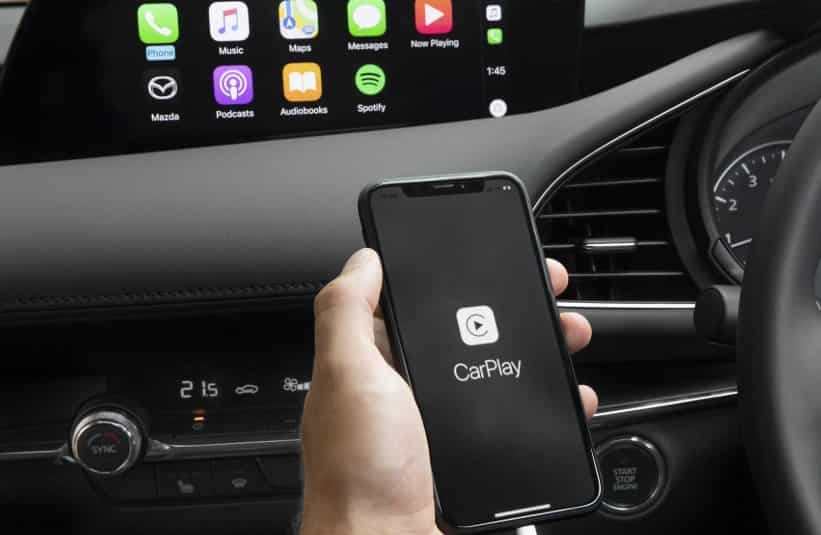
What You Need Before Connecting Apple CarPlay to Mazda
Before learning how to connect Apple CarPlay to Mazda, you need to prepare a few important things. Proper preparation helps the setup process work smoothly. It also reduces common problems, such as Mazda CarPlay not working or iPhone connection errors.
First, check Apple CarPlay compatibility with your Mazda. Many newer Mazda vehicles support Apple CarPlay through the Mazda Connect infotainment system. Popular compatible models include the Mazda3, CX-5, CX-30, CX-50, CX-70, CX-90, and MX-5 Miata. However, support depends on the model year, trim level, region, and Mazda Connect version. Some older Mazda models may need an official Apple CarPlay retrofit.
You also need a compatible iPhone to connect iPhone to Mazda. Apple CarPlay works with iPhone 5 and newer models. For better performance, update your iPhone to the latest iOS version. New updates can fix connection issues and improve stability.
Make sure Siri is enabled before setup. Apple CarPlay uses Siri for voice commands, phone calls, messages, and navigation. You can turn it on in your iPhone settings.
Mazda vehicles may support wired Apple CarPlay Mazda or wireless Apple CarPlay Mazda. Wired CarPlay uses a USB cable, while wireless CarPlay uses Bluetooth and Wi-Fi. Check your vehicle to confirm the available option.
For wired connections, use a high-quality data cable. Connect your iPhone to the correct Mazda USB port. A charging-only cable will not work because Apple CarPlay requires data transfer.
Preparing these requirements first will help you complete the Mazda Apple CarPlay setup faster and enjoy a more reliable driving experience.
How to Check if Your Mazda Supports Apple CarPlay
Before starting the Mazda Apple CarPlay setup, you should confirm that your vehicle supports Apple CarPlay. Not every Mazda model includes this feature from the factory. Compatibility depends on the model year, trim level, market, and the version of the Mazda Connect infotainment system.
The easiest way to check is through your Mazda Connect system. Turn on your vehicle and open the infotainment menu. Look for smartphone integration options or an Apple CarPlay icon. If the feature is available, your Mazda should be ready to connect with your iPhone.
You can also check your vehicle owner’s manual. The manual includes details about available technology features and smartphone compatibility. Search for sections related to Mazda Connect, smartphone integration, or Apple CarPlay.
Another option is using your Mazda vehicle identification number (VIN). A Mazda dealer can check your VIN and confirm whether your vehicle supports Apple CarPlay. This method is helpful if you are unsure about your exact trim level or infotainment version.
If your Mazda does not have Apple CarPlay, an official retrofit may be available. Some older Mazda models with Mazda Connect can receive a software and hardware upgrade. The retrofit usually adds a compatible USB hub and updated system support for Apple CarPlay.
After confirming compatibility, you can choose between wired Apple CarPlay Mazda and wireless Apple CarPlay Mazda. Checking this information first helps you avoid connection problems and makes the setup process easier.
How to Connect Apple CarPlay to Mazda with a USB Cable
A USB connection is the standard method to set up Apple CarPlay in Mazda. This method is available on many Mazda vehicles with the Mazda Connect infotainment system. A wired connection offers stable performance and does not require wireless pairing.
Before starting the setup, prepare your iPhone, enable Siri, and use a high-quality USB data cable. A charging-only cable will not work because Apple CarPlay needs a data connection.
Follow these steps to connect iPhone to Mazda with a USB cable:
- Start your Mazda and turn on the Mazda Connect system.
- Unlock your iPhone before connecting it. The system needs access to your phone during the first setup.
- Make sure Siri is enabled on your iPhone. Apple CarPlay uses Siri for voice commands, calls, messages, and navigation.
- Plug your iPhone into the correct USB port in your Mazda. Use an Apple-certified or reliable data cable for the best connection.
- Wait for the Apple CarPlay notification to appear on the Mazda Connect display.
- Select the option to enable Apple CarPlay on the vehicle screen.
- Check your iPhone and tap Allow when the permission message appears.
- Open Apple CarPlay from the Mazda infotainment menu if it does not start automatically.
- Test key features such as Apple Maps, music, phone calls, and Siri commands to make sure the connection works properly.
If your Mazda does not recognize your iPhone, check the cable, USB port, and CarPlay permissions. Restarting both the iPhone and Mazda Connect system can also help fix connection issues.
A wired Apple CarPlay Mazda setup is a dependable option for everyday driving. It provides a stable connection and keeps your iPhone charged while using navigation, music, and other CarPlay features.
How to Connect Wireless Apple CarPlay to Mazda
Wireless Apple CarPlay Mazda allows you to connect your iPhone without using a USB cable. This feature provides a cleaner setup and lets your phone connect automatically after the first pairing. However, wireless CarPlay is only available on certain Mazda models with compatible Mazda Connect systems.
Before starting the setup, make sure your Mazda supports wireless Apple CarPlay. Also, check that Bluetooth and Wi-Fi are enabled on your iPhone. Siri must be turned on because Apple CarPlay uses Siri for voice commands and hands-free features.
Follow these steps to complete your Mazda Apple CarPlay setup wirelessly:
- Start your Mazda and turn on the Mazda Connect infotainment system.
- Open your iPhone settings and enable Bluetooth and Wi-Fi.
- Access the connectivity or Bluetooth menu on Mazda Connect.
- Select the option to add a new device, then choose your iPhone from the available devices.
- Confirm the pairing code shown on both your iPhone and Mazda display.
- Approve the Apple CarPlay connection request on your iPhone.
- Allow the required permissions, including contacts, messages, and notifications.
- Wait for Apple CarPlay to launch on the Mazda screen.
After the first connection, your Mazda should reconnect to your iPhone automatically when you start the vehicle. If wireless CarPlay does not connect, check that Bluetooth and Wi-Fi are active. You can also remove the device and repeat the pairing process.
Wireless Apple CarPlay Mazda offers convenience for daily driving. It removes cable clutter and gives you quick access to navigation, music, calls, and messages through the Mazda infotainment system.
How to Use Apple CarPlay in Your Mazda
After completing the Mazda Apple CarPlay setup, you can access many iPhone features directly through your Mazda infotainment system. Apple CarPlay makes driving easier by bringing navigation, music, calls, and messages to the vehicle display.
You can use Siri to control Apple CarPlay with your voice. Press and hold the voice command button on the steering wheel, then ask Siri to make a call, send a message, play music, or find a destination. Voice control helps you use important features while keeping your attention on the road.
Apple Maps is one of the most popular features of CarPlay. It provides turn-by-turn directions, traffic updates, and estimated arrival times. You can also use other supported navigation apps, such as Google Maps or Waze, depending on your preference.
Apple CarPlay also gives you access to music and entertainment apps. You can listen to Apple Music, podcasts, audiobooks, and other compatible streaming services. Your Mazda speakers will play audio through the vehicle’s sound system.
For communication, CarPlay allows you to make and answer phone calls hands-free. Siri can read incoming messages and help you reply using voice commands. This keeps your phone use safer while driving.
Many Mazda vehicles allow control through the Mazda Commander Control knob. You can use it to select apps, scroll through menus, and adjust settings without reaching for the screen.
Depending on your Mazda model, you may also control CarPlay through the touchscreen. Some vehicles limit touchscreen use while driving for safety reasons.
You can switch between Apple CarPlay and the Mazda Connect system at any time. Simply return to the home menu and select the feature you want to use.
Learning these controls will help you get the most from Apple CarPlay Mazda and enjoy a more convenient driving experience.
Apple CarPlay Compatibility by Mazda Model
Before you start the Mazda Apple CarPlay setup, it is important to check whether your vehicle supports this feature. Apple CarPlay availability depends on the Mazda model, production year, trim level, market, and the version of the Mazda Connect infotainment system.
Many popular Mazda vehicles support Apple CarPlay, including:
- Mazda3
- Mazda6
- CX-3
- CX-30
- CX-5
- CX-50
- CX-70
- CX-90
- CX-9
- MX-5 Miata
- MX-30
Newer Mazda models often include Apple CarPlay as a standard feature or as part of selected technology packages. These vehicles may support either wired Apple CarPlay Mazda or wireless Apple CarPlay Mazda, depending on the model year and equipment level.
The Mazda3 and Mazda6 are among the models that introduced Apple CarPlay support through Mazda Connect updates and newer generations. SUV models such as the CX-5, CX-30, CX-50, CX-70, and CX-90 also offer Apple CarPlay on many recent versions.
Some older Mazda vehicles may not include Apple CarPlay from the factory. However, certain models with Mazda Connect can receive an official retrofit. This upgrade may add Apple CarPlay support through updated hardware and software.
To confirm compatibility, check your vehicle owner’s manual, Mazda Connect settings, or contact a Mazda dealer with your VIN. This ensures you know whether your Mazda supports wired or wireless CarPlay before starting the connection process.
Checking compatibility first can save time and prevent common issues when you connect iPhone to Mazda. Always verify your exact model year because Apple CarPlay features can change between different versions of the same Mazda vehicle.
Why Apple CarPlay Is Not Working on Mazda
When Mazda CarPlay is not working, the problem is usually caused by a simple connection or setting issue. Problems can happen during both wired and wireless Apple CarPlay Mazda setups. Checking the most common causes below can help you restore the connection quickly.
One common reason is using a charging-only USB cable. Some cables can charge your iPhone but cannot transfer data. Apple CarPlay requires a data connection to communicate with the Mazda Connect system. Replace the cable with a certified data cable if needed.
The wrong USB port can also prevent CarPlay from connecting. Many Mazda vehicles have multiple USB ports, but only one may support smartphone integration. Try connecting your iPhone to the correct CarPlay-compatible USB port.
Another issue is disabled Siri. Apple CarPlay depends on Siri for voice commands, calls, messages, and navigation features. Check your iPhone settings and make sure Siri is enabled.
For wireless Apple CarPlay Mazda, Bluetooth and Wi-Fi must be turned on. If either connection is disabled, your iPhone may not pair with Mazda Connect. Enable both settings and try connecting again.
Your iPhone may also fail to connect if it is locked during the first setup. Unlock your phone and approve all permission requests from Apple CarPlay.
If CarPlay permission was denied before, your Mazda may not appear. Go to Settings > General > CarPlay on your iPhone and reconnect your vehicle.
Outdated software can create compatibility problems. Update your iPhone to the latest iOS version and check if your Mazda Connect system needs an update.
Another paired phone may also interrupt the connection. Remove unused devices or select your iPhone as the primary device.
Finally, confirm that your Mazda supports Apple CarPlay. Unsupported models cannot connect unless they receive a compatible retrofit.
By checking these issues one by one, most Mazda CarPlay connection problems can be fixed without professional assistance.
How to Reset Apple CarPlay on Mazda
If Apple CarPlay Mazda is not connecting properly, resetting the connection can often solve the problem. Removing the old pairing allows your iPhone and the Mazda Connect infotainment system to create a fresh connection.
Start by removing your Mazda from your iPhone. Open:
Settings > General > CarPlay
Select your Mazda vehicle and choose Forget This Car. This removes the existing CarPlay connection from your iPhone.
Next, delete your iPhone from the Mazda Connect system. Open the Bluetooth or connected devices menu on your Mazda display. Select your iPhone and remove it from the saved devices list.
After removing both connections, restart your devices. Turn off your Mazda completely and restart your iPhone. This step helps clear temporary connection errors that may prevent CarPlay from working.
Once both devices restart, reconnect your iPhone to your Mazda. For wired connections, use a reliable USB data cable and the correct USB port. For wireless Apple CarPlay Mazda, turn on Bluetooth and Wi-Fi before starting the pairing process.
During the new setup, approve all CarPlay permission requests on your iPhone. Allow access to contacts, messages, and notifications if prompted.
If the problem continues, check for software updates. An outdated iOS version or Mazda Connect software may cause connection issues.
Resetting Apple CarPlay is a useful solution when your iPhone charges but does not connect, when wireless pairing fails, or when Mazda Connect cannot recognize your device. In most cases, removing the old connection and pairing again restores normal CarPlay operation.
Wired vs Wireless Apple CarPlay in Mazda
When setting up Apple CarPlay Mazda, you may have two connection options: wired Apple CarPlay and wireless Apple CarPlay. Both methods provide access to navigation, music, calls, and messages through the Mazda Connect infotainment system. However, each option has different advantages depending on your driving needs.
| Feature | Wired Apple CarPlay Mazda | Wireless Apple CarPlay Mazda |
|---|---|---|
| Setup | Connect your iPhone with a USB cable | Pair your iPhone through Bluetooth and Wi-Fi |
| Convenience | Requires a cable every time | Connects automatically after setup |
| Charging | Charges your iPhone while driving | Does not charge unless using a separate charger |
| Connection stability | Usually more stable with fewer interruptions | Can be affected by wireless interference |
| Battery consumption | Lower battery usage because the phone charges | Uses more battery due to Bluetooth and Wi-Fi |
| Audio quality | Provides reliable audio performance | Offers excellent quality on supported models |
| Availability | Available on many Mazda models | Only available on newer compatible Mazda models |
| Best use case | Long trips, navigation, and daily driving | Short trips and cable-free convenience |
Wired Apple CarPlay Mazda is a good choice for drivers who want a stable connection. It is especially useful for long journeys because your iPhone stays charged while using navigation and streaming apps. It is also available on more Mazda models.
Wireless Apple CarPlay Mazda provides more convenience because you do not need to connect a cable every time you enter your vehicle. Your iPhone can reconnect automatically after the first setup. However, it may use more battery and is limited to certain Mazda models.
For daily commuting, wireless CarPlay offers a cleaner and simpler experience. For road trips or heavy navigation use, wired CarPlay is often the better option because it provides continuous charging and a reliable connection.
The best choice depends on your Mazda model, driving habits, and whether convenience or connection stability is more important to you.
Tips to Keep Apple CarPlay Running Smoothly in Your Mazda
After completing your Mazda Apple CarPlay setup, a few simple maintenance tips can help keep the connection stable. Regular updates and proper settings can prevent common problems with Mazda CarPlay not working.
Keep your iPhone updated with the latest iOS version. Apple regularly releases updates that improve performance and fix connection issues with Apple CarPlay. An outdated iPhone system may cause pairing problems with the Mazda Connect infotainment system.
You should also check for Mazda Connect software updates when available. Updated infotainment software can improve compatibility and fix bugs that affect Apple CarPlay performance.
For wired Apple CarPlay Mazda, always use a high-quality USB data cable. Avoid damaged cables or charging-only cables because they may cause unstable connections. If your iPhone connects and disconnects repeatedly, the cable is one of the first things to check.
If you use wireless Apple CarPlay Mazda, keep Bluetooth and Wi-Fi enabled on your iPhone. These connections are required for automatic pairing and smooth operation.
Remove old or unused devices from your Mazda Bluetooth list. Too many saved phones can cause connection conflicts, especially when multiple drivers use the vehicle.
Keep your iPhone charging port and Mazda USB port clean. Dust or debris can prevent a proper connection and may cause CarPlay errors.
Finally, allow CarPlay access when your iPhone is locked. This setting helps your Mazda reconnect faster every time you start the vehicle.
Following these tips will help you enjoy a more reliable Apple CarPlay Mazda experience. Regular updates, quality accessories, and correct settings can prevent most common connection issues.
Frequently Asked Questions About Apple CarPlay Mazda
How do I activate Apple CarPlay on Mazda?
To activate Apple CarPlay Mazda, connect your iPhone to the Mazda Connect system using a USB cable or wireless pairing, depending on your vehicle. Make sure Siri is enabled on your iPhone. Then approve the permission requests on both your iPhone and Mazda display. After setup, Apple CarPlay will open automatically when your phone connects.
Does every Mazda support Apple CarPlay?
No. Not every Mazda model includes Apple CarPlay. Support depends on the vehicle model, production year, trim level, and Mazda Connect version. Some older Mazda vehicles may be upgraded with an official Apple CarPlay retrofit. Check your owner’s manual or contact a Mazda dealer to confirm compatibility.
Can I connect Apple CarPlay wirelessly in Mazda?
Yes, but only compatible Mazda models support wireless Apple CarPlay Mazda. Wireless CarPlay requires Bluetooth and Wi-Fi to be enabled on your iPhone. Older models may only support wired Apple CarPlay through a USB connection.
Why is my iPhone charging but Apple CarPlay is not working?
If your iPhone charges but CarPlay does not start, the USB cable may only support charging. Try using a certified data cable. You should also check the correct USB port, enable Siri, and confirm that CarPlay permission is allowed on your iPhone.
Can older Mazda models get Apple CarPlay?
Some older Mazda vehicles with the Mazda Connect infotainment system can receive an official Apple CarPlay retrofit. The upgrade may require new USB hardware and software updates. Availability depends on the vehicle model and region.
Does Apple CarPlay use mobile data?
Yes. Apple CarPlay uses your iPhone’s mobile data for many features, including navigation updates, music streaming, podcasts, and some third-party apps. Data usage depends on how often you use these services.
Can two iPhones connect to Mazda at the same time?
Most Mazda systems can store multiple paired phones. However, only one iPhone can actively use Apple CarPlay at a time. The connected phone is usually selected through the Mazda Connect device settings.
Understanding these common questions can help you complete your Mazda Apple CarPlay setup and solve basic connection problems more easily.
Conclusion
Connecting Apple CarPlay to Mazda is a simple process when your vehicle and iPhone meet the required conditions. Whether you use a USB cable or a wireless connection, the setup only takes a few steps. Make sure your Mazda supports Apple CarPlay, Siri is enabled, and your iPhone has the correct permissions.
Most Mazda CarPlay not working issues can be fixed by checking basic settings. Common solutions include using the correct USB port, replacing a faulty cable, updating iOS, and resetting the connection with Mazda Connect.
For drivers who prefer a stable connection, wired Apple CarPlay Mazda is a reliable option. It also keeps your iPhone charged during long trips. If your Mazda supports it, wireless Apple CarPlay Mazda offers more convenience and automatic connection without cables.
Apple CarPlay improves the Mazda driving experience by making navigation, music, phone calls, and messages easier to access. Once the setup is complete, you can enjoy safer and more convenient smartphone features through the Mazda infotainment system.
Have you connected Apple CarPlay to your Mazda successfully? Share your Mazda model, model year, and connection experience in the comments. Your experience may help other Mazda owners solve similar setup problems.