A navigation system is no longer just a supporting feature in modern vehicles. It has become an essential part of the driving experience in Hyundai cars. Drivers use it to plan routes, avoid traffic, and reach destinations more accurately. Many users, however, ignore one important factor that affects performance, which is regular system updates.
Roads change over time. New highways open, traffic rules change, and cities expand quickly. When you do not update the navigation system, it becomes outdated and less reliable. This can lead to wrong directions, longer travel time, or missing road data that affects both safety and efficiency.
Updating the Hyundai navigation system keeps map data and software aligned with real road conditions. It improves route accuracy and system stability. It also creates a smoother infotainment experience during driving. You can complete this update at home using a USB drive and the official update tool without professional support.
In this guide, you will learn a clear step by step process to update your Hyundai navigation system using USB in a safe and simple way.
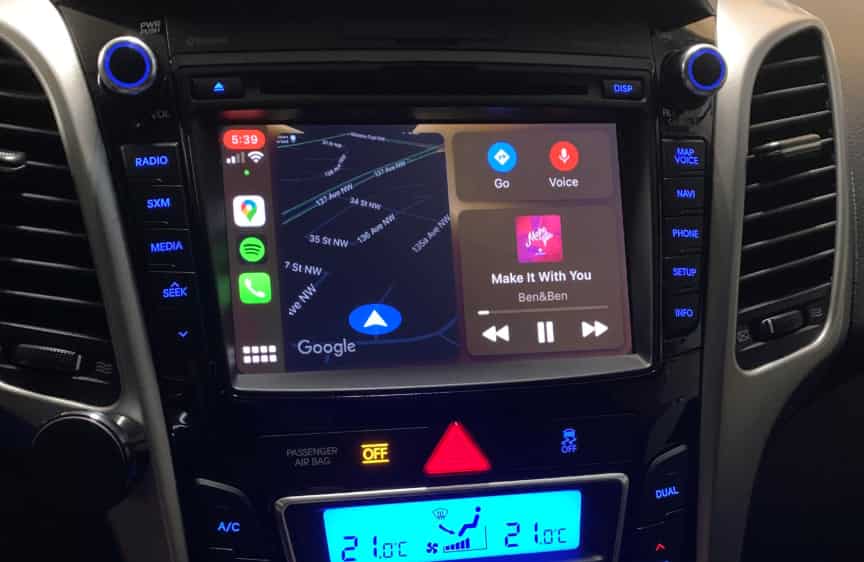
The first step in updating your Hyundai navigation system is to download and install the official Hyundai Navigation Updater tool on your computer. This software acts as the main platform that allows you to access the latest map data and system updates directly from the manufacturer.
Start by visiting the official Hyundai navigation update website and downloading the software version that matches your operating system. After the download is complete, install the program on your computer and launch it. When you open the tool for the first time, it will ask you to sign in or create a Hyundai account. This account helps the system identify your vehicle and provide the correct update files.
Once logged in, you need to select your vehicle model carefully. This step is very important because each Hyundai model uses different navigation hardware and software configurations. If you choose the wrong model, the update files may not work correctly or the installation may fail later in the process.
After selecting your vehicle, the tool will prepare the update options available for your system. At this stage, you are not downloading the files yet, but you are setting up the correct environment for the next steps.
By completing this step correctly, you ensure that the entire update process starts with accurate data and reduces the risk of errors in later stages.
Select Vehicle Model and Region
After you install and open the Hyundai Navigation Updater tool, the next step is selecting the correct vehicle model and region. This step is very important because the navigation system depends on accurate map data that matches both your car and your location.
You start by choosing your Hyundai model from the list in the software. This includes details such as the model name, production year, and infotainment system type. Popular models include Tucson, Santa Fe, and Accent, but each one uses different navigation configurations. Selecting the wrong model can lead to incompatible files and installation errors later.
Next, you choose the correct geographic region. The map system is divided by regions because road structures, languages, and navigation data vary across countries. If you select the wrong region, the system may show incorrect routes or missing map details.
Once both the model and region are selected, the tool automatically prepares the correct update package for your vehicle. This ensures that the data you download in the next step matches your system precisely and reduces the risk of failure during installation.
By completing this step carefully, you create a stable foundation for the entire update process and ensure that your Hyundai navigation system receives the right data package.
Download Latest Map and Software Files
After you select the correct vehicle model and region, the Hyundai Navigation Updater tool will display the latest available map and software updates for your system. This step focuses on downloading the required data that will later be transferred to a USB drive.
The system usually provides two types of updates. The first is map data, which includes updated roads, highways, points of interest, and traffic information. The second is system software, which improves performance and ensures better compatibility with the infotainment system.
You should review the update details before starting the download. Pay attention to the file size because navigation updates can be large and may take significant storage space. A stable internet connection is important during this step to avoid incomplete or corrupted downloads.
Once you start the download, the tool will automatically retrieve and organize the files. You do not need to manually handle the data, as the software prepares everything for USB transfer in the next stage.
After the download finishes, the system will verify the files and ensure they are ready for installation. This process helps prevent errors when you move to the USB preparation step.
Completing this step correctly ensures that your Hyundai navigation system receives the most up to date and reliable data for optimal performance.
Prepare USB Drive
After the map and software files are fully downloaded, you need to prepare a USB drive before transferring the data. This step is important because the Hyundai navigation system only reads data from properly formatted storage devices.
Start by choosing a USB drive with enough capacity, usually between 32GB and 64GB. Then connect it to your computer and format it to a compatible file system such as FAT32 or exFAT. Formatting removes all existing data, so make sure you have backed up any important files before proceeding.
Once the USB drive is ready, return to the Hyundai Navigation Updater tool. The software will automatically guide the transfer process. It will copy all downloaded map and system files directly onto the USB drive and organize them in the correct structure required by the vehicle system.
You should avoid manually changing file names or moving folders, because any modification can cause the update process to fail when installed in the car. It is important to let the software handle the entire transfer process to maintain data integrity.
After the transfer is complete, safely eject the USB drive from your computer. At this point, the USB is ready to be used for installation in your Hyundai vehicle.
Install Update in Vehicle
After you prepare the USB drive, the next step is to install the update directly in your Hyundai vehicle. This is the most important stage, so you need to follow each instruction carefully to avoid system interruption.
First, insert the USB drive into the designated USB port inside your car. Make sure the vehicle is parked in a safe location before starting the process. Then switch the ignition to ACC mode or keep the engine running so the infotainment system stays powered throughout the update.
Once the system detects the USB drive, it will automatically recognize the update files and display a prompt on the screen. You should confirm the installation to begin the update process. The system will then start copying and installing the new map and software data.
During this process, you must not turn off the engine or remove the USB drive. Any interruption can cause the update to fail or corrupt the navigation system. Depending on the file size, the installation may take several minutes to over an hour.
When the update is complete, the system will restart automatically or ask you to reboot manually. After restarting, the new navigation data will become active and ready for use.
Verify Installation
After the update process finishes and the system restarts, you need to verify that the installation was completed correctly. This step ensures your Hyundai navigation system is working with the latest map and software data.
Start by entering the settings menu on your infotainment screen. Look for the navigation or system information section where the software version is displayed. Compare this version with the latest update you downloaded earlier. If the numbers match, the update was successfully installed.
Next, test the navigation system in real conditions. Enter a destination and check how the system calculates the route. A properly updated system should show improved accuracy, updated roads, and faster route recalculation.
You should also pay attention to map details such as new roads, landmarks, and traffic information. If everything appears correct and responsive, the system is functioning properly.
If you notice any issues such as missing data or incorrect routing, it may indicate that the update did not complete correctly and you may need to repeat the process.
Completing this verification step confirms that your Hyundai navigation system is fully updated and ready to deliver accurate guidance during your daily driving.
During the update process, some users may face technical issues that prevent the system from installing new data correctly. One of the most common problems is when the USB drive is not recognized by the vehicle. This usually happens when the USB is not formatted correctly or the file system is incompatible with the infotainment unit.
Another frequent issue is the update freezing at a certain percentage, such as 0 percent or 99 percent. This often occurs due to interrupted file transfer, unstable power supply, or corrupted data during download. In some cases, selecting the wrong vehicle model or region in the software can also cause installation failure.
Users may also experience slow system response or error messages during installation. This can be caused by insufficient USB speed or using a low-quality storage device that cannot handle large navigation files efficiently.
In most situations, these issues are not permanent and can be fixed by carefully repeating the preparation and installation steps. Ensuring correct setup from the beginning significantly reduces the risk of errors.
If you encounter issues during the update process, you can usually resolve them by repeating a few key steps carefully. Most problems come from incorrect setup rather than system failure, so a structured approach is important.
First, reconnect the USB drive to your computer and format it again using the correct file system such as FAT32 or exFAT. After formatting, download the update files again using the Hyundai Navigation Updater tool to ensure the data is not corrupted.
Next, double check that you selected the correct vehicle model and region in the software. A mismatch in these settings is one of the most common reasons for installation failure. Correct selection ensures the system receives compatible data.
If the infotainment system still does not respond properly, restart the vehicle system by turning off the engine completely and waiting a few minutes before restarting. This helps reset temporary software glitches.
You should also avoid using low quality or damaged USB drives, as they often cause read and write errors during installation. Using a reliable USB device improves stability and reduces update interruptions.
By following these steps carefully, most update issues can be resolved without needing professional support.
Keeping your Hyundai navigation system updated brings several important advantages that directly improve your driving experience. The most noticeable benefit is improved route accuracy. Updated map data reflects new roads, changed traffic patterns, and recently developed areas, helping you reach your destination more efficiently.
Another key benefit is better driving safety. When the system has the latest information, it reduces the risk of incorrect directions or outdated road instructions. This is especially important in fast growing cities where road layouts change frequently.
Regular updates also improve the overall performance of the infotainment system. New software versions often include bug fixes, stability improvements, and faster response times, which make the system smoother and more reliable during daily use.
In addition, updated navigation systems provide better travel planning. They can suggest optimized routes based on current road conditions and help you avoid unnecessary delays.
By keeping your system updated, you ensure that your Hyundai vehicle continues to deliver accurate guidance, improved performance, and a more comfortable driving experience over time.
Frequently Asked Questions
In many Hyundai vehicles, navigation updates are provided free of charge for a certain period after purchase. However, this can vary depending on the model, region, and service policy. Some older systems or extended update services may require additional fees.
How long does the update take
The update time depends on the file size and the speed of your USB drive. In most cases, the process takes between 20 minutes and 1 hour. Larger map updates or combined software updates may take longer.
No, you should not drive during the update process. The vehicle must remain stationary with stable power supply to avoid interruption. Turning off the engine or moving the car can cause system errors.
What happens if the update is interrupted
If the update is interrupted, the system may fail to install the new data correctly. In most cases, you can restart the process by reconnecting the USB drive and running the update again from the beginning.
Conclusion
Updating your Hyundai navigation system is an important maintenance task that directly affects how accurately and smoothly your vehicle guides you on the road. Throughout this guide, you have learned a complete USB based update process, starting from preparing the correct software tool, downloading the latest map data, setting up a compatible USB drive, installing the update inside the vehicle, and finally verifying that everything works correctly.
When the navigation system stays up to date, it reflects real world changes such as new roads, updated traffic patterns, and improved routing options. This helps you drive more efficiently, avoid unnecessary detours, and reduce the risk of relying on outdated information. A well maintained system also improves the overall performance of the infotainment interface, making it more responsive and stable during everyday use.
By following the official update process provided by Hyundai Motor Company, you ensure that your system remains compatible, secure, and optimized for long term use. You do not need advanced technical skills to complete this process, only careful attention to each step.
If you maintain a habit of checking for updates regularly, your Hyundai navigation system will continue to provide reliable guidance and support a safer, more comfortable driving experience over time.