How to Reset Chevy Infotainment System is one of the most searched topics among Chevrolet drivers who experience sudden screen freezes, Bluetooth connection failures, or unresponsive touch controls while driving. Modern vehicles from Chevrolet rely heavily on infotainment systems to manage navigation, entertainment, phone connectivity, and vehicle settings, which means any system glitch can quickly become a frustrating and even distracting problem on the road.
Many drivers report issues such as the screen locking up during startup, audio not playing correctly, or Apple CarPlay and Android Auto not connecting as expected. These problems can happen across different models including Chevrolet Silverado, Chevrolet Equinox, and Chevrolet Malibu, especially after software updates or prolonged system use without rebooting.
The good news is that most infotainment issues do not require expensive repairs. In many cases, a simple reset can restore the system to normal function within minutes. However, the correct reset method depends on the severity of the issue, ranging from a soft reset for minor glitches to a factory reset for deeper system problems.
This guide is designed to provide a complete, step by step explanation of how to reset the Chevy infotainment system across all models. You will learn the difference between soft reset, hard reset, and factory reset, when to use each method, and how to avoid common mistakes that could lead to data loss or repeated system errors. The goal is to help you restore full functionality quickly and safely without needing technical expertise or dealership intervention.
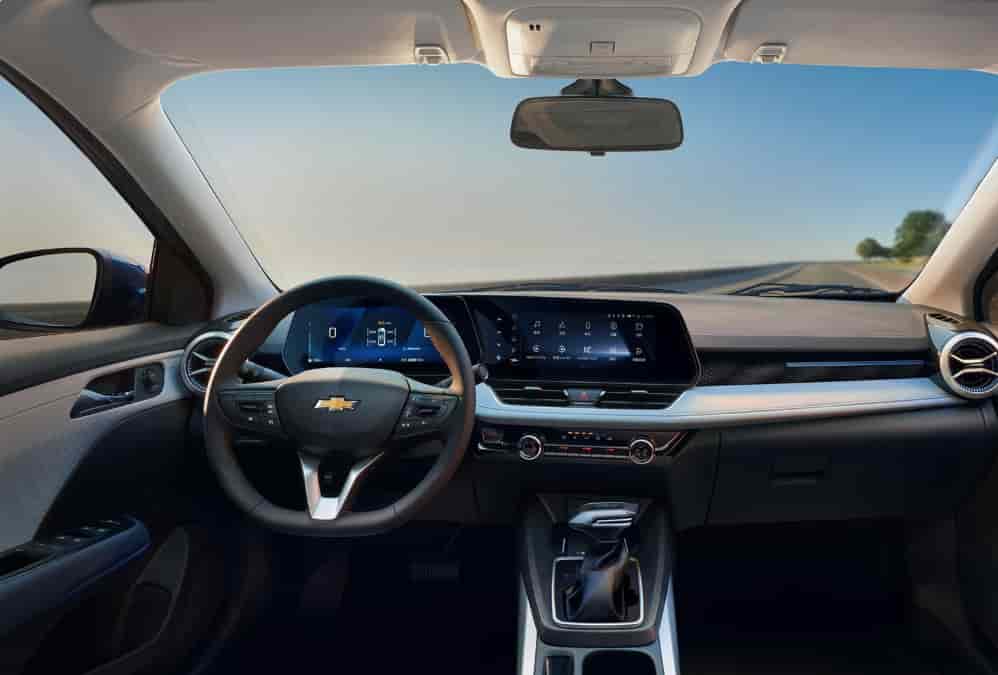
Understanding Chevy Infotainment System
The infotainment system in Chevrolet vehicles is a central hub for entertainment, navigation, and communication. Chevrolet designed this system to help drivers control media, phone calls, and navigation from one screen. It reduces distractions and improves driving safety.
Older systems are often called MyLink, while newer versions use Chevrolet Infotainment System 3. Drivers use it in models like Chevrolet Silverado, Chevrolet Equinox, and Chevrolet Tahoe. These systems connect directly to smartphones, maps, and vehicle settings.
The system runs on software. Because of this, it can develop issues over time. Software bugs often cause freezing or slow response. Failed updates can also break normal functions. Cache overload may also reduce performance.
Many drivers notice common problems. The screen may freeze. Bluetooth may fail to connect. Audio may stop working. Sometimes the system becomes completely unresponsive.
These problems happen for different reasons. Some issues come from minor software glitches. Others come from deeper system errors. That is why understanding the problem matters before choosing a fix.
A soft reset solves small issues quickly. A hard reset fixes deeper freezes. A factory reset restores full system settings. Each method works for a different situation.
In the next section, you will learn how to perform a soft reset step by step. This is the safest and fastest method for most common problems.
Soft Reset Chevy Infotainment System (Quick Fix)
A soft reset is the fastest and safest way to fix minor issues in the infotainment system. It does not delete any saved settings or personal data. Most drivers use this method first when the screen freezes or responds slowly.
In many Chevrolet vehicles, the system may stop responding due to temporary software glitches. A soft reset clears these temporary errors and refreshes the system without affecting stored data.
You can perform a soft reset in different ways depending on your vehicle model, including Chevrolet Silverado, Chevrolet Equinox, and Chevrolet Malibu.
Method 1: Power Cycle Reset
Turn off the vehicle completely. Open the driver door and leave it open for about two to three minutes. This action helps shut down the infotainment system fully. After that, close the door and restart the vehicle. The system will reboot automatically.
Method 2: Manual Button Restart
Some models allow a direct restart from the control panel. Press and hold the power button or volume knob for about 10 to 15 seconds. The screen will turn off and restart on its own.
When to Use Soft Reset
Use this method when the screen freezes. Use it when Bluetooth stops working. It also helps when the system becomes slow or unresponsive. In most cases, a soft reset fixes the issue within minutes.
A soft reset does not fix serious software corruption. If the problem continues after restarting, you may need a hard reset or a factory reset.
In the next section, you will learn how to perform a hard reset when the system becomes fully unresponsive.
Hard Reset Chevy Infotainment System (Force Restart)
A hard reset is used when the infotainment system stops responding completely. This method forces the system to restart and clears deeper temporary errors that a soft reset cannot fix.
In many Chevrolet vehicles, the infotainment system may freeze due to software conflicts or system overload. When this happens, the screen may stop reacting to touch or buttons. A hard reset helps restore control without needing a service visit.
Drivers using models like Chevrolet Silverado, Chevrolet Equinox, and Chevrolet Tahoe may notice different button layouts. However, the reset logic stays similar across most systems.
Method 1: Power Button Hold
Press and hold the power button or volume knob for 10 to 20 seconds. The screen will turn off. Release the button when the system shuts down. The system will restart automatically after a few seconds.
Method 2: Button Combination Reset
Some models use a combination of buttons. You may need to hold the power button and home button at the same time. In some versions, holding the volume down and power button also works. The screen will go black and reboot.
When to Use Hard Reset
Use a hard reset when the screen freezes completely. Use it when the system does not respond to touch or voice commands. It also helps when audio or navigation stops working suddenly.
A hard reset does not erase saved settings. It only forces the system to restart. If the issue continues after a hard reset, the problem may be deeper and require a factory reset.
In the next section, you will learn how to perform a factory reset when the system needs a full restore.
Factory Reset Chevy Infotainment System
A factory reset restores the infotainment system back to its original settings. This method removes all saved data, including paired phones, navigation history, and customized preferences. It is the most powerful reset option available in many Chevrolet vehicles.
Drivers usually use this method only when soft reset and hard reset fail. It helps fix deeper software issues that affect system stability and performance.
You can perform a factory reset in models such as Chevrolet Silverado, Chevrolet Equinox, and Chevrolet Malibu through the settings menu.
Step by Step Factory Reset
First, turn on the vehicle and access the infotainment home screen. Open the Settings menu. Select System Settings. Scroll until you find the Factory Reset option. Tap it and confirm your choice. The system will restart automatically and return to default settings.
Important Warning
A factory reset deletes all personal data. It removes Bluetooth devices and resets audio and display settings. You will need to set up the system again after the reset.
When to Use Factory Reset
Use this method when the system has repeated crashes. Use it when updates fail or when errors continue after other resets. It also helps when the system becomes unstable over time.
A factory reset often solves persistent software problems. However, if the issue remains after this step, it may indicate a hardware or dealership-level issue.
In the next section, you will learn how reset steps may differ across specific Chevrolet models.
Factory Reset Chevy Infotainment System
A factory reset restores the infotainment system to its original configuration and removes all saved data. This includes paired Bluetooth devices, navigation history, radio presets, and personalized settings. In many Chevrolet vehicles, this is considered the most powerful reset option because it clears both user data and system-level configurations.
Drivers usually apply a factory reset only after other methods fail. A soft reset or hard reset often solves minor glitches, but deeper software issues require a full restoration. This is common when the system continues to freeze, crash, or fail after updates.
You can perform a factory reset in models such as Chevrolet Silverado, Chevrolet Equinox, and Chevrolet Malibu through the infotainment settings menu. First, turn on the vehicle and access the main screen. Then open the Settings menu and navigate to System Settings. From there, select Factory Reset or Restore Default Settings. Confirm your selection and wait for the system to restart automatically.
This process usually takes a few minutes. During the reset, the screen may go black and reboot several times. This is normal behavior as the system clears all stored configurations and reloads default software settings.
However, a factory reset should be used with caution. It deletes all user data and requires you to reconnect devices and reconfigure preferences afterward. You may also need to re-enter navigation settings and audio profiles.
A factory reset is most effective when the system shows repeated malfunctions or persistent software errors that do not improve after simpler resets. If problems continue even after a factory reset, the issue may be related to hardware or require professional diagnostic support.
Model-Specific Reset Instructions for Chevy Infotainment System
The reset process for the infotainment system can vary slightly depending on the vehicle model and software version. While the overall logic remains the same, button layouts and menu paths may differ across different Chevrolet vehicles. Understanding these differences helps you avoid confusion and perform the reset correctly the first time.
In models like Chevrolet Silverado, the infotainment system is often integrated with physical controls such as a power button, volume knob, and steering wheel buttons. For a soft or hard reset, you can usually press and hold the power or volume knob until the screen turns off and restarts. Some Silverado versions also allow resets through the settings menu under System or General.
In Chevrolet Equinox, the infotainment interface is more touchscreen focused. Most resets are performed through the Settings menu. You can access System Settings, then select Reset Options to perform either a restart or full factory reset. Physical button combinations are less common in newer Equinox models.
In Chevrolet Malibu, the system often combines both touchscreen and button controls. A soft reset may require turning off the vehicle and opening the driver door to force a shutdown. A hard reset can be done by holding the power button until the screen reboots. Factory reset options are found in the Settings menu under System.
Although the steps vary slightly, all models follow the same principle. A soft reset fixes minor glitches, a hard reset solves system freezes, and a factory reset restores default settings. Knowing your model layout helps you choose the correct method faster and avoid unnecessary resets.
In the next section, you will learn the most common infotainment problems that often make drivers perform a reset.
Common Problems Before Resetting Chevy Infotainment System
Before you perform a reset on the infotainment system, it is important to understand the most common issues that drivers face in Chevrolet vehicles. Many problems look serious at first, but they are often caused by temporary software glitches rather than hardware failure.
One of the most frequent issues is a frozen or unresponsive screen. This can happen suddenly while using navigation or switching apps. In models like Chevrolet Silverado, Chevrolet Equinox, and Chevrolet Malibu, the screen may stop reacting to touch inputs or become stuck on a single menu.
Another common problem is Bluetooth connectivity failure. Phones may fail to pair or disconnect randomly during calls or music playback. This usually happens due to software conflicts or outdated system data rather than phone issues.
Audio problems also occur frequently. Drivers may notice no sound from radio, media apps, or navigation prompts. In some cases, the volume controls stop responding even though the system appears to be working normally.
Apple CarPlay and Android Auto issues are also widely reported. These systems may fail to launch or disconnect unexpectedly. This often happens after software updates or when the system cache becomes overloaded.
Screen lag is another warning sign. The infotainment system may respond slowly to touch or take longer than usual to load menus. This indicates that the system memory is under stress.
In many cases, these problems do not require a full reset immediately. A soft reset or hard reset can fix most issues quickly. Understanding the root cause helps you choose the right solution and avoid unnecessary data loss from a factory reset.
In the next section, you will learn when a reset is not enough and what to do next.
When Reset Does Not Work on Chevy Infotainment System
In some cases, resetting the infotainment system does not fully solve the problem. This can happen in Chevrolet vehicles when the issue is not caused by temporary software glitches but by deeper system or hardware related faults.
If you have already tried a soft reset, hard reset, and even a factory reset on models like Chevrolet Silverado, Chevrolet Equinox, or Chevrolet Malibu, and the system still freezes, lags, or fails to respond, then the issue may be more complex.
One possible cause is a corrupted software update. If an update was interrupted or installed incorrectly, the system may continue to malfunction even after a reset. In this case, the infotainment software may need to be reinstalled or updated again through official channels.
Another possible cause is hardware failure. The infotainment screen, internal processor, or connection modules may develop faults over time. When this happens, no reset method will fully restore normal function.
You may also face issues related to wiring or vehicle electrical systems. A weak connection or unstable power supply can cause the infotainment system to behave unpredictably, including random shutdowns or repeated reboots.
If the problem continues after all reset methods, the best solution is to visit an authorized Chevrolet service center. Technicians can run a full diagnostic test to identify whether the issue is software or hardware related. They can also perform advanced system recovery procedures that are not available to regular users.
In many situations, early diagnosis can prevent further damage and reduce repair costs. Resetting is effective for most software issues, but persistent problems require professional inspection.
Conclusion
Understanding how to reset the infotainment system is essential for every driver who uses modern Chevrolet vehicles from Chevrolet. This system plays a key role in controlling navigation, media, and smartphone connectivity, so any malfunction can directly affect driving comfort and safety.
In most situations, a simple reset is enough to restore normal performance. A soft reset works well for minor issues like temporary freezing or slow response. A hard reset helps when the system becomes fully unresponsive. A factory reset is the most powerful option and should be used only when other methods fail or when the system shows repeated errors.
Across popular models such as Chevrolet Silverado, Chevrolet Equinox, and Chevrolet Malibu, these reset methods follow the same core principle even if the button layout or menu design is slightly different. This makes the process easier to learn once you understand the basic steps.
However, not every issue can be solved with a reset. If problems continue after multiple attempts, the cause may be related to software corruption, hardware failure, or electrical system issues. In such cases, professional diagnostic support from an authorized Chevrolet service center is the safest option.
The key takeaway is simple. Always start with the least invasive method and move step by step. This approach helps you avoid unnecessary data loss and ensures the system is restored safely and efficiently.
By following the methods in this guide, you can handle most infotainment issues on your own and keep your driving experience smooth, connected, and reliable.