Have you ever faced a frozen screen in your Chevy Malibu while using navigation or reversing? This issue can quickly ruin your driving experience. The infotainment system controls music, calls, and maps, so any glitch creates immediate frustration.
Many drivers notice the same problems. The screen stops responding to touch. It turns black without warning. Apple CarPlay or Android Auto fails to connect. These issues often come from small software errors, not serious hardware damage.
You can fix most of these problems in minutes. You do not need special tools or technical skills. A simple reset often restores the system and brings everything back to normal.
In this guide, you will learn how to reset Chevy Malibu screen quickly and safely. Each method is easy to follow and works for common issues like frozen displays or black screens. By the end, you will know exactly what to do when your screen stops working.
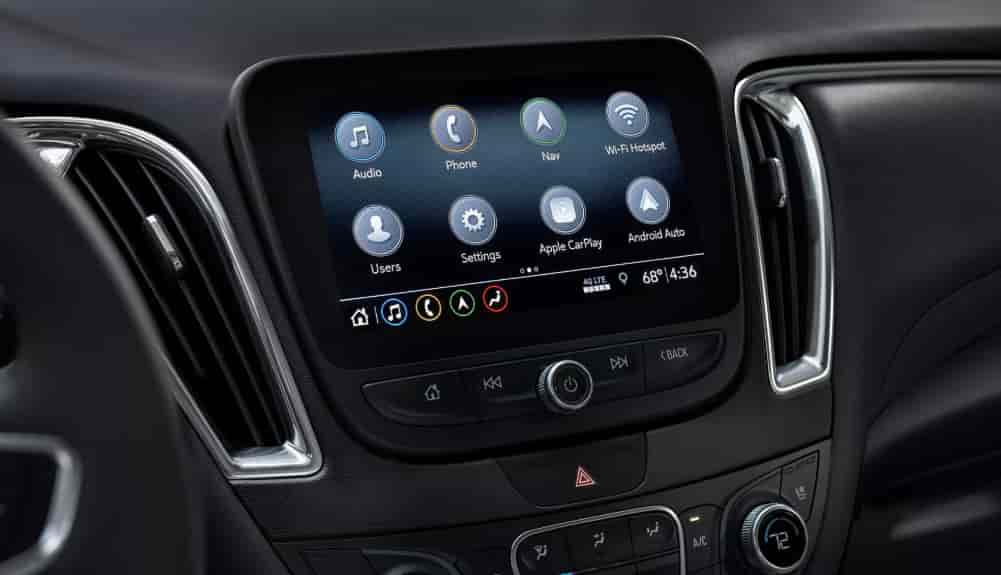
What Causes Chevy Malibu Screen to Freeze or Go Black
A frozen or black screen in your Chevy Malibu does not happen randomly. Several common causes can trigger this issue, and most of them relate to software or system conflicts.
One of the main reasons is a software glitch. The infotainment system runs like a small computer, so it can crash or lag after long use. This often happens when you switch between apps like navigation, Bluetooth, and media too quickly.
System conflicts also cause problems. When Apple CarPlay or Android Auto connects, it can overload the system. If the connection is unstable, the screen may freeze or stop responding.
Power-related issues can also affect the screen. A weak battery or unstable voltage may interrupt the system. This can lead to a black display or random restarts.
Another common cause is incomplete or failed updates. If the system update stops midway, the software may not function properly. As a result, the screen may become unresponsive.
Heat can also play a role. High temperatures inside the car can affect electronic components. When the system overheats, it may slow down or freeze to protect itself.
Understanding these causes helps you choose the right solution. In most cases, you do not need expensive repairs. A quick reset is often enough to fix the issue.
How to Reset Chevy Malibu Screen Quickly
If your screen freezes or turns black, you can fix it in just a few minutes. The methods below are simple, effective, and safe for most Chevy Malibu models.
Method 1: Soft Reset (Fastest and Recommended)
This is the quickest way to fix most screen issues. It works well for frozen displays and minor glitches.
Press and hold the Power button together with the Home button or the Fast Forward button, depending on your model. Keep holding for about 10 to 15 seconds. The screen will turn off and restart automatically.
This method does not delete any data. Your settings, Bluetooth connections, and apps will remain the same. Most drivers use this as the first solution because it is fast and reliable.
Method 2: Turn Off and Restart the Car
Sometimes the system needs a full shutdown to reset properly.
Turn off the engine completely. Open the driver door and wait for a minute to allow the system to power down. After that, start the car again.
This method helps reset background processes that may cause the screen to freeze. It is simple but very effective in many cases.
Method 3: Battery Disconnect Reset
Use this method if the screen stays unresponsive after trying the options above.
Open the hood and disconnect the negative battery terminal. Wait for about 5 to 10 minutes. Then reconnect it and start the car.
This forces the entire system to reboot. It often fixes deeper issues that a soft reset cannot handle. However, you may lose saved settings like radio presets or Bluetooth connections.
These three methods cover most situations. In many cases, a soft reset is enough to solve the problem quickly. If the issue continues, you may need a deeper reset, which we will cover next.
How to Factory Reset Chevy Malibu Infotainment System
If the screen still freezes or turns black after a quick reset, you should consider a factory reset. This method restores the system to its original state and removes deeper software errors.
Start by turning on your vehicle. Access the infotainment screen and go to the Settings menu. From there, select System and look for the Reset option. Choose Factory Reset and confirm your selection.
The system will begin the reset process and restart automatically. This may take a few minutes, so you should wait until it finishes completely.
A factory reset can fix persistent issues that a soft reset cannot solve. It clears system bugs, removes corrupted data, and refreshes the entire interface.
However, this method comes with an important drawback. It will erase all your personal data. This includes Bluetooth pairings, saved WiFi networks, navigation history, and user profiles. You will need to set everything up again after the reset.
Because of this, you should only use a factory reset when other methods fail. It works best for serious problems such as repeated freezing, constant black screens, or system errors that keep coming back.
If you want a clean and stable system, this is often the most effective solution.
When Reset Does NOT Fix the Problem
In some cases, resetting the system does not solve the issue. If your Chevy Malibu screen still does not work, the problem may go beyond software.
You may notice the screen stays completely black even after multiple resets. In other cases, the touch function stops working while the display still shows images. Some drivers also report flickering screens or delayed responses.
These signs often point to hardware-related issues. A damaged display, loose wiring, or a faulty infotainment unit can cause these problems. A reset will not fix physical damage.
You should also check the fuse system. A blown fuse can interrupt power to the screen. This is a simple issue, but many drivers overlook it. Replacing the fuse may restore the display quickly.
Another possible cause is outdated software. If your system runs on an old version, it may not perform well. Visit a dealership or service center to update the infotainment system properly.
If none of these solutions work, you should consider professional inspection. A certified technician can diagnose deeper issues and prevent further damage.
Ignoring these symptoms can lead to higher repair costs later. It is better to act early and identify the exact cause.
Tips to Prevent Chevy Malibu Screen Issues
You can avoid most screen problems with simple habits. A stable system depends on how you use and maintain it daily.
Do not connect too many devices at the same time. Multiple USB connections or constant switching between Apple CarPlay and Android Auto can overload the system. This often leads to lag or freezing.
Keep your infotainment software updated. Updates fix bugs and improve system performance. Check for updates regularly or ask your dealership for support.
Avoid exposing your car to extreme heat for long periods. High temperatures can affect electronic components and reduce system stability. Parking in shaded areas helps protect the screen.
Restart the system occasionally. Even when everything works fine, a quick reboot can clear temporary errors and keep the system running smoothly.
Use high quality cables for smartphone connections. Cheap or damaged cables often cause unstable connections, which may freeze the screen.
These small actions can help you reduce the risk of screen issues and keep your infotainment system working properly.
Conclusion
Dealing with a frozen or black display can feel frustrating, especially when you rely on your infotainment system every day. The good news is that most of these problems have simple solutions.
Now you know how to reset Chevy Malibu screen quickly using several effective methods. A soft reset works best for minor issues and takes only a few seconds. Restarting the car can clear hidden system errors. A battery reset helps fix deeper problems. If needed, a factory reset can restore the system completely.
Understanding the cause of the issue also helps you choose the right solution. In many cases, you can fix the problem yourself without spending money on repairs.
If the screen still does not work after trying all methods, you should check hardware components or visit a professional technician. Acting early can prevent bigger and more expensive issues later.
Have you experienced this problem before? Which method worked best for you? Share your experience and help other Chevy Malibu owners find the right solution faster.