Modern GMC vehicles are equipped with advanced infotainment systems that serve as the hub for navigation, music, Bluetooth connectivity, Apple CarPlay, Android Auto, hands-free calling, and a variety of vehicle settings. While these systems are designed for convenience and seamless connectivity, they can occasionally experience software glitches. A frozen touchscreen, an unresponsive display, frequent Bluetooth disconnections, or a black screen can quickly turn an enjoyable drive into a frustrating experience.
Fortunately, many of these issues do not indicate a serious hardware problem. In fact, a simple reboot of your GMC infotainment system is often enough to restore normal functionality within minutes. Just like restarting a smartphone or computer, rebooting refreshes the system by clearing temporary software errors without affecting your personal settings or saved data.
In this comprehensive guide, you’ll learn how to reboot a GMC infotainment system using several safe and effective methods. We’ll explain when a soft reboot is sufficient, when a power cycle or factory reset may be necessary, and how to troubleshoot persistent issues if the problem continues. Whether you own a GMC Sierra, Yukon, Acadia, Terrain, Canyon, or another model, this step-by-step guide will help you get your infotainment system back up and running quickly, saving you time, frustration, and potentially an unnecessary trip to the dealership.
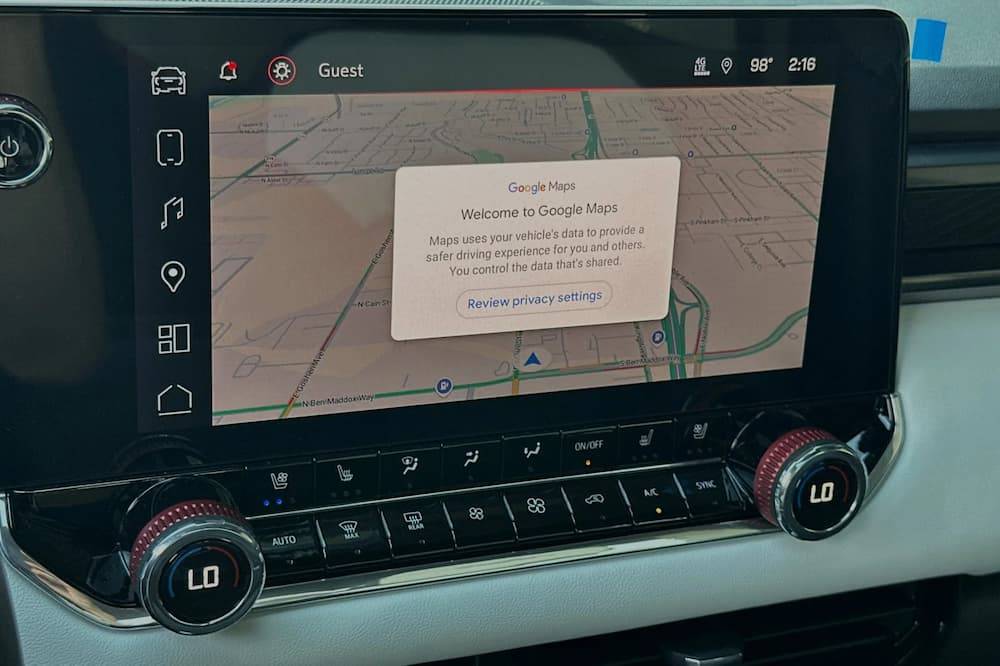
What Does Rebooting a GMC Infotainment System Do?
Rebooting a GMC infotainment system means shutting down and restarting its software without intentionally deleting your saved information. The process is similar to restarting a smartphone, tablet, or computer when an application freezes or the device stops responding.
During normal use, the infotainment system runs several functions at the same time. It may be managing Bluetooth connections, navigation, audio playback, vehicle settings, Apple CarPlay, Android Auto, voice commands, Wi-Fi features, and background software processes. Occasionally, one of these processes may stop working correctly and affect the rest of the system.
A reboot ends temporary processes and reloads the infotainment software. This can clear minor errors that cause the touchscreen to freeze, menus to load slowly, audio to disappear, or smartphone connections to fail.
Rebooting is not the same as performing a factory reset.
A standard reboot normally preserves:
- Saved radio stations
- Bluetooth pairings
- Navigation preferences
- User profiles
- Audio settings
- Connected services
- Personalized vehicle settings
A factory reset is more extensive. Depending on the vehicle and the reset option selected, it may remove paired phones, account information, favorites, Wi-Fi credentials, app data, and other personal preferences. For this reason, a factory reset should not be the first troubleshooting step.
Start with the least disruptive solution. Try a soft reboot first. If that does not work, perform a complete vehicle power cycle. Consider resetting system settings only after the simpler methods fail.
GMC infotainment features and menu layouts vary by model, model year, screen size, and software version. Owners should check the manual for their specific year and model before selecting any option that deletes personal data. GMC provides model-specific manuals through its official support website.
Signs Your GMC Infotainment System Needs a Reboot
Infotainment problems do not always mean the screen, radio, or control module has failed. Many problems begin with a temporary communication or software error that can be corrected by restarting the system.
One of the most obvious warning signs is a frozen touchscreen. The display may remain visible, but tapping icons produces no response. In other cases, one menu may work while another refuses to open.
A black or blank screen is another common reason drivers search for how to reboot a GMC infotainment system. The system may continue playing audio even though the display is dark, or the screen may fail to turn on after the vehicle starts.
Other signs that a reboot may help include:
- The touchscreen responds slowly
- The GMC logo remains on the screen
- Menus repeatedly freeze or close
- The radio stops responding
- Audio suddenly disappears
- The volume controls do not work correctly
- Bluetooth will not connect
- A paired phone disconnects repeatedly
- Apple CarPlay does not launch
- Android Auto stops working
- Navigation becomes slow or unresponsive
- Voice commands fail to activate
- The system restarts without warning
- Vehicle settings do not load properly
- The Wi-Fi hotspot appears unavailable
Connection problems may also come from the phone, USB cable, mobile application, or wireless settings rather than the vehicle itself. GMC recommends confirming that the phone and infotainment software are current when troubleshooting Bluetooth problems. GMC also suggests restarting the smart device and the vehicle when pairing fails.
For Android Auto connection issues, GMC recommends forgetting the existing connection on both the vehicle and the phone, restarting both devices, and then pairing them again.
A reboot is most appropriate when the problem begins suddenly and there are no visible signs of physical damage. It may not solve issues caused by a damaged display, defective USB port, weak vehicle battery, blown fuse, failed control module, or interrupted software installation.
If the screen is cracked, smells overheated, repeatedly turns on and off, or remains completely inactive after several troubleshooting attempts, professional diagnosis may be necessary.
Method 1: Soft Reboot Your GMC Infotainment System
A soft reboot is the best place to begin because it is quick, minimally disruptive, and unlikely to remove personal settings. Its purpose is to restart the infotainment software without performing a factory reset.
Before starting, park the vehicle in a safe location. Shift the transmission into Park and remain stationary throughout the process. Some infotainment features and setup menus are restricted while the vehicle is moving. GMC also requires the vehicle to be in Park for various infotainment setup procedures.
Step 1: Park the Vehicle Safely
Move away from traffic and stop on a level surface. Shift into Park and apply the parking brake when appropriate.
Do not attempt to troubleshoot an unresponsive touchscreen while driving. Even a simple restart can distract you from the road.
Step 2: Keep the Vehicle Turned On
Leave the ignition on so the infotainment display has power. The engine may be running, or the ignition may be in an appropriate accessory mode, depending on the model.
Confirm that the infotainment screen is receiving power. If the screen and all surrounding controls are completely inactive, the problem may involve power delivery rather than a temporary software freeze.
Step 3: Locate the Physical Power or Volume Control
Find the physical Power or Volume knob near the center display. On many GMC infotainment systems, pressing this control mutes or powers off the audio system.
Control layouts vary between GMC Sierra, Yukon, Terrain, Acadia, Canyon, Savana, and other models. Newer vehicles with Google built-in may also use different menus and controls from older GMC IntelliLink systems.
Step 4: Press and Hold the Control
Press and hold the Power or Volume control for approximately 10 to 20 seconds.
Watch the display while holding the control. Depending on the system, the screen may turn black, display a startup animation, or show the GMC logo as the software reloads.
Release the control when the restart sequence begins.
Not every GMC system supports the same button combination. If holding the Power or Volume control only mutes the audio or turns off the display, do not repeatedly force the button. Proceed to the ignition power cycle method and consult the infotainment guide for your exact model year.
Step 5: Allow the System to Reload
Wait for the home screen to appear completely. Avoid tapping several icons immediately after the GMC logo appears because background services may still be loading.
The restart may take longer than a normal screen transition. Allow the system enough time to restore the radio, phone connection, navigation, and user profile.
Step 6: Test the Affected Feature
Once the system has restarted, check the function that originally caused the problem.
For example:
- Tap several areas of the touchscreen
- Adjust the audio volume
- Change the radio station
- Reconnect Bluetooth
- Launch Apple CarPlay
- Open Android Auto
- Enter a navigation destination
- Test the microphone or voice command button
If the system now works normally, the issue was probably a temporary software glitch.
If the screen remains frozen or the same problem returns immediately, shut down the vehicle and perform a complete ignition power cycle. Restarting the entire vehicle allows additional electronic modules to turn off and establish fresh communication when the vehicle starts again. GMC uses this type of vehicle restart as an official troubleshooting step for connectivity features, including its Wi-Fi hotspot.
Do not select Factory Reset simply because the first reboot attempt failed. A power cycle is less disruptive and should usually be tried before erasing saved infotainment information.
Method 2: Perform an Ignition Power Cycle
If a soft reboot does not resolve the problem, the next troubleshooting step is to perform an ignition power cycle. Unlike a soft reboot, which only restarts the infotainment software, an ignition power cycle allows multiple electronic control modules inside the vehicle to shut down completely before restarting. This process can clear communication errors between the infotainment system and other vehicle components.
Many GMC owners find that an ignition power cycle restores normal operation when the touchscreen remains frozen, the display stays black after startup, or Bluetooth and smartphone integration fail to reconnect after a software glitch.
Step 1: Turn Off the Engine
Park the vehicle in a safe location and shift the transmission into Park.
Turn the engine off completely and remove the key if your vehicle uses a traditional ignition. For push-button start models, press the Start/Stop button to shut down the engine.
Step 2: Exit the Vehicle
Open the driver’s door and leave the vehicle. Opening the driver’s door signals several vehicle modules to begin their shutdown sequence.
Close the door after exiting and ensure that all accessories have powered down.
Step 3: Wait for the Vehicle to Enter Sleep Mode
Allow the vehicle to remain off for approximately three to five minutes.
During this time, the infotainment system and supporting electronic modules finish shutting down. Avoid pressing any buttons or reopening the doors during the waiting period, as doing so may wake the modules before the shutdown process is complete.
Step 4: Restart the Vehicle
Start the engine normally and wait for the infotainment system to load completely.
The startup process may take slightly longer than usual because multiple systems are initializing from a full shutdown.
Step 5: Verify System Operation
After the home screen appears, test every feature that was previously malfunctioning.
Check the following functions:
- Touchscreen responsiveness
- Radio controls
- Bluetooth pairing
- Apple CarPlay
- Android Auto
- Navigation
- Voice recognition
- Audio playback
- Steering wheel controls
If everything works normally, the issue was most likely caused by a temporary communication error between vehicle modules.
If the same symptoms return immediately after restarting the vehicle, additional troubleshooting may be required.
Method 3: Reset the Infotainment System Through Settings
If both a soft reboot and an ignition power cycle fail to solve the problem, you may need to reset the infotainment system through its settings menu. This option restores software settings and can resolve persistent issues caused by corrupted preferences or configuration errors.
Before proceeding, understand the difference between resetting settings and performing a complete factory reset. Depending on your GMC model and software version, the available reset options may vary.
Some vehicles allow you to restore only selected settings, while others include a complete factory reset that removes personal data.
Step 1: Open the Settings Menu
From the infotainment home screen, tap Settings.
Scroll through the available options until you locate System, Vehicle, or Reset Options, depending on your software version.
Step 2: Select the Appropriate Reset Option
You may see one or more of the following options:
- Restore Vehicle Settings
- Reset Infotainment Settings
- Clear Personal Data
- Factory Data Reset
- Restore Factory Settings
Read the description carefully before selecting any option.
A settings reset typically restores system preferences while preserving most personal information.
A factory reset may remove:
- Bluetooth pairings
- Wi-Fi passwords
- User profiles
- Favorite radio stations
- Navigation preferences
- Connected devices
- Saved app data
- Personalized settings
Step 3: Confirm the Reset
Follow the on-screen prompts to confirm your selection.
The infotainment system will restart automatically after the reset process begins.
Do not switch off the ignition or disconnect the vehicle battery while the reset is in progress. Interrupting the process may lead to incomplete software installation or additional system errors.
Step 4: Set Up the System Again
Once the reset is complete, reconnect your smartphone and restore any personal preferences.
You may need to:
- Pair Bluetooth devices again
- Reconnect Apple CarPlay
- Reconnect Android Auto
- Sign in to connected services
- Configure Wi-Fi settings
- Restore favorite radio stations
Although this process takes a little more time, it often resolves software problems that cannot be fixed with a simple reboot.
What If the Reboot Doesn’t Work?
If your GMC infotainment system continues to freeze, display a black screen, or restart unexpectedly after trying all three reboot methods, the underlying problem may be more complex than a temporary software glitch.
Begin by checking whether your vehicle has a pending infotainment software update. Manufacturers regularly release updates that improve system stability, fix known bugs, and enhance compatibility with Apple CarPlay, Android Auto, and connected services.
Next, inspect your smartphone connection. A damaged USB cable, outdated mobile operating system, incompatible application, or unstable wireless connection can cause repeated communication failures that appear to be infotainment problems.
You should also verify the health of the vehicle’s battery. Modern infotainment systems depend on stable voltage. A weak battery or charging system issue may cause random restarts, slow boot times, or intermittent display failures.
If you are comfortable performing basic vehicle inspections, check the appropriate fuse associated with the infotainment system. A partially damaged fuse or poor electrical connection can interrupt power delivery and produce inconsistent behavior.
Professional diagnosis is recommended if you experience any of the following symptoms:
- The display remains permanently black.
- The infotainment system continuously reboots.
- The touchscreen never responds.
- No sound is produced from any audio source.
- The system fails to power on.
- Error messages continue appearing after multiple resets.
- Physical damage or water intrusion is visible.
At this stage, the problem may involve the display module, radio control unit, wiring harness, amplifier, or another electronic component that requires specialized diagnostic equipment. Visiting an authorized GMC service center or a qualified automotive electronics technician is the safest way to identify and repair the underlying issue while preventing unnecessary replacement of functioning parts.
Common Causes of GMC Infotainment Problems
Understanding what causes infotainment issues can help you choose the right solution instead of relying on trial and error. While a simple reboot often resolves temporary software glitches, recurring problems may indicate an underlying issue that requires additional troubleshooting.
The table below outlines some of the most common GMC infotainment problems, their likely causes, and the recommended solutions.
| Problem | Possible Cause | Recommended Solution |
|---|---|---|
| Frozen touchscreen | Temporary software glitch | Perform a soft reboot |
| Black or blank screen | System crash or power interruption | Perform an ignition power cycle |
| Bluetooth won’t connect | Corrupted pairing or phone compatibility issue | Delete the paired device and reconnect it |
| Apple CarPlay not working | Faulty USB cable, outdated iOS, or software bug | Update iPhone, replace the cable, and reconnect |
| Android Auto won’t connect | Outdated Android version or incompatible cable | Update Android Auto and reconnect the device |
| No audio output | Audio software error or muted system | Restart the infotainment system |
| Navigation freezes | GPS software issue or weak signal | Restart the system and update navigation software |
| Slow system performance | Limited system memory or background processes | Reboot the infotainment system |
| Wi-Fi hotspot unavailable | Network initialization error | Restart the vehicle and reconnect |
| Voice commands not responding | Microphone or software issue | Restart the infotainment system and check permissions |
Although software glitches are the most common cause, external factors can also affect infotainment performance. Smartphone operating system updates occasionally introduce compatibility issues until a matching vehicle software update is released. Similarly, low-quality charging cables, damaged USB ports, or unstable wireless connections can interrupt communication between your phone and the vehicle.
Environmental conditions may also play a role. Extremely high cabin temperatures or prolonged exposure to freezing weather can temporarily affect electronic components. Allowing the vehicle’s interior to return to a normal operating temperature may improve system stability.
If the same issue occurs repeatedly after multiple reboots, document when it happens. For example, note whether the problem appears only after connecting a specific phone, using navigation, starting the vehicle remotely, or installing a recent software update. These details can help technicians diagnose the problem more efficiently.
Tips to Prevent Future Infotainment Problems
While no electronic system is completely immune to occasional software glitches, regular maintenance and a few good habits can significantly reduce the chances of experiencing infotainment problems.
One of the most effective preventive measures is keeping your vehicle software up to date. GMC periodically releases infotainment updates that improve system stability, security, and compatibility with new smartphones. If an update is available, install it according to the manufacturer’s instructions.
Keep your smartphone updated as well. Apple CarPlay and Android Auto rely on both the vehicle software and the phone’s operating system. Running outdated software on either device can lead to unexpected connection problems.
Whenever possible, use high-quality USB cables that are certified by the manufacturer. Cheap or damaged cables often cause intermittent disconnections, slow charging, and unreliable data transfer.
Avoid disconnecting the vehicle battery unless absolutely necessary. Removing battery power can interrupt system memory and may require the infotainment system to reinitialize after power is restored.
If you regularly pair multiple phones with your vehicle, consider removing devices you no longer use. A long list of previously paired devices may occasionally cause connection conflicts.
Restart the infotainment system after installing major software updates. A fresh restart allows new software components to initialize correctly and helps reduce the risk of temporary performance issues.
It is also a good idea to keep the touchscreen clean. Dust, fingerprints, and moisture can interfere with touch sensitivity, making the display appear unresponsive even when the software is functioning normally. Use a clean microfiber cloth and avoid harsh chemical cleaners that could damage the screen’s protective coating.
Finally, monitor your vehicle’s battery health. Modern infotainment systems rely on stable electrical voltage, and a weak battery can contribute to slow startup times, unexpected reboots, or intermittent system failures.
By following these simple maintenance practices, you can improve the reliability of your GMC infotainment system and reduce the likelihood of unexpected interruptions during your daily drive.
Frequently Asked Questions
How long does it take to reboot a GMC infotainment system?
A standard soft reboot usually takes between 30 seconds and two minutes, depending on the vehicle model and software version. A complete ignition power cycle may take slightly longer because multiple vehicle modules must shut down and restart.
Does rebooting erase my personal settings?
No. A standard reboot does not normally delete Bluetooth pairings, favorite radio stations, navigation preferences, or other personalized settings. Only a factory reset is designed to remove personal data and restore the system to its original configuration.
What is the difference between a reboot and a factory reset?
A reboot simply restarts the infotainment software to clear temporary glitches. A factory reset restores the system to its default settings and may erase saved devices, user profiles, and personalized preferences. Whenever possible, try a reboot before considering a factory reset.
Why does my GMC infotainment system keep freezing?
Repeated freezing may be caused by outdated software, corrupted system files, smartphone compatibility issues, unstable Bluetooth connections, low battery voltage, or hardware problems. If the issue persists after multiple reboots, further diagnosis may be necessary.
Can I reboot the infotainment system while driving?
For safety reasons, you should only reboot the infotainment system when the vehicle is safely parked. Attempting to troubleshoot electronic systems while driving can distract you from the road and increase the risk of an accident.
Why isn’t Apple CarPlay or Android Auto working after a reboot?
If the problem continues after restarting the infotainment system, check your smartphone software, replace the USB cable if necessary, remove the existing connection, and pair the device again. Also verify that your phone is compatible with your vehicle’s infotainment software version.
Should I disconnect the battery to reset the infotainment system?
Disconnecting the battery is generally not recommended as a first troubleshooting step. Modern GMC vehicles contain multiple electronic control modules that may require reinitialization after battery power is removed. A soft reboot or ignition power cycle is typically safer and more effective.
When should I visit a GMC dealership?
You should schedule professional service if the display remains permanently black, the infotainment system repeatedly restarts, the touchscreen never responds, software updates fail to install, or hardware damage is suspected. A qualified technician can perform advanced diagnostics to determine whether the issue is related to software, wiring, or electronic components.
Conclusion
Knowing how to reboot a GMC infotainment system can save you time, reduce frustration, and often eliminate the need for an immediate trip to the dealership. In many cases, issues such as a frozen touchscreen, an unresponsive display, Bluetooth connectivity problems, or Apple CarPlay and Android Auto errors are caused by temporary software glitches rather than serious hardware failures.
Start with the simplest solution by performing a soft reboot. If the problem persists, try an ignition power cycle to refresh the vehicle’s electronic modules. Only consider a factory reset after the less invasive methods have failed, as it may erase your personalized settings and paired devices. Following these troubleshooting steps in the correct order gives you the best chance of restoring normal operation without losing important data.
To keep your GMC infotainment system running smoothly, install software updates whenever they become available, use high-quality USB cables, keep your smartphone operating system up to date, and remove unused Bluetooth connections periodically. These simple maintenance habits can improve system stability and reduce the likelihood of future issues.
If your infotainment system continues to experience repeated crashes, a permanently black screen, or persistent connectivity problems after completing all the troubleshooting steps in this guide, it is best to have the vehicle inspected by a qualified GMC technician. Professional diagnostics can identify hardware faults or software issues that cannot be resolved through a standard reboot.
We hope this guide has helped you understand how to reboot a GMC infotainment system safely and effectively. If you found these instructions useful, consider sharing this article with other GMC owners who may be experiencing similar issues. Have a question or encountered a different infotainment problem? Leave a comment below with your GMC model, model year, and the symptoms you’re experiencing, and we’ll do our best to help you find the right solution.