Apple CarPlay has transformed the way drivers interact with their vehicles by seamlessly integrating iPhone features into the GMC infotainment system. Whether you’re navigating with Apple Maps, streaming your favorite playlists, making hands-free calls, or replying to messages using Siri, Apple CarPlay helps you stay connected while keeping your attention on the road. Instead of constantly reaching for your phone, you can access essential apps directly from your GMC’s touchscreen or through voice commands, creating a safer and more enjoyable driving experience.
If you’ve recently purchased a GMC vehicle or upgraded to a new iPhone, you may be wondering how to connect Apple CarPlay to GMC quickly and correctly. While the setup process is generally straightforward, it can vary depending on your vehicle’s model year, infotainment system, and whether it supports wired or wireless Apple CarPlay. Using an incompatible USB cable, outdated iOS software, or incorrect Bluetooth settings can also prevent a successful connection.
This step by step guide will walk you through everything you need to know about connecting Apple CarPlay to your GMC. You’ll learn how to prepare your iPhone, determine whether your GMC supports wired or wireless CarPlay, complete the setup process, and troubleshoot common connection issues. Whether you drive a GMC Sierra, Yukon, Terrain, Acadia, Canyon, or another compatible model, this guide will help you get Apple CarPlay up and running in just a few minutes.
By the end of this article, you’ll be able to enjoy a smarter, safer, and more convenient driving experience with all your favorite iPhone apps available right from your GMC’s infotainment display.
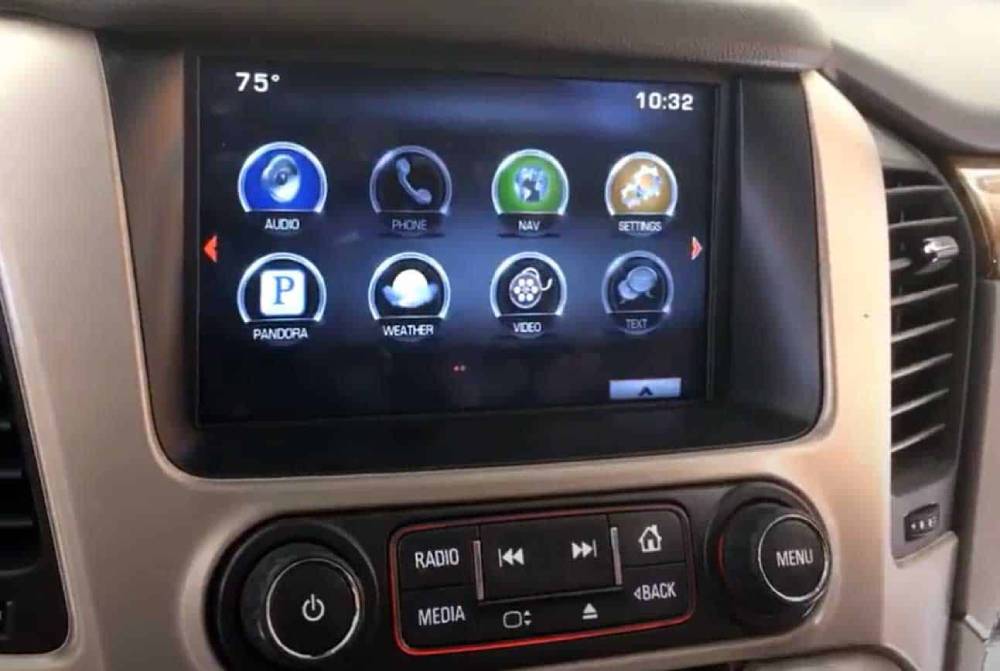
What You Need Before Connecting Apple CarPlay to GMC
Before starting the setup process, take a few minutes to prepare your iPhone and GMC infotainment system. Proper preparation can prevent frustrating problems such as an unresponsive CarPlay icon, repeated disconnections, or a phone that the vehicle cannot detect.
First, confirm that your GMC is equipped with an infotainment system that supports Apple CarPlay. Availability depends on the vehicle model, model year, trim level, and installed multimedia system. A CarPlay icon on the center display is usually a clear sign that the feature is available. You can also check your owner’s manual, enter your vehicle information on the GMC support website, or contact a GMC dealer.
Next, make sure you are using a compatible iPhone with a recent version of iOS. GMC states that vehicles from the 2024 model year require iOS 14 or later for both wired and wireless Apple CarPlay connections. Updating to the latest iOS version available for your phone can also improve compatibility and correct known connection problems.
Siri must be enabled because Apple CarPlay relies heavily on voice control. On your iPhone, open Settings, select Siri or Apple Intelligence and Siri, and confirm that the available Siri options are turned on. The exact menu name may vary depending on your iPhone model and iOS version.
For a wired connection, use a reliable USB cable that supports both charging and data transfer. A damaged cable or a low quality charging only cable may charge your phone without launching Apple CarPlay. Newer iPhones may require a USB C cable, while earlier models use a Lightning connector. A direct cable connection is generally more reliable than using multiple adapters, since certain cable and adapter combinations may interfere with CarPlay.
For wireless Apple CarPlay, Bluetooth and Wi Fi must be enabled on your iPhone. These connections work together during pairing and regular use. Your vehicle must also support wireless CarPlay, since a vehicle with wired CarPlay does not automatically support the wireless version.
Before connecting, complete this checklist:
- Start your GMC and keep it in Park.
- Unlock your iPhone.
- Turn on Siri.
- Update your iPhone software when an update is available.
- Confirm that Apple CarPlay is enabled in the vehicle settings.
- Use a data capable USB cable for a wired connection.
- Turn on Bluetooth and Wi Fi for wireless pairing.
- Remove any damaged cables or unnecessary adapters.
Completing these steps first makes it much easier to connect Apple CarPlay to GMC without interruptions.
Which GMC Models Support Apple CarPlay?
Apple CarPlay is available in many GMC vehicles, but compatibility varies by model year, trim level, and infotainment configuration. This variation is important because two vehicles with the same model name may not offer exactly the same connectivity features.
Popular GMC nameplates that may include Apple CarPlay are the GMC Sierra, Yukon, Terrain, Acadia, Canyon, Savana, and HUMMER EV. However, the presence of Apple CarPlay should never be assumed based only on the model name. Some older vehicles may not support it, while certain trims may require a specific infotainment package.
The easiest way to check compatibility is to start the vehicle and inspect the center display. Look for an icon labeled Apple CarPlay, Projection, Phone Integration, or Smartphone Integration. The wording and menu layout may differ between infotainment system generations.
You can also check the following sources:
- The technology or infotainment section of your GMC owner’s manual.
- The original vehicle window sticker or equipment list.
- The GMC support website using your exact vehicle information.
- A GMC dealership using your Vehicle Identification Number.
- The smartphone connection settings on the center display.
It is also important to understand the difference between wired and wireless support. A GMC may support Apple CarPlay through a USB connection but may not include wireless CarPlay. Wireless capability is more common in newer infotainment systems, but it can still depend on the vehicle’s specific equipment.
Some recent GM vehicles use infotainment systems with built in Google services. Smartphone projection availability may vary across these vehicles, so owners should confirm the features included in their exact model rather than relying on a general model list.
If the Apple CarPlay icon appears gray or does not respond, that does not always mean the vehicle is incompatible. The feature may be disabled in the infotainment settings, the iPhone may not be connected to the correct USB port, or the software may need to be updated.
To avoid confusion, verify these three details before continuing:
- Your GMC supports Apple CarPlay.
- Your vehicle supports the connection type you want to use.
- Your iPhone and infotainment software meet the current requirements.
Once compatibility is confirmed, you can proceed with the wired setup process.
How to Connect Apple CarPlay to GMC Using USB
A wired USB connection is often the simplest and most stable way to use Apple CarPlay in a GMC. It is especially useful if your vehicle does not support wireless CarPlay or if wireless connectivity frequently drops during a drive.
Apple confirms that CarPlay can be set up by connecting an iPhone to a supported vehicle through its USB port.
Step 1: Start Your GMC
Start the engine and leave the vehicle in Park while completing the initial setup. Avoid trying to configure Apple CarPlay while driving.
Allow the infotainment system to finish loading before connecting your phone. If the screen is still starting, it may take longer to detect the iPhone.
Step 2: Enable Siri on Your iPhone
Open the Settings app on your iPhone and locate the Siri settings. Turn on the available options that allow you to activate Siri with your voice or the side button.
CarPlay may not function correctly if Siri is disabled. Siri is also one of the most useful parts of the system because it allows you to request directions, make calls, select music, and hear messages without handling your phone.
Step 3: Locate the Correct USB Port
Find the USB port marked with a smartphone, phone projection, or CarPlay symbol. Some GMC vehicles contain several USB ports, but not every port supports smartphone data transfer.
Ports located inside the center console or near the infotainment controls are often used for phone integration. Rear seat ports may only provide power.
Using the wrong port is one of the most common reasons an iPhone charges but Apple CarPlay does not appear.
Step 4: Connect Your iPhone
Connect one end of a compatible USB cable to your iPhone and the other end to the correct USB data port.
Use a direct connection whenever possible. Avoid damaged cables, loose connectors, charging only cables, and unnecessary adapters. If the phone begins charging but the vehicle does not recognize it, try another data capable cable before changing any other settings.
Step 5: Accept the Prompts
After the iPhone is detected, a message may appear on the GMC display asking whether you want to launch Apple CarPlay. Select Continue, Enable, or Apple CarPlay, depending on the wording displayed by your system.
Your iPhone may also ask for permission to use CarPlay while the device is locked. Select Allow so CarPlay can launch automatically during future drives.
Read each prompt carefully. Rejecting a permission request can prevent the system from displaying your apps correctly.
Step 6: Open Apple CarPlay
Once permission is granted, the Apple CarPlay home screen should appear on the GMC center display. You may see apps such as Phone, Messages, Maps, Music, Podcasts, and other compatible applications installed on your iPhone.
If CarPlay does not open automatically, select the Apple CarPlay or Projection icon on the vehicle display.
Step 7: Test the Connection
Before driving, confirm that the main features are working properly.
Ask Siri to make a simple request, open a navigation app, play audio, and check whether sound comes through the vehicle’s speakers. You should also confirm that the steering wheel voice control button activates Siri when supported by your GMC.
Step 8: Disconnect Safely
To stop using wired Apple CarPlay, unplug the USB cable or return to the GMC infotainment home screen. Disconnecting the phone will not erase the setup permissions, so CarPlay should launch more quickly the next time you connect.
For the best experience, keep the USB port free of dust and replace the cable when you notice frequent disconnections. A secure physical connection can prevent CarPlay from restarting when the vehicle travels over bumps or rough roads.
After the first successful setup, connecting Apple CarPlay to your GMC should become almost automatic. Start the vehicle, plug in your iPhone, and wait for the CarPlay interface to appear.
How to Connect Wireless Apple CarPlay to GMC
Wireless Apple CarPlay offers a more convenient experience by automatically connecting your iPhone whenever you start your GMC. There is no need to plug in a USB cable each time you drive, making it ideal for short trips and daily commuting. However, this feature is only available on compatible GMC models equipped with wireless Apple CarPlay.
Before you begin, verify that both Bluetooth and Wi Fi are enabled on your iPhone. Wireless Apple CarPlay uses Bluetooth to establish the initial connection and Wi Fi to transfer data between your phone and the vehicle.
Step 1: Start Your Vehicle
Turn on your GMC and wait for the infotainment system to finish loading. Keep the vehicle in Park during the initial pairing process.
Step 2: Enable Bluetooth and Wi Fi
Open the Settings app on your iPhone.
Tap Bluetooth and make sure it is turned on.
Return to Settings and verify that Wi Fi is also enabled.
Although your phone may not connect to a traditional Wi Fi network, the wireless CarPlay connection still relies on Wi Fi technology.
Step 3: Open the Phone Connection Menu
On your GMC infotainment screen, navigate to the Phone, Devices, or Smartphone Integration menu.
Select Add Device or Pair New Phone depending on your infotainment system.
Your GMC should now begin searching for nearby Bluetooth devices.
Step 4: Pair Your iPhone
Select your GMC from the list of available Bluetooth devices on your iPhone.
A pairing code will appear on both the phone and the infotainment display.
Confirm that the numbers match and tap Pair.
When prompted, allow your contacts and favorites to sync with the vehicle.
Step 5: Enable Apple CarPlay
After Bluetooth pairing is complete, your iPhone will display a message asking whether you want to use Apple CarPlay with your GMC.
Tap Allow.
Your infotainment system may also ask you to enable wireless Apple CarPlay.
Select Enable or Continue.
The first setup usually takes less than two minutes.
Step 6: Verify the Connection
Once connected, the Apple CarPlay home screen will automatically appear on your GMC display.
You can now access compatible apps such as Apple Maps, Google Maps, Waze, Apple Music, Spotify, Phone, Messages, Podcasts, Audible, and Calendar.
The next time you start your vehicle with Bluetooth and Wi Fi enabled, your iPhone should reconnect automatically within a few seconds.
Wired vs Wireless Apple CarPlay
Both connection methods provide access to the same CarPlay features, but each has its own advantages.
A wired connection offers maximum stability and continuously charges your iPhone while driving. It is often the preferred choice for long road trips because it minimizes the risk of unexpected disconnections.
Wireless Apple CarPlay provides greater convenience because you can leave your phone in your pocket or bag. It eliminates cable clutter and automatically reconnects each time you enter the vehicle. The only drawback is that continuous wireless use may drain your iPhone battery more quickly, especially when running navigation and music streaming apps simultaneously.
How to Use Apple CarPlay Safely
Apple CarPlay was designed to reduce driver distraction by bringing the most important iPhone features to your vehicle’s display. Instead of handling your phone while driving, you can control most functions using Siri or your GMC’s touchscreen.
The safest way to interact with CarPlay is through voice commands. Press the voice control button on your steering wheel or simply say “Hey Siri” if your vehicle supports hands free activation.
Siri can perform a wide range of tasks without requiring you to take your hands off the steering wheel.
You can ask Siri to:
Call a contact.
Reply to a text message.
Read incoming messages aloud.
Play your favorite playlist.
Start turn by turn navigation.
Find nearby gas stations or restaurants.
Check the weather.
Create reminders while driving.
Navigation apps are among the most popular Apple CarPlay features. Apple Maps provides real time traffic information, lane guidance, speed limit notifications in supported regions, and estimated arrival times.
Many drivers also prefer Google Maps or Waze because of their community based traffic reports, road hazard alerts, and alternative route suggestions.
Music streaming is equally simple. Apple Music, Spotify, Amazon Music, YouTube Music, Audible, and Podcasts all integrate smoothly with Apple CarPlay, allowing you to browse playlists or continue listening from where you left off.
If you receive a text message while driving, Siri can read it aloud and let you respond using only your voice. This significantly reduces the temptation to pick up your phone.
Although Apple CarPlay makes driving safer, it should not eliminate safe driving habits. Avoid typing on the touchscreen while the vehicle is moving. Set your destination before beginning your trip whenever possible, and rely on voice commands for most interactions.
Following these simple habits allows you to enjoy the convenience of Apple CarPlay while maintaining your full attention on the road.
Common Apple CarPlay Problems and How to Fix Them
Even though Apple CarPlay is designed to work automatically, connection problems can occasionally occur. Fortunately, most issues can be resolved within a few minutes without visiting a dealership.
Apple CarPlay Does Not Appear
If the CarPlay icon does not appear on your GMC display, first confirm that your vehicle supports Apple CarPlay.
Restart both your iPhone and your infotainment system.
Reconnect the USB cable or repeat the Bluetooth pairing process.
Also verify that Apple CarPlay has not been disabled in the infotainment settings.
iPhone Is Charging but CarPlay Will Not Launch
This is one of the most common issues.
In most cases, the problem is caused by a charging only cable that cannot transfer data.
Replace the cable with an Apple certified USB cable capable of both charging and data transmission.
You should also try another USB port if your GMC has multiple ports.
Wireless Apple CarPlay Keeps Disconnecting
Wireless interference can interrupt the connection.
Remove unnecessary Bluetooth devices from your phone.
Delete old paired vehicles that you no longer use.
Restart both the iPhone and the infotainment system before reconnecting.
Keeping your iPhone within the front cabin also helps maintain a stronger wireless signal.
Siri Is Not Responding
Open your iPhone settings and make sure Siri is enabled.
If Siri works normally on the phone but not inside the vehicle, disconnect Apple CarPlay and complete the pairing process again.
Updating iOS may also resolve Siri related issues.
Black Screen or Frozen Display
Occasionally, the infotainment system may freeze after software updates or interrupted connections.
Restart the infotainment system if your GMC supports a system reboot.
If the problem continues, restart your iPhone and reconnect it.
Software updates for the infotainment system can also improve overall stability and compatibility.
Apple CarPlay Disconnects Randomly
Frequent disconnections are often caused by damaged USB cables, loose connectors, outdated iOS versions, or temporary software glitches.
Inspect the USB port for dust or debris.
Replace worn cables immediately.
Keep both your iPhone and GMC infotainment software updated to the latest available versions.
If none of these solutions resolve the issue, remove your GMC from the CarPlay settings on your iPhone, delete the paired phone from the vehicle, and complete the setup process again from the beginning. In most cases, a fresh connection resolves persistent communication errors and restores normal Apple CarPlay functionality.
Tips for the Best Apple CarPlay Experience
Once you have successfully connected Apple CarPlay to your GMC, there are several simple ways to improve performance and ensure a smoother experience every time you drive. A few small maintenance habits can help prevent connection issues while allowing you to enjoy all of CarPlay’s features without interruption.
Keep Your iPhone Updated
Apple regularly releases iOS updates that improve security, fix bugs, and enhance Apple CarPlay compatibility. If you experience unexpected issues after connecting your phone, check for available software updates before attempting more advanced troubleshooting.
To update your iPhone, open Settings, tap General, then select Software Update. Installing the latest version of iOS can often resolve connection problems and improve overall stability.
Use a High Quality USB Cable
If your GMC uses wired Apple CarPlay, the quality of your USB cable matters. Low quality or damaged cables may charge your phone but fail to transfer data properly.
Whenever possible, use an Apple certified cable or a high quality replacement from a reputable manufacturer. If you notice frequent disconnects or slow responses, replacing the cable is one of the quickest and most effective solutions.
Keep Bluetooth and Wi Fi Enabled
For vehicles equipped with Wireless Apple CarPlay, both Bluetooth and Wi Fi should remain enabled on your iPhone. Turning either feature off can prevent automatic reconnection when you start your vehicle.
If you regularly switch between multiple vehicles, review your Bluetooth settings occasionally and remove devices that you no longer use.
Organize Your CarPlay Dashboard
Apple allows you to customize the apps displayed on the CarPlay home screen.
Navigate to Settings > General > CarPlay on your iPhone, select your GMC, and arrange your apps in the order you prefer. Place frequently used apps such as Maps, Phone, Music, Spotify, or Podcasts near the top for quicker access while driving.
Removing apps that you rarely use also creates a cleaner and less distracting interface.
Update Your GMC Infotainment Software
Vehicle software updates can improve compatibility with newer iPhone models and the latest versions of iOS.
Depending on your GMC model, updates may be installed automatically over the air or during a dealership service appointment. Keeping your infotainment system current helps reduce software conflicts and improves long term reliability.
Restart Your Devices Occasionally
Like any modern electronic system, your iPhone and infotainment system benefit from an occasional restart.
If Apple CarPlay begins responding slowly or fails to connect after working normally for weeks, restarting both devices often restores normal operation without requiring additional troubleshooting.
Avoid Overheating Your iPhone
Using navigation, music streaming, and wireless charging simultaneously can cause your iPhone to become warm during long trips.
If your phone overheats, Apple may temporarily limit certain functions to protect the device. Keeping your phone out of direct sunlight and ensuring proper airflow inside the vehicle can help maintain consistent CarPlay performance.
Following these simple tips will help you enjoy a faster, more reliable Apple CarPlay experience every time you get behind the wheel.
Frequently Asked Questions
Why won’t Apple CarPlay connect to my GMC?
The most common causes include an incompatible USB cable, disabled Siri, outdated iOS software, incorrect Bluetooth settings, or an infotainment system that needs updating. Start by restarting both your iPhone and your GMC, then reconnect the device using the recommended setup procedure.
Does every GMC support Apple CarPlay?
No. Apple CarPlay availability depends on the model year, trim level, and infotainment system installed in the vehicle. Many recent GMC models support Apple CarPlay, but older vehicles or lower trim levels may not include the feature.
Can I use Wireless Apple CarPlay in my GMC?
Only GMC models equipped with wireless smartphone projection support Wireless Apple CarPlay. If your vehicle only supports wired CarPlay, you will need to connect your iPhone using a compatible USB cable.
Can I install Apple CarPlay in an older GMC?
In some cases, yes. Older GMC vehicles may be upgraded by replacing the factory infotainment system with a compatible aftermarket head unit or by installing an approved factory upgrade where available. The available options depend on your vehicle’s model year and existing equipment.
Does Apple CarPlay use cellular data?
Apple CarPlay itself does not require a separate subscription or data plan. However, apps such as Apple Maps, Google Maps, Waze, Spotify, Apple Music, and Podcasts may use your iPhone’s mobile data unless you are connected to Wi Fi before your trip.
Can I watch videos on Apple CarPlay?
No. Apple restricts video playback while driving to reduce driver distraction. Streaming services such as YouTube and Netflix are not supported through the standard Apple CarPlay interface.
Why does Apple CarPlay keep disconnecting?
Random disconnections are usually caused by damaged USB cables, weak wireless signals, outdated software, or temporary communication errors between your iPhone and the infotainment system. Updating your software and replacing worn accessories often resolves the issue.
Can I use Google Maps instead of Apple Maps?
Yes. Apple CarPlay supports several navigation applications, including Google Maps and Waze. You can choose the navigation app that best suits your preferences.
Conclusion
Apple CarPlay is one of the most useful technologies available in modern GMC vehicles, making every journey safer, more convenient, and more enjoyable. By integrating your iPhone directly with your vehicle’s infotainment system, you can access navigation, music, phone calls, messages, and many other apps without taking your focus off the road.
Whether your GMC supports a wired or wireless connection, the setup process is simple when you follow the correct steps. Ensuring that Siri is enabled, your iPhone is running the latest version of iOS, and your vehicle’s infotainment software is up to date will help provide a fast and reliable connection every time you drive.
If you encounter connection issues, most problems can be solved by checking your USB cable, restarting your devices, updating the software, or pairing your iPhone again. These straightforward troubleshooting steps resolve the majority of Apple CarPlay problems without requiring professional service.
Now that you know how to connect Apple CarPlay to your GMC, you can take full advantage of everything the system has to offer. From real time navigation and hands free communication to seamless music streaming and voice control, Apple CarPlay helps you stay connected while keeping your attention where it belongs, on the road ahead.
If you found this guide helpful, explore our other GMC technology articles for more tips on maximizing your vehicle’s infotainment features, improving connectivity, and getting the most out of every drive.