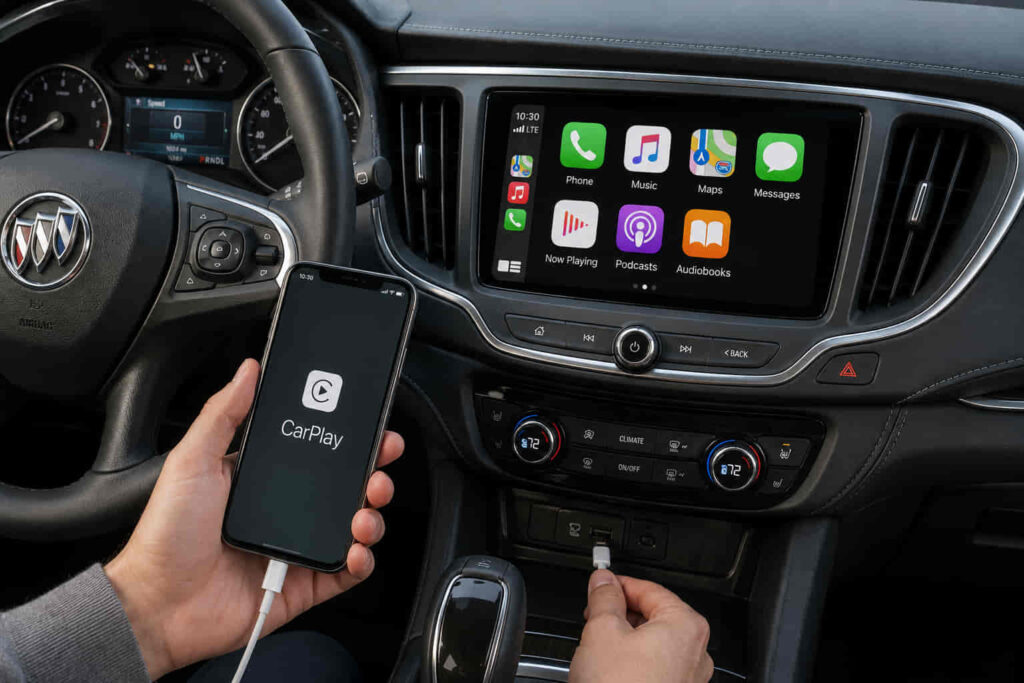
Connecting Apple CarPlay to a Buick allows drivers to access iPhone features such as navigation, music, phone calls, messages, and Siri through the vehicle’s infotainment display. The connection process depends on the Buick model year, infotainment system, and whether the vehicle supports wired or wireless Apple CarPlay.
Apple CarPlay has become an important feature in modern Buick vehicles because it creates a direct connection between the iPhone and the vehicle’s touchscreen system. Instead of controlling apps only from the phone, drivers can use the Buick display and steering wheel controls to access compatible iPhone functions more safely while driving.
Before connecting Apple CarPlay, owners need to confirm that their Buick model supports the feature and that their iPhone meets compatibility requirements. Newer Buick models often include wireless smartphone integration, while some earlier vehicles require a USB connection.
The setup process is usually straightforward, but connection issues can occur because of outdated software, incorrect settings, incompatible cables, or problems with Bluetooth and Wi-Fi pairing. Understanding the correct connection method helps prevent common problems and ensures a more stable experience.
This guide explains how to connect Apple CarPlay to Buick vehicles, including compatibility requirements, wired and wireless setup methods, troubleshooting steps, and how to use Apple CarPlay features after the connection is complete.
Does Buick Support Apple CarPlay?
Many Buick vehicles support Apple CarPlay, but compatibility depends on the vehicle model year, infotainment system, and available smartphone integration features. Buick introduced Apple CarPlay support as smartphone connectivity became a standard feature in modern vehicle entertainment systems, allowing drivers to connect iPhones directly to the vehicle display.
Buick models equipped with compatible infotainment systems can integrate Apple CarPlay through the vehicle touchscreen, allowing users to access selected iPhone applications without handling the phone while driving. The feature is commonly available on models such as Buick Enclave, Encore, Encore GX, Envision, Regal, and other vehicles equipped with supported Buick infotainment technology.
The specific connection method depends on the Buick’s equipment level. Some older Buick vehicles require a USB connection because wired smartphone integration was the original implementation method. Newer Buick models may support wireless Apple CarPlay, which allows the iPhone to connect through Bluetooth and Wi-Fi without requiring a physical cable.
Checking compatibility before setup is important because not every Buick vehicle has the same infotainment hardware. A vehicle may have a touchscreen display but still lack Apple CarPlay support if it was produced before the feature became available.
For example, a newer Buick Envision with wireless smartphone integration can provide a different setup experience compared with an older Buick Enclave that requires a USB connection for Apple CarPlay.
What Do You Need Before Connecting Apple CarPlay to Buick?
Before connecting Apple CarPlay to a Buick, drivers need a compatible iPhone, a supported Buick infotainment system, and the correct connection method for their vehicle. Preparing these requirements first helps prevent common connection failures and reduces setup time.
The iPhone must support Apple CarPlay and have the necessary settings enabled. Users typically need to activate Siri because Apple CarPlay relies on Siri for voice commands, message handling, and hands-free control.
For wired Apple CarPlay, a reliable USB cable is essential because the physical connection transfers both data and communication between the iPhone and Buick infotainment system. A charging-only cable may power the phone but fail to activate Apple CarPlay because it cannot transfer the required data signal.
Wireless Apple CarPlay requires additional compatibility because the system uses Bluetooth for initial pairing and Wi-Fi for maintaining the connection. The Buick infotainment system and iPhone must both support wireless functionality for this method to work.
Software versions also affect compatibility. An outdated iPhone operating system or vehicle infotainment software can cause connection problems, missing features, or unstable performance.
For example, an iPhone that charges successfully through a Buick USB port may still fail to launch Apple CarPlay if the cable does not support data transfer or if smartphone integration is disabled in the vehicle settings.
Read more: Best Year for Buick Enclave
How Do You Connect Apple CarPlay to Buick Using USB?
Connecting Apple CarPlay to a Buick using USB is the most common setup method for vehicles that support wired smartphone integration. This connection method uses a physical cable between the iPhone and Buick infotainment system to transfer data, allowing the vehicle touchscreen to display compatible iPhone applications.
The first step is ensuring that the Buick is parked safely and the infotainment system is active. The iPhone should be connected to the correct USB port because some vehicles have multiple USB ports, but not every port supports smartphone data connections.
After connecting the iPhone with a compatible USB data cable, the Buick infotainment screen will usually recognize the device and display a prompt asking for permission to enable Apple CarPlay. The driver must allow the connection on the iPhone and ensure that CarPlay permissions are enabled.
Once connected, Apple CarPlay replaces the standard phone interface with a simplified version designed for vehicle use. Drivers can access navigation apps, music services, phone calls, messages, and Siri through the Buick touchscreen or steering wheel controls.
A wired connection is often preferred because it provides a stable communication link between the iPhone and the vehicle system. It also keeps the phone charged during longer trips, which can be useful when using navigation or streaming applications.
For example, a Buick Enclave owner with a wired Apple CarPlay system can connect an iPhone through USB before a road trip and immediately access Apple Maps, music, and hands-free calling through the vehicle display.
How Do You Connect Wireless Apple CarPlay to Buick?
Wireless Apple CarPlay allows compatible Buick vehicles to connect an iPhone without using a USB cable by using Bluetooth and Wi-Fi communication between the phone and infotainment system. This setup provides more convenience because the driver does not need to physically connect the phone every time they enter the vehicle.
The wireless connection process begins by enabling Bluetooth and Wi-Fi on the iPhone. The Buick infotainment system must also have wireless smartphone integration activated before pairing can begin.
During the initial setup, the iPhone is paired with the Buick system through Bluetooth. After successful pairing, the vehicle establishes a wireless CarPlay connection using Wi-Fi technology. Once completed, the iPhone can automatically connect when the driver starts the vehicle.
Wireless Apple CarPlay provides a cleaner user experience because there are fewer cables inside the cabin. However, it requires compatible hardware from both the Buick vehicle and the iPhone. Vehicles that only support wired CarPlay cannot be upgraded through settings alone because wireless capability depends on the infotainment system hardware.
Connection stability can also depend on software updates, device settings, and interference from other wireless connections. Keeping both the iPhone and Buick infotainment software updated can improve reliability.
For example, a newer Buick Envision equipped with wireless Apple CarPlay can allow the driver to enter the vehicle, start the engine, and access navigation or music without removing the phone from their pocket.
Why Is Apple CarPlay Not Working on Buick?
Apple CarPlay may not work on a Buick because of connection problems, incompatible settings, outdated software, or issues with the iPhone, USB cable, or infotainment system. Most connection failures are caused by communication problems between the iPhone and Buick system rather than a complete hardware failure.
One of the most common causes is an incorrect physical connection. For wired Apple CarPlay, the USB cable must support data transfer because some cables are designed only for charging. If the Buick recognizes the phone as a charging device but does not launch CarPlay, the cable or USB port may be the cause.
Another common issue involves iPhone permissions. Apple CarPlay requires approval when connecting a new device, and restrictions in iPhone settings can prevent the system from launching. Checking Siri activation, CarPlay permissions, and connected vehicle settings can resolve many connection problems.
Wireless Apple CarPlay problems are often related to Bluetooth and Wi-Fi communication. Because wireless CarPlay depends on both connections, disabling one of them can prevent the system from pairing correctly.
Software compatibility is another important factor. An older iPhone operating system or outdated Buick infotainment software may create connection instability, delayed responses, or missing functionality.
For example, if a Buick Encore GX suddenly stops connecting to Apple CarPlay after previously working correctly, restarting the phone, reconnecting the vehicle, and checking software updates can often restore normal operation.
How Do You Reset Apple CarPlay on a Buick?
Resetting Apple CarPlay on a Buick involves removing the existing connection and pairing the iPhone with the vehicle system again. This process helps resolve repeated connection failures caused by corrupted pairing information or outdated device settings.
The reset process begins by removing the Buick vehicle from the iPhone’s CarPlay settings. The owner can then delete the iPhone from the Buick infotainment system’s list of connected devices. This clears the previous communication data between the two systems.
After removing the connection, the iPhone and Buick system should be restarted before creating a new pairing. Restarting allows both devices to establish a fresh connection instead of continuing to use old settings that may contain errors.
For persistent problems, a Buick infotainment reset may be necessary. Resetting the infotainment system restores certain settings to their default state and can help correct software-related issues affecting smartphone integration.
However, a full system reset should be used carefully because it may remove saved preferences, paired devices, and customized settings.
For example, if an iPhone connects successfully to another vehicle but repeatedly fails with a Buick infotainment system, removing the old pairing information and setting up Apple CarPlay again is often an effective solution.
What Can You Do With Apple CarPlay in a Buick?
Apple CarPlay in a Buick allows drivers to use important iPhone functions through the vehicle’s touchscreen and controls while keeping their attention focused on driving. The system is designed to provide safer access to navigation, communication, and entertainment features.
Navigation is one of the most commonly used Apple CarPlay functions. Drivers can use Apple Maps and other compatible navigation applications through the Buick display, allowing access to turn-by-turn directions, traffic information, and destination searches.
Entertainment features are another major benefit. Apple CarPlay allows users to access music applications, podcasts, and audio content through the vehicle’s speakers while controlling playback through the touchscreen or steering wheel buttons.
Communication features allow drivers to make phone calls, listen to messages, and respond through Siri voice commands. This hands-free approach reduces the need to handle the phone while driving.
Apple CarPlay also supports compatible third-party applications, expanding the functionality of the Buick infotainment system beyond the factory software.
For example, a Buick Enclave owner using Apple CarPlay can start a navigation route through Apple Maps, play music from an iPhone library, and answer phone calls using voice commands without manually operating the smartphone.