Apple CarPlay is one of the most useful features available in modern Honda Civic models because it allows drivers to access navigation, music, phone calls, and messages directly from the infotainment display. When everything works correctly, the connection is fast, reliable, and convenient. However, many owners eventually experience the frustrating problem of Honda Civic Apple CarPlay Not Working, even though their iPhone was functioning perfectly just moments earlier. The system may refuse to connect, disconnect repeatedly during a drive, display a black screen, or even charge the phone without launching CarPlay.
The good news is that most Apple CarPlay issues are caused by software settings, connection errors, outdated firmware, or faulty accessories rather than expensive hardware failures. In many cases, the solution is surprisingly simple. A damaged USB cable, disabled Siri, incorrect CarPlay permissions, or an outdated version of iOS can all prevent your Honda Civic from recognizing your iPhone. Even wireless CarPlay users may encounter Bluetooth pairing conflicts or unstable Wi Fi connections that interrupt communication between the vehicle and the phone.
This comprehensive guide explains the most common reasons why Honda Civic Apple CarPlay Not Working occurs and walks you through fifteen proven solutions that have helped thousands of drivers restore a stable connection. Whether your CarPlay refuses to connect, suddenly stopped working after an iOS update, or keeps disconnecting while driving, you will learn exactly what to check first and which troubleshooting steps are worth trying before scheduling a visit to your local Honda dealership.
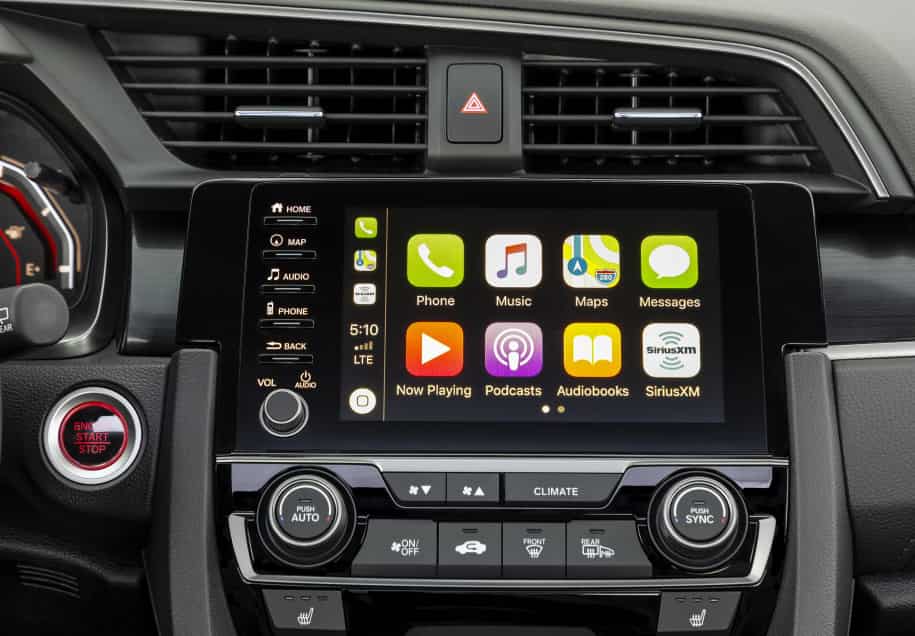
Why Is Honda Civic Apple CarPlay Not Working?
If your Honda Civic Apple CarPlay Not Working issue appears without warning, do not assume the infotainment system is broken. Apple CarPlay depends on your iPhone, the vehicle, and the connection between them. If one part stops working correctly, the entire system may fail. You may notice that CarPlay does not connect, disconnects while driving, shows a black screen, or produces no sound.
In many cases, the problem starts with the connection. A damaged USB cable can interrupt data transfer. A dirty charging port can block communication between the phone and the vehicle. Some USB ports only provide charging, so they cannot launch Apple CarPlay. If your Honda Civic supports wireless CarPlay, Bluetooth or Wi Fi interference can also prevent a stable connection.
Your iPhone settings can also create unexpected problems. Apple CarPlay requires Siri to remain enabled. The feature also needs the correct permissions before it can connect to the vehicle. If you recently updated iOS, some settings may have changed automatically. As a result, your Honda Civic may no longer recognize your iPhone.
Software compatibility is another important factor. Running an outdated version of iOS may cause connection errors. Older Honda infotainment software can create the same issue. Updating both systems often improves stability and resolves compatibility conflicts.
You should also confirm that your Honda Civic supports Apple CarPlay. Some model years only support a wired connection, while others include wireless functionality. Trim level and regional specifications may also affect available features.
Finding the real cause is the first step toward a lasting solution. Start with the simplest checks before moving to advanced troubleshooting. This approach saves time, avoids unnecessary repairs, and helps restore Apple CarPlay much faster.
15 Proven Fixes for Honda Civic Apple CarPlay Not Working
If your Honda Civic Apple CarPlay Not Working issue continues, start with the simplest solution before trying advanced troubleshooting. Many drivers immediately assume the infotainment system has failed. However, most CarPlay problems come from small connection errors or incorrect settings. Working through each solution in order increases your chances of finding the cause without wasting time or money.
First, confirm that your Honda Civic supports Apple CarPlay. Some older model years only offer wired connectivity, while others support wireless CarPlay. The available features also depend on the trim level and market where the vehicle was sold.
Next, unlock your iPhone and make sure Apple CarPlay is enabled. Siri must also remain active because CarPlay cannot function without it. If you recently updated iOS, review your CarPlay permissions and reconnect the device if necessary.
Then inspect your USB cable and charging port. Replace damaged or low quality cables with an Apple certified option. Connect your phone to the correct USB data port instead of a charging only port. If dirt has collected inside the charging port, clean it carefully before testing the connection again.
If the problem remains, restart both your iPhone and the Honda infotainment system. You should also remove the existing CarPlay connection and pair the devices again. This step often resolves communication errors caused by corrupted connection data.
Finally, update your iPhone and the Honda infotainment software to the latest version. If none of these solutions work, reset your network settings or restore the infotainment system to its factory settings. These advanced steps solve many persistent software conflicts. If Apple CarPlay still fails after every fix, the vehicle may require professional diagnosis to identify a hardware or firmware problem.
How to Fix Specific Honda Civic Apple CarPlay Problems
Not every Apple CarPlay problem has the same cause. Some drivers cannot connect their iPhone at all, while others experience random disconnections or missing audio. Identifying the exact symptom makes troubleshooting much easier. Instead of trying every possible fix, you can focus on the solution that matches the problem.
If Apple CarPlay keeps disconnecting while driving, start by checking the USB cable or wireless connection. A loose cable can interrupt data transfer even if the phone continues charging. Wireless users should restart Bluetooth and Wi Fi before pairing the devices again. You should also remove other unused Bluetooth connections because they may interfere with the signal.
If your iPhone charges but CarPlay does not appear, inspect the USB port carefully. Some ports only provide power and cannot transfer data. Try another certified cable and reconnect the phone after unlocking the screen. Then verify that Apple CarPlay and Siri remain enabled on your iPhone.
A black or frozen CarPlay screen usually points to a temporary software problem. Restart your iPhone first and then reboot the Honda infotainment system. If the issue returns, install the latest iOS version and check whether Honda has released a software update for your vehicle.
No sound is another common complaint. Increase the media volume instead of the ringtone volume because the two settings work independently. Next, confirm that the correct audio source is selected. If another Bluetooth device connects automatically, disconnect it and test CarPlay again. You should also open several apps, including Apple Maps and Music, to determine whether the problem affects every application or only one.
If Apple CarPlay stopped working after an iOS update, remove the existing connection and create a new one. This simple step often restores communication between the iPhone and the Honda infotainment system. When the problem continues after every troubleshooting method, professional diagnosis becomes the safest option because the issue may involve the USB module or the infotainment hardware.
Wired vs. Wireless Apple CarPlay on Honda Civic
Honda Civic owners can choose between wired and wireless Apple CarPlay, depending on the model year and trim level. Both options provide access to navigation, music, phone calls, and messaging apps. However, each connection method has different strengths and common issues. Understanding these differences makes it easier to identify the source of a connection problem.
A wired connection offers the best stability. It transfers data through a USB cable while charging the iPhone at the same time. Because the connection is direct, it is less likely to suffer from signal interference. Most wired CarPlay problems come from a damaged cable, a dirty charging port, or the wrong USB port. Replacing the cable with a certified one often restores normal operation within minutes.
Wireless Apple CarPlay provides greater convenience because you can connect your iPhone without plugging it into the vehicle. The system uses Bluetooth to establish the connection and Wi Fi to transfer data. Although this setup eliminates cables, it depends on a stable wireless signal. Bluetooth conflicts, weak Wi Fi communication, or outdated software can interrupt the connection and cause CarPlay to disconnect unexpectedly.
The best troubleshooting method depends on the connection type. Wired users should inspect the cable, USB port, and charging connector first. Wireless users should remove the existing pairing, restart Bluetooth and Wi Fi, and connect the devices again. Keeping both the iPhone and the Honda infotainment system updated also improves compatibility and reduces connection errors over time.
| Feature | Wired Apple CarPlay | Wireless Apple CarPlay |
|---|---|---|
| Connection Method | USB data cable | Bluetooth and Wi Fi |
| Stability | Excellent | Good but depends on signal quality |
| Charging | Charges while connected | Requires separate charging for long trips |
| Common Problem | Damaged cable or USB port | Bluetooth or Wi Fi interference |
| Best First Fix | Replace the cable and check the USB port | Pair the devices again and restart wireless connections |
| Overall Reliability | Higher | More convenient but more sensitive to interference |
Whether you use a wired or wireless connection, regular software updates and high quality accessories can prevent many common Apple CarPlay problems. Choosing the correct troubleshooting method for your connection type will also save time and improve your chances of restoring a stable connection.
When Should You Visit a Honda Dealer?
Most Apple CarPlay problems can be solved at home with basic troubleshooting. Checking the USB cable, restarting your iPhone, updating the software, or reconnecting the device often restores the connection. However, some issues require professional inspection because they involve hardware or advanced system faults.
You should consider visiting a Honda dealer if Apple CarPlay fails to connect with several different iPhones. This test helps rule out problems with a single device. If multiple compatible phones produce the same result, the issue is more likely to involve the vehicle. You should also seek professional assistance if you have already tested certified USB cables and confirmed that all CarPlay settings are correct.
A damaged USB data port is another reason to schedule a service appointment. The port may still charge your phone while failing to transfer data. Physical damage, loose internal connections, or corrosion can interrupt communication between the iPhone and the infotainment system. These problems usually require specialized tools to diagnose and repair.
Frequent infotainment crashes also indicate that a deeper problem may exist. If the display freezes, restarts without warning, or becomes unresponsive even when Apple CarPlay is not in use, the system may need a software update or hardware inspection. Some Honda models also receive firmware updates that only authorized service centers can install.
Before visiting the dealership, write down the symptoms you have observed. Note when the problem started, whether it appeared after an iOS update, and which troubleshooting steps you have already completed. This information helps technicians identify the cause more quickly and reduces unnecessary diagnostic time. If your Honda Civic is still covered by the factory warranty, repairing the infotainment system may also be covered, depending on the source of the problem.
Frequently Asked Questions
Why is my Honda Civic Apple CarPlay not working even though my iPhone is charging?
Charging only confirms that power is reaching your iPhone. Apple CarPlay also requires a stable data connection. A damaged USB cable, the wrong USB port, disabled CarPlay settings, or outdated software can prevent the system from launching.
Why does Apple CarPlay keep disconnecting in my Honda Civic?
Random disconnections usually result from a loose USB cable, Bluetooth or Wi Fi interference, outdated software, or corrupted connection data. Reconnecting the devices and updating both the iPhone and the infotainment system often resolves the issue.
Does every Honda Civic support Apple CarPlay?
No. Apple CarPlay availability depends on the model year, trim level, and market. Older Honda Civic models may not support CarPlay, while some versions only provide a wired connection.
How do I reset Apple CarPlay on a Honda Civic?
Delete the Honda Civic from your iPhone’s CarPlay settings. Then remove the paired phone from the infotainment system. Restart both devices before creating a new connection.
Why did Apple CarPlay stop working after an iOS update?
An iOS update can change permissions, create compatibility issues, or corrupt the existing pairing. Updating your vehicle software and reconnecting the iPhone usually fixes the problem.
Can a USB cable cause Apple CarPlay to stop working?
Yes. A cable may continue charging your iPhone while failing to transfer data. Using an Apple certified or high quality data cable is one of the easiest ways to eliminate this problem.
Should I reset the Honda infotainment system?
A factory reset should only be your final troubleshooting step. It removes saved devices and personal settings, so you should try simpler solutions first.
Conclusion
Experiencing Honda Civic Apple CarPlay Not Working can be frustrating, especially when you rely on navigation, music, and hands free communication during daily drives. Fortunately, most connection problems have simple solutions. In many cases, the issue comes from a damaged USB cable, incorrect iPhone settings, outdated software, or a temporary communication error between the phone and the infotainment system.
The best approach is to begin with the easiest checks. Confirm that your Honda Civic supports Apple CarPlay, inspect the USB cable, verify that Siri and CarPlay are enabled, and restart both your iPhone and the infotainment system. If the connection still fails, reconnect the devices, install the latest software updates, and move to advanced troubleshooting only when necessary.
Working through each solution in a logical order helps you identify the real cause without replacing parts that still function correctly. It also reduces unnecessary repair costs and saves valuable time. If Apple CarPlay continues to fail after completing every recommended step, a qualified Honda technician can perform a detailed diagnosis and determine whether the problem involves the USB module, infotainment hardware, or vehicle software.
Have you experienced a Honda Civic Apple CarPlay problem that was not covered in this guide? Share your experience, the model year of your vehicle, and the solution that worked for you. Your feedback may help other Honda Civic owners restore Apple CarPlay more quickly.