The Speed Limit Display is one of the most convenient safety features available in many modern GMC vehicles. By showing the current speed limit directly on your instrument cluster or Head-Up Display, it helps drivers stay aware of changing road regulations without constantly searching for roadside signs. However, when this feature suddenly stops working, disappears from the dashboard, or displays incorrect information, it can quickly become frustrating and even compromise your driving confidence.
If you’re searching for solutions to a GMC Speed Limit Display not working, you’re not alone. Many GMC owners have reported issues ranging from missing speed limit icons and outdated speed limits to intermittent operation after software updates or navigation changes. Fortunately, in most cases, the problem is not caused by a major hardware failure. Instead, it often results from software glitches, outdated navigation maps, GPS signal interruptions, disabled driver assistance settings, or a camera that needs cleaning or recalibration.
In this comprehensive guide, we’ll explain how the GMC Speed Limit Display system works, why it may stop functioning correctly, and the most effective ways to diagnose and fix the issue. You’ll also learn how to reset the system, determine whether the problem requires professional service, and discover preventive maintenance tips to keep this feature working reliably. Whether you drive a GMC Sierra, Yukon, Acadia, Terrain, Canyon, or another compatible model, this guide will help you restore your Speed Limit Display and get back on the road with confidence.
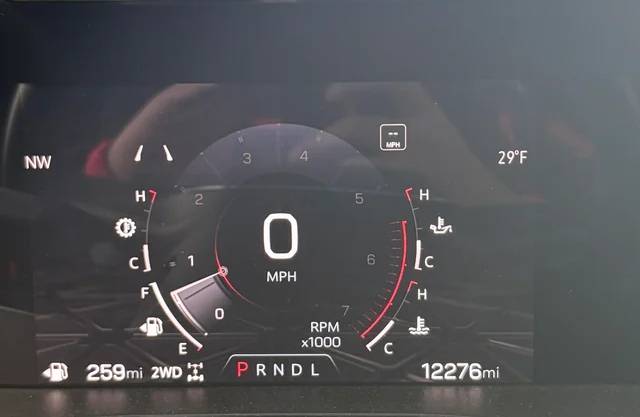
How Does the GMC Speed Limit Display Work?
Before troubleshooting the problem, it helps to understand how the GMC Speed Limit Display system functions. Contrary to what many drivers believe, the feature does not rely on a single component. Instead, it combines information from several systems to determine and display the current speed limit accurately.
In most modern GMC vehicles, the Speed Limit Display uses navigation map data, GPS positioning, and, on selected models, a forward-facing Traffic Sign Recognition camera. These components continuously communicate with the vehicle’s infotainment system and driver assistance module to identify the speed limit of the road you’re traveling on.
When everything is working correctly, the system compares your current location with the digital map database. If your vehicle is equipped with Traffic Sign Recognition, the camera mounted near the windshield also scans roadside speed limit signs. The vehicle then cross-checks both sources to display the most accurate speed limit on the instrument cluster or Head-Up Display.
Because the feature depends on multiple systems working together, a problem with any one of them can cause the speed limit display to disappear or provide incorrect information. For example, outdated navigation maps may display an old speed limit, while a weak GPS signal can prevent the vehicle from identifying its exact location. Likewise, a dirty or obstructed camera may fail to recognize roadside signs, especially during heavy rain, snow, or poor lighting conditions.
Some GMC models also require specific driver assistance settings to remain enabled. If these settings are accidentally turned off after a software update or battery replacement, the Speed Limit Display may stop appearing even though the underlying hardware is functioning normally.
Understanding these components makes it much easier to identify the root cause of the problem and choose the appropriate solution.
Symptoms of a GMC Speed Limit Display Problem
The symptoms of a malfunctioning Speed Limit Display can vary depending on the underlying cause. Some issues appear only occasionally, while others prevent the feature from working altogether. Recognizing the specific symptom is often the first step toward finding the correct fix.
One of the most common complaints is that the speed limit icon suddenly disappears from the instrument cluster or Head-Up Display. The feature may have worked perfectly the previous day, only to vanish without any warning. In many cases, this occurs after a software update, navigation issue, or temporary infotainment system glitch.
Another common symptom is an incorrect speed limit being displayed. For example, the system may continue showing a 35 mph limit after entering a 55 mph zone, or it may display outdated speed limits on recently modified roads. This usually indicates outdated navigation maps or inaccurate GPS positioning rather than a hardware failure.
Some drivers notice that the Speed Limit Display only works intermittently. It may function correctly on highways but disappear in urban areas, tunnels, or heavily wooded regions where GPS reception is weaker. Others find that the feature becomes unavailable after starting the vehicle but begins working again after several minutes of driving.
Additional warning signs include messages such as “Speed Limit Information Unavailable,” a blank display where the speed limit should appear, or the loss of speed limit information from the Head-Up Display while it remains visible elsewhere in the vehicle.
If your GMC also experiences navigation errors, delayed GPS positioning, or other driver assistance problems, these symptoms may be connected. Since the Speed Limit Display relies on multiple integrated systems, a fault in one component can affect several features simultaneously.
Identifying exactly how the problem presents itself will help narrow down the possible causes and make troubleshooting much more efficient.
Common Causes of GMC Speed Limit Display Not Working
There are several reasons why a GMC Speed Limit Display may stop working, and not all of them require expensive repairs. In fact, most issues are related to software, settings, or temporary communication problems rather than failed hardware components.
A software glitch is one of the most frequent causes. Like any modern infotainment system, GMC’s software occasionally experiences temporary errors after startup or following an over-the-air update. These glitches can interrupt communication between the navigation system, GPS receiver, and instrument cluster, causing the speed limit indicator to disappear until the system is restarted.
Outdated navigation maps are another common culprit. The Speed Limit Display relies heavily on digital road data to determine posted speed limits. If your map database has not been updated for an extended period, the system may display incorrect limits or fail to recognize newly constructed roads and recently changed speed zones.
GPS reception also plays an essential role. Driving through tunnels, underground parking garages, dense forests, or areas surrounded by tall buildings can temporarily weaken satellite signals. Without an accurate location, the vehicle may be unable to determine the applicable speed limit.
For GMC models equipped with Traffic Sign Recognition, the forward-facing camera can also contribute to the problem. Dirt, ice, snow, condensation, or even a cracked windshield near the camera housing may reduce its ability to detect roadside signs. In some cases, the camera may require recalibration after windshield replacement or collision repairs.
Incorrect driver assistance settings should not be overlooked. Certain menu options allow drivers to disable Speed Limit Display, Traffic Sign Recognition, or Head-Up Display information. These settings can sometimes reset after software updates, battery replacement, or factory resets, making it appear as though the feature has failed.
Outdated infotainment software is another potential cause. GMC periodically releases firmware updates that address bugs, improve navigation performance, and enhance compatibility between driver assistance features. Vehicles running older software versions may experience issues that have already been resolved in newer updates.
Finally, although less common, hardware problems such as a faulty GPS antenna, damaged camera module, malfunctioning infotainment unit, or communication faults within the vehicle’s electronic control modules can prevent the Speed Limit Display from functioning properly. If basic troubleshooting does not resolve the issue, professional diagnostics may be required to identify these more complex faults.
Step-by-Step Fixes for a GMC Speed Limit Display That Isn’t Working
If your GMC Speed Limit Display has stopped working, it’s best to begin with the simplest solutions before assuming there’s a serious hardware problem. Many issues can be resolved within a few minutes by restarting the system, checking vehicle settings, or installing available software updates. Follow the steps below in order, testing the feature after each one.
1. Restart the Infotainment System
Temporary software glitches are one of the most common reasons the Speed Limit Display stops functioning. Restarting the infotainment system refreshes communication between the navigation system, GPS receiver, and driver assistance modules.
Turn off the vehicle completely and open the driver’s door for a minute to allow the system to shut down. Restart the vehicle and check whether the speed limit icon reappears. On some models, you can also perform a soft reboot of the infotainment system by pressing and holding the Power button for approximately ten seconds until the display restarts.
2. Cycle the Ignition
If restarting the infotainment system doesn’t help, perform a full ignition cycle. Turn the engine off, remove the key or switch off the push-button ignition, wait at least five minutes, and then restart the vehicle. This process resets several electronic control modules and often resolves temporary communication errors.
3. Verify Driver Assistance Settings
Many owners discover that the Speed Limit Display has simply been disabled. Open the Settings menu on the infotainment screen and navigate to Driver Assistance or Vehicle Settings. Ensure that Speed Limit Display, Traffic Sign Recognition, or any similar feature is enabled. If your vehicle has a Head-Up Display, confirm that speed limit information is selected as one of the displayed items.
The Speed Limit Display relies heavily on navigation data. Test the navigation system by entering a destination and confirming that your location is accurate. If the map shows your vehicle in the wrong place or updates slowly, the issue may be related to GPS reception or outdated maps.
Outdated map databases frequently cause incorrect or missing speed limit information. Check for available map updates through your GMC infotainment system or the official GMC update service. Installing the latest map version ensures that recently changed speed limits and newly constructed roads are recognized correctly.
6. Install Software Updates
Manufacturers regularly release software updates to fix bugs affecting infotainment systems and driver assistance features. Check for available updates through your vehicle’s settings menu or ask your local GMC dealer whether newer firmware is available for your model.
7. Inspect and Clean the Front Camera
If your vehicle includes Traffic Sign Recognition, inspect the windshield area in front of the camera. Dirt, bug residue, snow, ice, or condensation can interfere with the camera’s ability to detect speed limit signs. Carefully clean the windshield using a microfiber cloth and a suitable glass cleaner. Avoid placing stickers or accessories near the camera housing.
8. Improve GPS Reception
Poor GPS reception can temporarily disable the Speed Limit Display. If you’ve been driving in tunnels, parking garages, or dense urban areas, move to an open location and continue driving for several minutes. Once the GPS receiver locks onto enough satellites, the speed limit information may return automatically.
9. Test the Feature on a Well-Mapped Road
Some rural roads or newly constructed highways may not yet have complete navigation data. Drive on a major highway or well-known roadway where digital map information is more reliable. If the Speed Limit Display works there but not elsewhere, the issue may simply be incomplete map coverage rather than a fault with the vehicle.
10. Perform a System Reset
If none of the previous steps solve the problem, resetting the infotainment system may restore normal operation. Depending on your GMC model, this may involve performing a soft reset, resetting individual vehicle settings, or restoring factory defaults. Before completing a factory reset, remember that saved Bluetooth devices, navigation preferences, and customized settings may be erased. Always back up important information whenever possible.
If the Speed Limit Display still does not function after completing these steps, the problem may involve the GPS antenna, Traffic Sign Recognition camera, infotainment hardware, or another electronic control module that requires professional diagnosis.
How to Reset the GMC Speed Limit Display
Resetting the Speed Limit Display is often one of the quickest ways to resolve temporary software conflicts. Although GMC does not provide a dedicated reset button for this feature, restarting the systems it depends on can frequently restore normal operation.
Begin by parking your vehicle safely and turning off the engine. Wait at least three to five minutes to allow the electronic control modules to power down completely. This simple waiting period gives the infotainment system, GPS receiver, and driver assistance modules an opportunity to clear temporary communication errors.
Next, restart the vehicle and allow the infotainment system to finish loading before shifting into gear. Verify that the navigation system accurately identifies your location. If GPS positioning is still inaccurate, drive in an open area for several minutes so the receiver can establish a stronger satellite connection.
Open the vehicle settings menu and confirm that Speed Limit Display and any related driver assistance features remain enabled. If your GMC is equipped with a Head-Up Display, verify that speed limit information is selected for display.
For vehicles experiencing persistent software issues, perform a soft reset of the infotainment system by following the procedure recommended for your specific model. In many GMC vehicles, holding the Power button until the display restarts is sufficient. If software problems continue, you may consider restoring factory settings through the infotainment menu. Keep in mind that a factory reset removes saved Bluetooth pairings, personalized preferences, navigation favorites, and other custom settings.
After completing the reset, drive on a well-mapped road with clear GPS reception and observe whether the Speed Limit Display begins working normally. If the feature remains unavailable despite successful resets and updated software, professional diagnostic equipment may be necessary to identify hardware or calibration problems.
Which GMC Models Are Most Commonly Affected?
The Speed Limit Display feature is available on many recent GMC vehicles, although availability depends on the model year, trim level, navigation package, and driver assistance equipment. Owners of premium trims are generally more likely to have this feature than those driving entry-level models.
The GMC Sierra is among the most frequently discussed models regarding Speed Limit Display issues. Higher trim levels equipped with integrated navigation and advanced driver assistance packages typically include the feature. Problems reported by owners often involve outdated navigation maps, software updates, or intermittent GPS reception.
The GMC Yukon also supports Speed Limit Display on many higher trims. Because the system relies heavily on navigation data, owners occasionally experience missing or inaccurate speed limits after map updates or infotainment software changes.
Many versions of the GMC Acadia include the feature, particularly models equipped with advanced safety technology. Some owners have reported intermittent operation following battery replacement or infotainment resets, suggesting that software configuration plays an important role.
On the GMC Terrain, Speed Limit Display availability varies depending on trim level and production year. Vehicles without factory navigation or advanced driver assistance packages may not support the feature, so it’s important to verify your vehicle’s equipment before troubleshooting.
The GMC Canyon offers Speed Limit Display on selected trims equipped with compatible navigation and safety systems. Similar to other GMC models, software updates and camera calibration can influence system performance.
If you’re unsure whether your GMC should include Speed Limit Display, consult your owner’s manual, review your vehicle’s original equipment list, or contact a GMC dealership using your VIN. Confirming that your vehicle is equipped with the feature can save significant troubleshooting time and help determine whether the issue is related to configuration, software, or hardware.
When Should You Visit a GMC Dealer?
Most Speed Limit Display issues can be resolved through basic troubleshooting, software updates, or system resets. However, if you’ve completed all of the recommended steps and the feature still doesn’t function correctly, it’s time to have the vehicle inspected by a certified GMC technician. Modern driver assistance systems are highly integrated, and certain problems require specialized diagnostic equipment that isn’t available to most vehicle owners.
One of the most common reasons to schedule a dealership visit is a camera calibration issue. If your GMC is equipped with Traffic Sign Recognition, the forward-facing camera must be precisely aligned to accurately detect roadside speed limit signs. Camera calibration may become necessary after replacing the windshield, repairing collision damage, or even following certain suspension repairs. Without proper calibration, the camera may fail to recognize signs or display inaccurate speed limits.
Persistent GPS problems are another indication that professional service is needed. If your navigation system consistently shows the wrong location, loses satellite reception in open areas, or takes an unusually long time to determine your position, the GPS antenna or receiver could be malfunctioning. Since the Speed Limit Display relies heavily on accurate location data, resolving GPS issues often restores normal operation.
Infotainment hardware failures can also prevent the Speed Limit Display from working. Symptoms such as a frozen touchscreen, repeated system crashes, unexpected reboots, or navigation failures may indicate problems with the infotainment control module rather than the Speed Limit Display itself. Dealership technicians can scan the system for diagnostic trouble codes and determine whether software updates, module reprogramming, or hardware replacement is required.
Warning lights related to Advanced Driver Assistance Systems (ADAS) should never be ignored. If messages regarding Forward Collision Alert, Lane Keep Assist, Traffic Sign Recognition, or other safety systems appear alongside Speed Limit Display problems, there may be a communication fault within the vehicle’s electronic network. These issues typically require professional diagnostics to identify the affected module.
In rare cases, damaged wiring, failed sensors, or defective electronic control modules may be responsible for repeated Speed Limit Display failures. While these repairs are less common, attempting to diagnose complex electrical faults without proper equipment can be time-consuming and may lead to unnecessary parts replacement.
If your GMC is still covered by the manufacturer’s warranty or an extended service plan, visiting an authorized dealership is often the most cost-effective solution. Software updates and warranty-covered repairs may be performed at little or no cost, depending on your vehicle’s coverage.
Preventing Future Speed Limit Display Issues
Although occasional software bugs are difficult to avoid, regular maintenance can significantly reduce the likelihood of future Speed Limit Display problems. Taking a proactive approach helps ensure that your vehicle’s navigation and driver assistance systems continue operating as intended.
One of the most important maintenance tasks is keeping your navigation maps up to date. Speed limits change frequently due to road construction, new highways, and revised traffic regulations. Installing the latest map updates ensures that your vehicle has the most accurate road information available, reducing the risk of incorrect speed limit displays.
Software updates are equally important. GMC periodically releases infotainment and vehicle software improvements that address known bugs, improve system stability, and enhance compatibility between electronic modules. If your vehicle supports over-the-air updates, install them promptly whenever they become available. For models without wireless updates, ask your dealership to check for software updates during routine service appointments.
Maintaining a clean windshield is another simple but effective preventive measure. Vehicles equipped with Traffic Sign Recognition rely on a forward-facing camera mounted near the rearview mirror. Dirt, bug splatter, snow, ice, or heavy condensation can interfere with the camera’s ability to recognize roadside signs accurately. Regularly cleaning this area helps maintain optimal camera performance.
Avoid interrupting software installations or disconnecting the battery while updates are in progress. Doing so may cause incomplete software installation, resulting in communication errors between vehicle systems. Always allow updates to finish completely before turning off the ignition.
After replacing the battery or performing major vehicle repairs, verify that Driver Assistance settings remain enabled. Some electronic settings may revert to default values after power loss, causing features such as the Speed Limit Display or Head-Up Display information to appear disabled even though the hardware is functioning properly.
If your windshield is replaced, choose a repair facility familiar with ADAS-equipped vehicles. Proper camera calibration after windshield replacement is essential for maintaining the accuracy of Traffic Sign Recognition and other advanced safety features.
Finally, pay attention to early warning signs. Intermittent GPS issues, delayed navigation positioning, or occasional Speed Limit Display errors may indicate developing problems that are easier and less expensive to resolve before they become permanent.
Frequently Asked Questions
Why did my GMC Speed Limit Display suddenly disappear?
The feature can disappear for several reasons, including temporary software glitches, disabled driver assistance settings, outdated navigation maps, weak GPS reception, or problems with the Traffic Sign Recognition camera. Restarting the infotainment system and checking your settings often resolves the issue.
In many GMC models, yes. The system typically relies on built-in navigation data to determine speed limits. Some vehicles also combine navigation information with Traffic Sign Recognition for improved accuracy. Availability varies by model year and trim level.
Can outdated maps cause incorrect speed limits?
Absolutely. If your navigation database is outdated, the system may display old speed limits or fail to recognize newly constructed roads. Installing the latest map updates is one of the most effective ways to improve Speed Limit Display accuracy.
Will resetting the infotainment system fix the problem?
A soft reset often resolves temporary communication errors between the infotainment system, GPS receiver, and driver assistance modules. While it may not solve hardware failures, it’s one of the first troubleshooting steps you should try.
Why does the Speed Limit Display only work sometimes?
Intermittent operation is commonly caused by weak GPS signals, incomplete navigation data, software bugs, or poor camera visibility. Weather conditions, tunnels, parking garages, and dense urban environments can also temporarily affect system performance.
Does weather affect the Speed Limit Display?
Yes. Heavy rain, snow, fog, or a dirty windshield can reduce the Traffic Sign Recognition camera’s ability to detect speed limit signs. Poor weather may also weaken GPS accuracy in certain situations.
Can I recalibrate the Traffic Sign Recognition camera myself?
No. Camera calibration generally requires specialized equipment used by GMC dealerships or qualified repair facilities. Attempting to recalibrate the camera without the proper tools is not recommended.
Is a Speed Limit Display problem covered under warranty?
If the issue is caused by a manufacturing defect, faulty hardware, or software covered by the manufacturer’s warranty, repairs may be covered. Coverage depends on your vehicle’s age, mileage, and warranty status. Contact your local GMC dealership to verify your eligibility.
Conclusion
A GMC Speed Limit Display not working can be frustrating, especially when you’ve come to rely on the feature for safer and more confident driving. Fortunately, most problems are not caused by major mechanical failures. In many cases, the issue can be traced to temporary software glitches, outdated navigation maps, weak GPS signals, disabled driver assistance settings, or an obstructed Traffic Sign Recognition camera.
By following the troubleshooting steps outlined in this guide, you can often restore the feature without visiting a repair shop. Restarting the infotainment system, checking your vehicle settings, updating navigation maps, installing the latest software, and ensuring the front camera remains clean are all practical solutions that resolve many common issues.
If these methods don’t solve the problem, professional diagnostics may be necessary to inspect the GPS receiver, infotainment hardware, camera calibration, or other ADAS components. Addressing these issues promptly helps ensure that your vehicle’s advanced safety features continue operating as designed.
Regular software updates, routine maintenance, and proper care of your vehicle’s navigation and camera systems will go a long way toward preventing future Speed Limit Display problems. By keeping these systems in optimal condition, you’ll enjoy more accurate road information, improved driver assistance performance, and greater peace of mind every time you get behind the wheel.